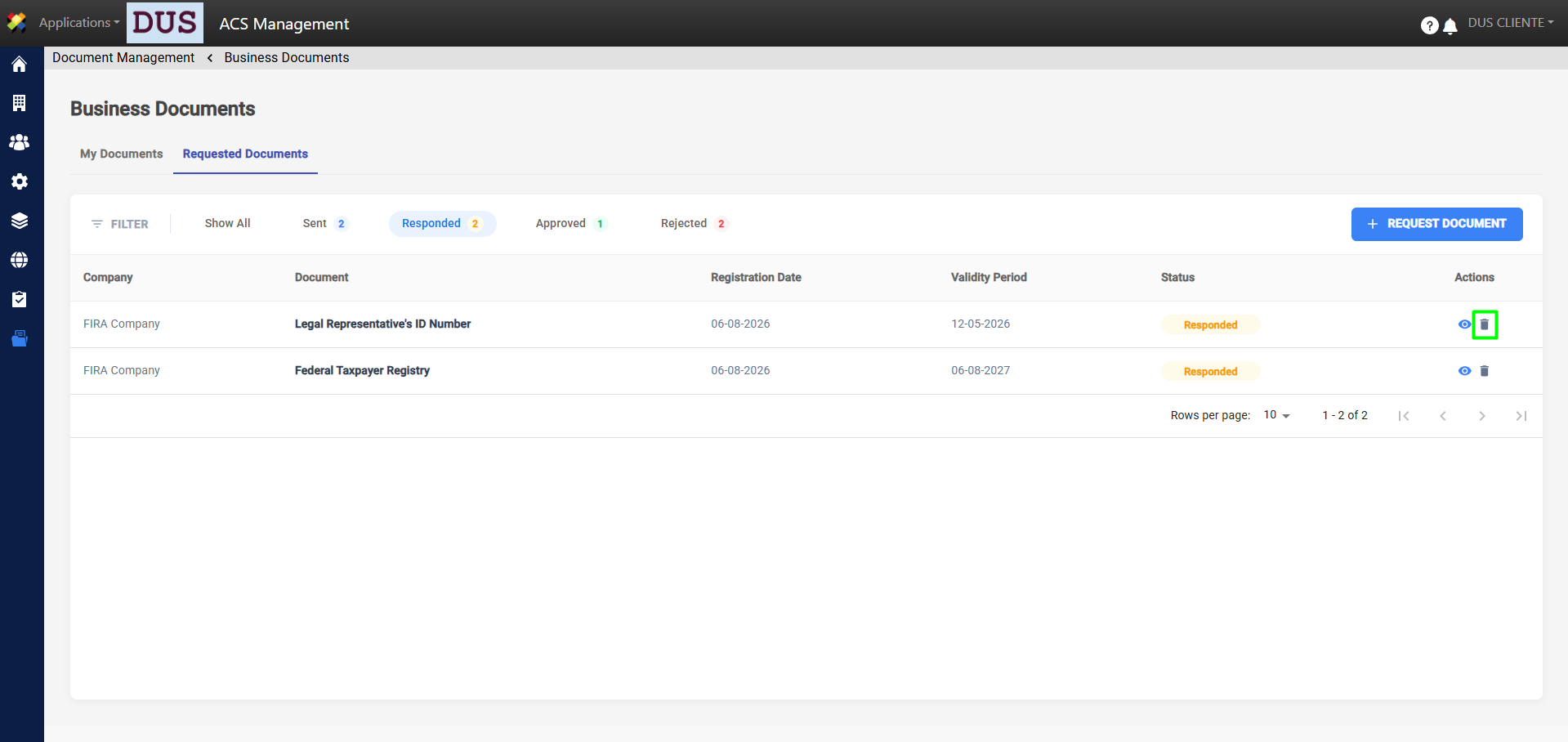
This section allows you to view the documents requested from suppliers, manage new requests, and approve or reject documents. Within this section, you have the tools you need to:
- Generate new document requests.
- Filter records by status: Sent, Responded To, Approved, or Rejected.
- Approve or reject documents.
To request a document, follow these steps:
1. Log in to ACS Management.
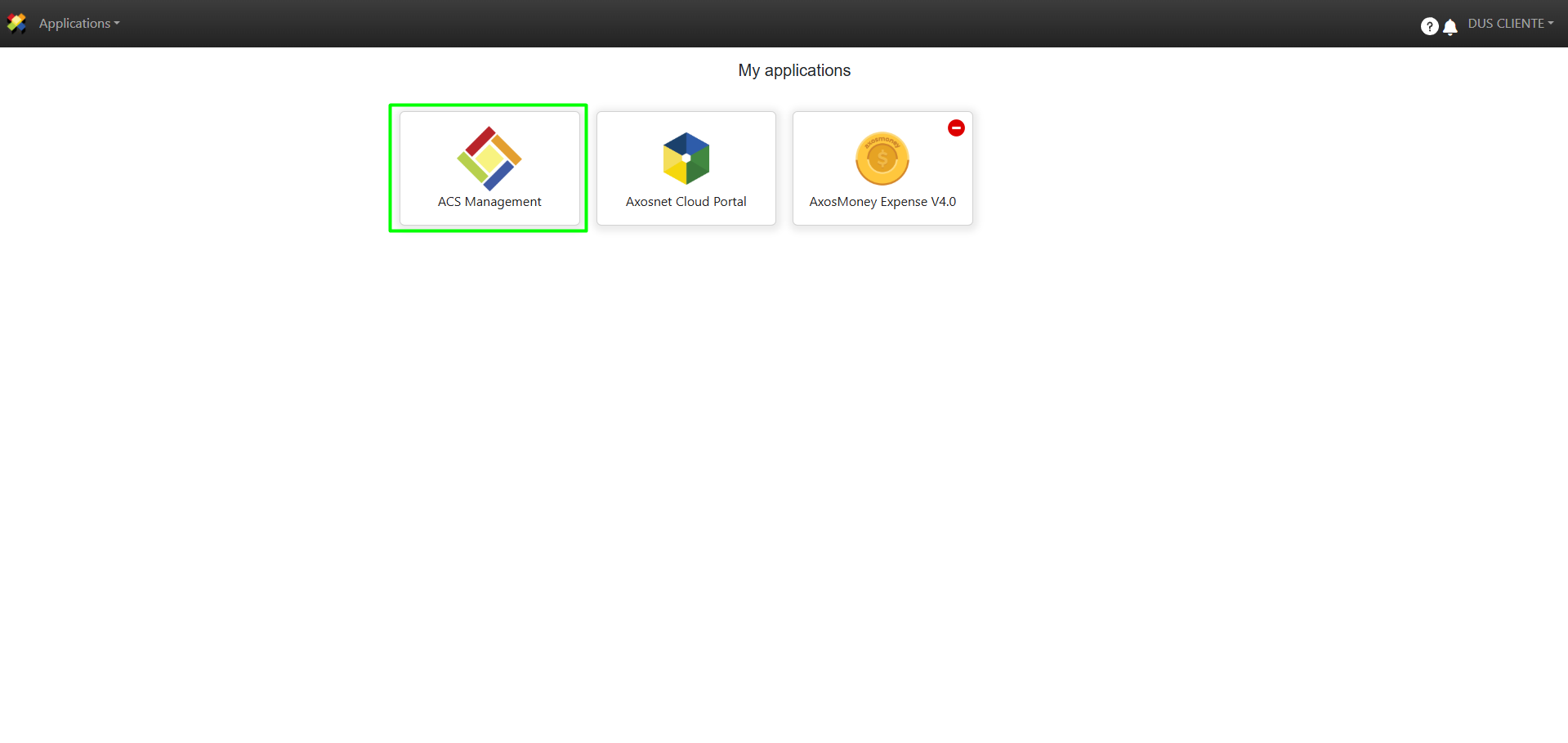
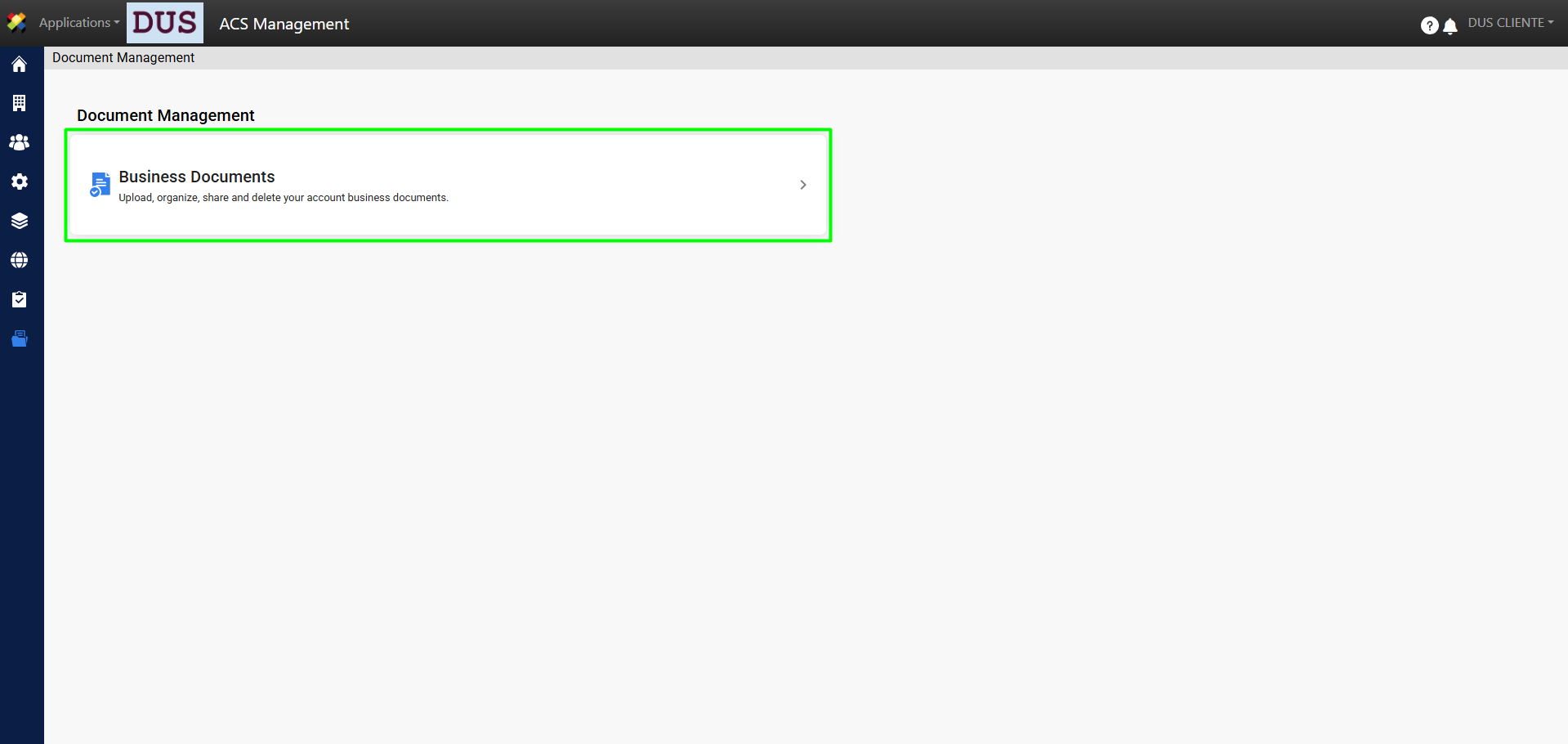
2. Select the Document Management option.
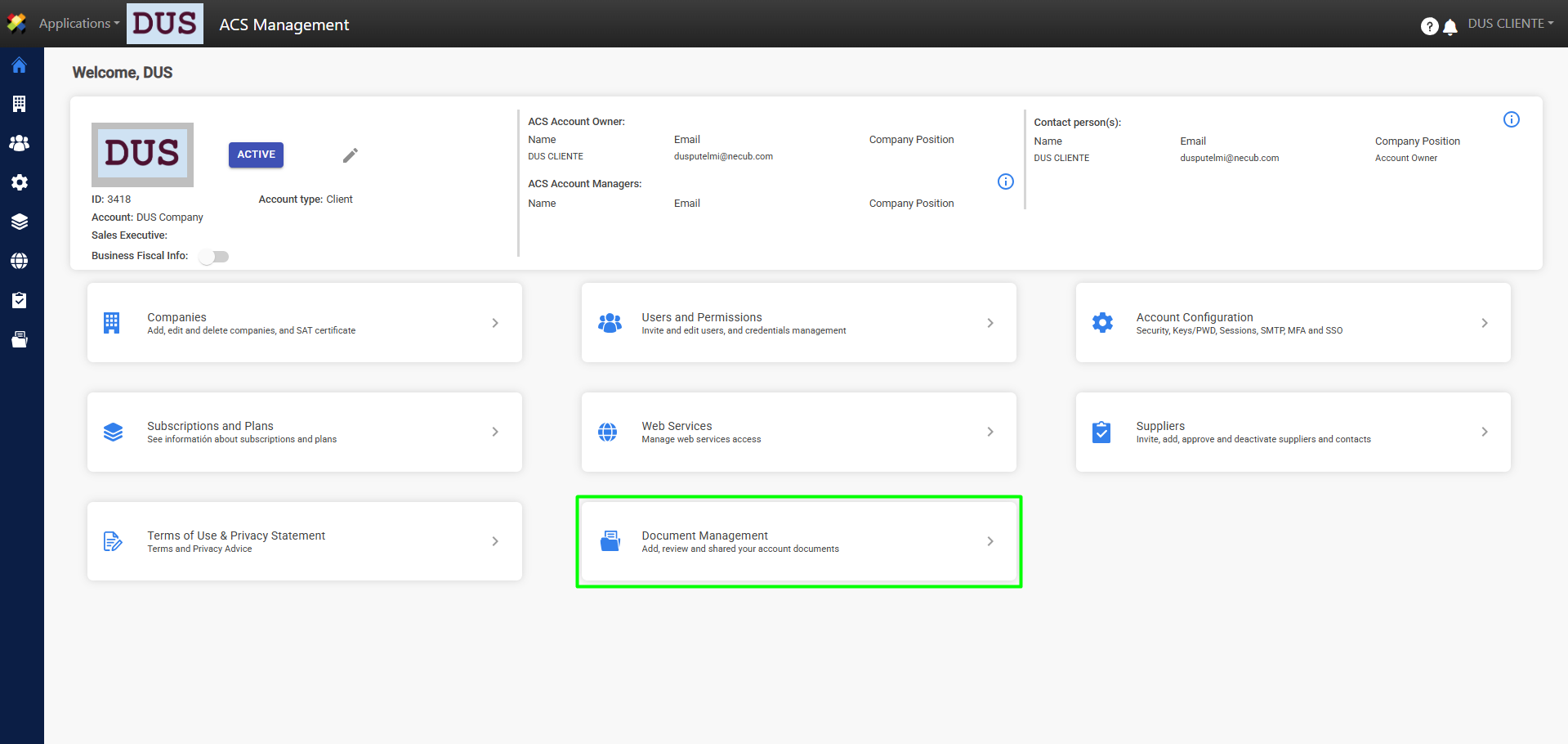
3. Go to Business Documents.
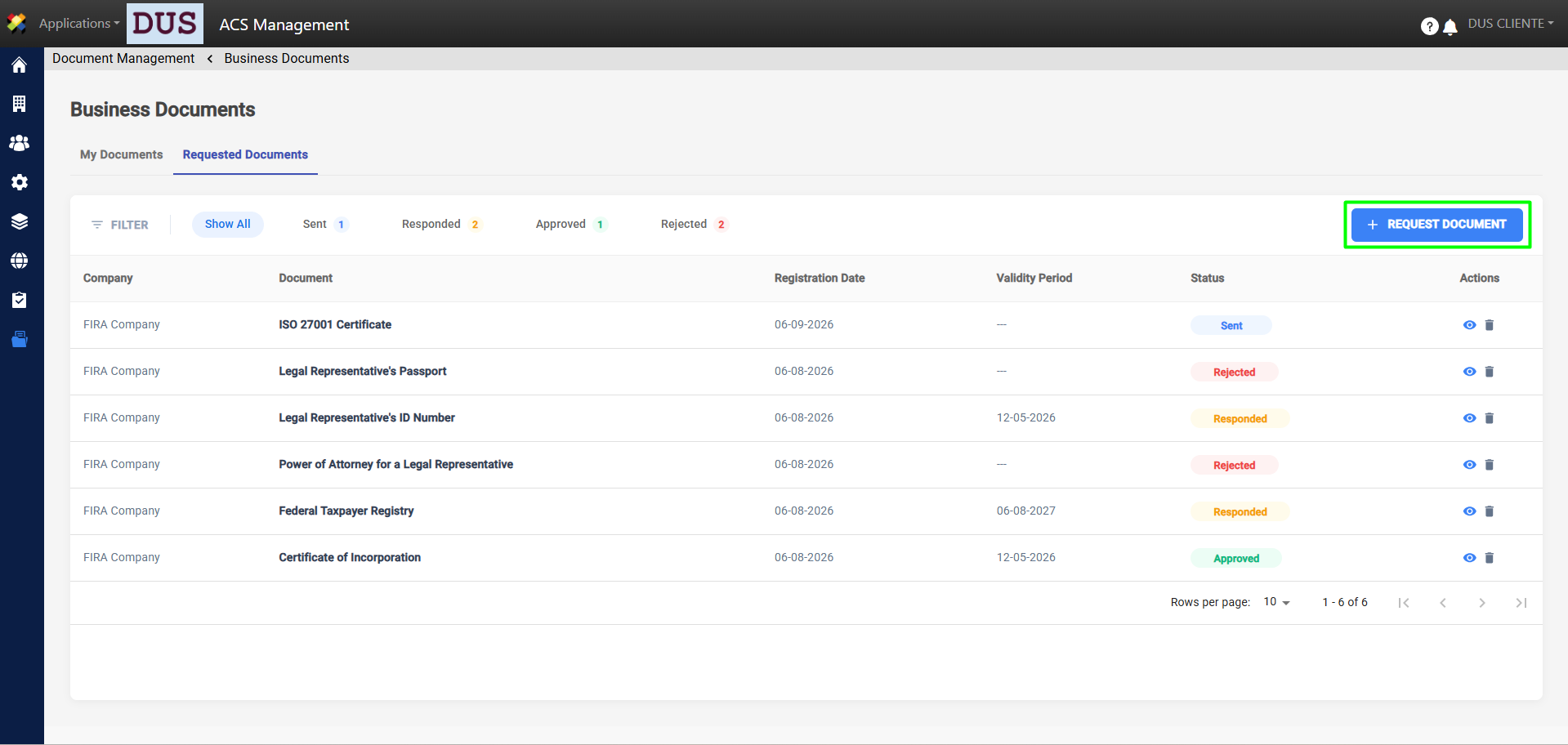
4. On the Requested Documents tab, click Request Document.
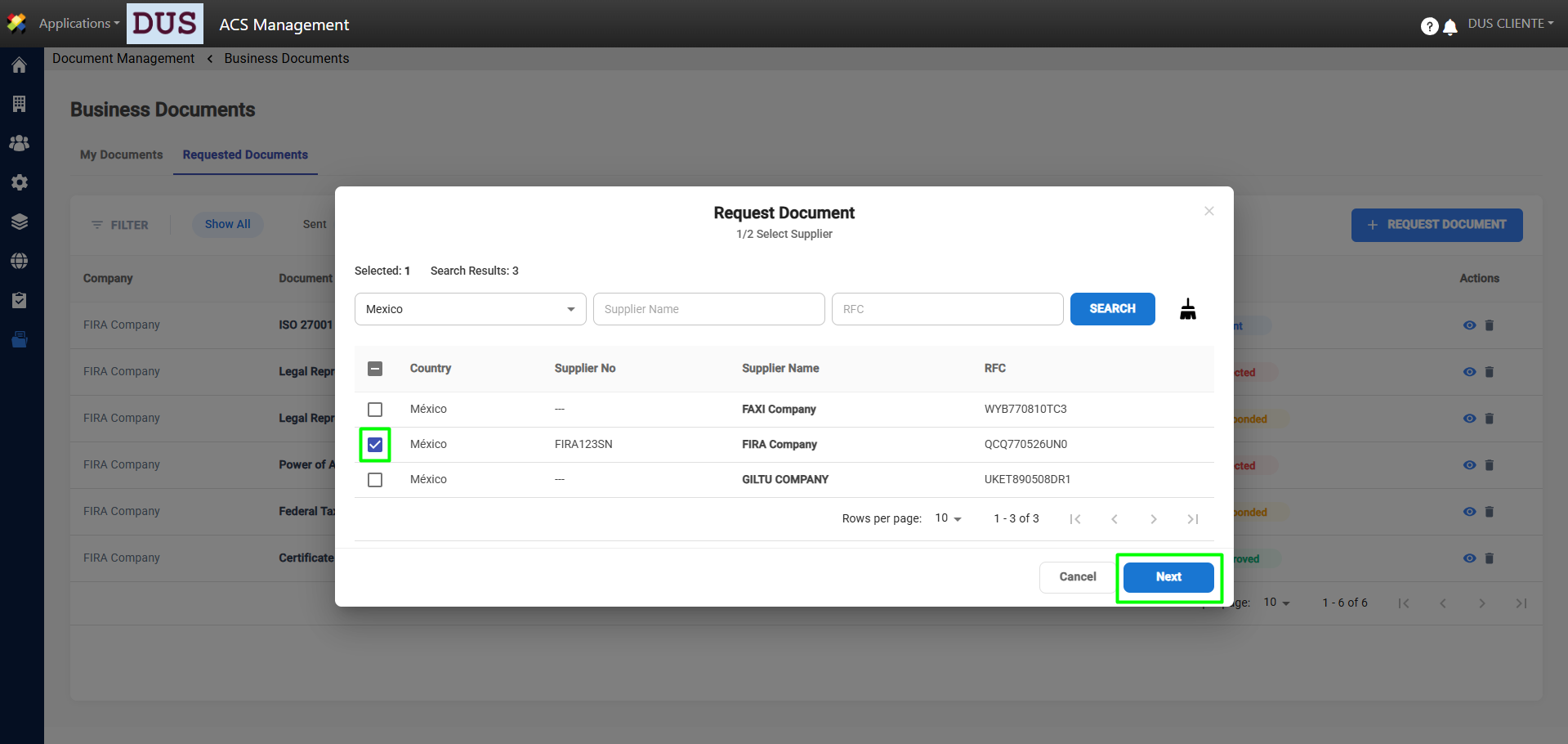
5. A pop-up window will appear where you can select one or more suppliers to request the document from. After selecting the suppliers from whom you want to request the document, click Next.
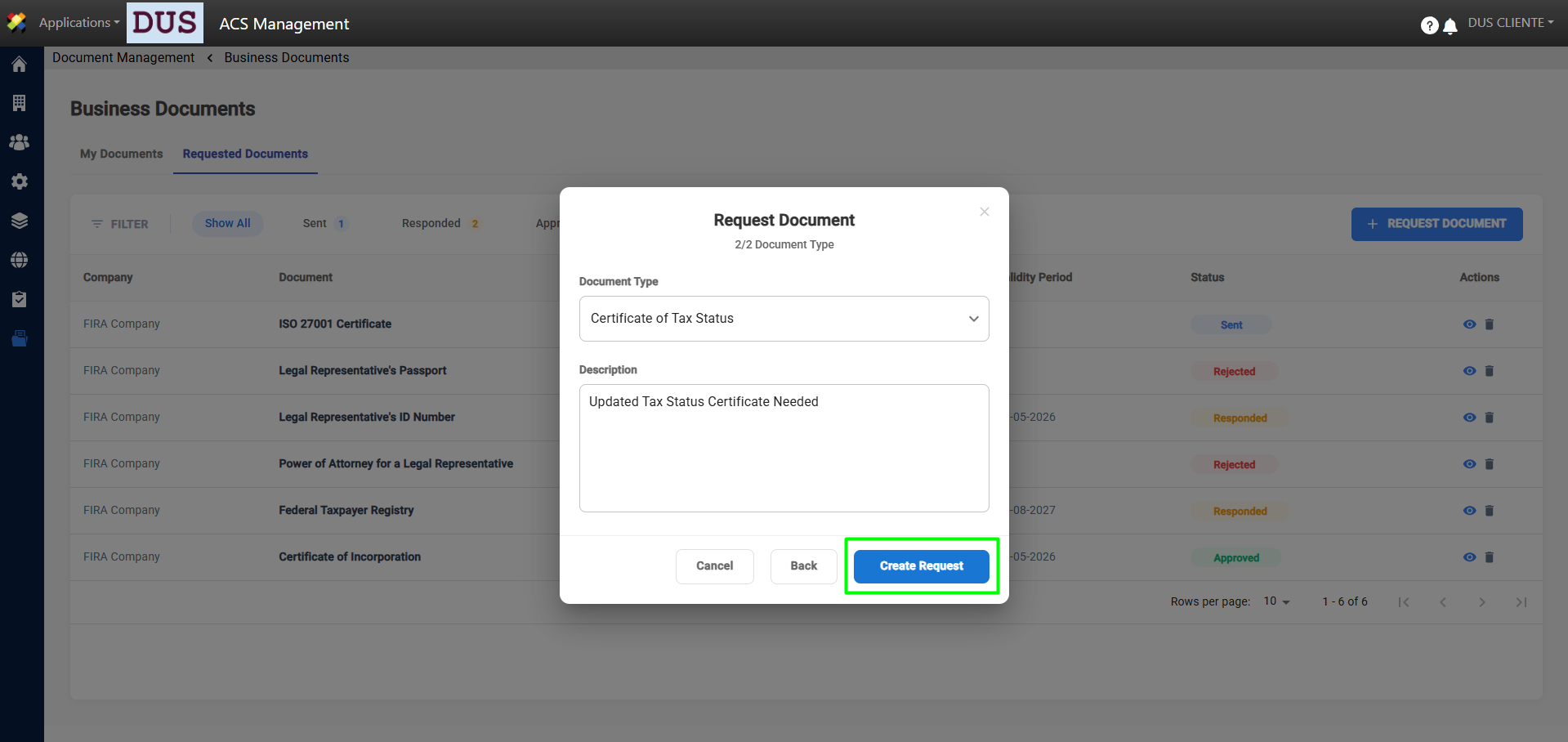
6. Select the type of document you wish to request and add any comments or instructions. Click Create Request.
7. A confirmation message will appear, and the request will be displayed with the status Sent.
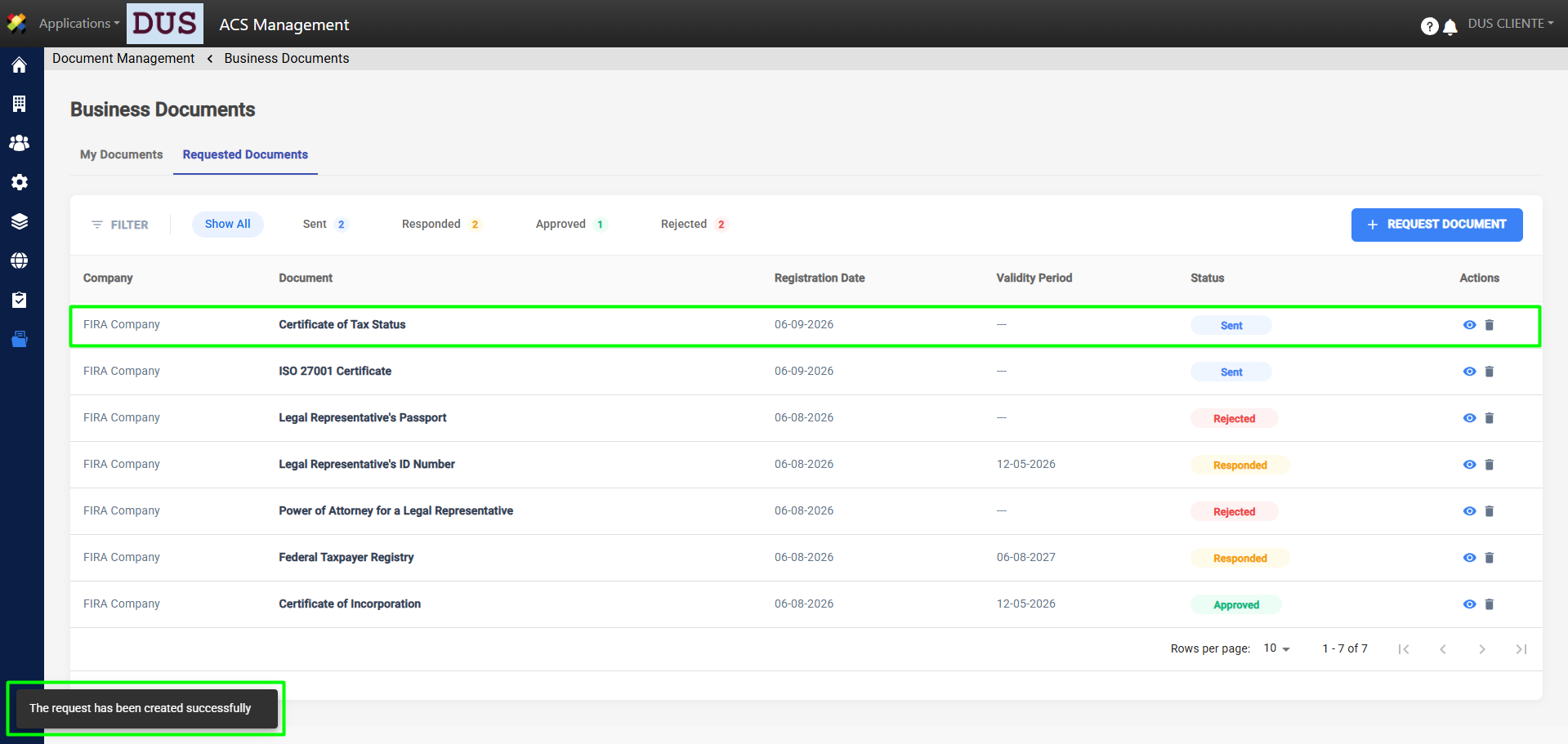
8. Once the supplier has responded to the request, it will appear with the status Responded. Here you can view the document details to Accept, Reject, or Delete it, as shown in the following sections:
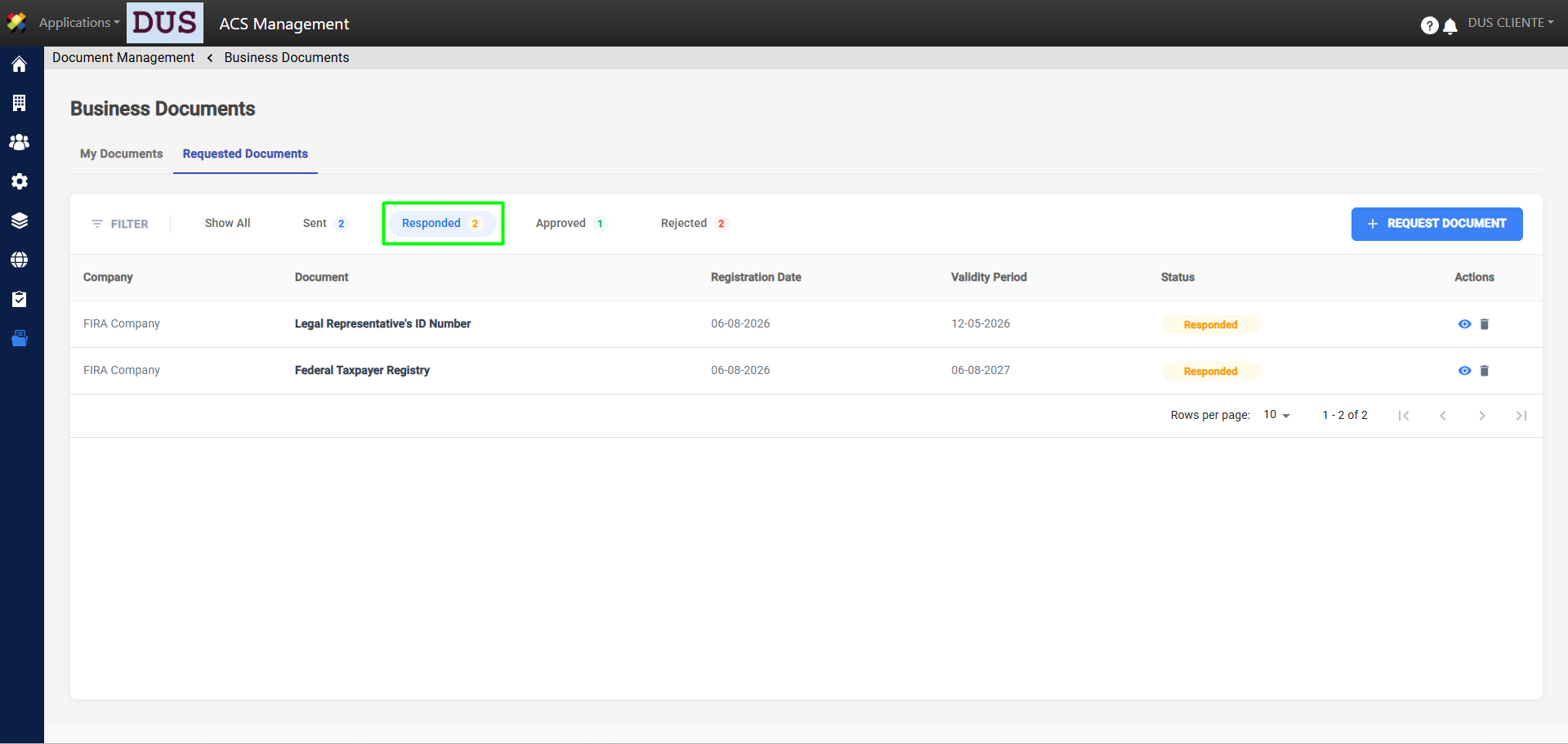
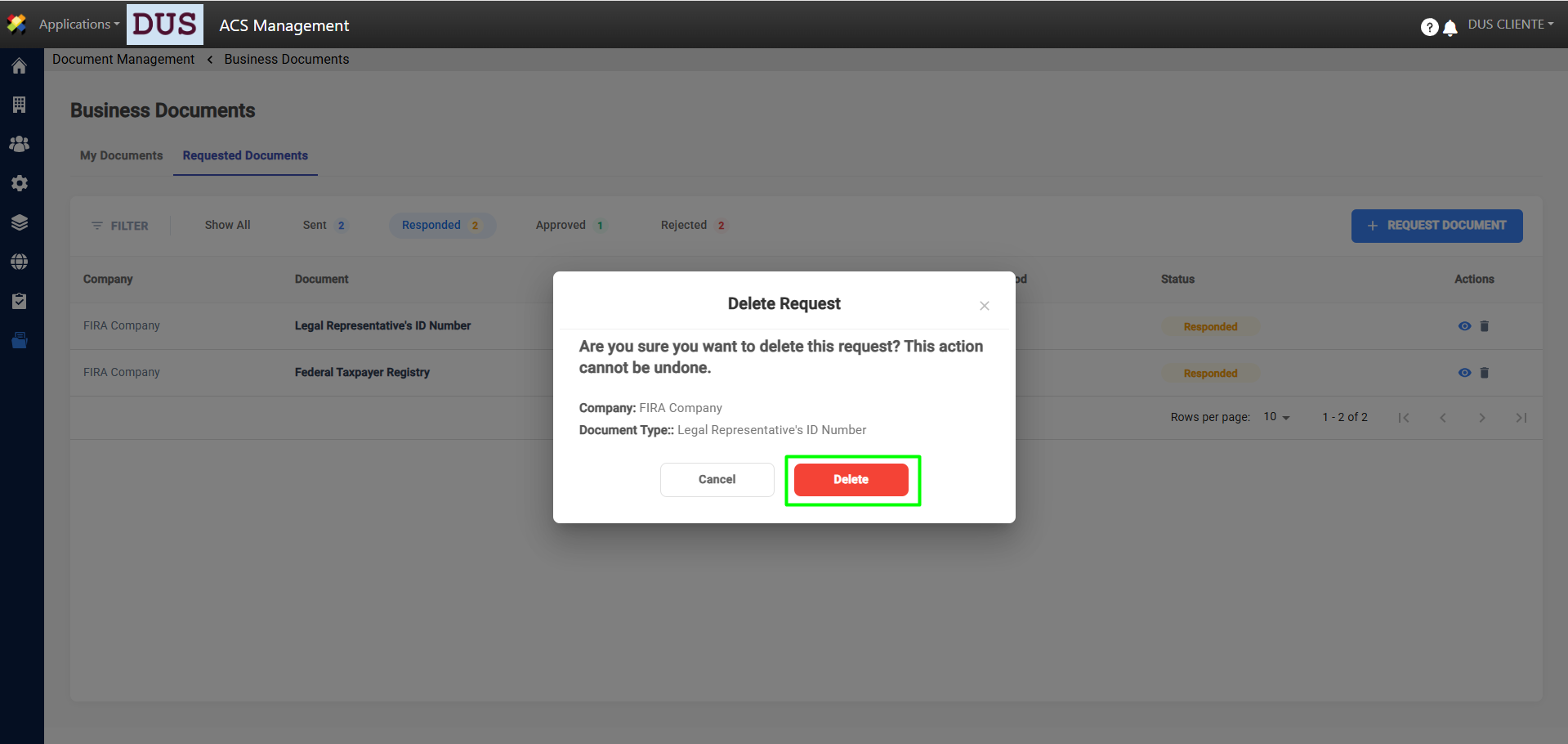
9. Once the request has been created, you can view the details and delete it as shown in the images below.
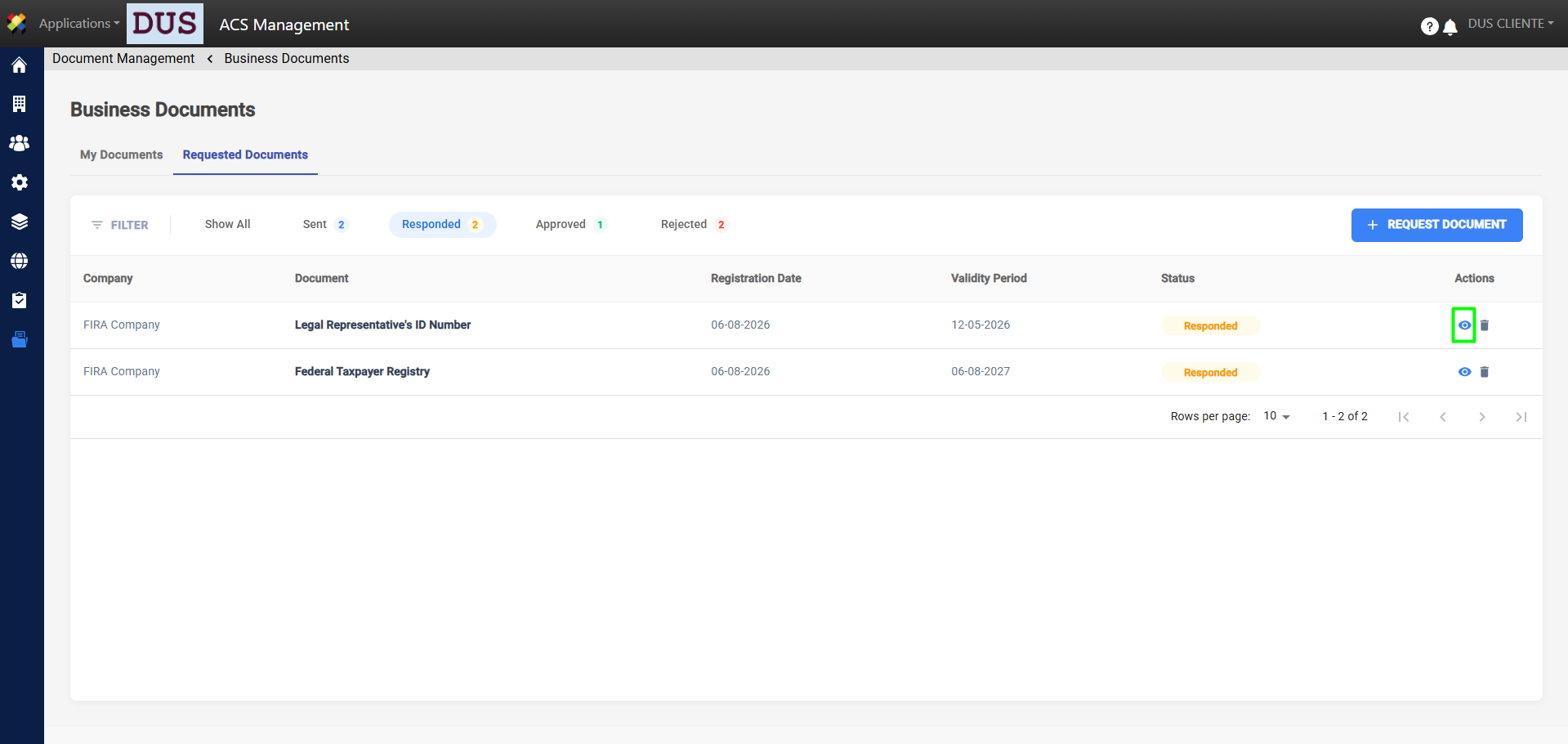
View Detail
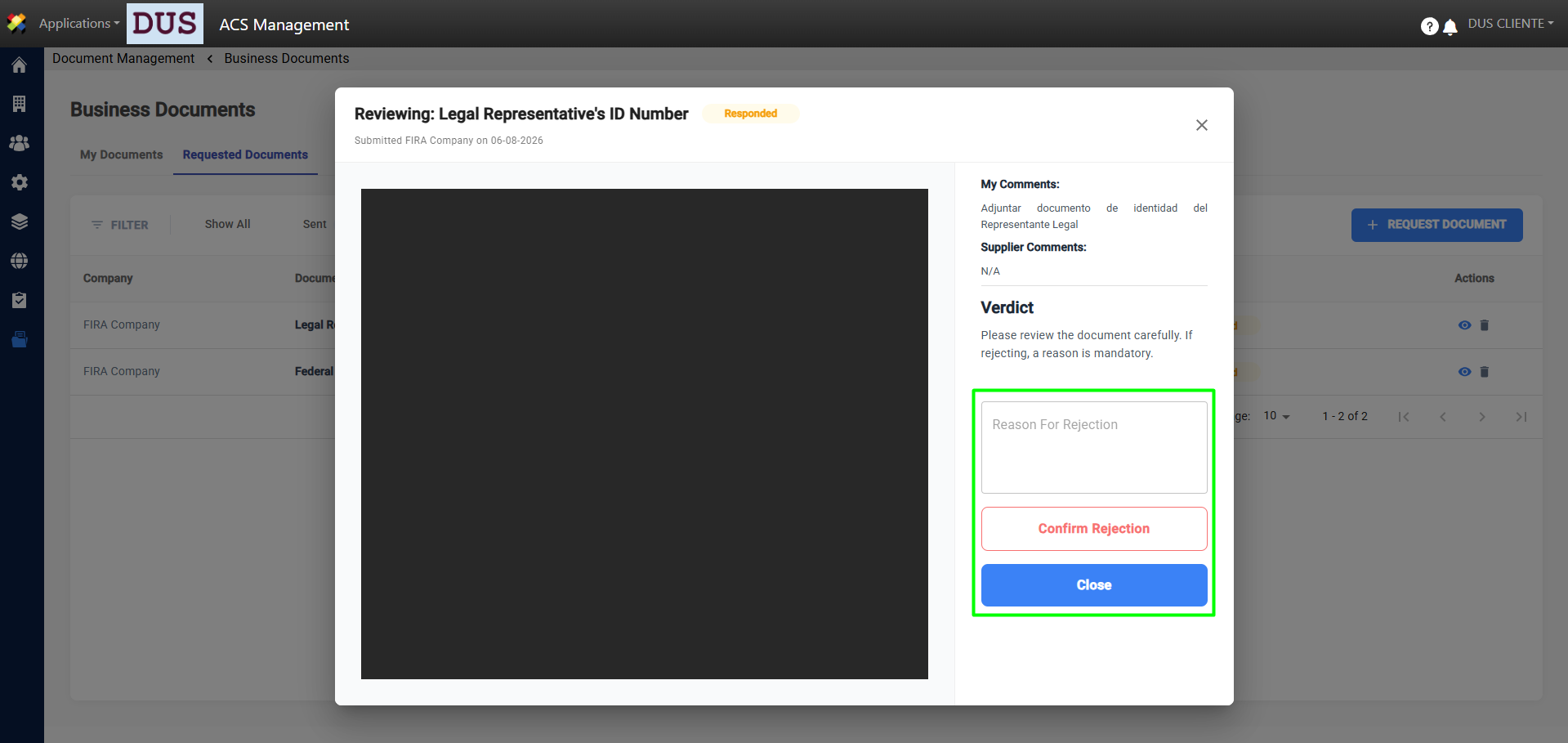
On the Requested Documents tab, you can view a preview of each file by clicking the eye icon, as shown in the image. Here, you can view the document details and either Accept or Reject it.
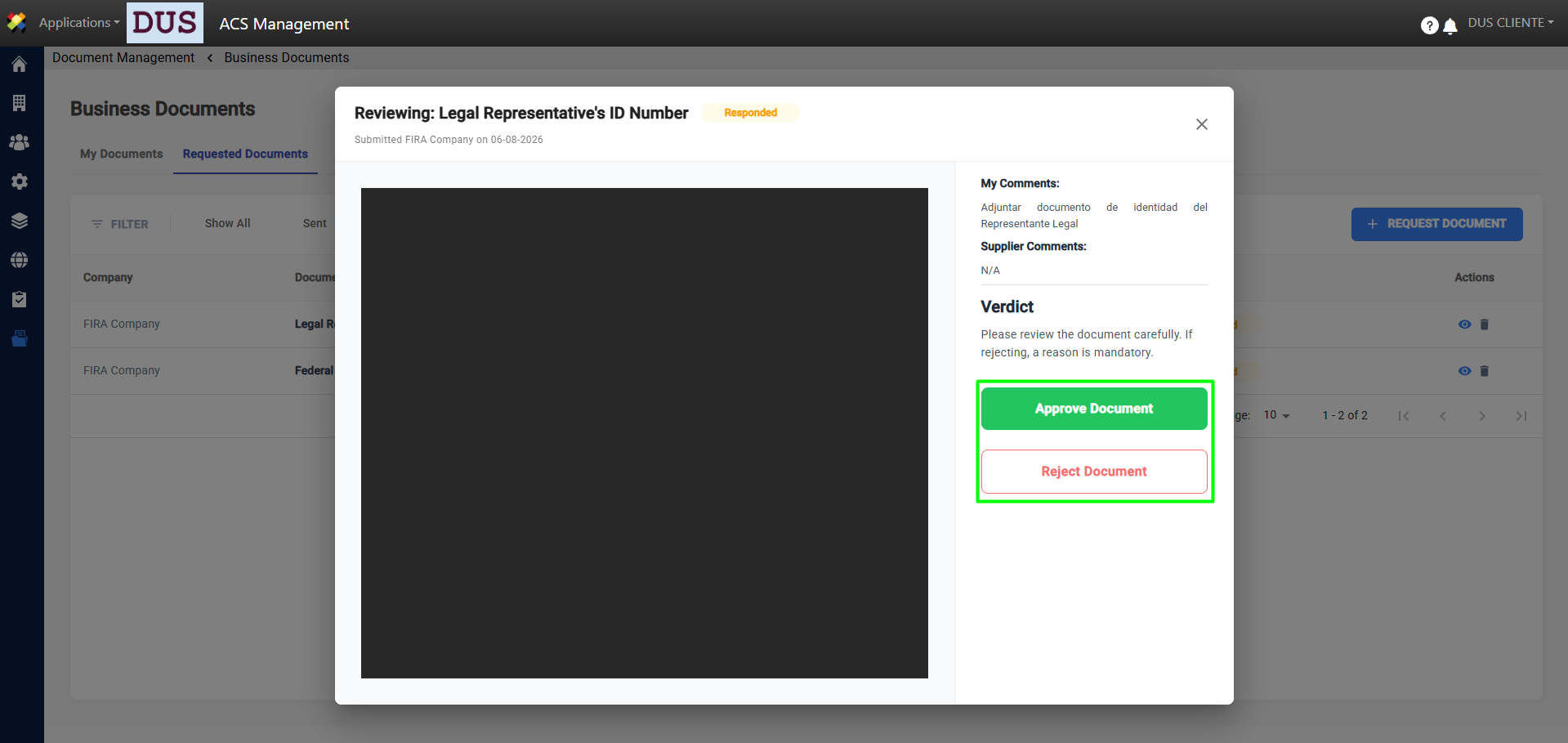
Note: When rejecting a document, it is important to include the reason for the rejection so that the supplier can submit the correct document.
Delete Request
In the Requested Documents tab, you can delete documents by clicking the trash can icon, as shown in the image.