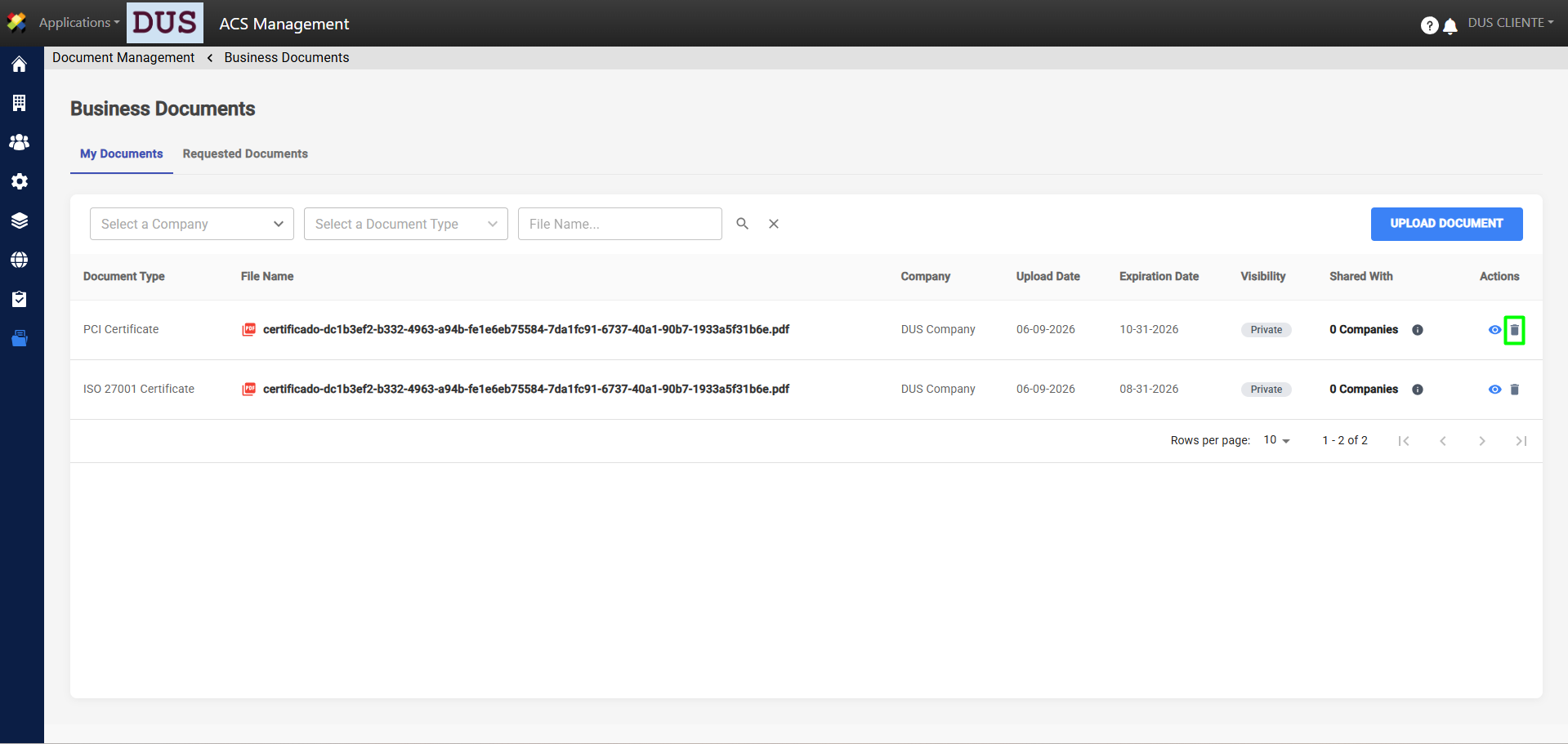
This section serves as a file repository available for review by customers and suppliers. Within this space, you can save documents, apply filters by company or file category, search by name, and check which organizations the documents have been shared with.
To upload a document, follow these steps:
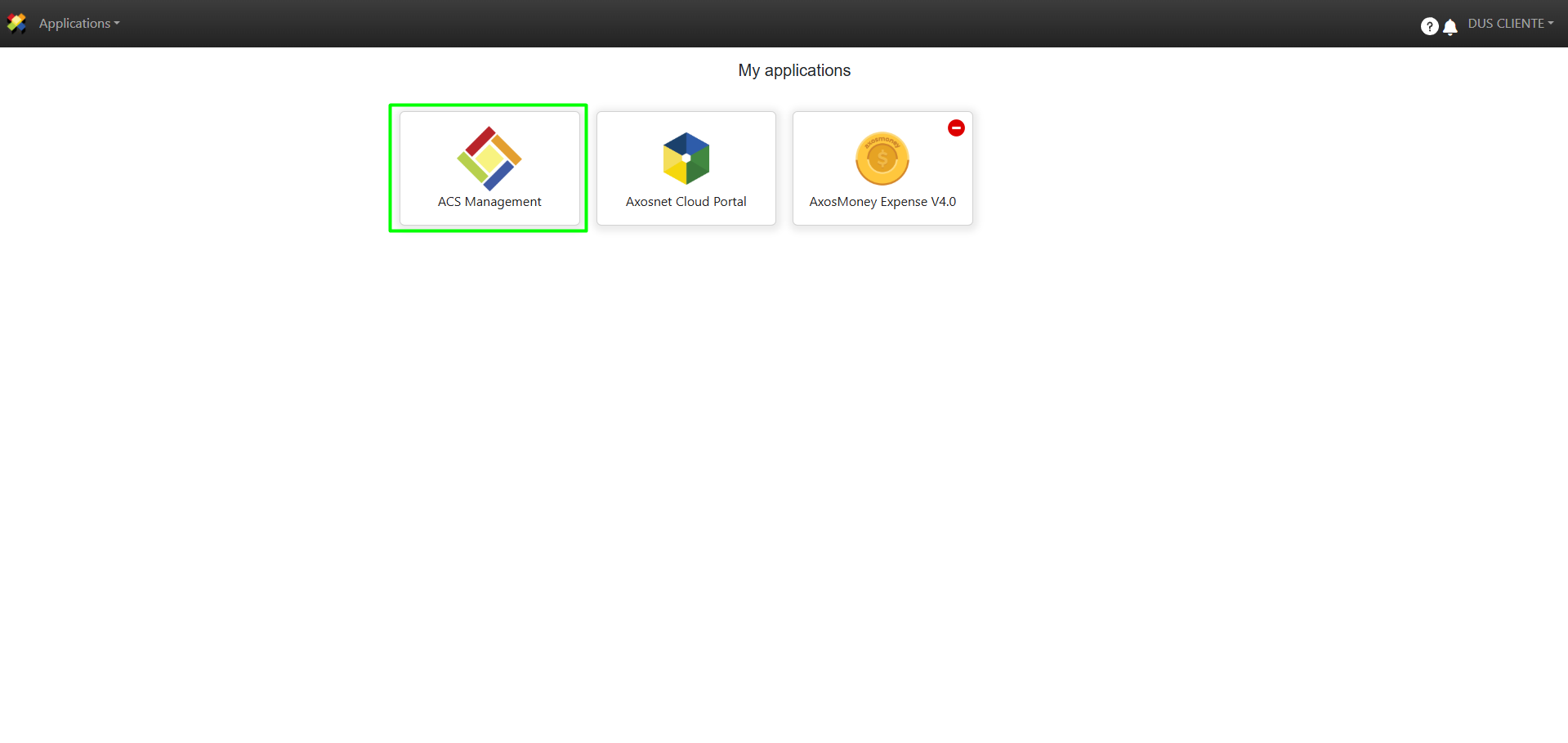
1. Log in to ACS Management.
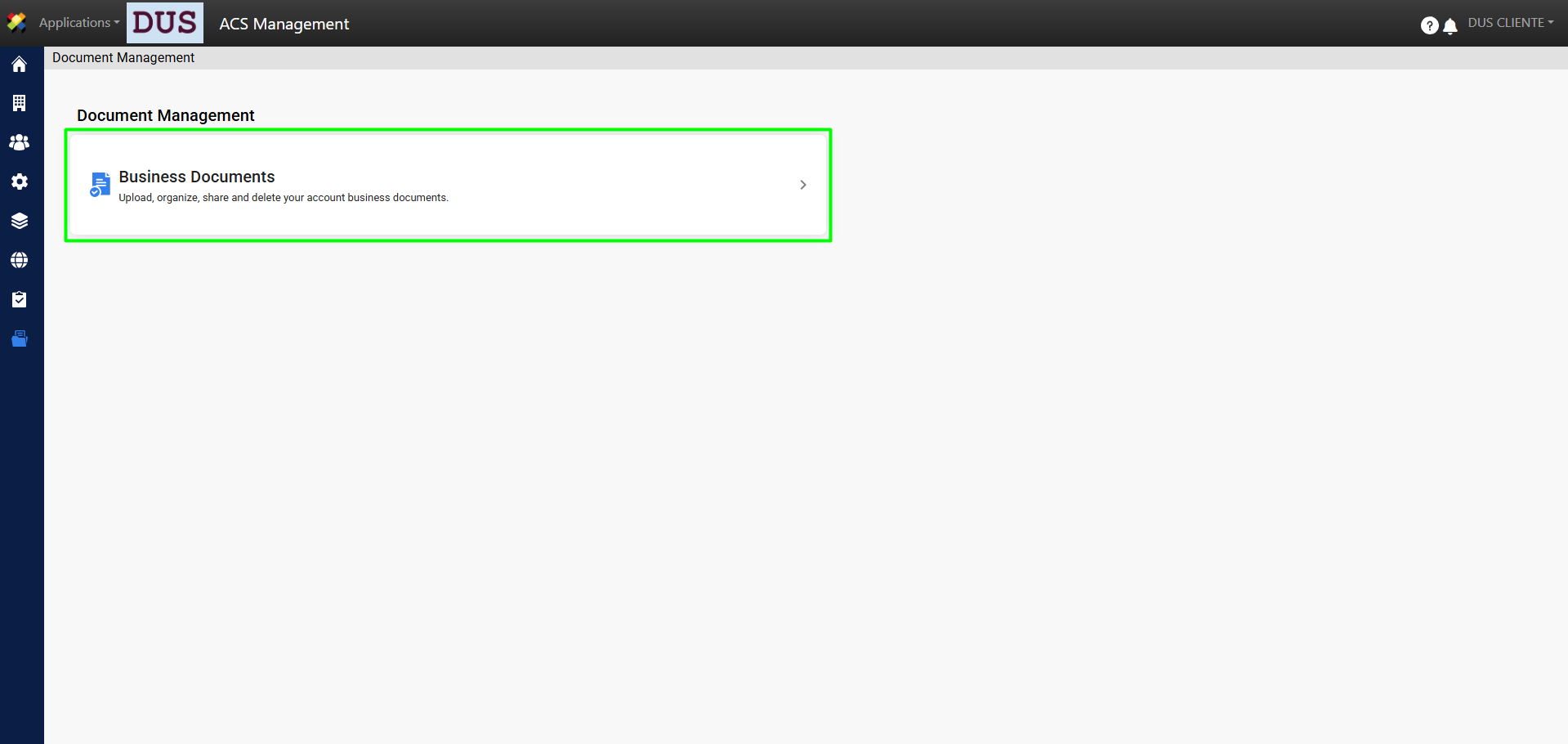
2. Select the Document Management option.
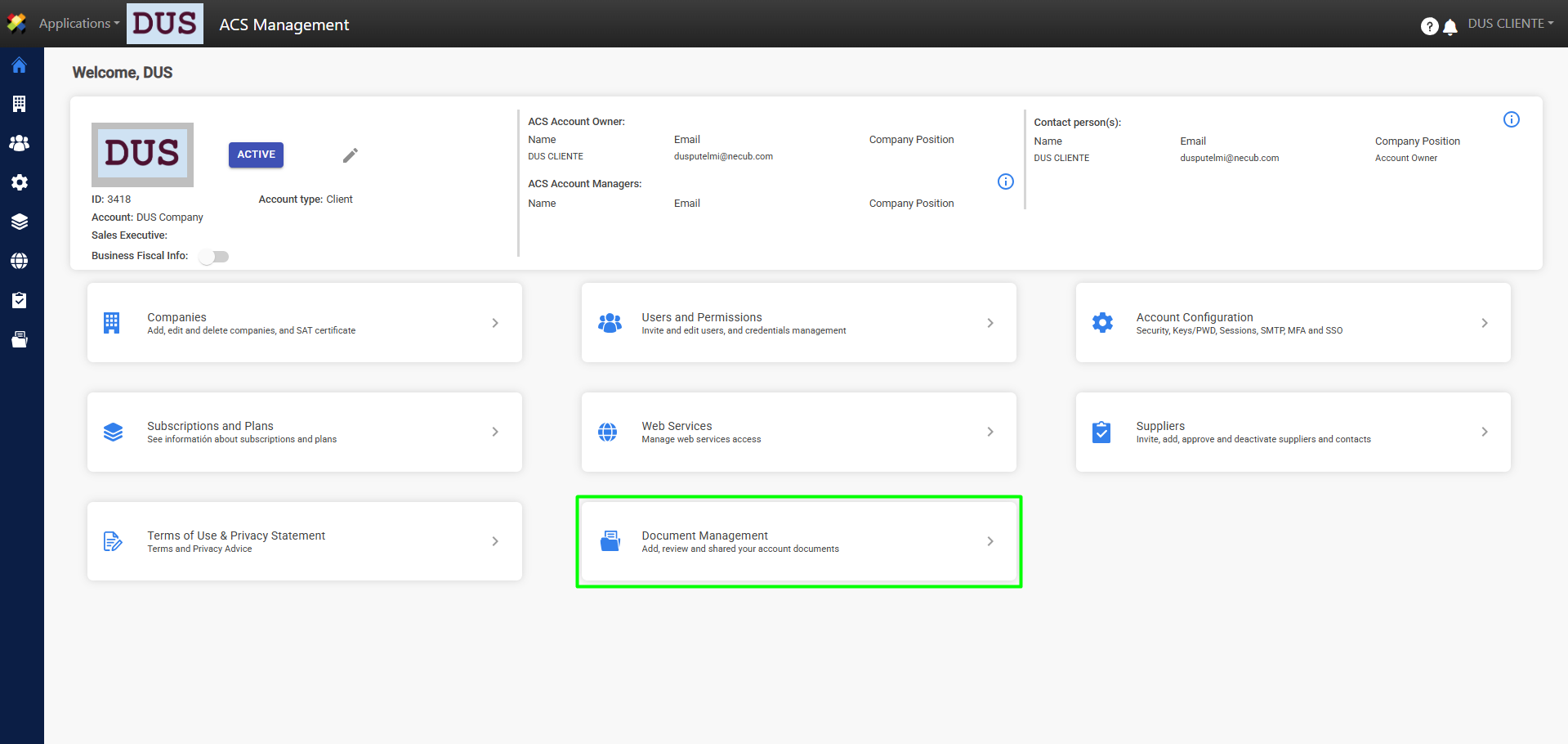
3. Go to Business Documents.
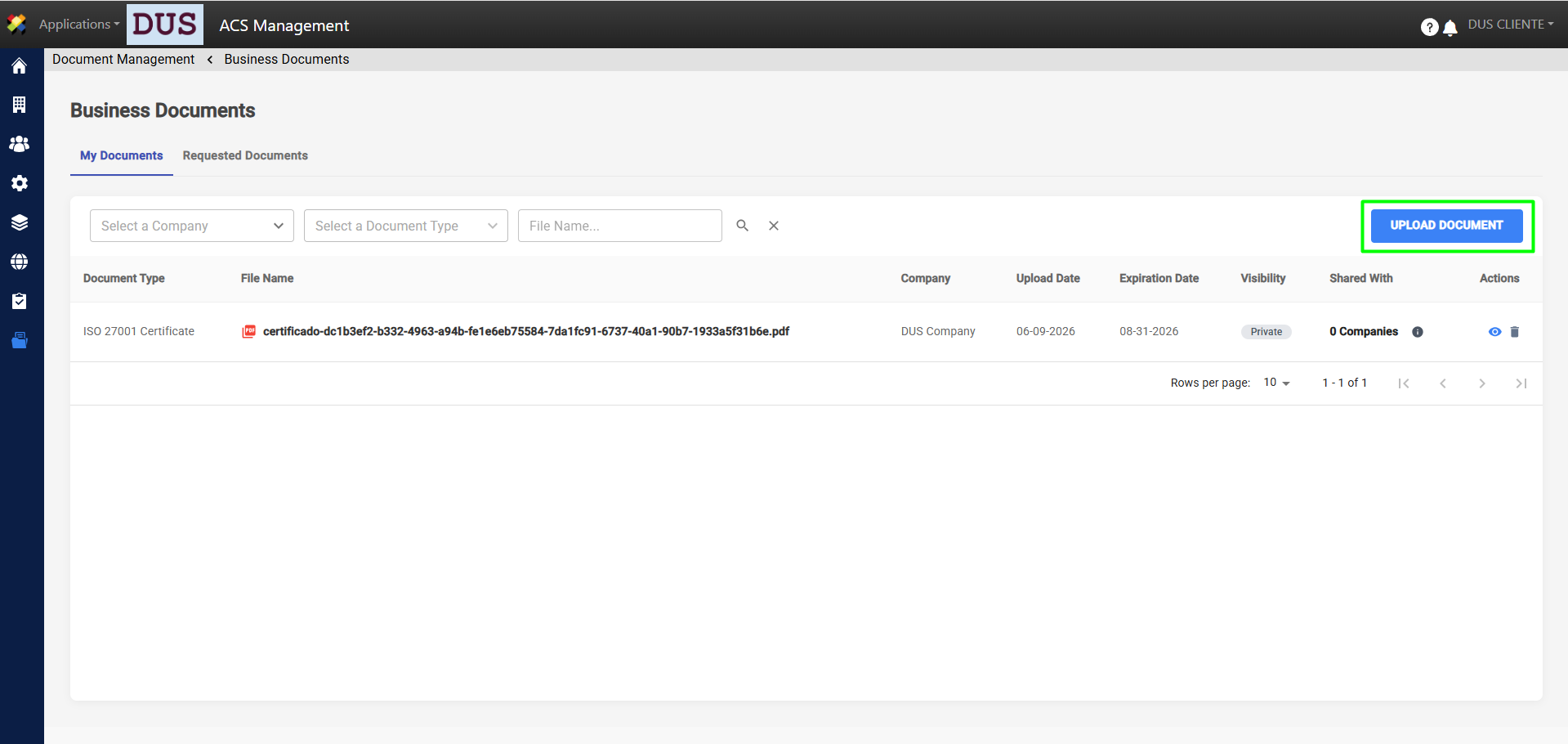
4. On the My Documents tab, click Upload Document.
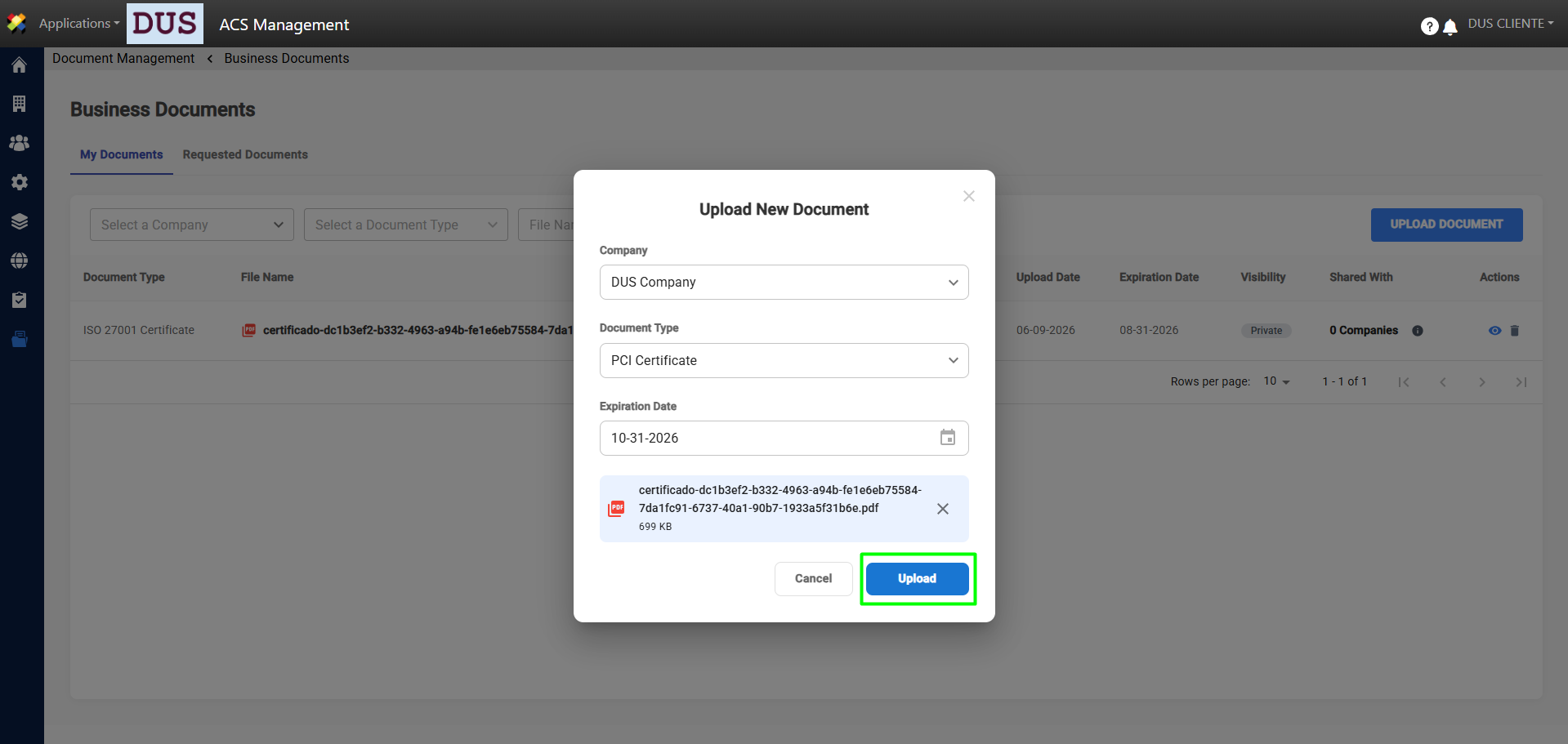
5. A pop-up window will appear where you can upload the relevant information and the document. When you’re done, click Upload.
6. A confirmation message will appear, and the list of documents will be updated.
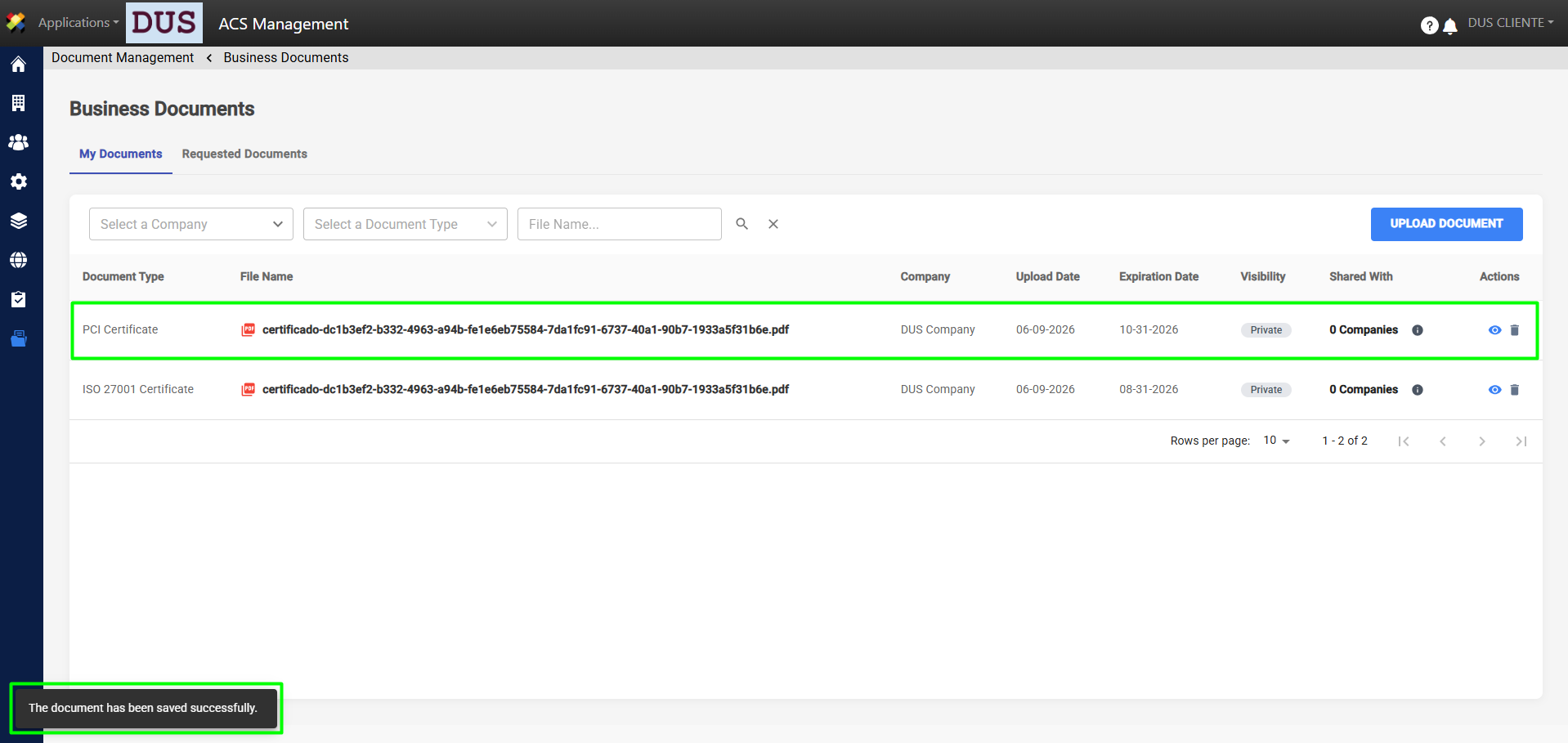
7. Once the document has been uploaded, you’ll be able to view the details, see who it has been shared with, and delete it, as shown in the following images.
View Detail
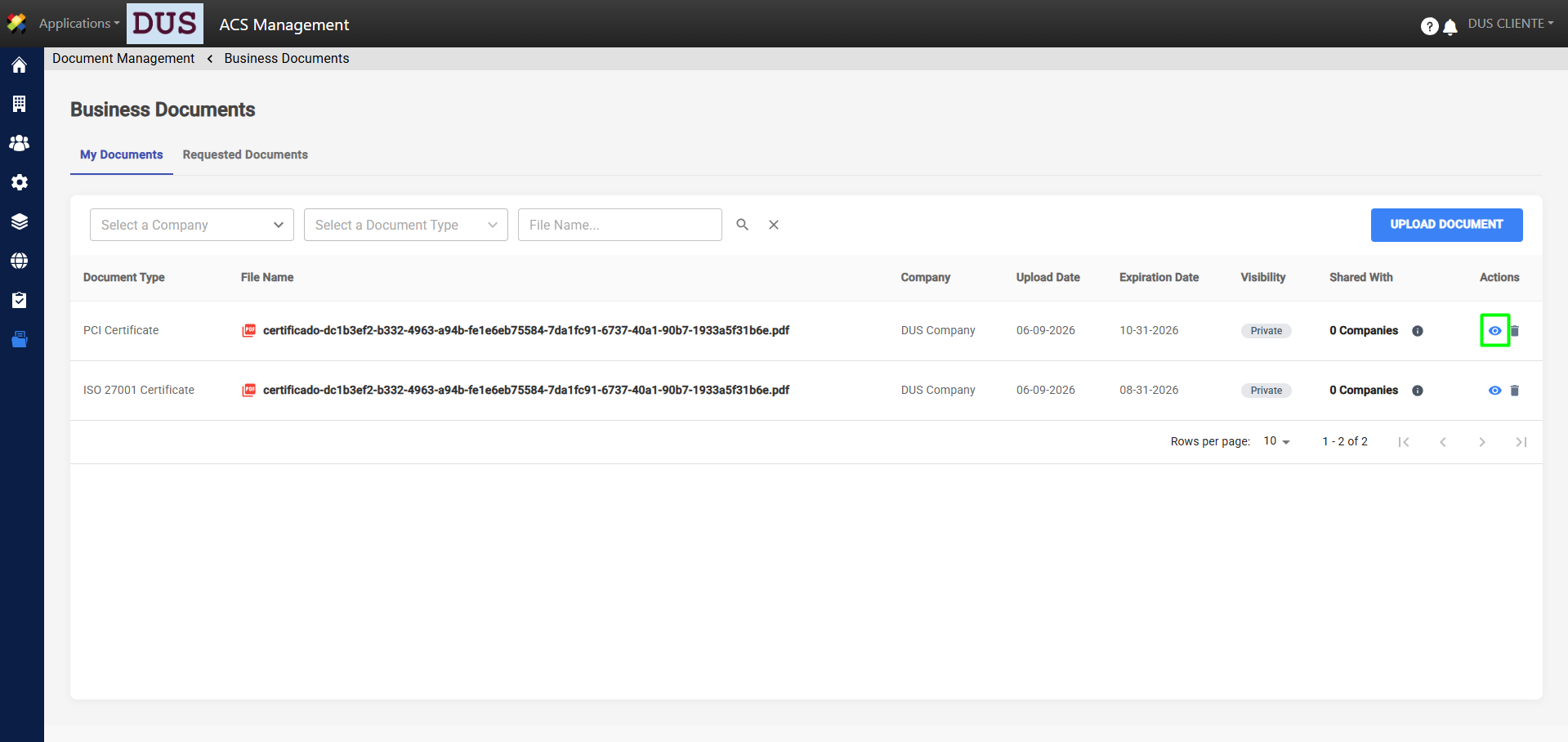
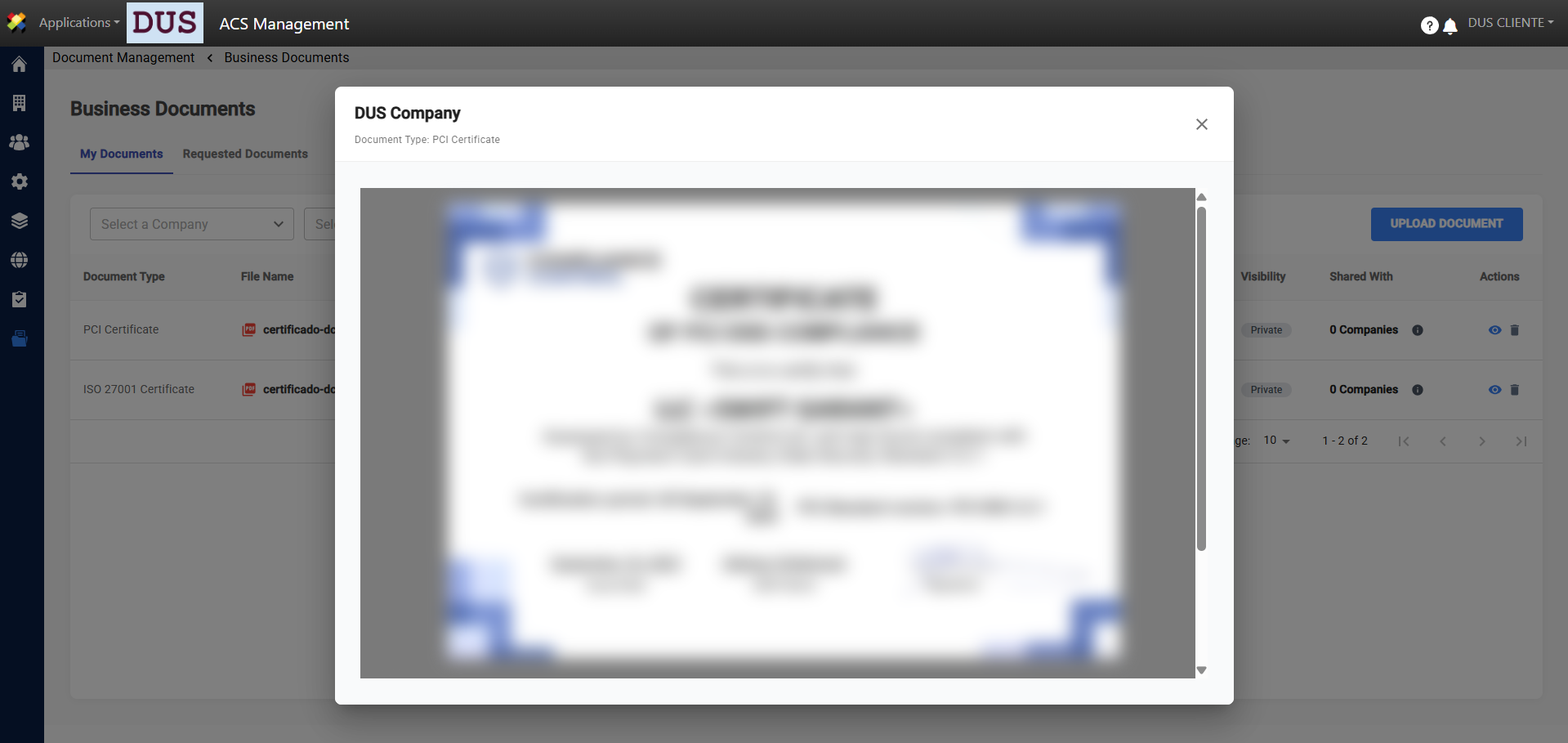
In the My Documents tab, you can view a preview of each file by clicking the eye icon, as shown in the image.
Shared With
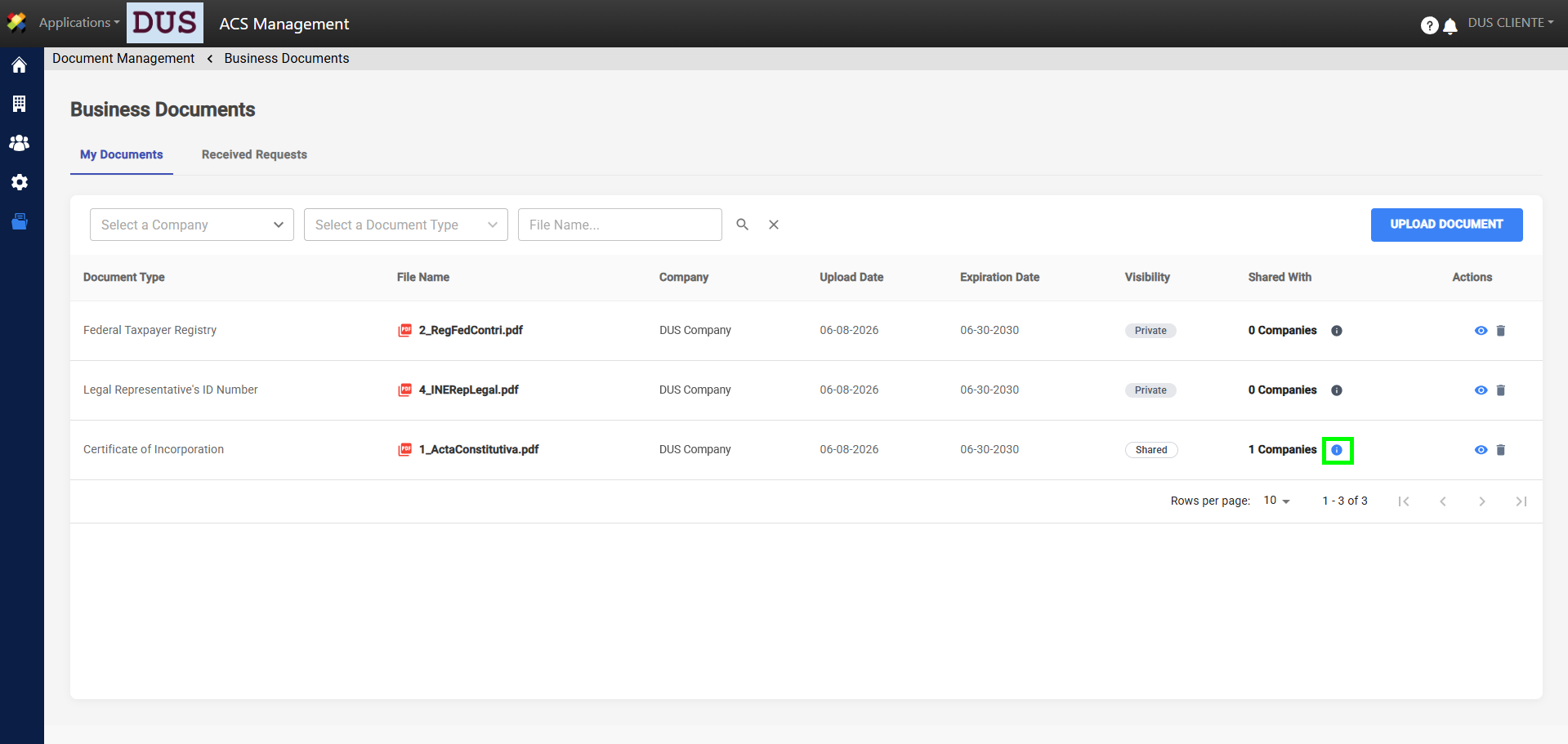
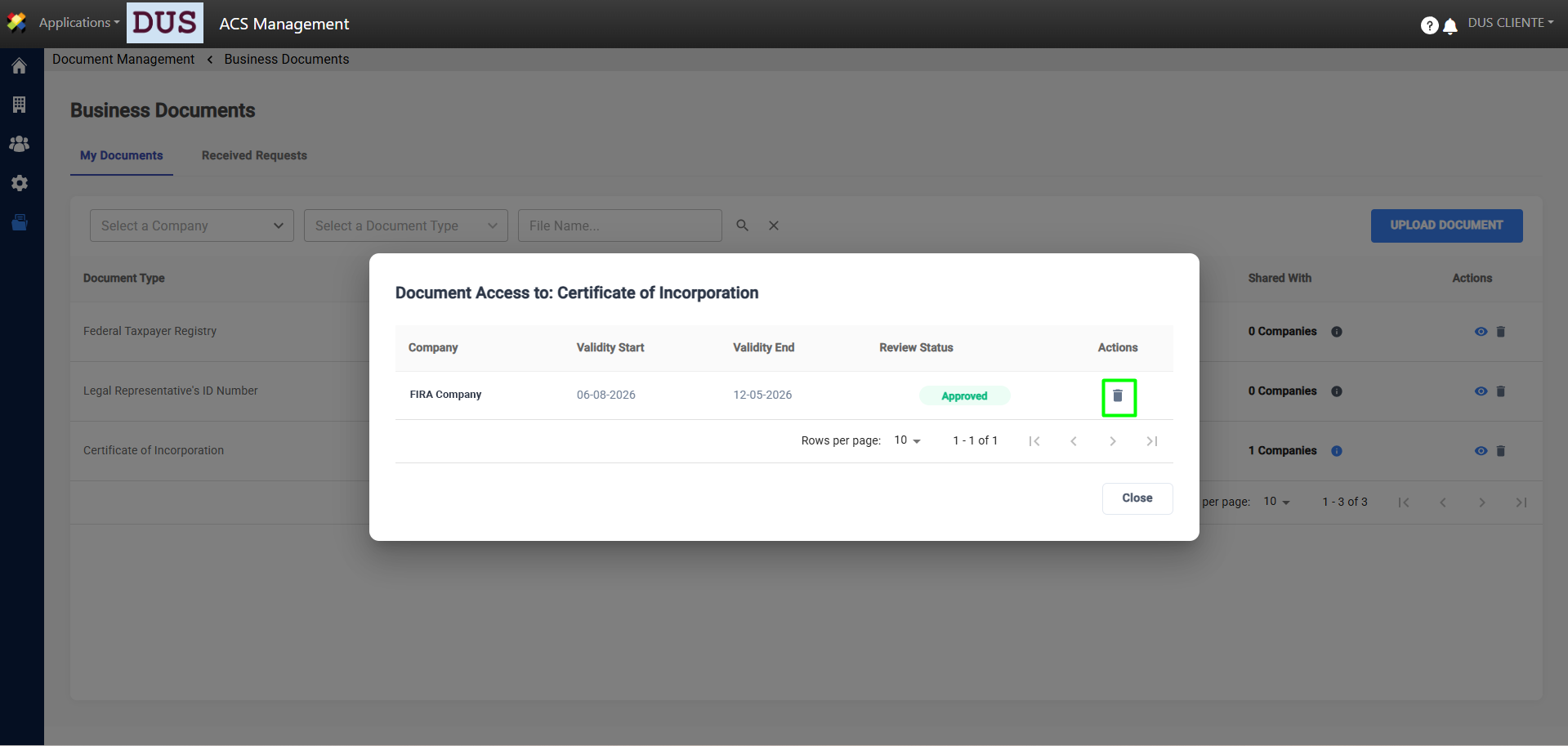
In the My Documents tab, you can see which companies the document has been shared with by clicking the information icon, as shown in the image.
Note: You can revoke companies’ access to the document.
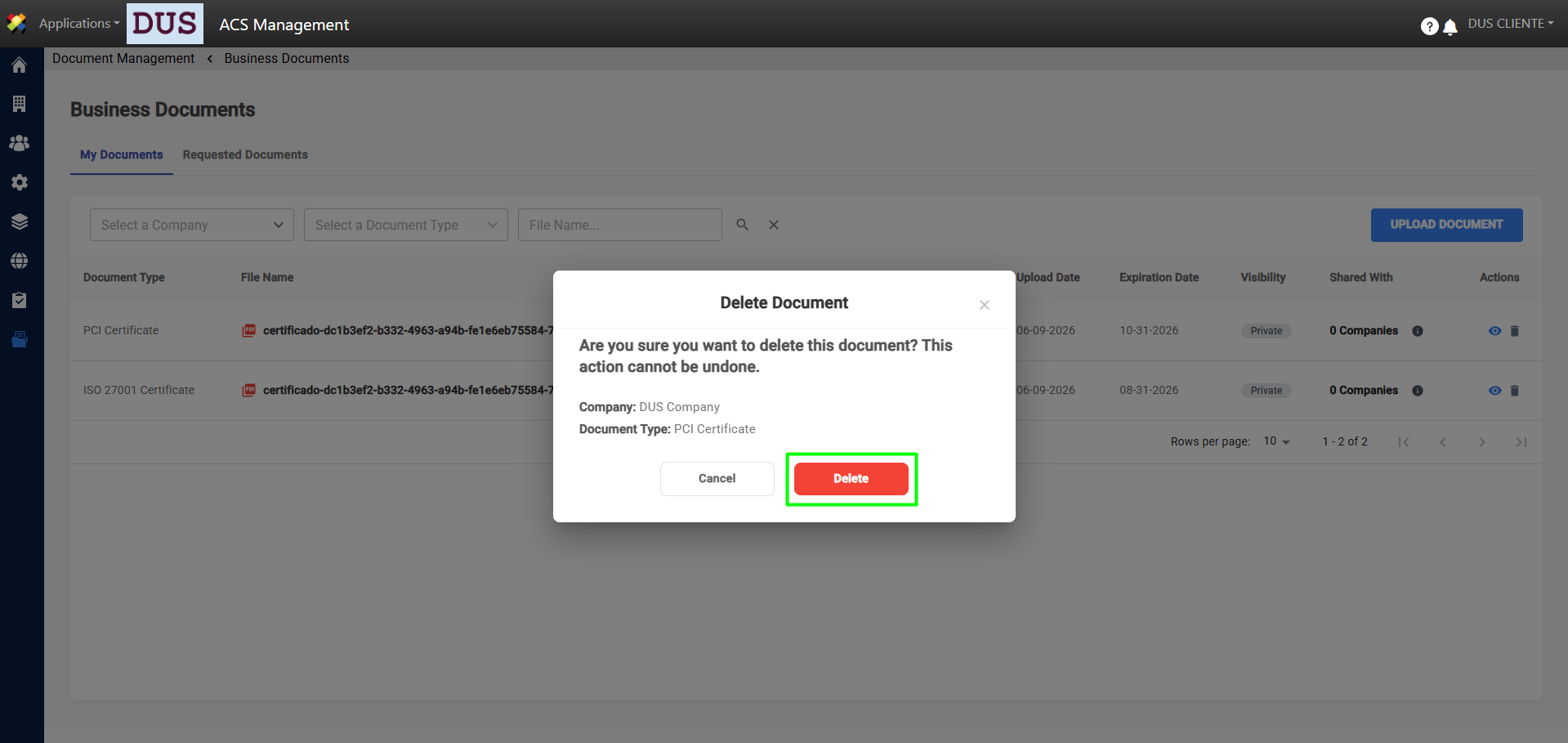
Delete Document
In the My Documents tab, you can delete documents by clicking the trash can icon, as shown in the image.