This tool allows you to comprehensively manage your company catalog. Through this module, you can register new entities, update existing information, or suspend companies as needed.
Please note that the required information fields may vary depending on the country of origin of the organization you are configuring.
To manage your companies, follow these steps:
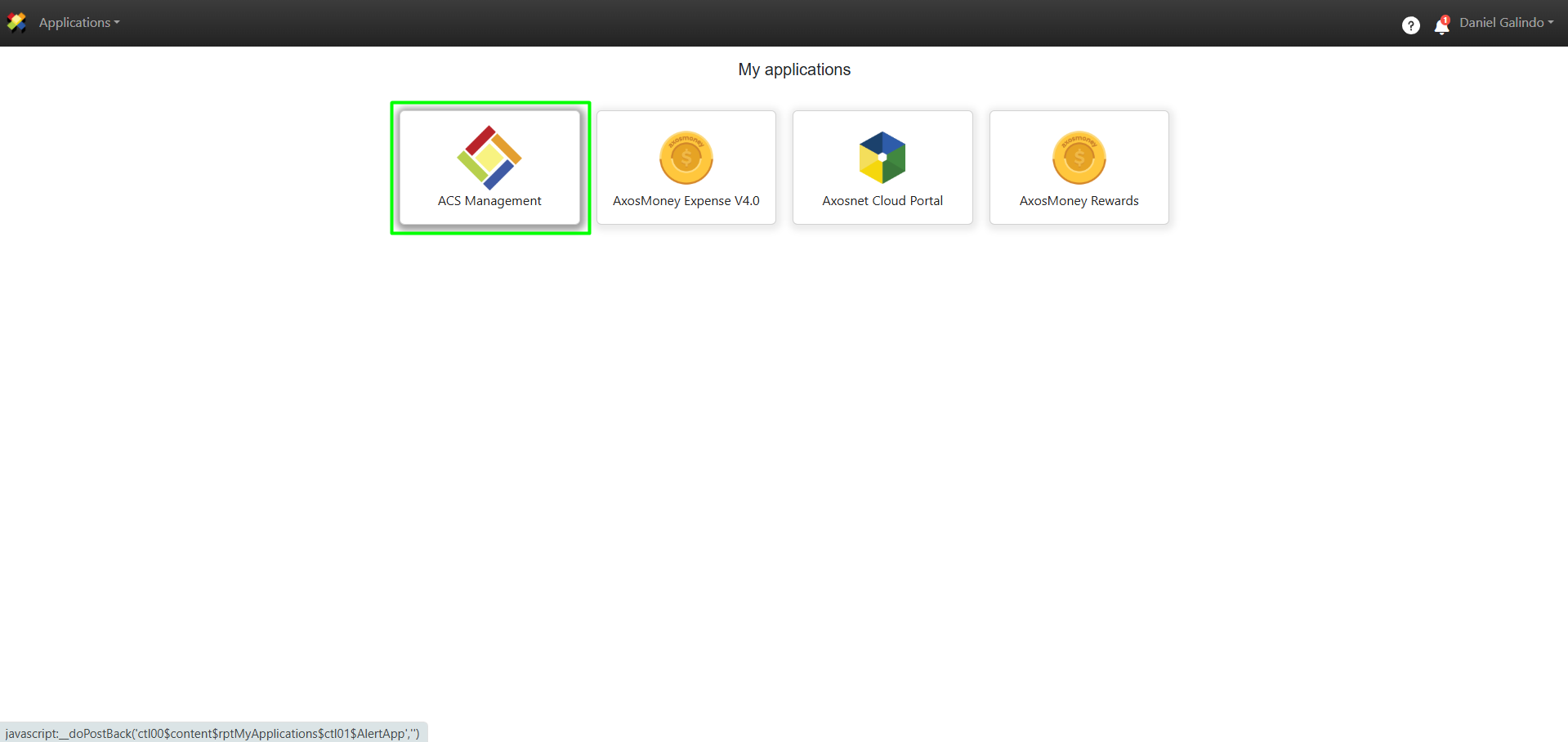
1. Log in to ACS Management.
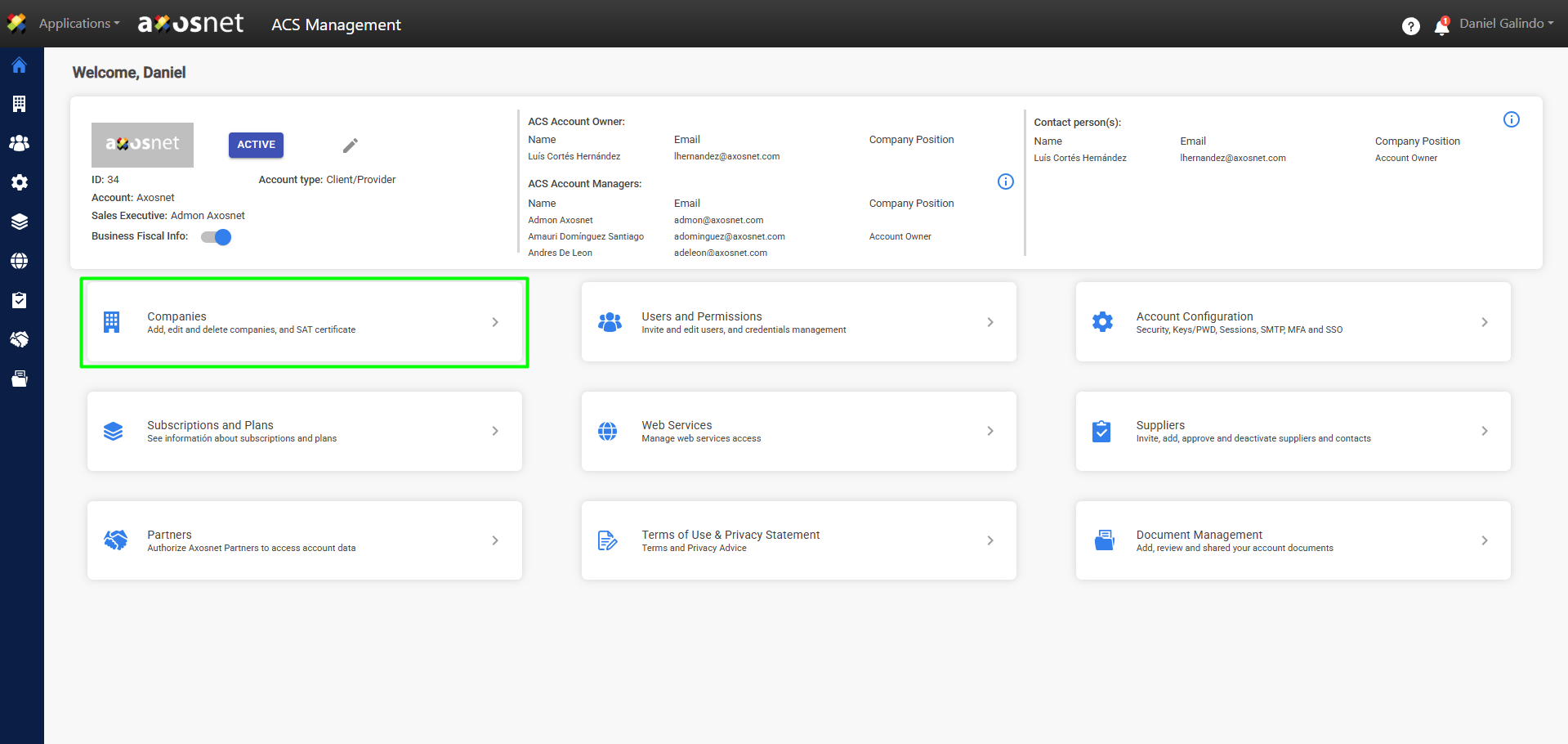
2. Go to the Companies section.
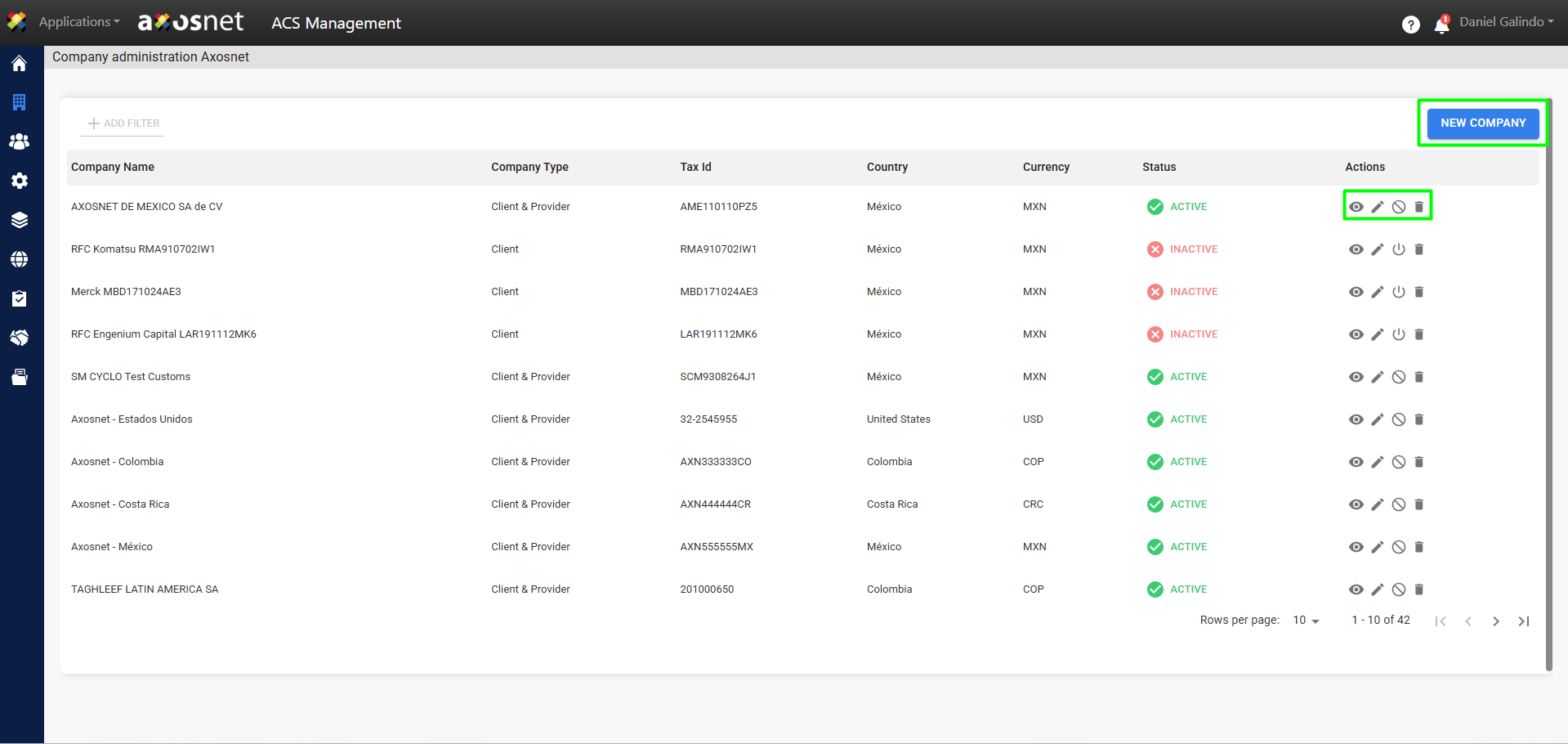
3. On this screen, you’ll see a list of companies and can perform the following actions:
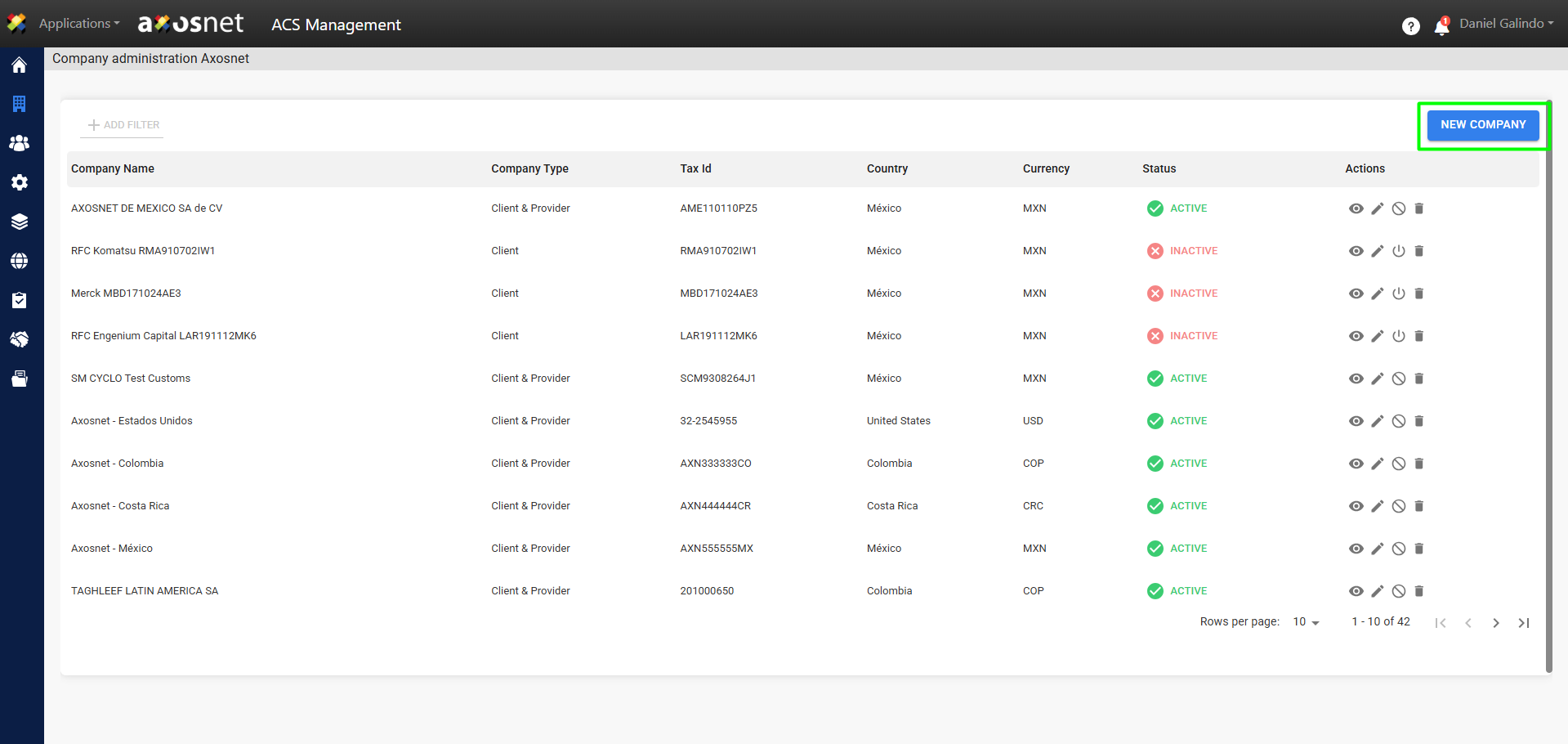
Add New Company
1. To add a new company, click the New Company button.
2. Fill in the fields with the appropriate information and click Save.
Note: The format validation for the TAX ID field will automatically adjust based on the selected country.
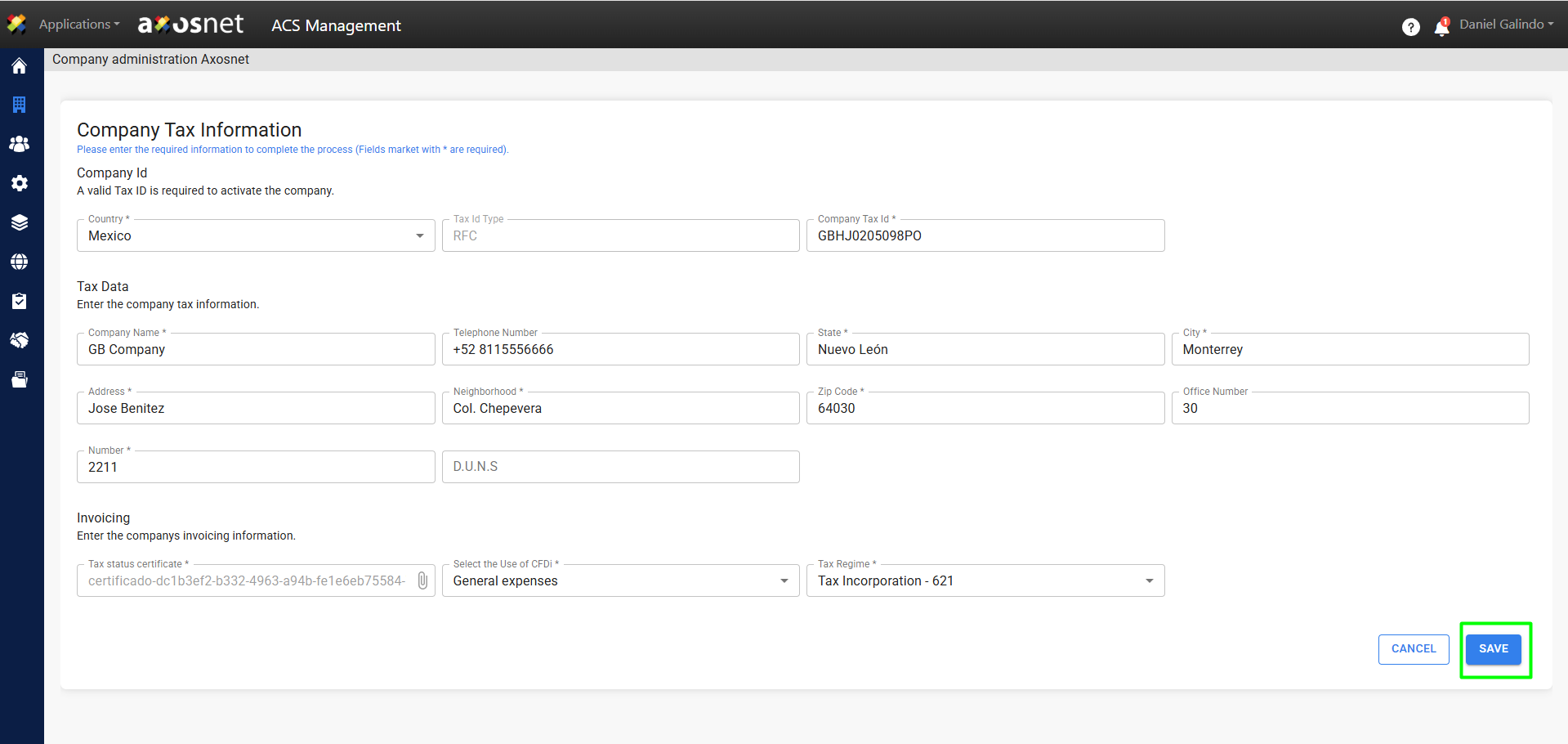
Note: Please note that the required information fields may vary depending on the country of origin of the organization you are configuring and the subscriptions you have.
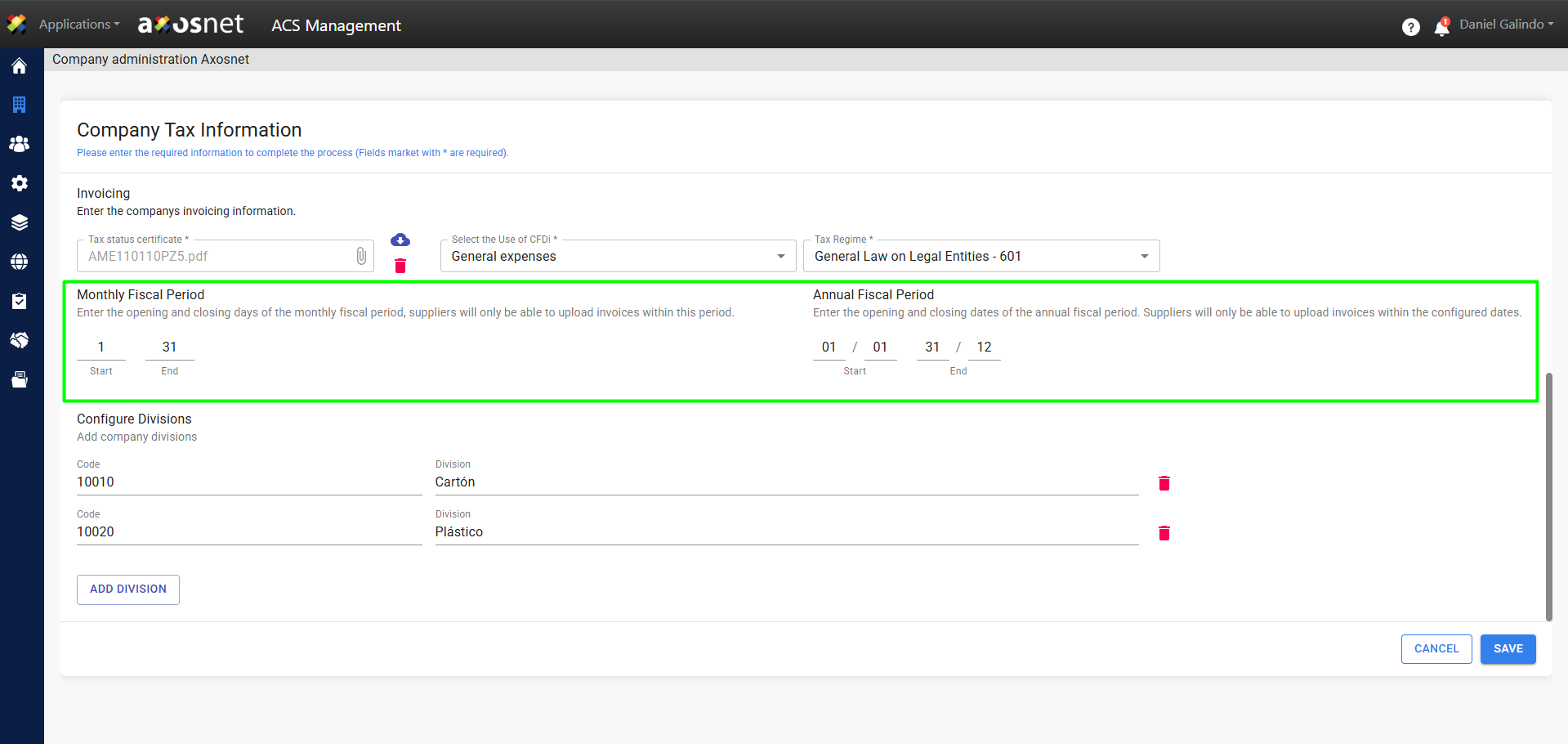
If you have an ACP 3.0 subscription, you will be able to view the fiscal period settings to ensure that invoice entry is strictly limited to the current monthly or annual fiscal period.
In addition, this section allows you to set up internal divisions within the company to optimize the management and tracking of your invoices.
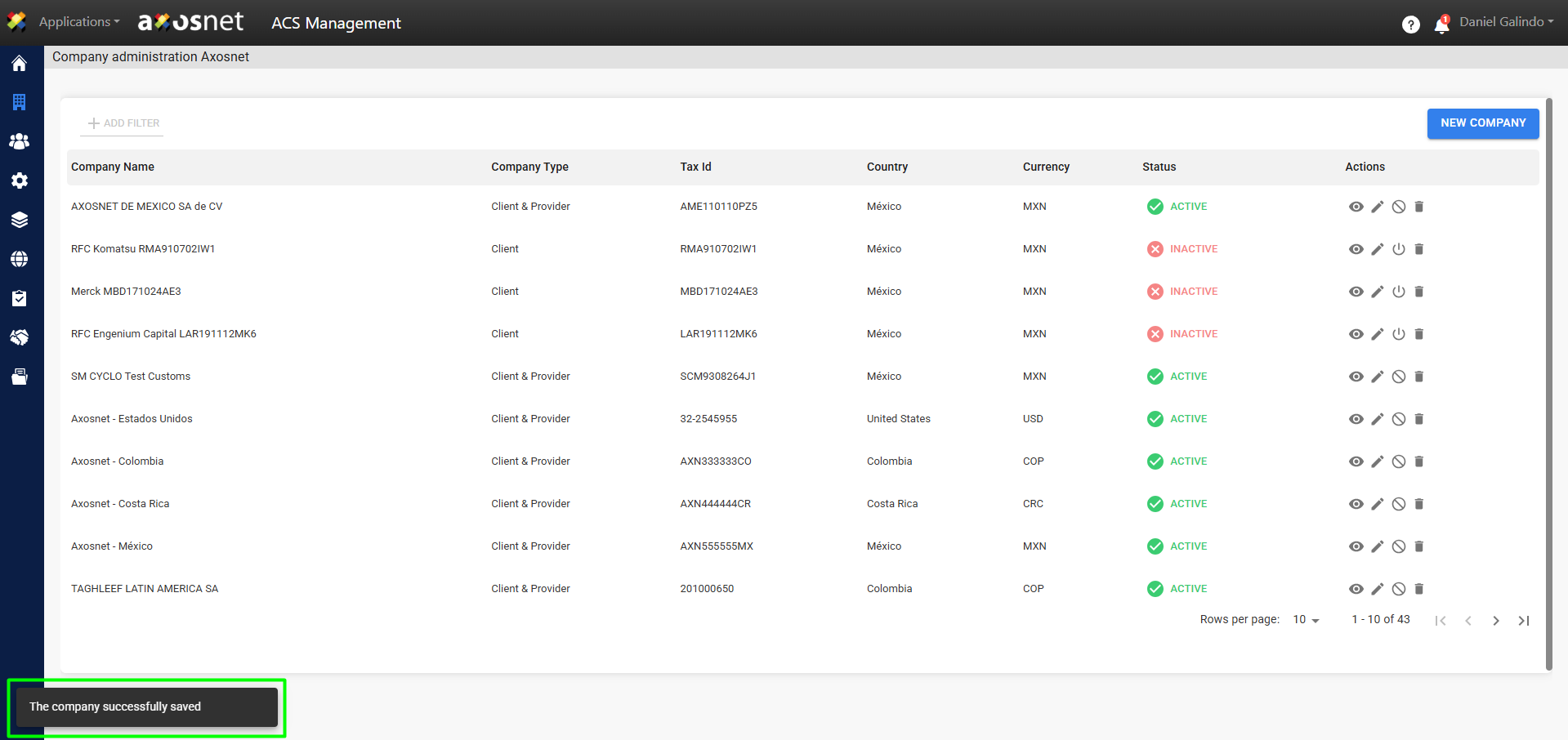
3. Finally, a message will appear confirming that the company has been created.
View Company Details
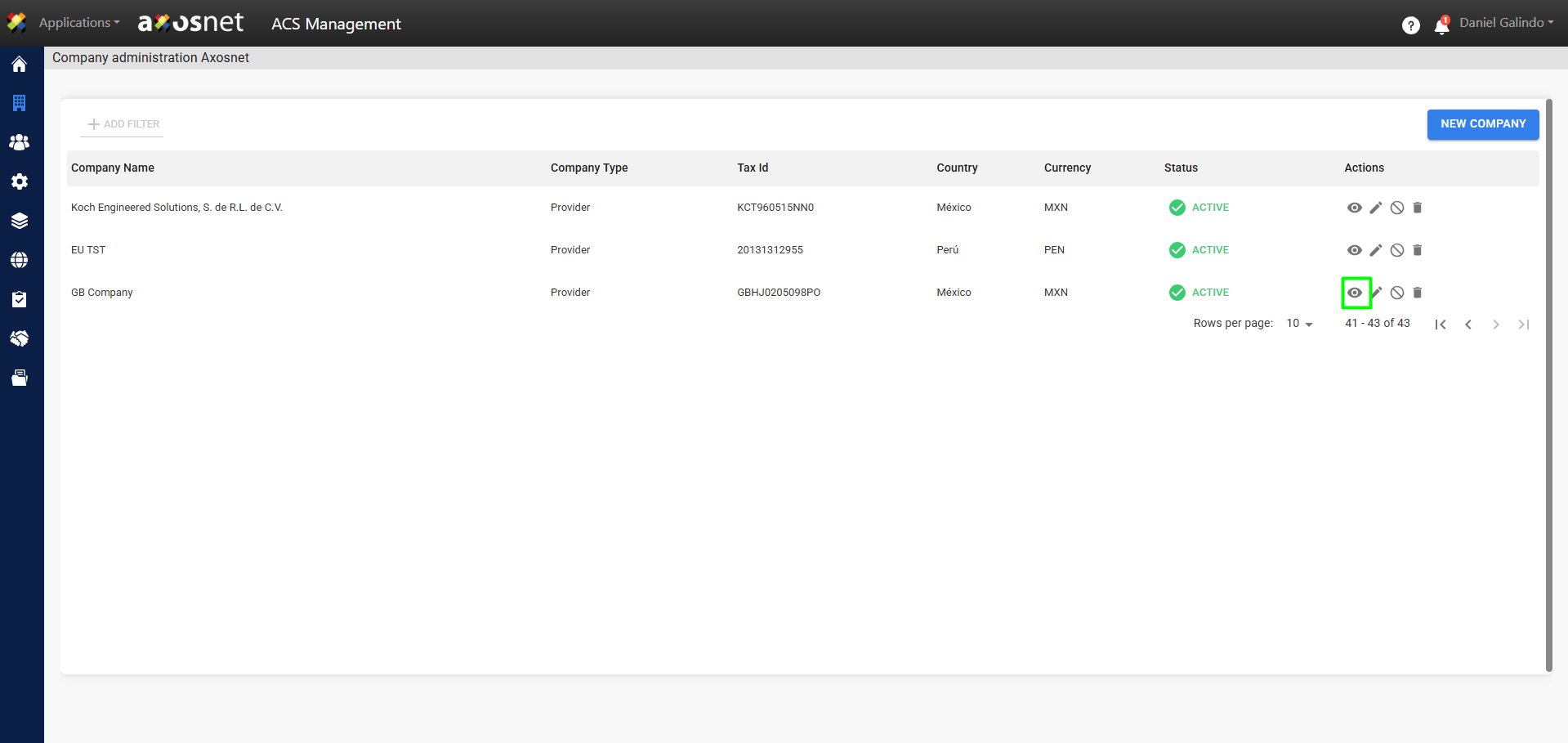
1. To view details about a company, click the eye icon as shown in the image.
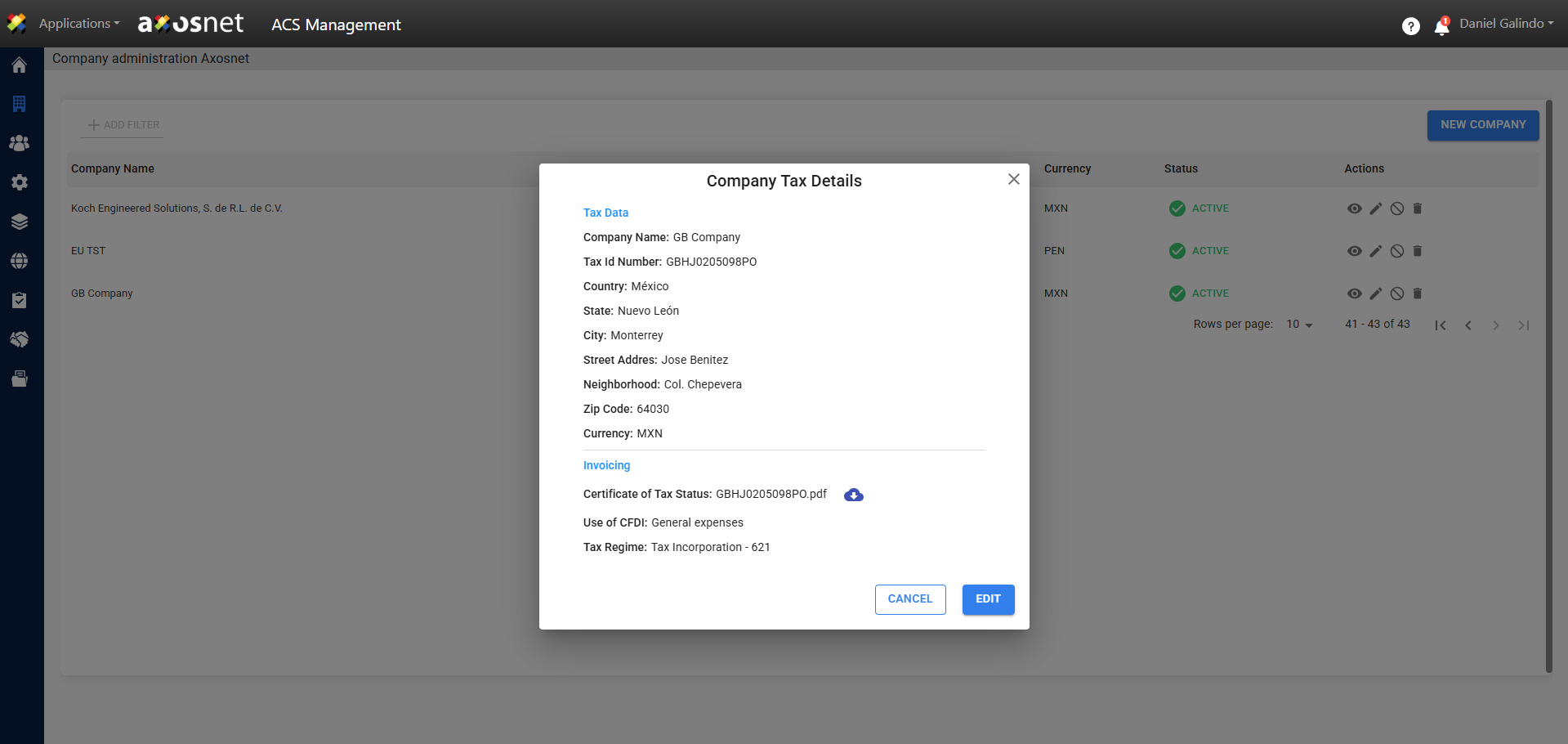
2. A pop-up window will appear where you can view the company’s information.
Note: From this window, you can edit the company’s information or download the invoice.
Edit Company
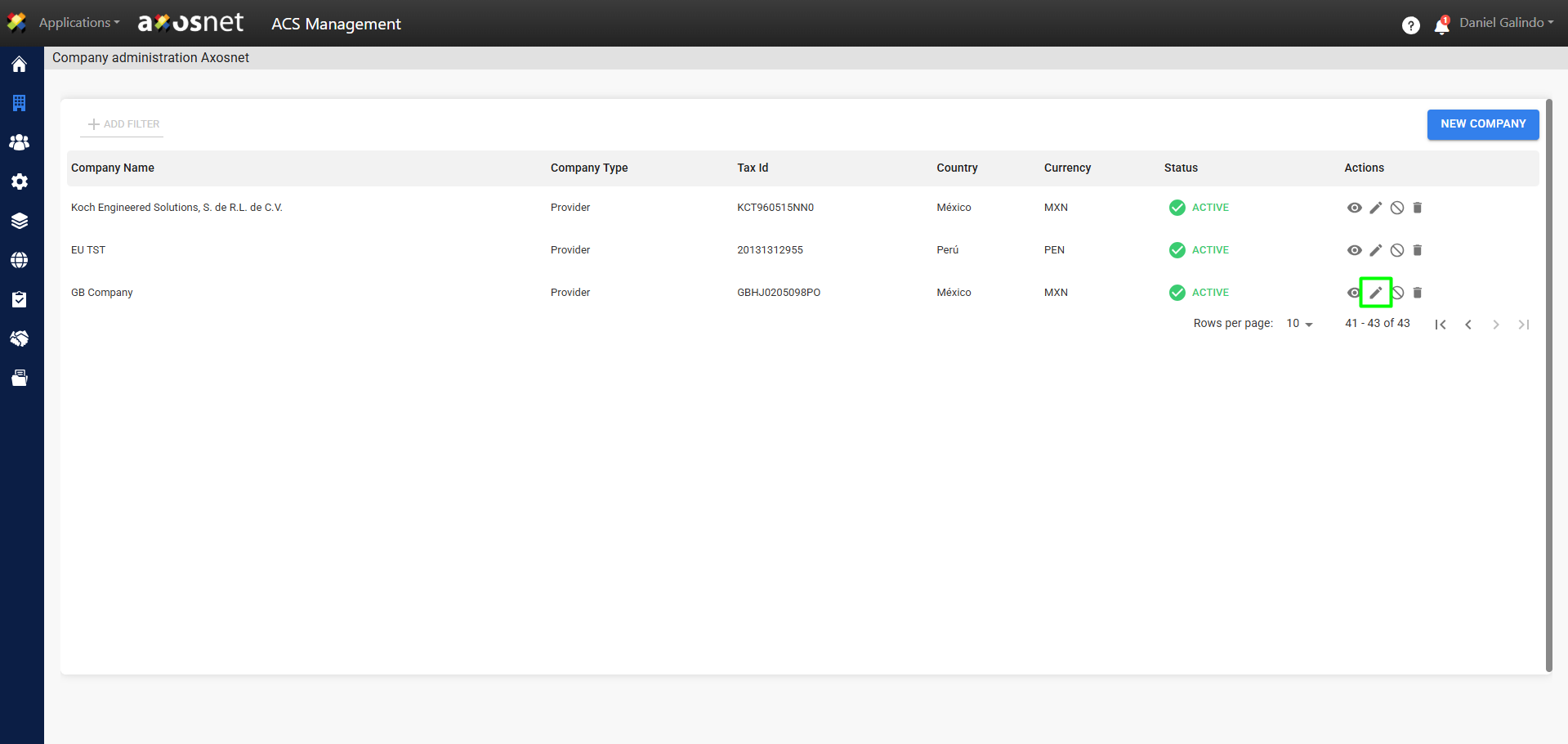
1. To edit a company, click the pencil icon as shown in the image.
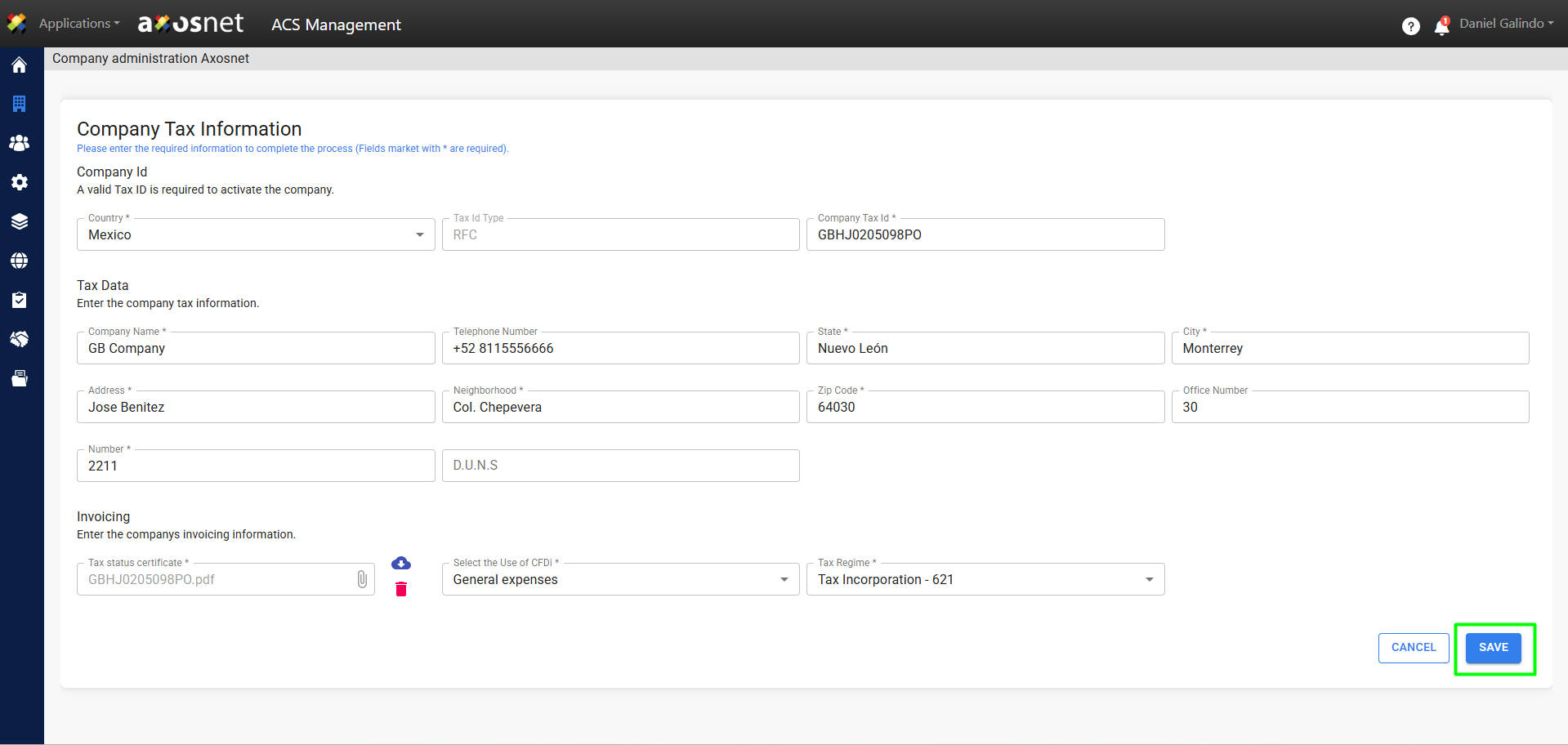
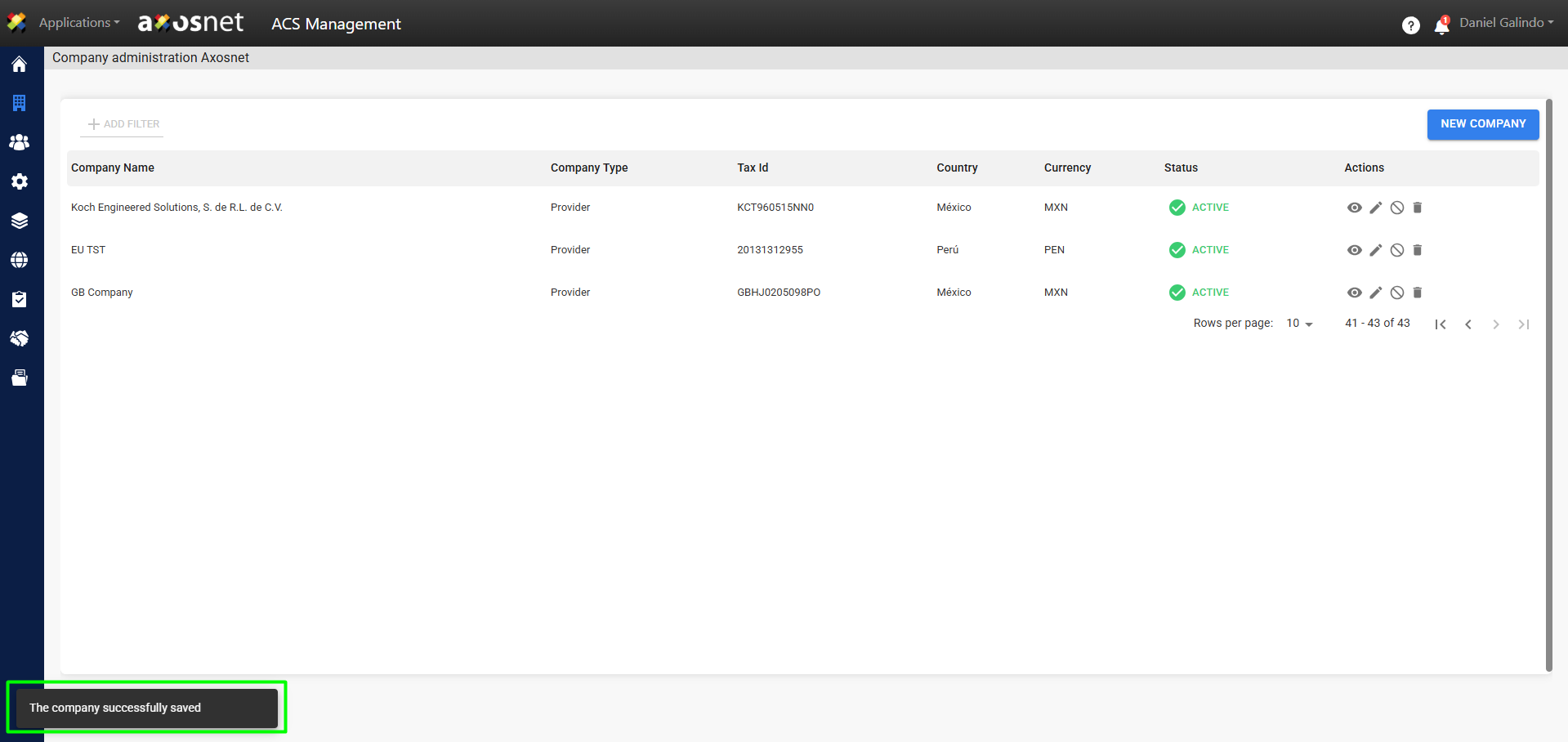
2. The same window that appears when you add a new company will open, allowing you to edit the company’s information. Make your changes and click Save.
3. Finally, a message will appear confirming that the changes have been saved.
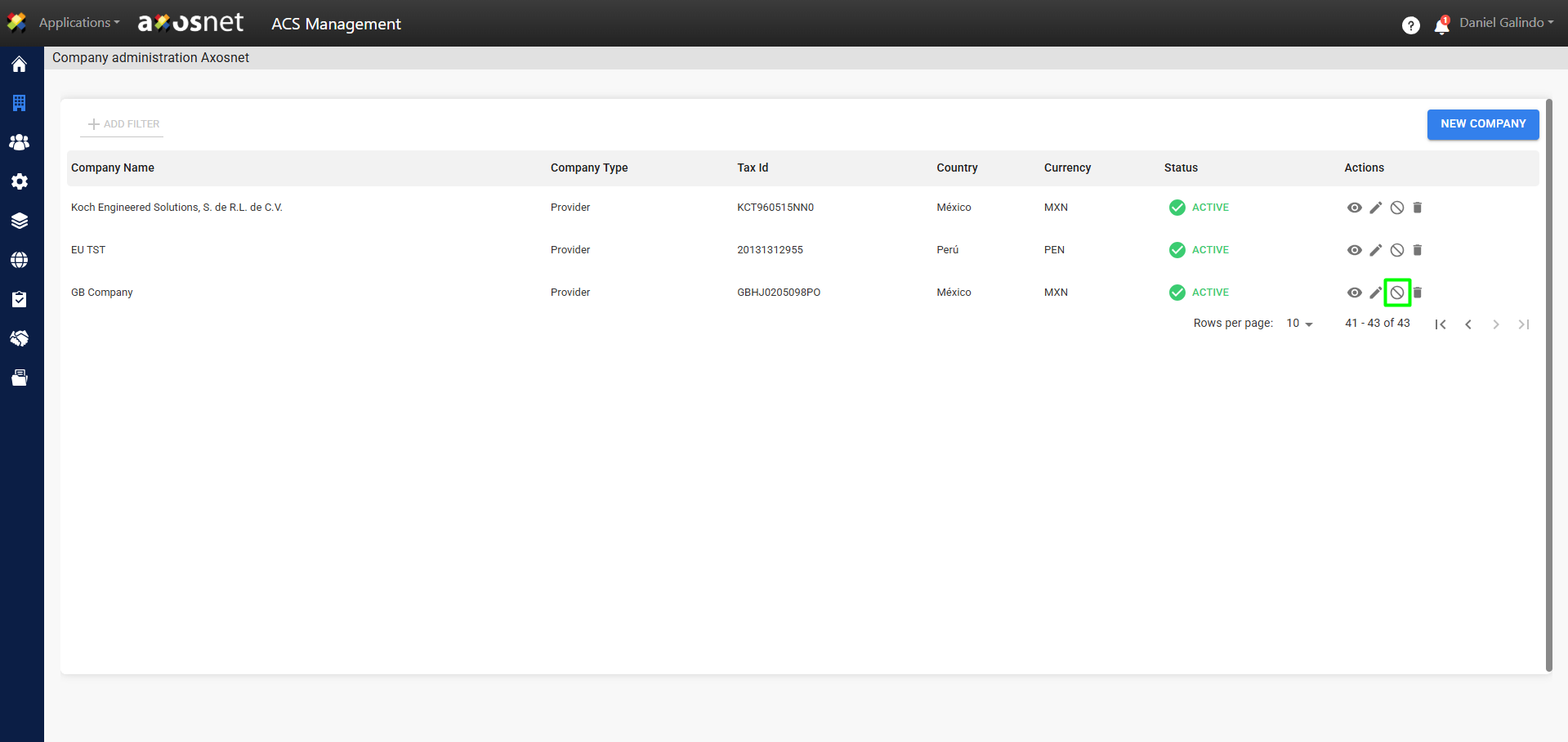
Activate/Deactivate Company
1. To enable or disable a company, click the icon as shown in the image.
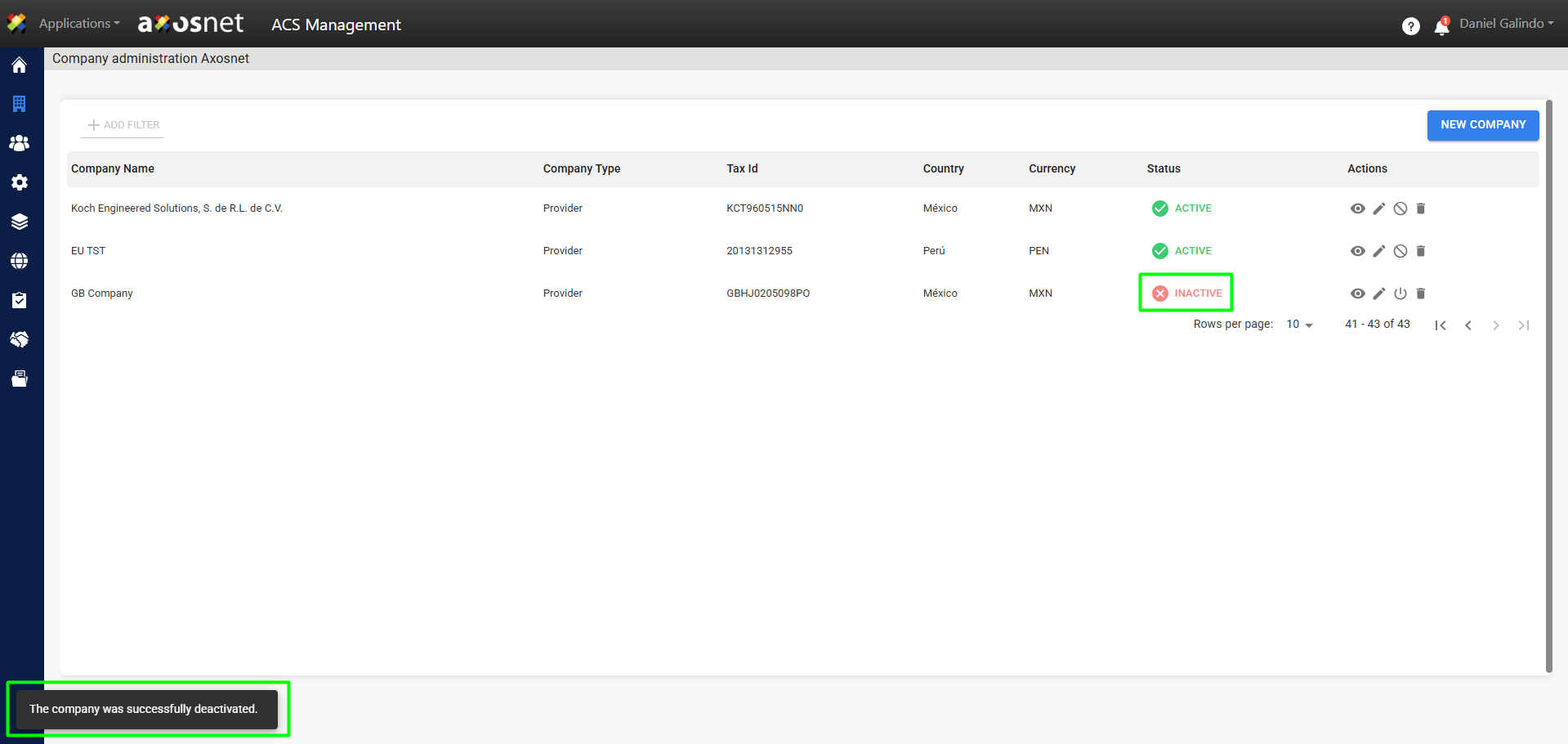
2. The company’s status will change to Disabled. You can change the status by clicking the icon again.
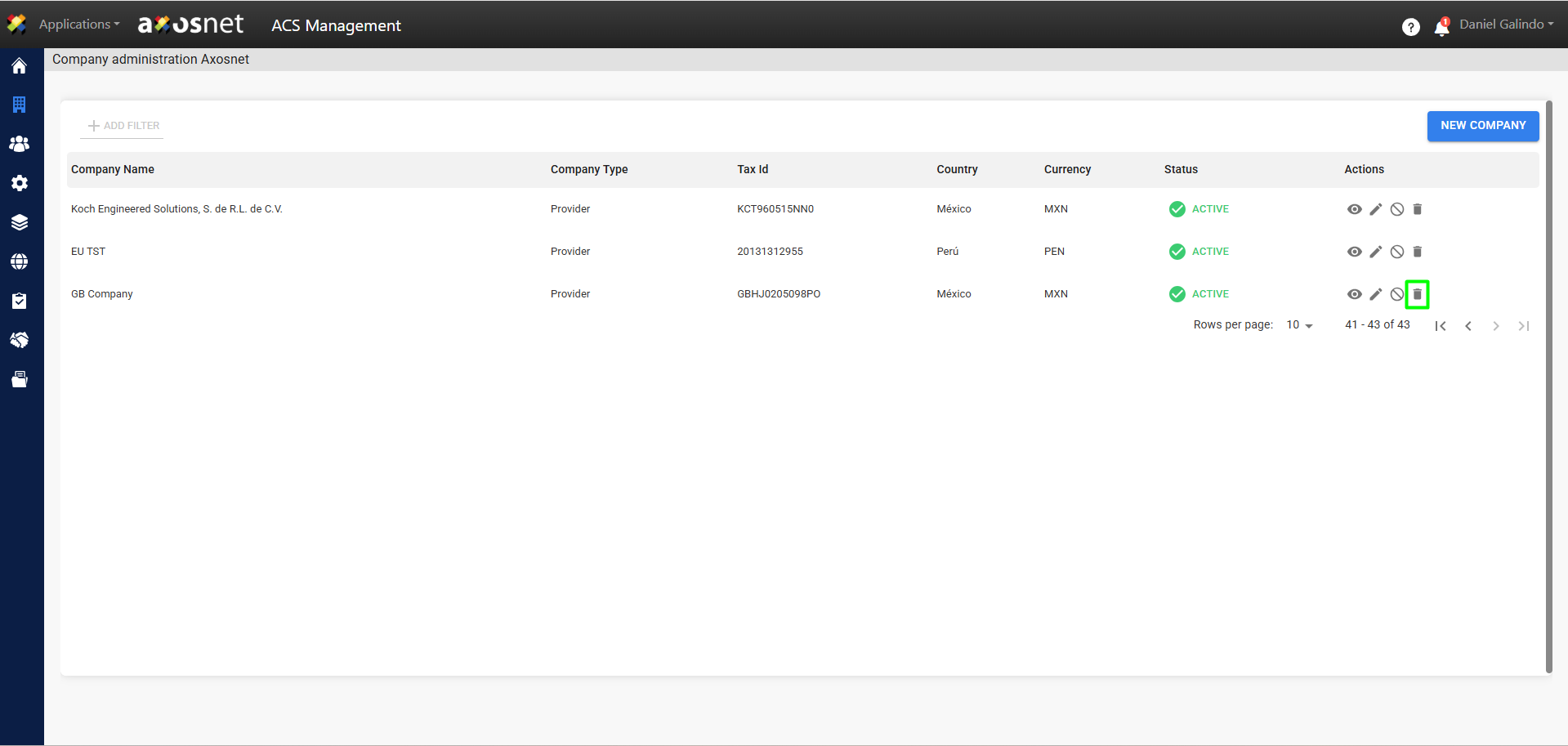
Delete Company
1. To delete a company, click the trash can icon as shown in the image.
2. A pop-up window will appear asking you to confirm the action. To delete the company, click ACCEPT.
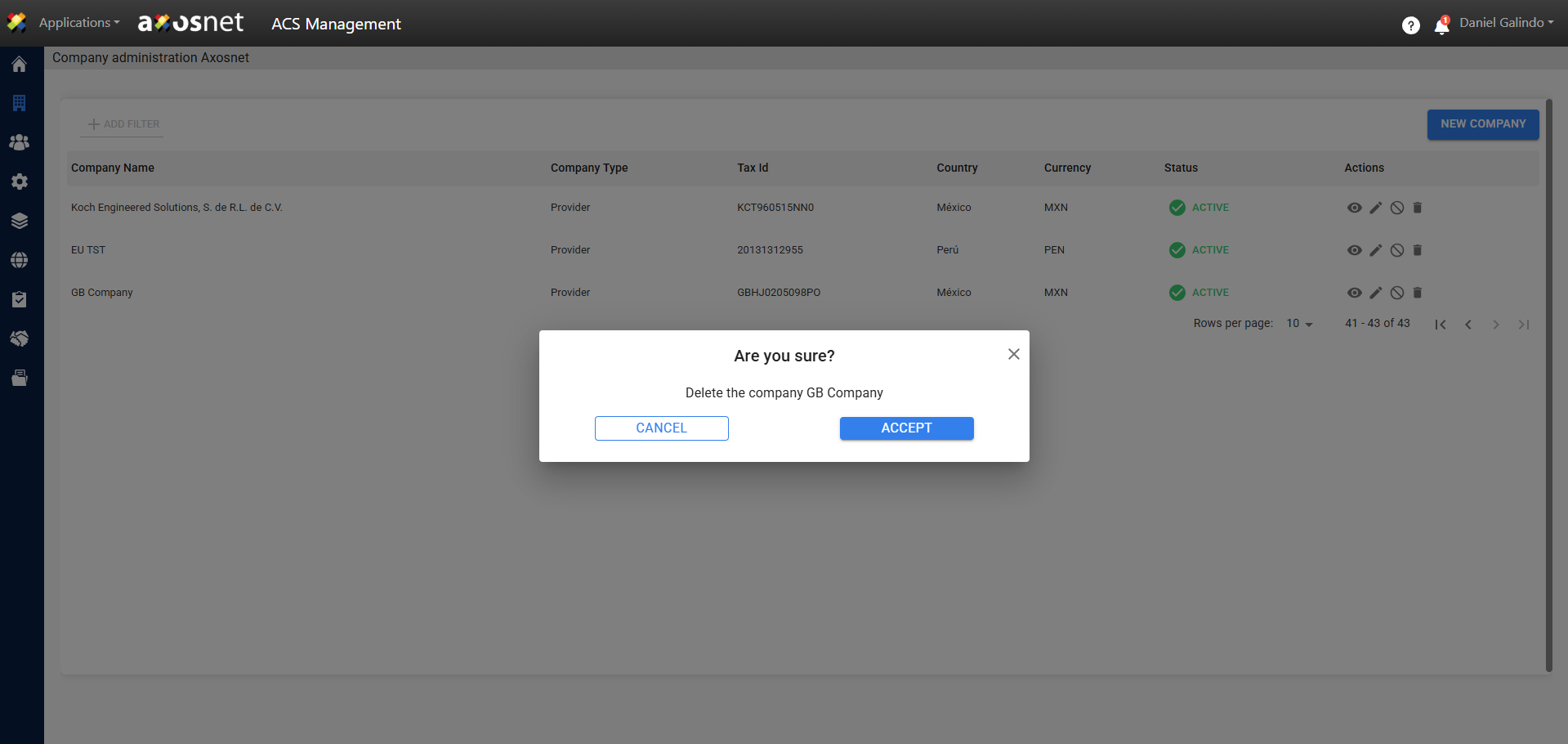
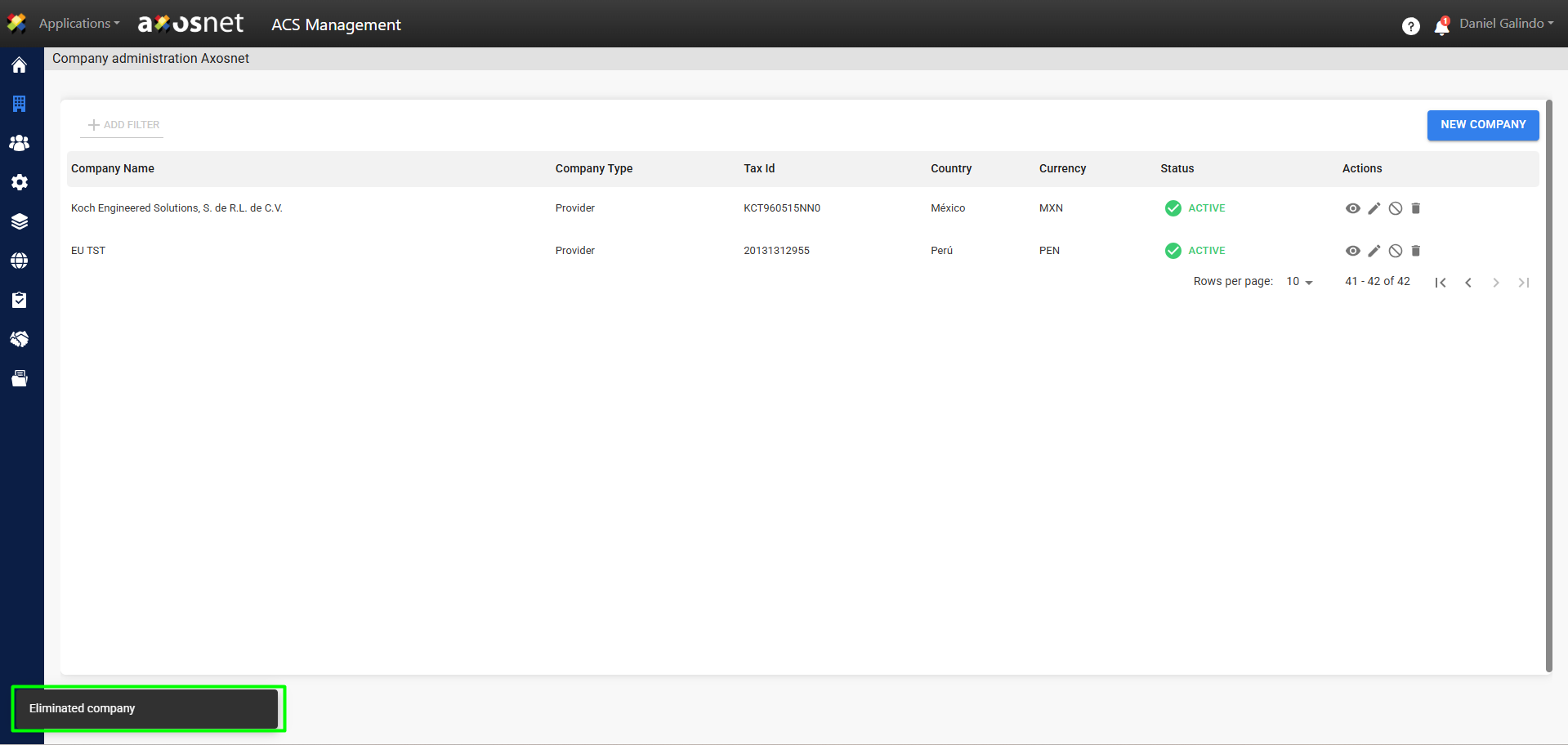
3. Finally, a message will appear confirming that the company has been deleted.