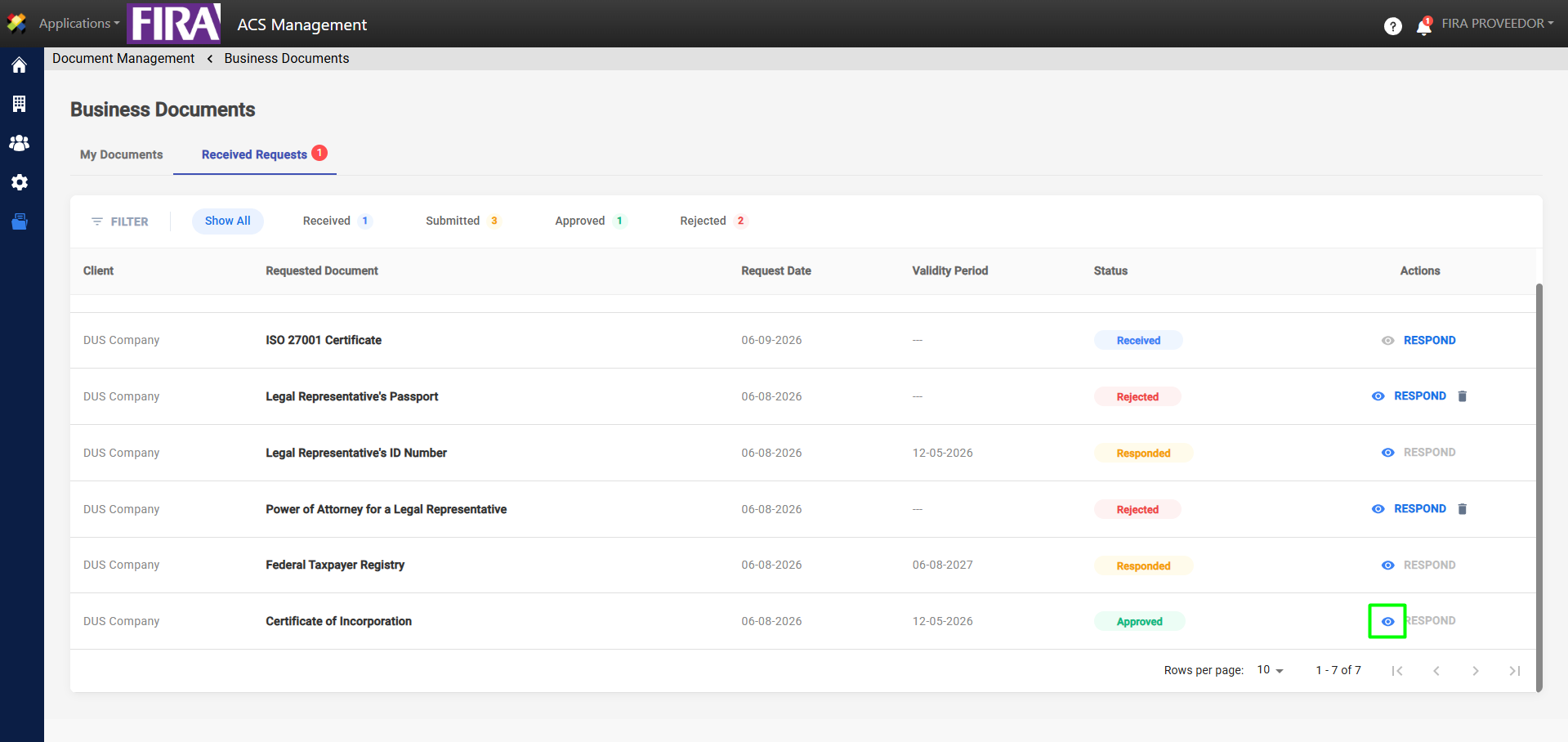
In this section, the Supplier can monitor document requests submitted by the Customer. These requests can be processed for subsequent validation (approval or rejection) by the customer; additionally, the current status of each request can be viewed in the Received, Responded, Approved, or Rejected sections.
To respond to a request, follow these steps:
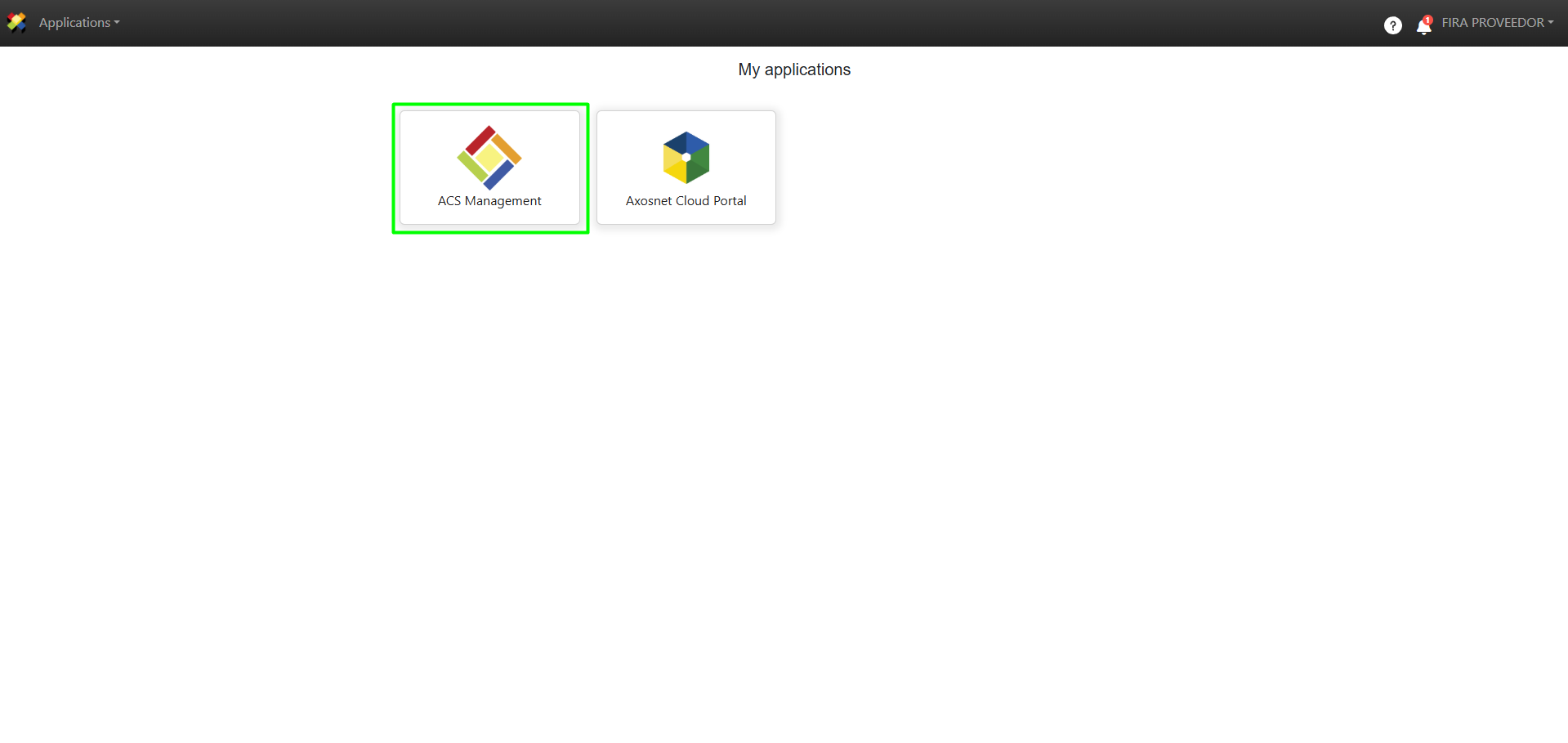
1. Log in to ACS Management.
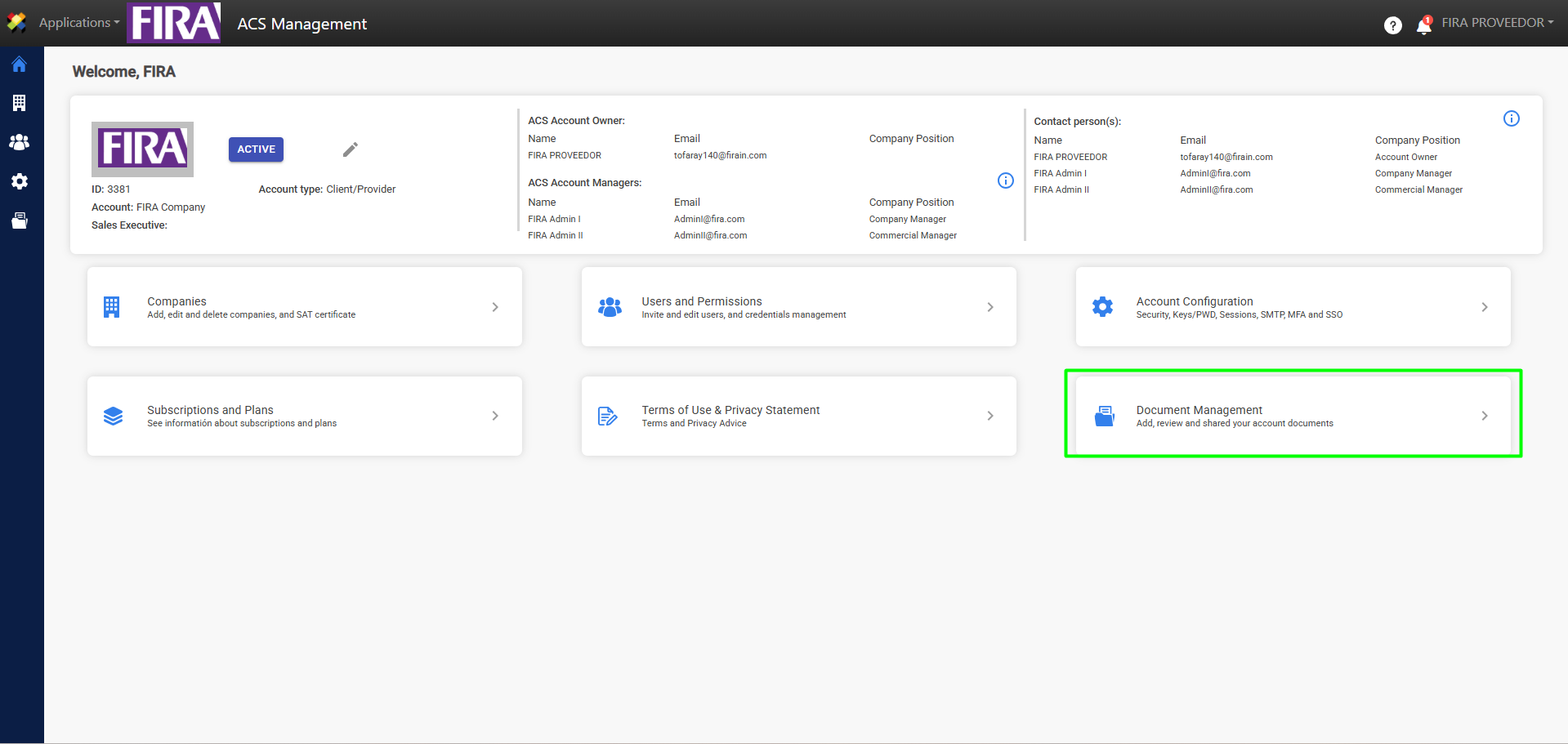
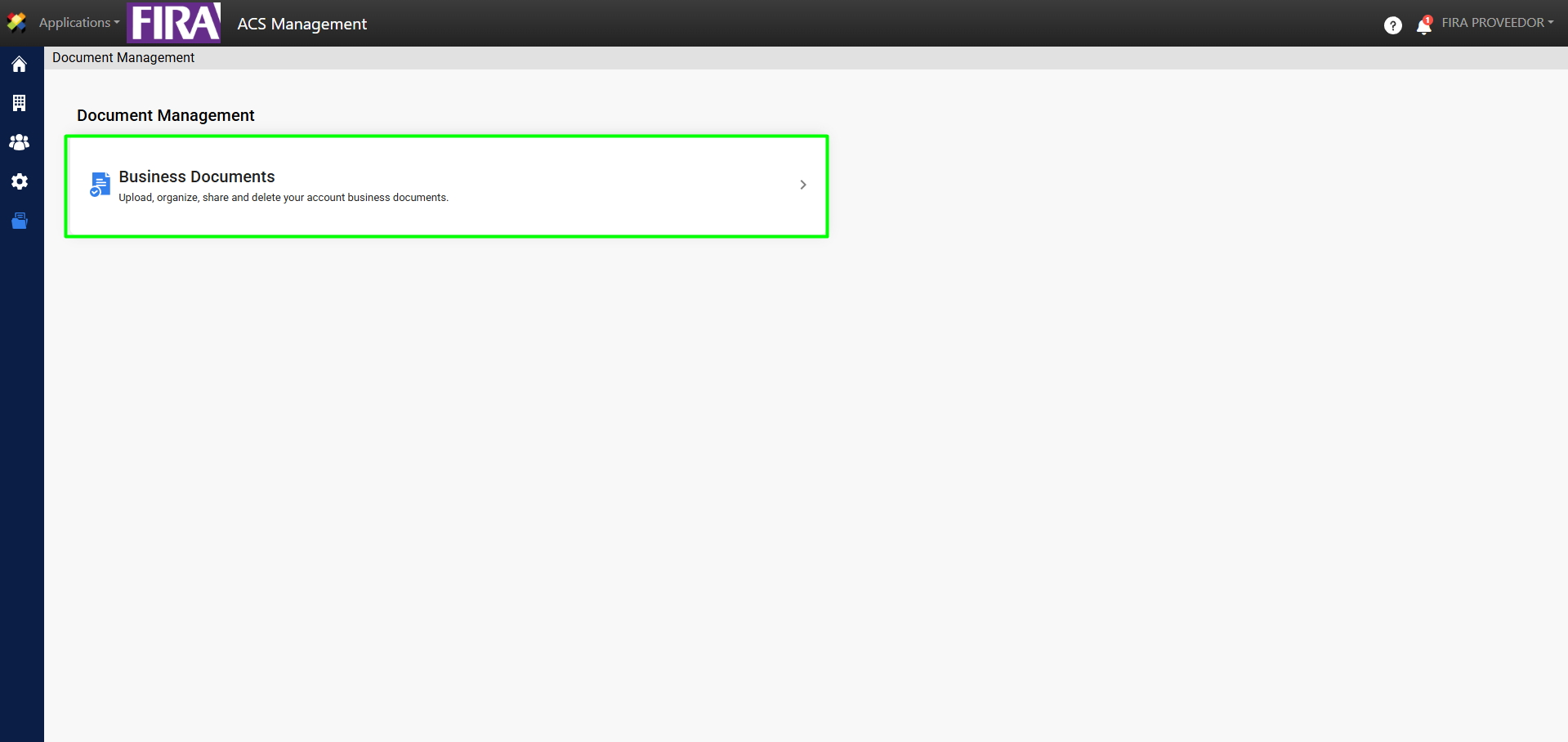
2. Select the Document Management option.
3. Go to Business Documents.
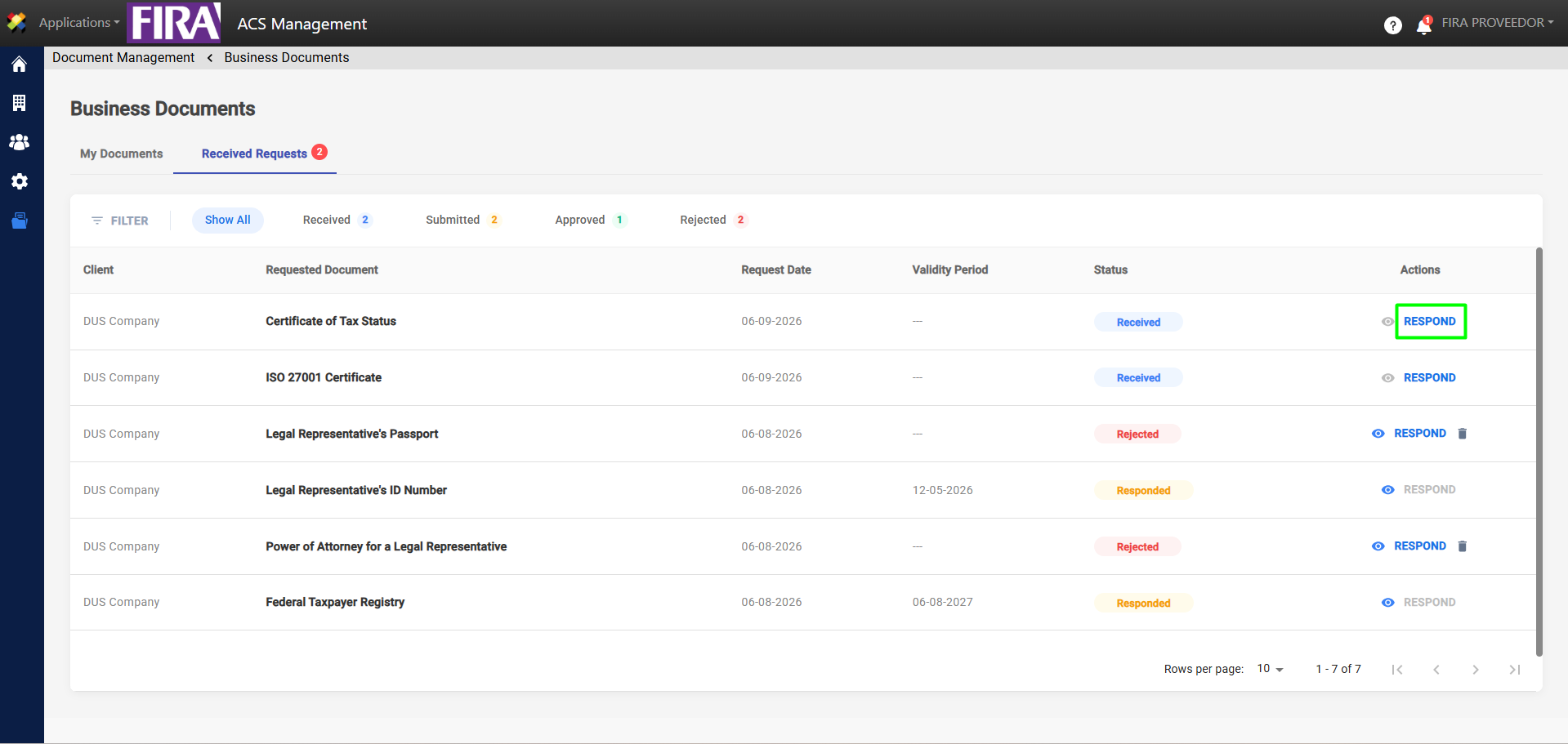
4. On the Received Requests tab, select the relevant request and click the Respond button. You can reply to a request if its status is Received or Rejected.
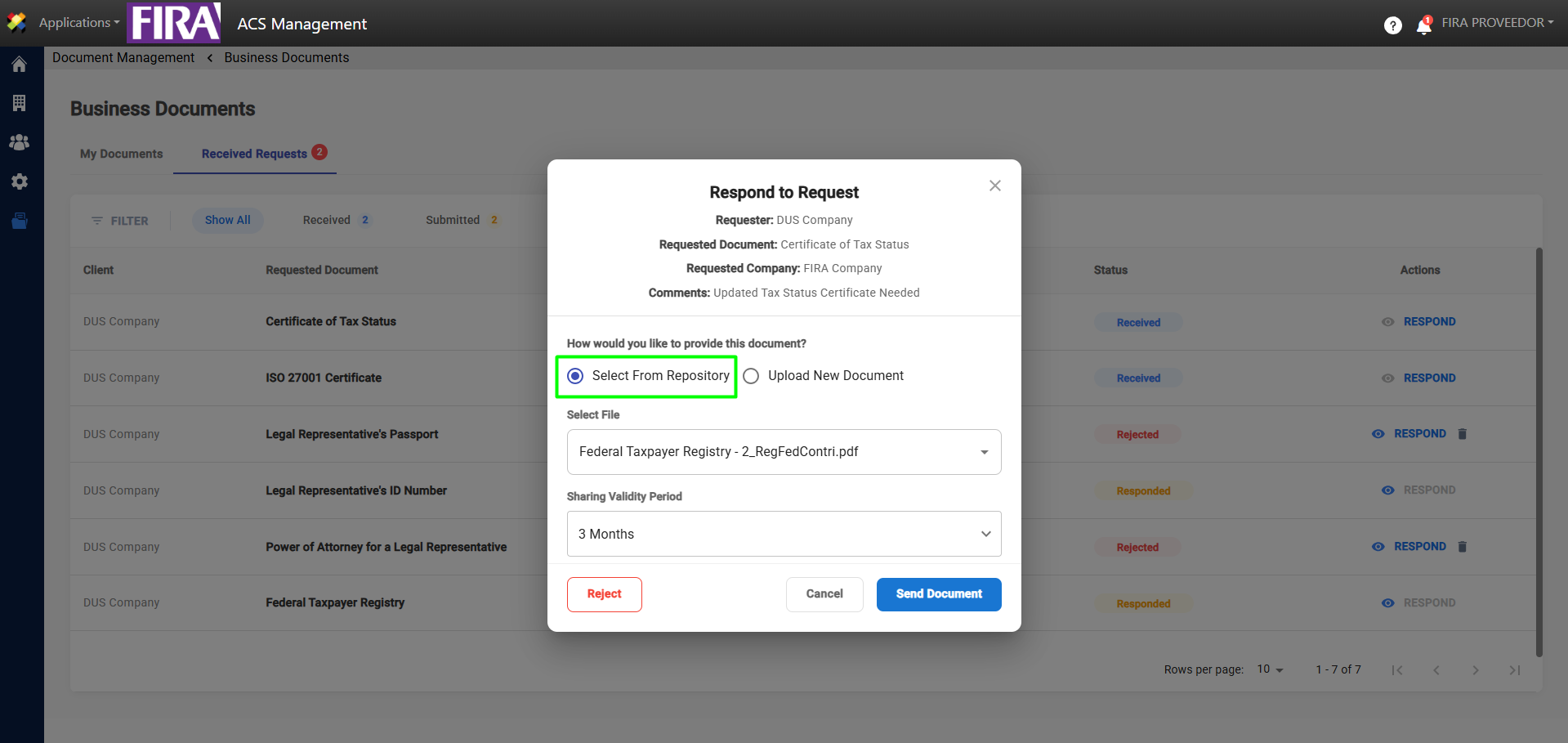
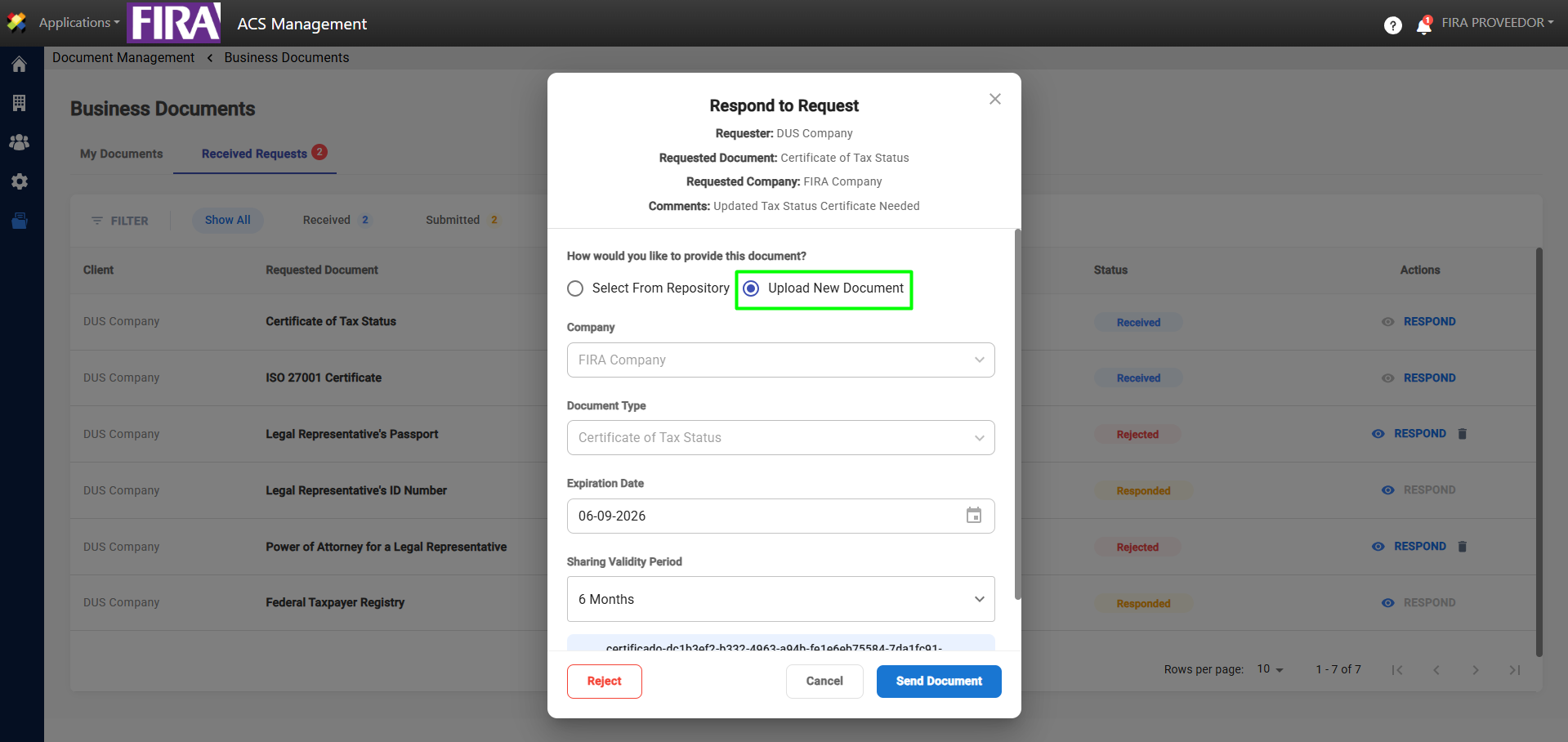
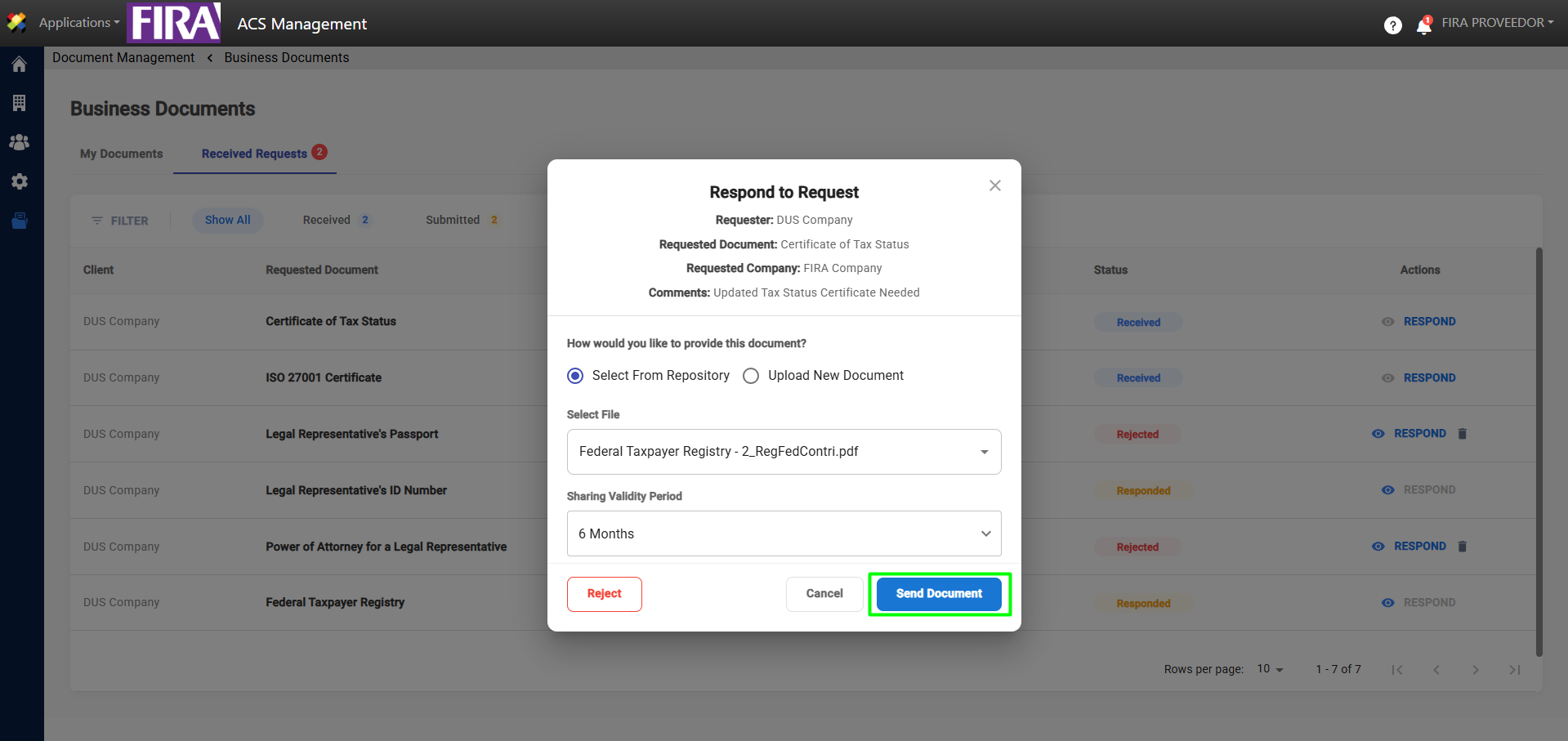
5. To respond to a request, please fill out the response form. There are two ways to attach the requested document.
– Select from the repository: Attach a document that has already been uploaded to the My Documents section.
– Upload a new document: The new document is also saved in your My Documents repository.
6. Click Send Document.
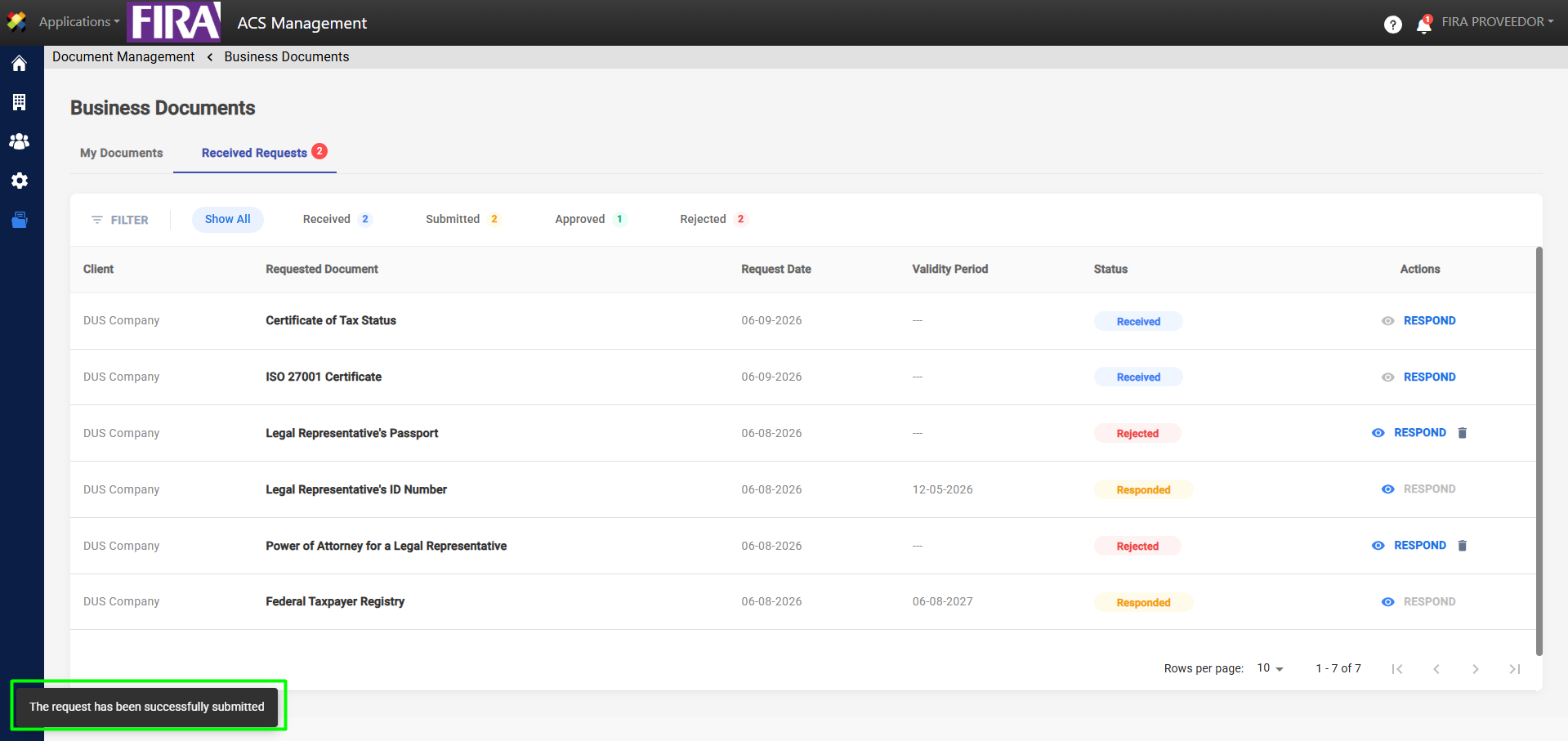
7. A confirmation message will appear, and the document will be displayed with the status Responded in the corresponding section.
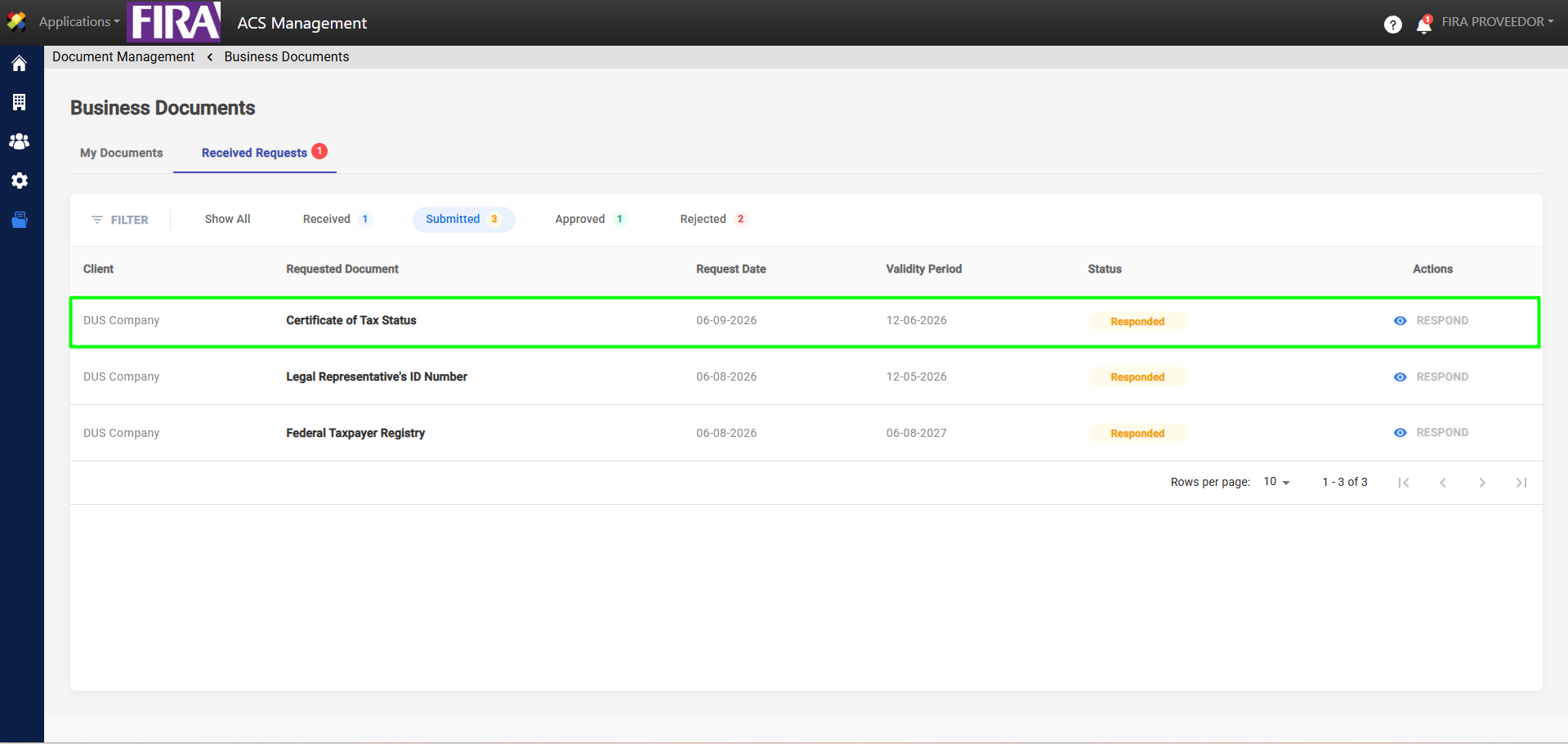
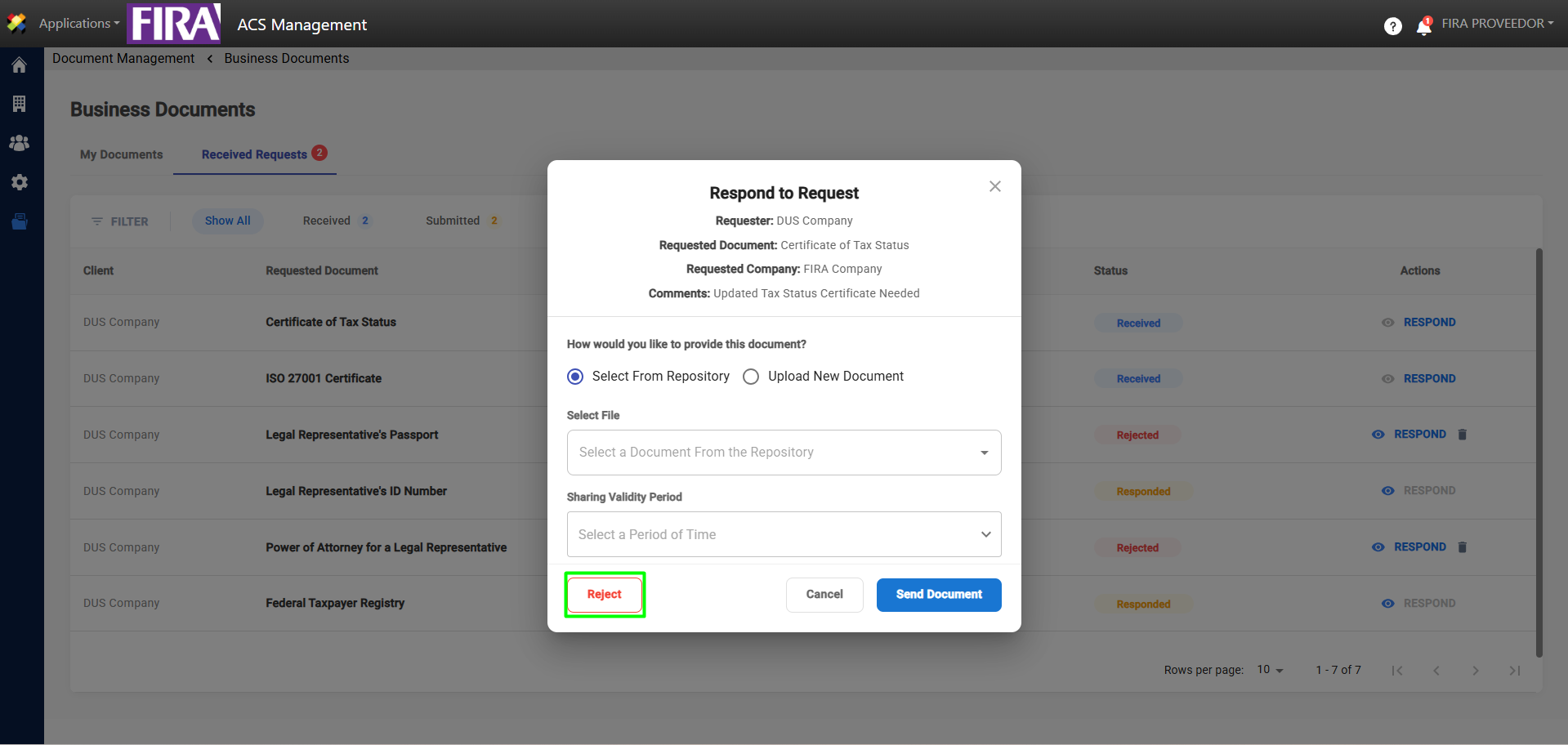
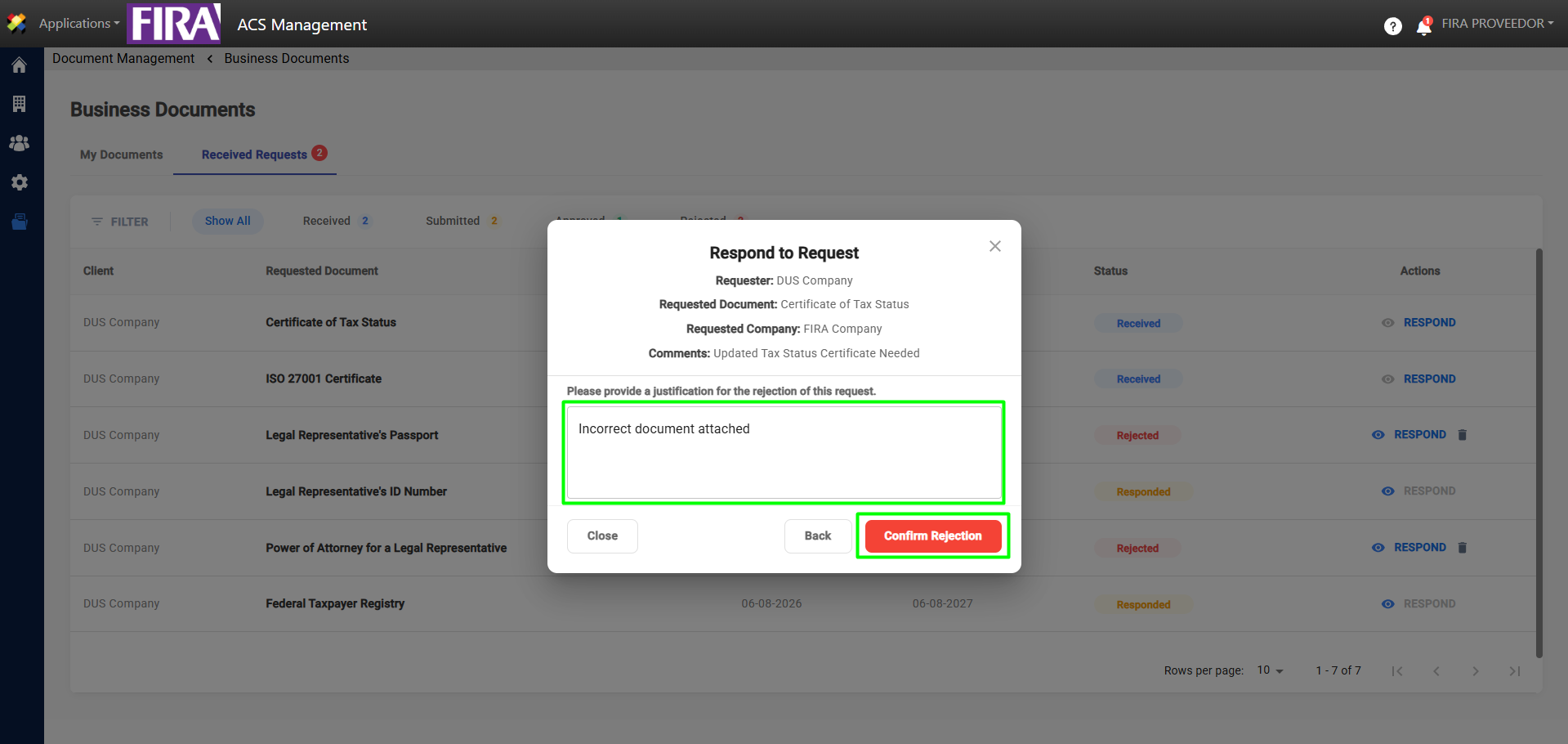
8. Finally, you can also reject requests and view their details, as shown in the images below.
Reject Request
When responding to a request, you have the option to reject it. To do so, select the Reject option, provide the reason for the rejection, and complete the process by clicking Confirm Rejection.
View Detail
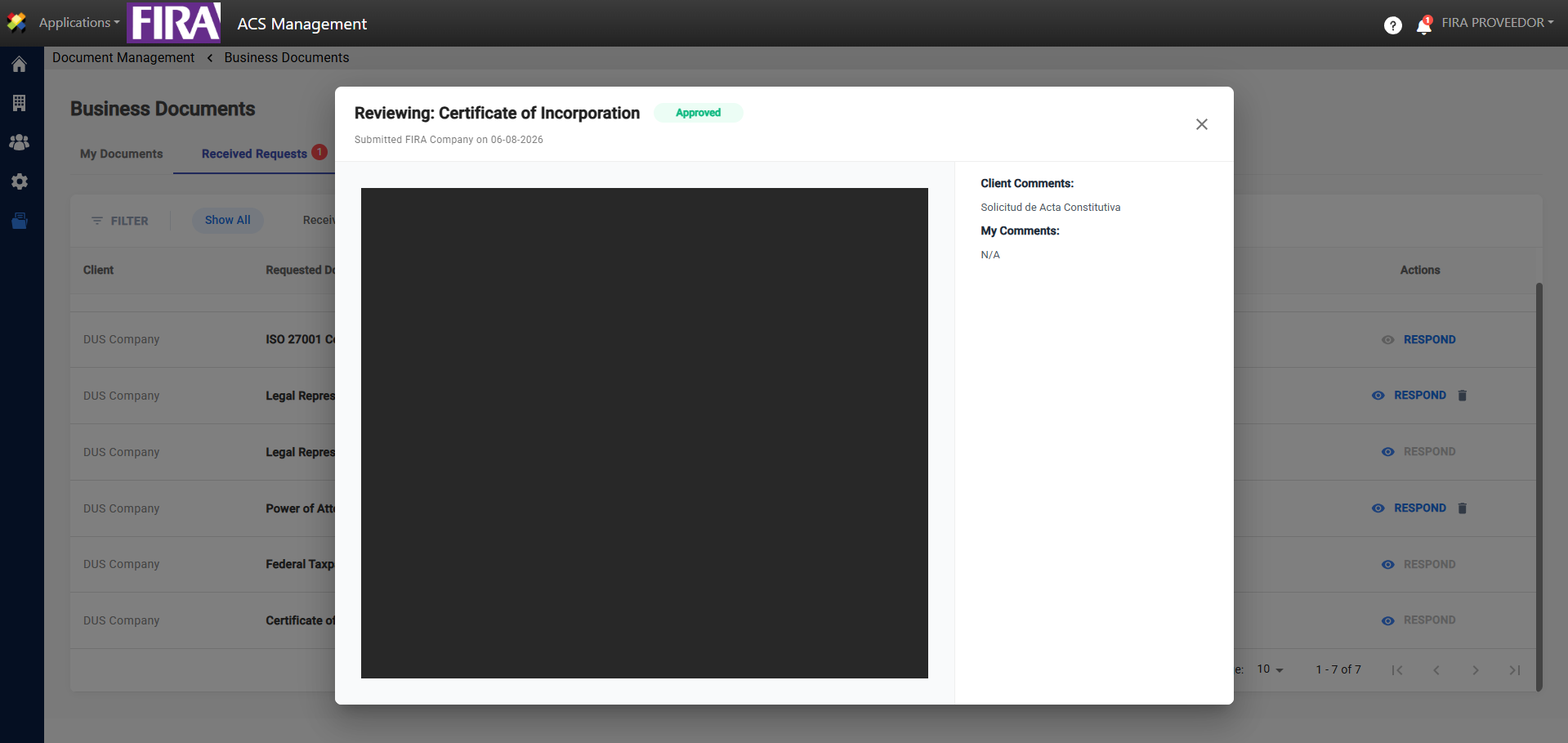
On the Received Requests tab, you can preview each file by clicking the eye icon, as shown in the image.