The expense itemization feature in AxosMoney allows you to split a single expense entry into multiple individual entries, each with its own expense type, amount, and details. This is especially useful for expenses that span multiple categories, such as a hotel bill that includes charges for the room, meals, parking, and taxes, where each component must be reported separately to facilitate compliance with your organization’s policy. Instead of submitting a single total amount, the itemization provides a clear and transparent breakdown. Within AxosMoney, you can add, edit, and delete individual itemized lines directly in the expense report.
View Expense ITEMIZATION
To view detailed information about the expense breakdown generated by AxosMoney, follow these steps:
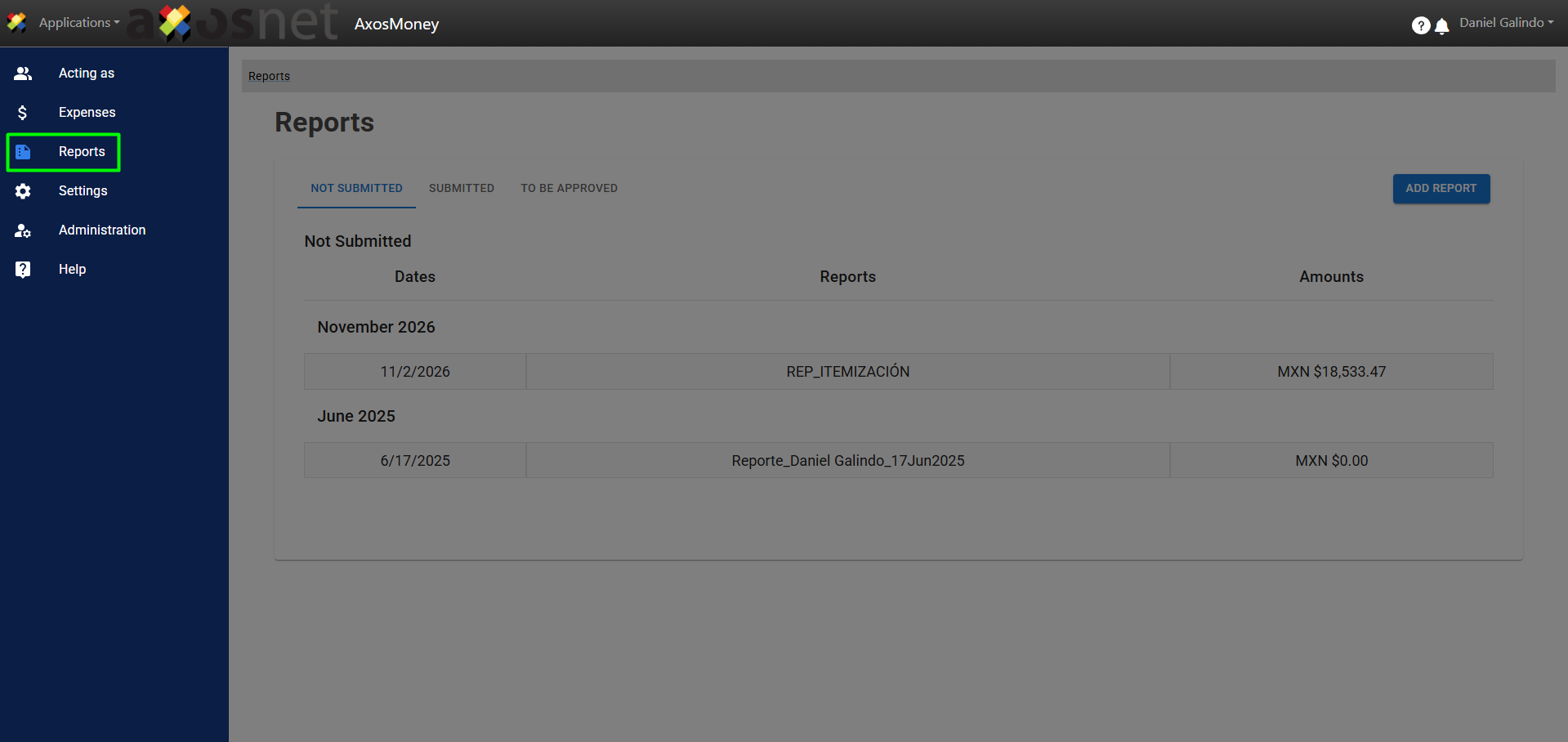
1. Go to the Reports section.
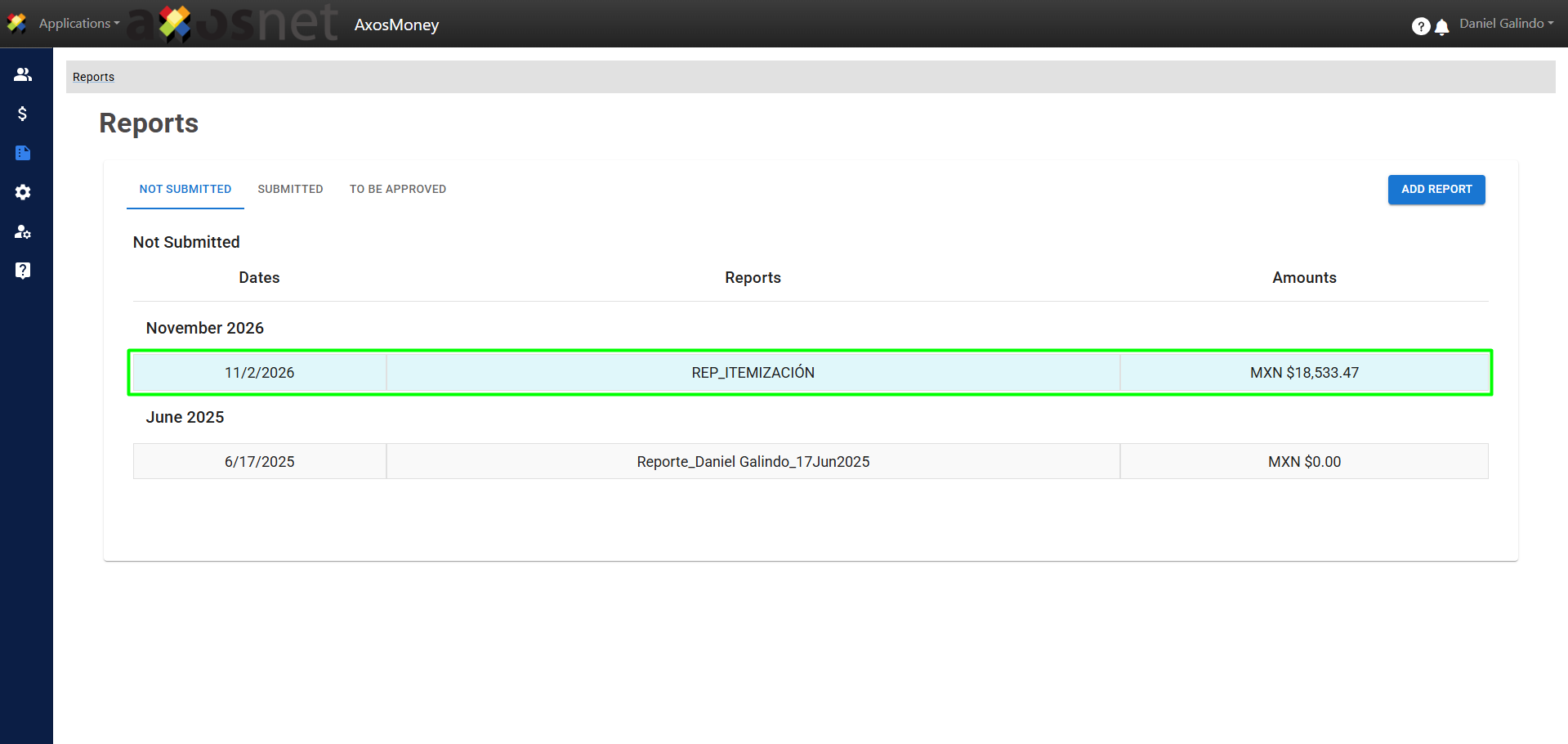
2. Click on the created report to see the detail.
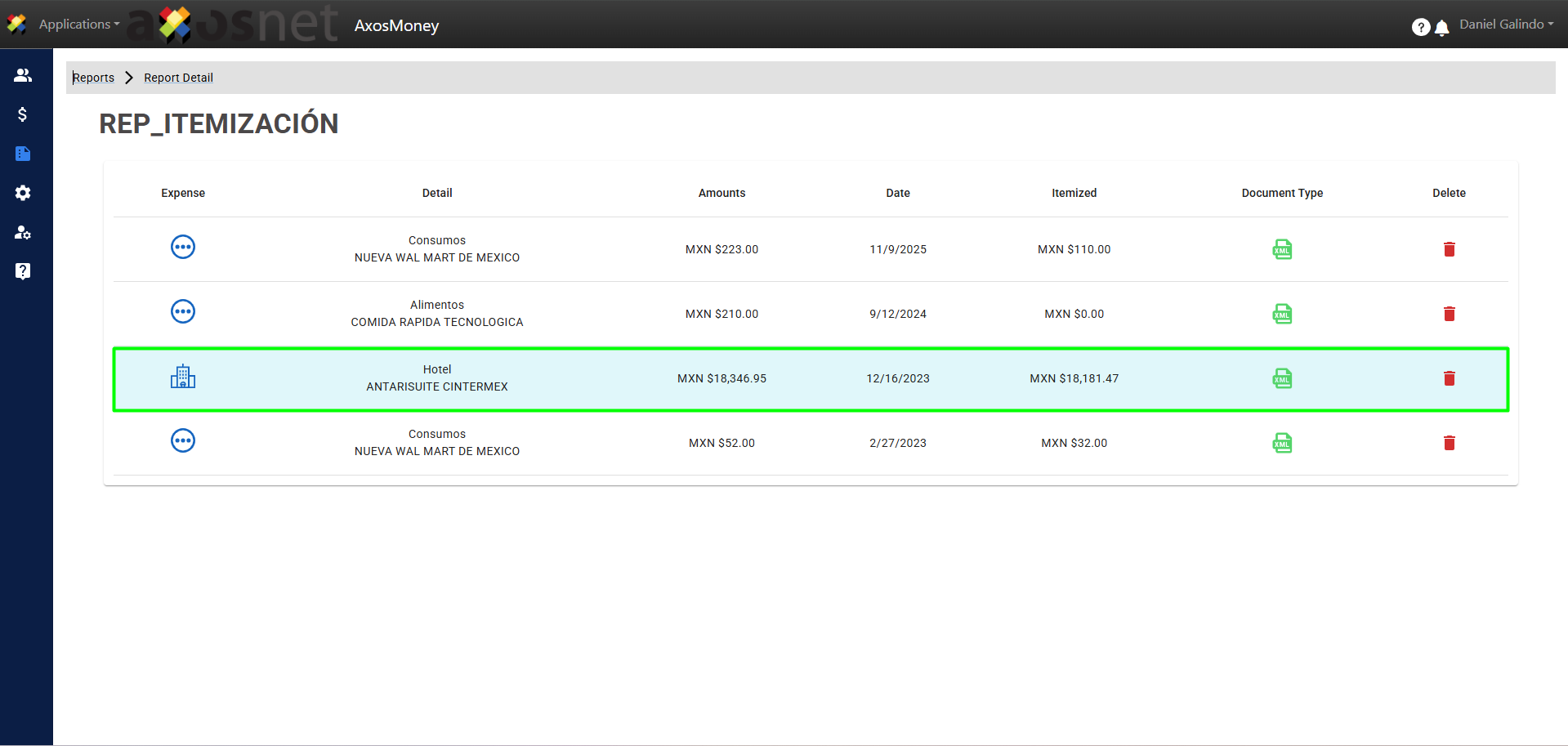
3. Click on an expense to see the detail.
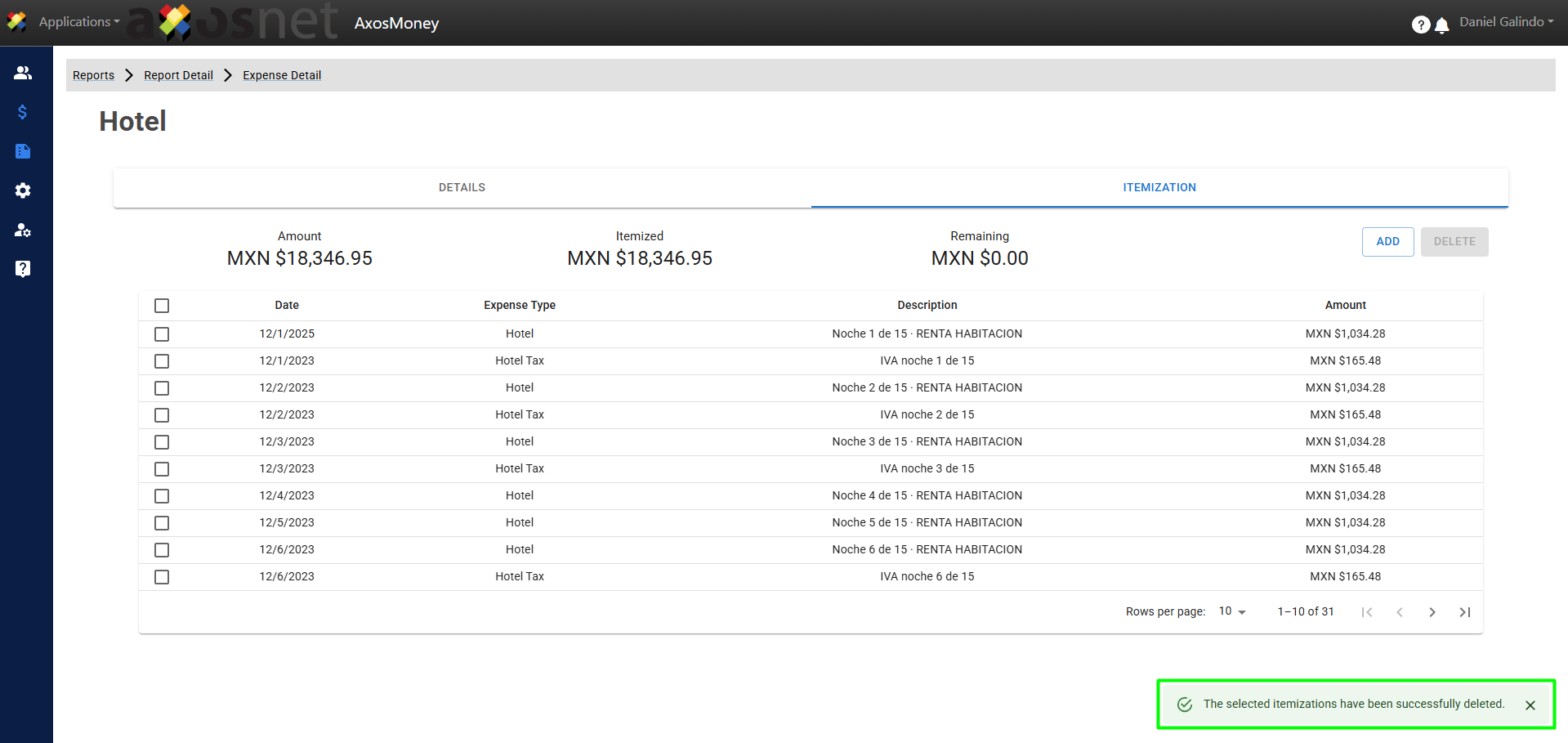
4. In the expense detail click on the ITEMIZATION tab.
Note: This section lists the expenses automatically itemized by AxosMoney. If necessary, or if there is a pending amount, you can add a breakdown manually.
Please note that expenses related to Lodging/Hotel allow for detailed classification by night, unlike other categories. For more details, see the guide “Itemization Settings (Hotel)”
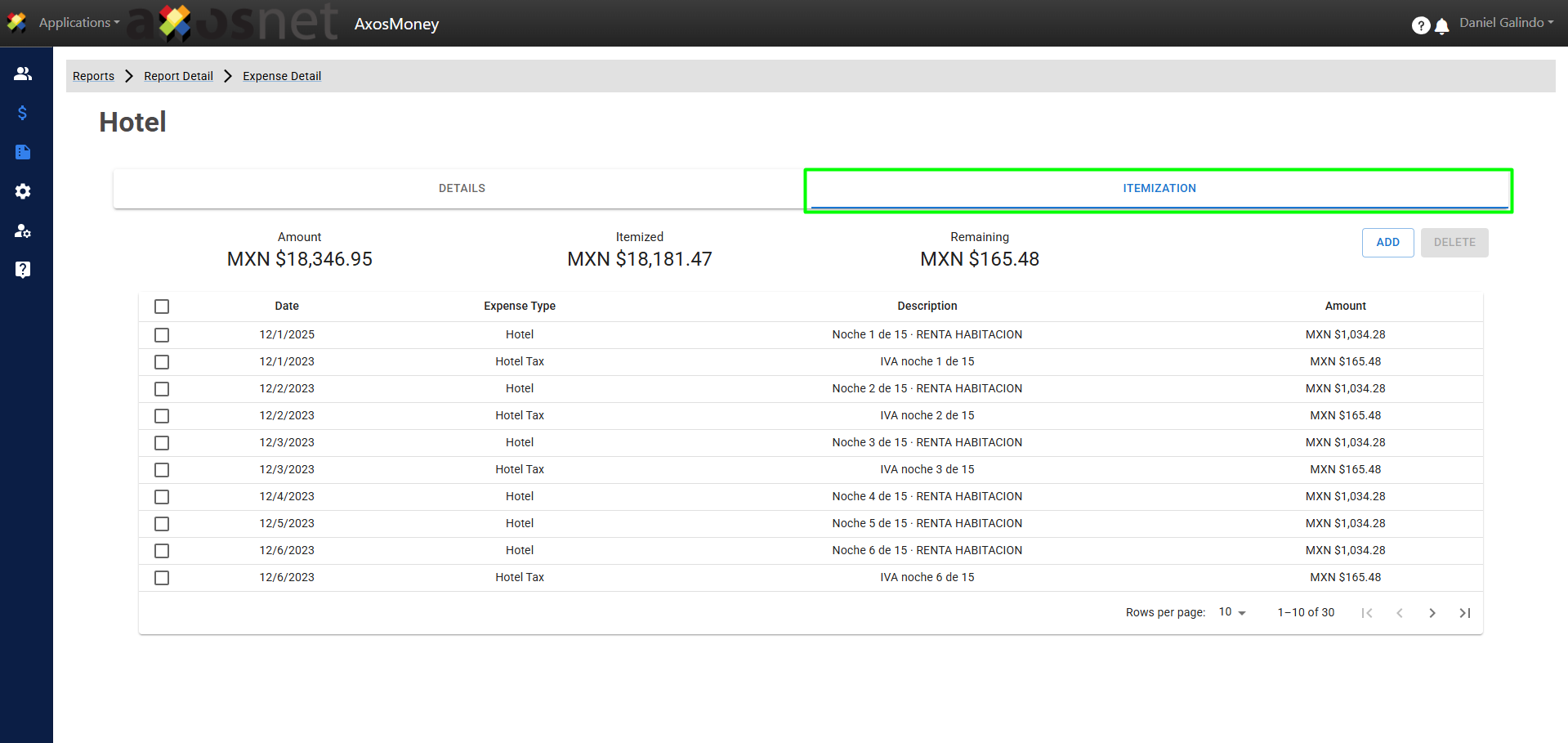
Itemizing an expense
If you need to manually itemize an expense—either because it wasn’t itemized automatically or because there’s a remaining amount—you can add it as needed by following these steps:
1. In the expense detail click on the ITEMIZATION tab. This section allows you to view the automatic breakdown of expenses generated by AxosMoney, as well as to create this itemization manually if you prefer.
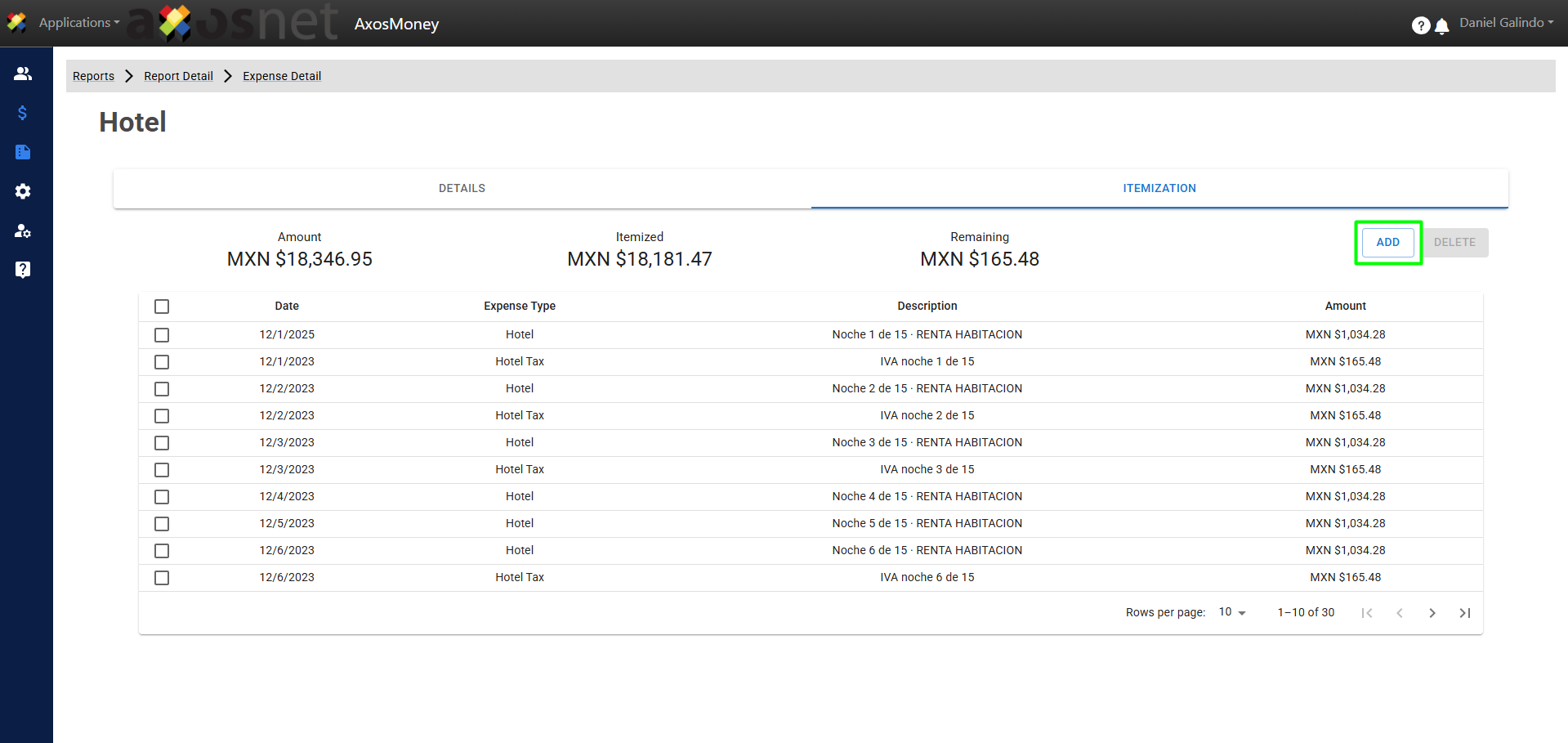
2. Click on ADD.
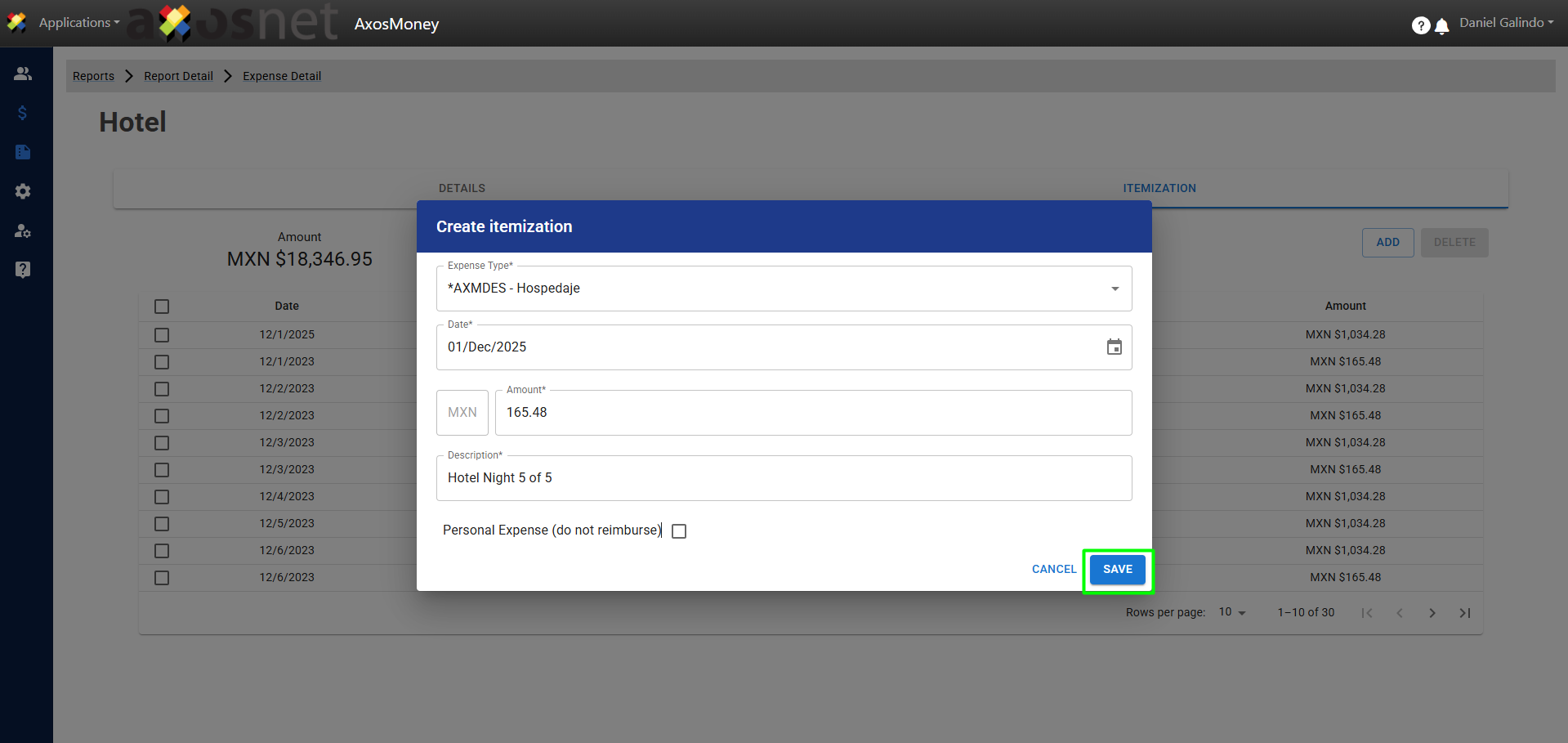
3. A pop-up screen will appear in which you will fill in the necessary data to register the itemized expense. When finished click on SAVE.
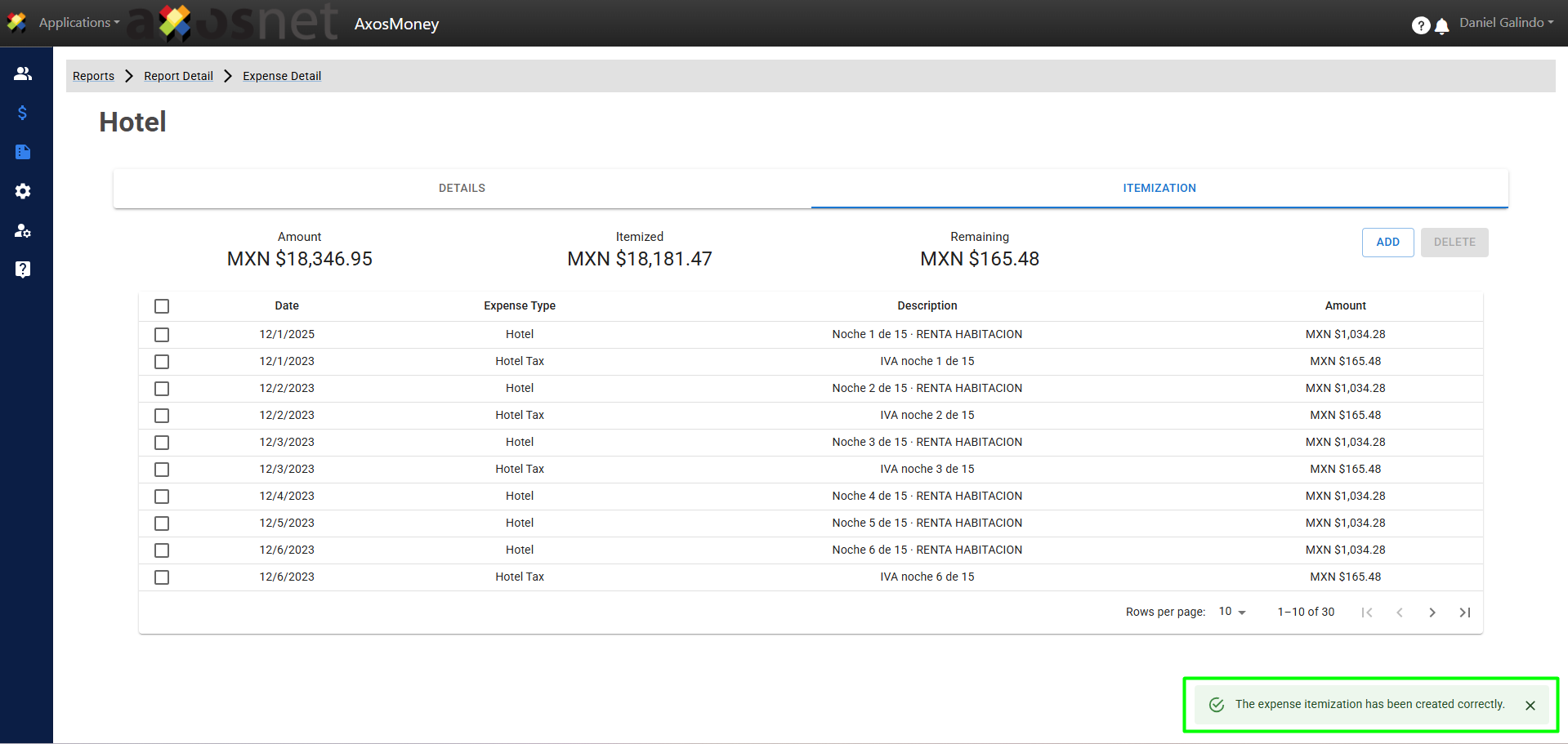
4. The expense will appear on the ITEMIZATION screen and the amount remaining to be itemized will be updated.
Edit itemized expense
To edit an itemized expense you can follow the steps below:
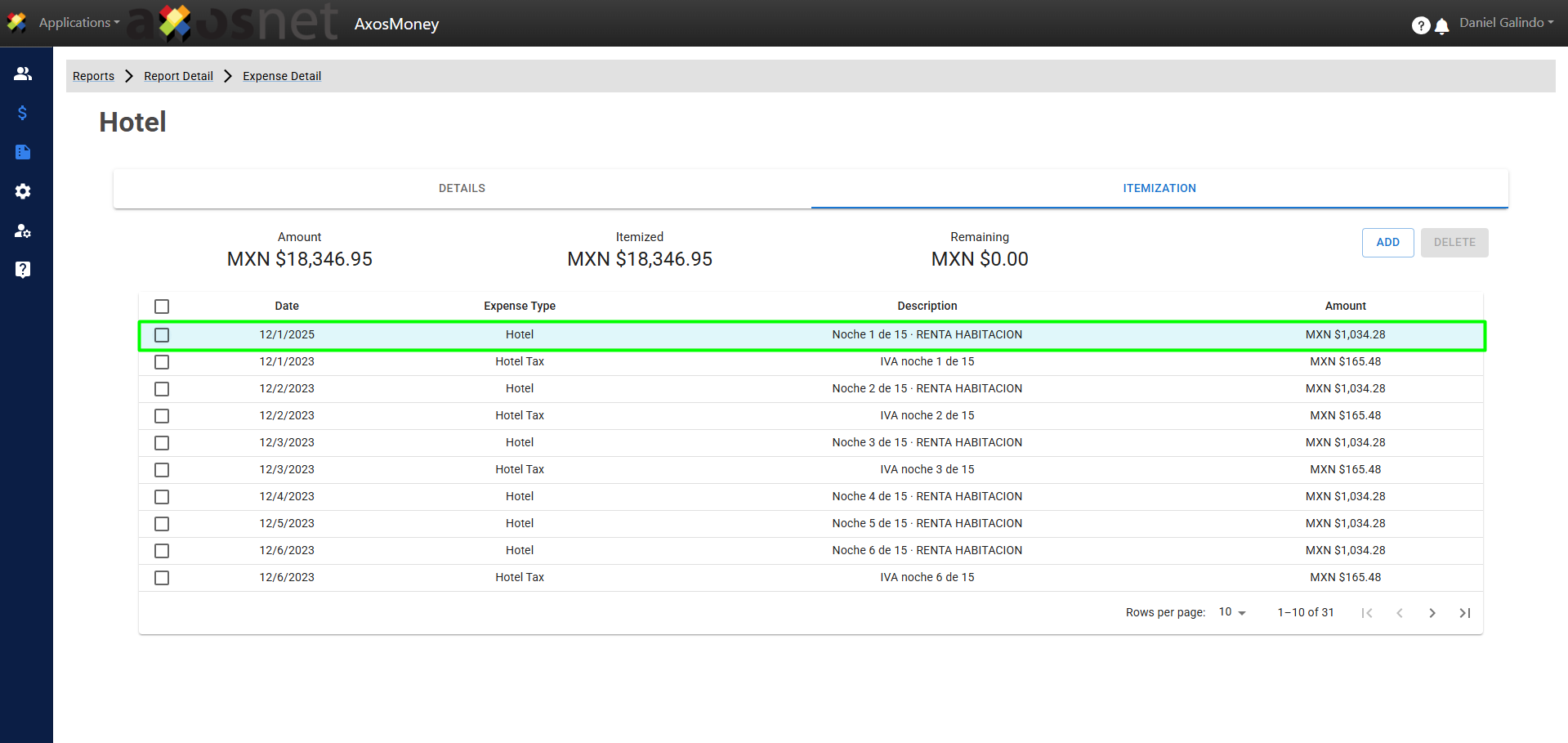
1. In the expense detail click on the ITEMIZATION tab. In this section you can edit an itemized expense.
2. Click on the itemized expense to edit the data.
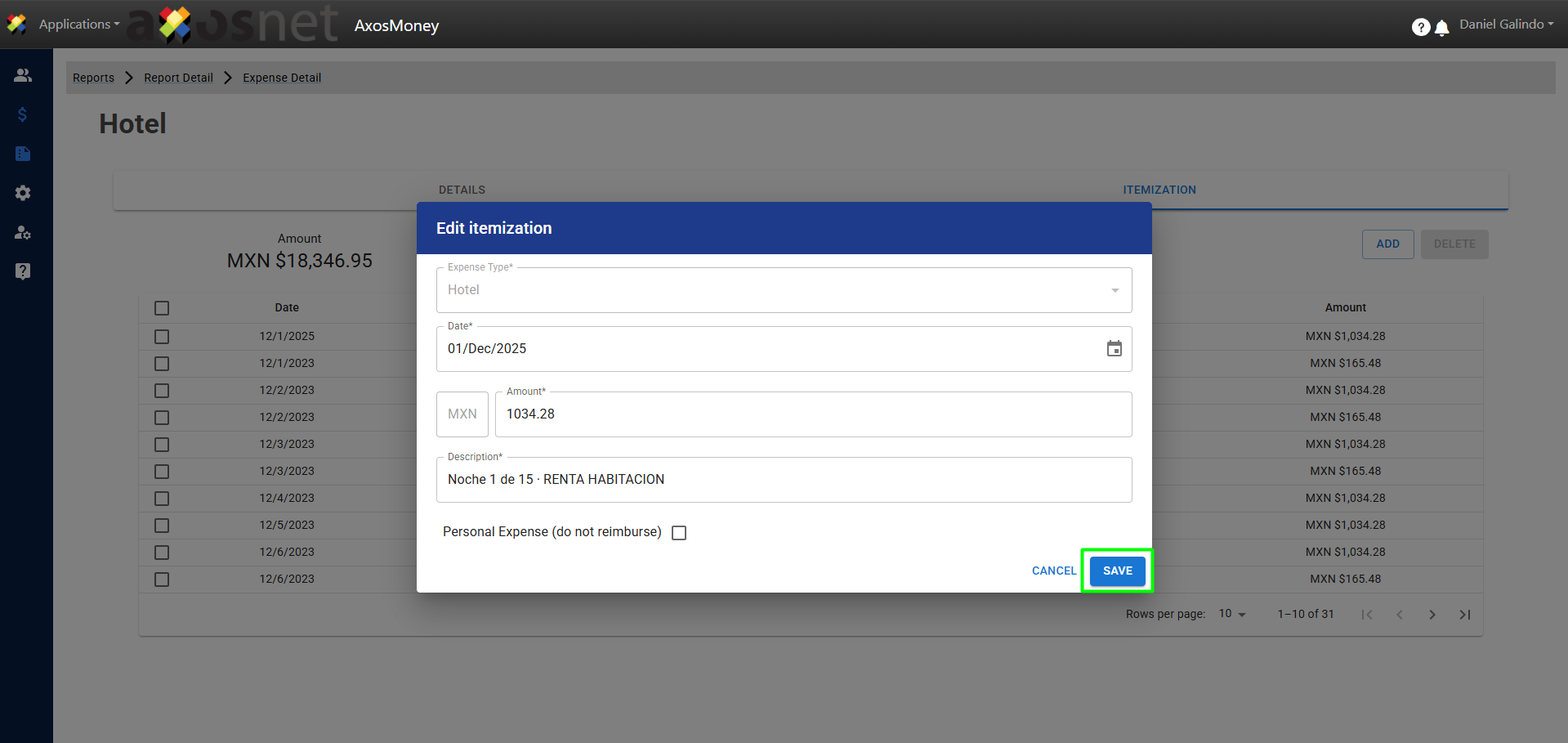
3. Edit the data and click on SAVE.
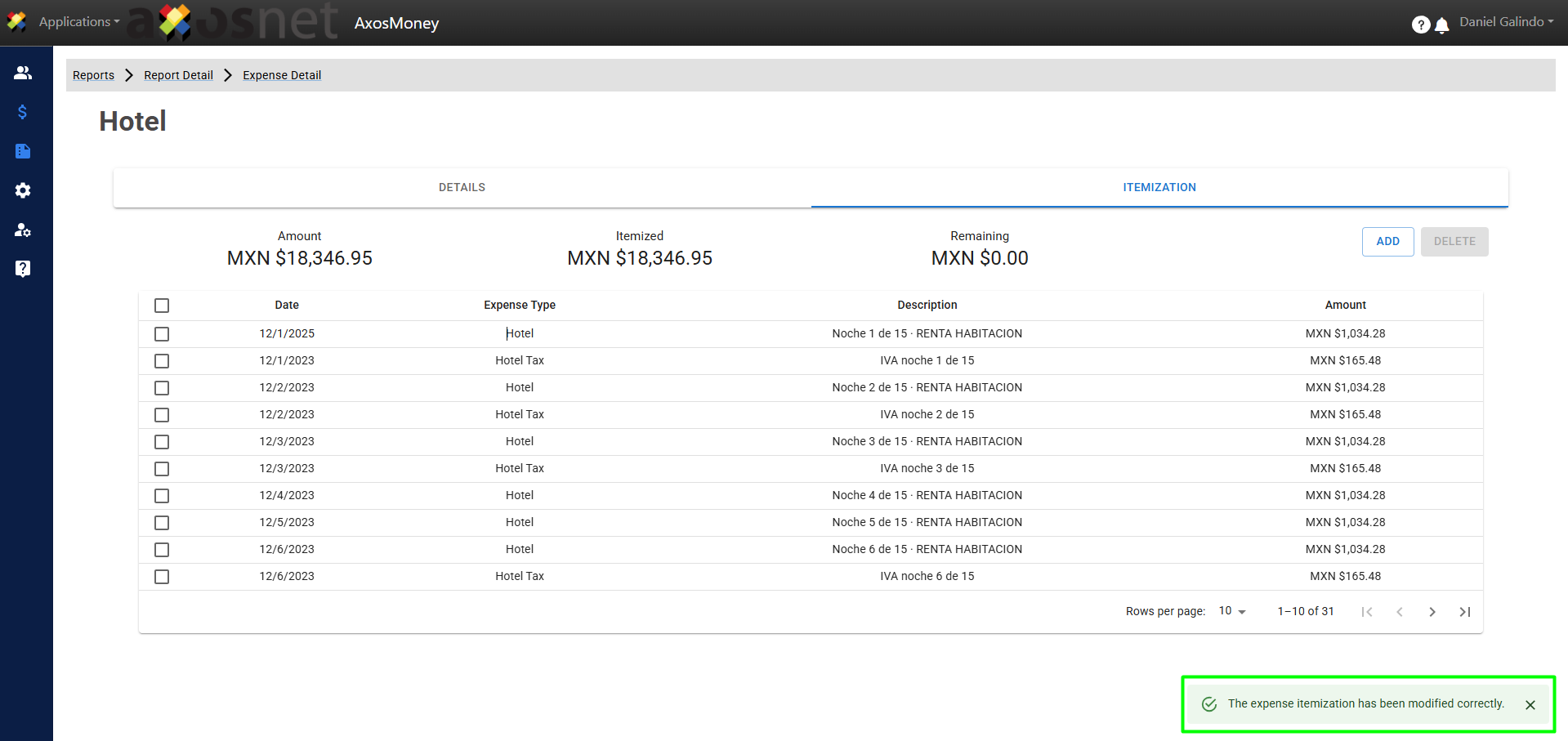
4. The expense will appear on the ITEMIZATION screen with the updated information.
Delete itemized expense
To delete an itemized expense you can follow the steps below:
1. In the expense detail click on the Itemization tab. In this section you can delete an itemized expense.
2. Select the expense with the checkbox as shown in the image, when doing so the option to delete the itemized expense will appear.
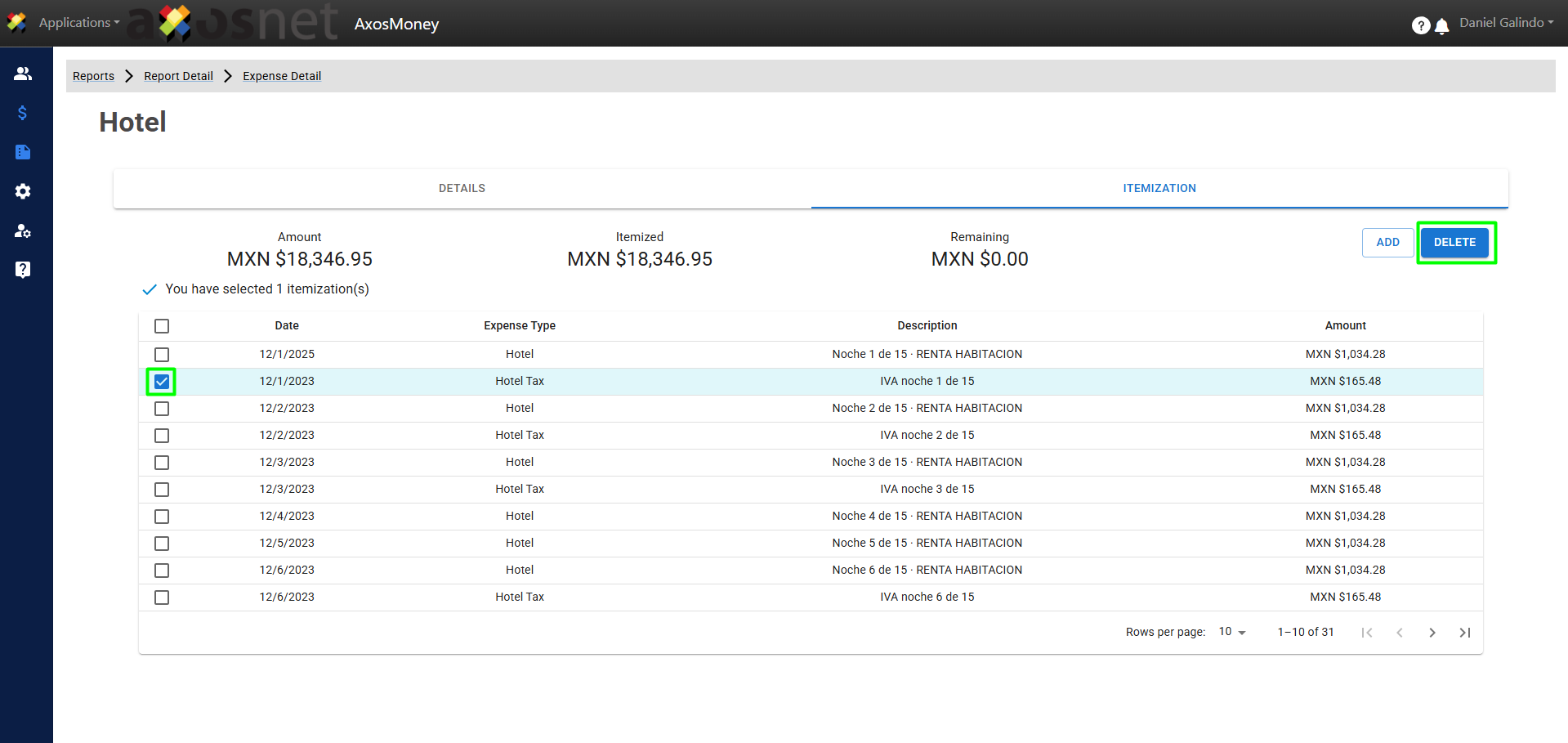
3. When you click Delete, a pop-up window will appear asking you to confirm the action. Click Confirm.
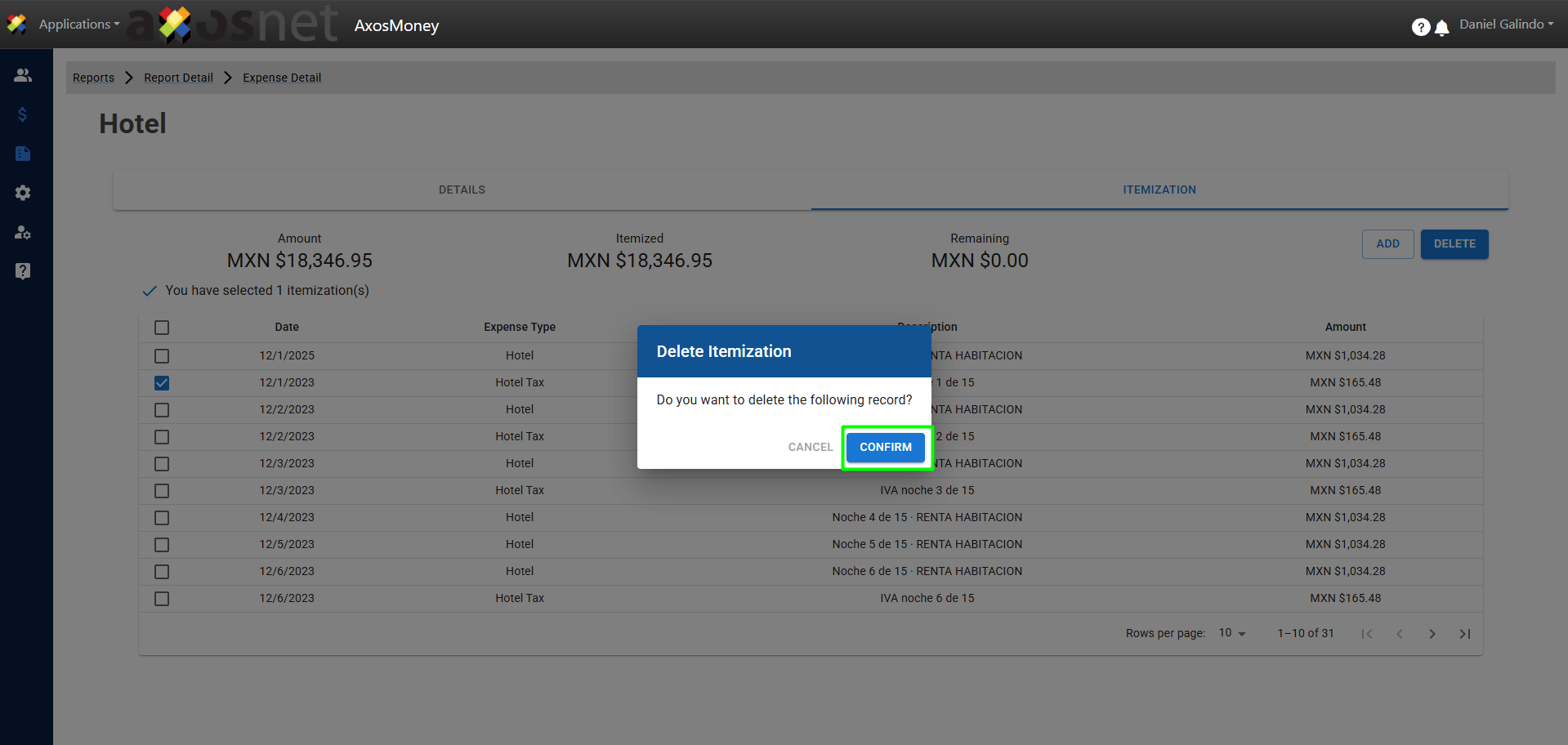
4. When confirmed, the itemized expense will be deleted and will no longer appear in the ITEMIZATION screen.