AxosMoney Rewards is a reward system for the employees of your organization, where they can redeem products through a point system. Points are earned by receiving recognition from other colleagues. A key role is that of team leaders, who are responsible for approving or rejecting said recognition. Additionally, the account administrator is in charge of managing both the available rewards and their assigned point value.
In the AxosMoney Rewards section, the Leader has the ability to approve or reject recognitions sent by collaborators. This recognition results in the collaborators earning Rewards points, which can later be used to redeem various rewards.
To approve or reject a Recognition, you can follow these steps:
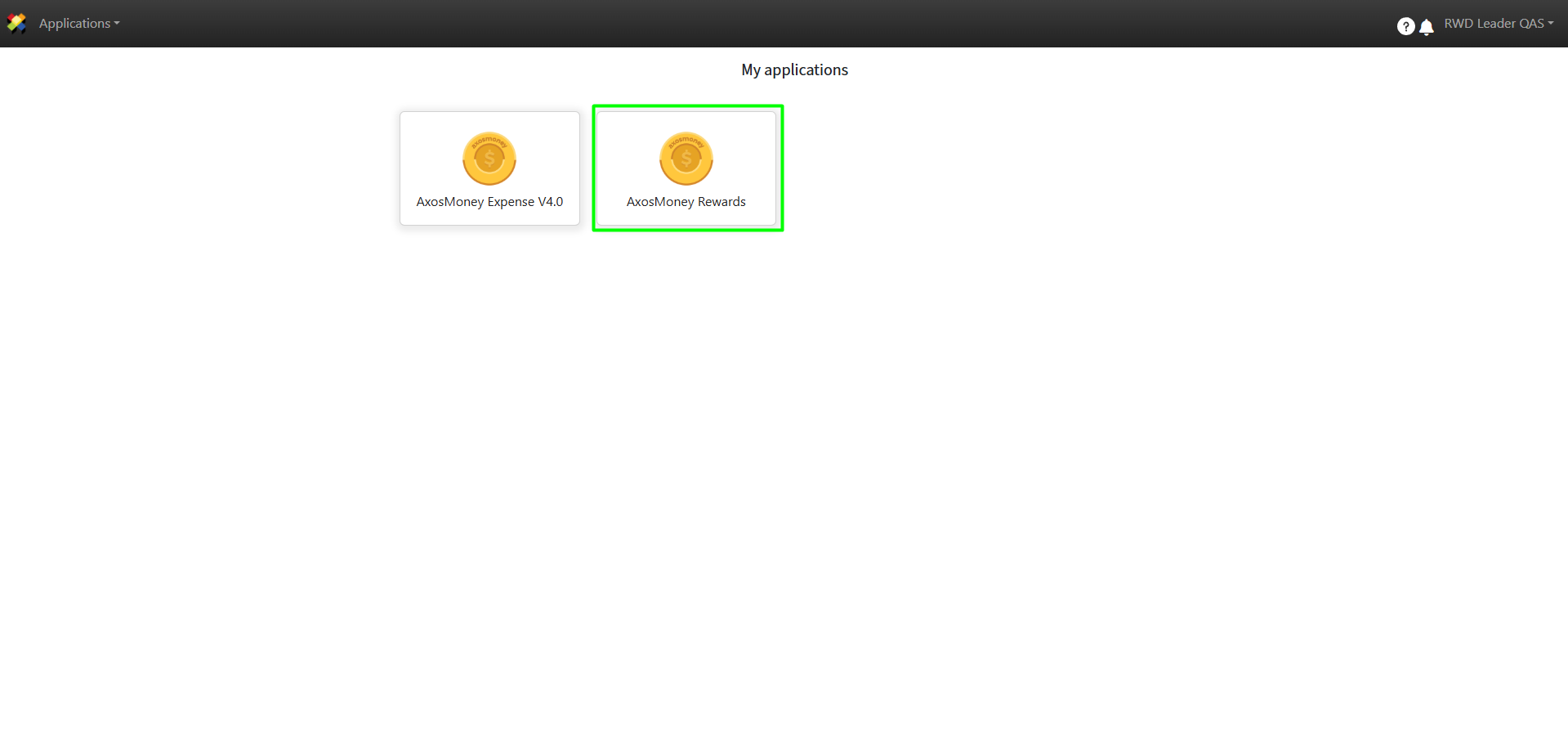
1. Log in to ACS Management and select the AxosMoney Rewards application.
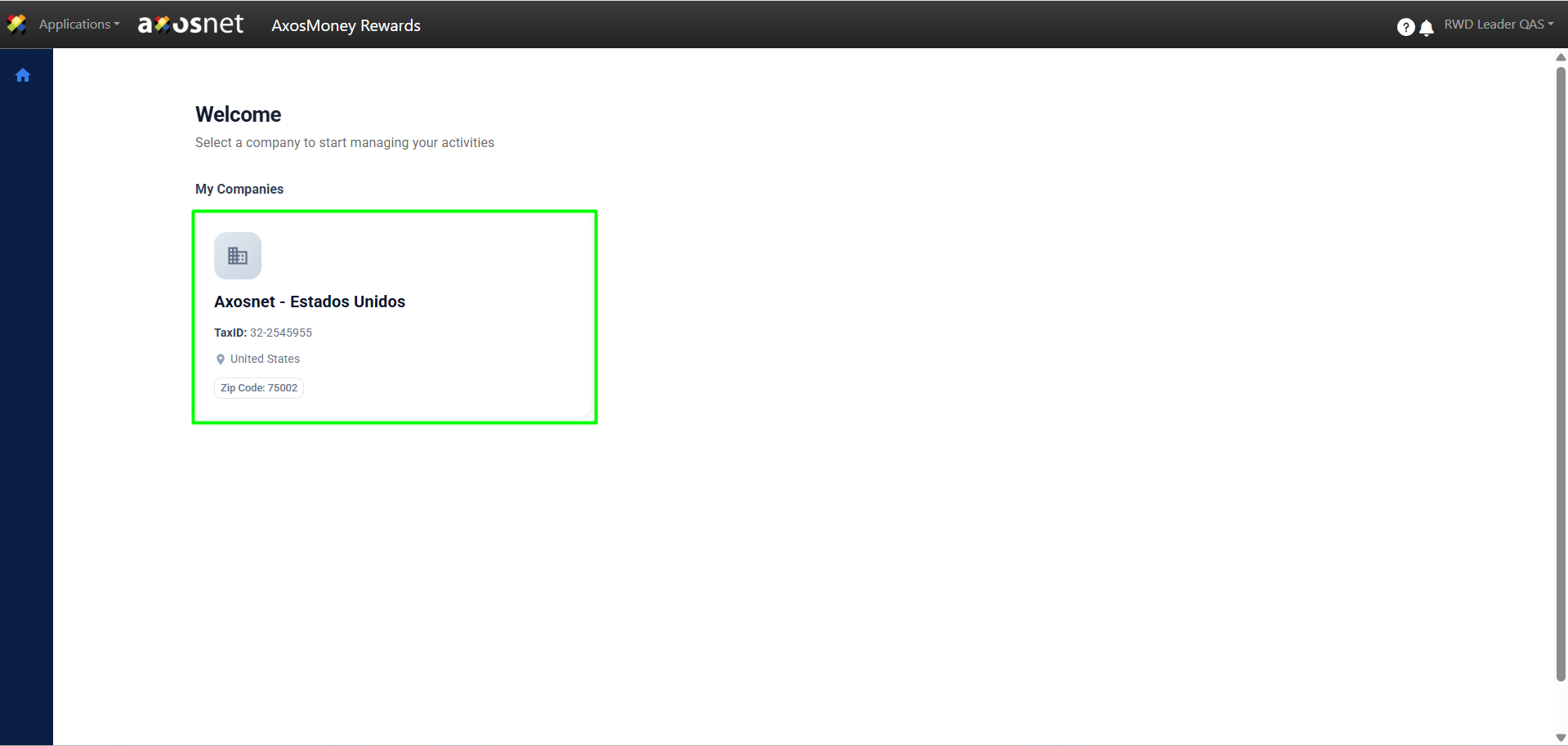
2. Select the company where the recognitions are to be approved.
Note: A leader can be assigned to multiple companies. For example, the same person could be part of the Finance team in the Mexico company and, simultaneously, the Administration team in the United States company.
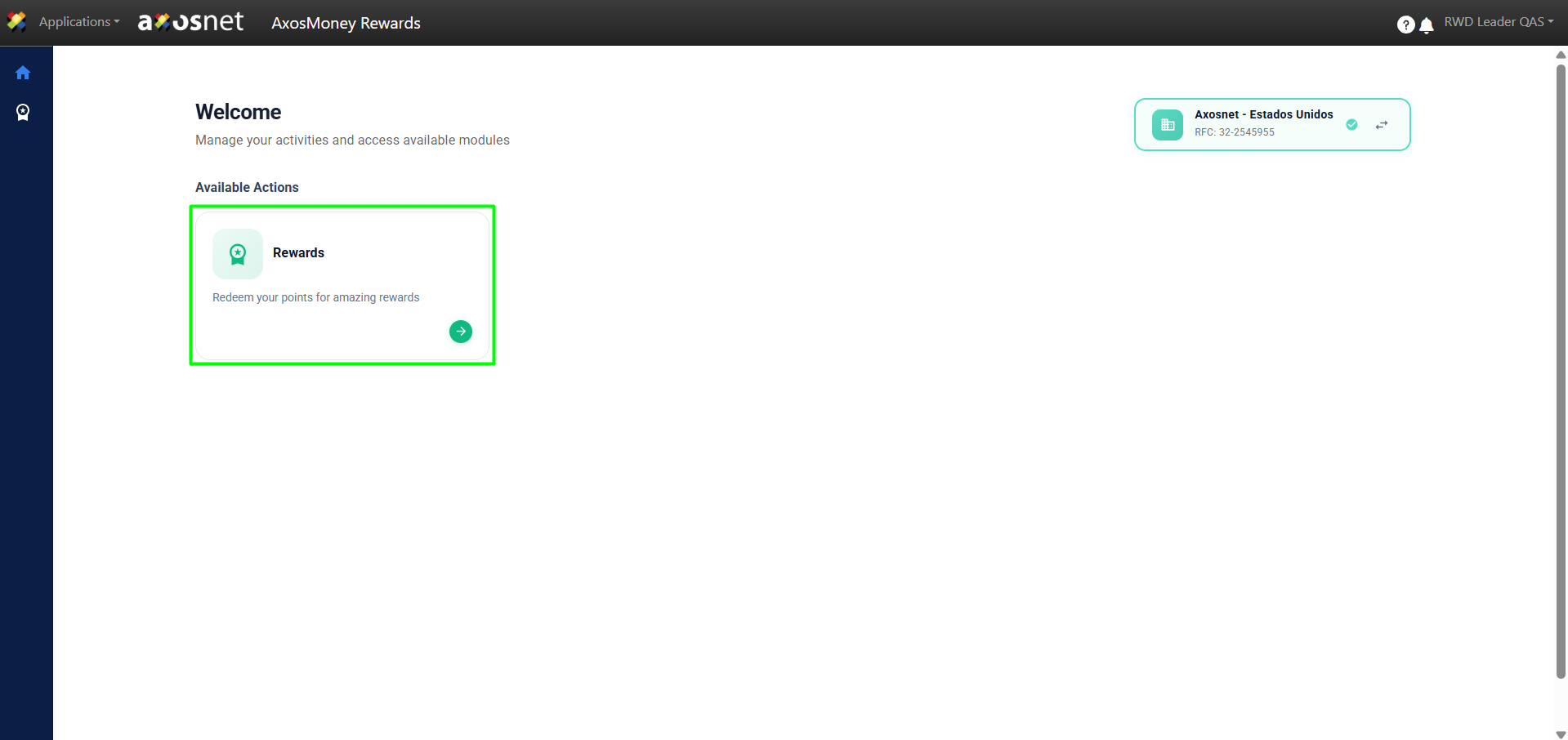
3. Click on Rewards.
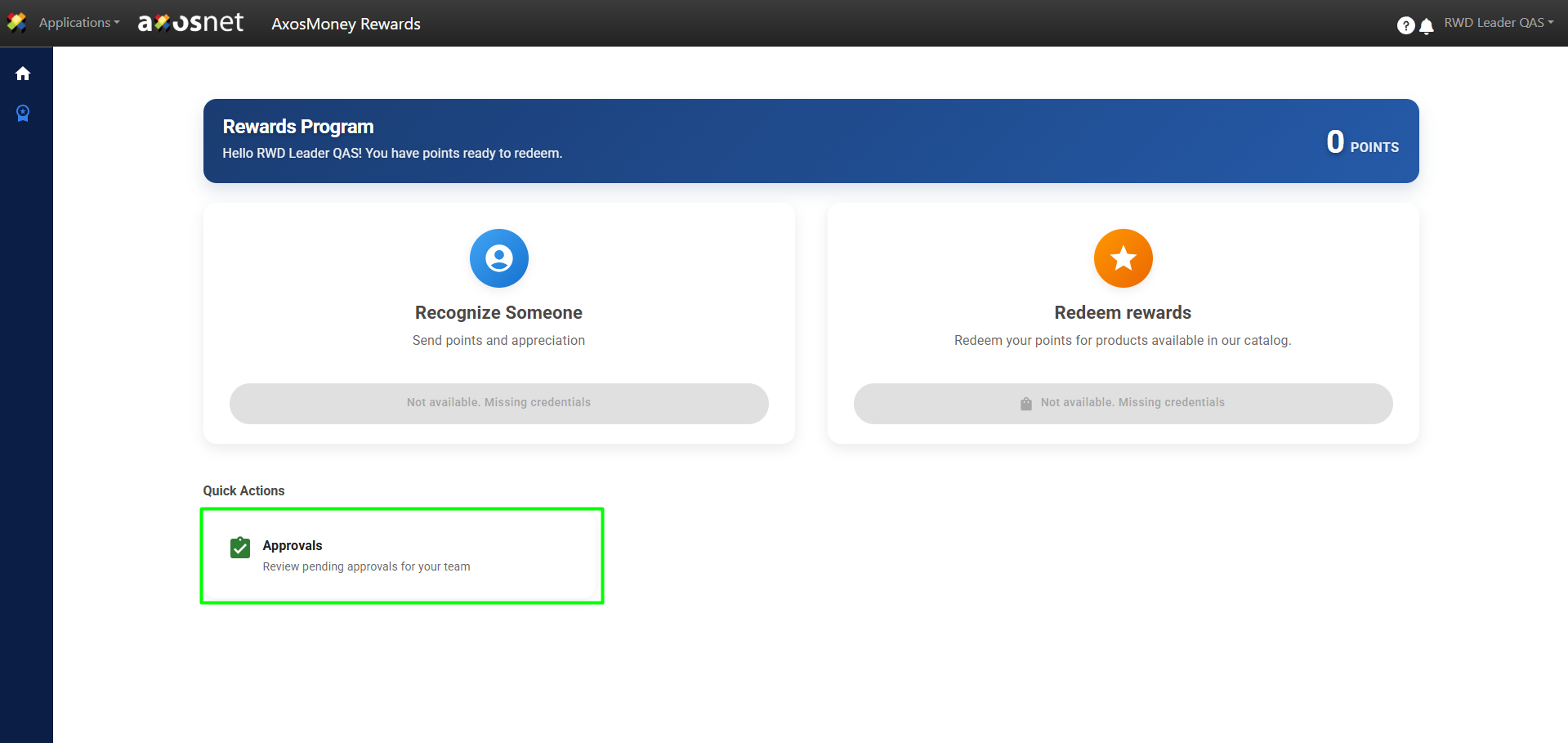
4. In the Quick Actions section, click on Approvals.
Note: The leader user role is limited to approving and rejecting recognitions made by collaborators. This role does not include the functionality to grant recognitions or redeem rewards unless the leader also has the collaborator role in a different team than the one they lead.
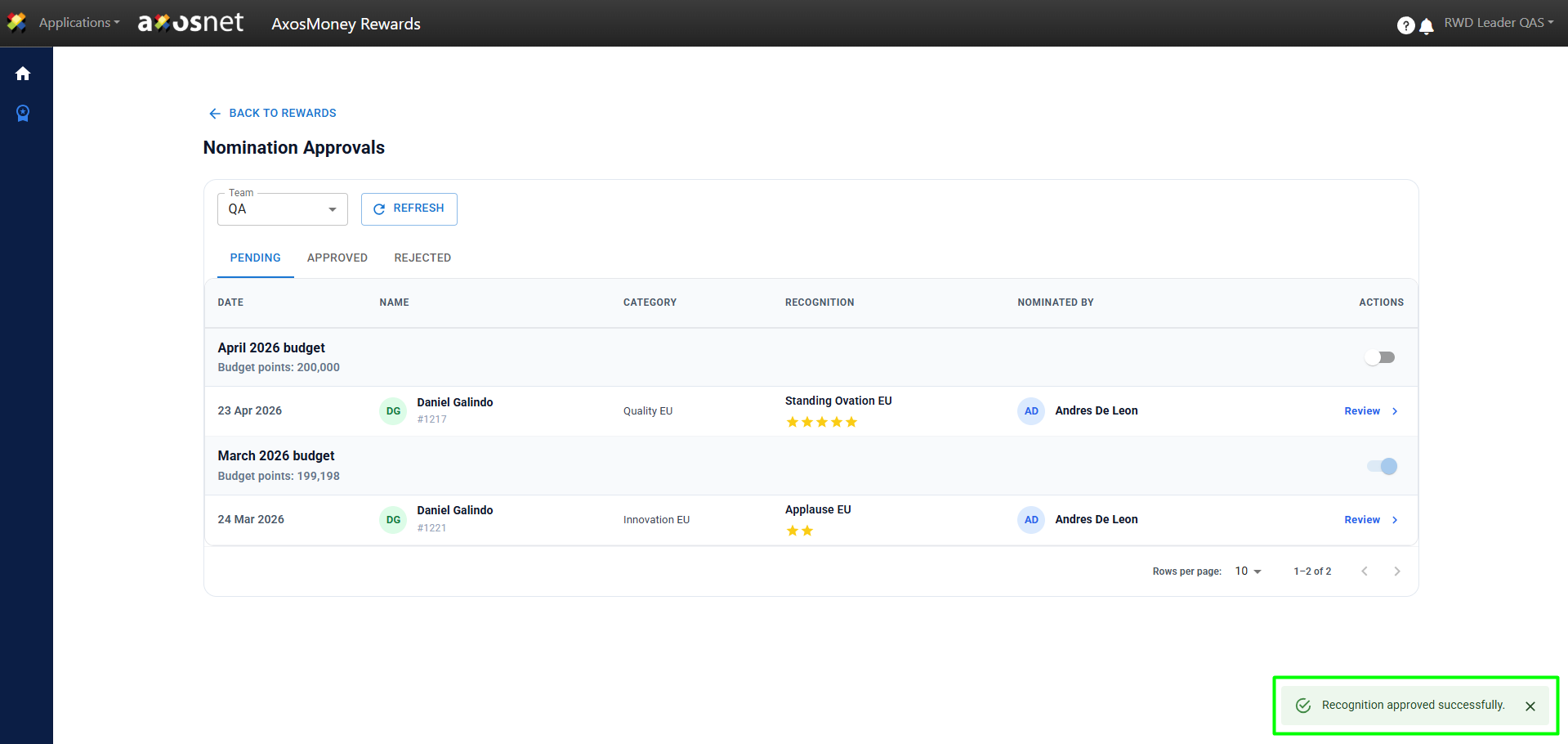
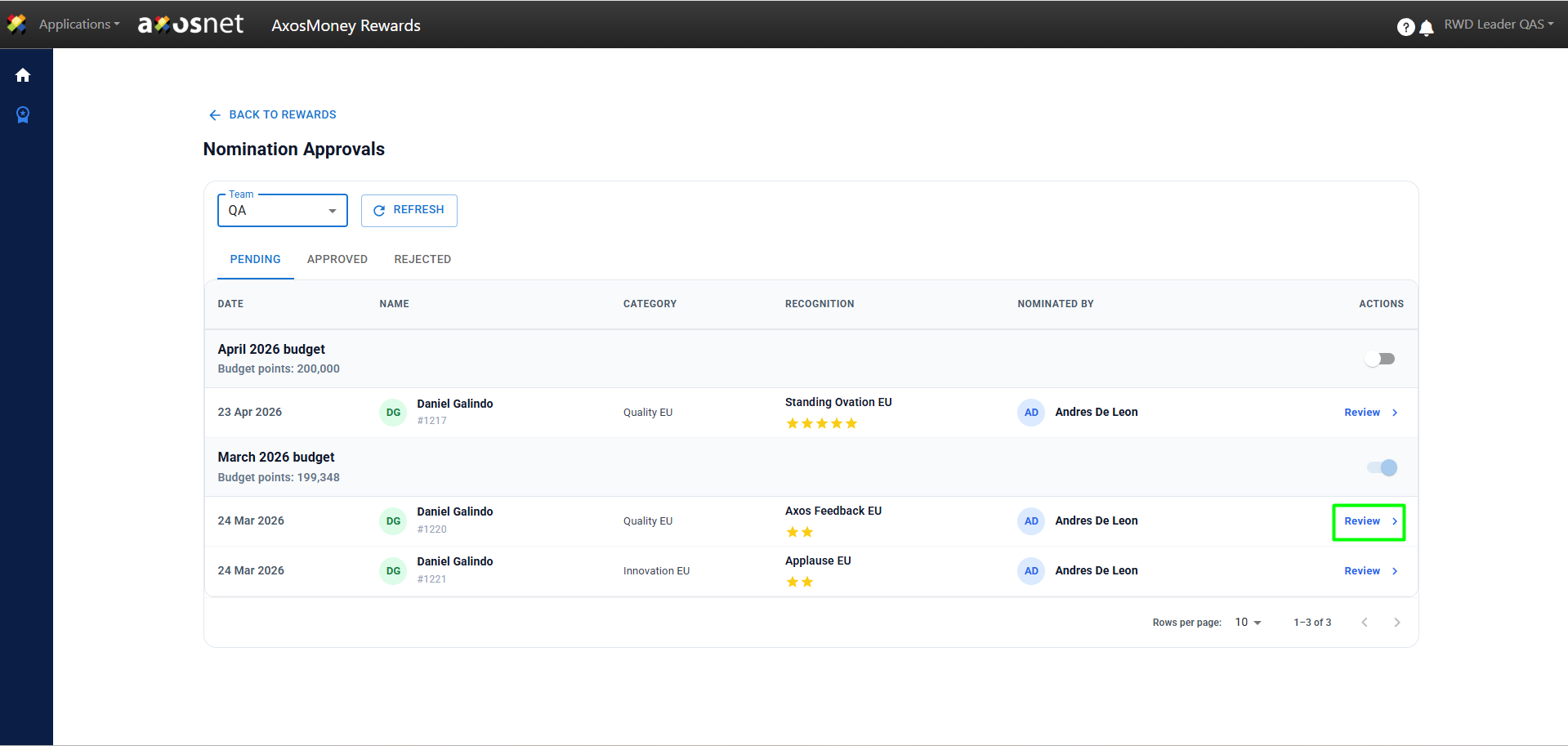
5. In this section, you will see the approvals of the team(s) you lead. To approve or reject one, click on Review.
Note: Budget management must be sequential. For example, it is essential to complete the approval of the March recognitions before being able to activate those corresponding to April, maintaining this order in the process.
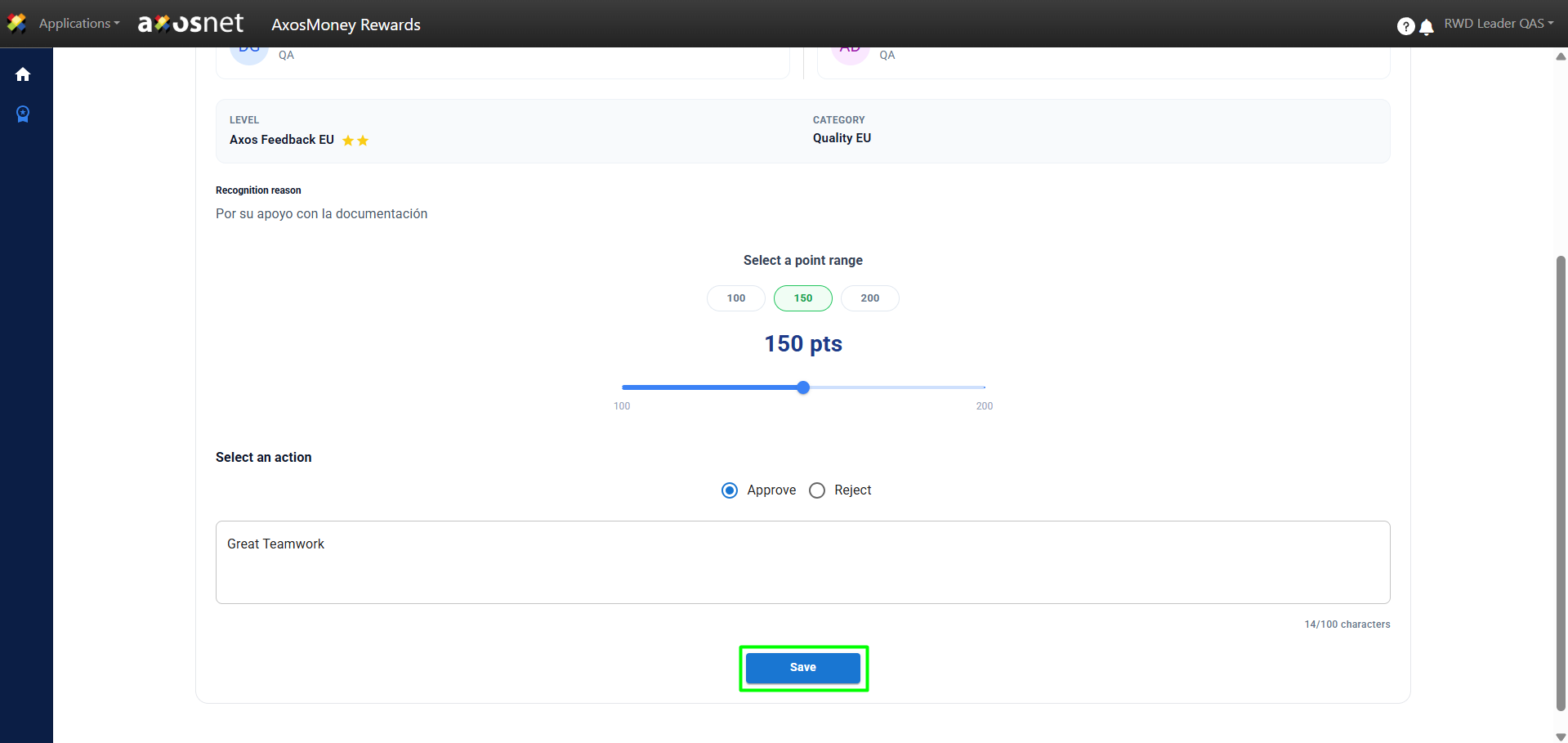
6. In this window, you have the ability to approve or reject the recognition, as well as adjust the number of points that will be awarded to the collaborator, within the established range. To finish, choose whether you wish to accept or reject the recognition and, subsequently, click the Save button.
7. Finally, a message confirming the recognition status will appear.