
The expense itemization feature in AxosMoney allows you to split a single expense entry into multiple individual entries, each with its own expense type, amount, and details. This is especially useful for expenses that span multiple categories, such as a hotel bill that includes charges for the room, meals, parking, and taxes, where each component must be reported separately to facilitate compliance with your organization’s policy. Instead of submitting a single total amount, the itemization provides a clear and transparent breakdown. Within AxosMoney, you can add, edit, and delete individual itemized lines directly in the expense report.
To configure expense itemization, follow these steps:
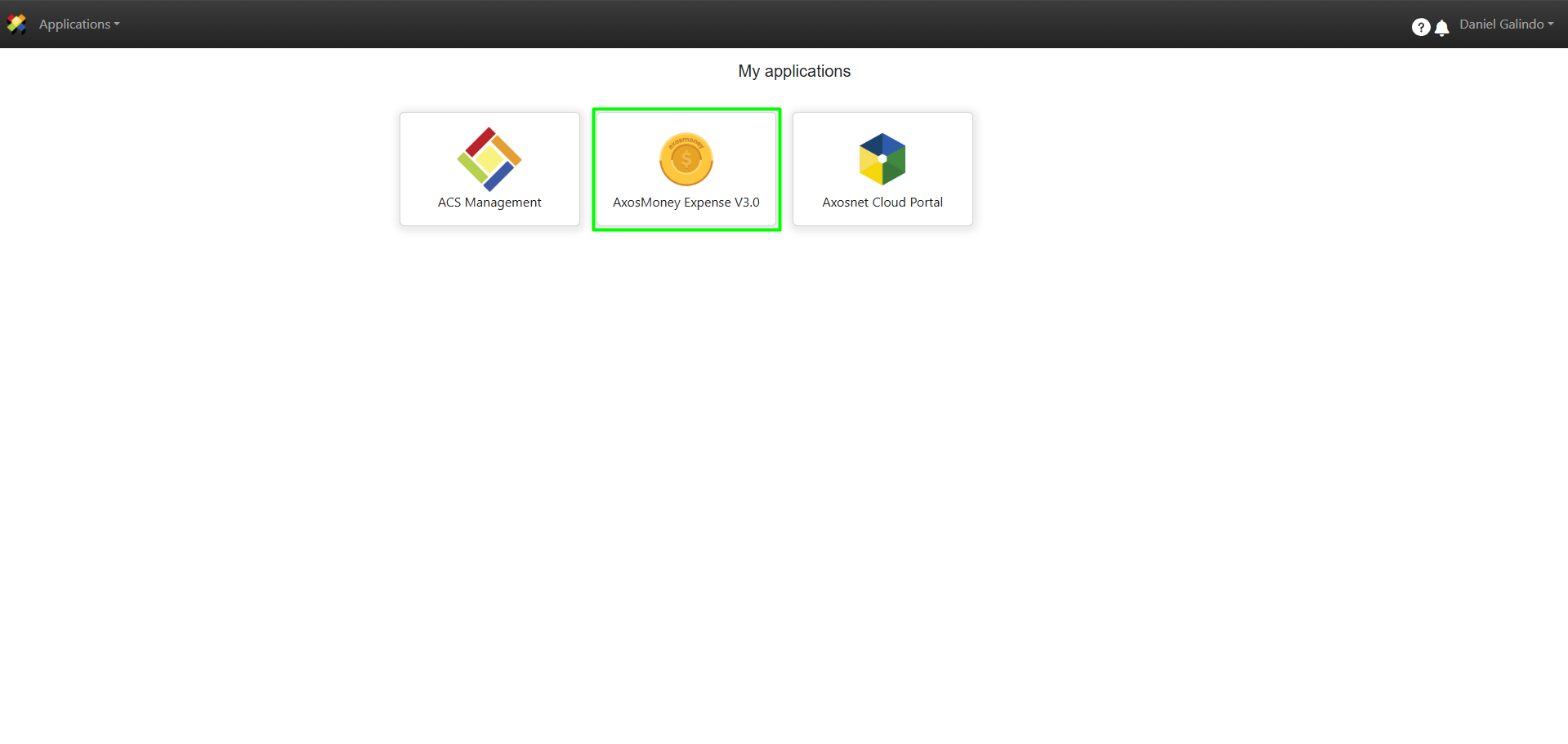
1. Log in to AxosMoney.
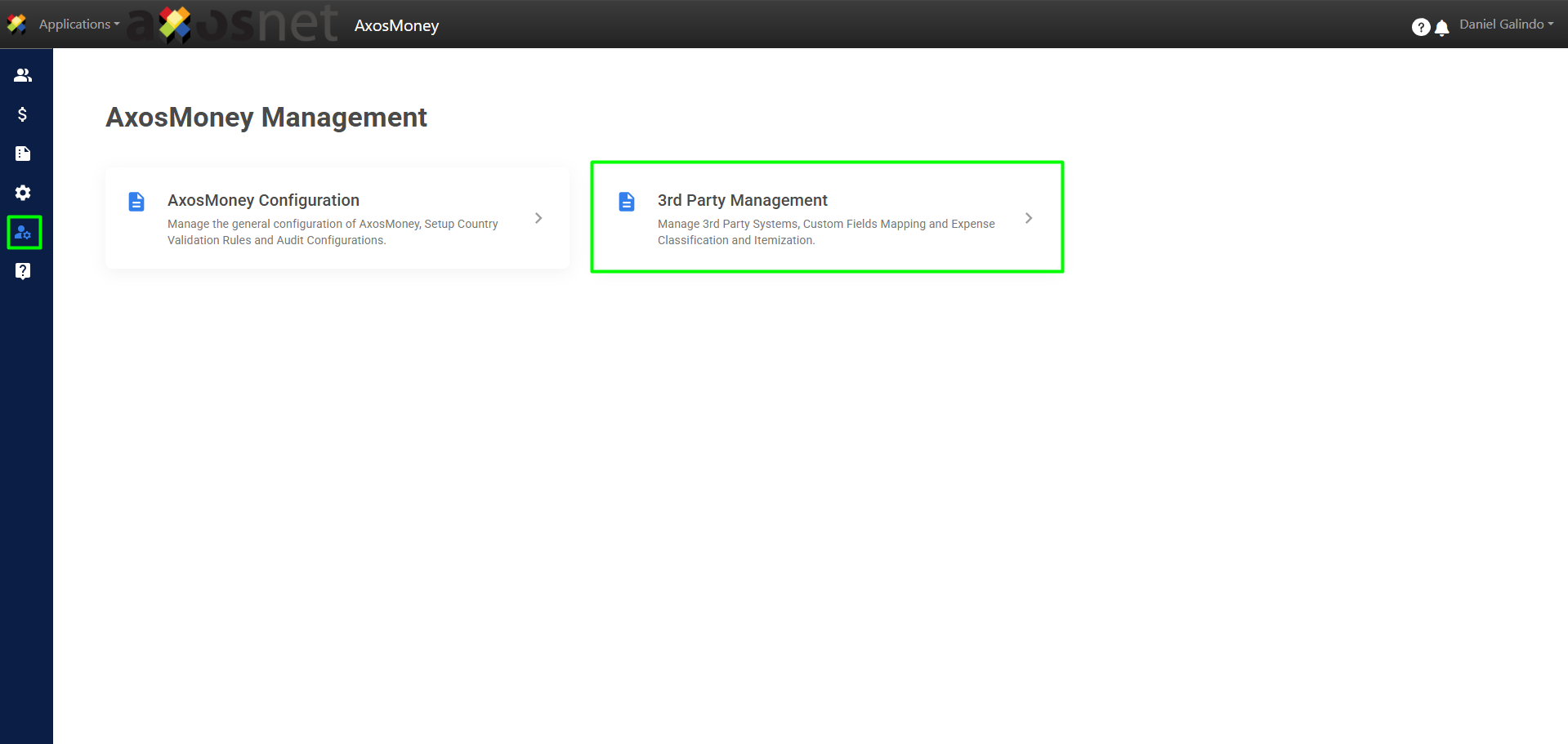
2. Go to the AxosMoney Management section in the left-hand side menu and select the 3rd Party Management option.
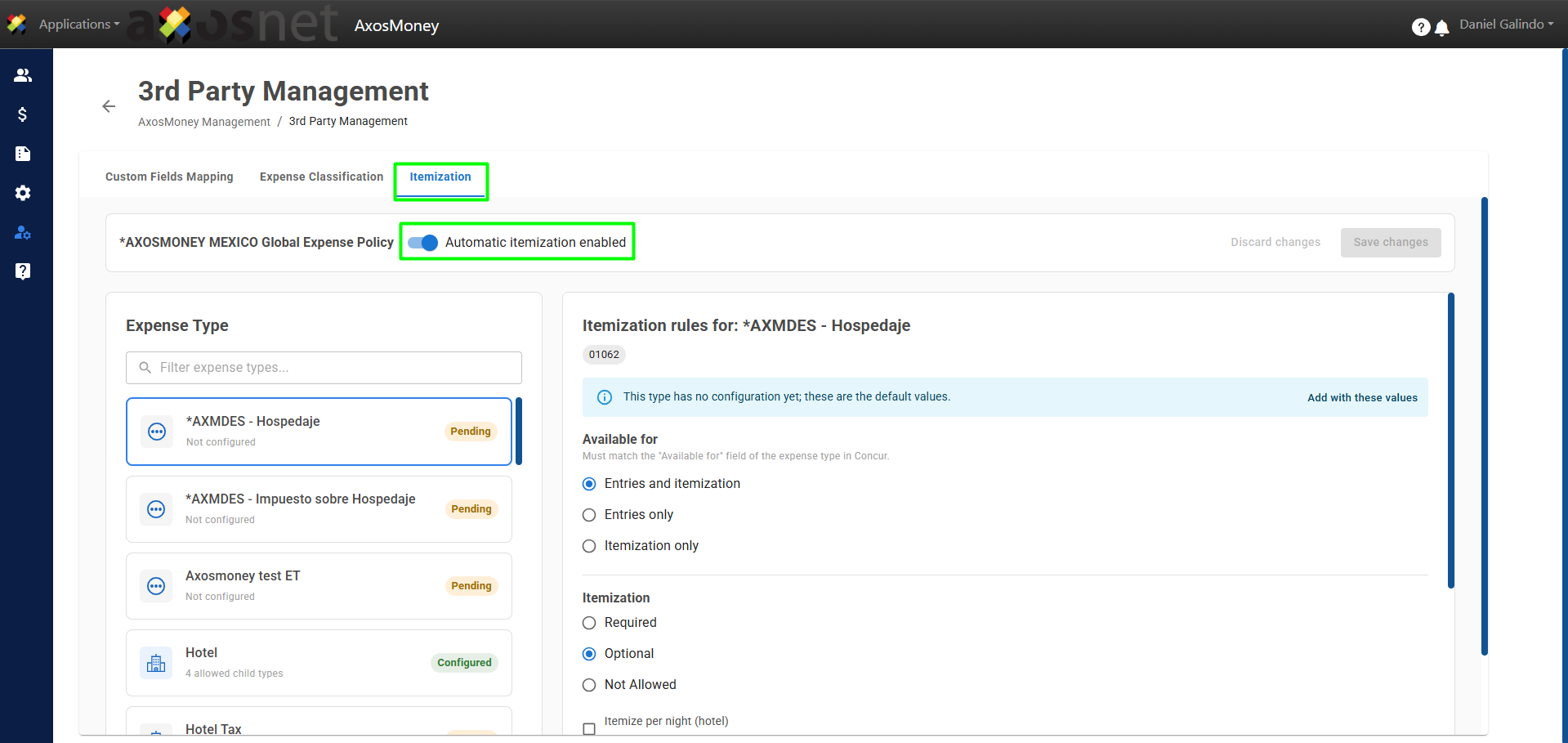
3. Select the Itemization tab. In this section, you’ll find a toggle button to enable or disable automatic expense itemization.
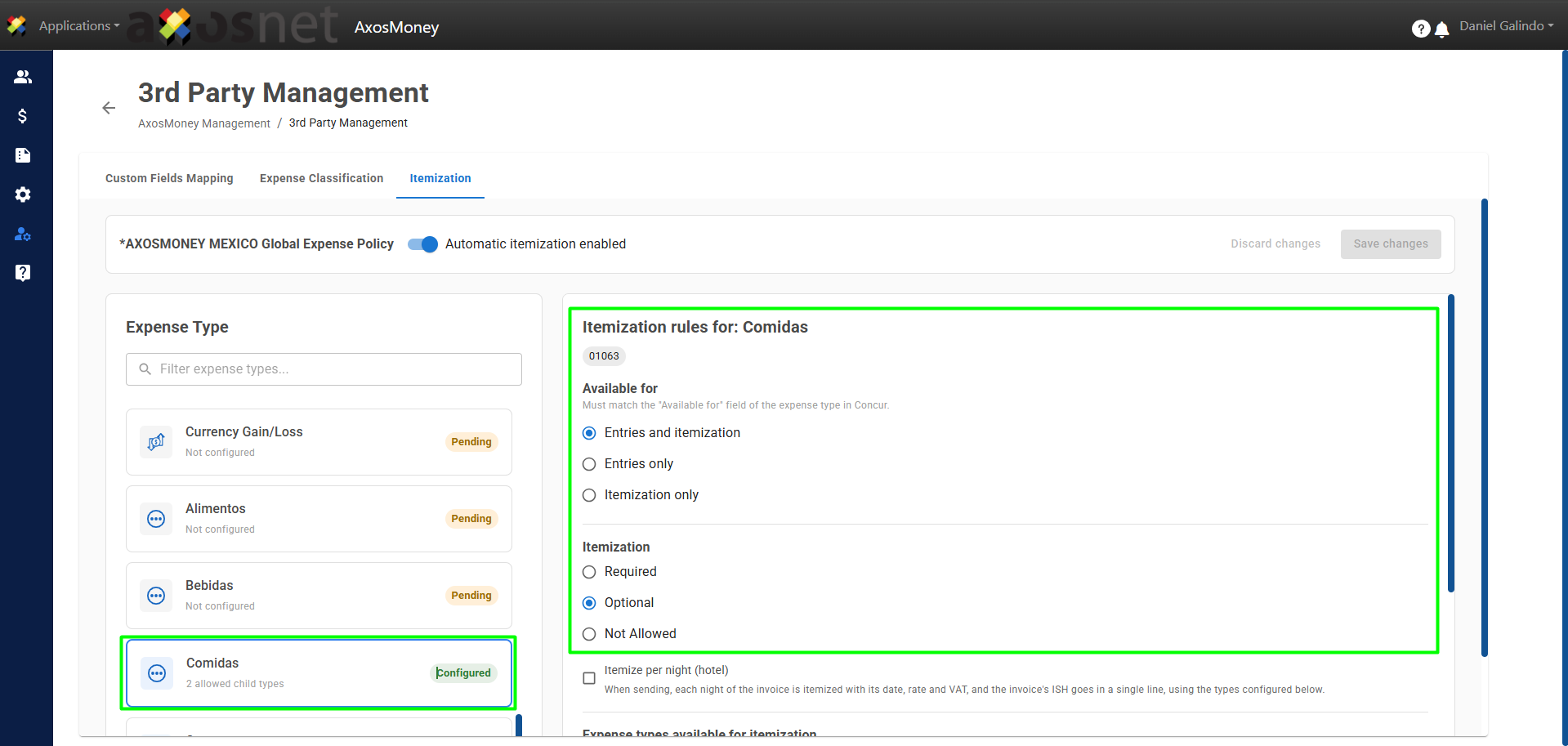
4. To configure this setting, select an Expense Type and set up the Itemization Rules.
Note: It is important to note that this configuration must match the settings in your Concur account.
5. Scroll down in the settings and select the Expense Types available for Itemization.
Note: It is important to note that this configuration must match the settings in your Concur account.
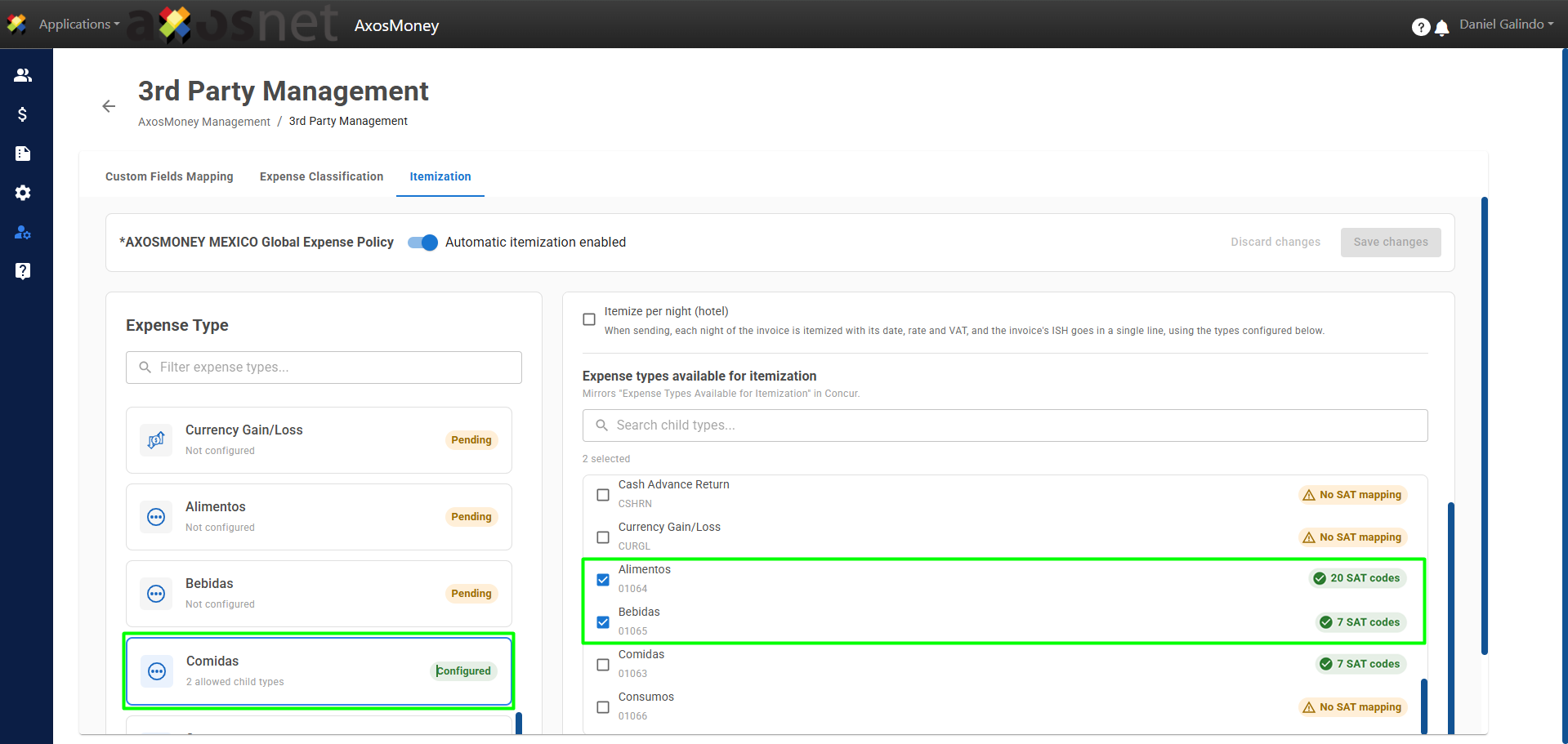
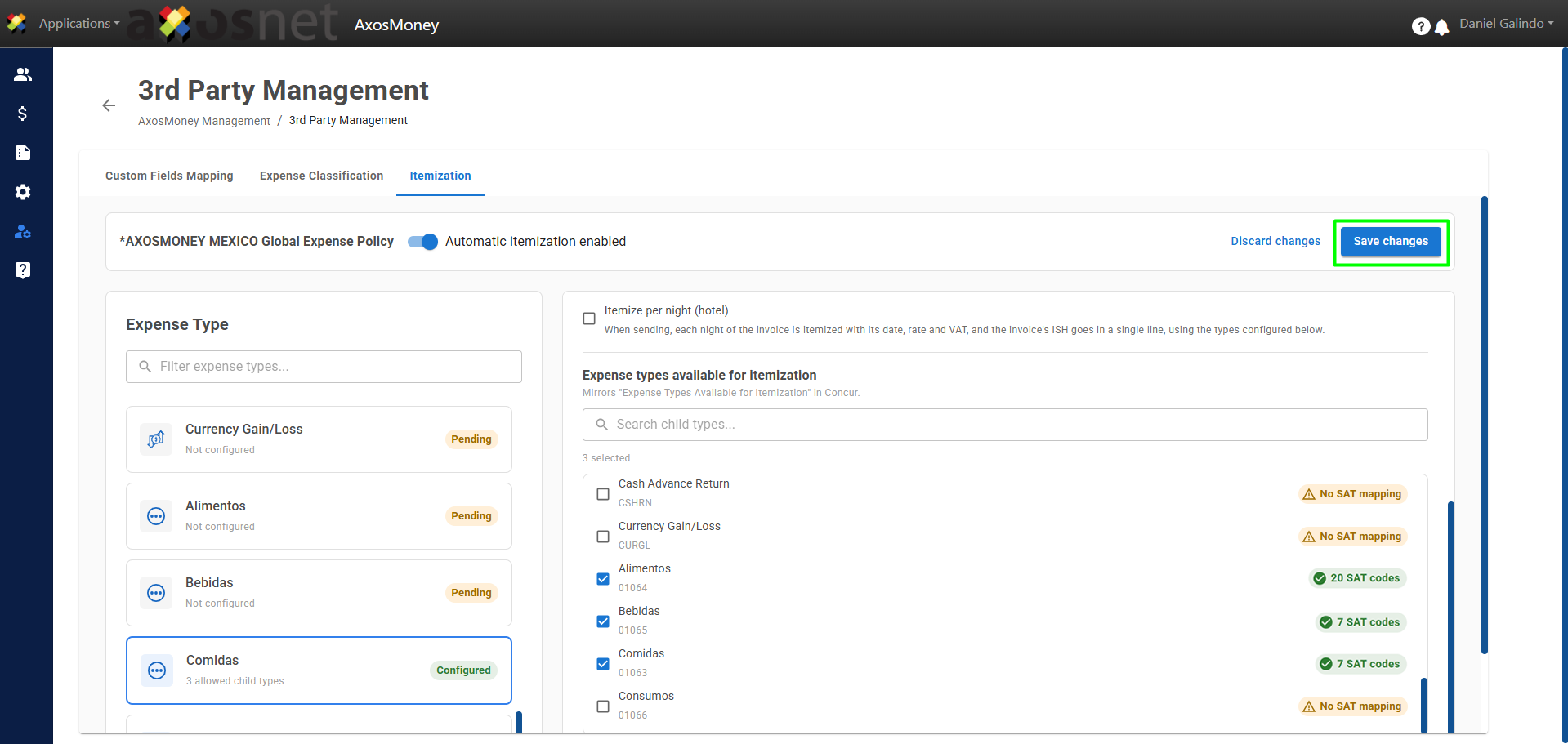
6. When you have finished configuring, click Save Changes. This action applies whether you make changes or delete the configuration.
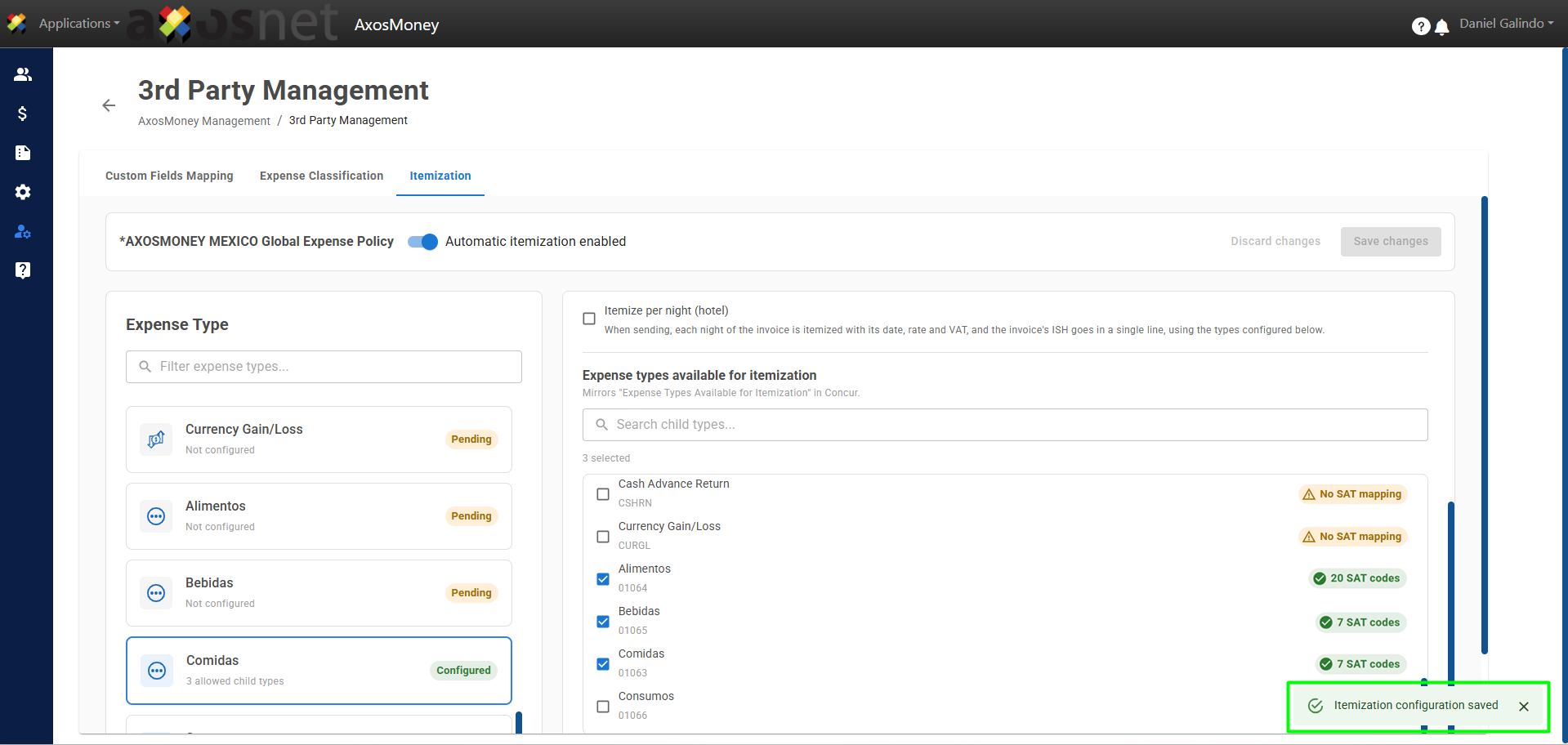
7. A message will appear confirming that the Itemization configuration have been saved.
8. To delete the entire configuration for the expense type, click Remove this type’s configuration.
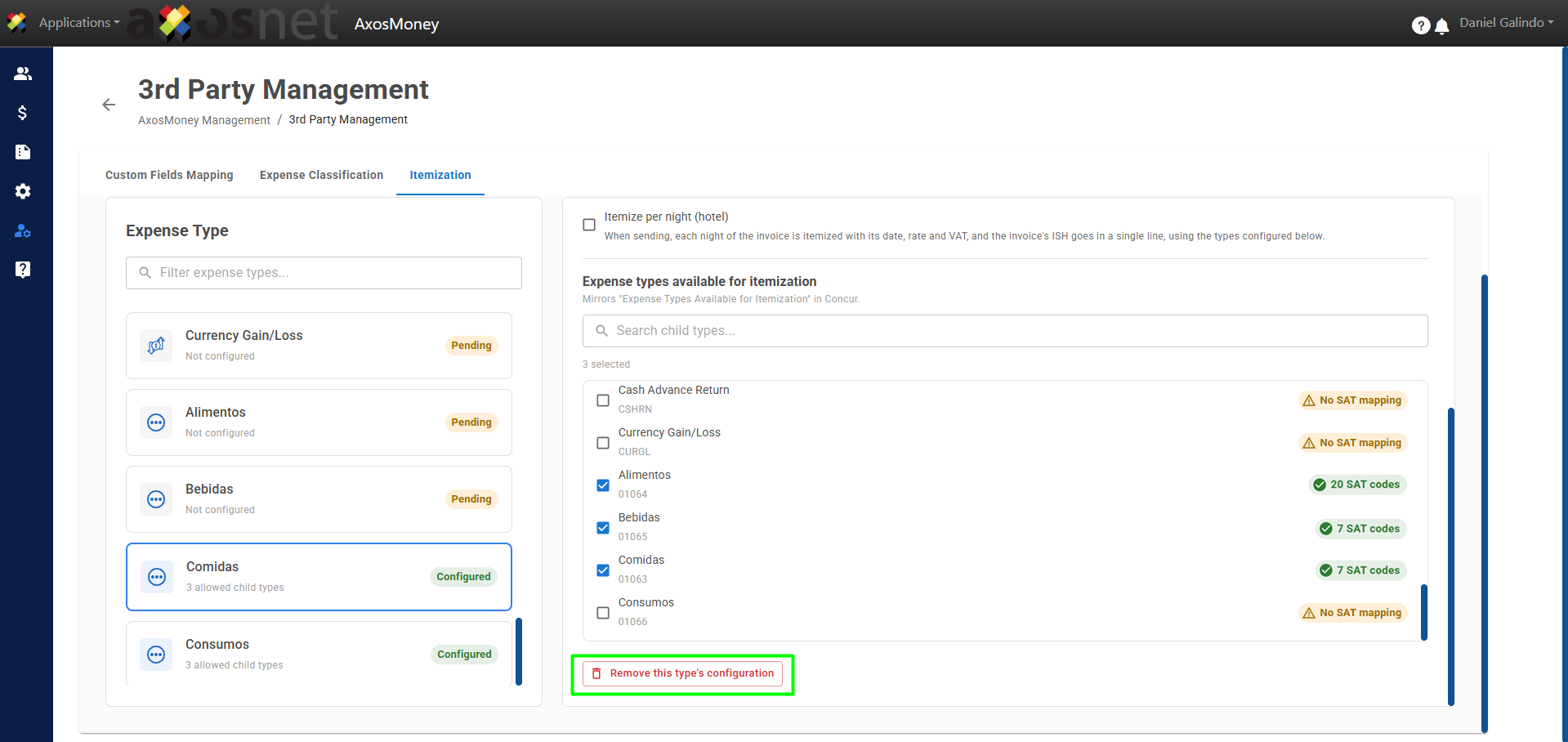
9. When you remove the configuration, click Save Changes. This action applies when you make changes or delete the configuration.