In this section, you will learn how account administrators can add validations for accepted payment methods in their AxosMoney account.
To configure them, follow these steps:
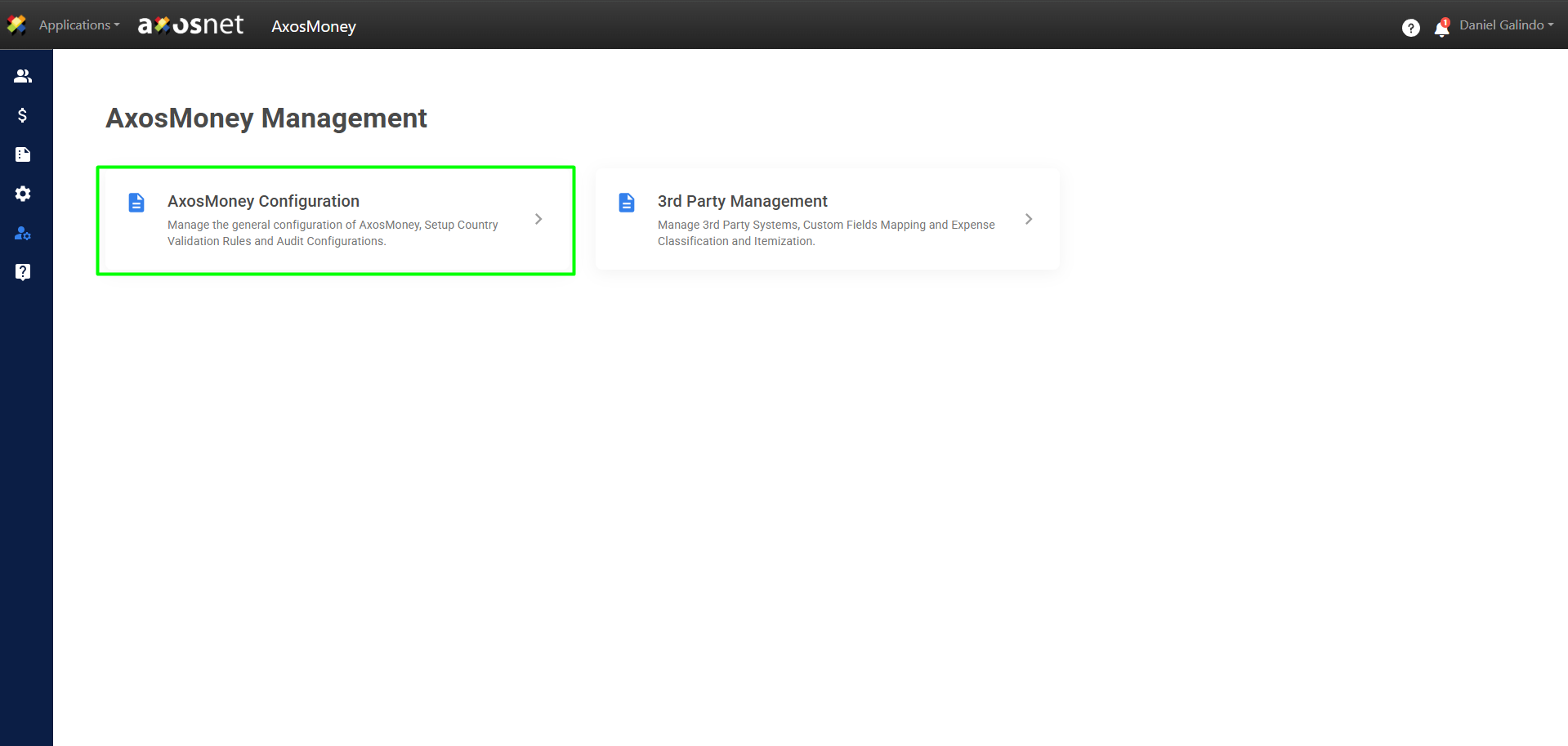
1. Go to the Administration section in the left side menu and click on AxosMoney Configuration.
2. Select the Country Validation Rules tab.
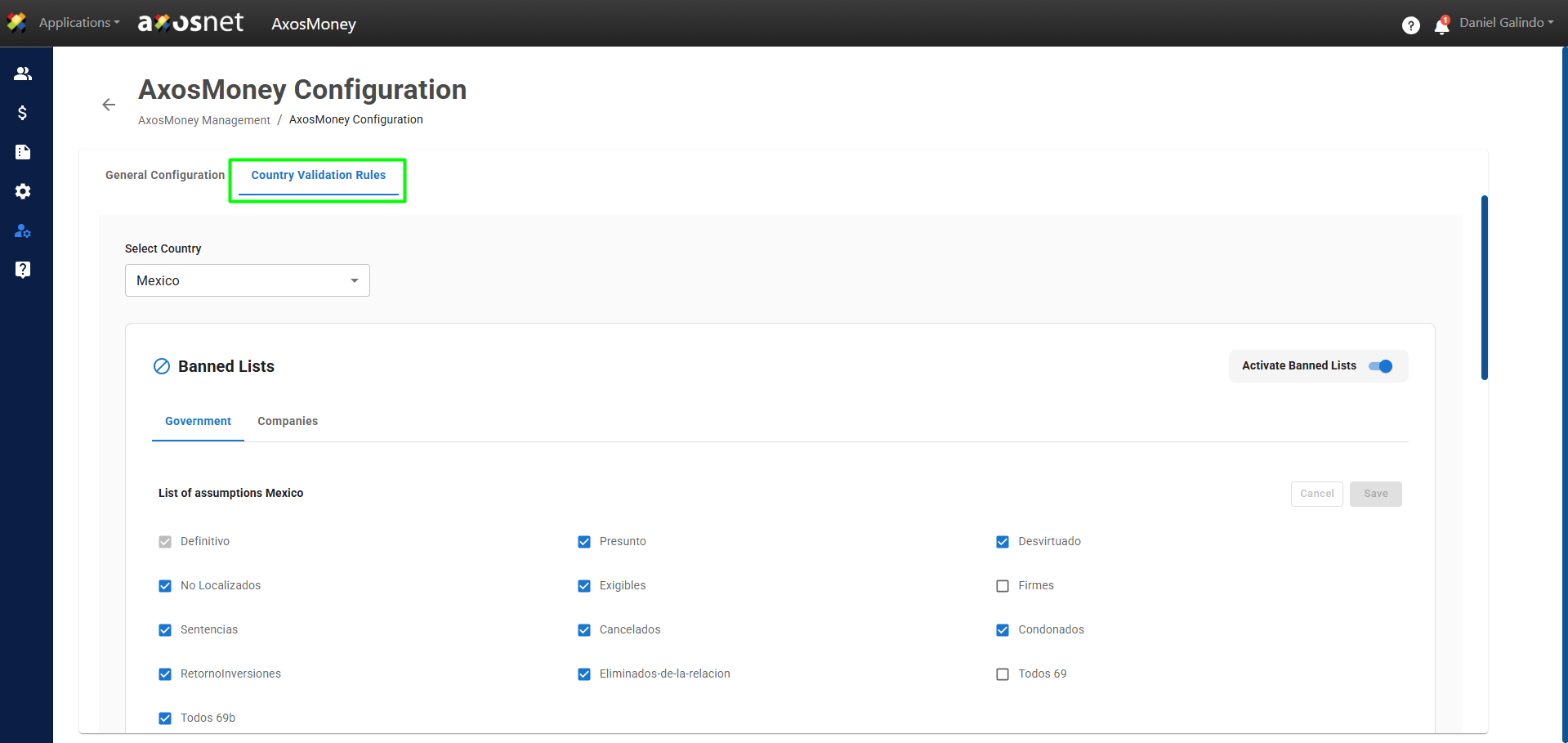
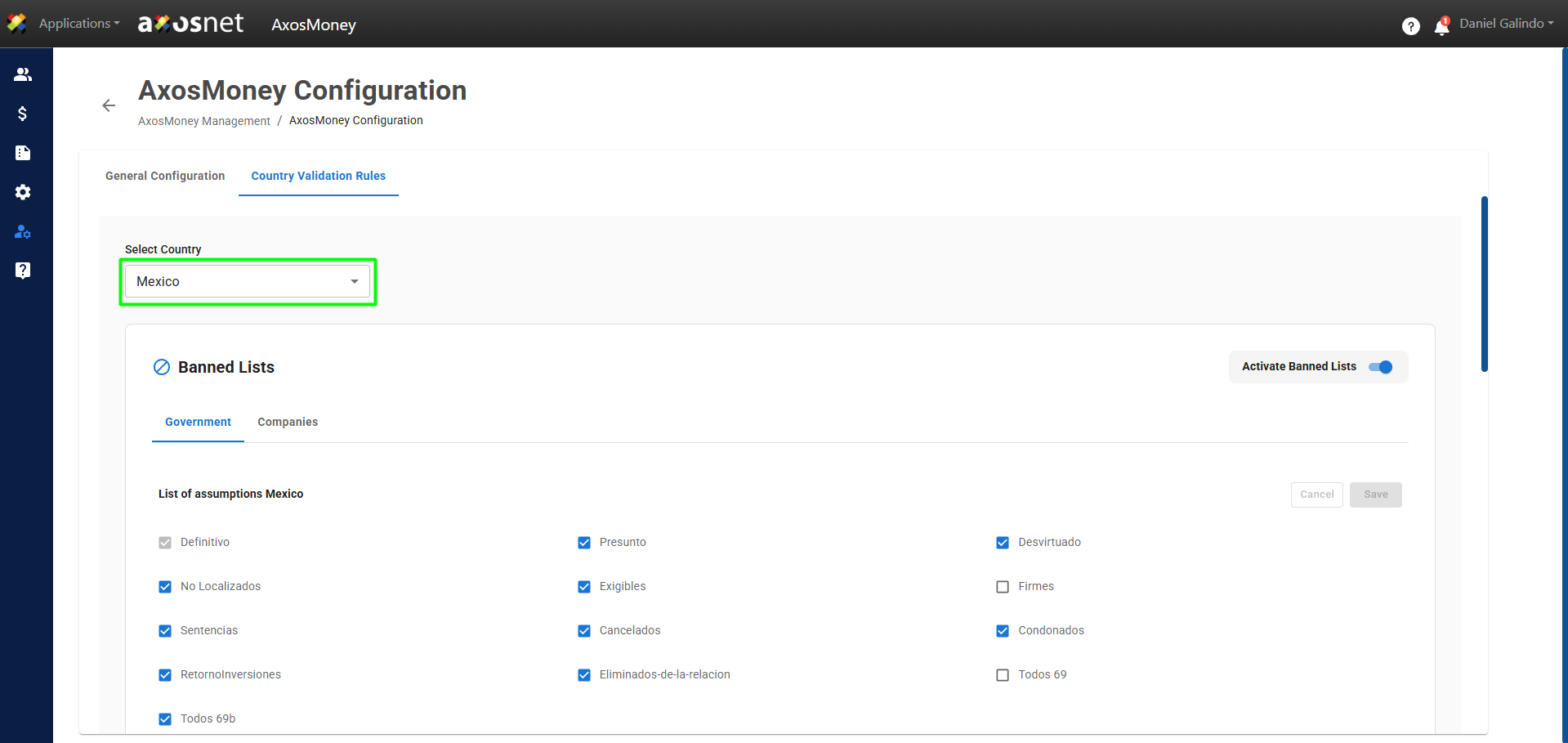
3. Select the country you want to configure.
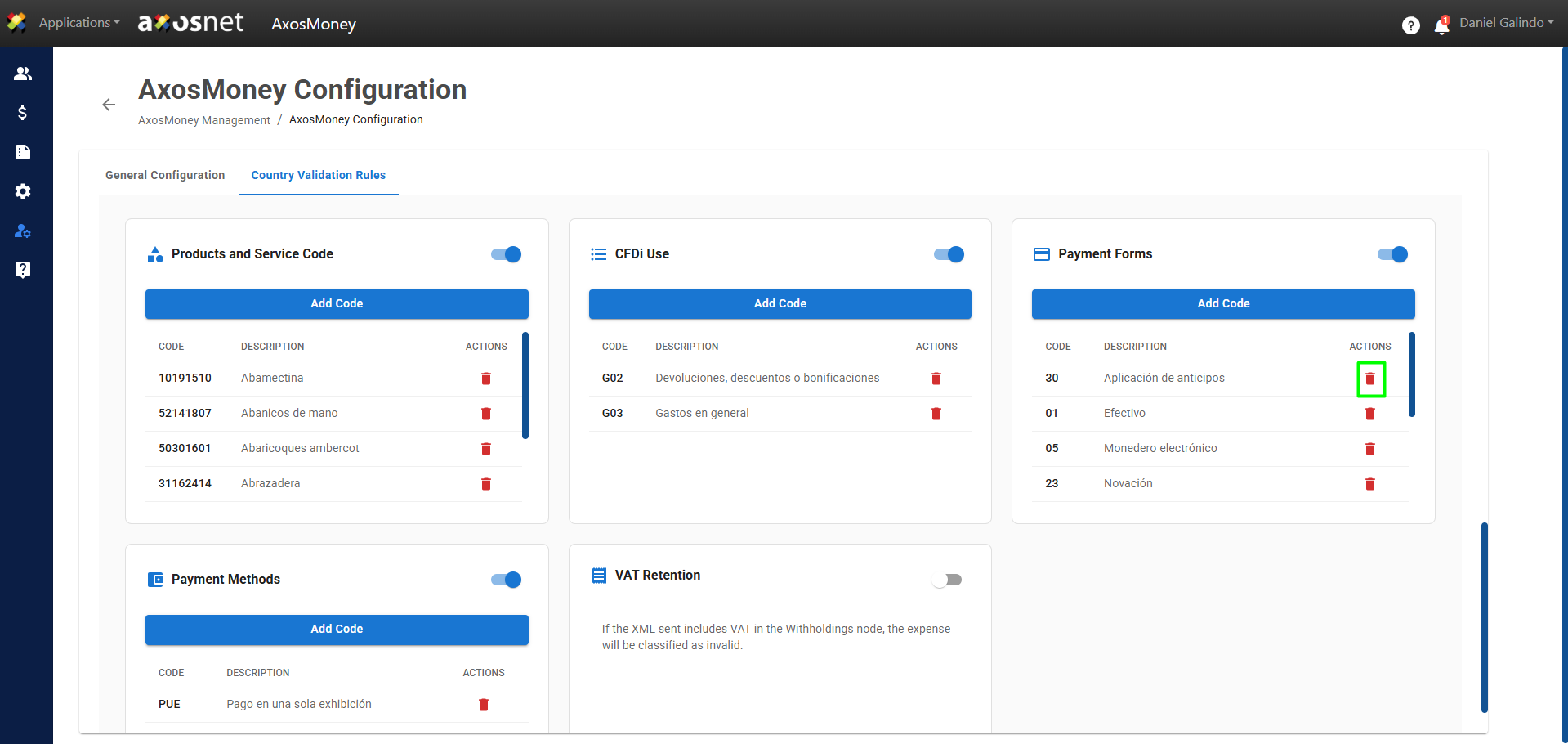
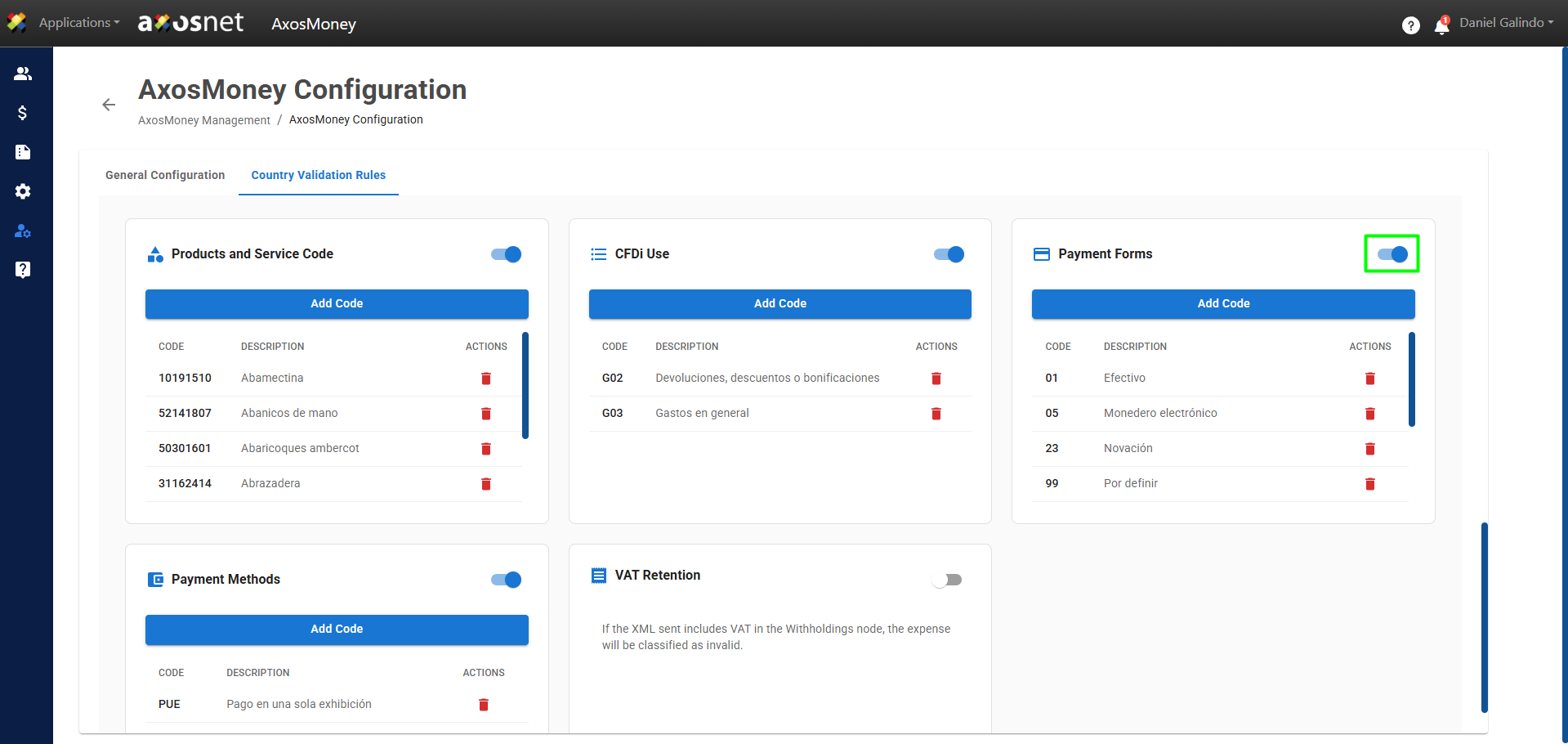
4. Scroll down and locate the Payment Forms section. To add a code, make sure the feature is enabled by clicking the toggle button.
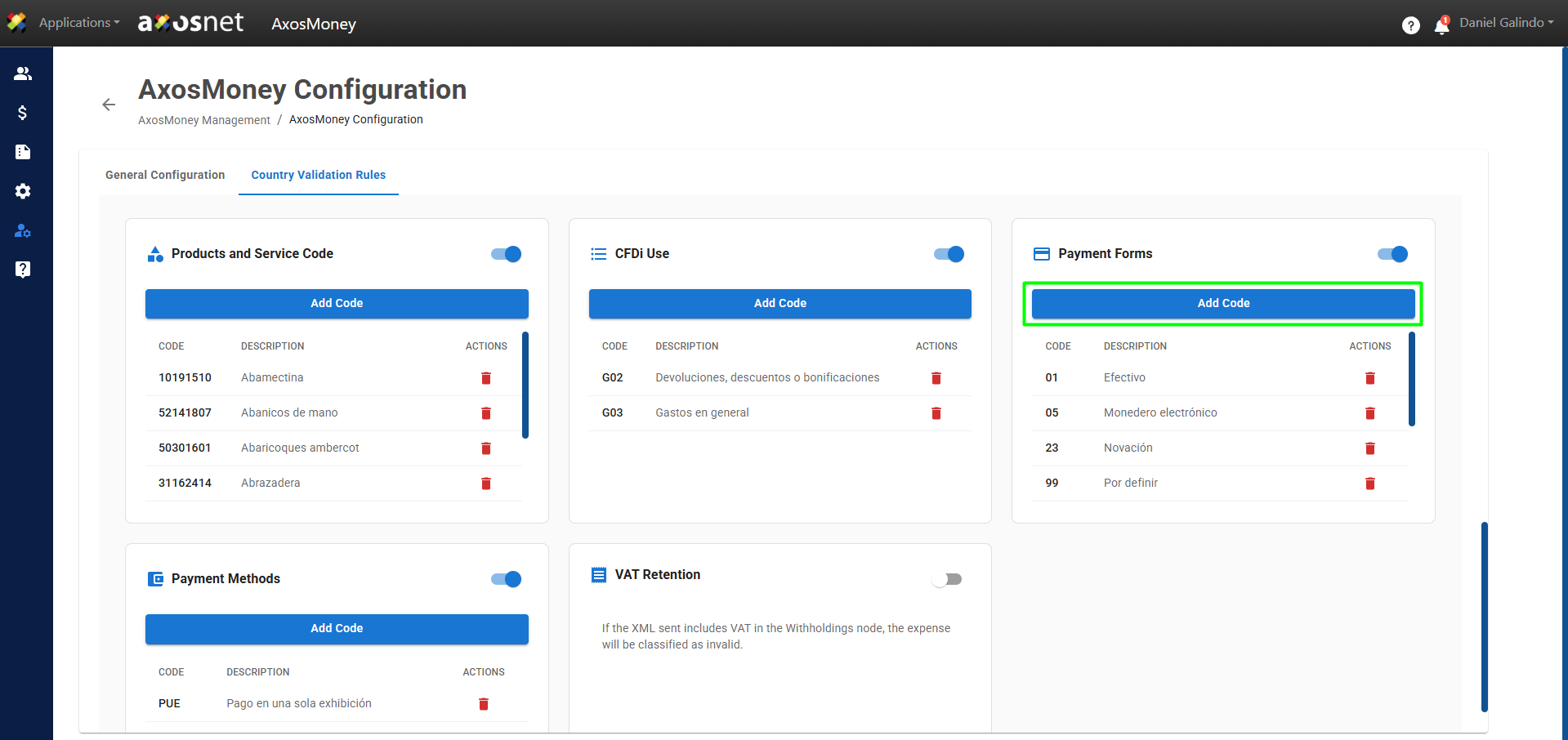
5. Once the feature is enabled, click Add Code.
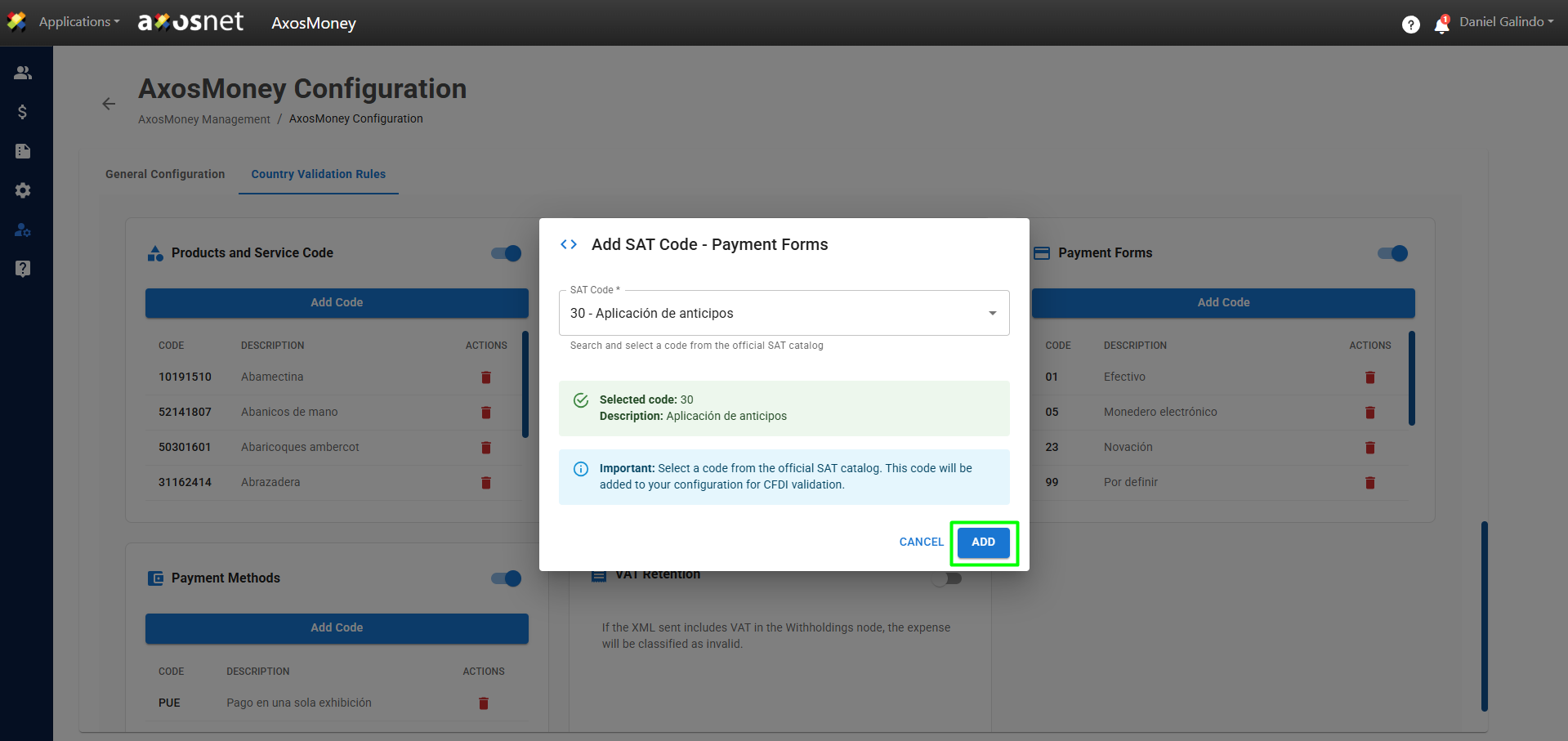
6. A pop-up window will appear. Click on the list of codes for payment forms and select the appropriate one. Then click Add to add it to your validations.
7. A confirmation message will appear, and the code will be displayed in the list of added validations.
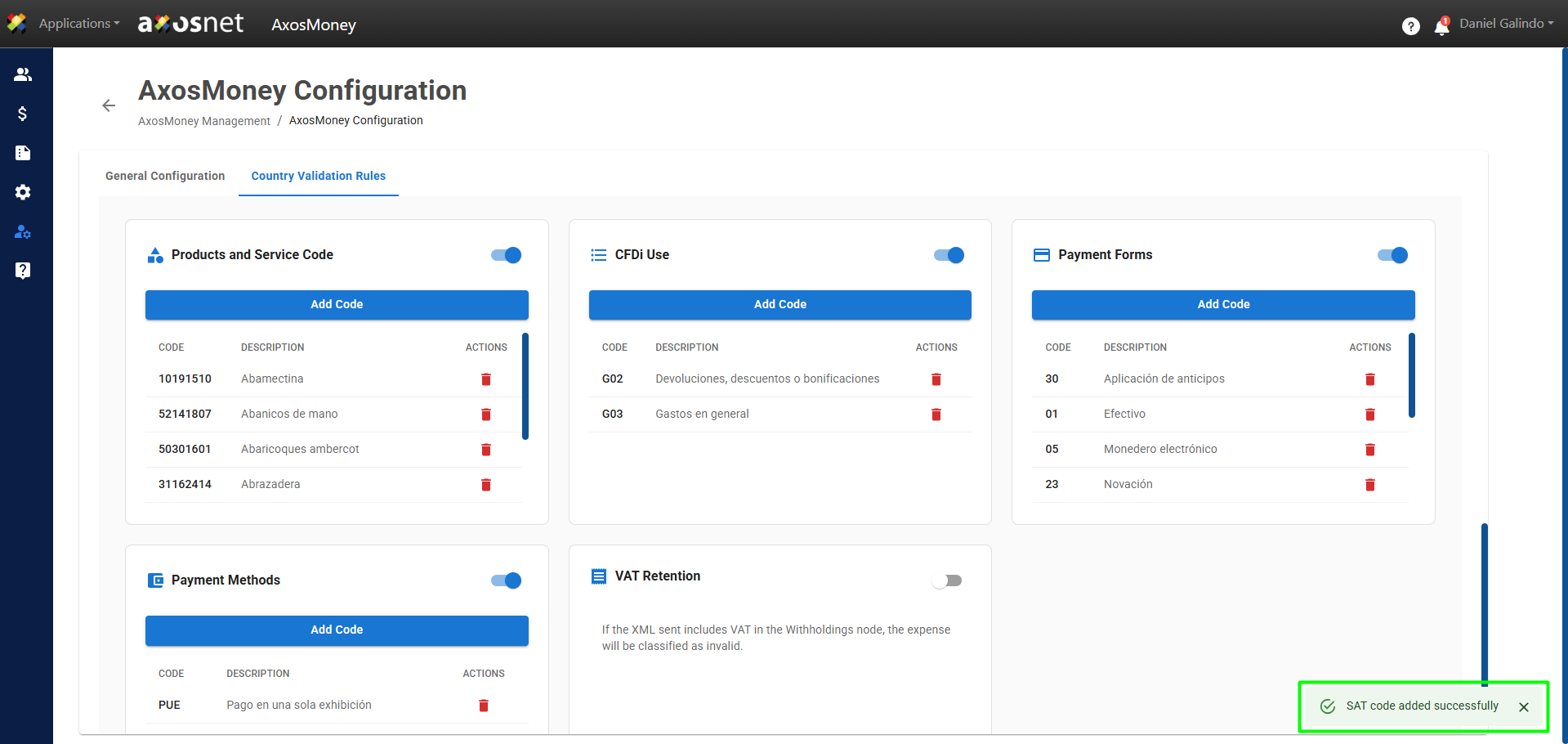
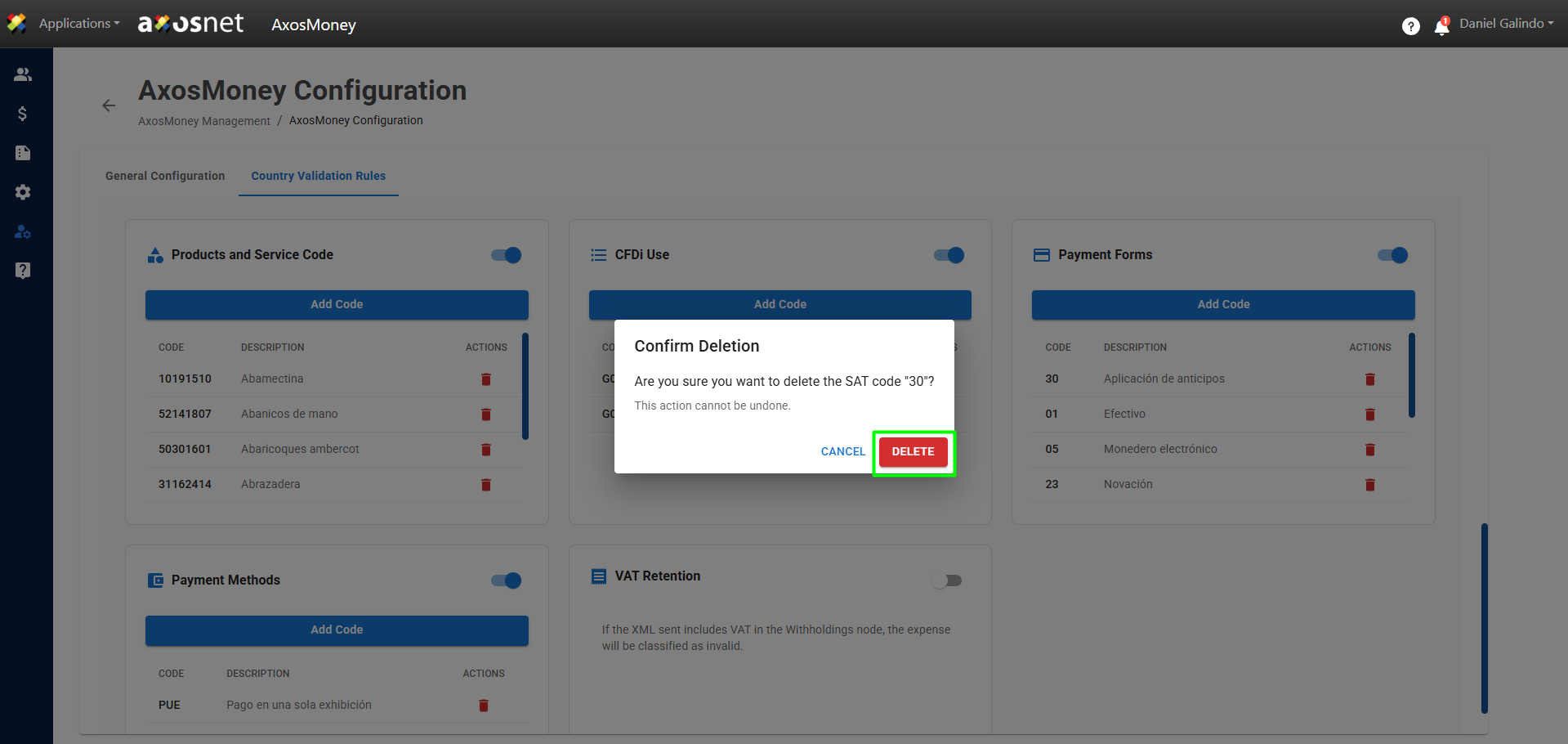
8. If you want to remove a code from the validation table, click the red button with the trash can icon, and it will be removed from the validations.