In this section, you can define the criteria for a specific policy for your organization. Custom JSON fields are a key part of the policies we discussed earlier. To configure them, follow these steps:
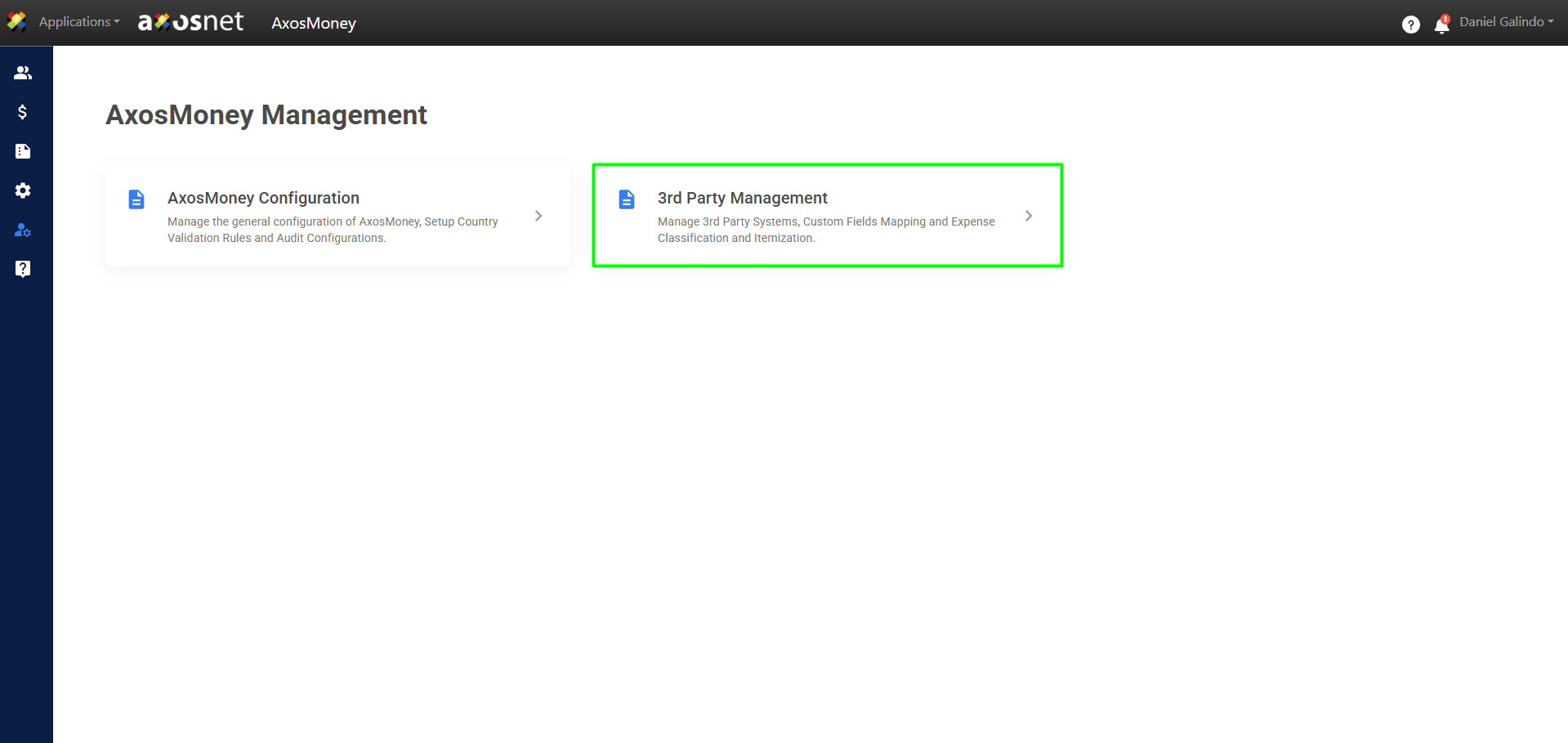
1. Go to the Administration of AxosMoney in the left-hand side menu and click on Third-Party Management.
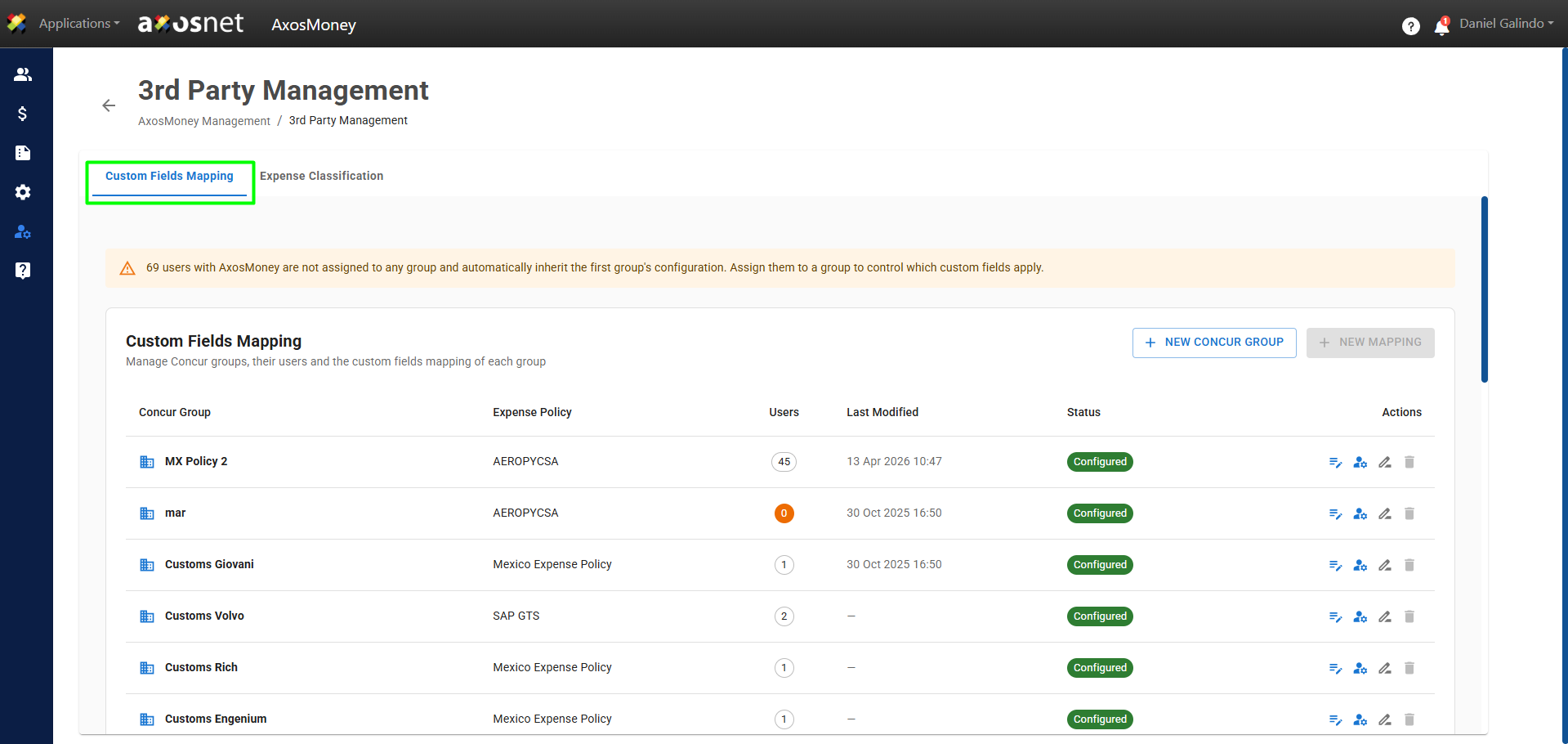
2. Select the Custom Field Mapping tab.
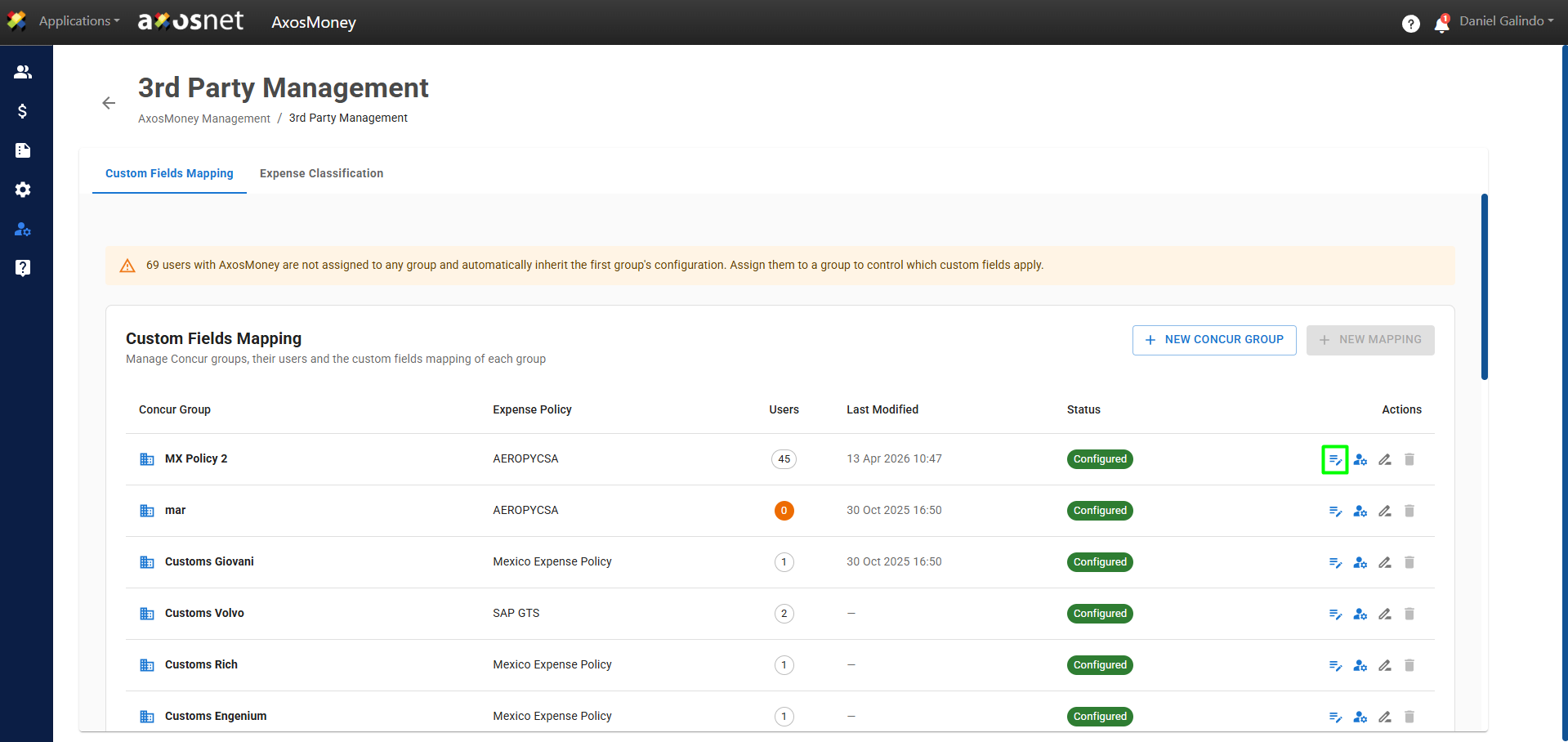
3. Click the Edit Mapping icon in the Actions column.
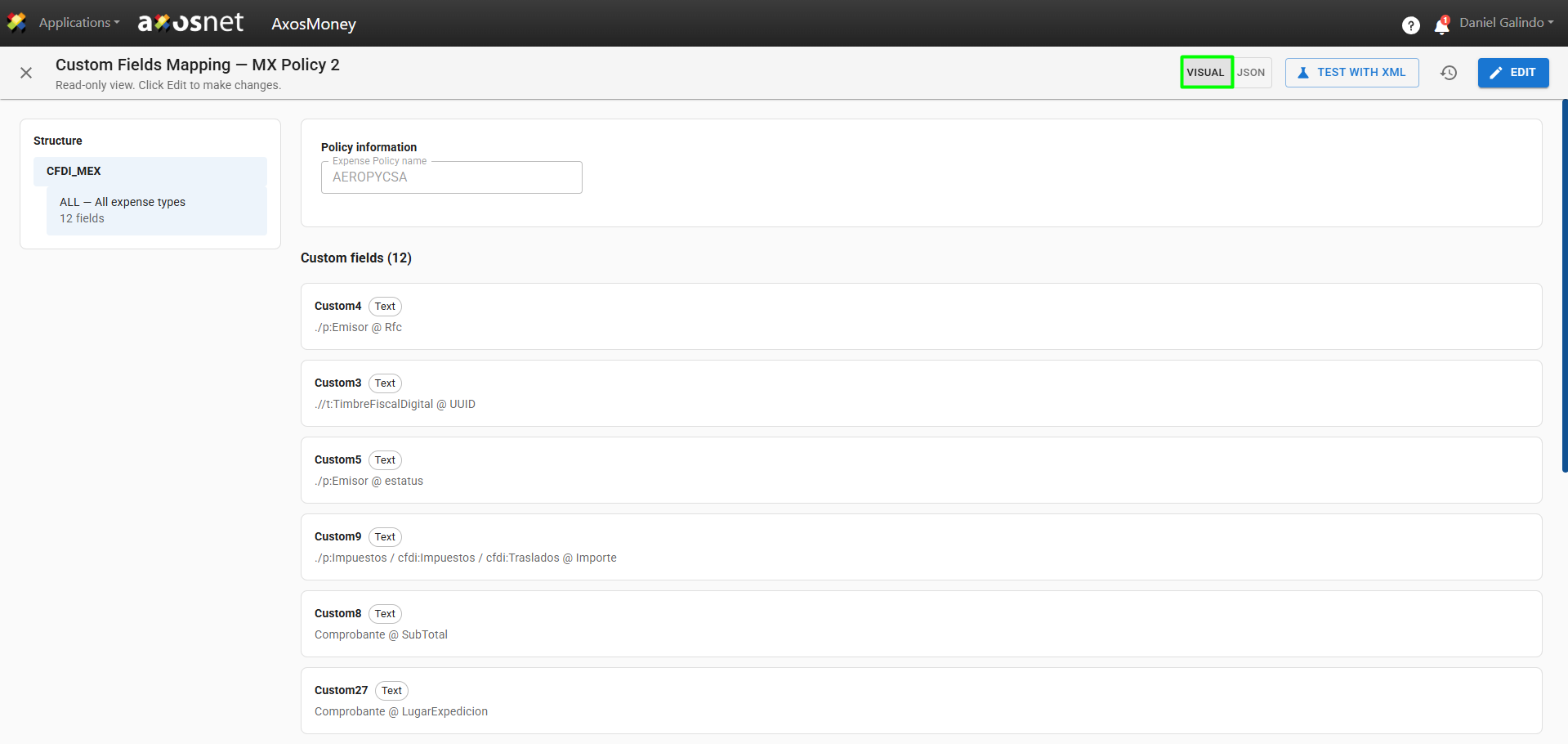
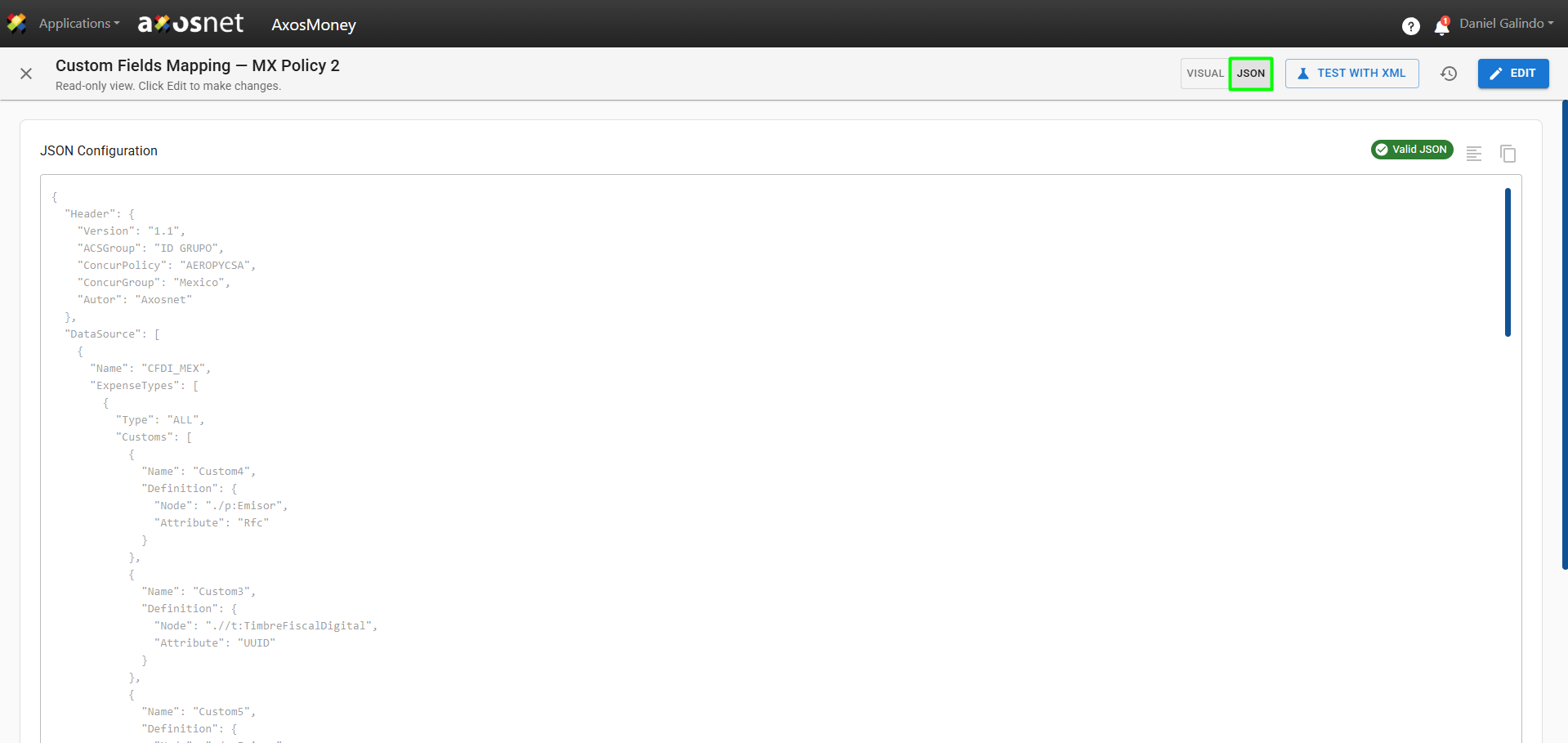
4. On this screen, you can edit the mapping of the custom fields and choose to edit them VISUAL or using JSON code.
- VISUAL:
- JSON:
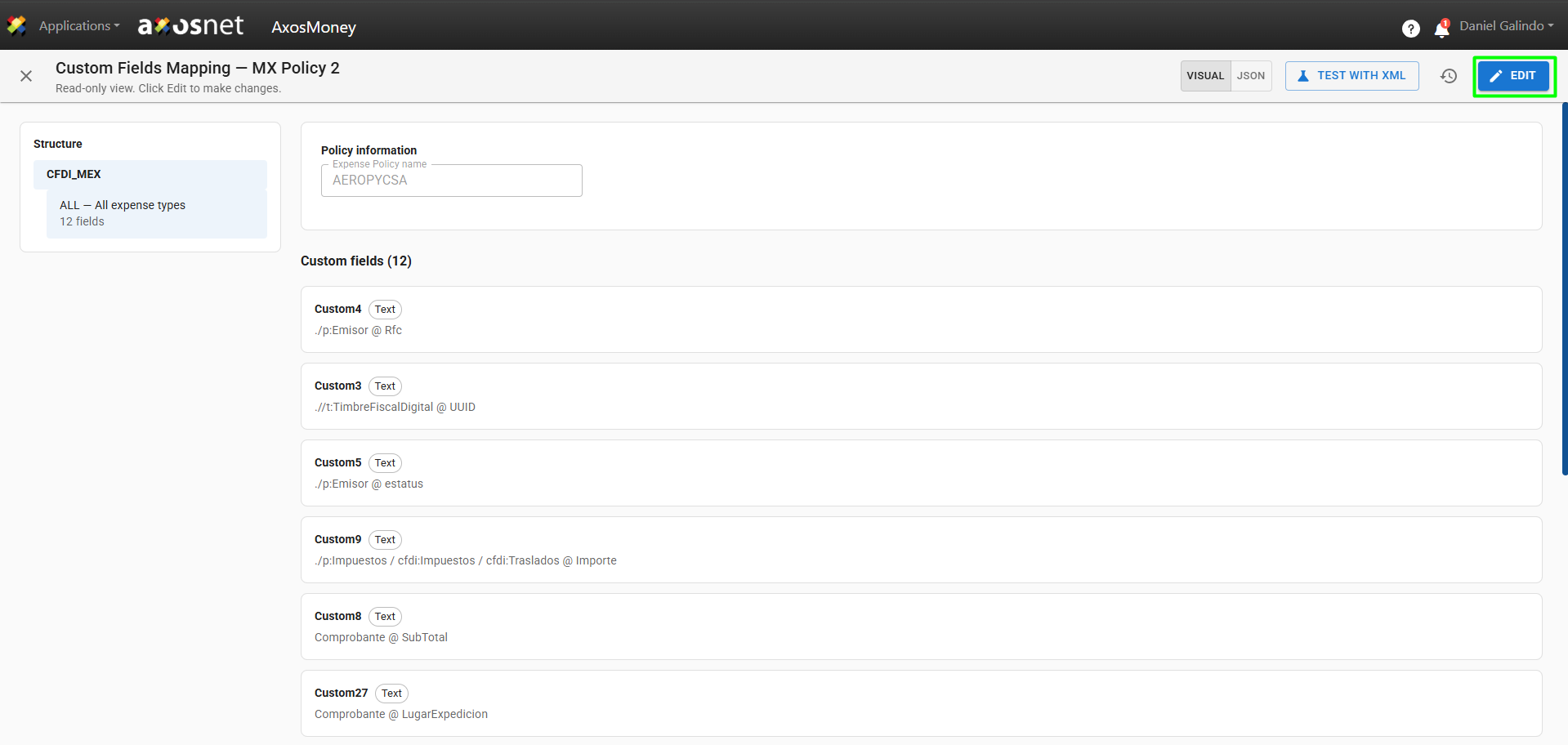
Note: When you open this screen, you won’t be able to make any changes until you click the Edit button.
Test with XML
You can test the mapping using a sample XML file; when you upload a sample CFDi, the mapping will run using the same engine that is used when submitting expenses.
Note: This process does not send anything to SAP Concur.
To perform this process, follow these steps:
1. Click Test with XML.
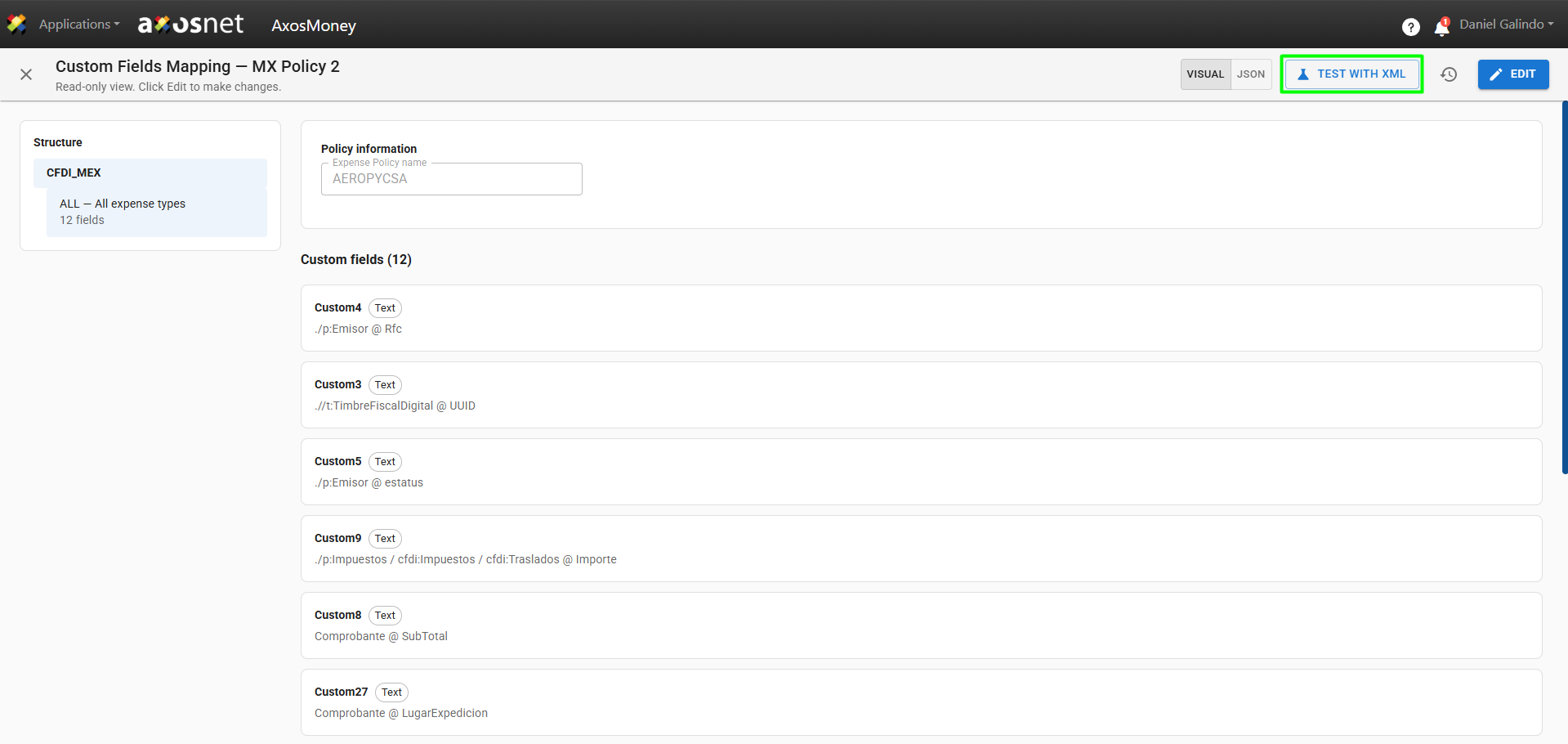
2. A pop-up window will open where you can upload the sample XML file to run the test. Click Upload XML File.
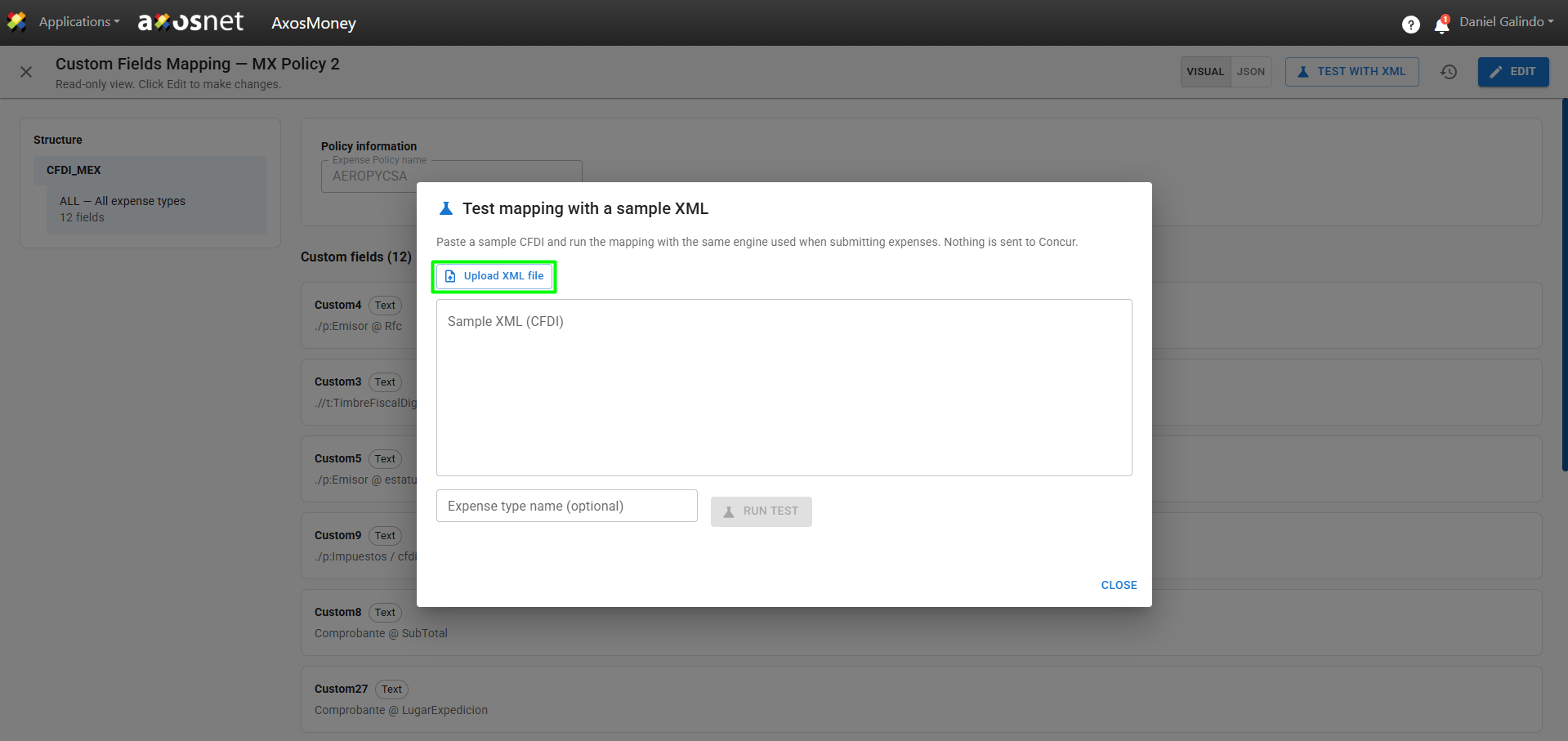
3. After uploading the file, click Run Test.
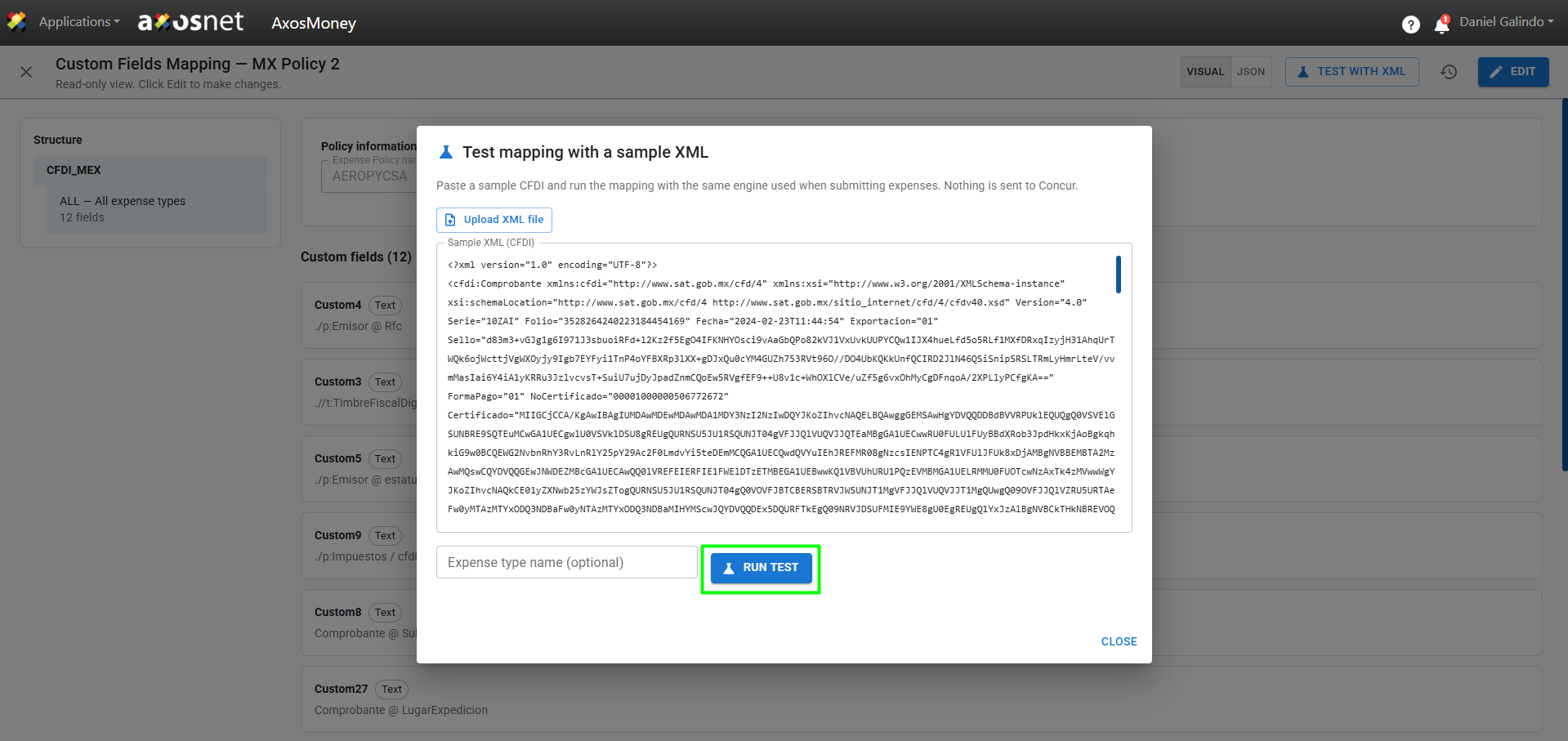
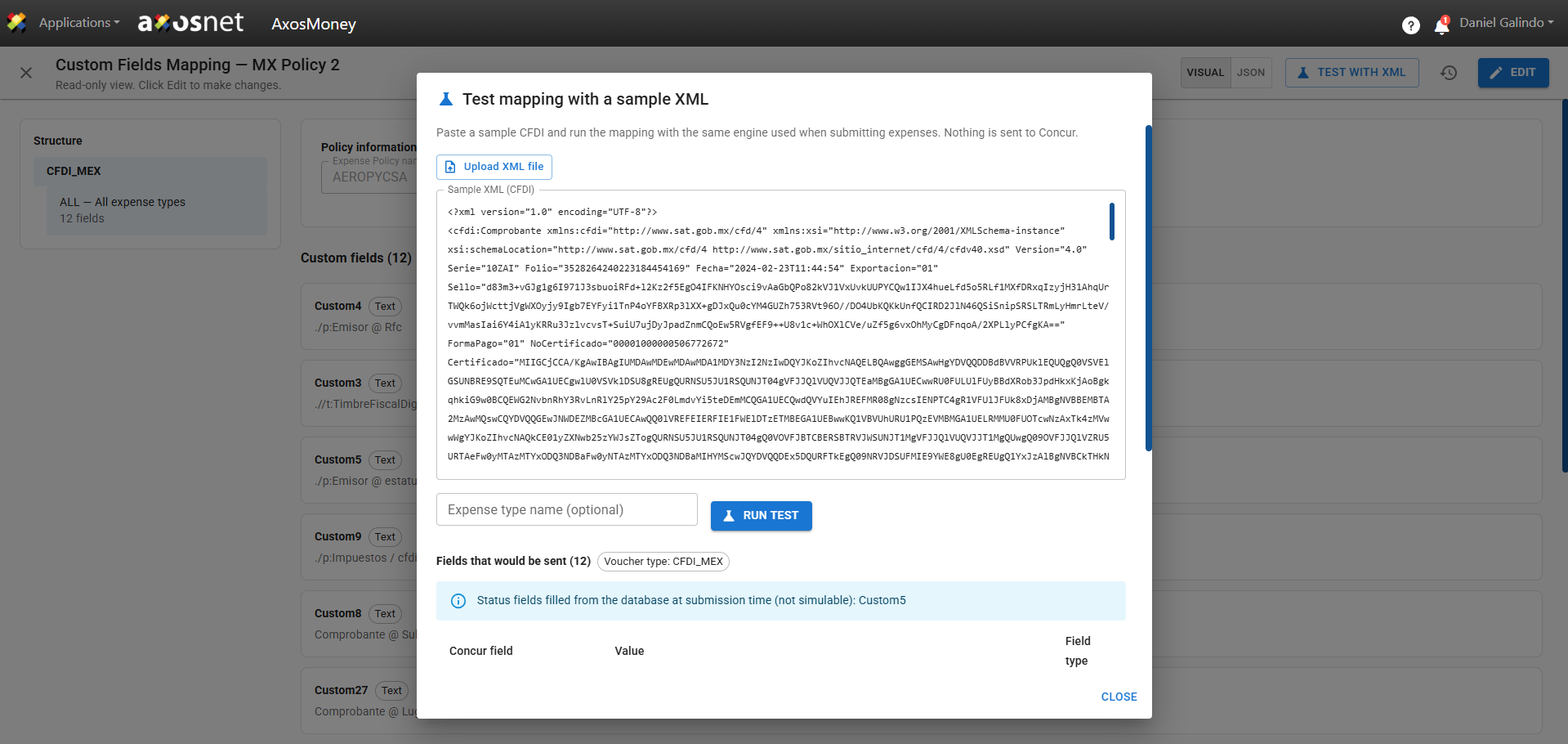
4. Finally, you’ll be able to see the number of records and the fields that would be sent.
Change History
1. To view the change history, click the icon as shown in the image.
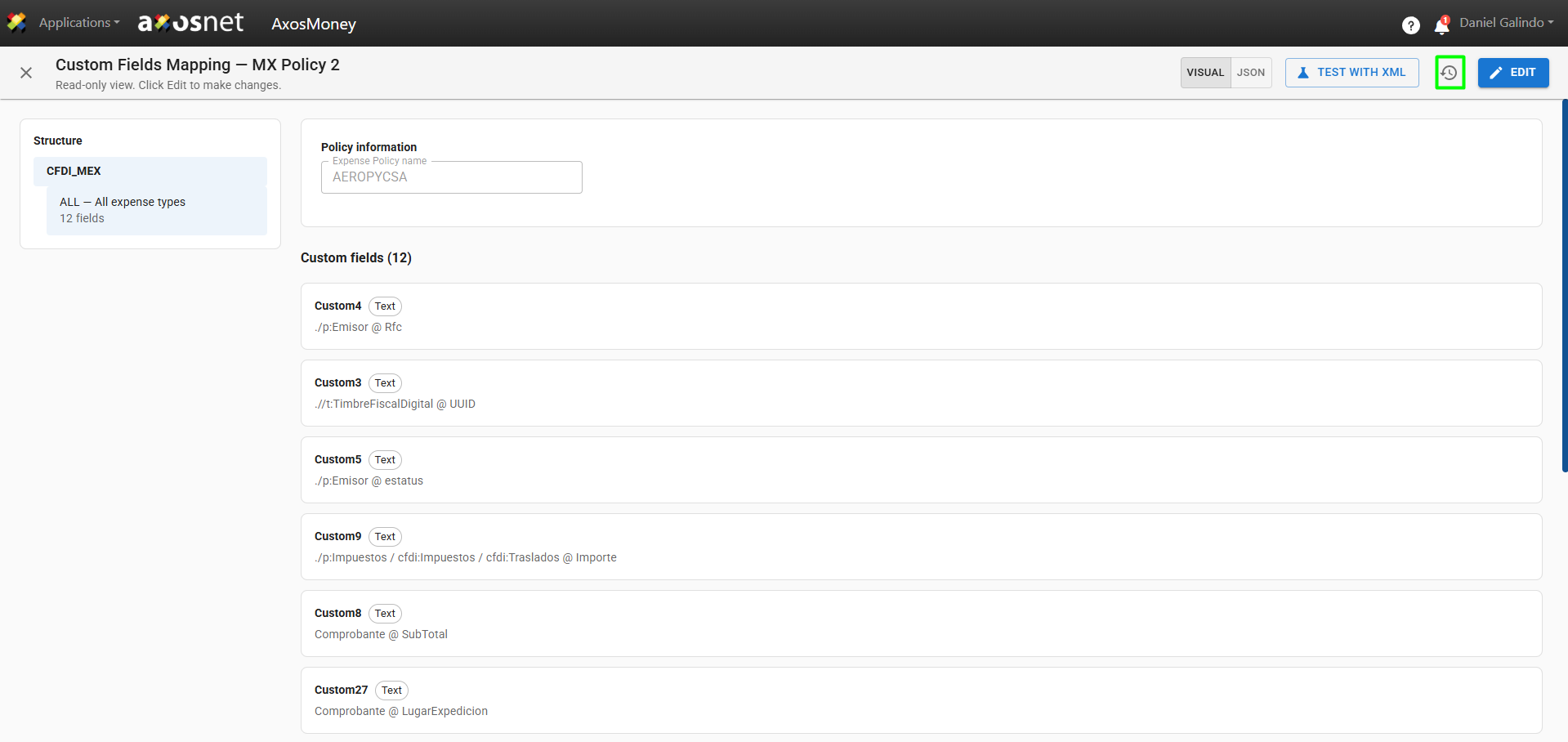
2. When you click, a list of the change history will appear; if you view the details of any of the previous versions, you can restore that version.
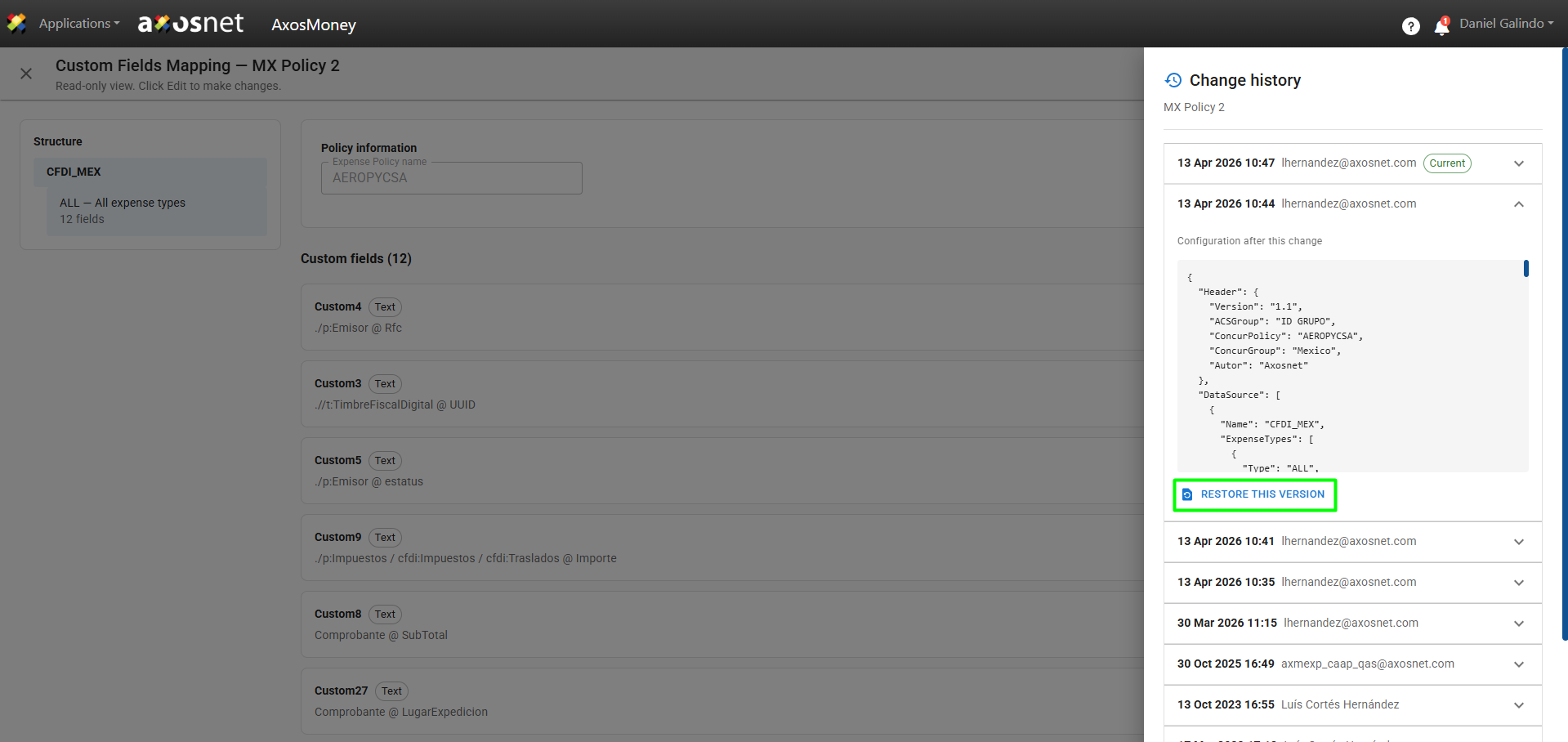
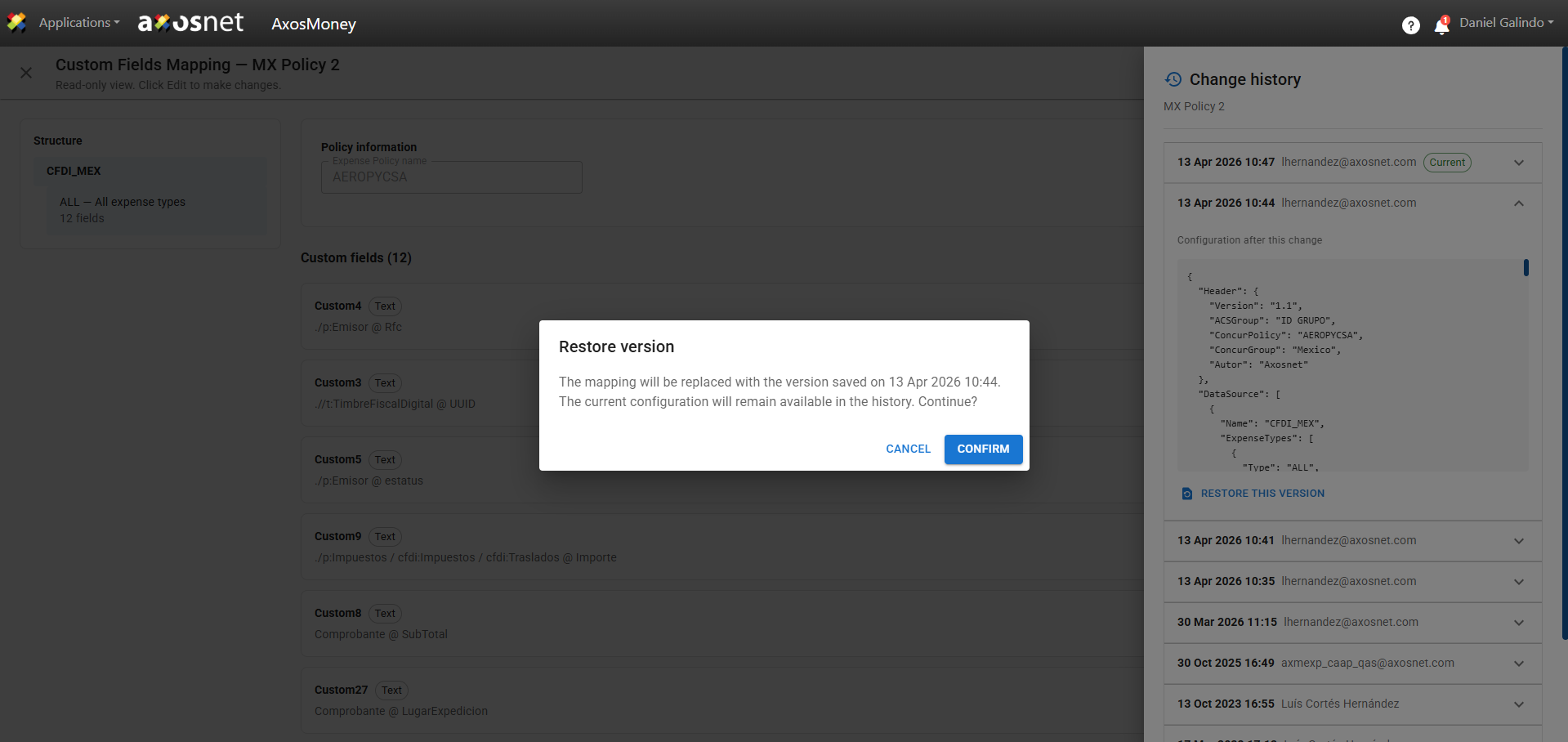
3. When you click Restore this version, a pop-up window will appear asking you to confirm the action.
Once you confirm, the mapping will be replaced with the selected version, and the current configuration will be available in the history.