
When importing suppliers to the list, the possibility is enabled for invoices issued by those suppliers to be uploaded and processed through the Axonset Cloud Portal (Supplier Portal). When inviting a supplier for the first time, their primary contact will automatically receive administrator permissions, as well as access to ACS Management. This contact will act as the administrator of the supplier’s account, with the ability to add other contact users to facilitate communication and management within the platform.
This feature allows you to import suppliers in bulk using a .csv file or through a system such as SAP Concur. In this manual, you will see how to import suppliers from a system. To access this feature, follow these steps:
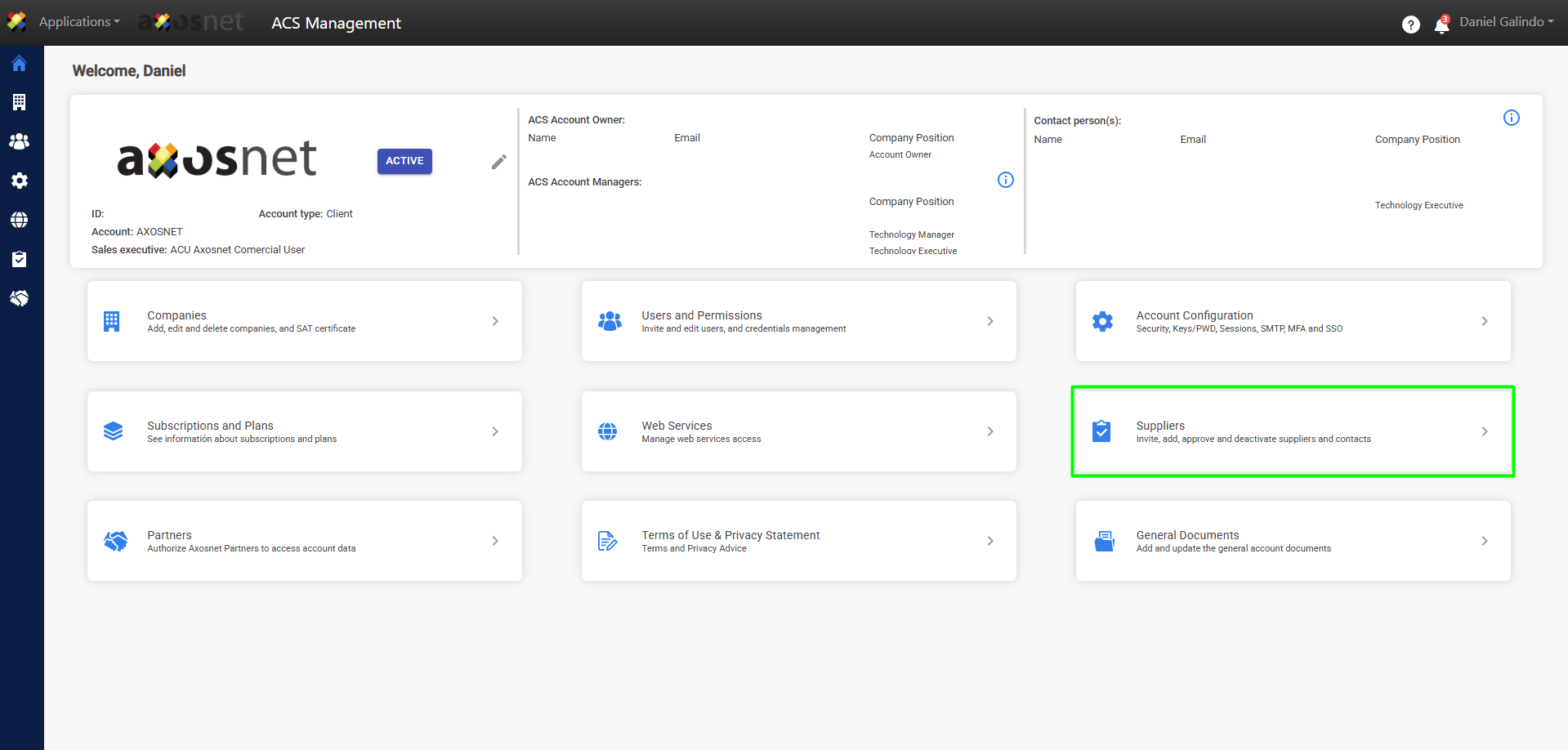
1. Within ACS Management, go to the “Suppliers” section.
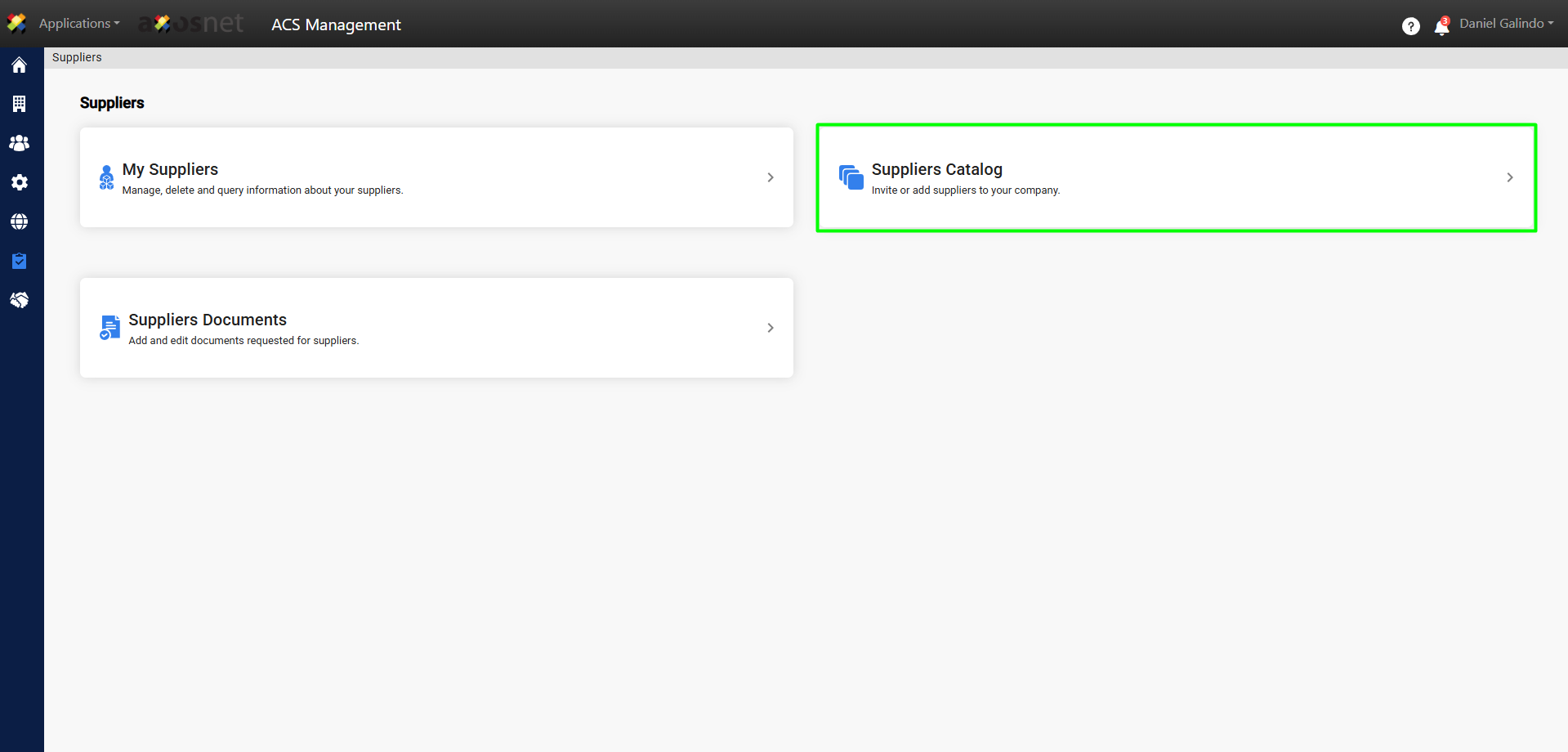
2. Select the option “Supplier Catalog“.
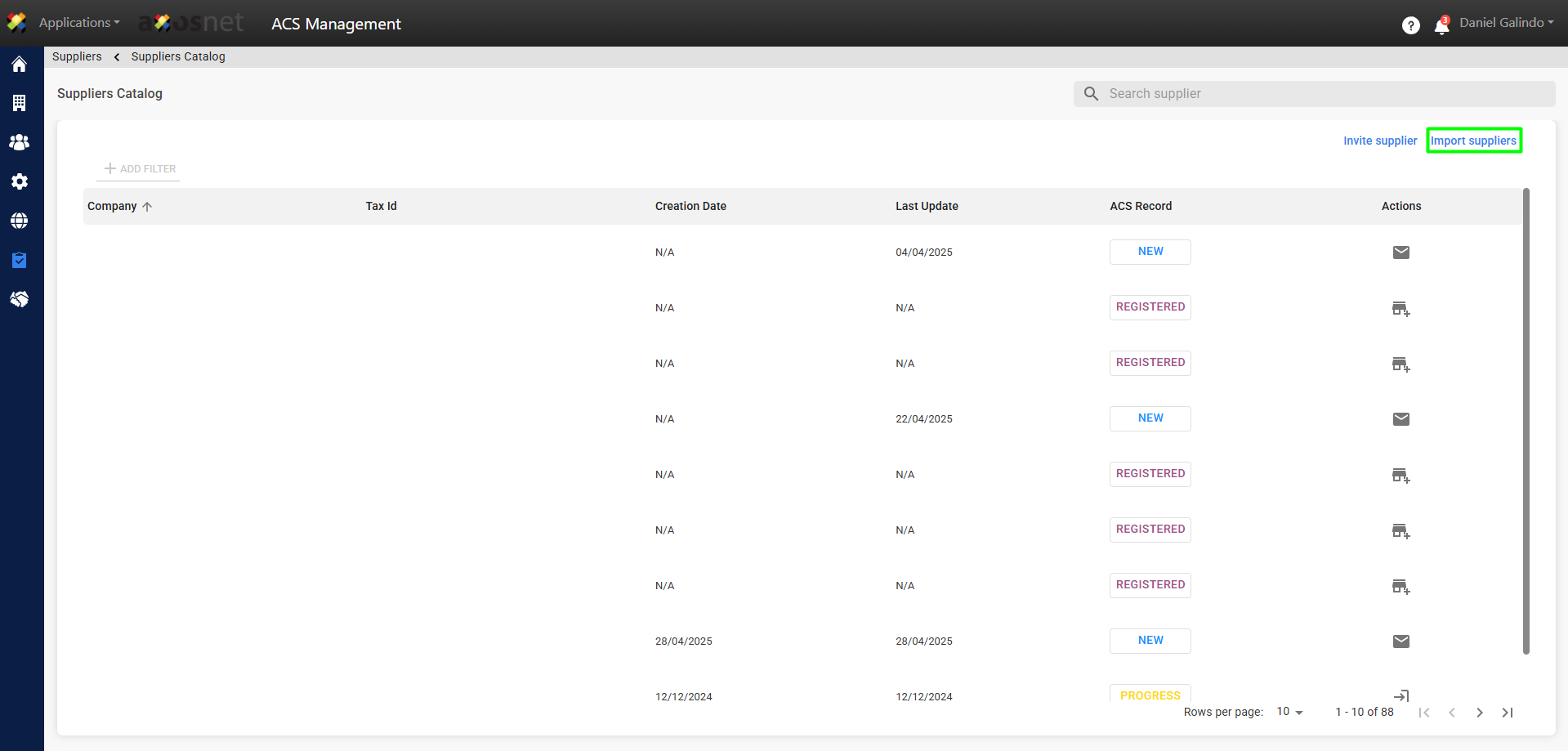
3. Click on “Import Suppliers.”
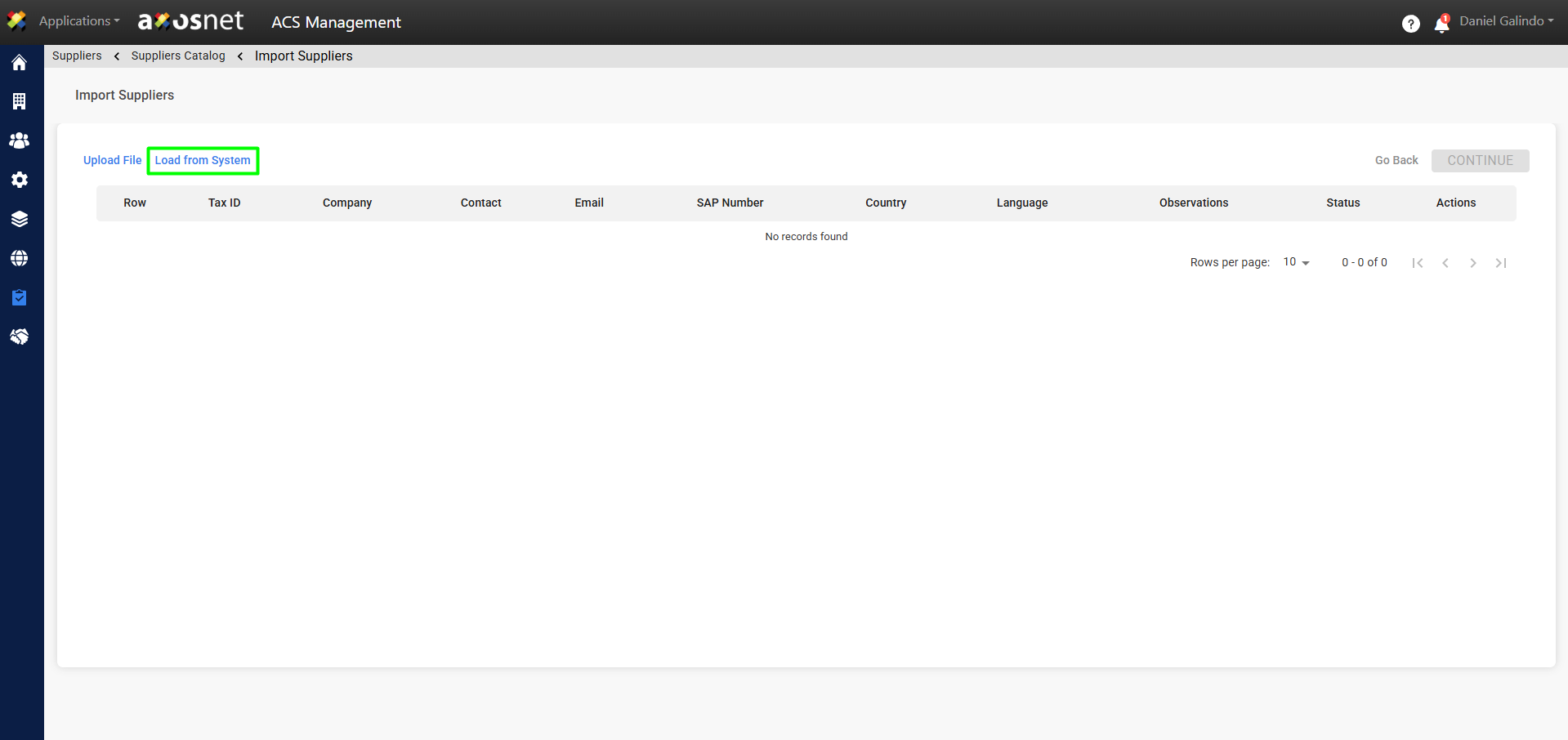
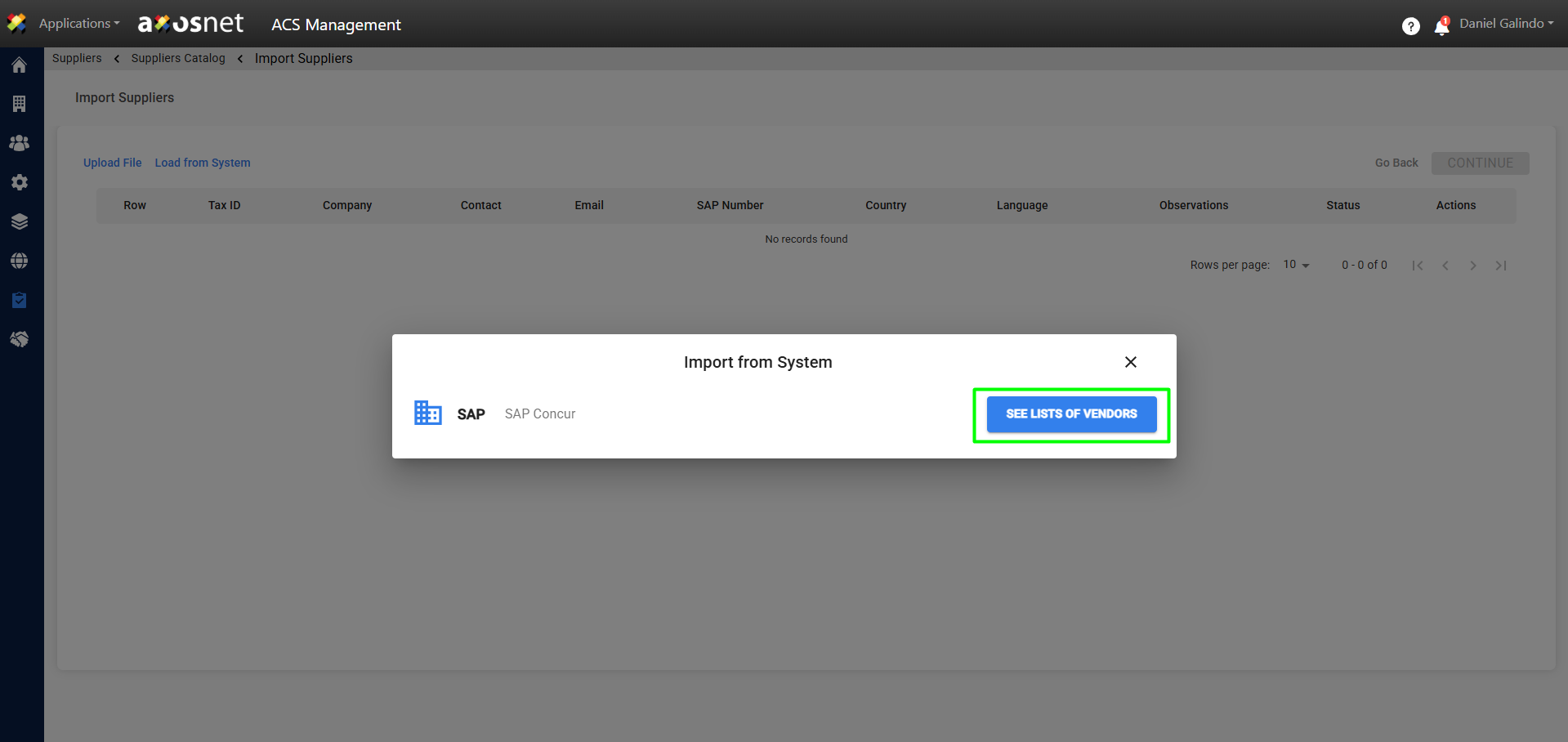
4. Click on “LOAD FROM SYSTEM”.
5. A pop-up window will appear where you can select the system from which you want to import your supplier data, in this case SAP Concur. To view the suppliers, click on See lists of vendrors.
The required data to import suppliers in bulk is:
- Tax ID: Company tax ID
- Company: Company name
- Contact: Contact person
- Email: Contact email
- Country: Company country of origin. Accepts any of the following values: MEXICO, UNITED STATES, or COLOMBIA.
- Language: To setup the language in the email with the invitation to ACS Management. Accepts any of the following values: ESP, ESPAÑOL, ENG, ENGLISH, esp, español, eng, english.
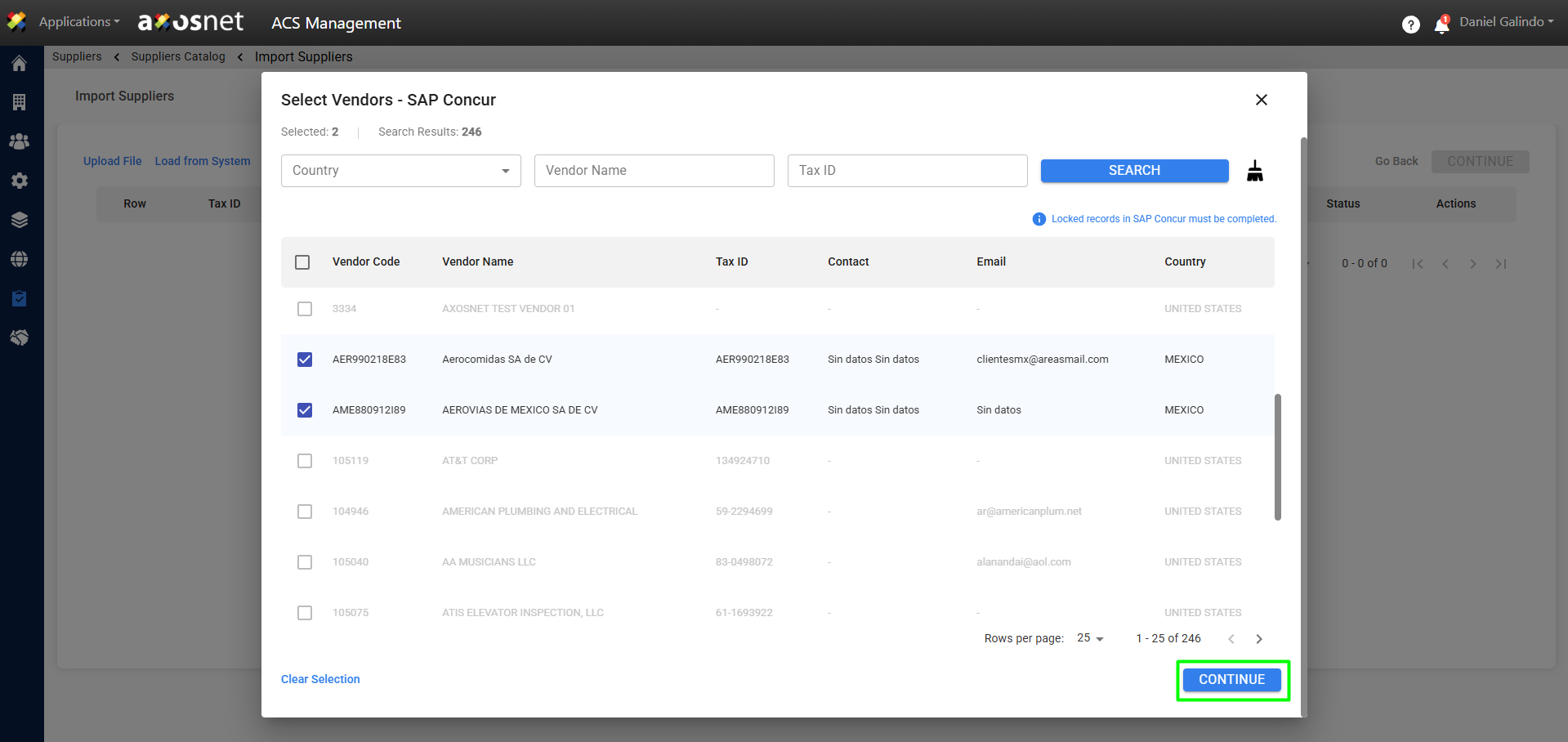
6. A new window will appear showing the suppliers in your system. Select the ones you want to import and click Continue.
Note: You can search for suppliers by Country, Supplier Name, or RFC.
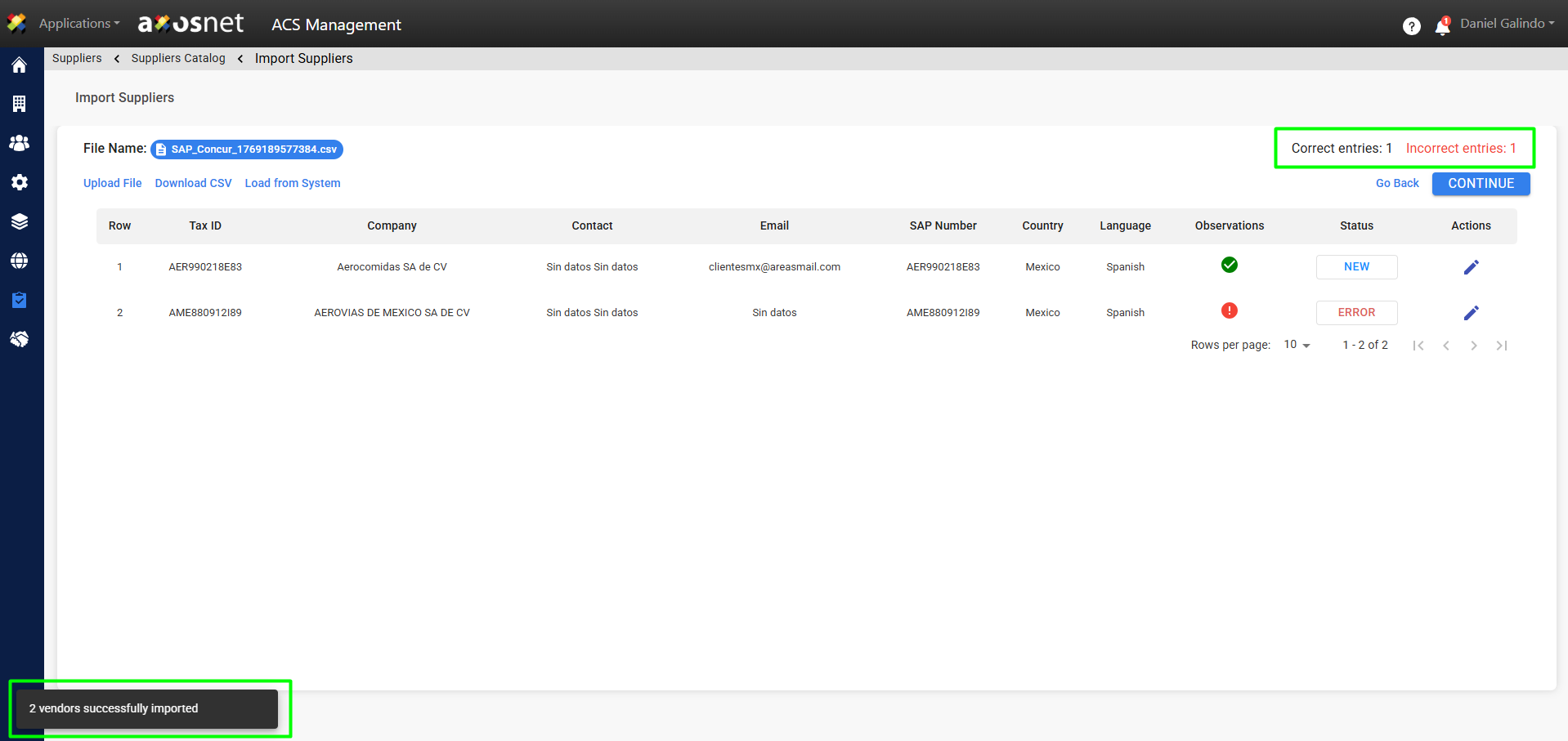
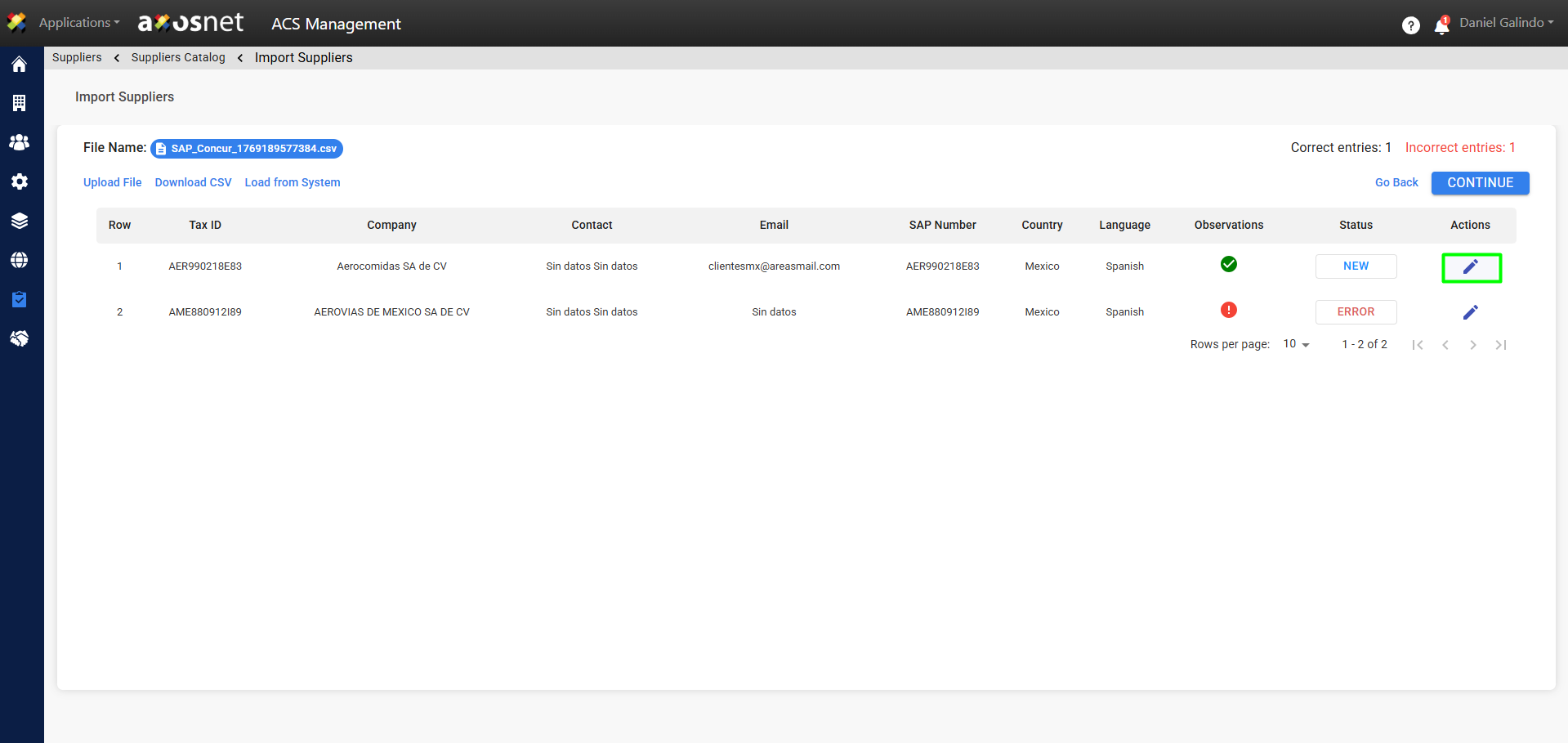
7. Upon completion of the upload, a message confirming the import of suppliers will appear, and the data of the imported suppliers will be displayed. The number of correct and incorrect records will be shown in the upper right.
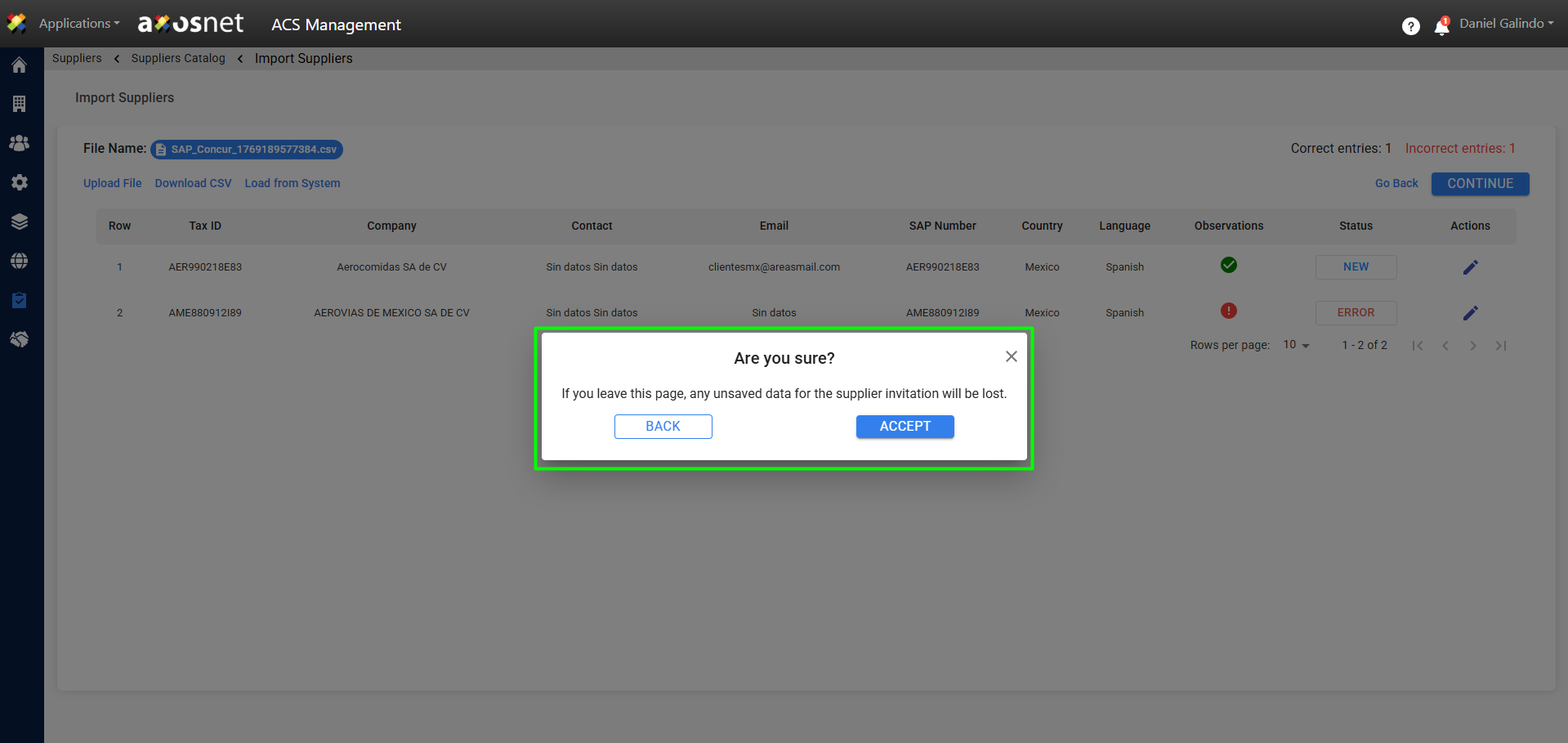
Note: If you wish to cancel the import process or return to the supplier catalog or ACS home page, a message will appear to confirm the action.
Imported suppliers can have one of the following statuses:
New: This status is shown when the supplier is new and has not been invited to be part of ACS Management as a Supplier. It may also be the case that they have been previously invited but ignored the invitation email.
In Progress: This status is shown when the supplier is in the process of completing their account registration in ACS Management but has not yet finished.
Registered: This status occurs when the supplier has already registered previously on their own initiative or by invitation from another supplier.
Accepted: This status is shown when the supplier has already completed their account registration in ACS Management and has been accepted as a supplier; it is displayed in My Suppliers.
Error: This status is shown when there is an error in the data imported from the .csv document. This data can be corrected individually so that the status changes with the Edit Record or Download CSV function.
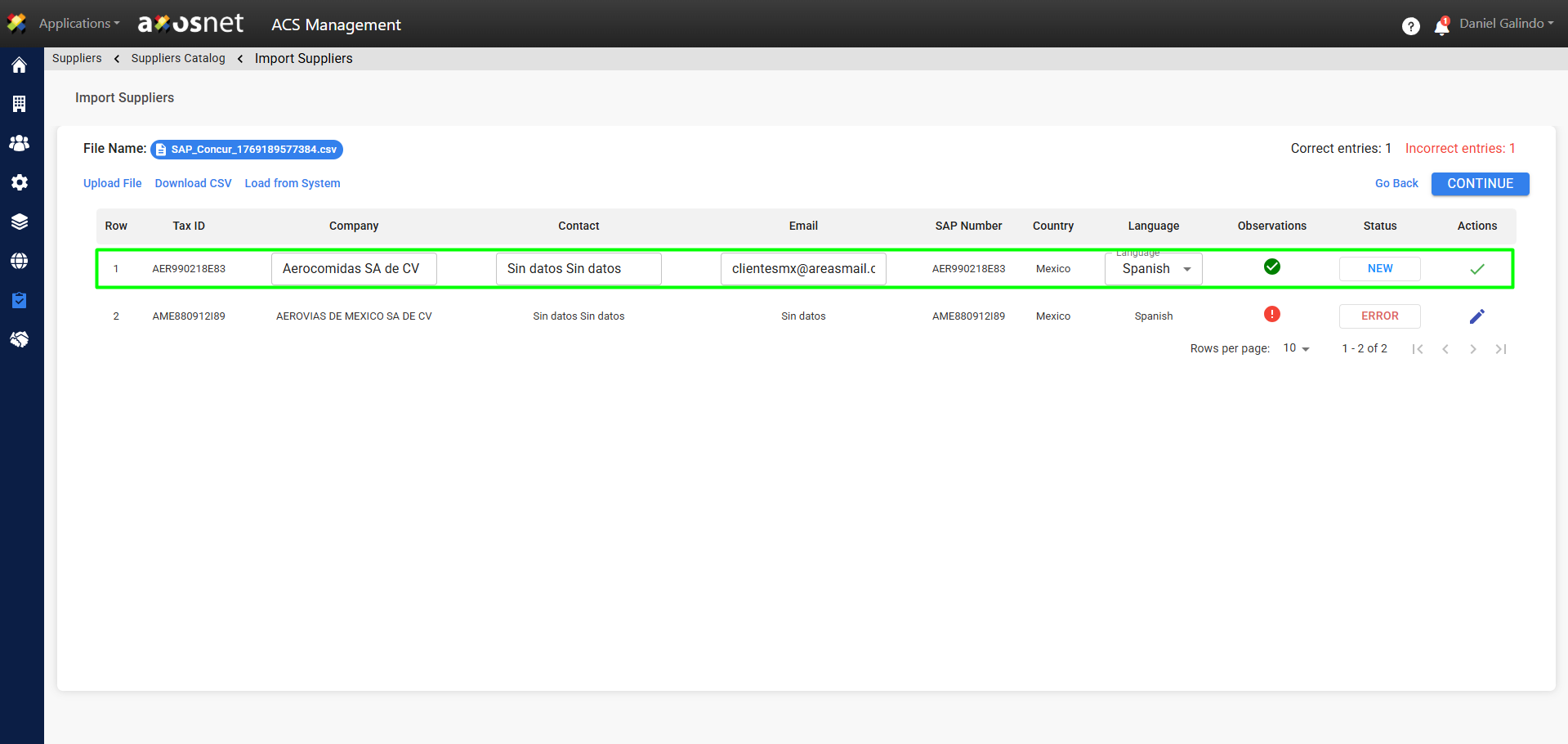
Edit Record
You can click the edit button  to edit records individually to make modifications to the data in case there is an error, such as an incorrect Tax ID or an incomplete email.
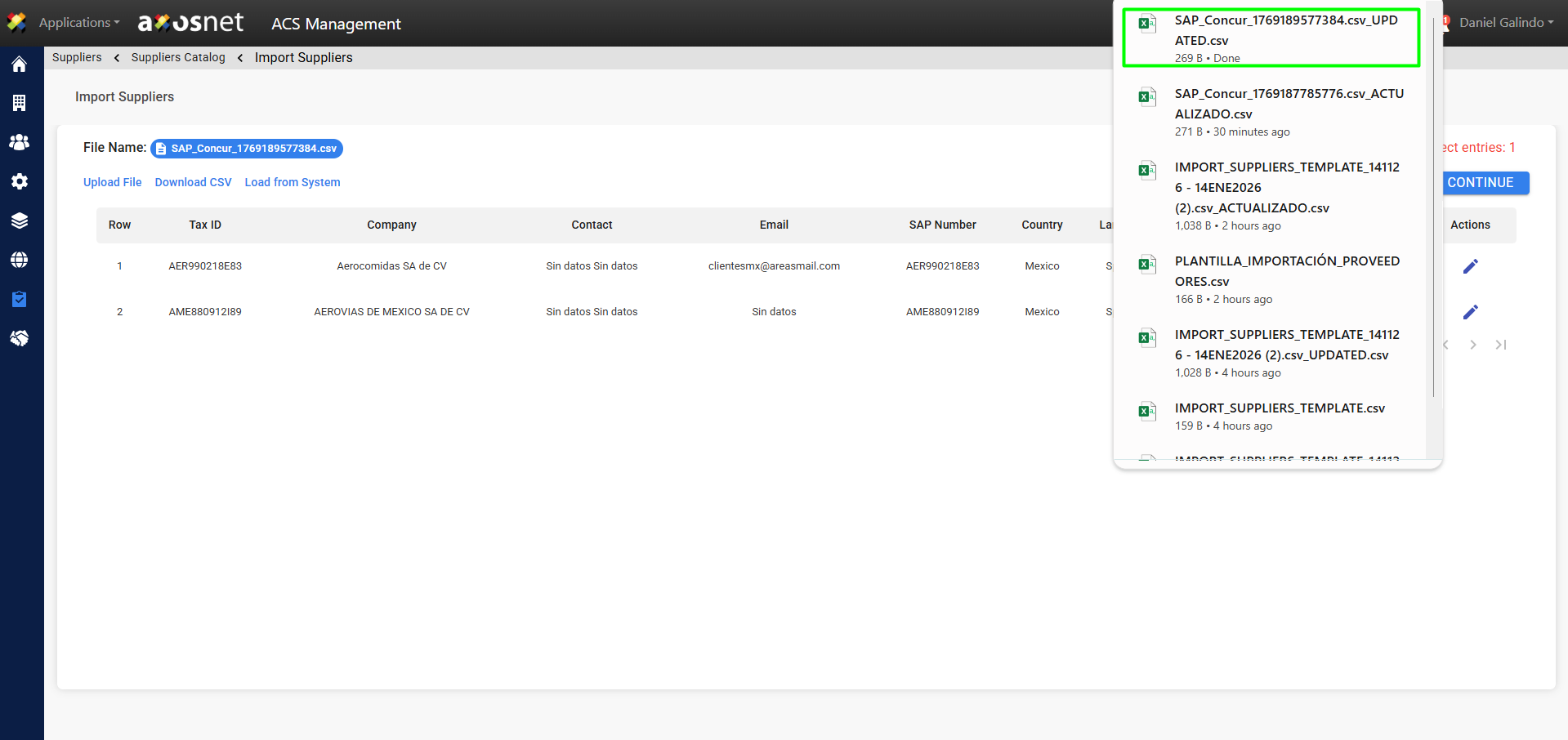
Download CSV
This feature will allow you to download the file to make changes to the data in case of any errors, such as an incorrect RFC or an incomplete email address..
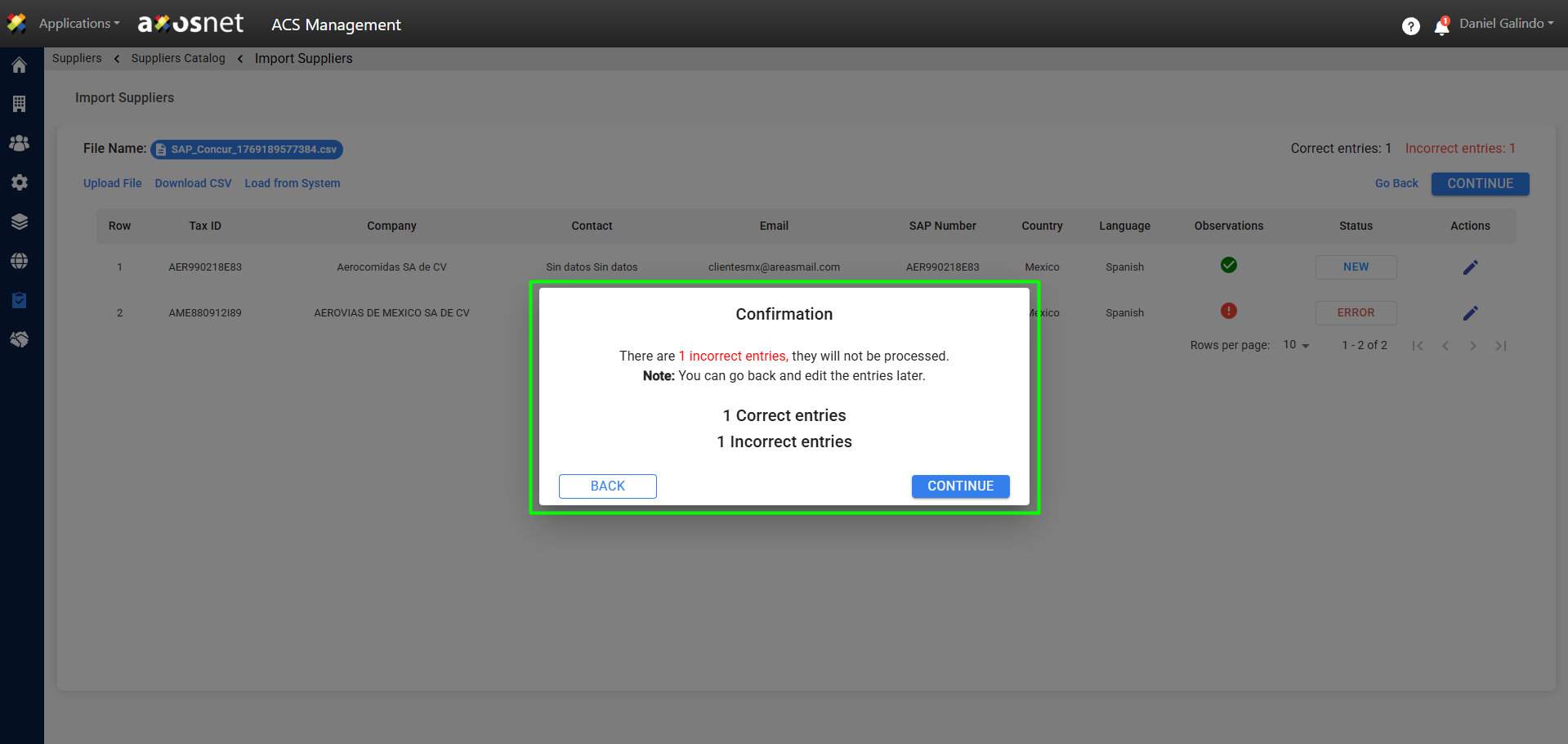
8. Once you have confirmed that the supplier data has been imported correctly, you can click “CONTINUE”, and a pop-up window will appear to confirm the records. Records with ERROR status will not be processed.
9. Upon confirming, a success message will appear, and you will be taken to the Send Invitation / Reminder page. Invitations will be sent to new users, and reminders will be sent to users who have already started their registration in ACS.
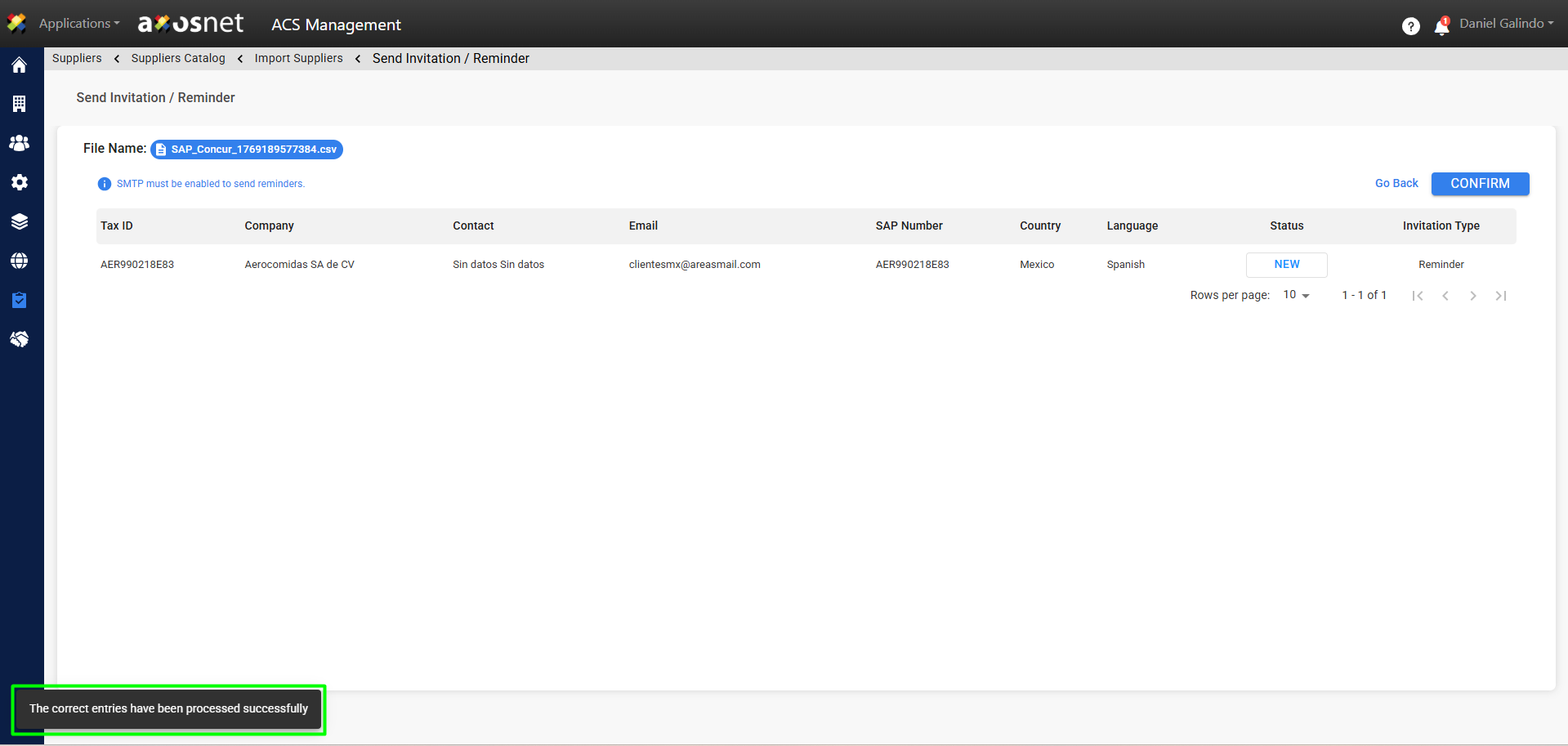
Note: To send reminders, it is necessary to have the SMTP Configuration active. For more information, you can visit the SMTP Configuration manual.
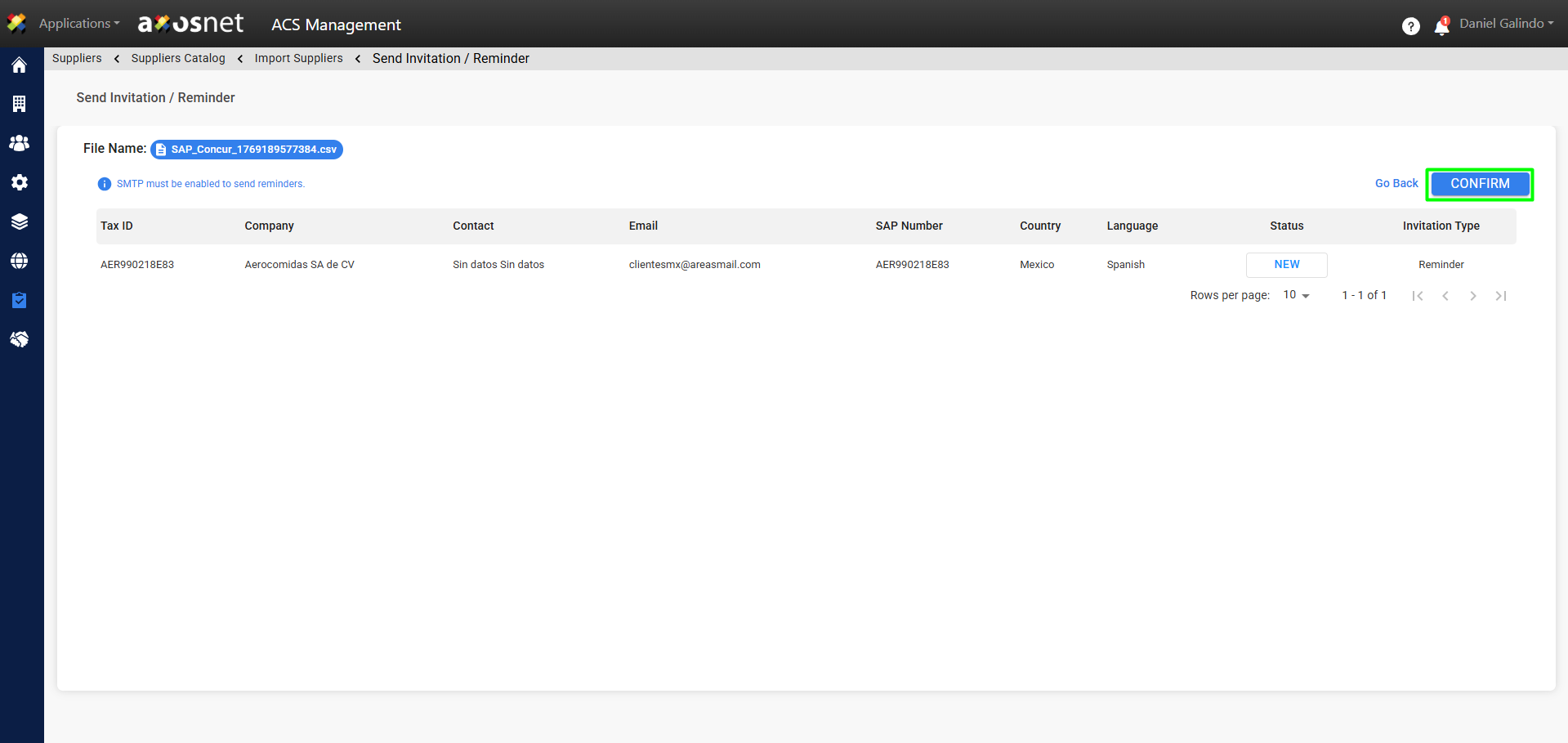
10. If the data is correct, you can click CONFIRM. A pop-up window will appear to confirm the sending of invitations and reminders.
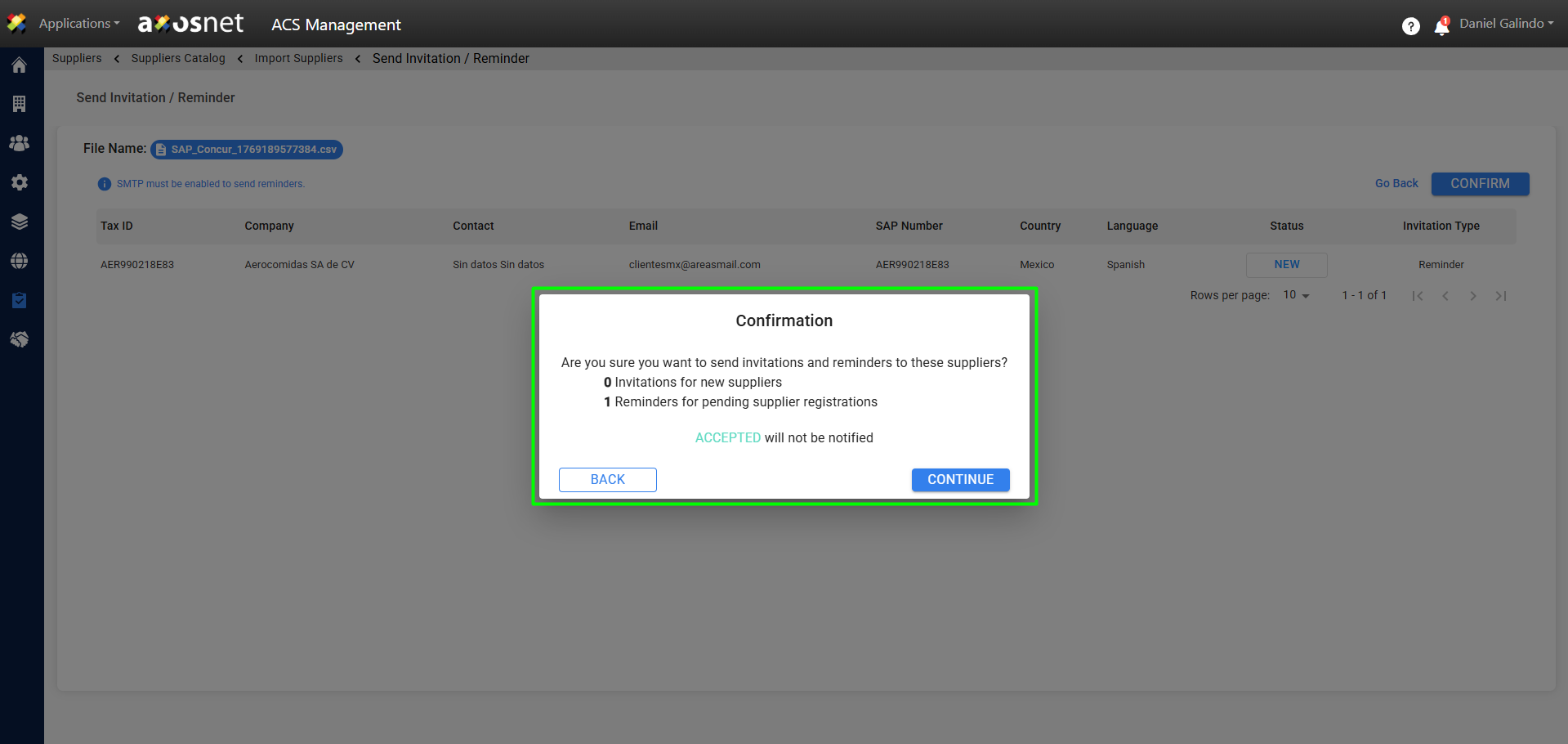
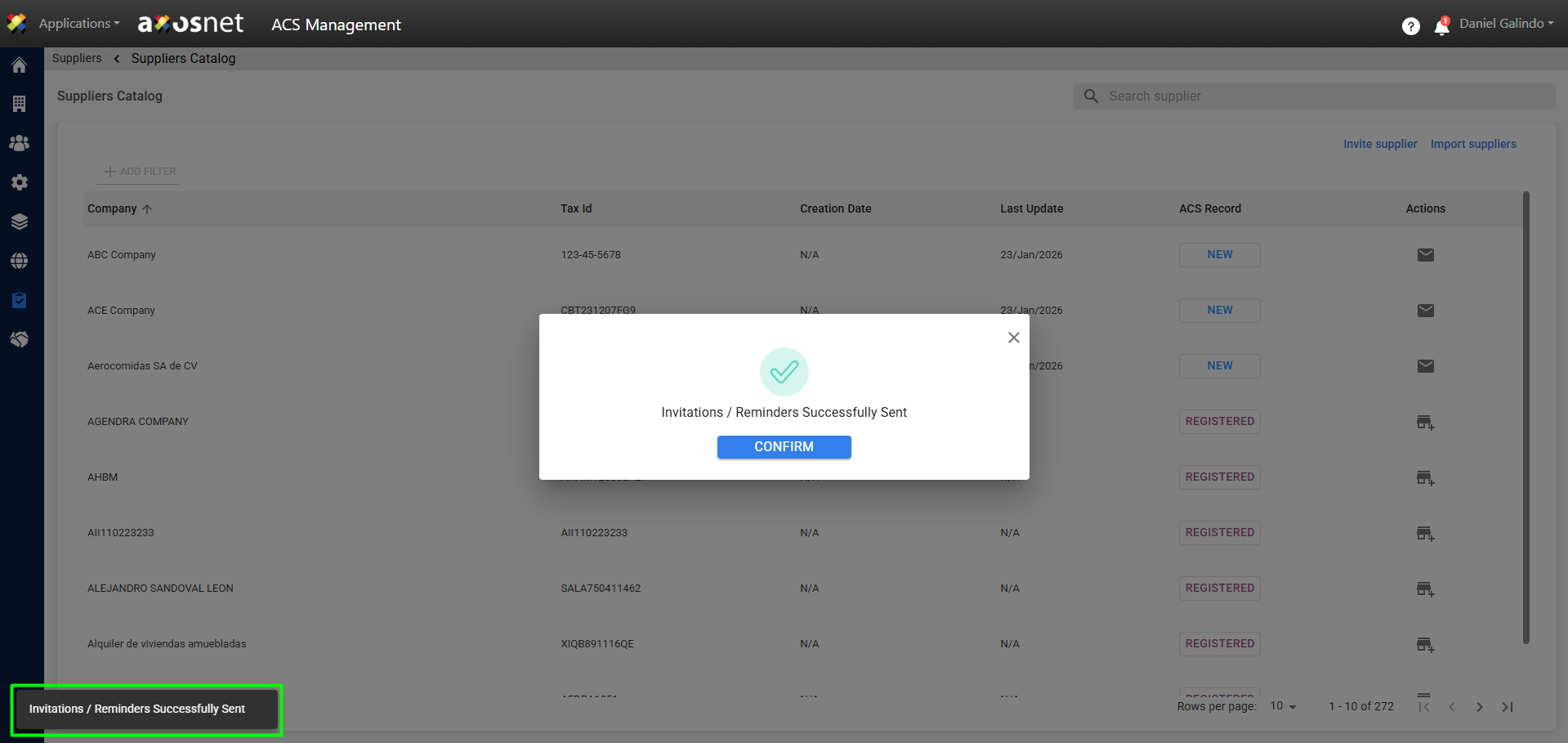
11. Upon completion of the process, the invitations and reminders will have been sent correctly, and you will be able to see the imported records in the supplier catalog.
12. The supplier user will receive an email or notification to follow up on the invitation, which will take them to self-registration. For more details on the self-registration process, you can consult the following manuals: