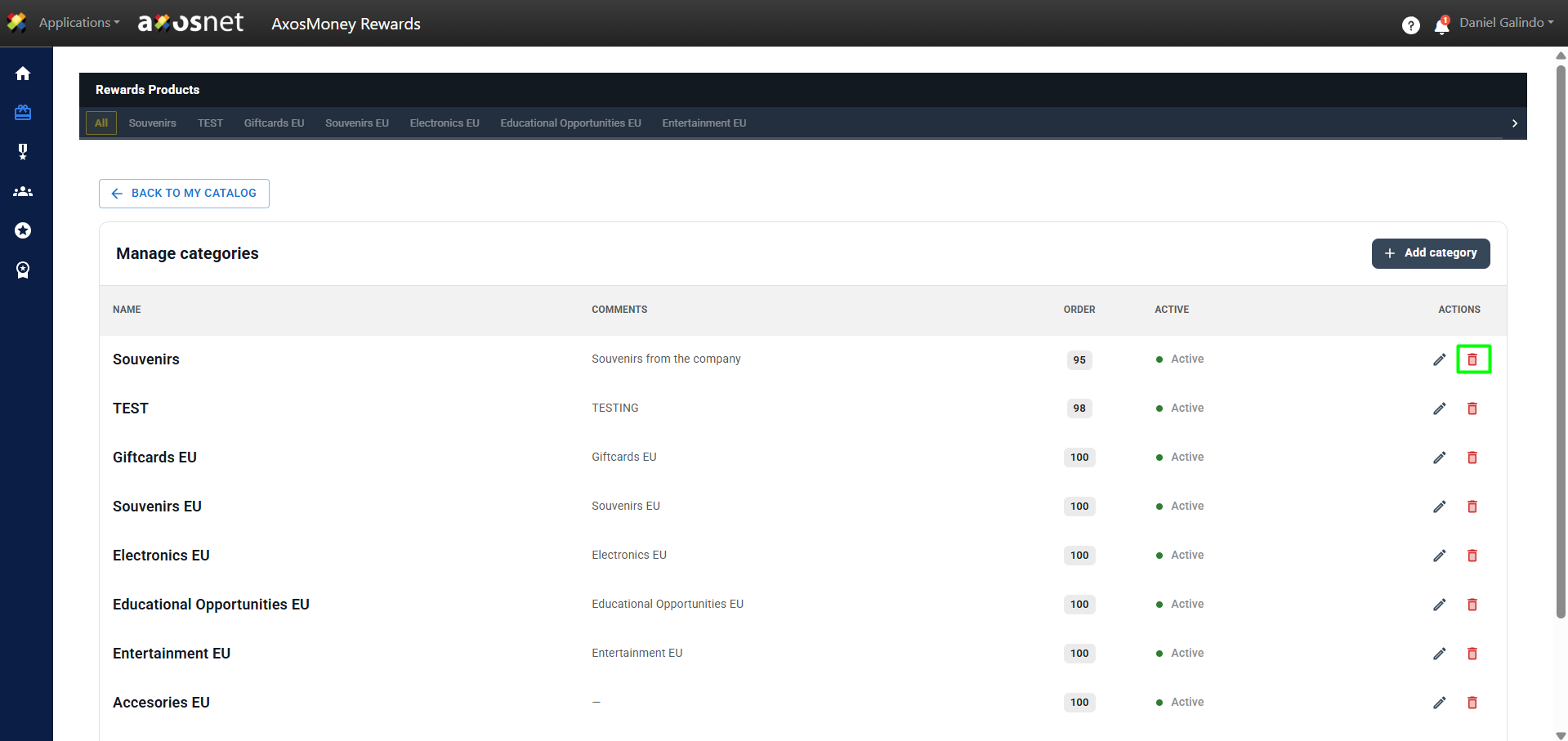
AxosMoney Rewards is a reward system for the employees of your organization, where they can redeem products through a point system. Points are earned by receiving recognition from other colleagues. A key role is that of team leaders, who are responsible for approving or rejecting said recognition. Additionally, the account administrator is in charge of managing both the available rewards and their assigned point value.
Overview
In this AxosMoney Rewards section, only the Administrator can manage the products that can be redeemed as rewards by collaborators. These products can be imported from an Amazon Business list or manually uploaded.
To enter the Rewards Products section, you can follow these steps:
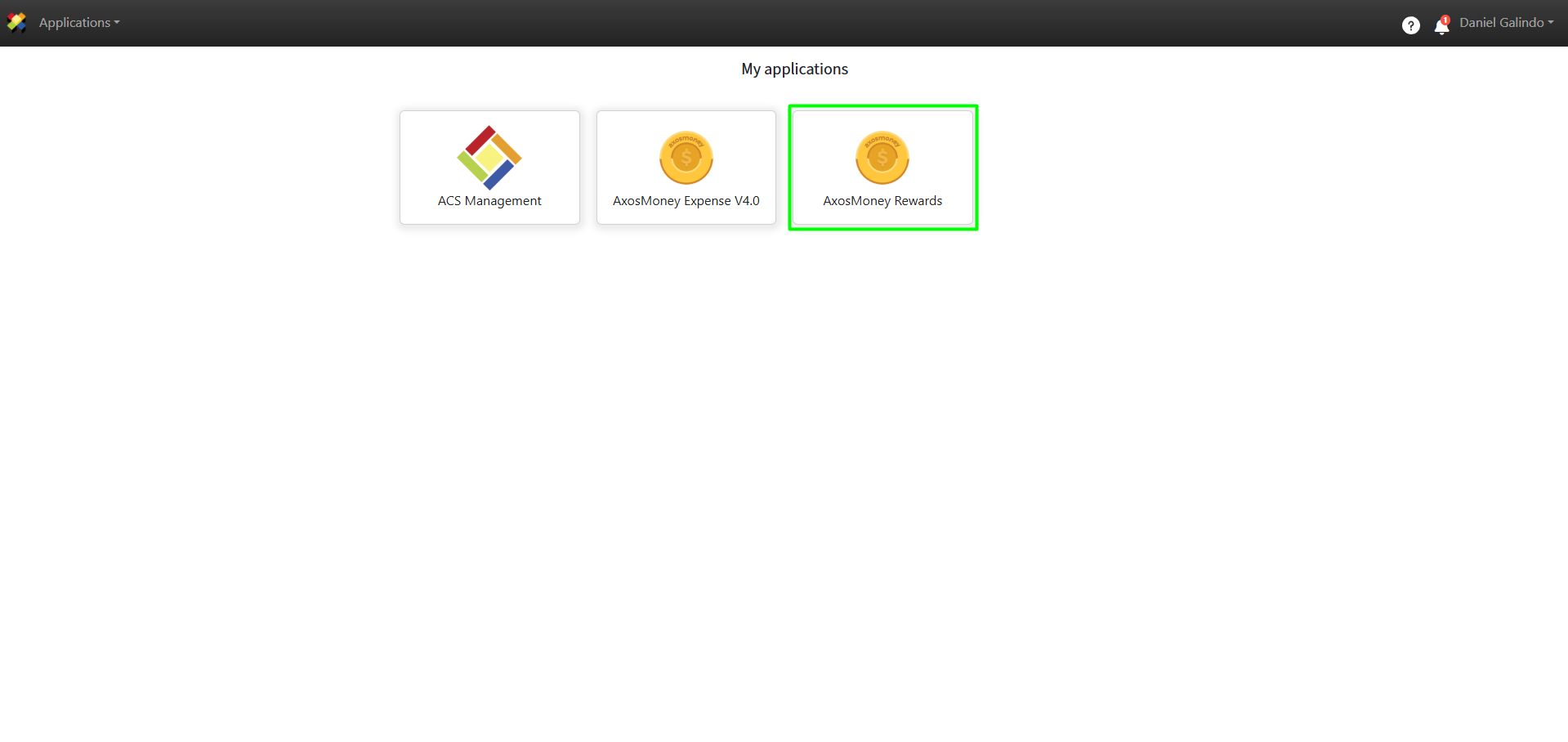
1. Log in to ACS Management and select the AxosMoney Rewards application.
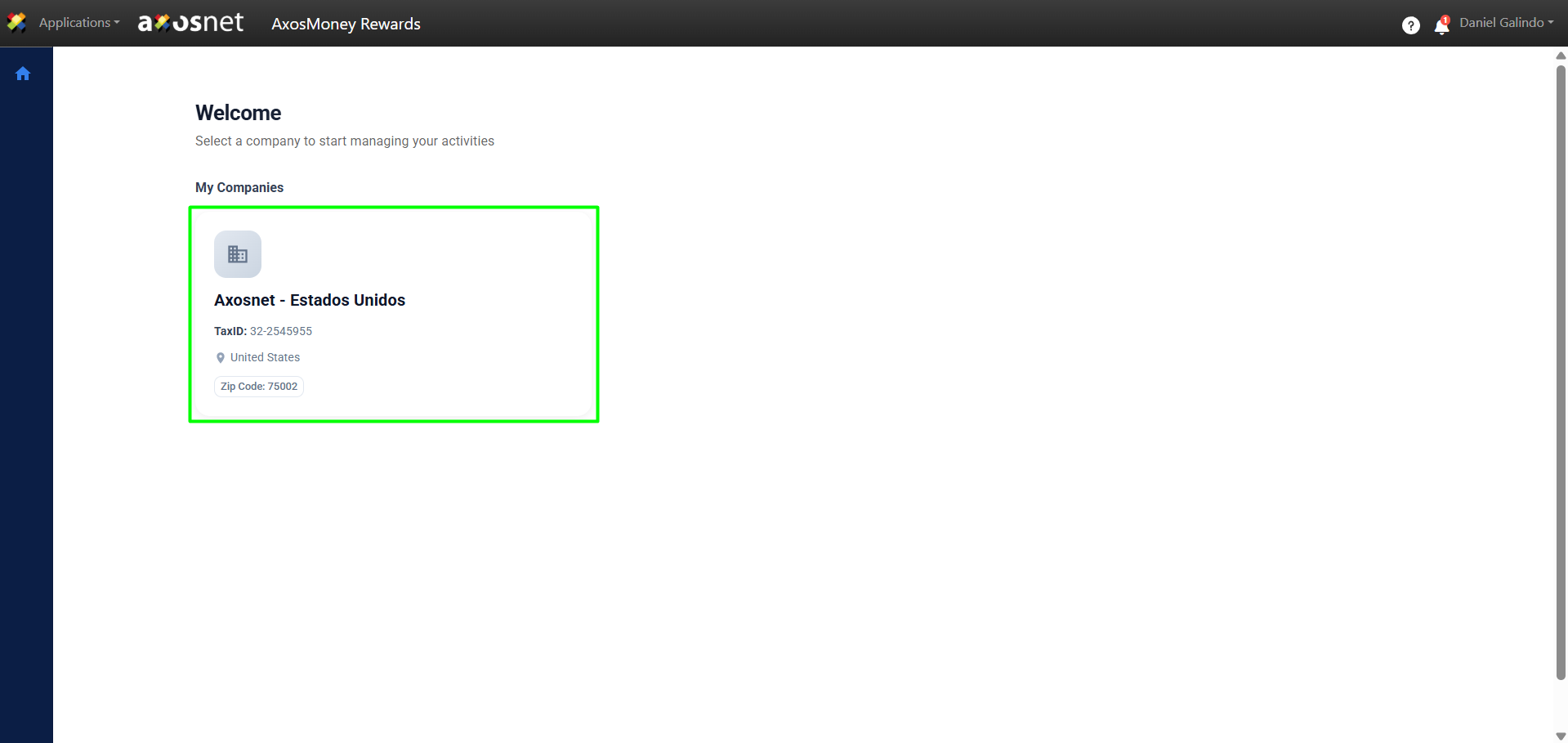
2. Select the company you want to manage.
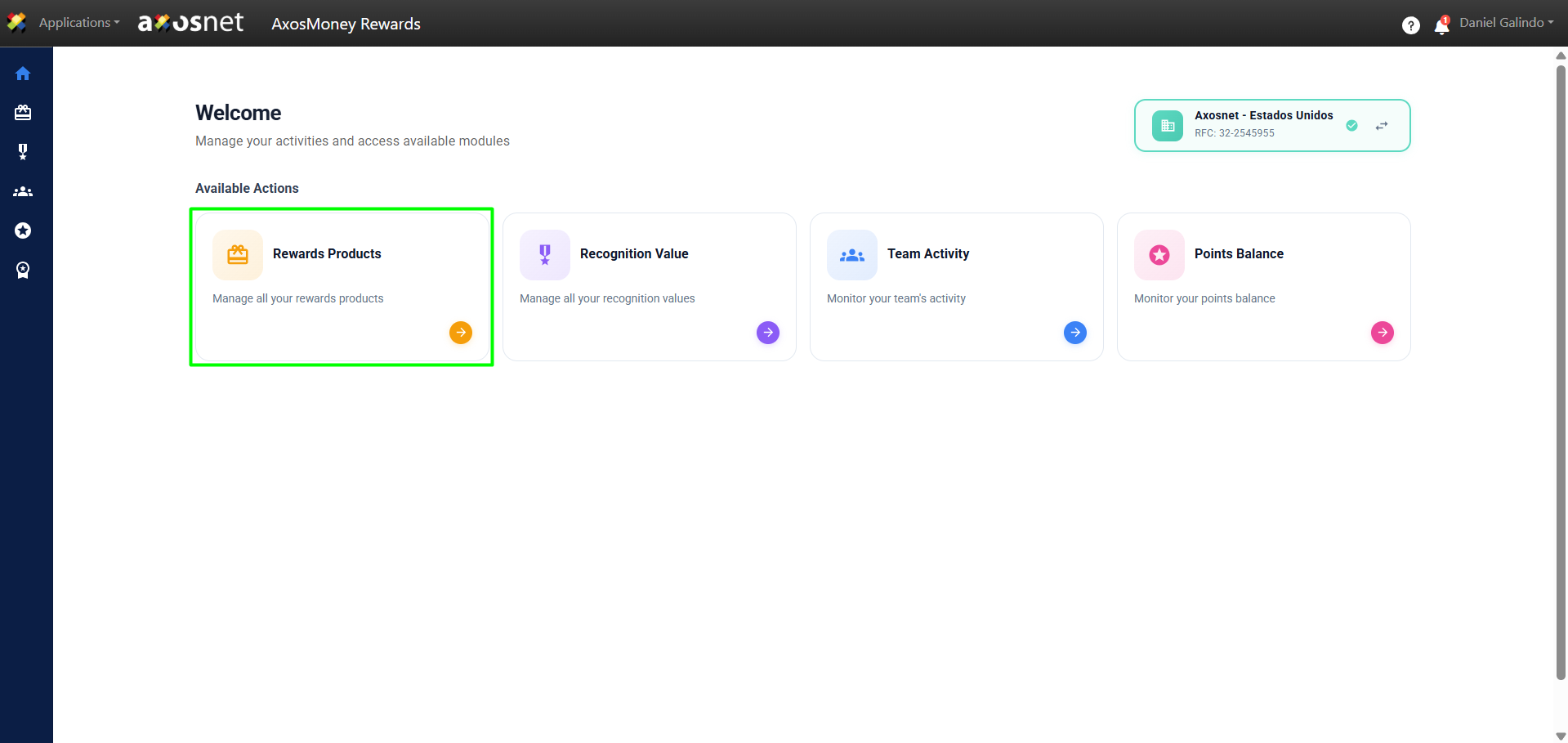
3. Click on the Rewards Products card.
4. In this section, you can manage the products that can be redeemed as rewards.
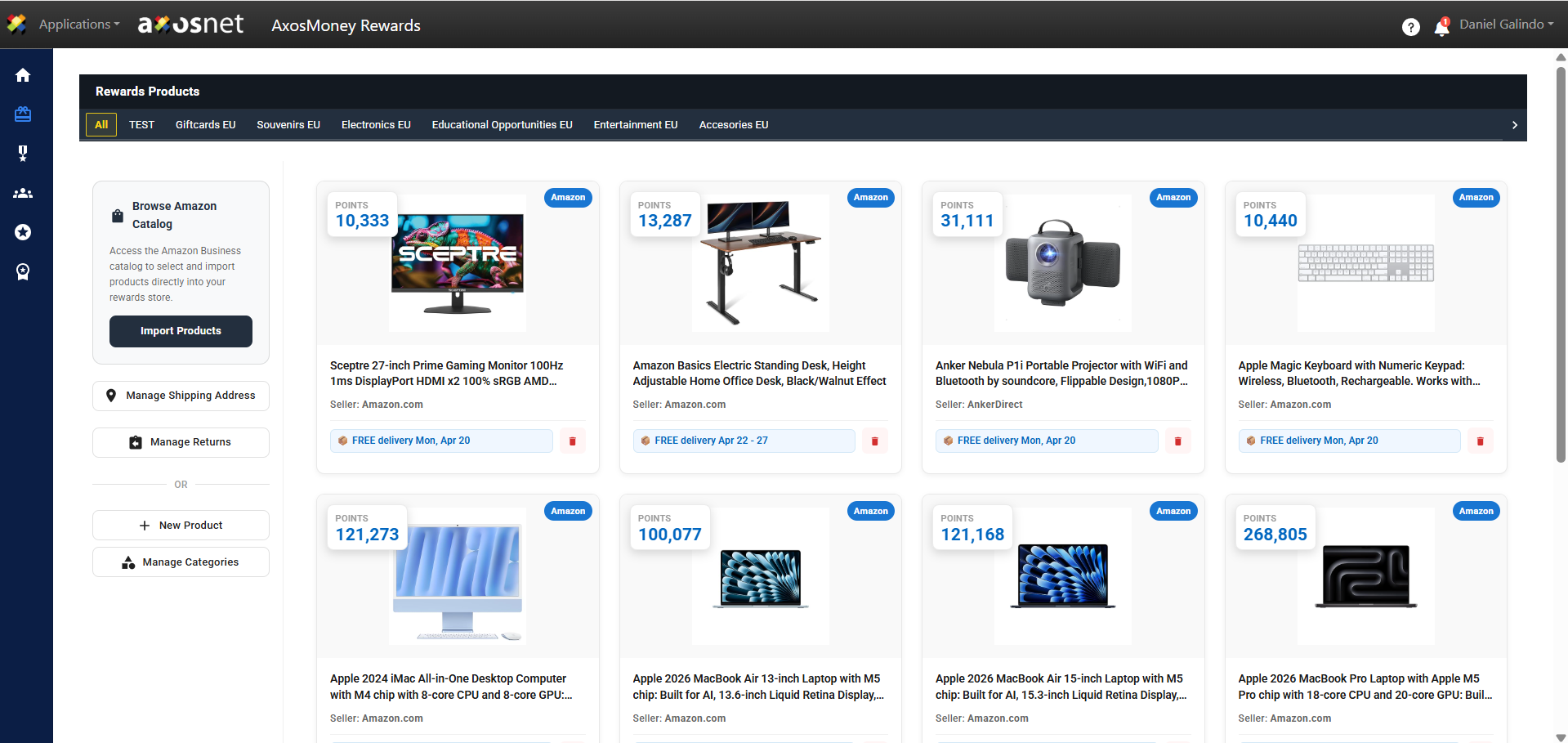
Import Products (Amazon Business)
The Amazon products shown in Rewards are pre-configured in the Amazon Business account by the client administrator.
To import products from your Amazon Business catalog, you can follow these steps:
1. Click on Import Products.
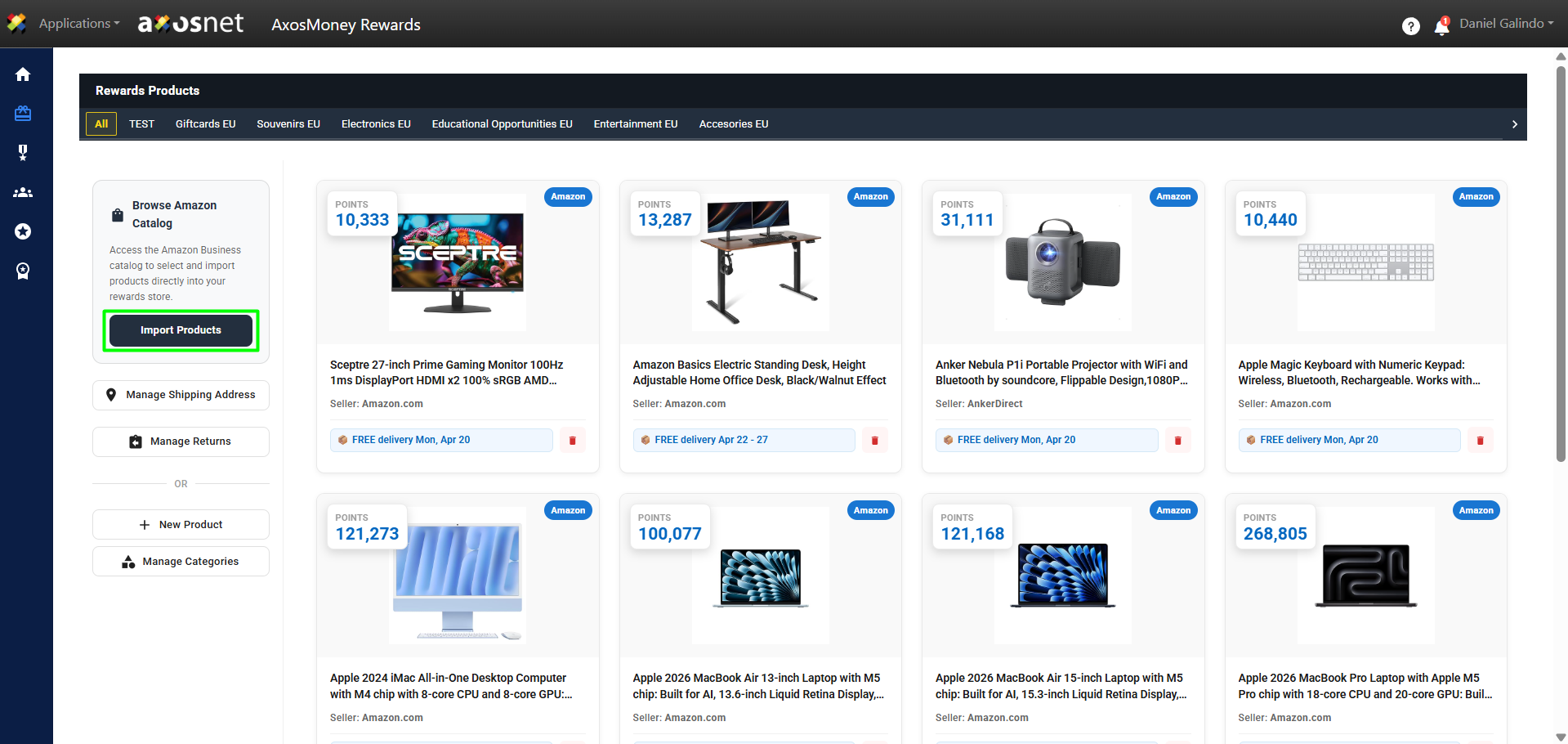
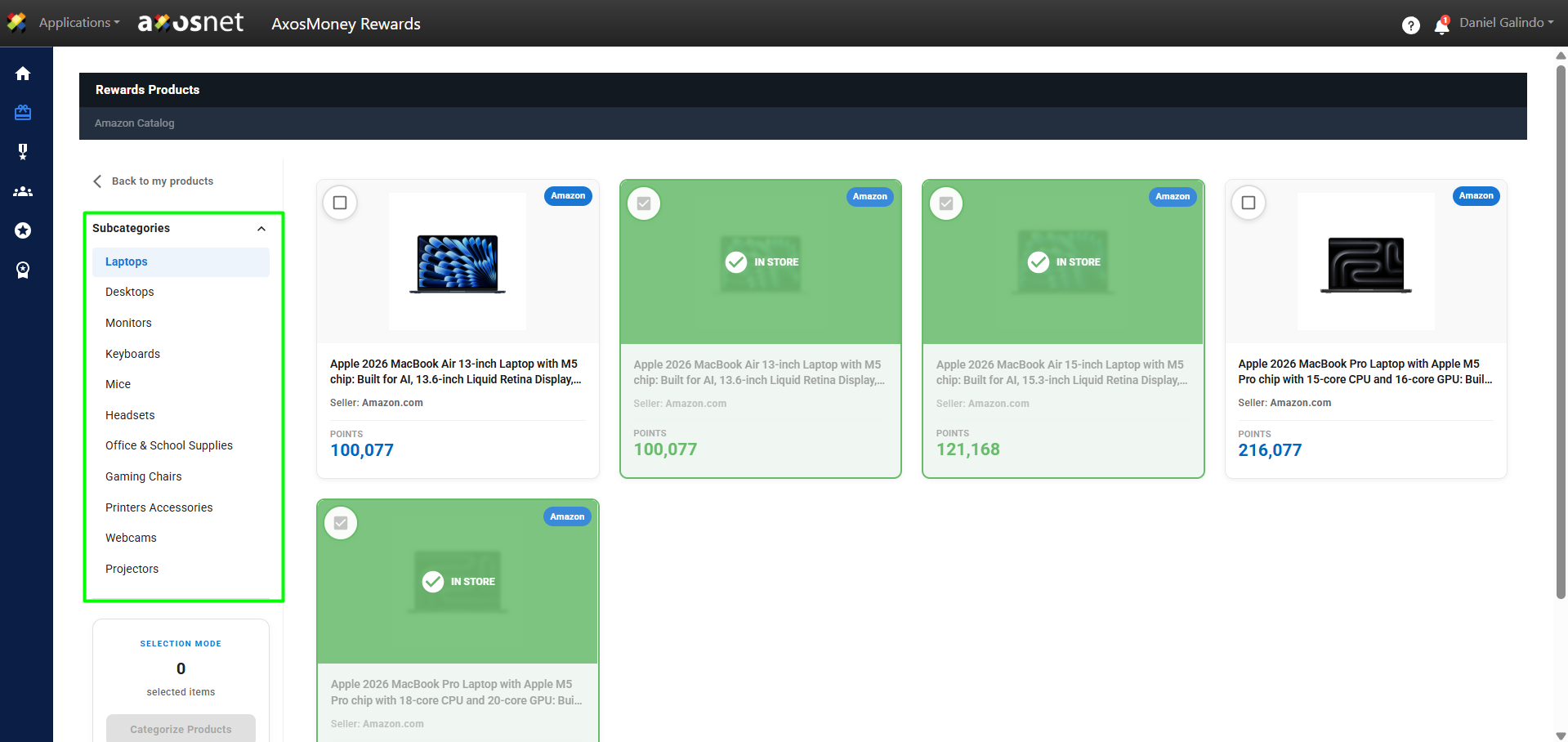
Note: In the left sidebar menu, you can filter products by subcategories.
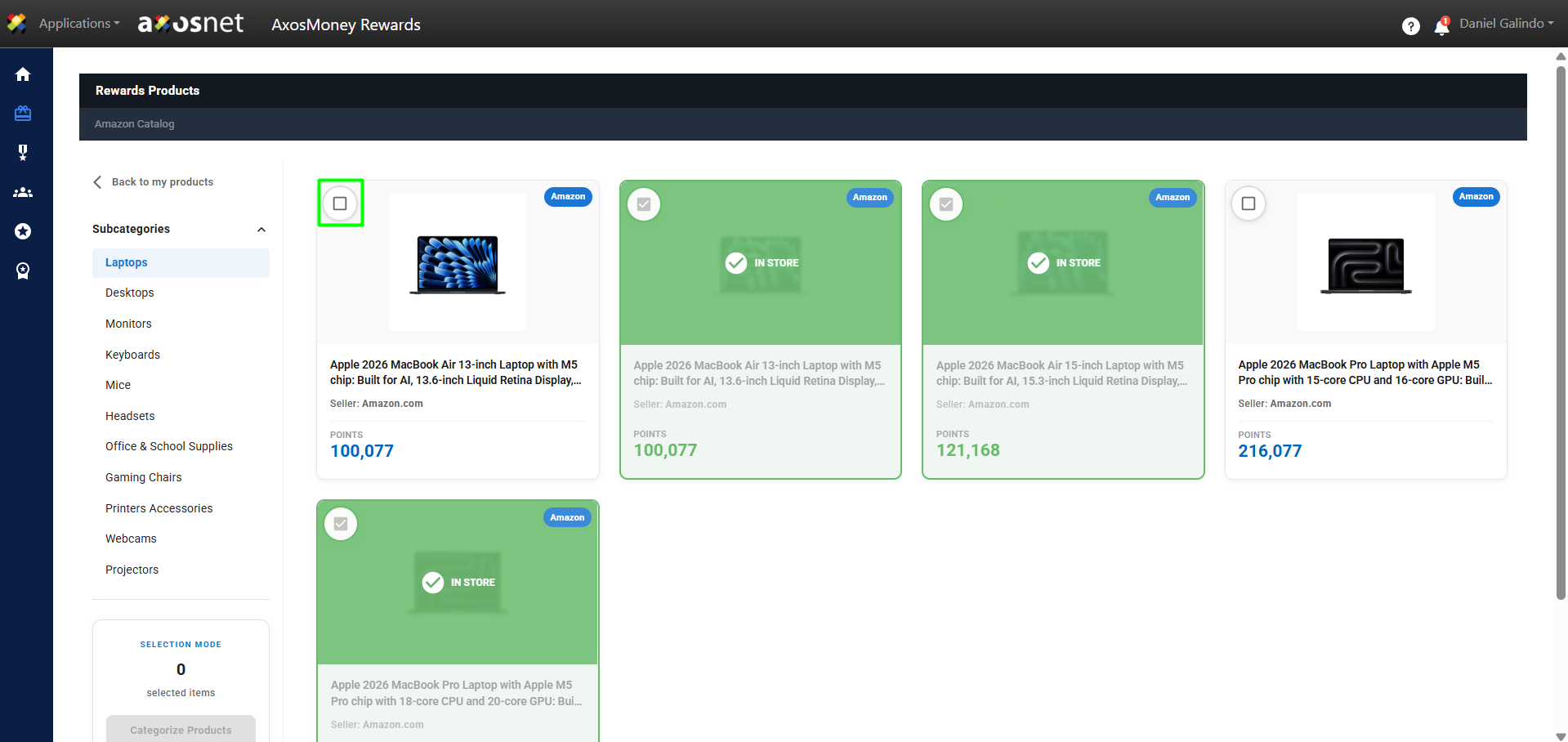
2. Select one or more products by clicking on the checkbox that appears on each product’s card.
3. Click on Categorize Products to continue.
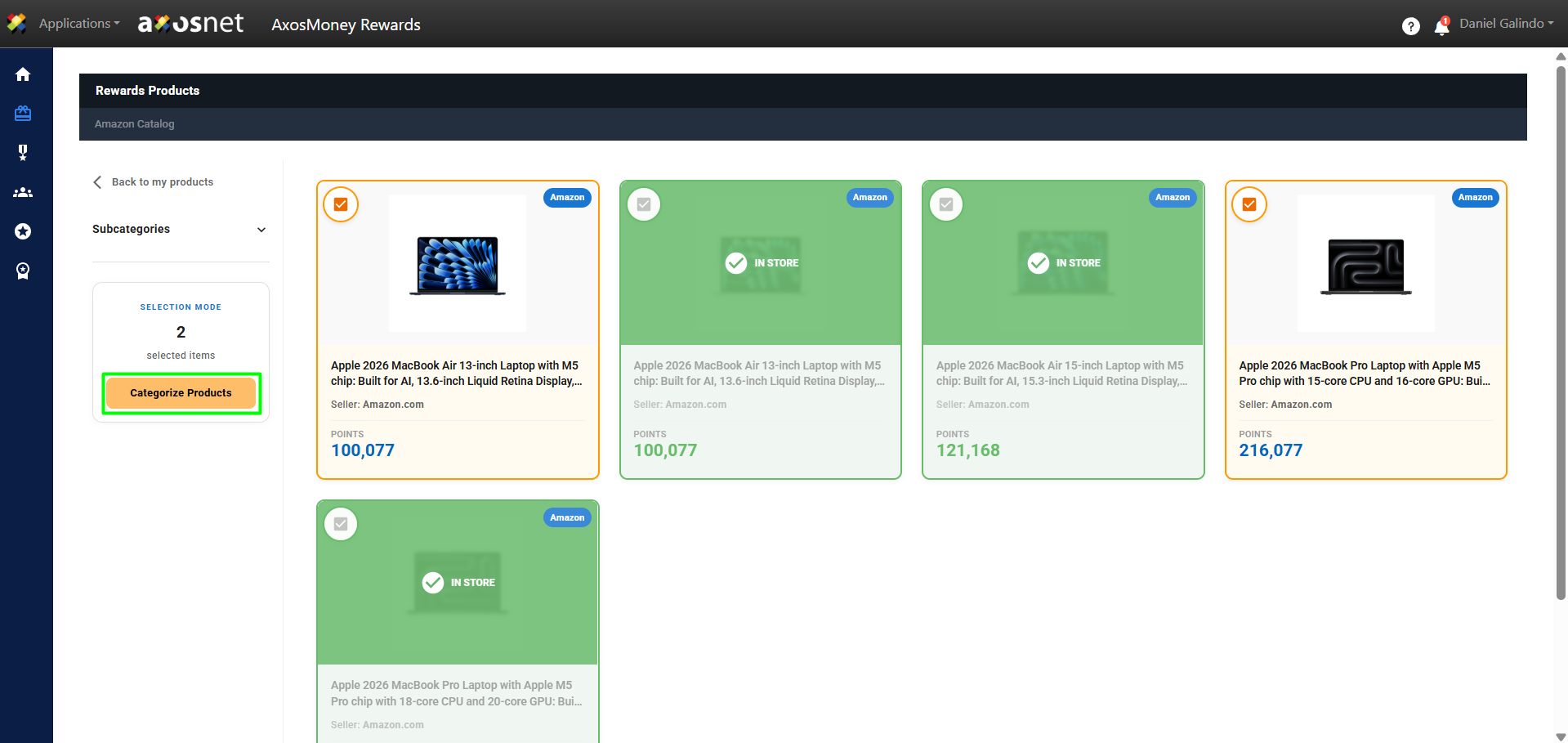
4. In this section, you can select the category in which the products will be stored. All products can be categorized in a single category using the dropdown above or in different categories using the dropdown for each product.
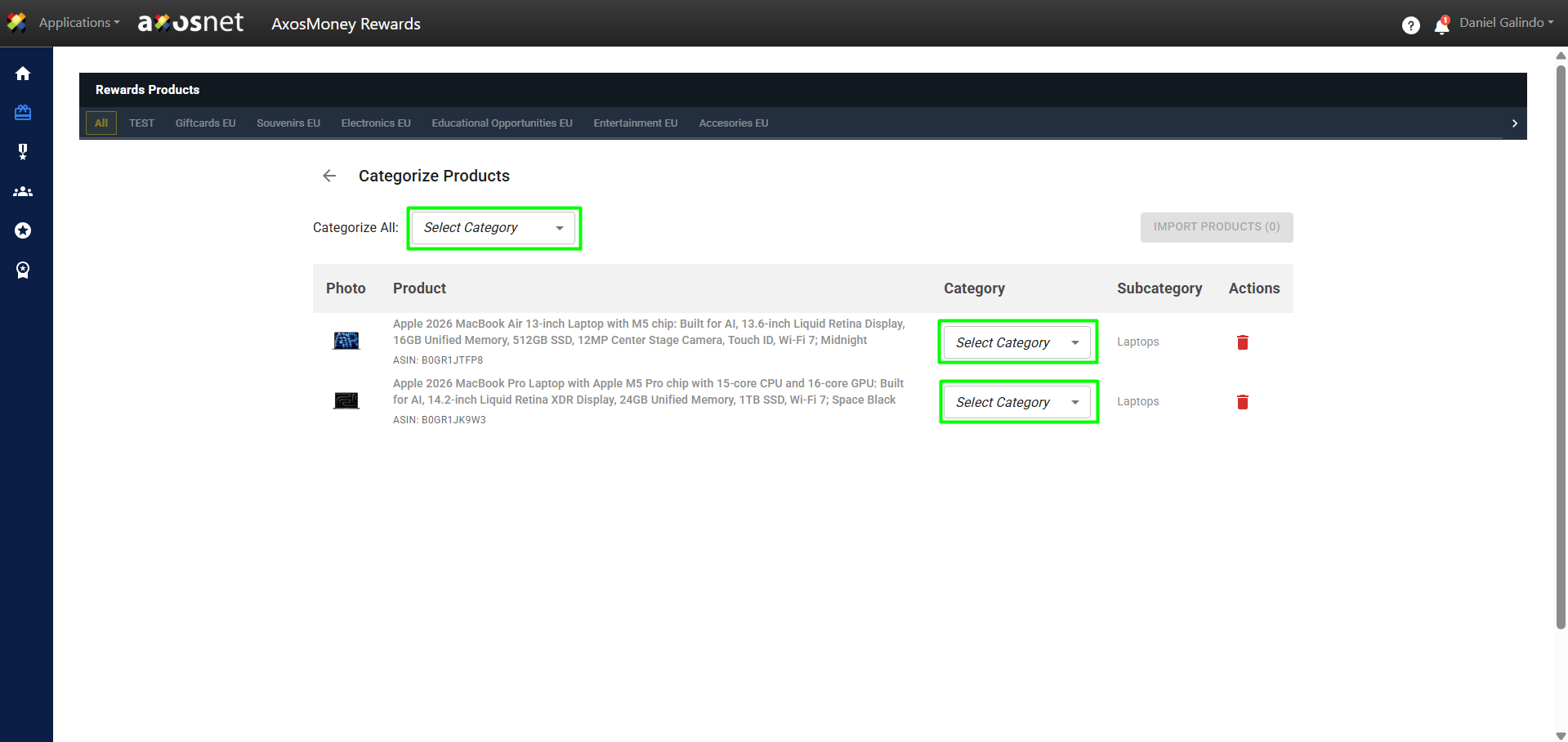
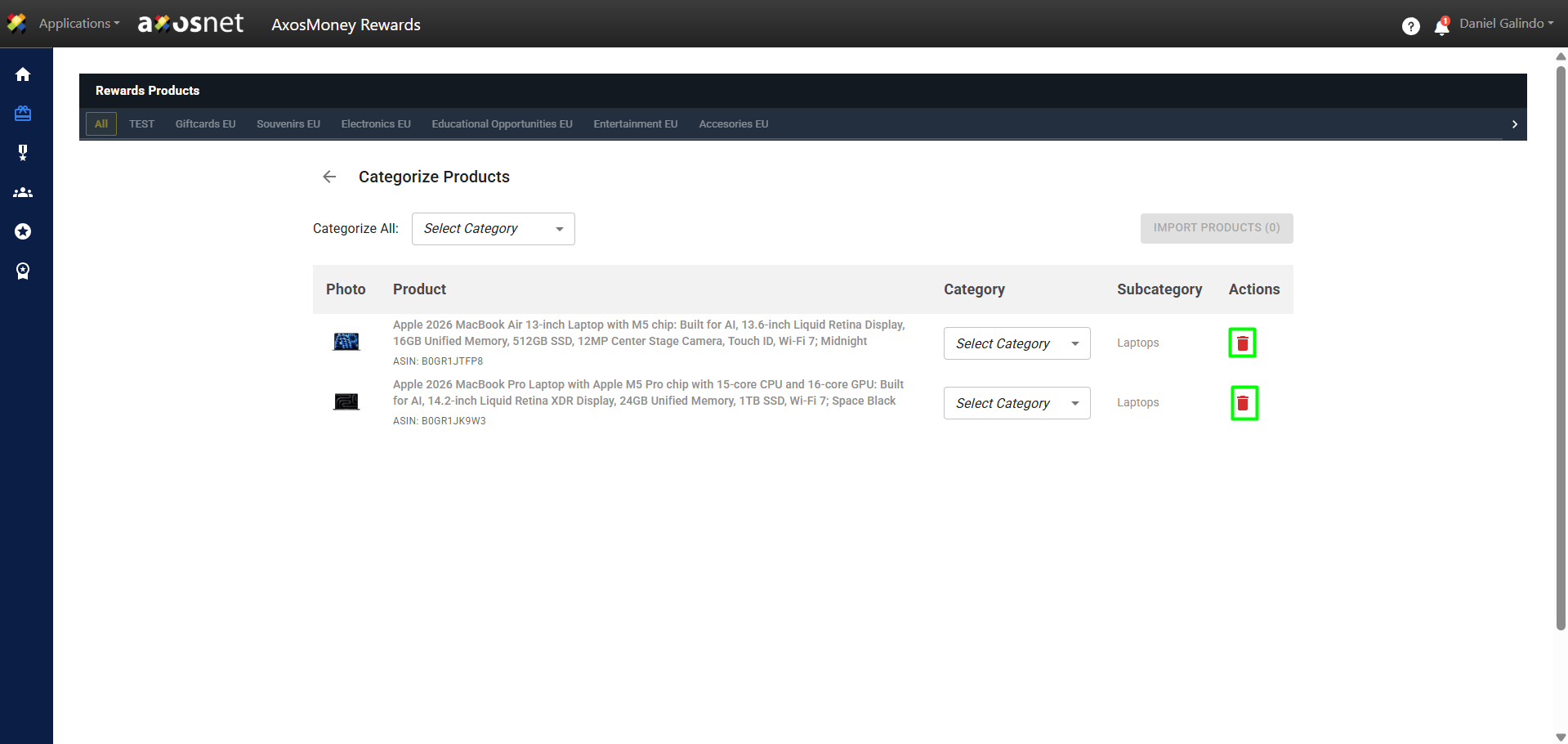
Note: You can delete products before importing them by clicking the button in the actions column.
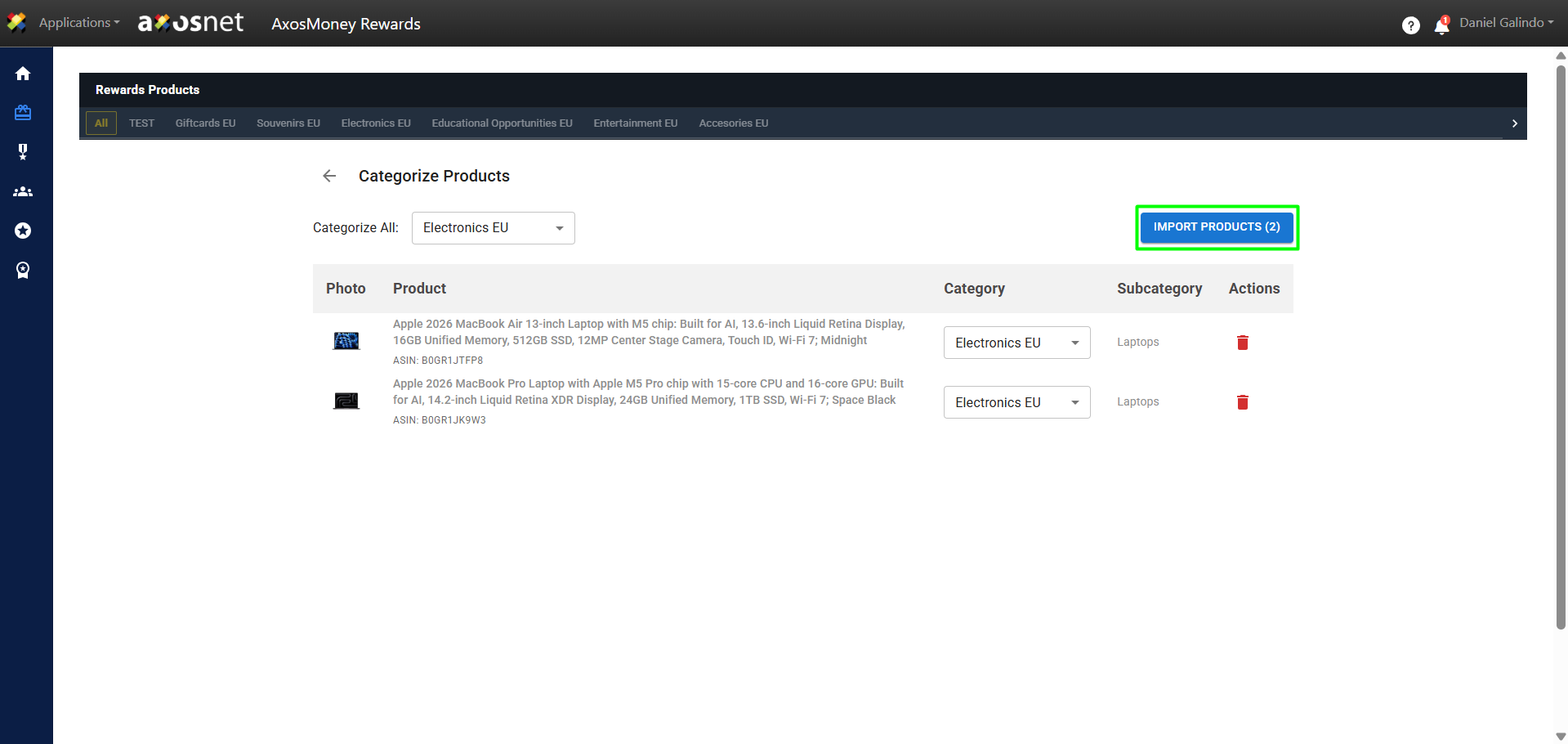
5. Once you have selected the product categories, click on Import Products.
6. The products will be added to the catalog and a confirmation message will appear.
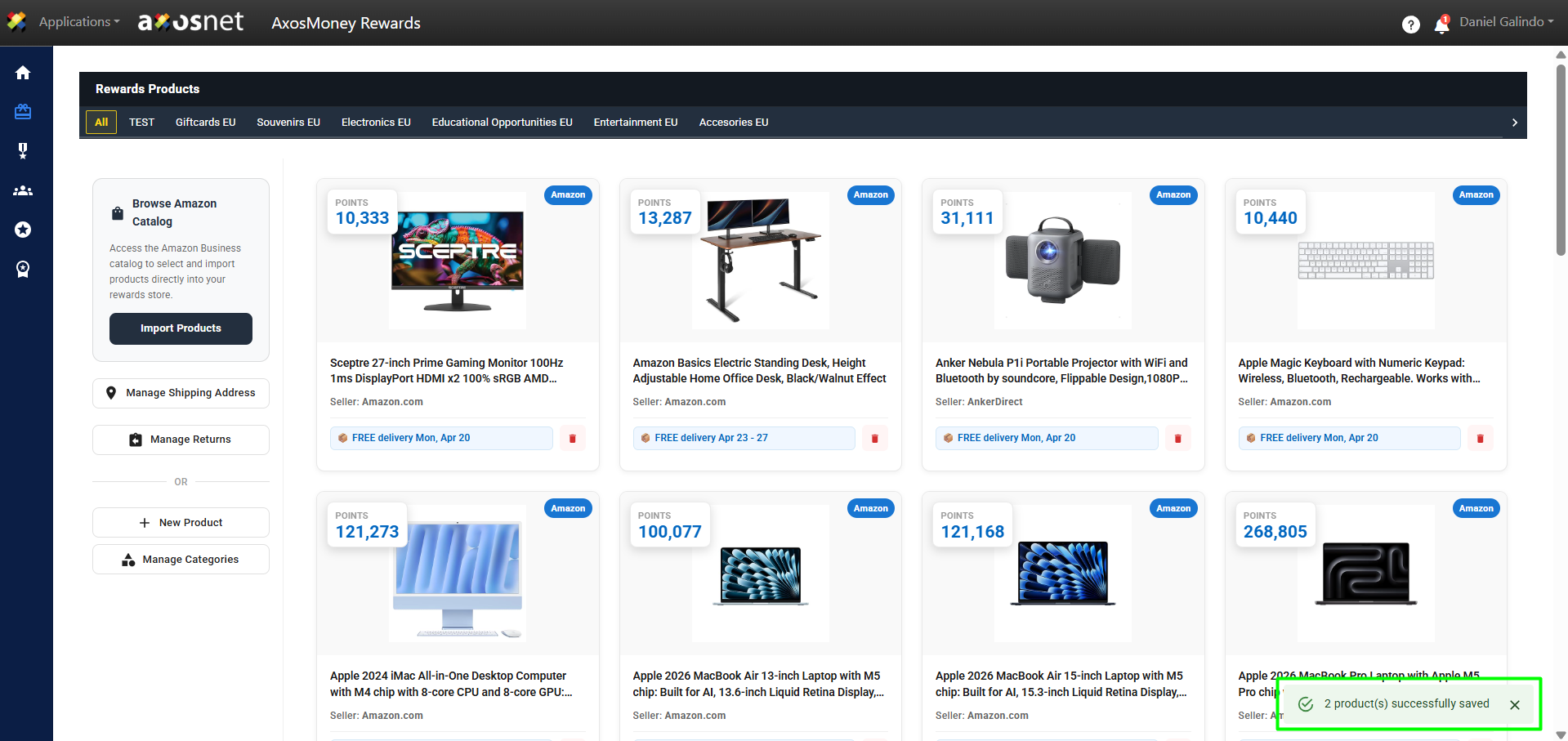
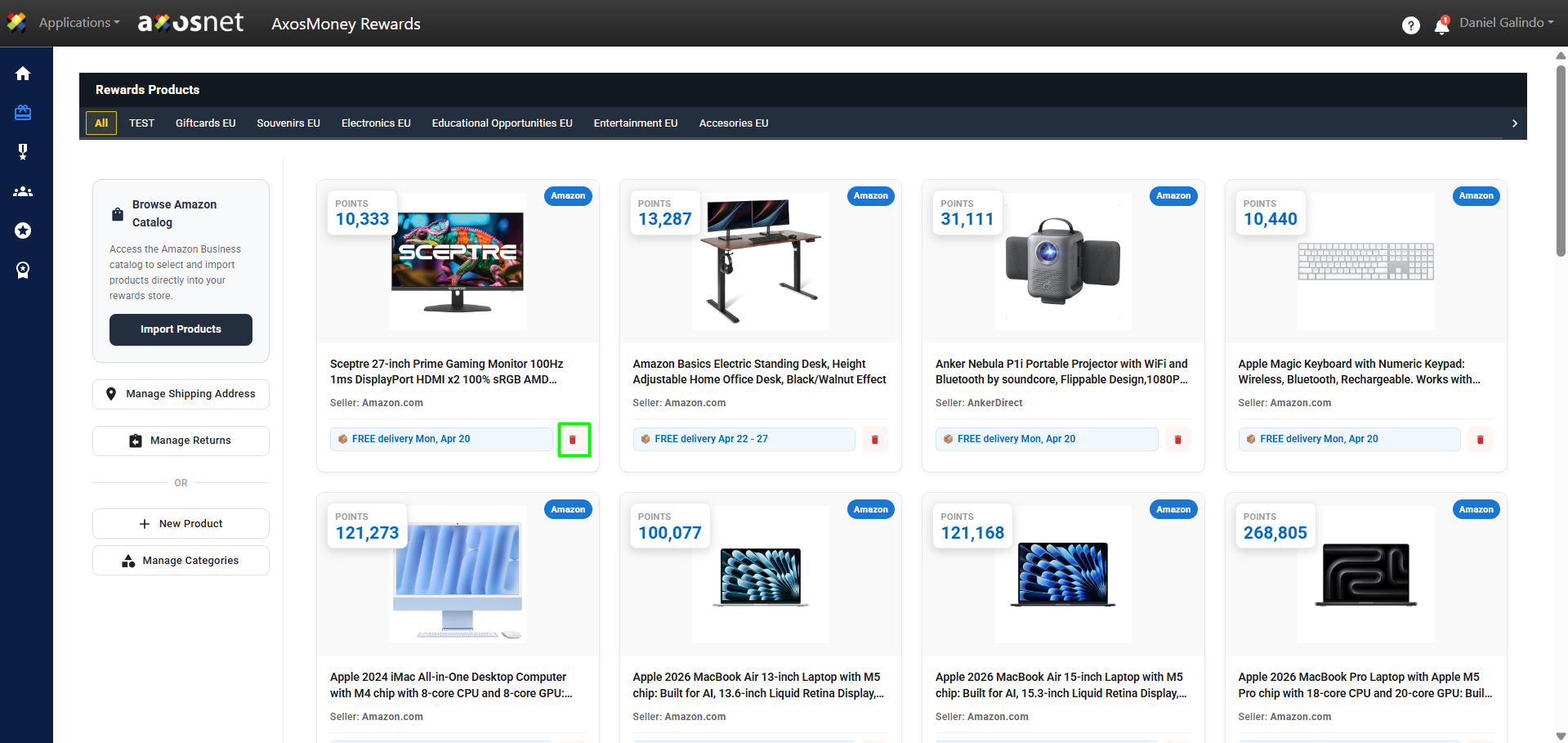
Note: You can remove products from the catalog by clicking the action button.
Manage Shipping Address
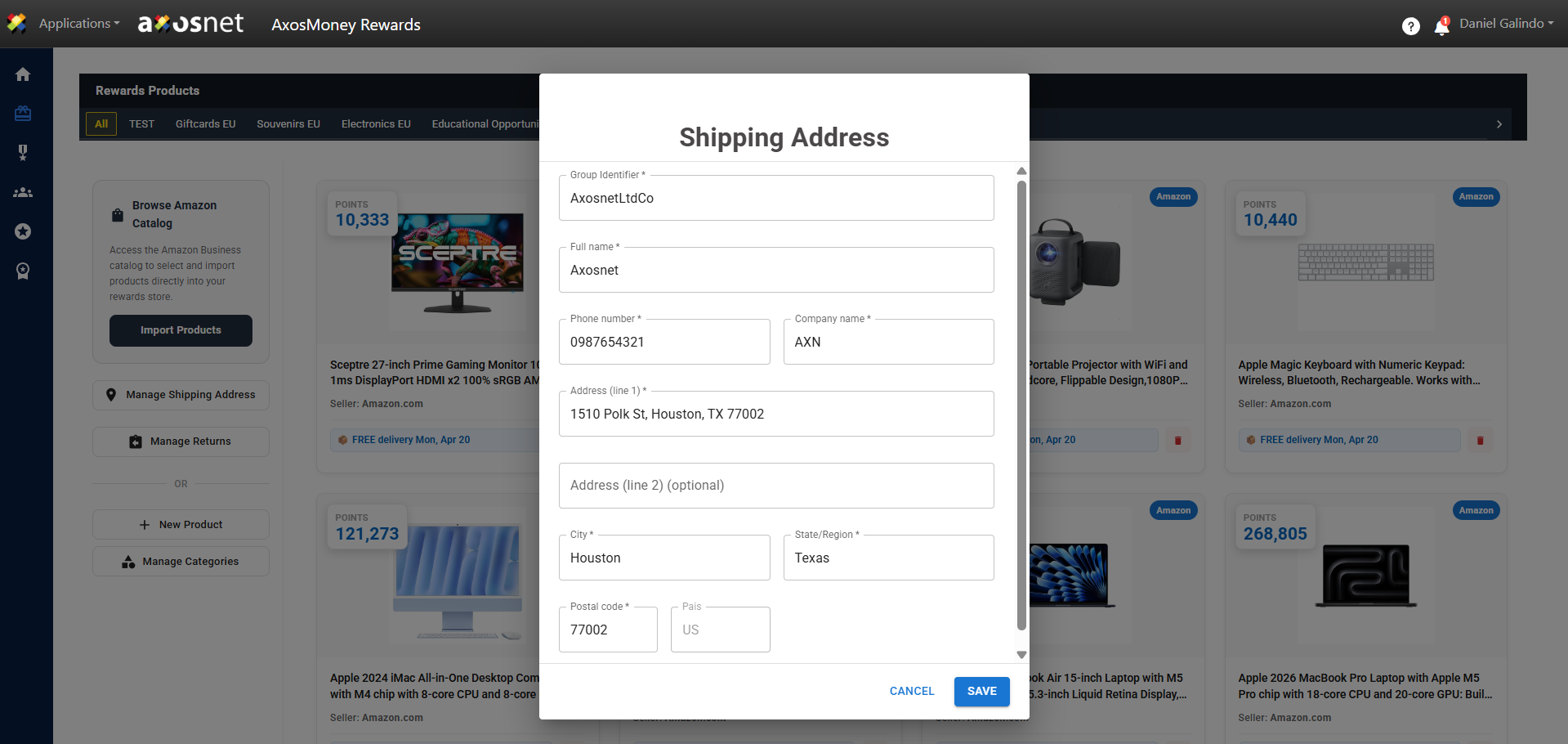
In this section, you can manage the address to which products redeemed as rewards by employees will be shipped.
Note: When redeeming a product, the employee will see the default address that the administrator registered in this section. However, the employee has the option to modify this address so that Amazon ships the product directly to their home.
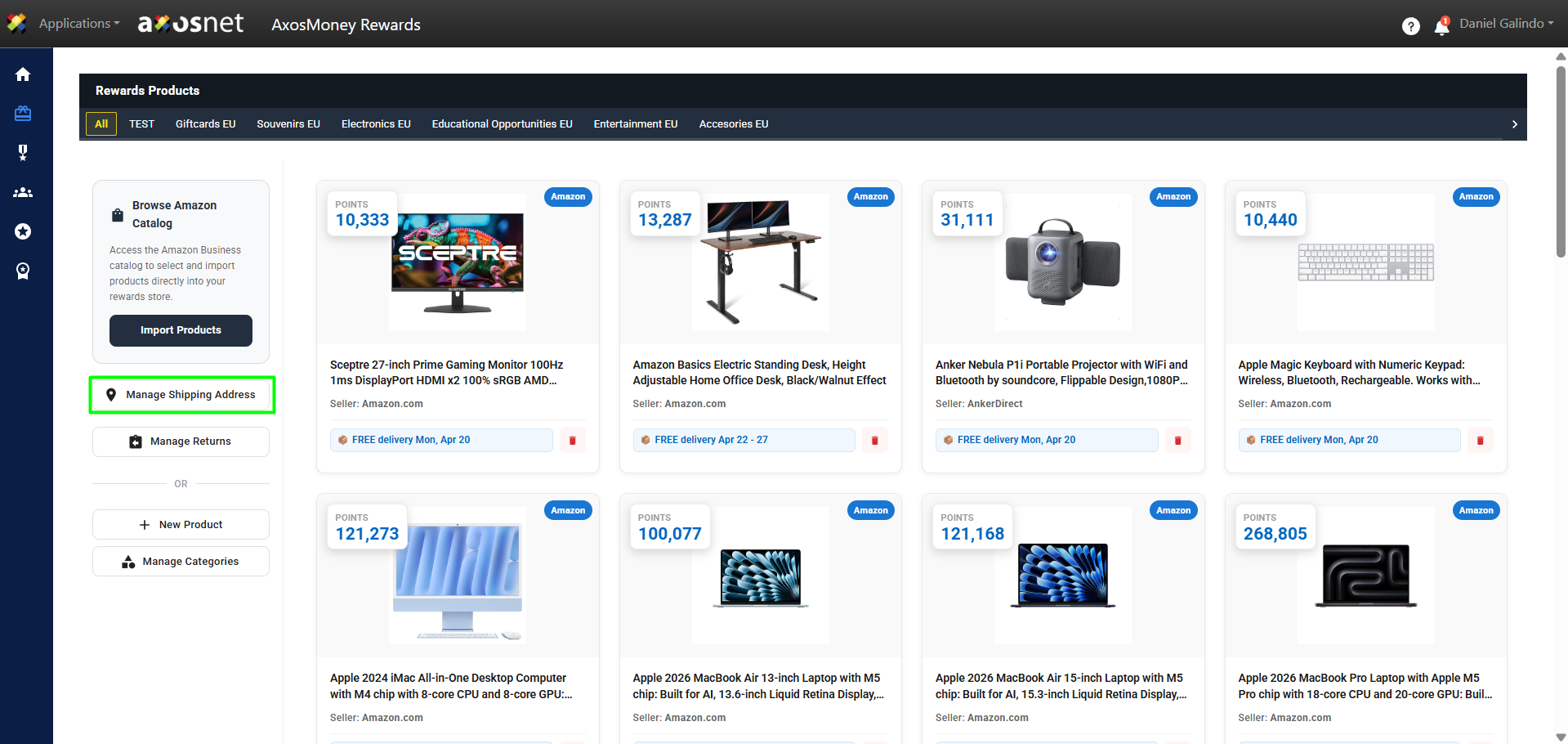
1. Click on Manage Shipping Address.
2. Enter the address details where the products will be shipped and click on Save.
Manage Returns
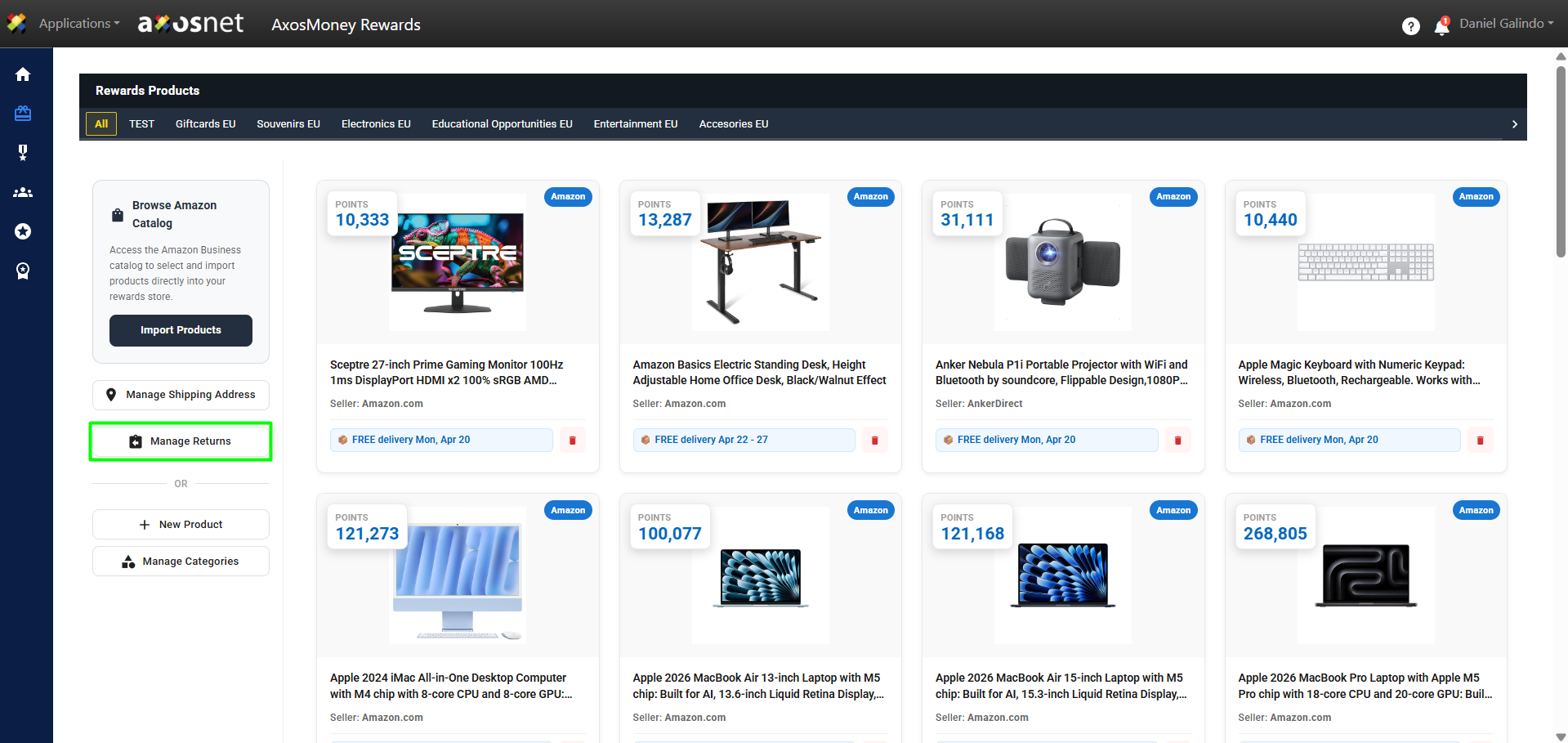
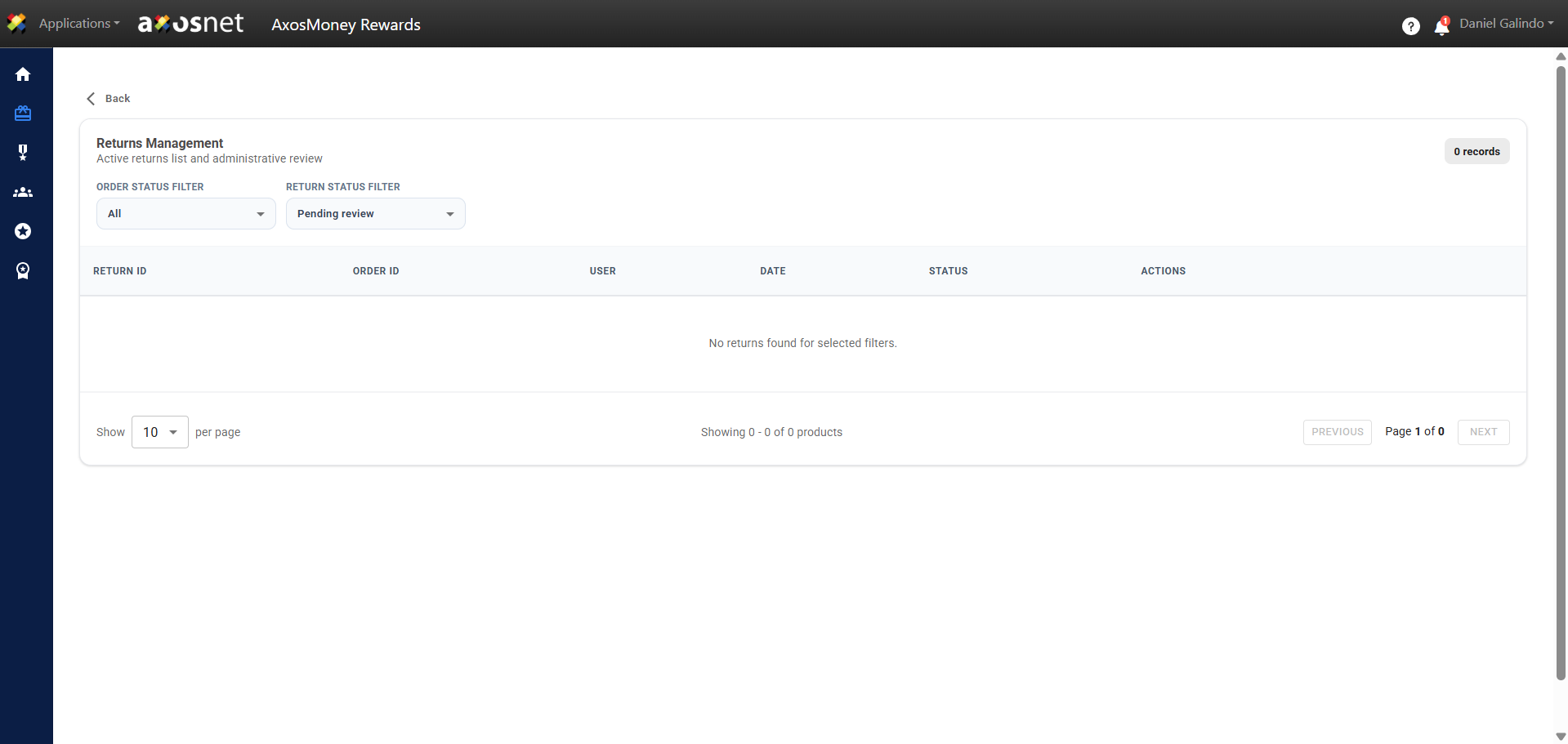
In this section, you will be able to manage and view the status of returns for products redeemed as rewards by employees.
1. Click on Manage Returns.
2. In this section, you will be able to view and filter Amazon Business product return requests.
New Product (Manual)
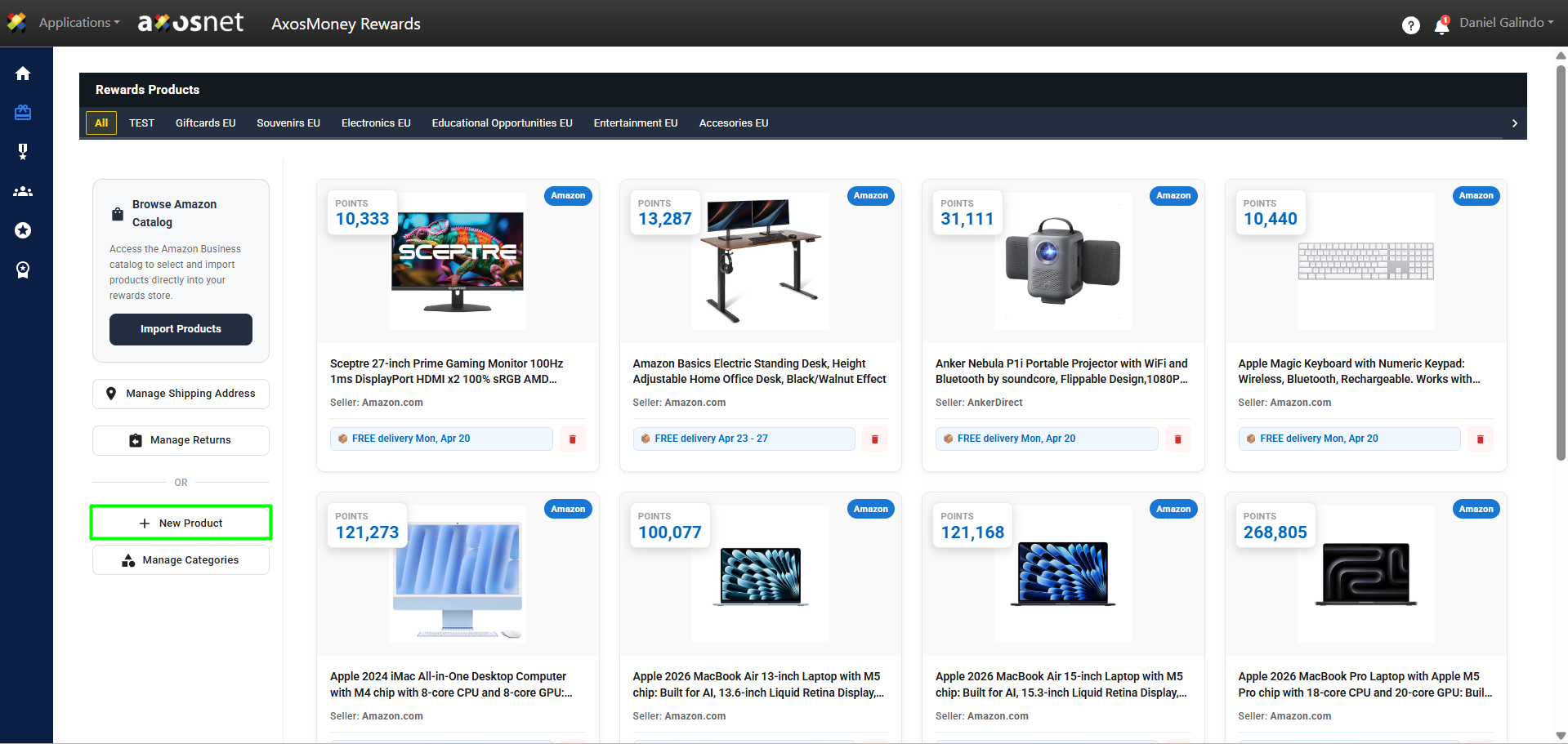
By selecting this option, you can manually add a product that is not available in the Amazon Business product catalog, such as a souvenir or a course.
Manually added products will appear in the catalog with the label “Manual.”
To add a new product, you can follow these steps:
1. Click on New Product.
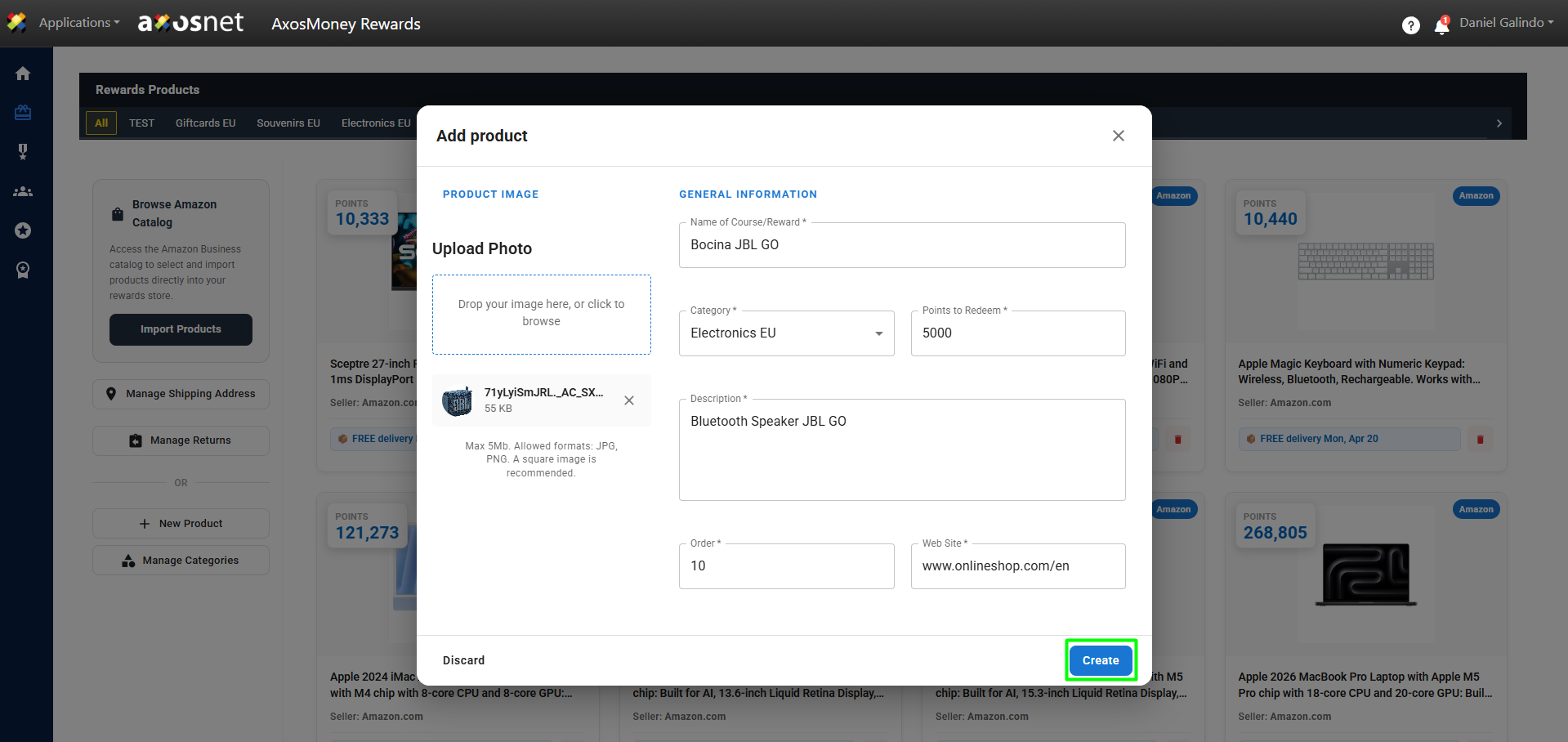
2. A window will appear to add the product details, fill in the details and click on Create.
3. A confirmation message will appear, and the product will be uploaded to the selected category.
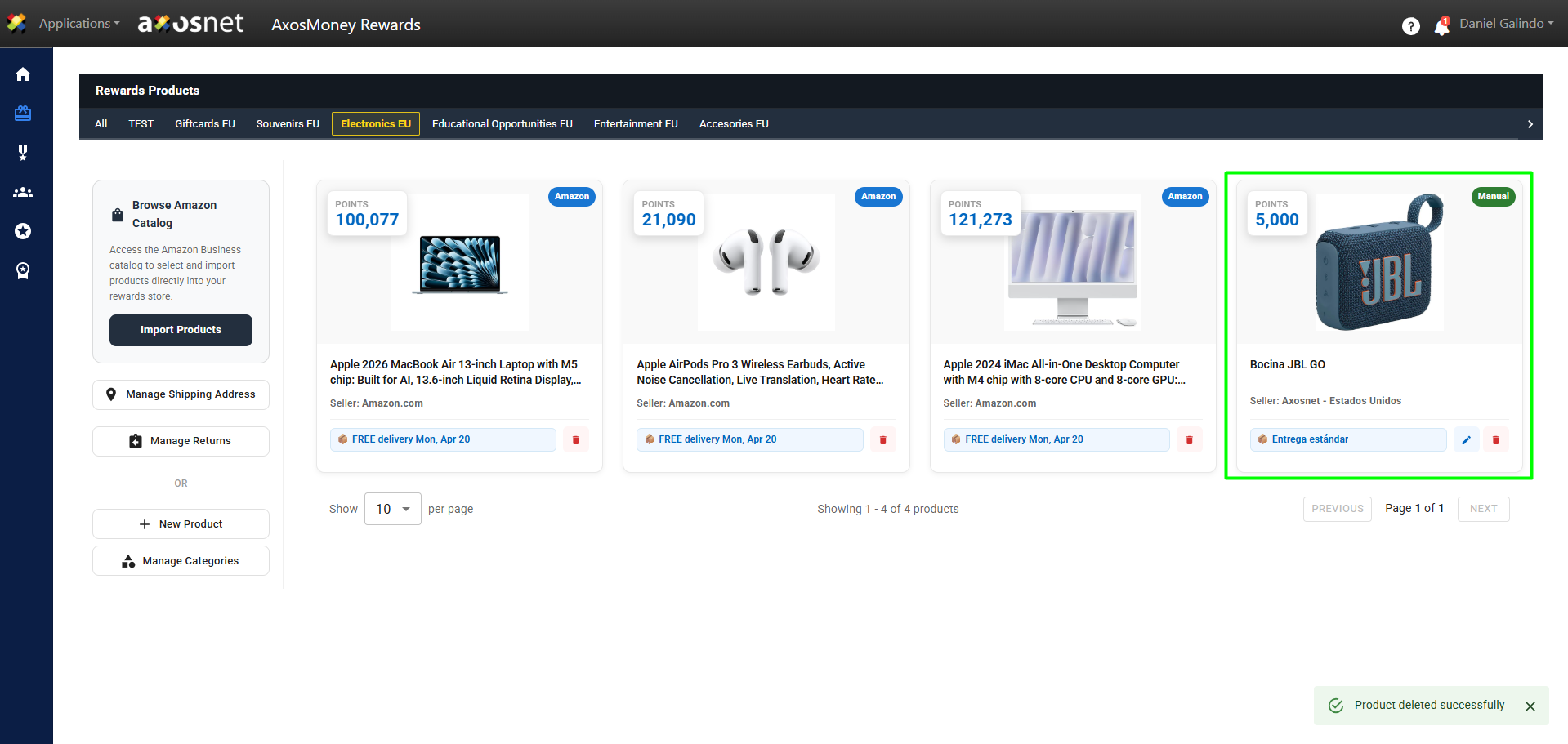
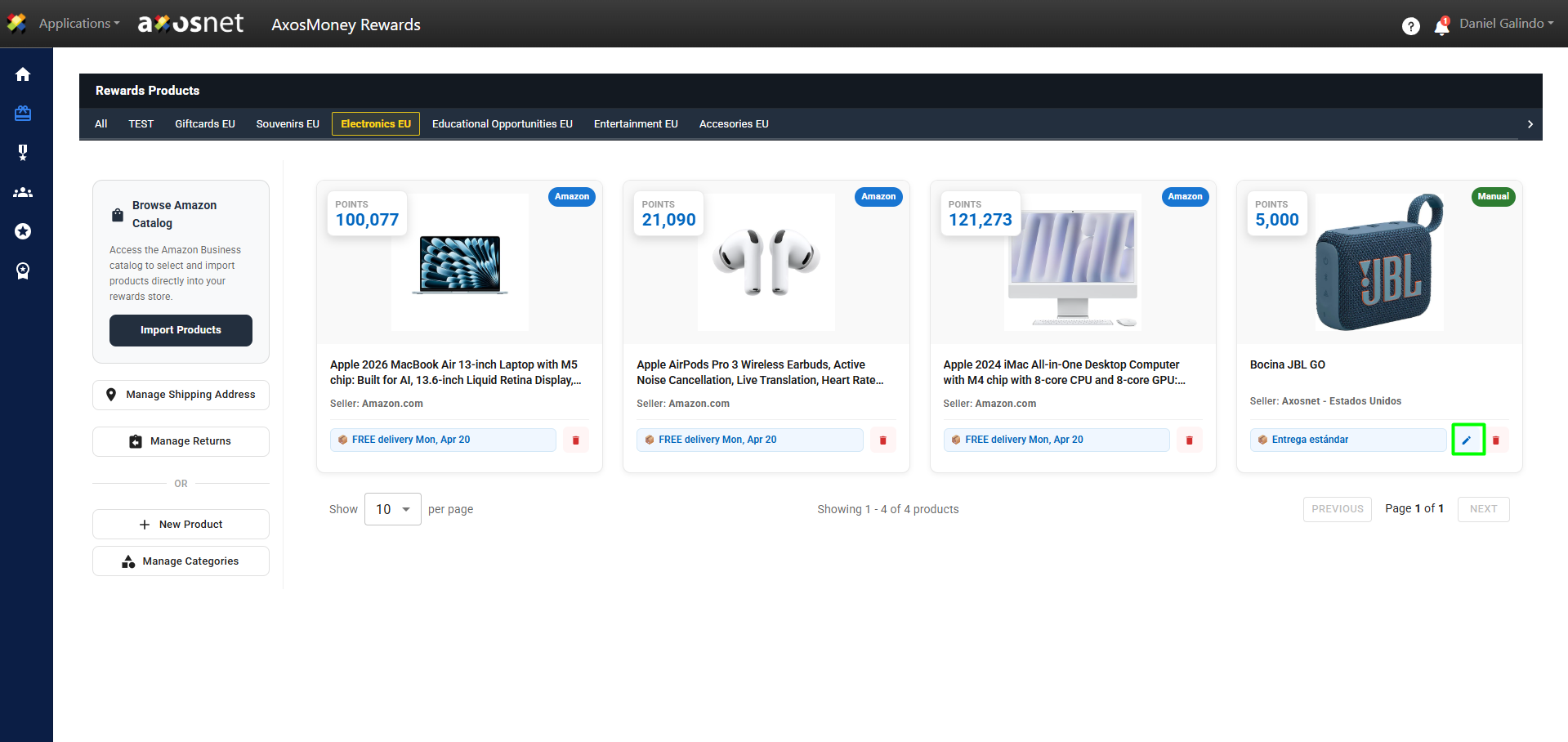
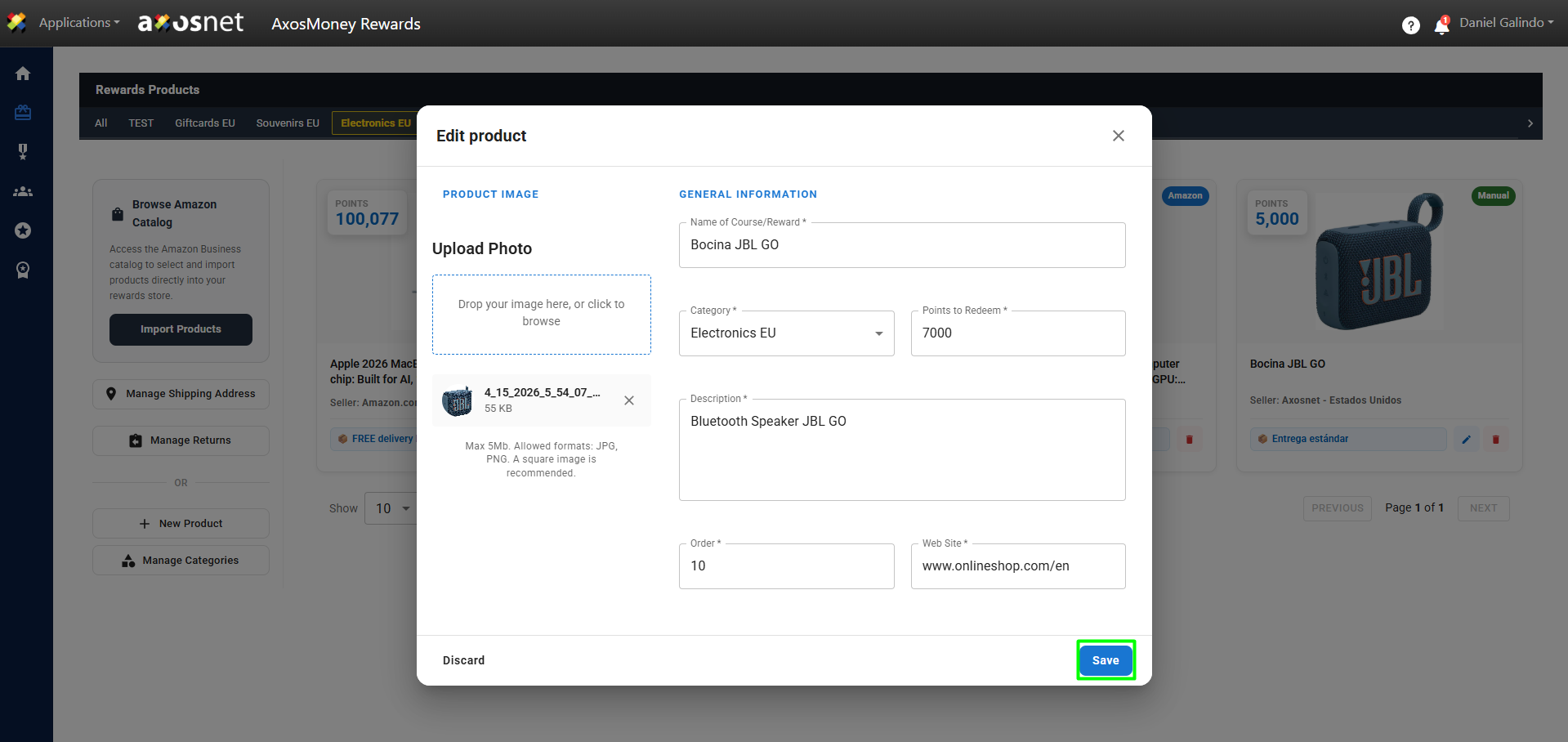
4. You can edit the product by clicking the pencil icon. The same window will appear as when creating the product, and you can edit the data. When finished, click Save.
Note: Only products that are added manually can be edited; products from the Amazon catalog cannot be edited.
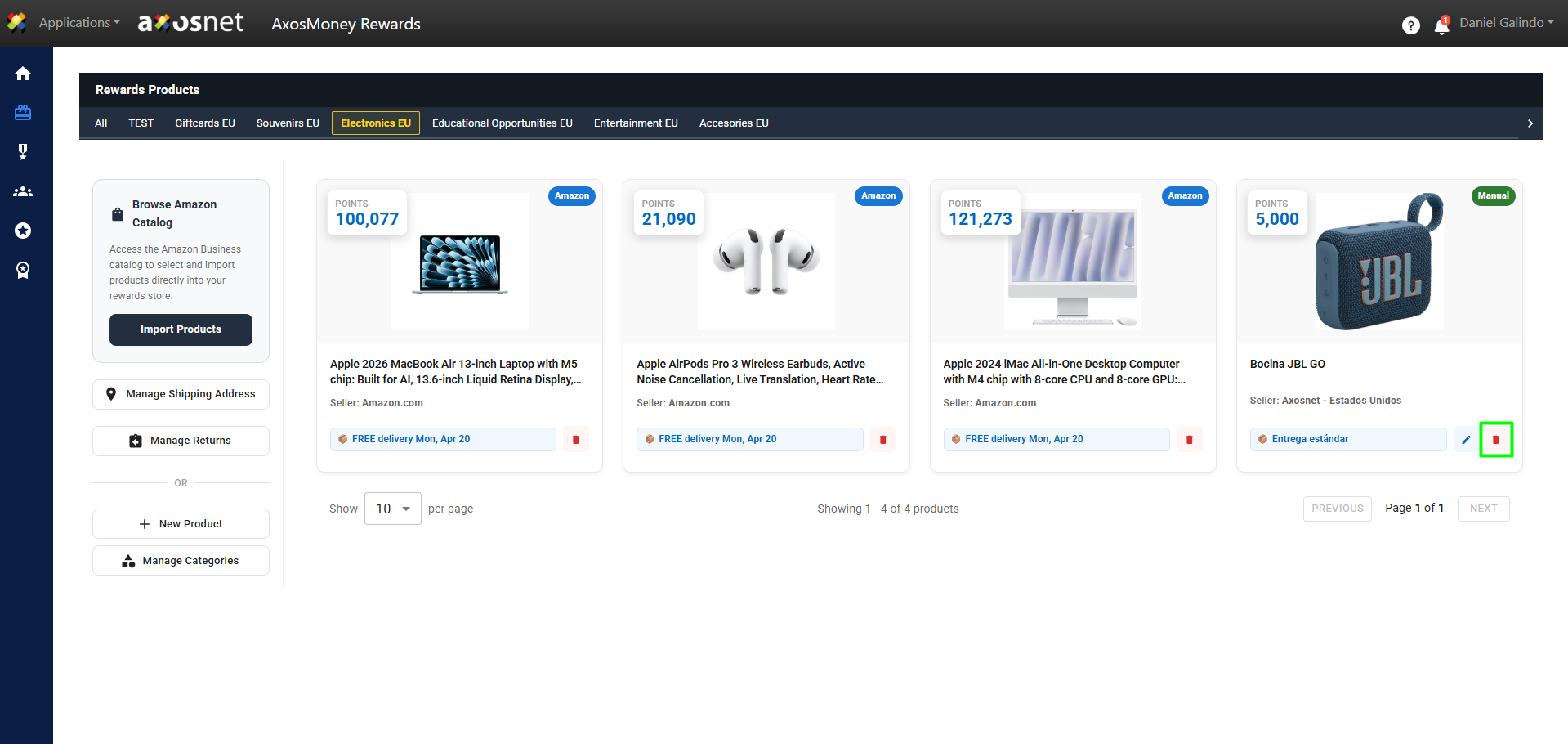
5. You can remove the product by clicking on the trash can icon. A message will appear to confirm that the product has been removed.
Manage Categories
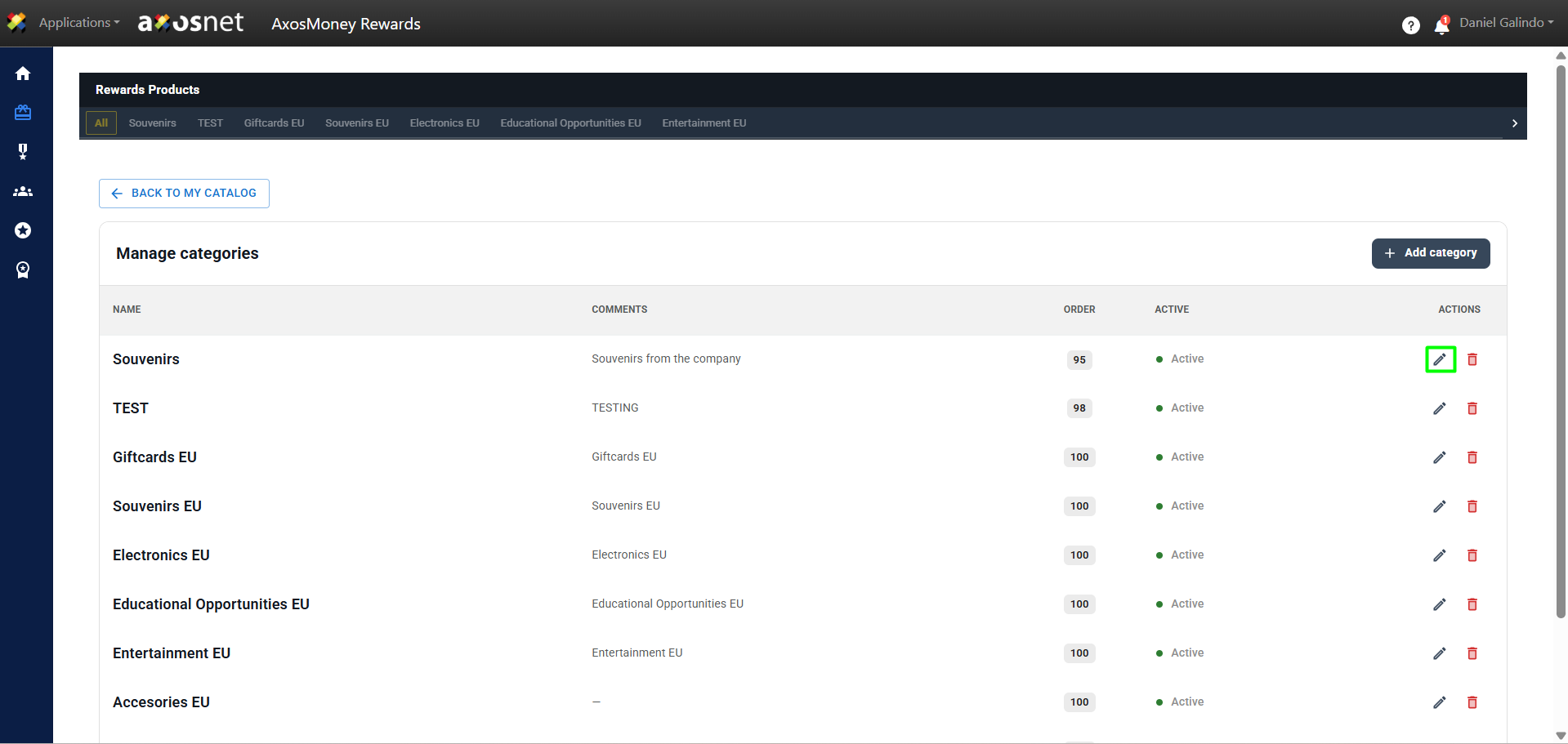
At the top of the catalog, the product categories are shown. On the initial page, products can be filtered by category by clicking on each one. To manage the categories, you can follow the next steps:
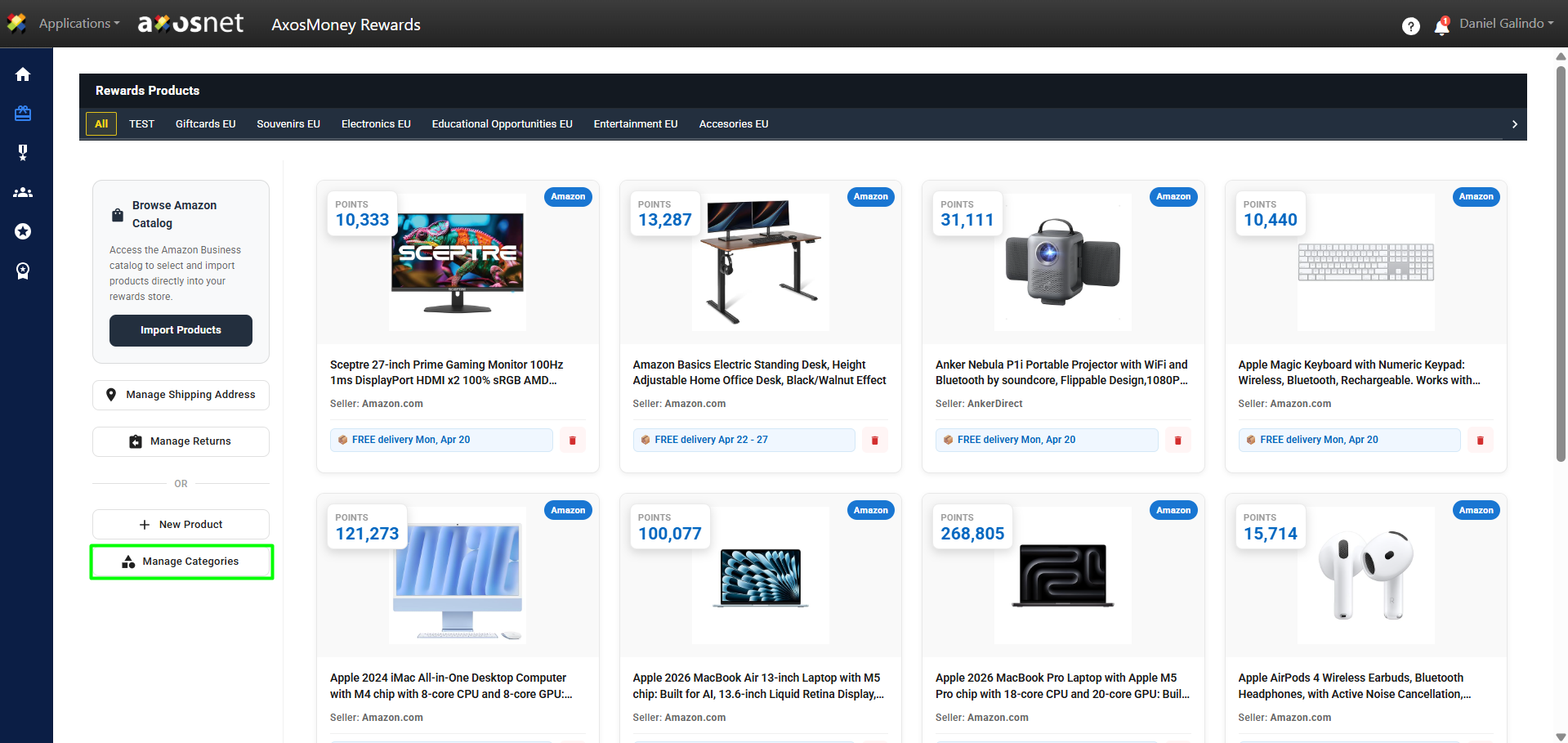
1. Click on Manage Categories.
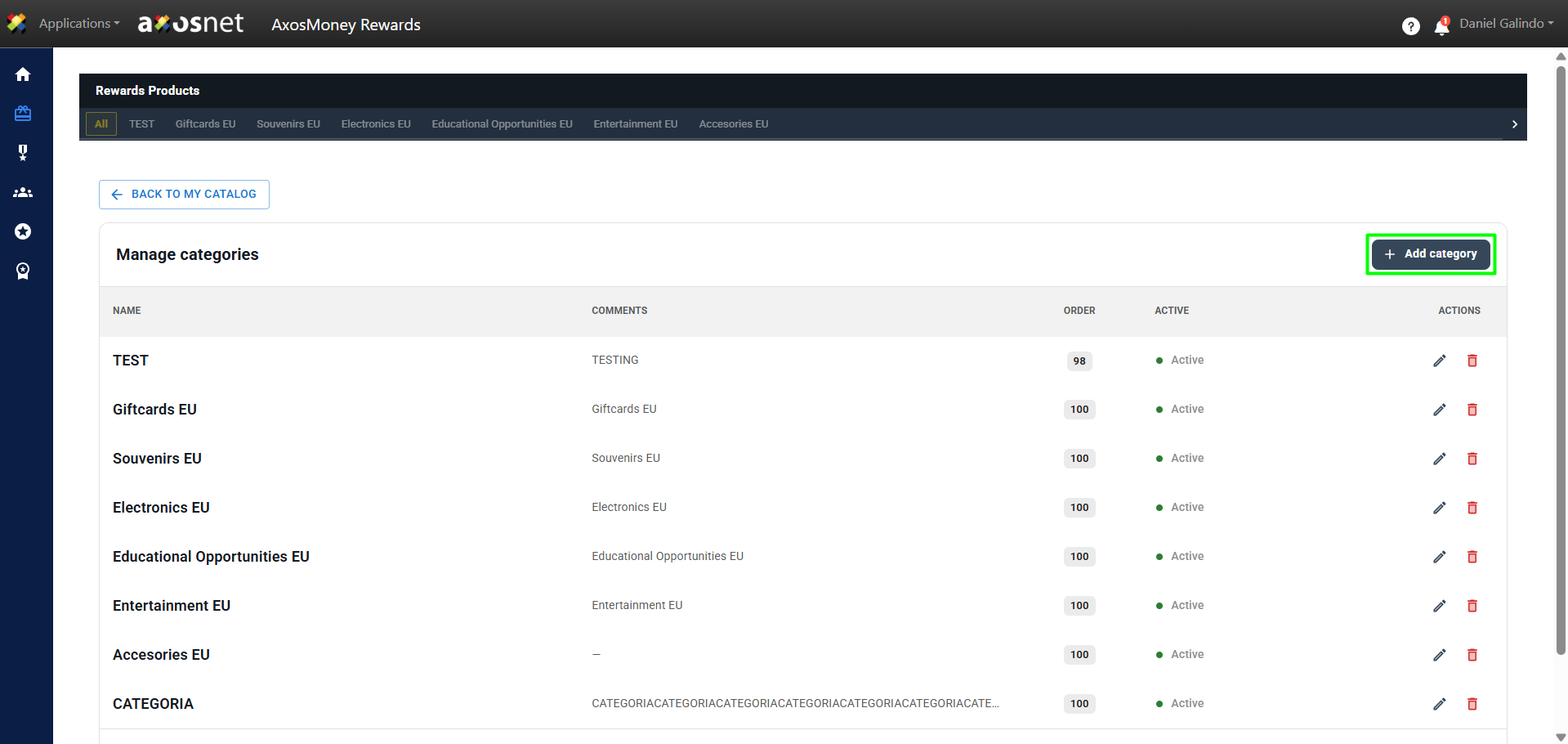
2. To add a category, click on Add Category.
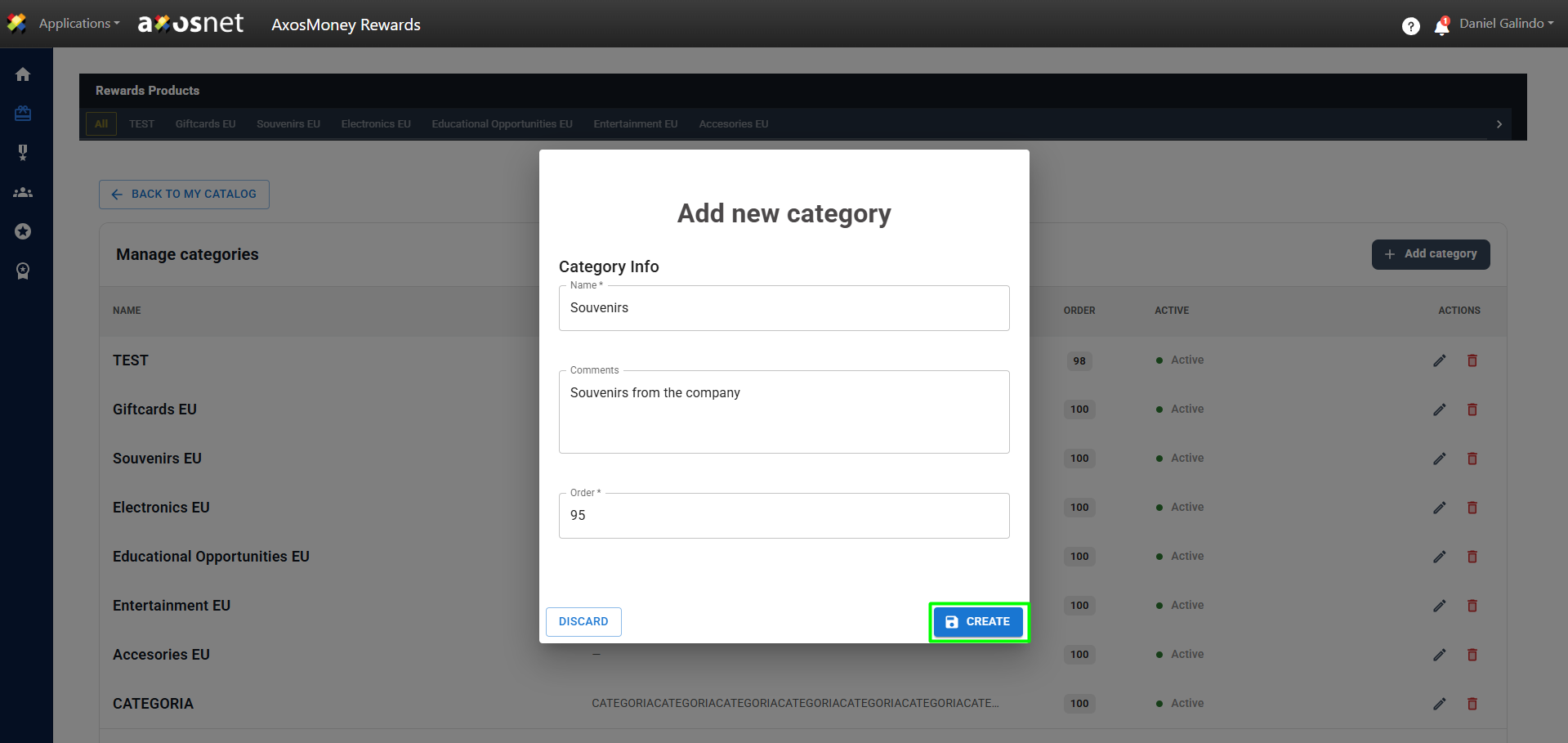
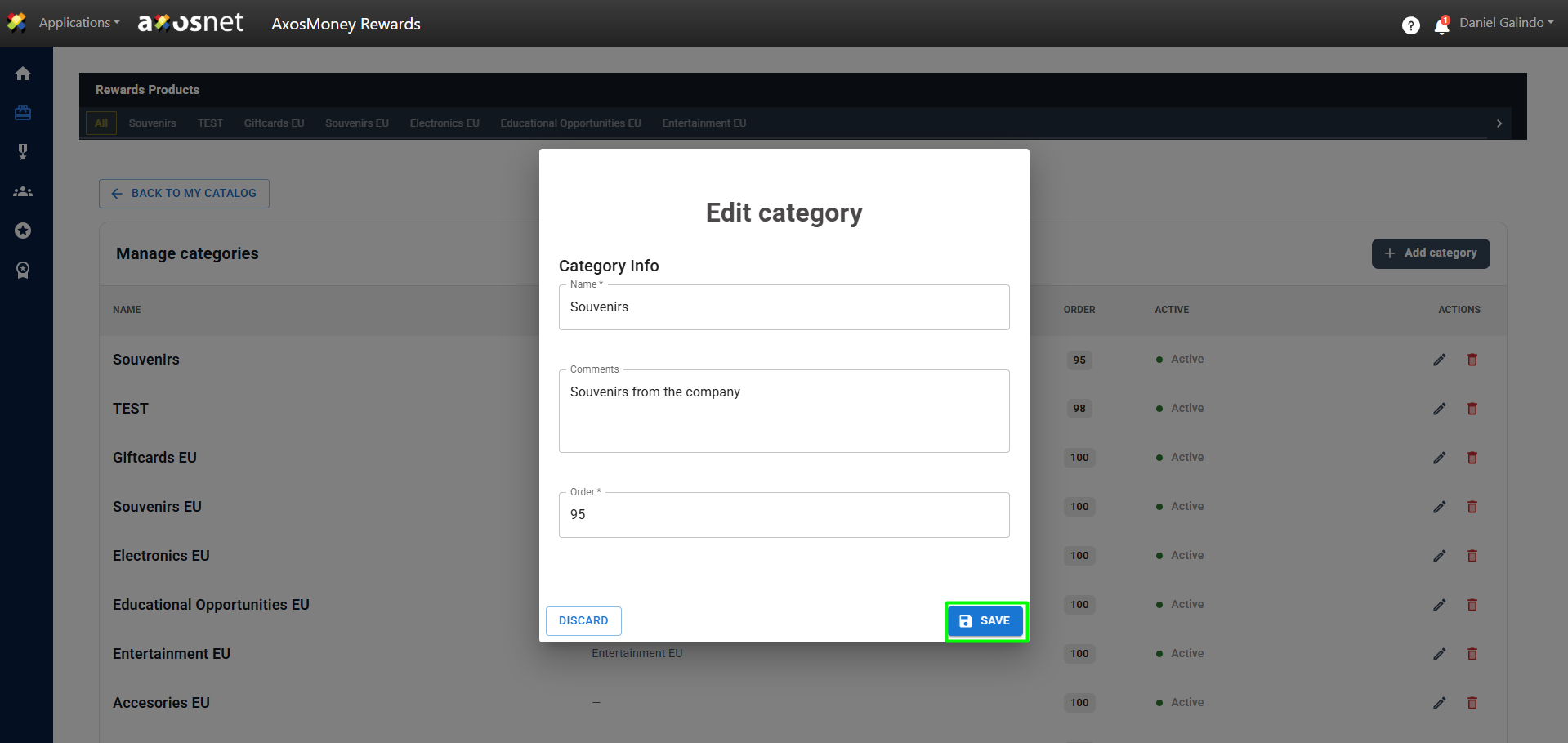
3. A window will appear where you can add the category data, fill in the data, and click on Create.
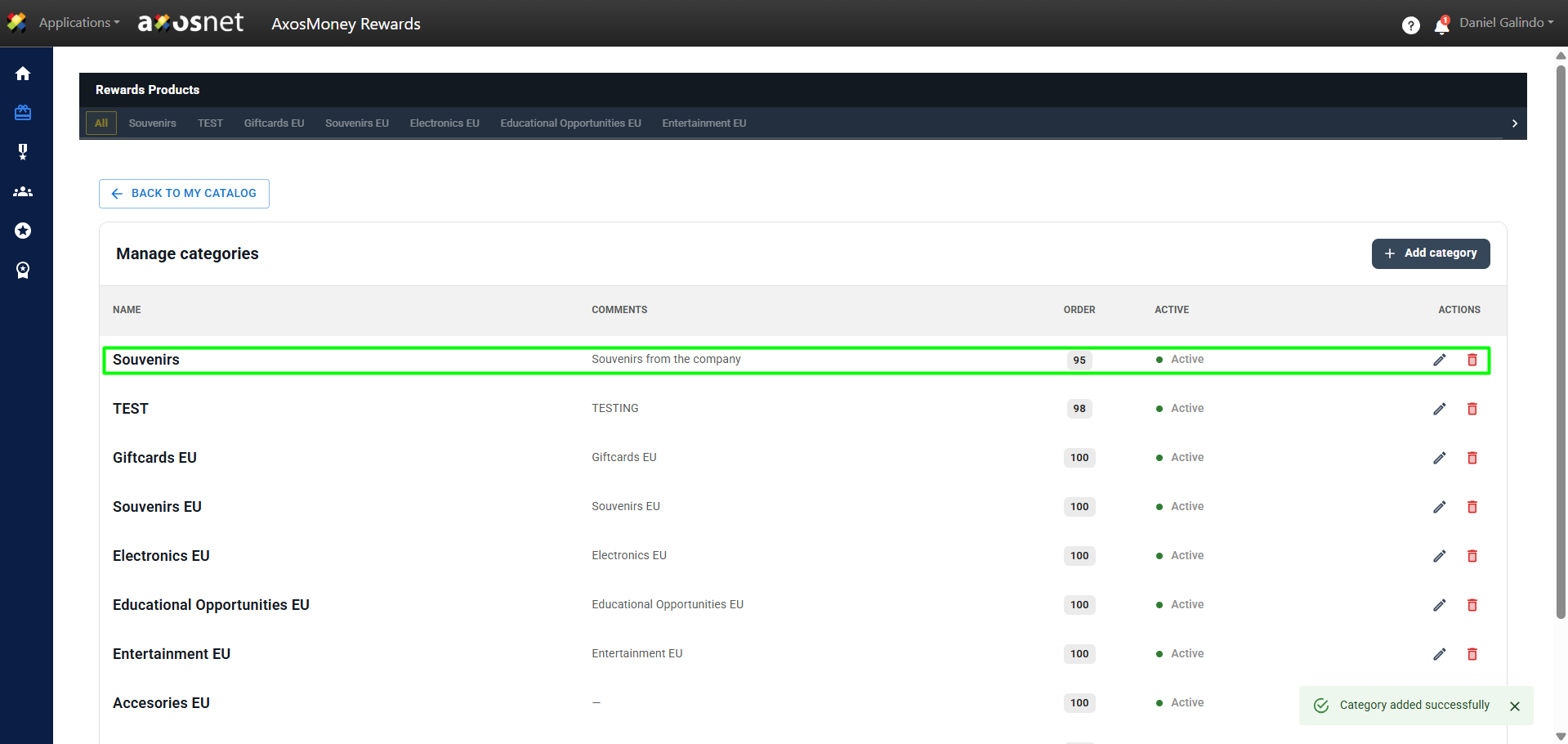
4. The category will appear in the list according to the assigned order.
5. You can edit a category by clicking on the pencil icon; the same window that appeared when creating the category will show up, and you can edit the data. When finished, click on Save
6. You can delete the category by clicking on the trash can icon. A message will appear to confirm that the product has been deleted.