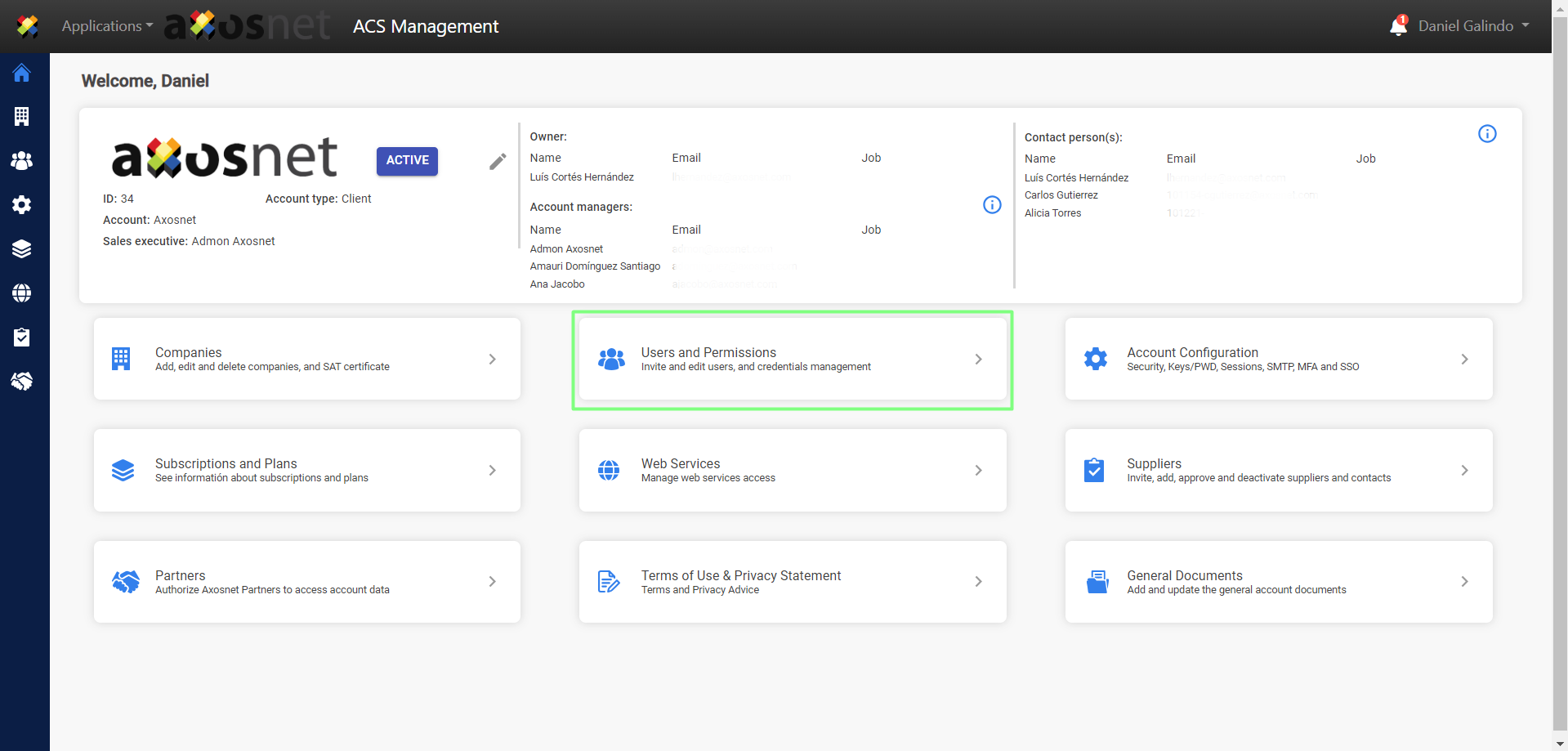
1. Log in to ACS ManagementⓇ and click on “Users and Permissions”.
Note: The access credentials must be with a user that has client account administrator permissions.
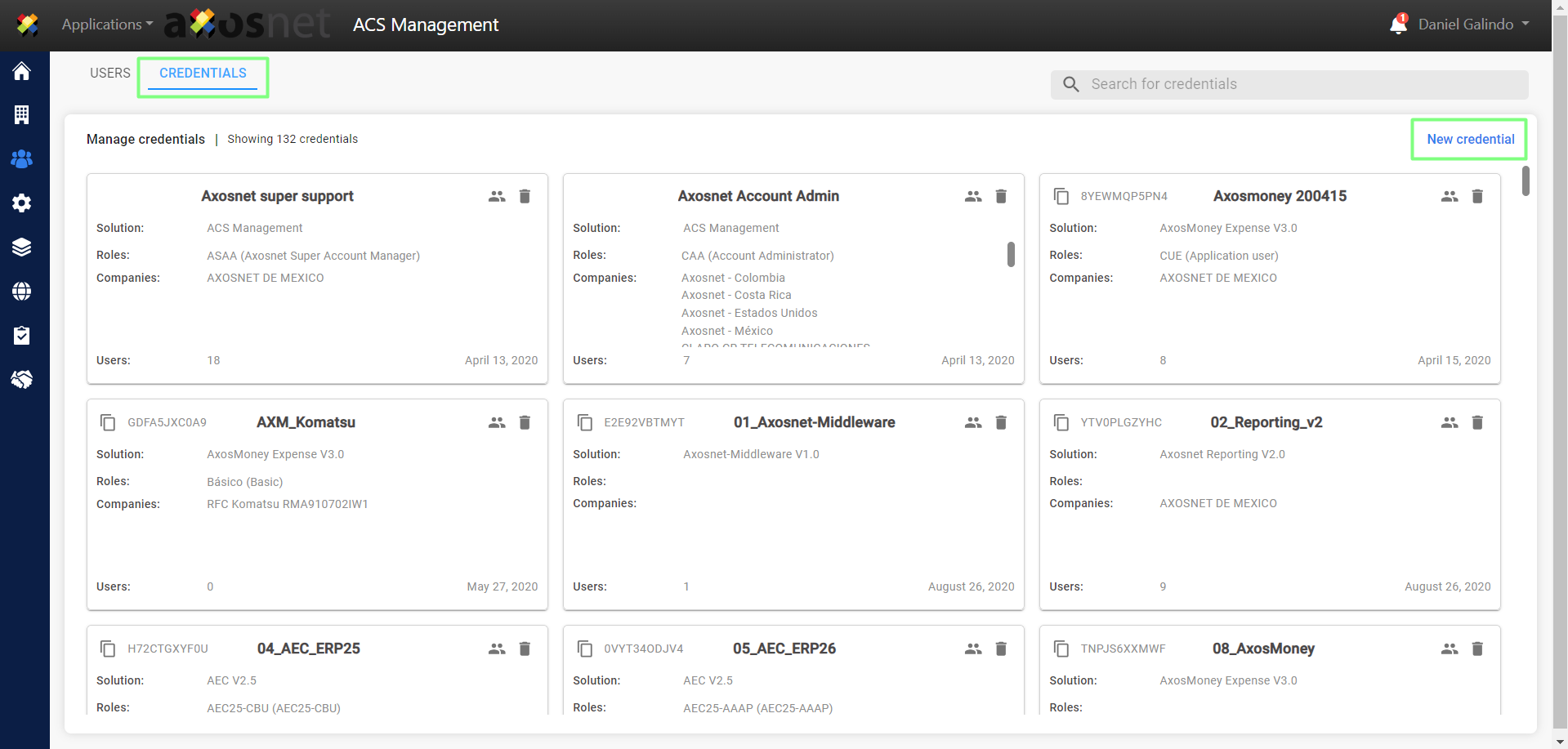
2. Select “Credentials” and then click on “NEW CREDENTIAL”.
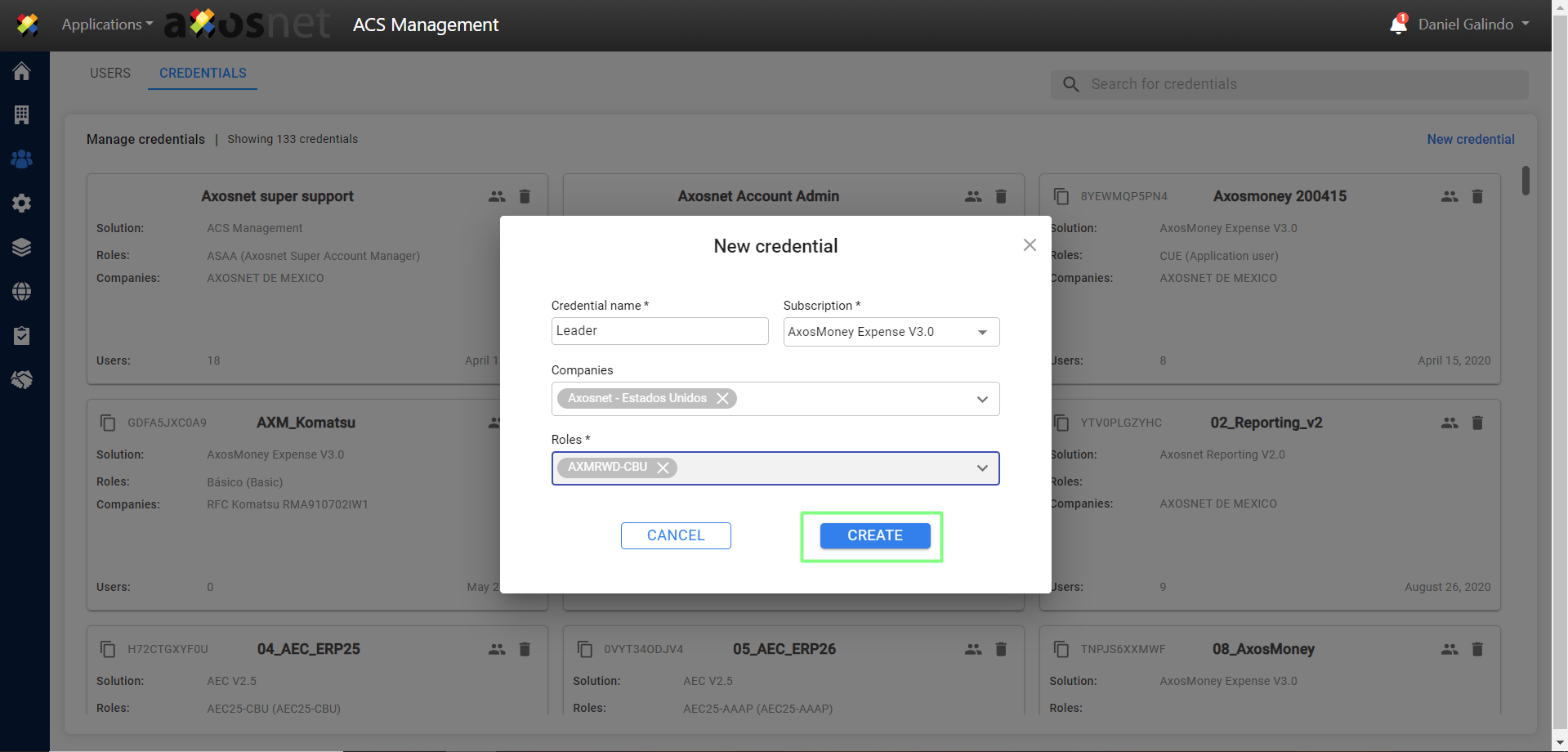
3. You will then be asked to complete the information to create the new credential.
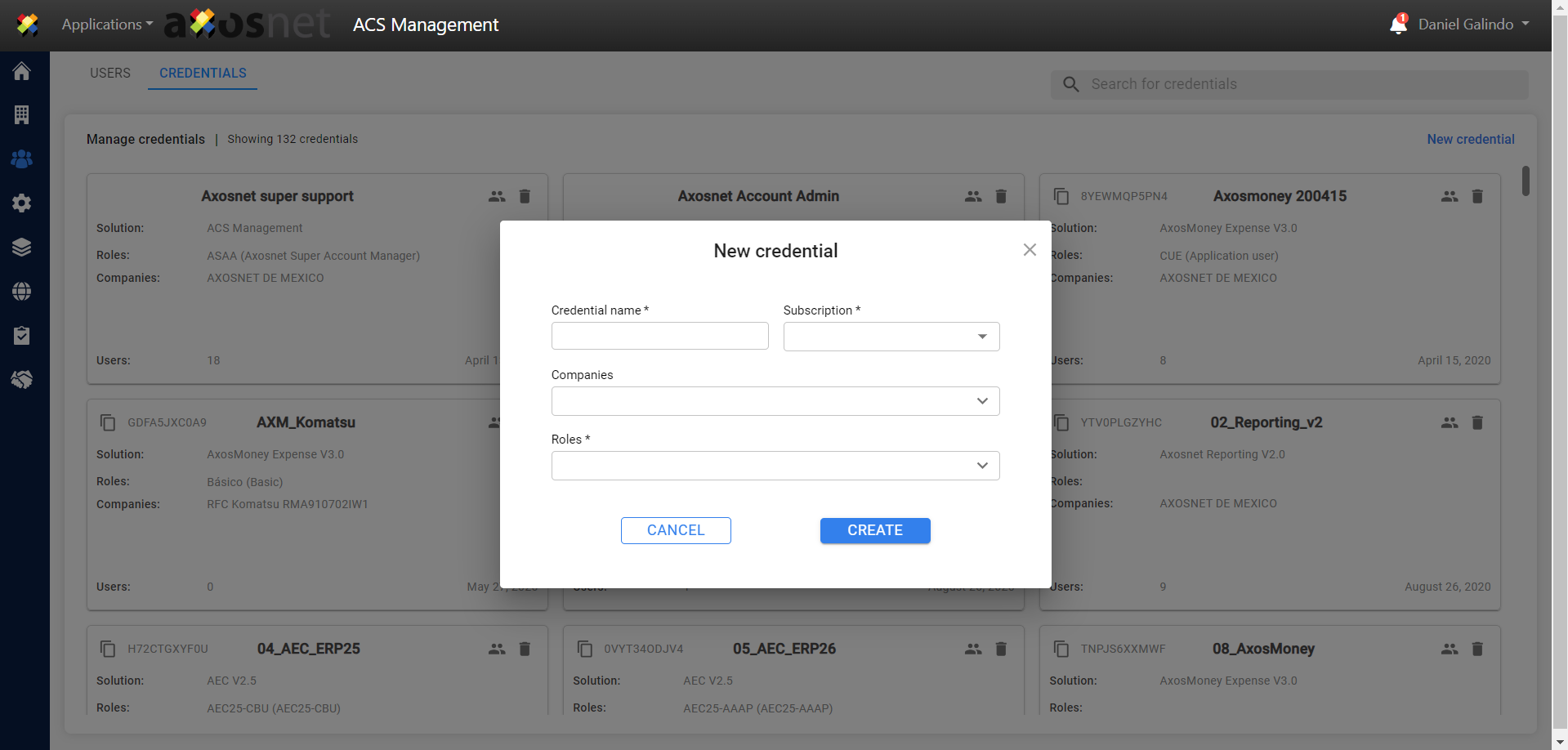
4. When you have completed the information, click on “Create”.
Note: The role that corresponds to the leader credential is: CTL
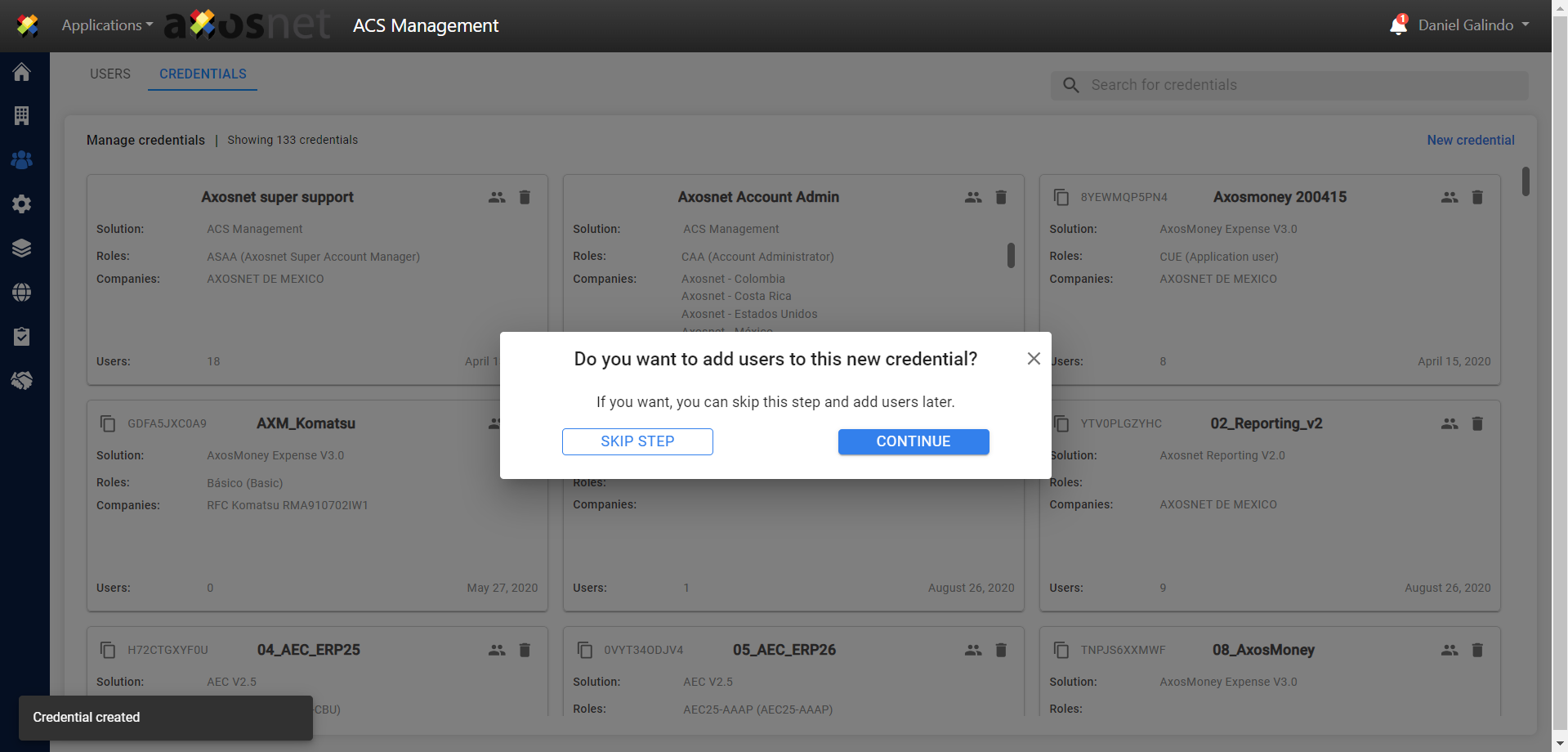
5. The credential has been created and a pop-up window will appear asking if you wish to add users to the new credential, if you wish to do so click “Continue” or if you prefer you can skip this step and do it later.
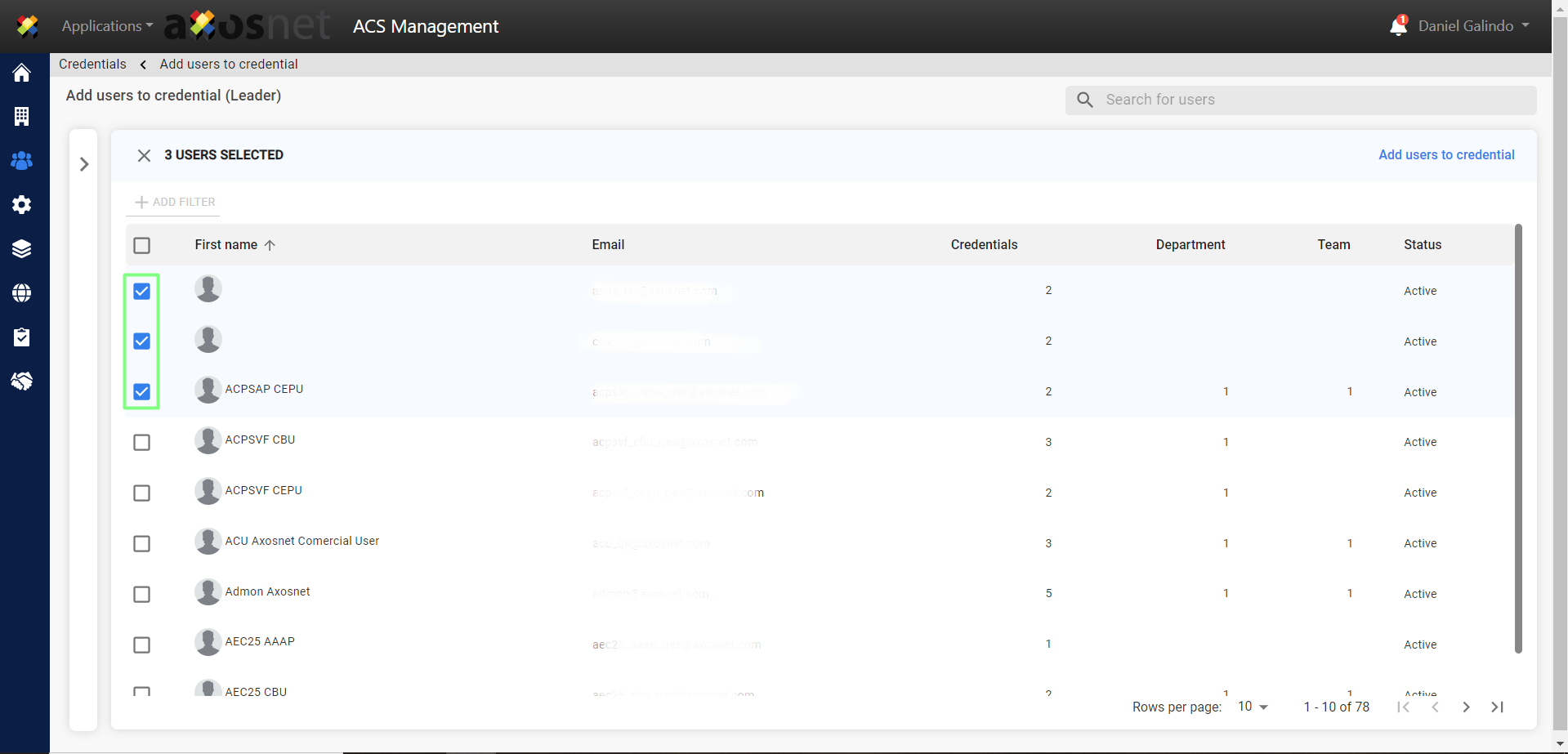
6. By clicking Continue, you will be taken to the “Add users to credentials” section. Here you can select the users you want to add to a credential.
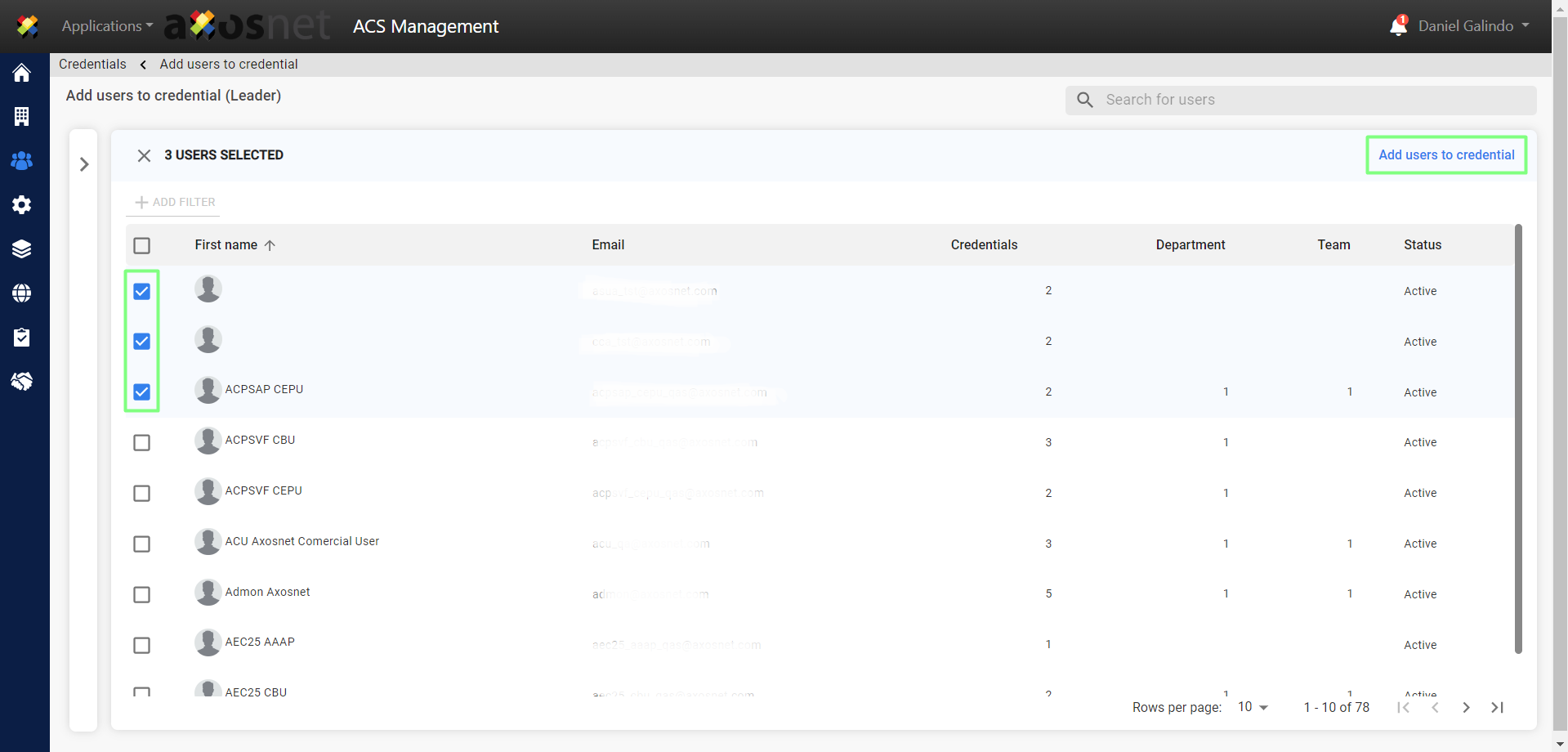
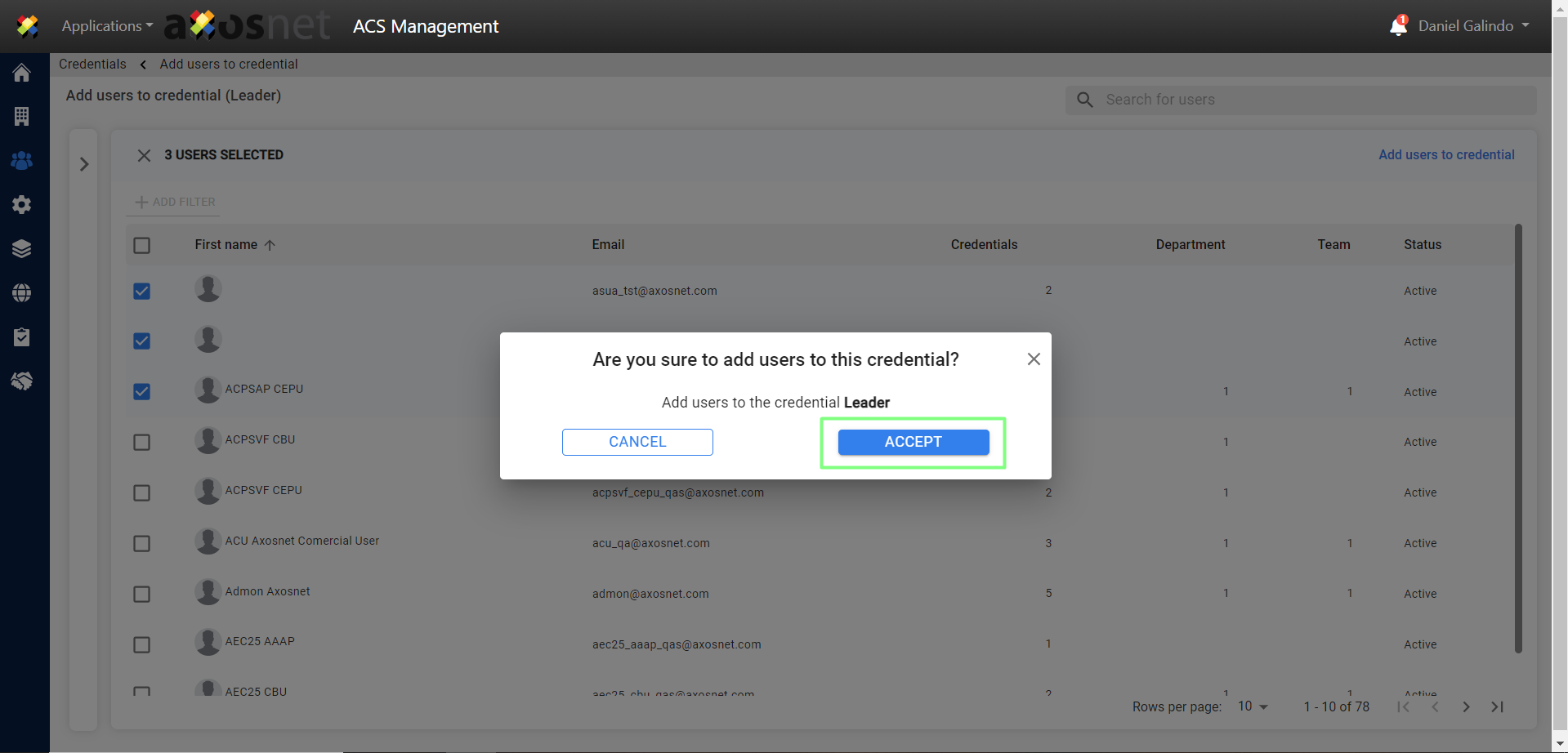
7. Select the users you want to add to the credential and click on “Add users to credential”.
8. A pop-up window will appear to confirm the users we are adding to the credential. Click “Accept”.
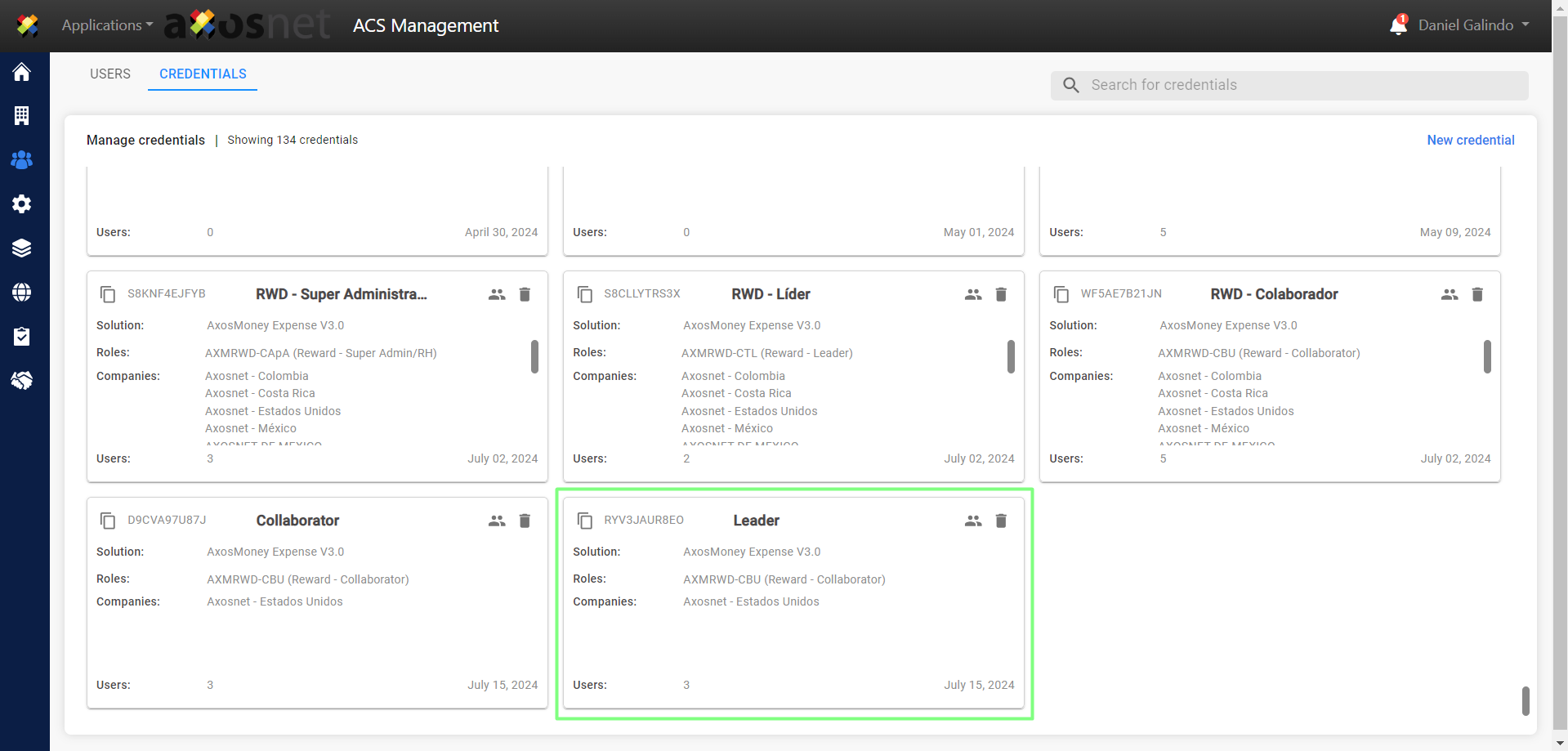
9. Clicking “OK” will take you to the credential to which the users were added. You can click on “Manage credentials” to return to the main screen where you will see all the credentials created.
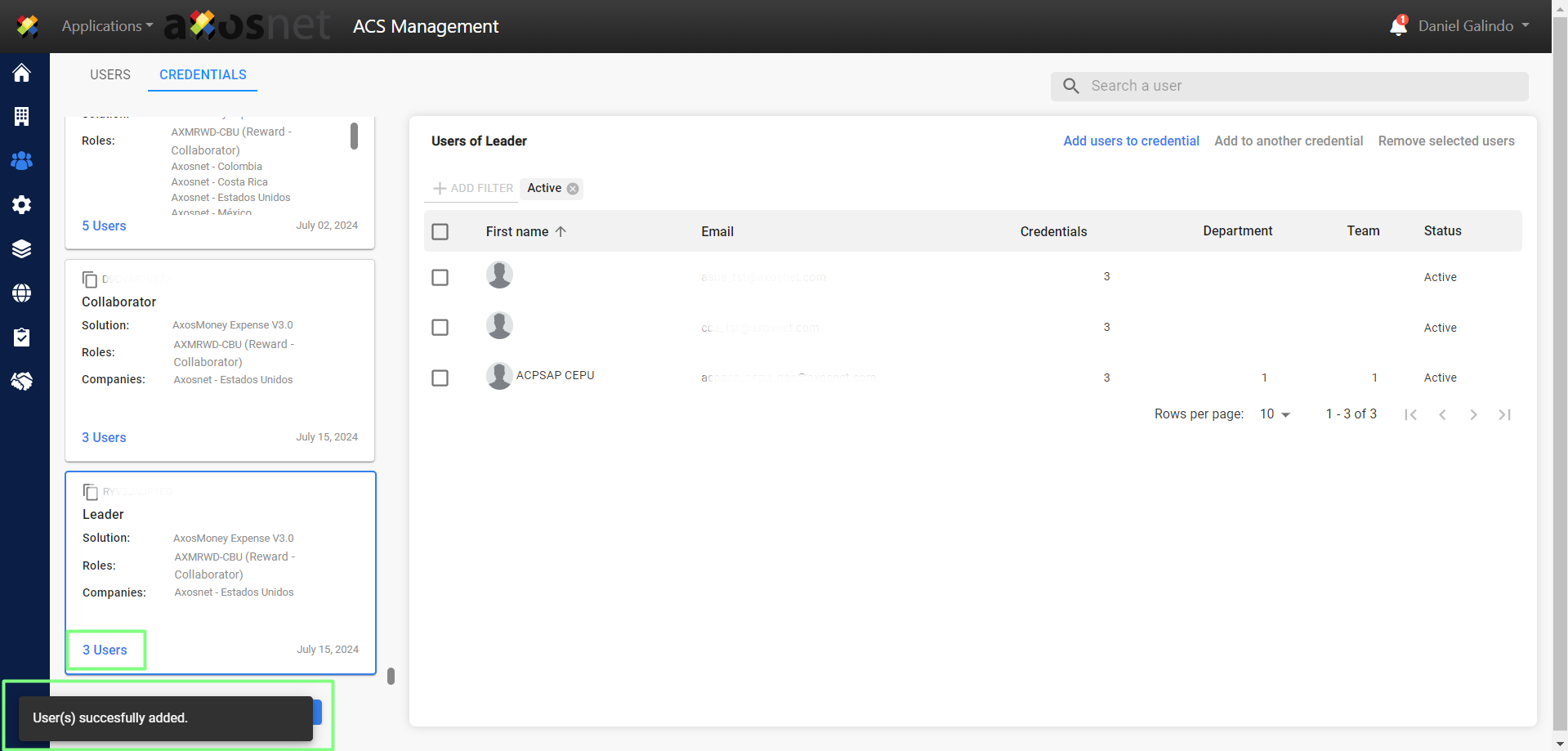
10. When you return to the main screen you will see the credential you have created.