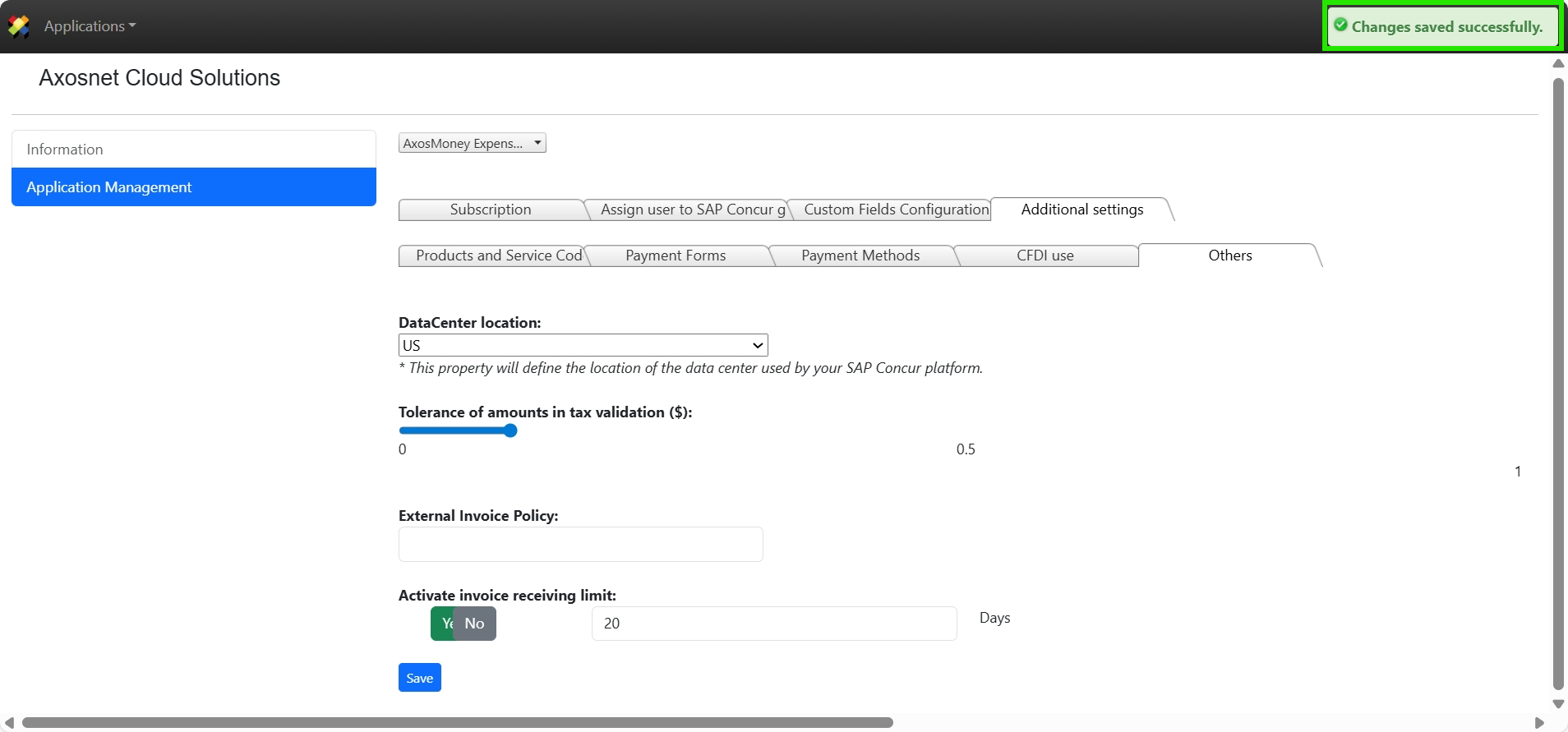
The Others tab contains general configuration parameters for AxosMoney. From this section, users can adjust options that impact the system’s functionality and document validation.
In this section, you can:
- Define the data center with which the system will operate.
- Set the tolerance margin for tax validation amounts.
- Configure a deadline (in days) for receiving invoices from their issue date.
Warning: Do not modify the Data Center Location value in the selection list without authorization. If a change is required, please contact Axosnet Service Desk.
Parameters
| Item | Description |
| Data Center Location | Physical location of the servers that process your data. Do not change without authorization. |
| Tolerance for Tax Validation Amounts ($) | Allows small differences due to rounding. Adjustable from 0 to 1 unit. |
| Enable Invoice Reception Limit | Defines the maximum number of days allowed to receive invoices from their issue date before validation. |
Accessing the “Others” Section
- Log in to ACS with your username and password.
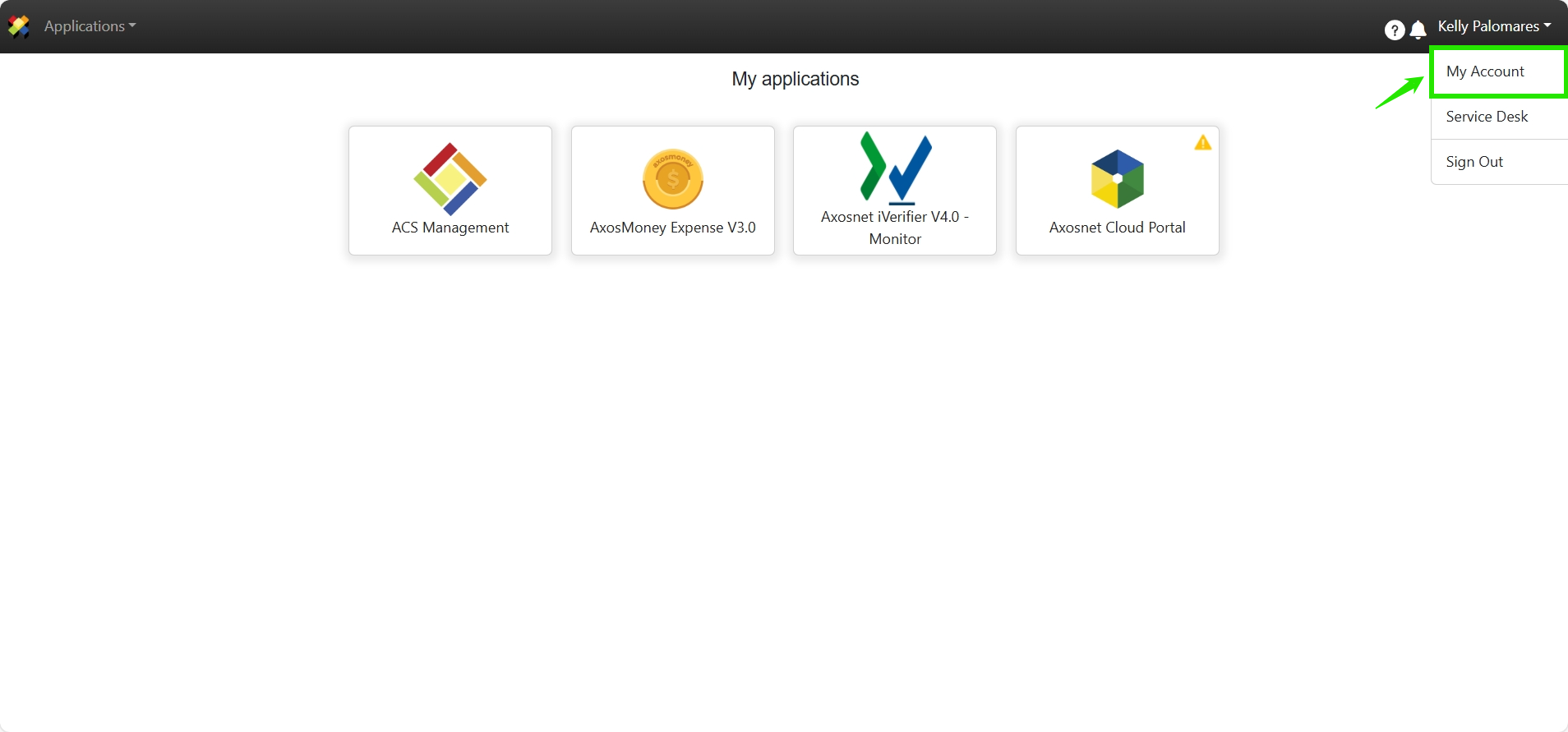
- In the main menu, go to the top-right corner where your name appears. Click and select “My Account” from the dropdown.
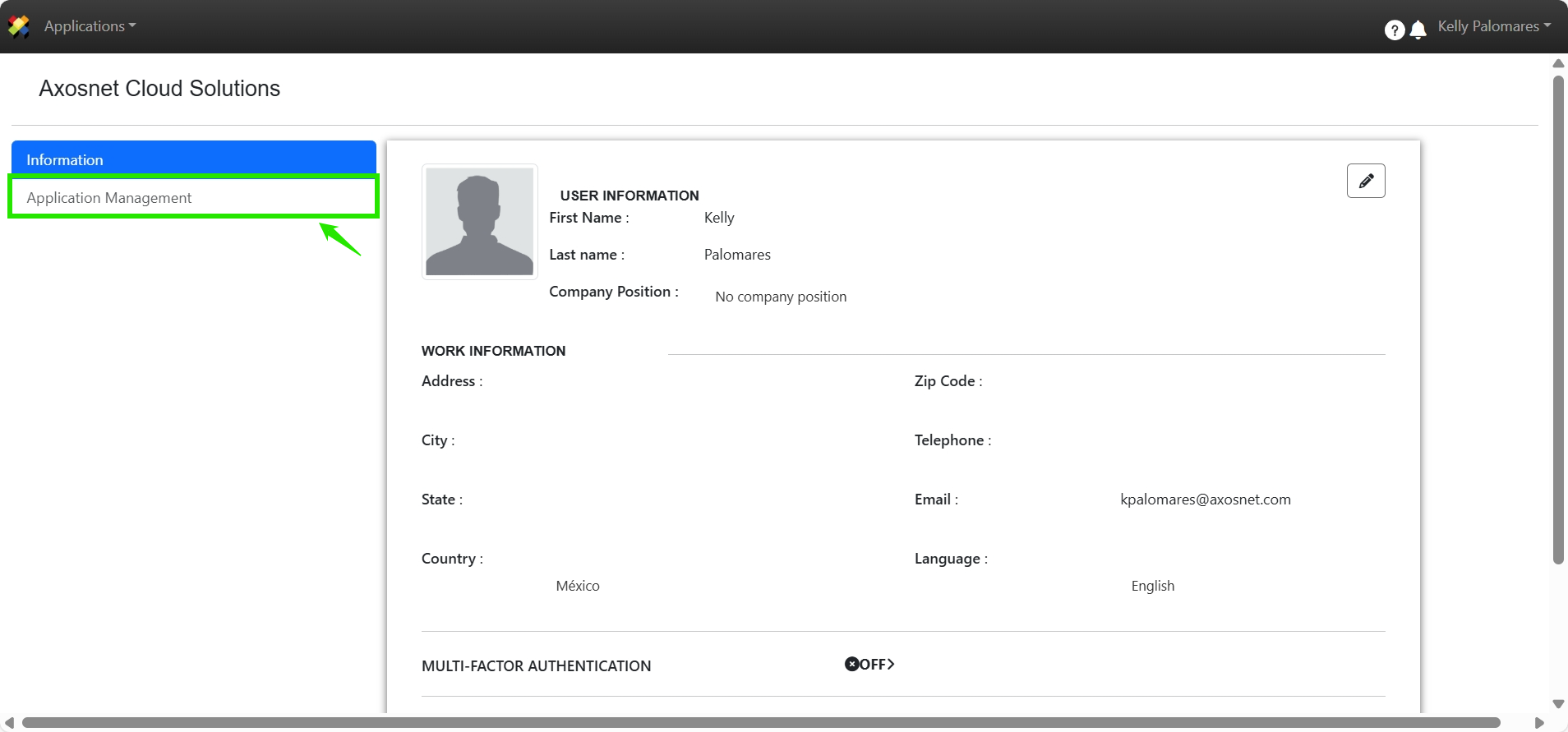
- On your account information page, locate the left-hand menu. Select “Application Management”.
- Verify that the selected application is AxosMoney. This can be confirmed at the top of the options bar.
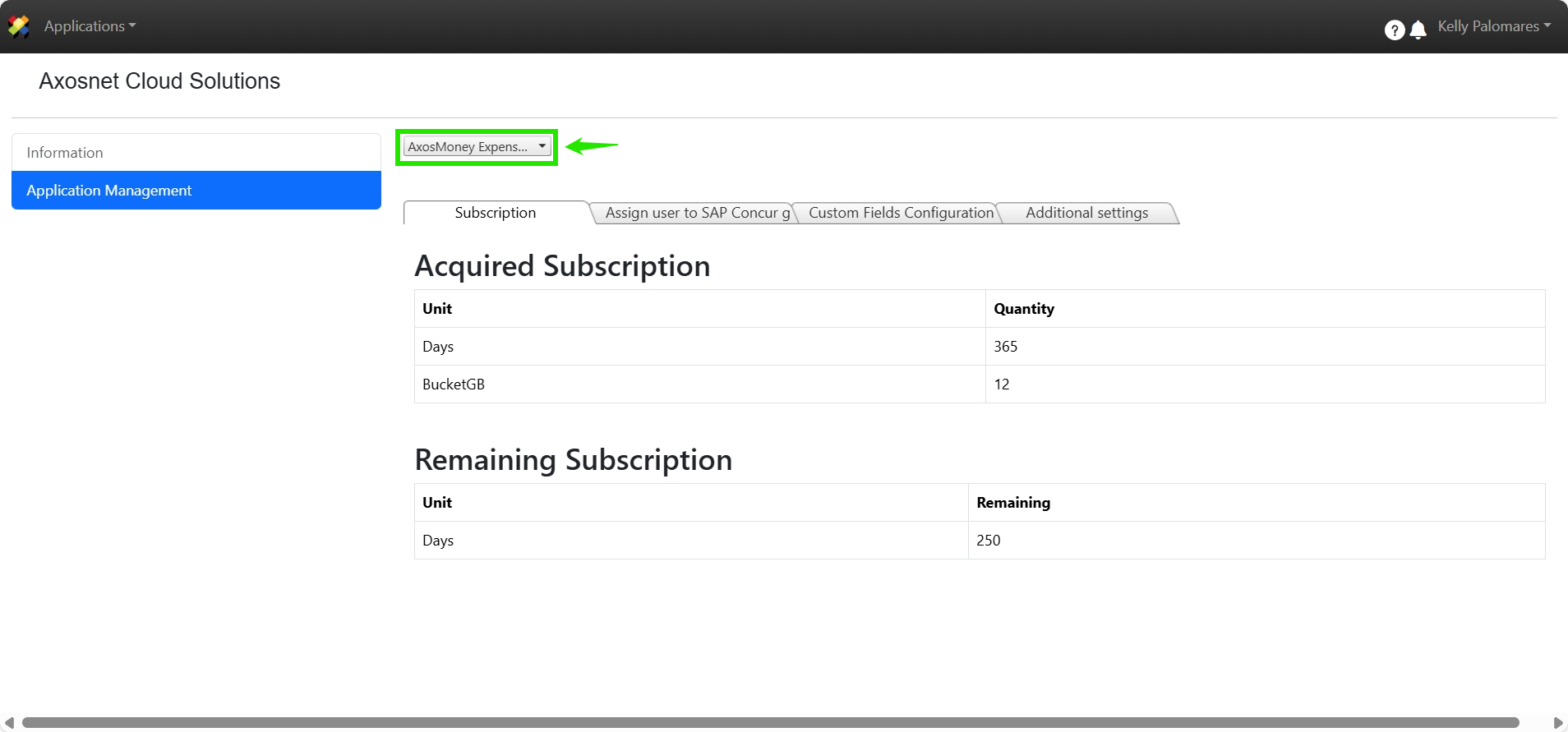
- In the options bar, select “Additional Settings”.
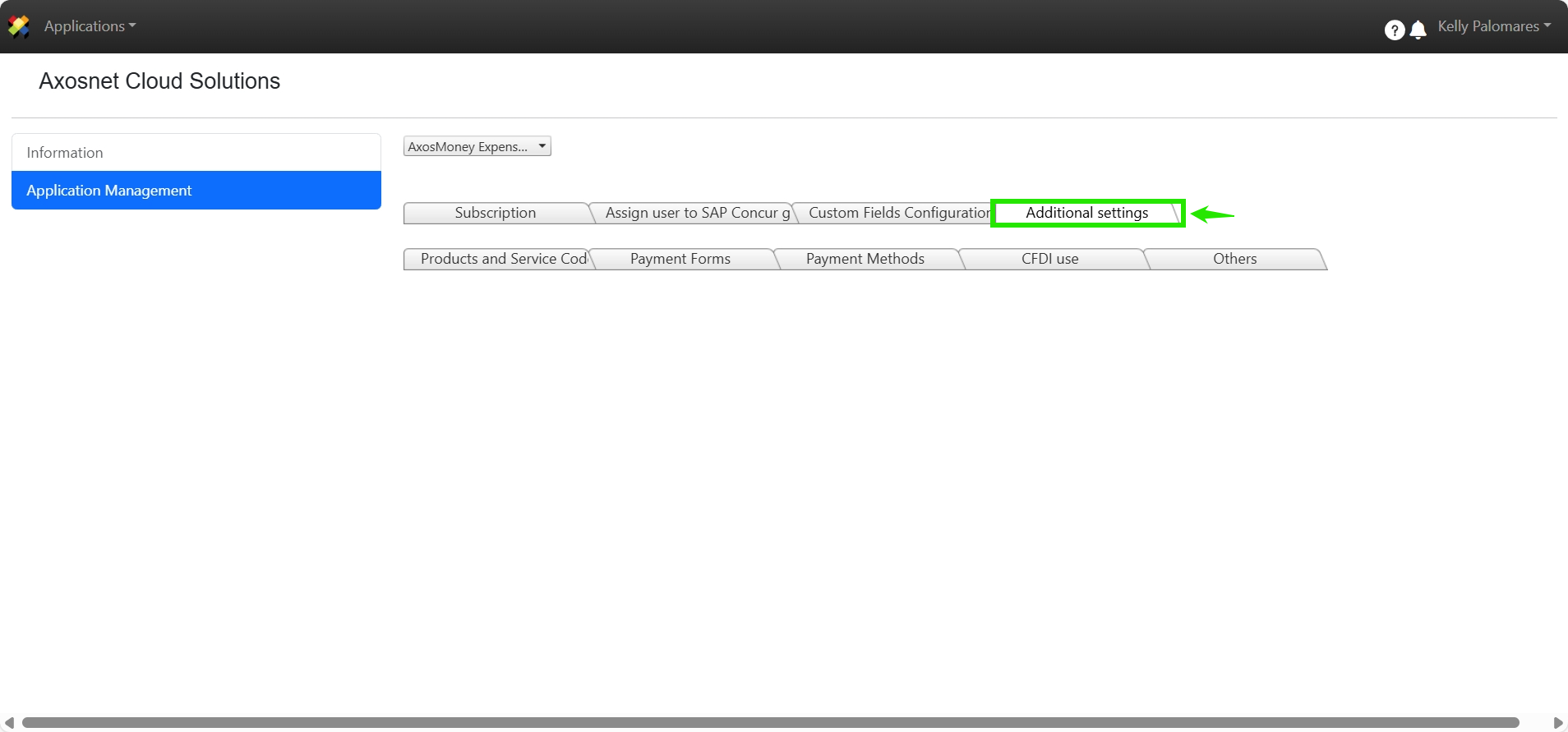
- A new options bar will appear. Select “Others”.
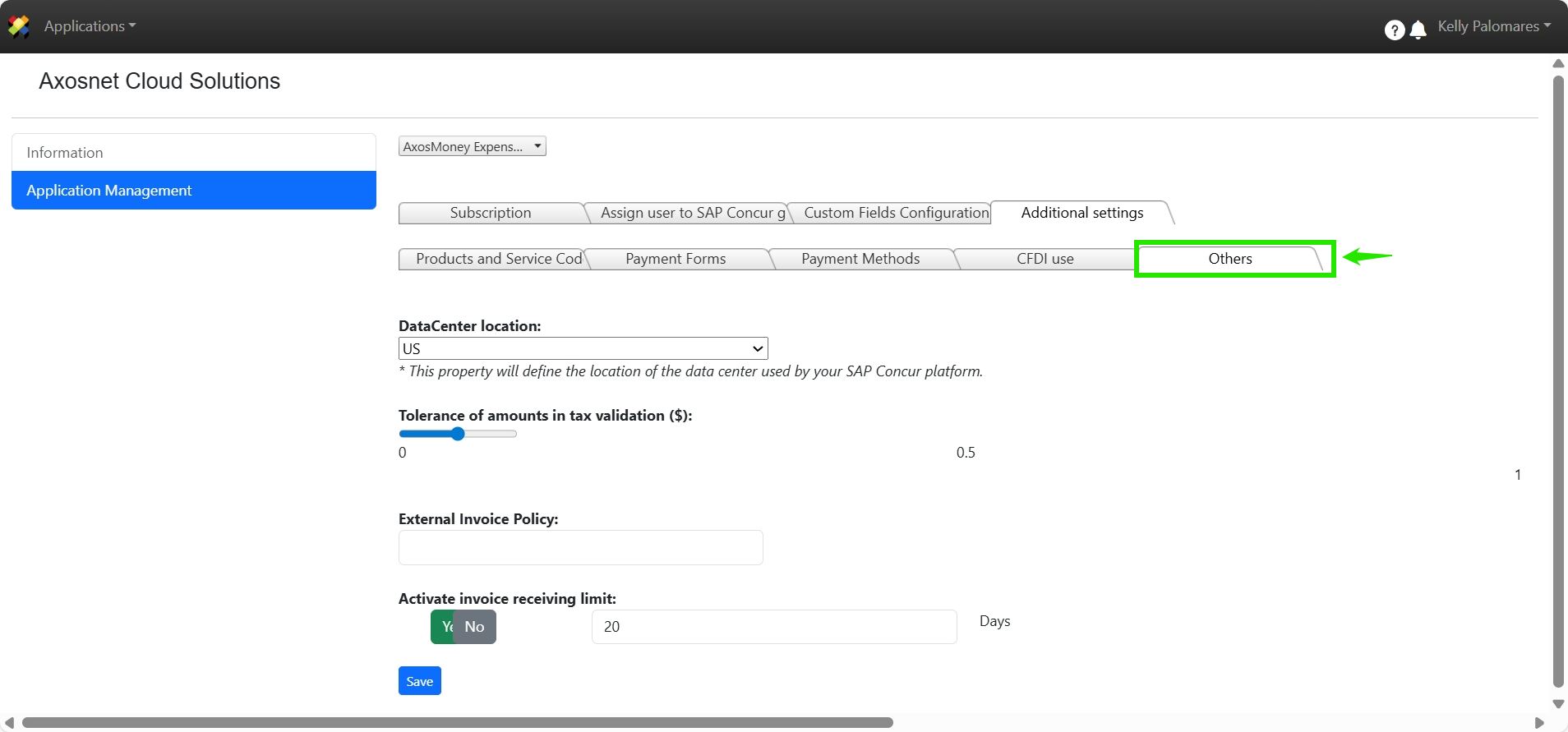
Configuring Data Center Location
Important: Do not modify this value without authorization. If you need to change it, contact Axosnet Service Desk.

Configuring Tolerance for Tax Validation Amounts ($)
- Locate the option Tolerance for Tax Validation Amounts ($).

- Move the slider to set the allowed margin (from 0 to 1 unit).

- Click Save to apply the changes.
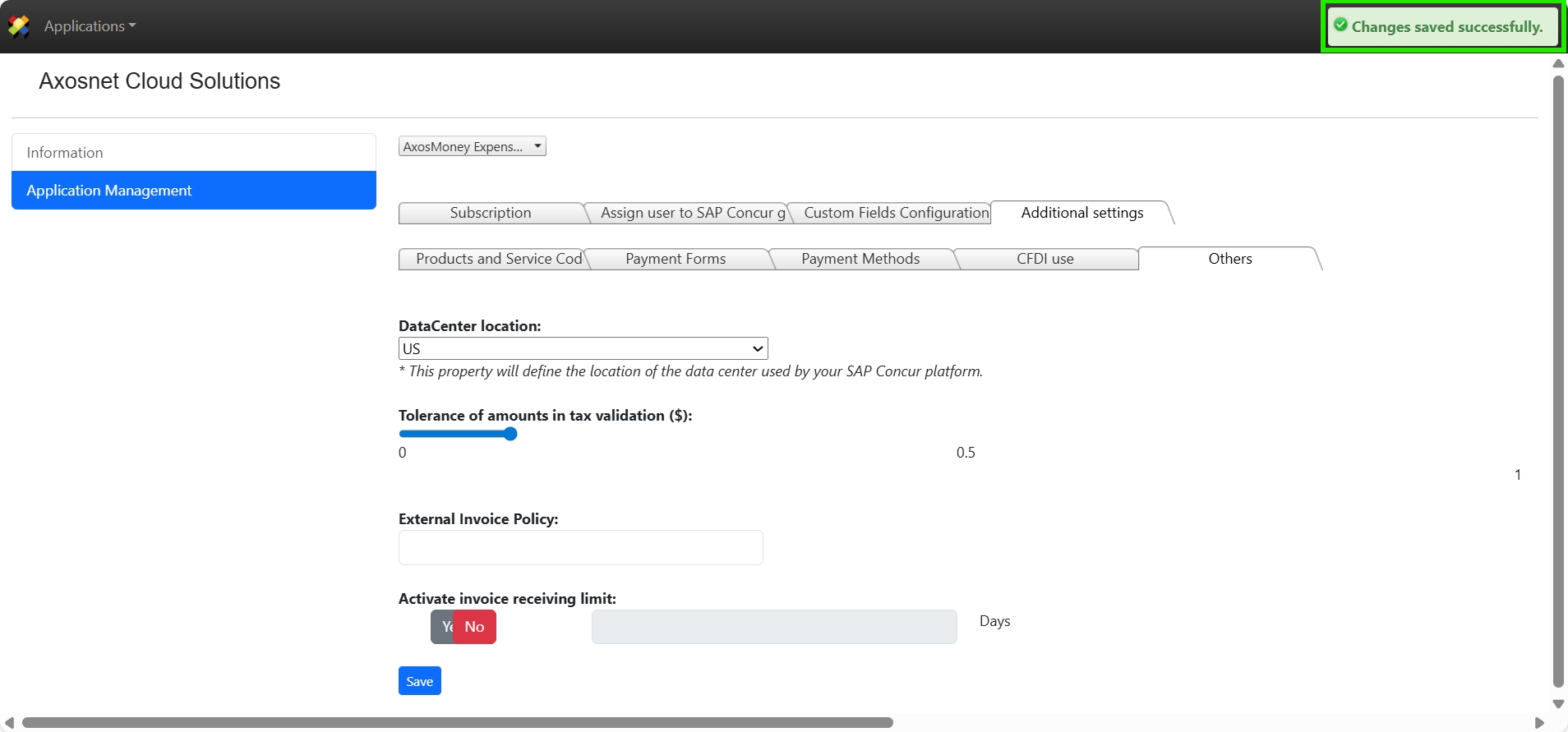
Configuring Invoice Reception Limit
- Locate the option Enable Invoice Reception Limit.

- Check the box to activate the limit.

- Enter the number of days allowed from the issue date until validation.

- Click Save to apply the changes.