This ACS Management functionality allows administrators to import users, either one by one or in bulk, by uploading a CSV file or by directly importing a list from the SAP Concur system.
Administrators have two options for importing user data: they can upload a CSV file or choose from the available users listed through a new integration with SAP Concur. The selected users will be imported into the system for later management.
To access this function, you can follow these steps:
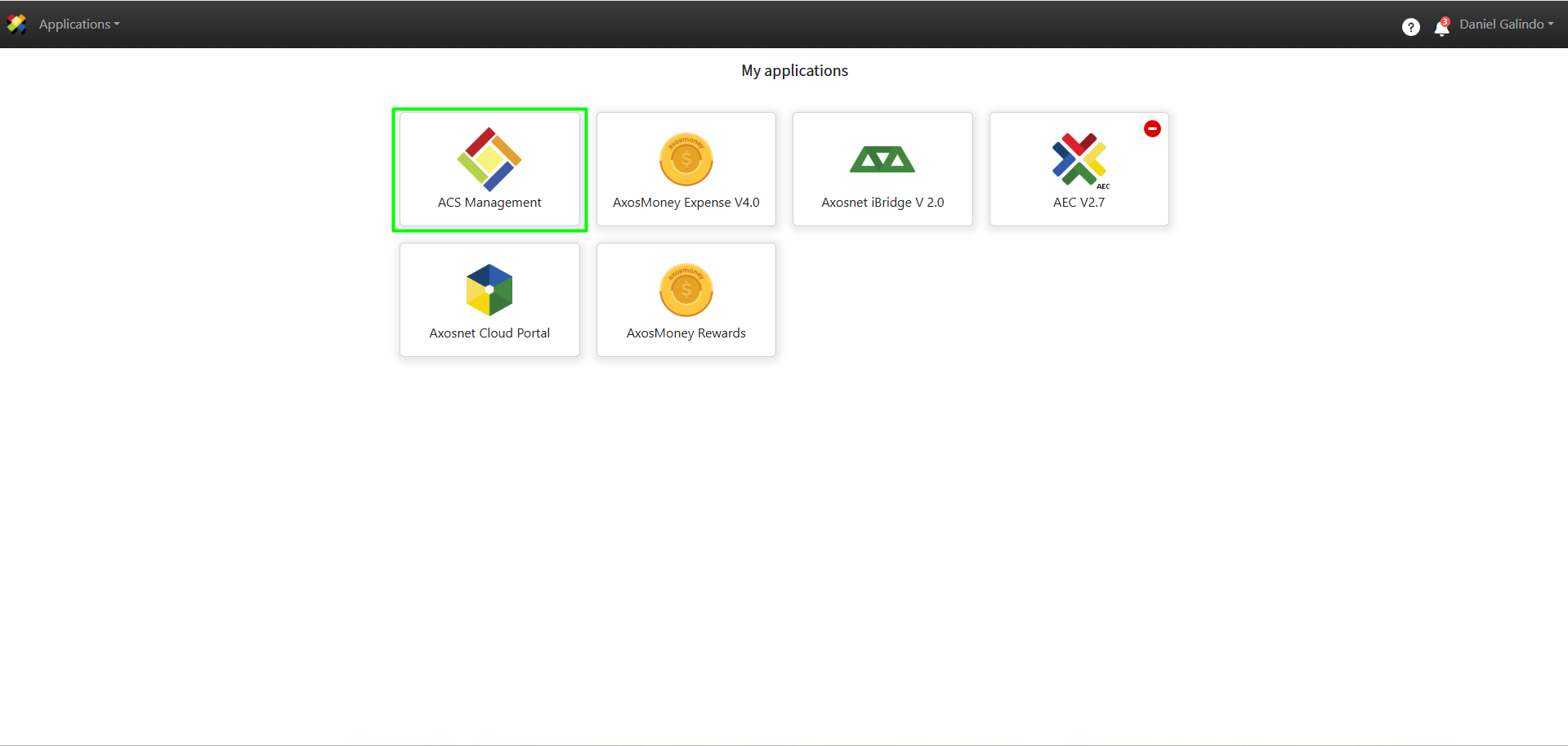
1. Log in to ACS Management.
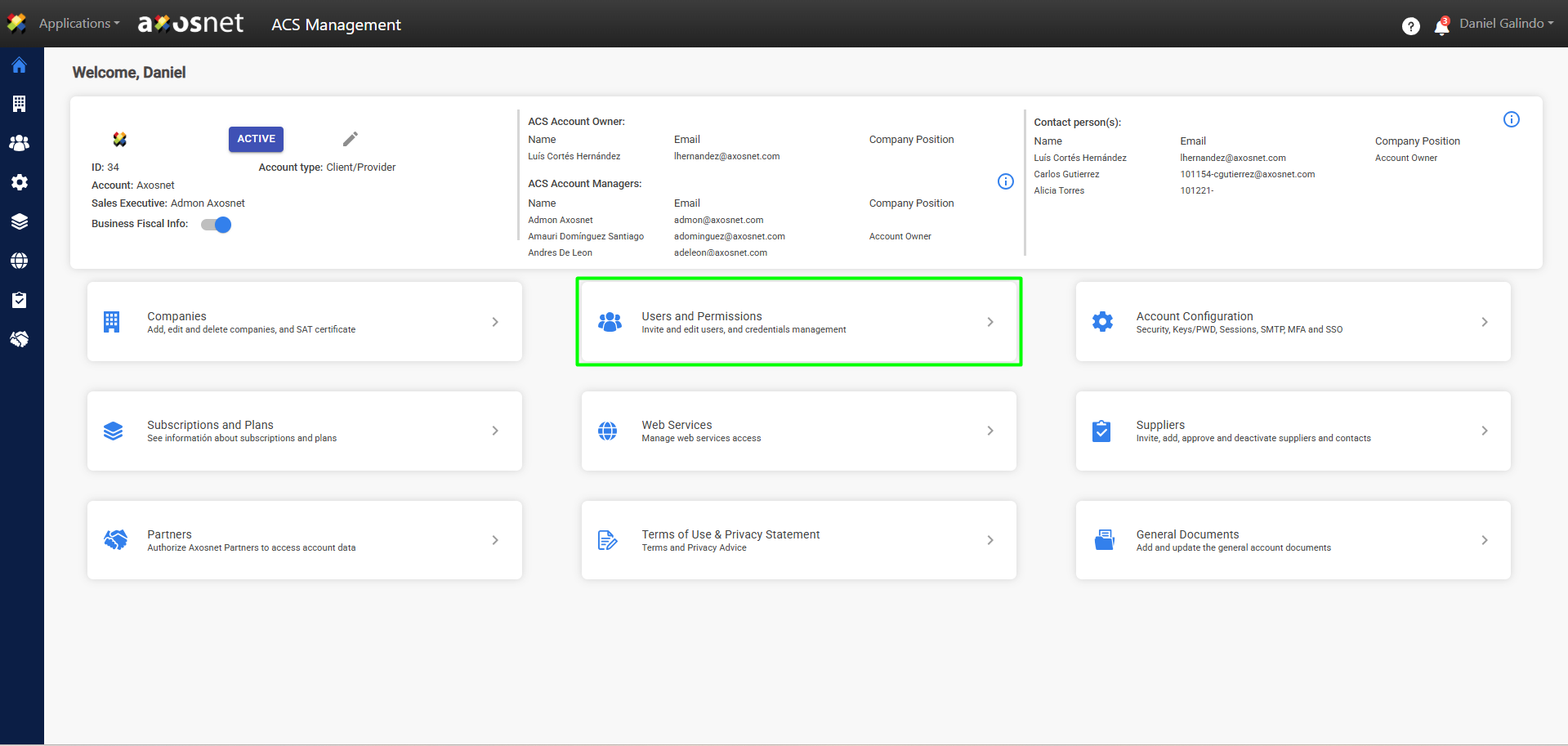
2. Go to the “Users and Permissions” section.
3. Click on “Import Users.”
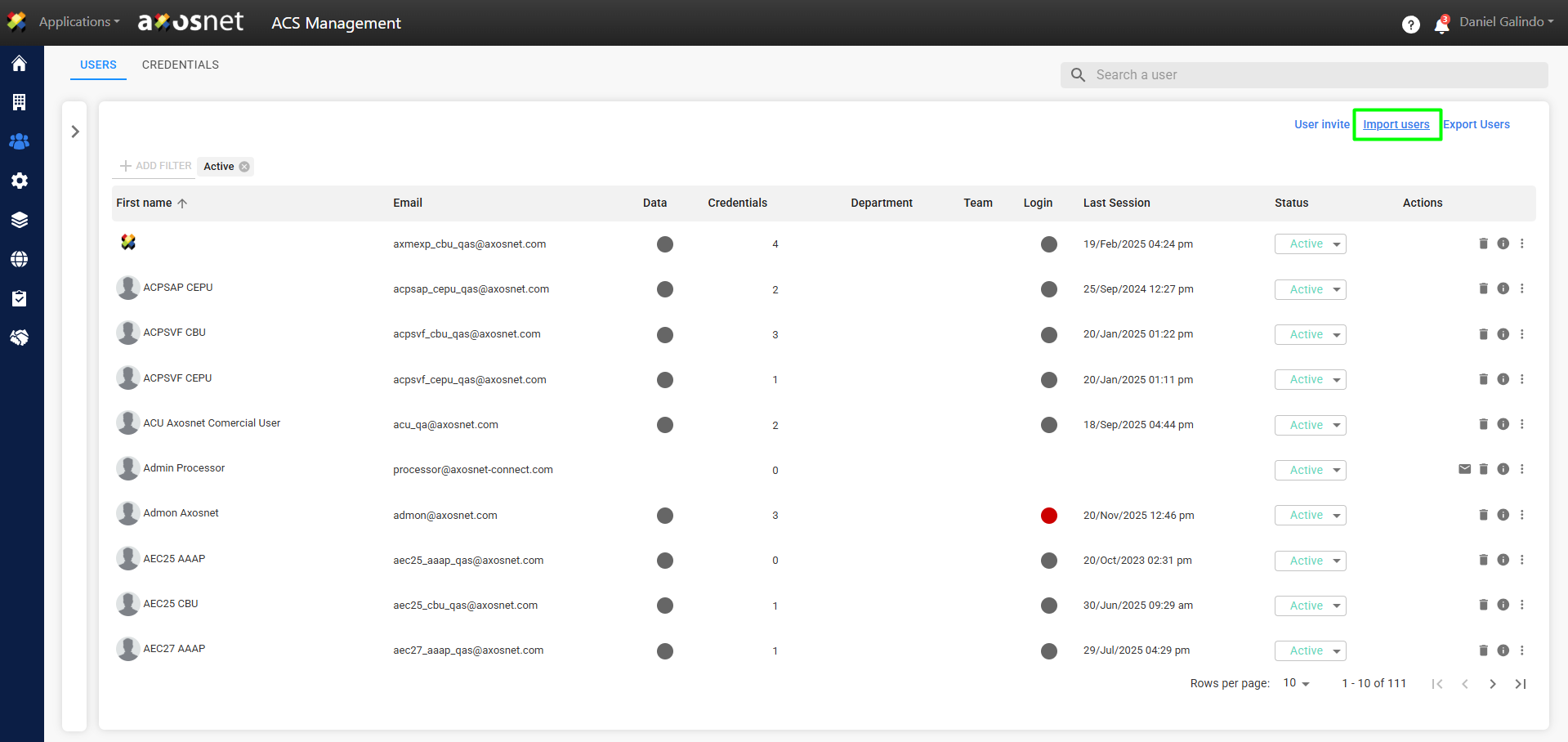
4. The two options for importing users are explained below: Upload File or Load from System.
Upload Document
To import users by uploading a file, follow these steps:
A. Click on Upload File.
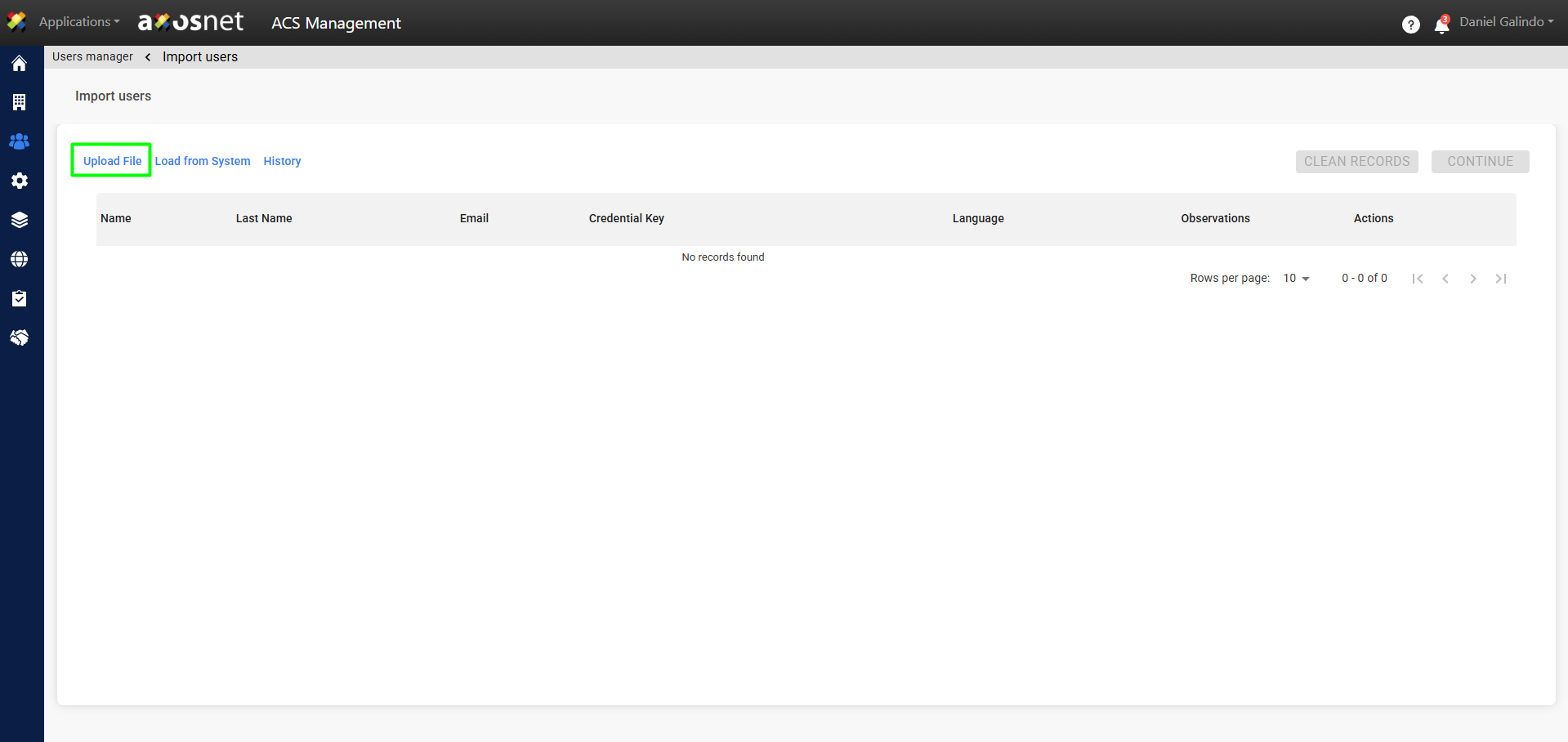
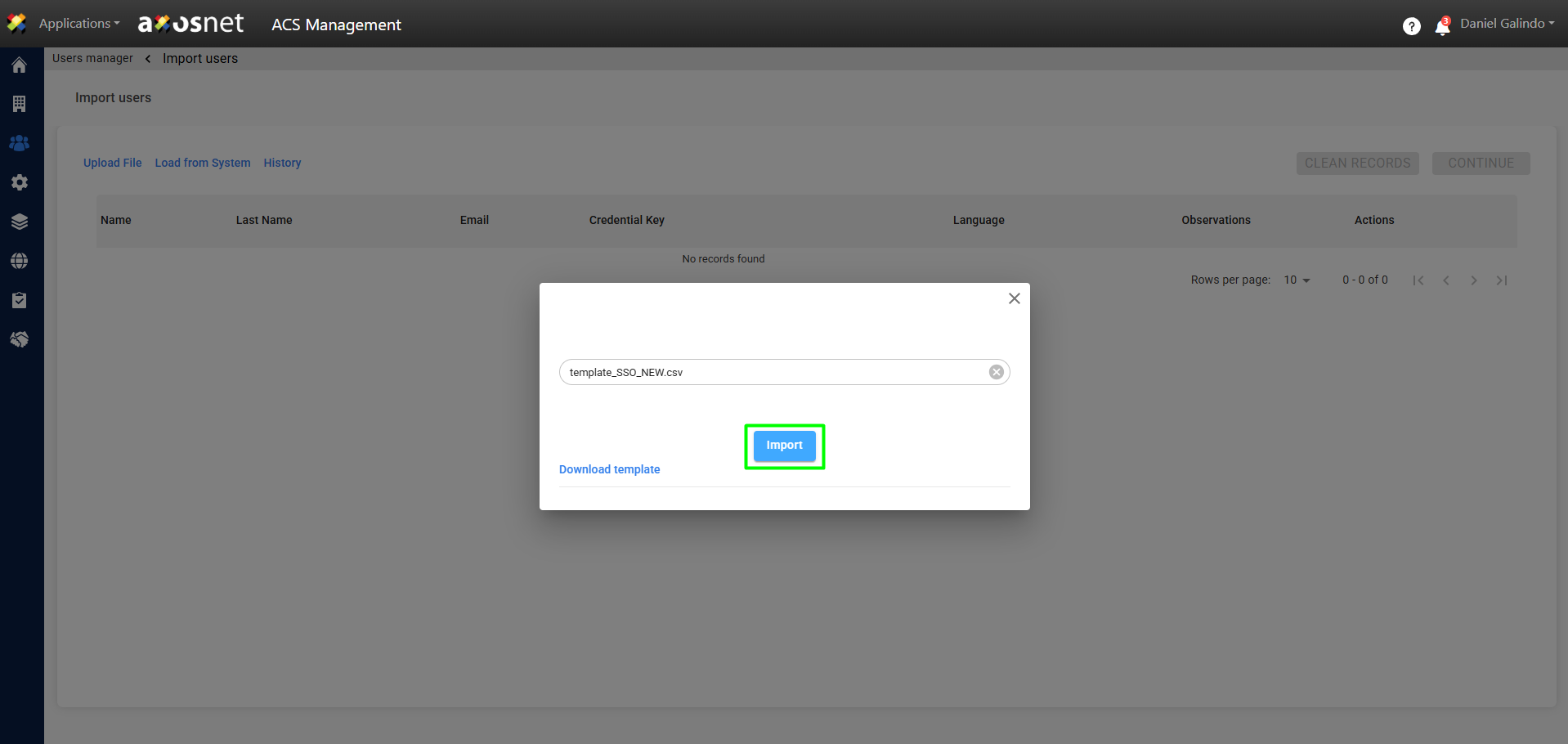
B. A pop-up window will appear where you can upload a .csv document with the user data.
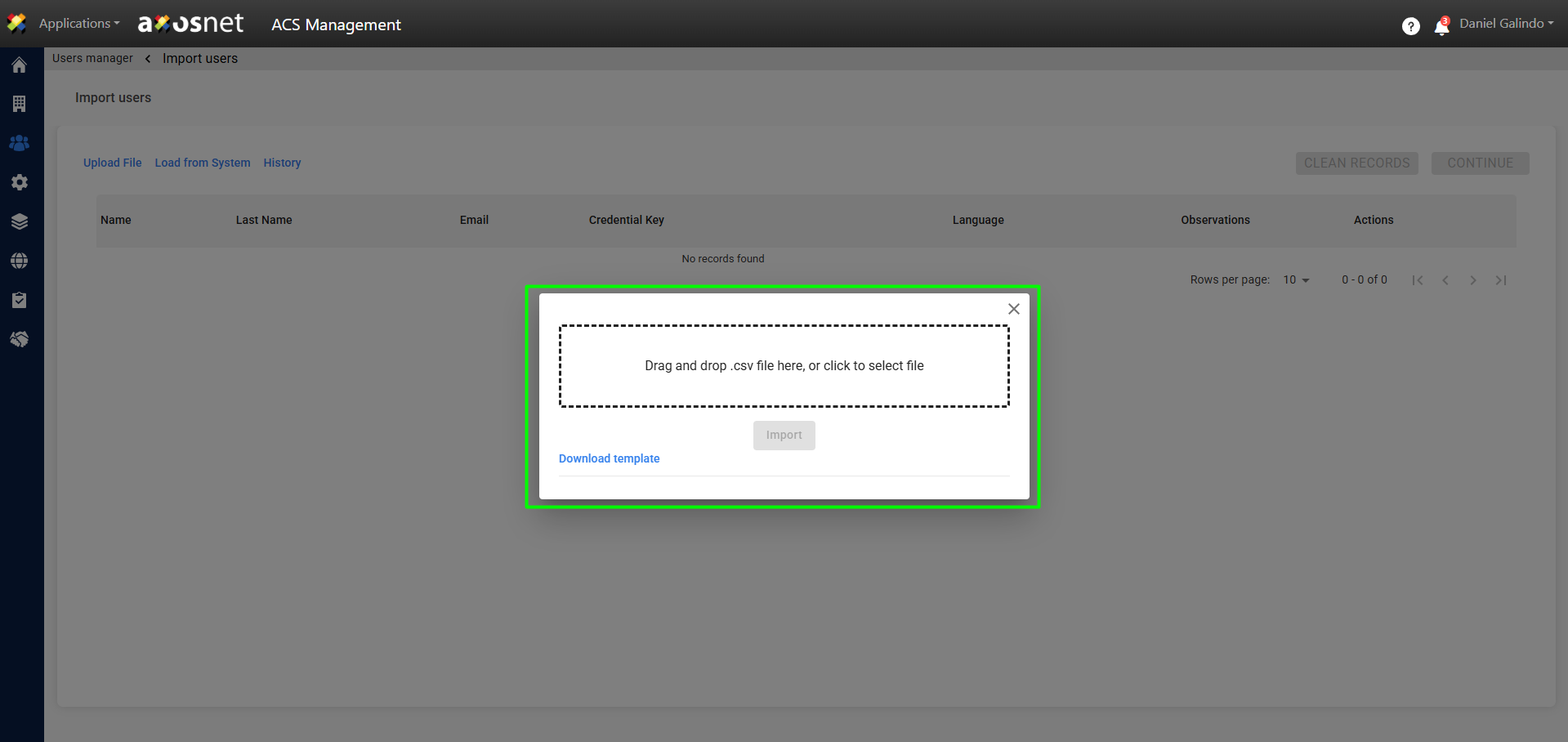
Note: You can download a template with the required data.
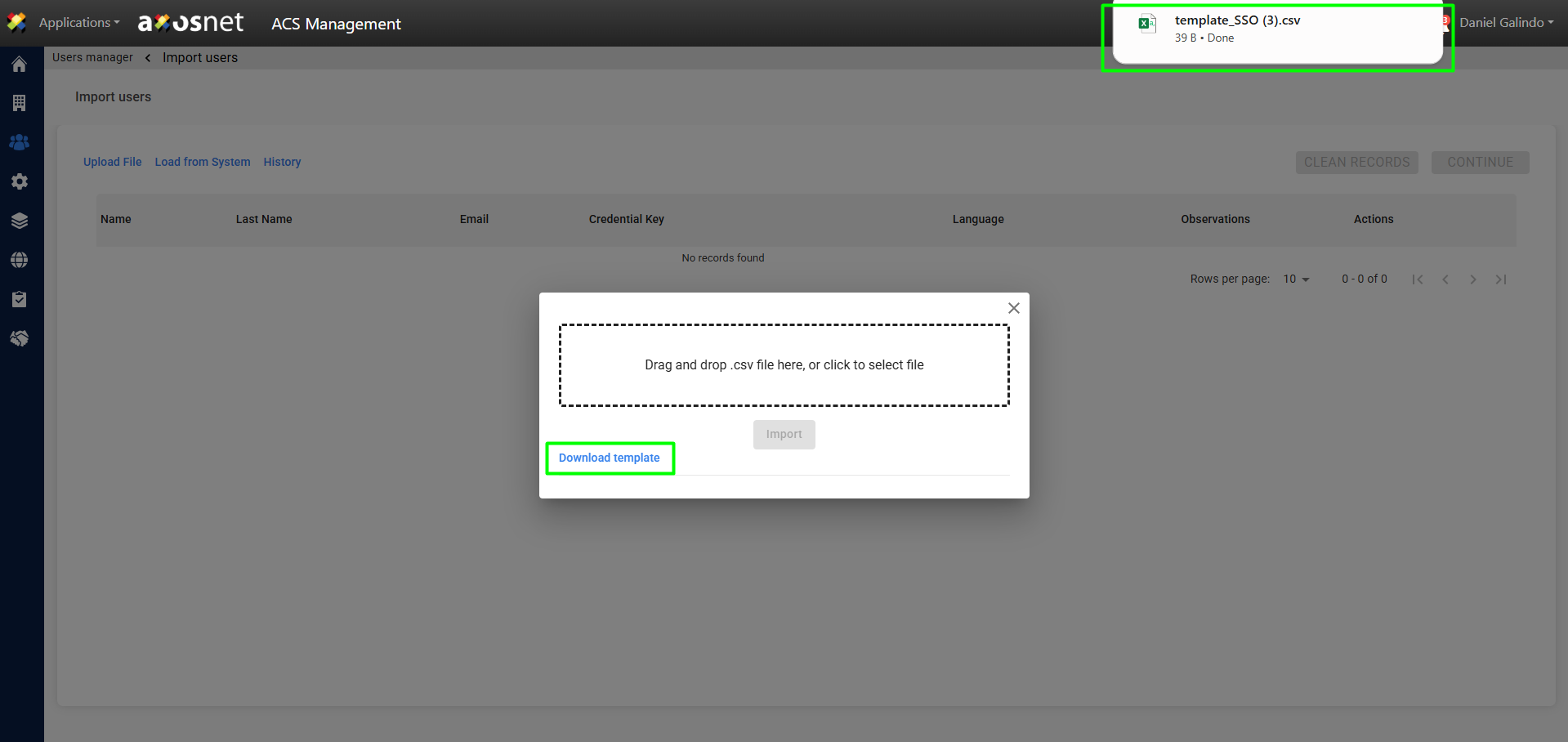
The requested data to import users massively are:
– Name
– Last Name
– Email
– Credential
– Language
C. After filling out the document with the user data and uploading it, click on “Import”.
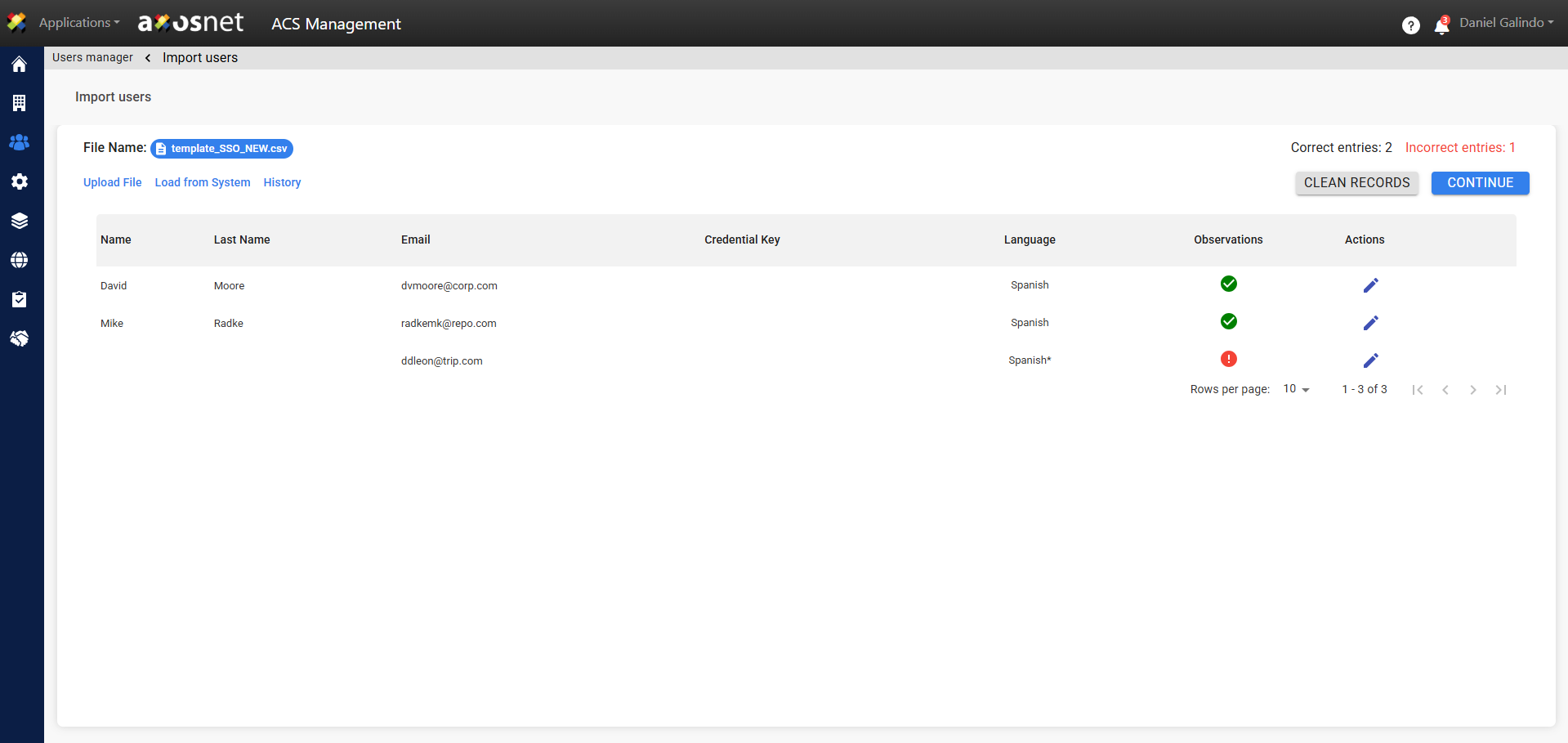
D. Upon completion of the upload, the data of the users who have been imported will be displayed. The number of correct and incorrect records will be shown in the upper right corner.
Import from System
To import users by loading them from a system, in this case SAP Concur, follow these steps:
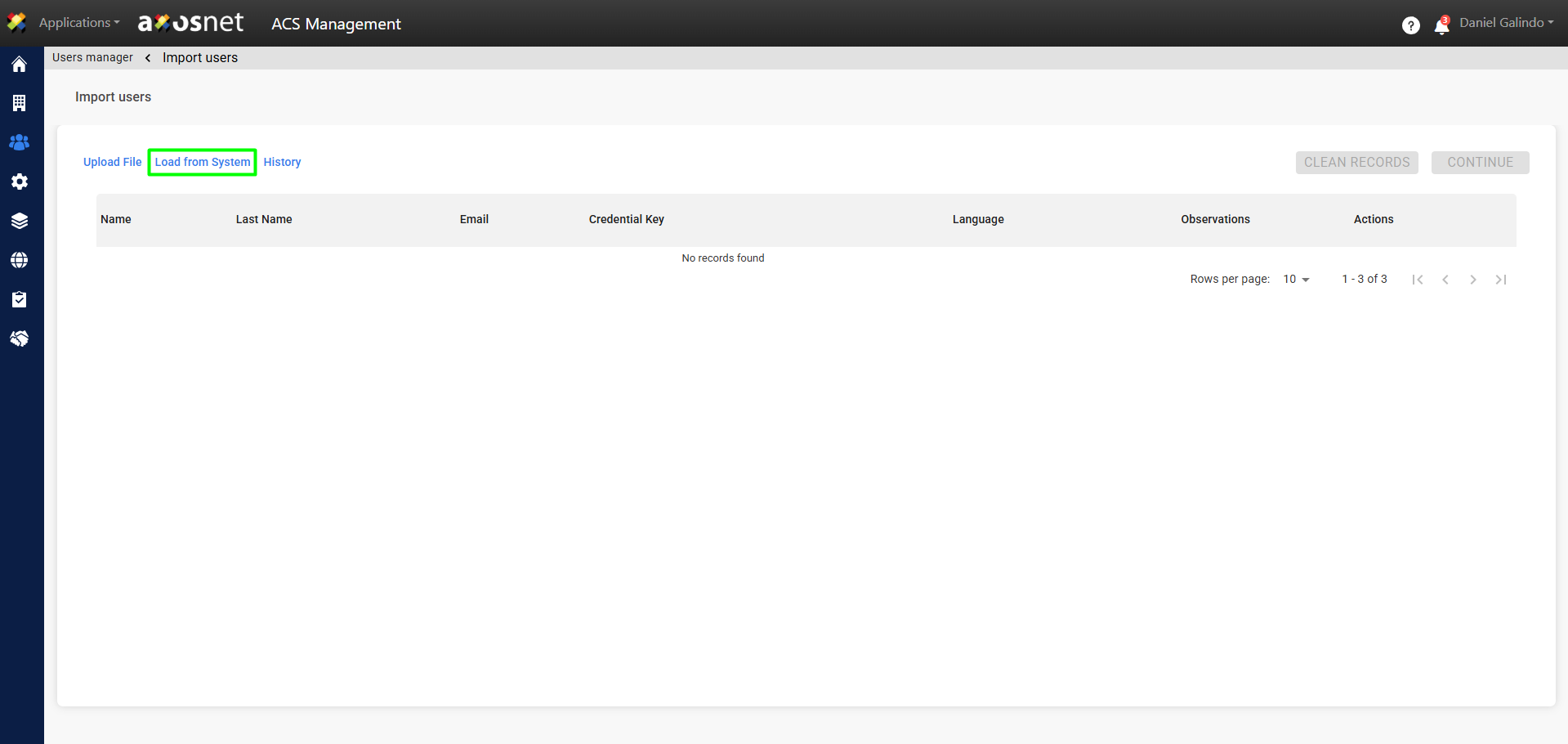
A. Click on Load From System.
B. Click on See Users List.
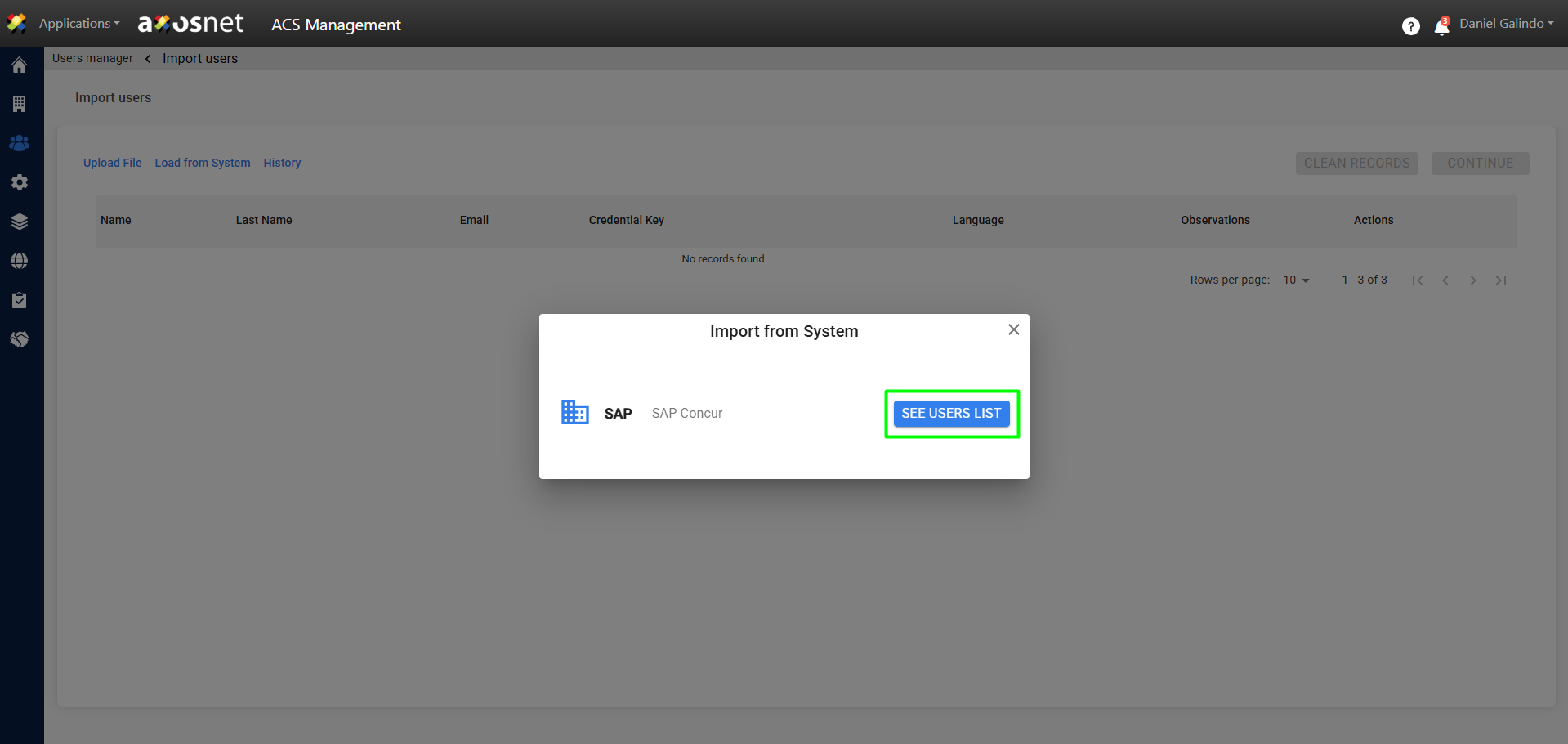
C. A pop-up window will open where you can select the users you wish to import from an SAP Concur list. Once you have finished selecting users, click Continue.
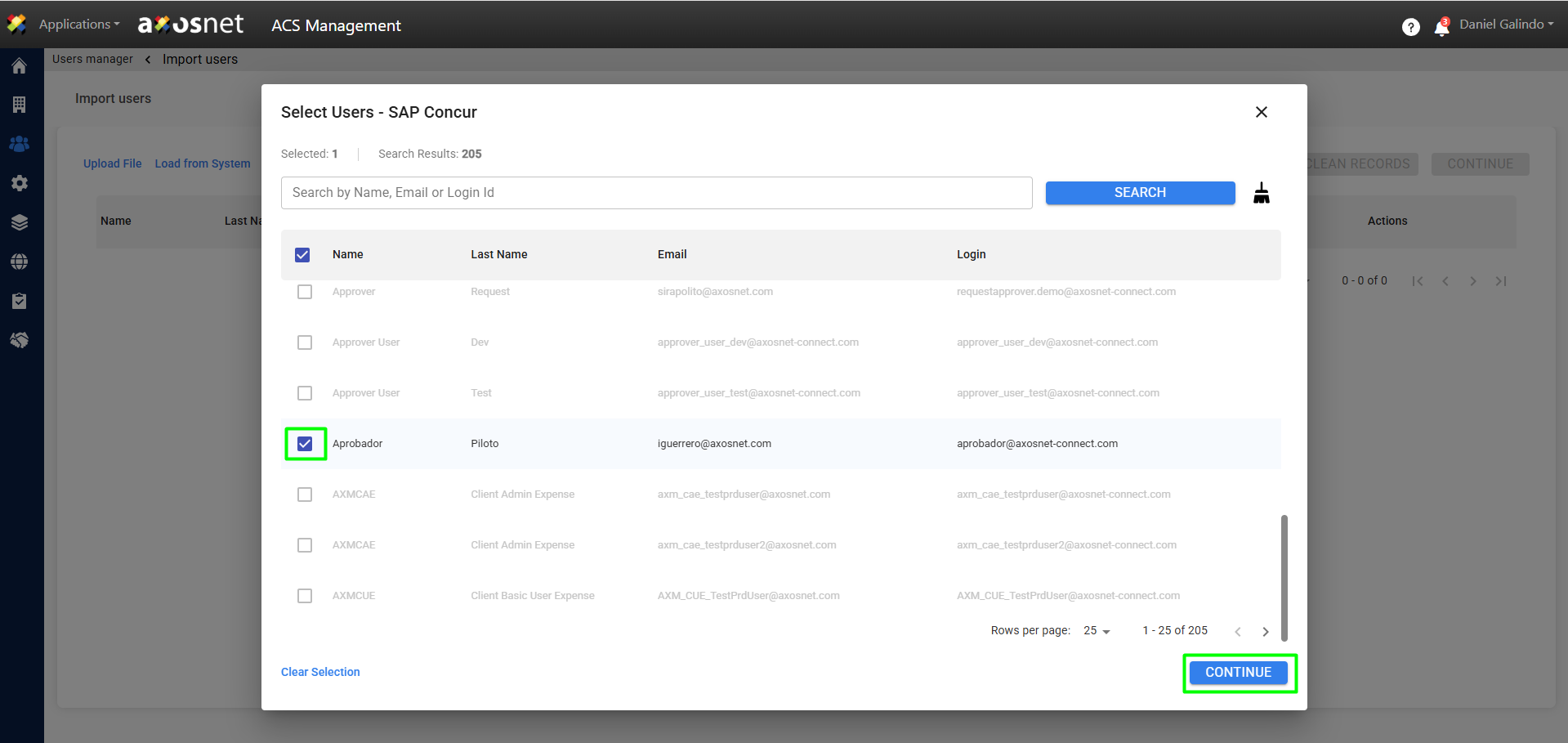
D. Once the upload is finished, the data of the imported users will be displayed. The number of correct and incorrect records will be shown in the upper right part.
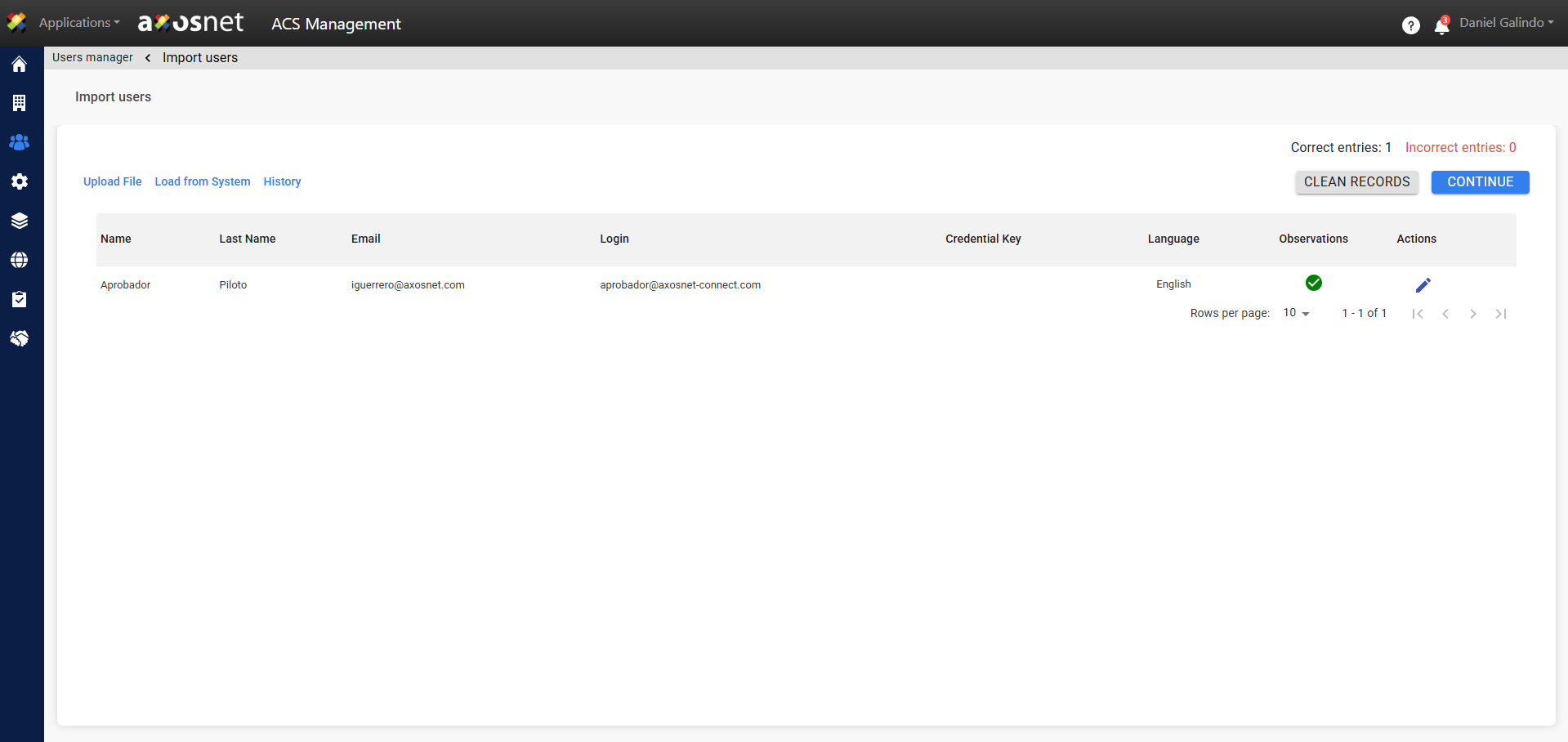
5. Once the user data has been uploaded, either by Uploading a Document or Loading from System (SAP Concur List), we can click on “CONTINUE”.
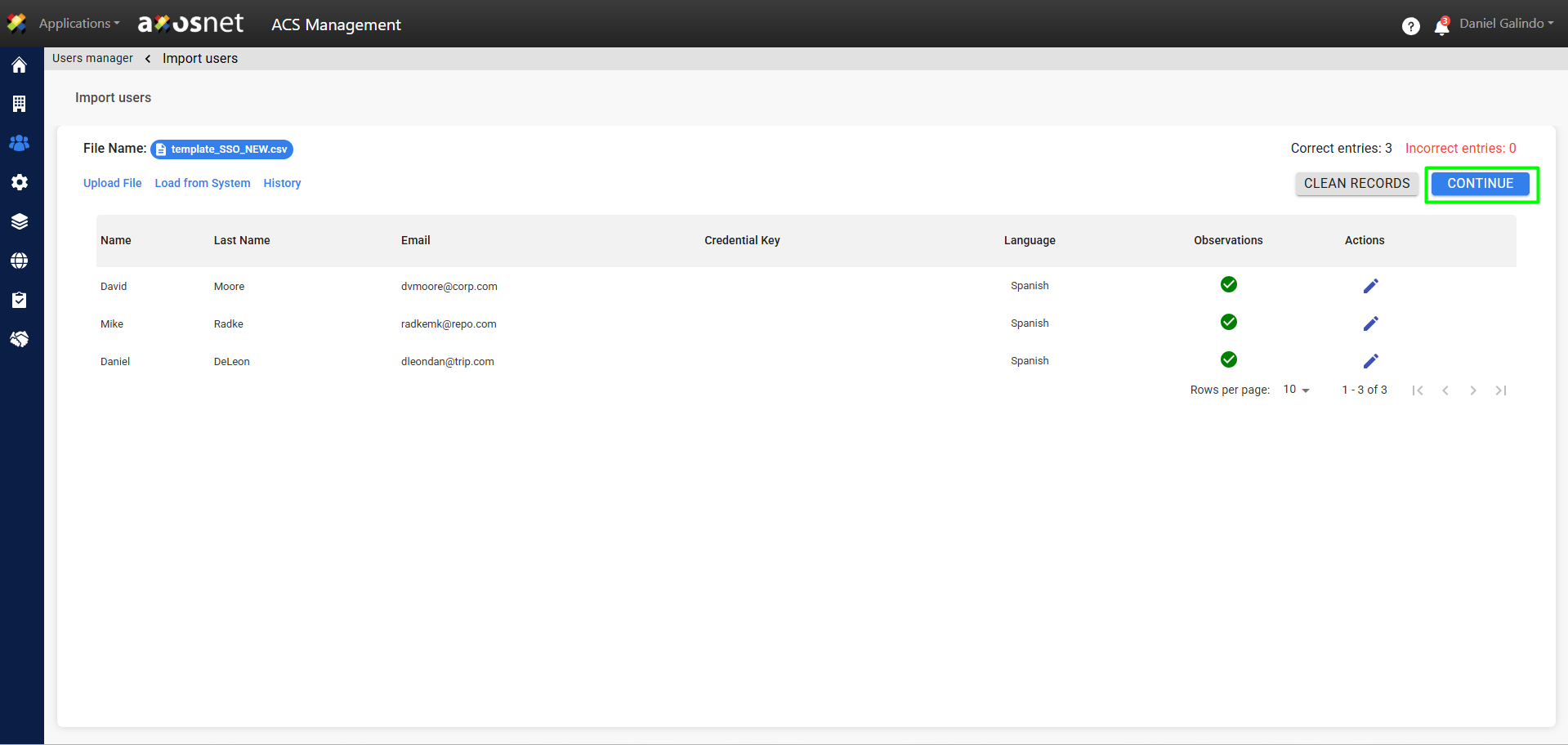
6. A pop-up window will appear to confirm the import of users.
Note: Incorrect records will not be imported and will remain in the list.
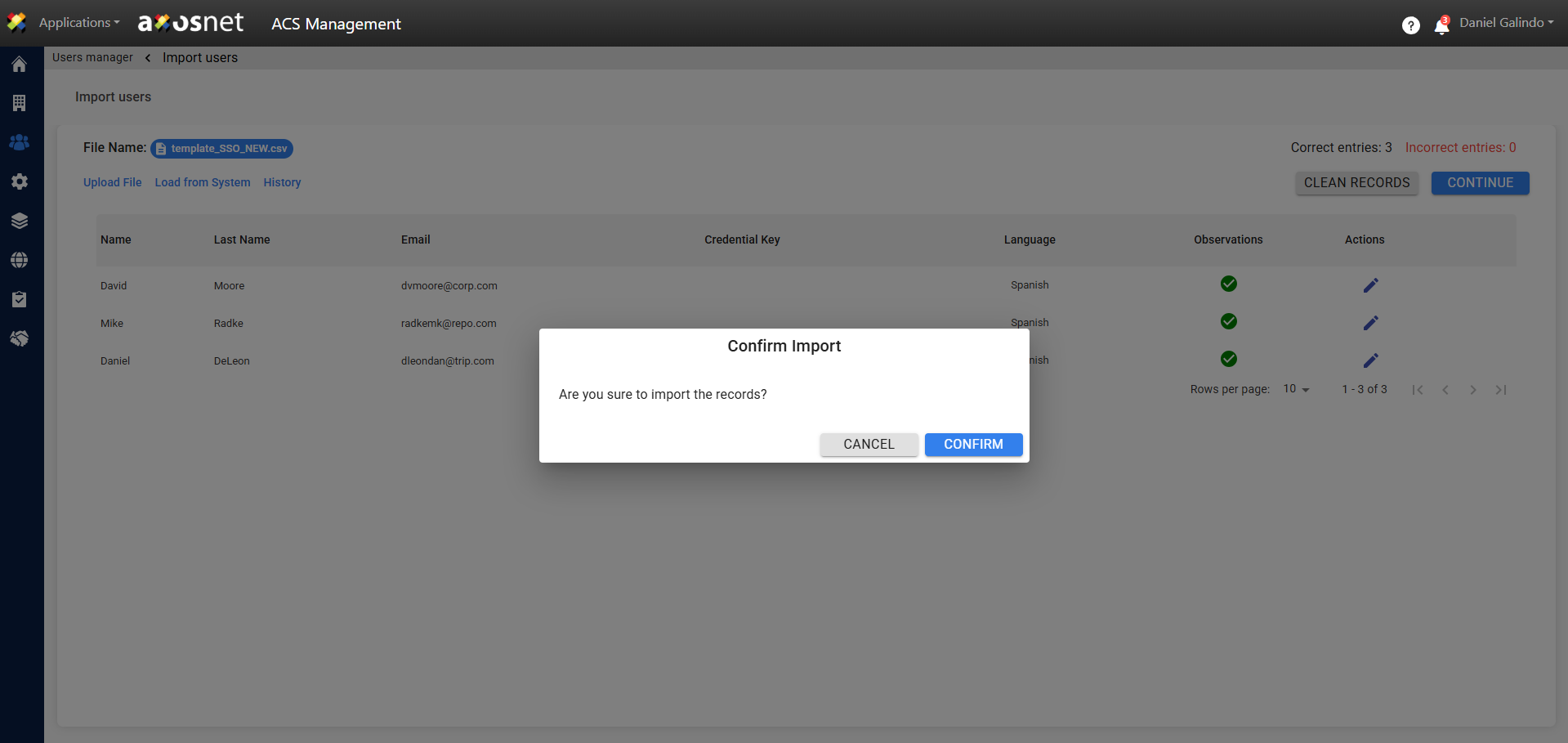
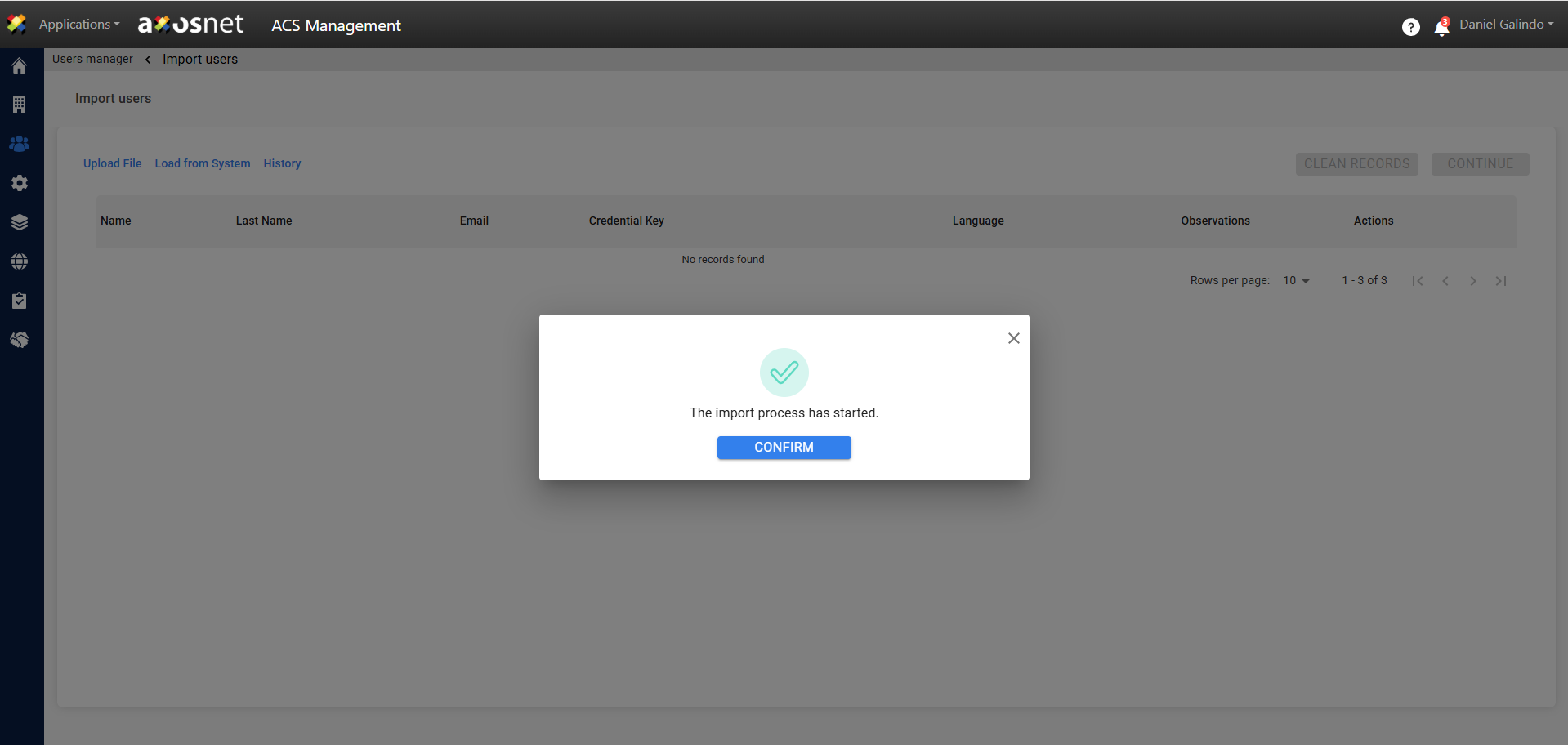
7. After confirming the import, the users will be removed from the list and will immediately receive an invitation to register on ACS. A message will appear indicating that the operation was successful.
Edit Record
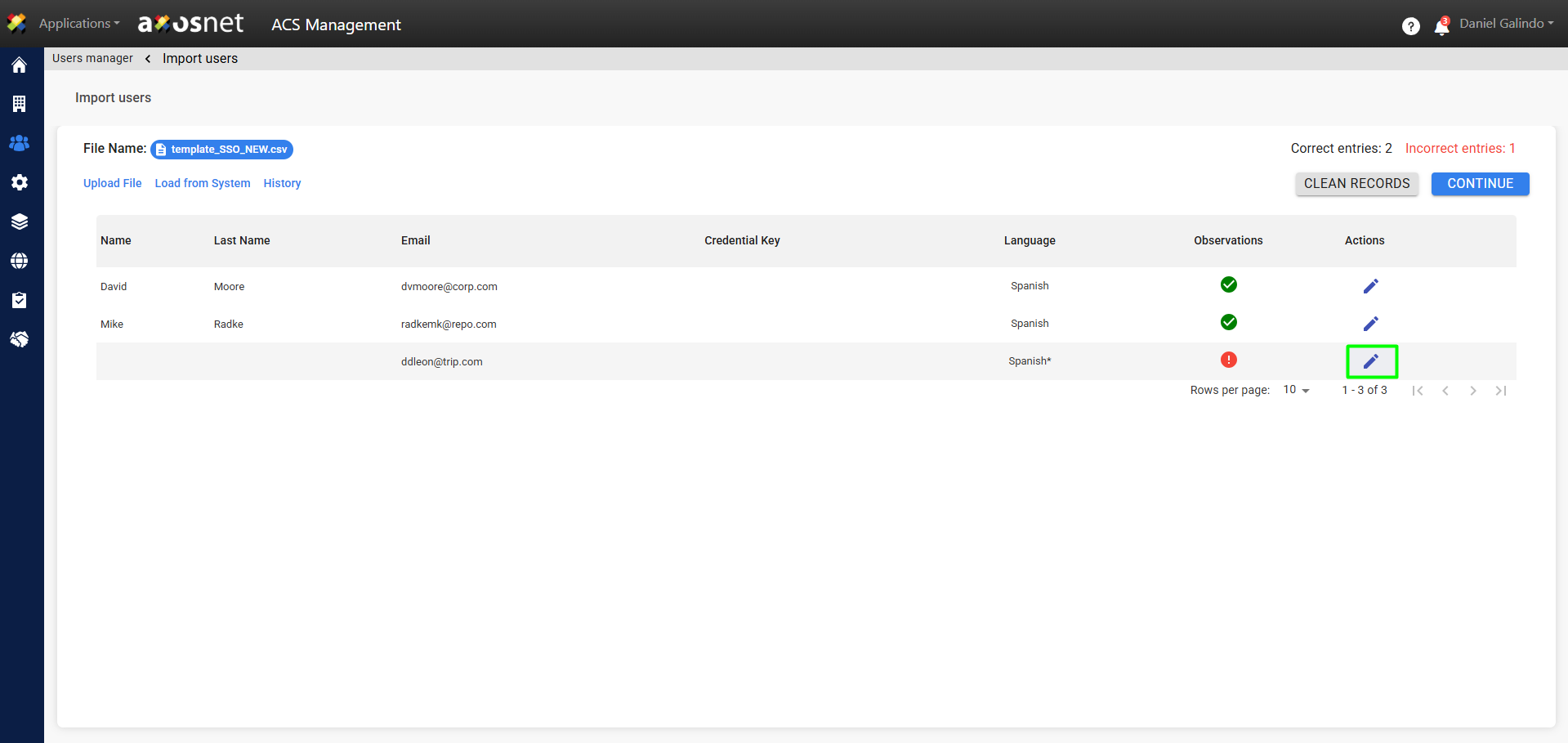
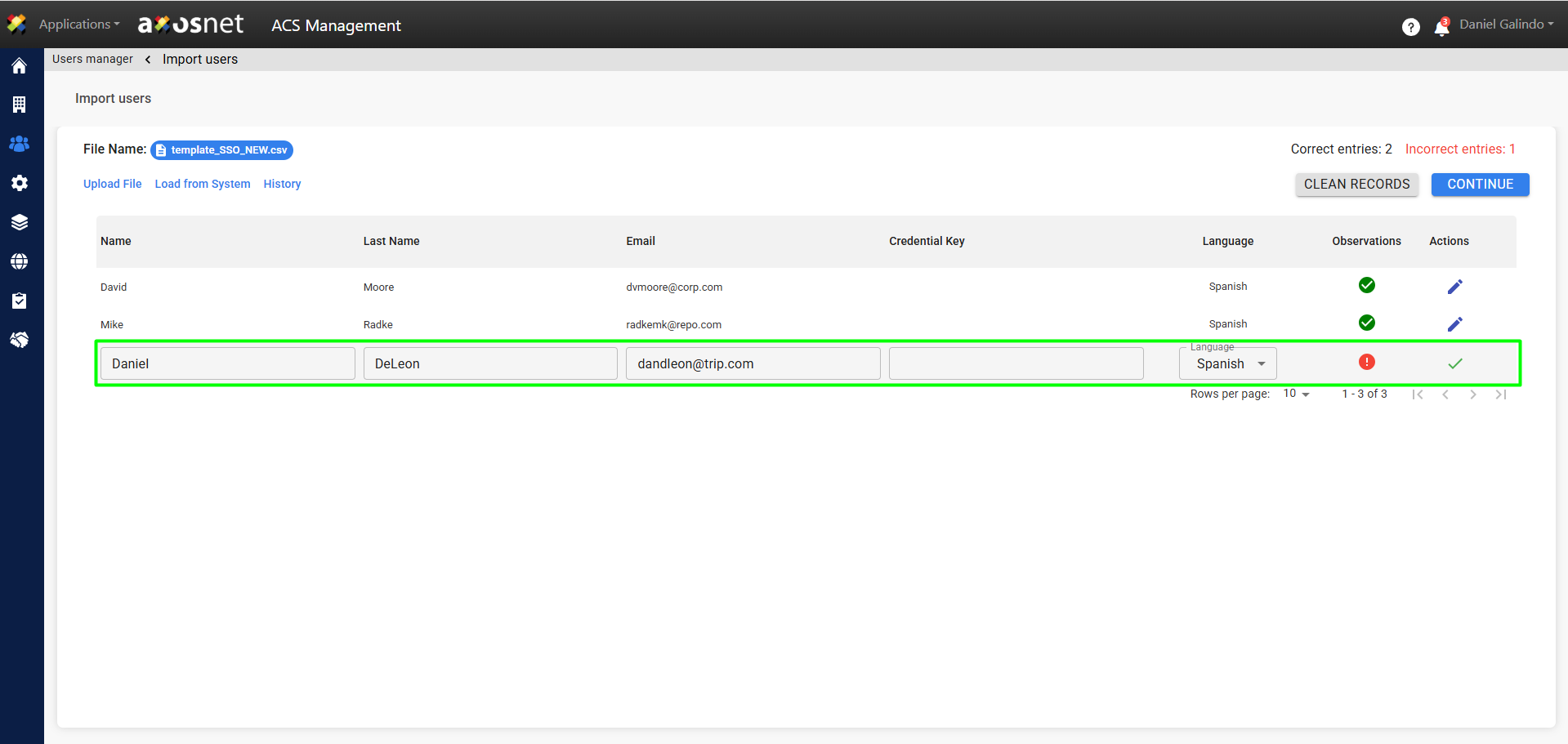
To ensure that the records do not have errors, they can be edited individually by clicking on the edit button 🖊️. Some examples of incorrect records could be that the email is wrong or the user is already registered in ACS.
Clean Records
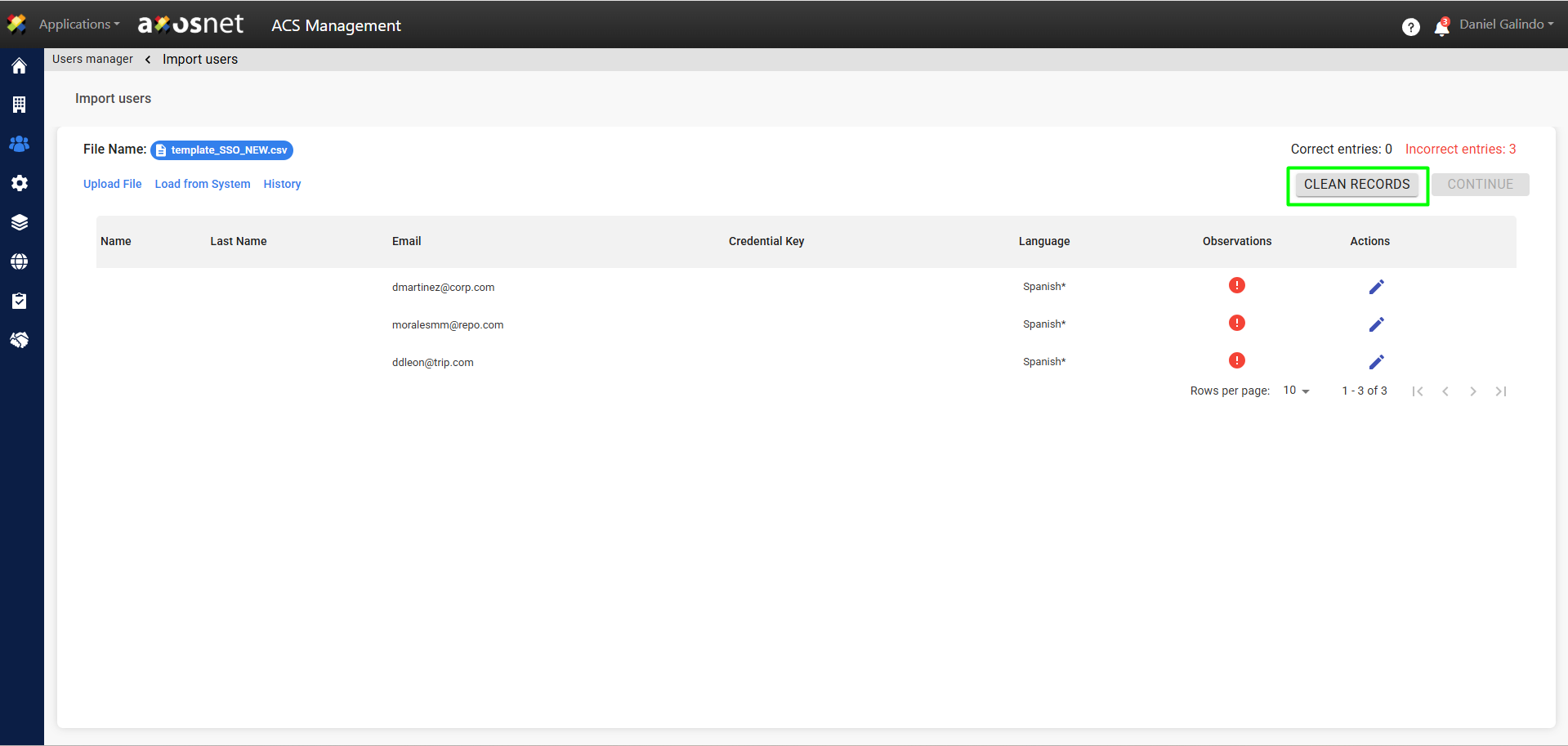
This option allows you to quickly delete all records from the list if you wish to restart the user import process.
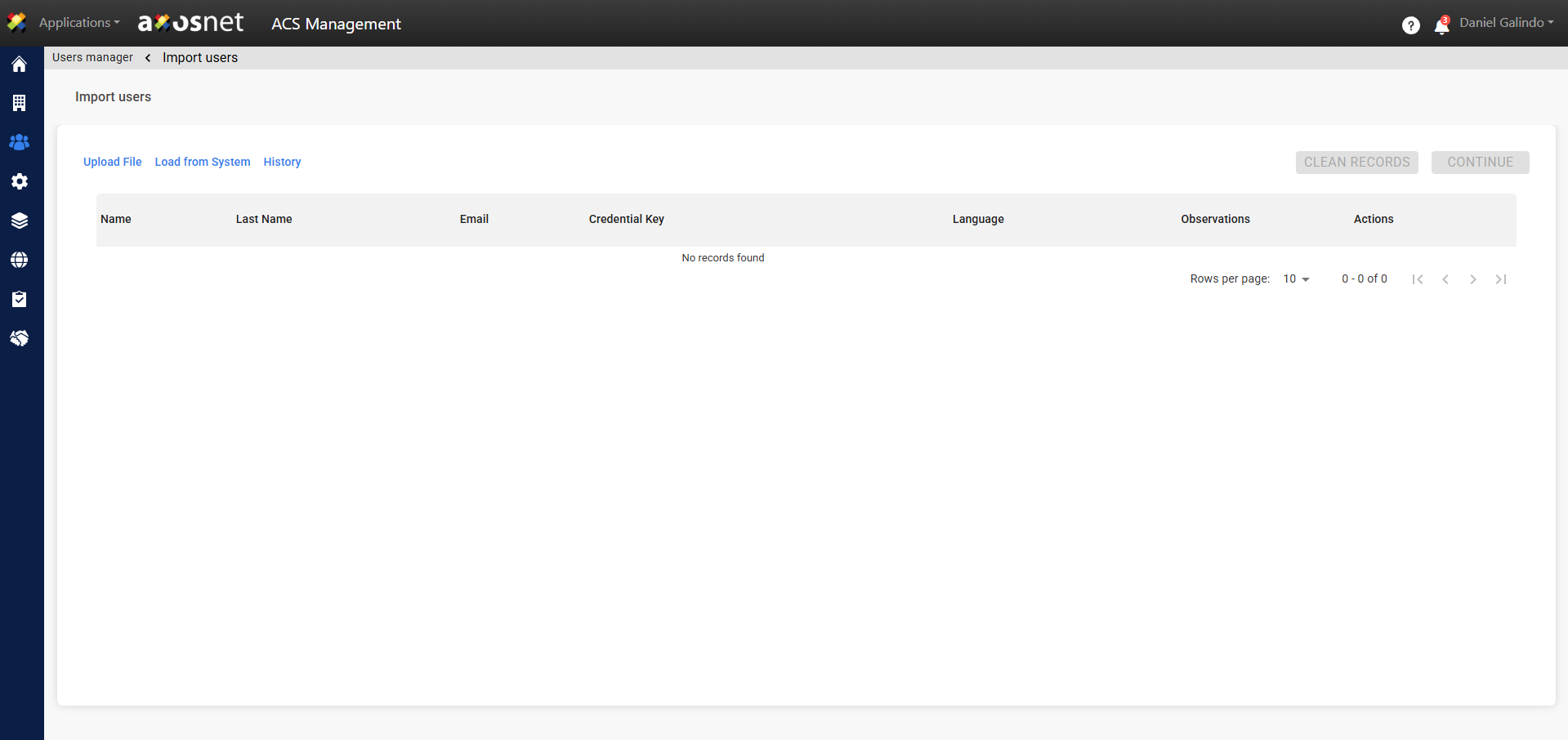
History
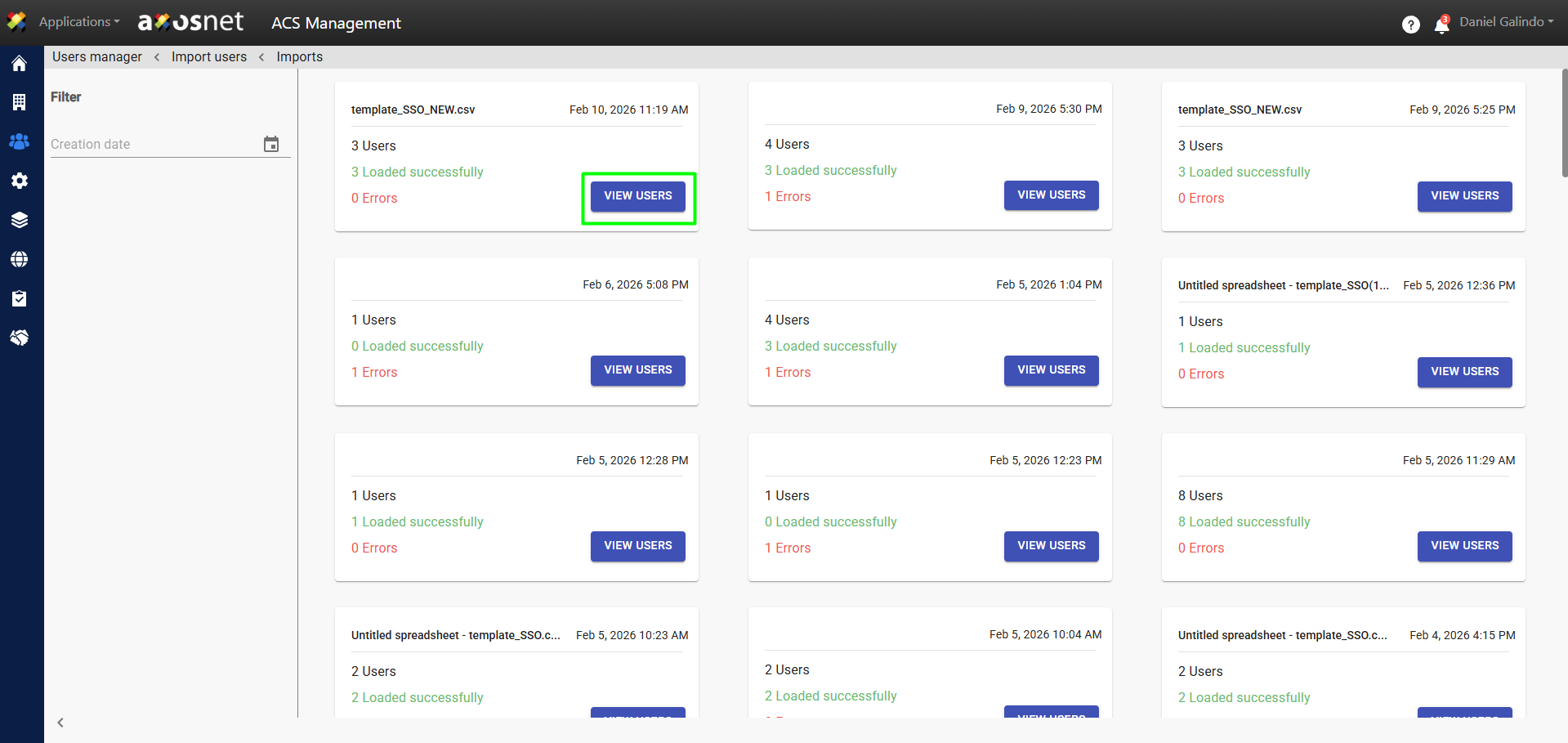
You can check the user import history by clicking on the History option.
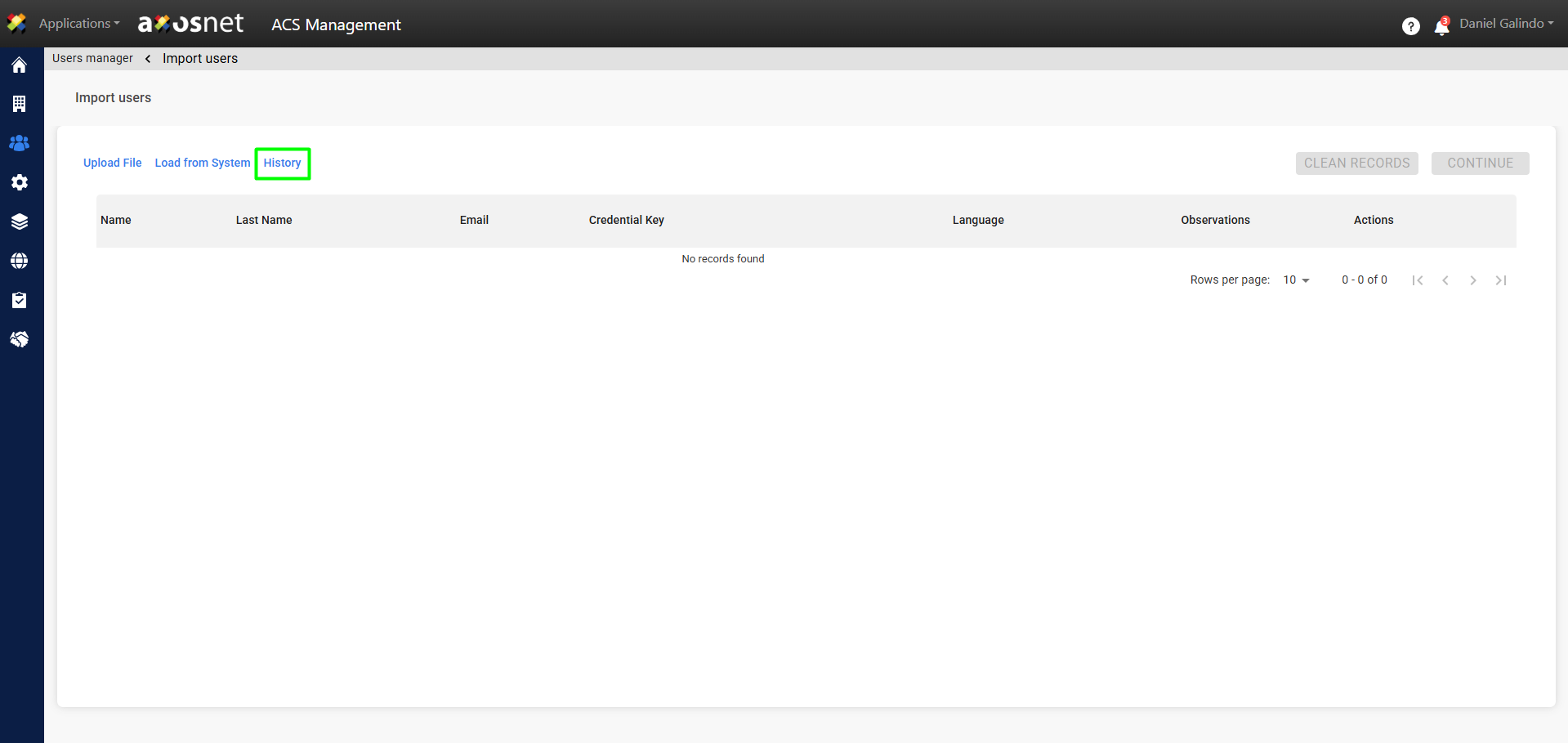
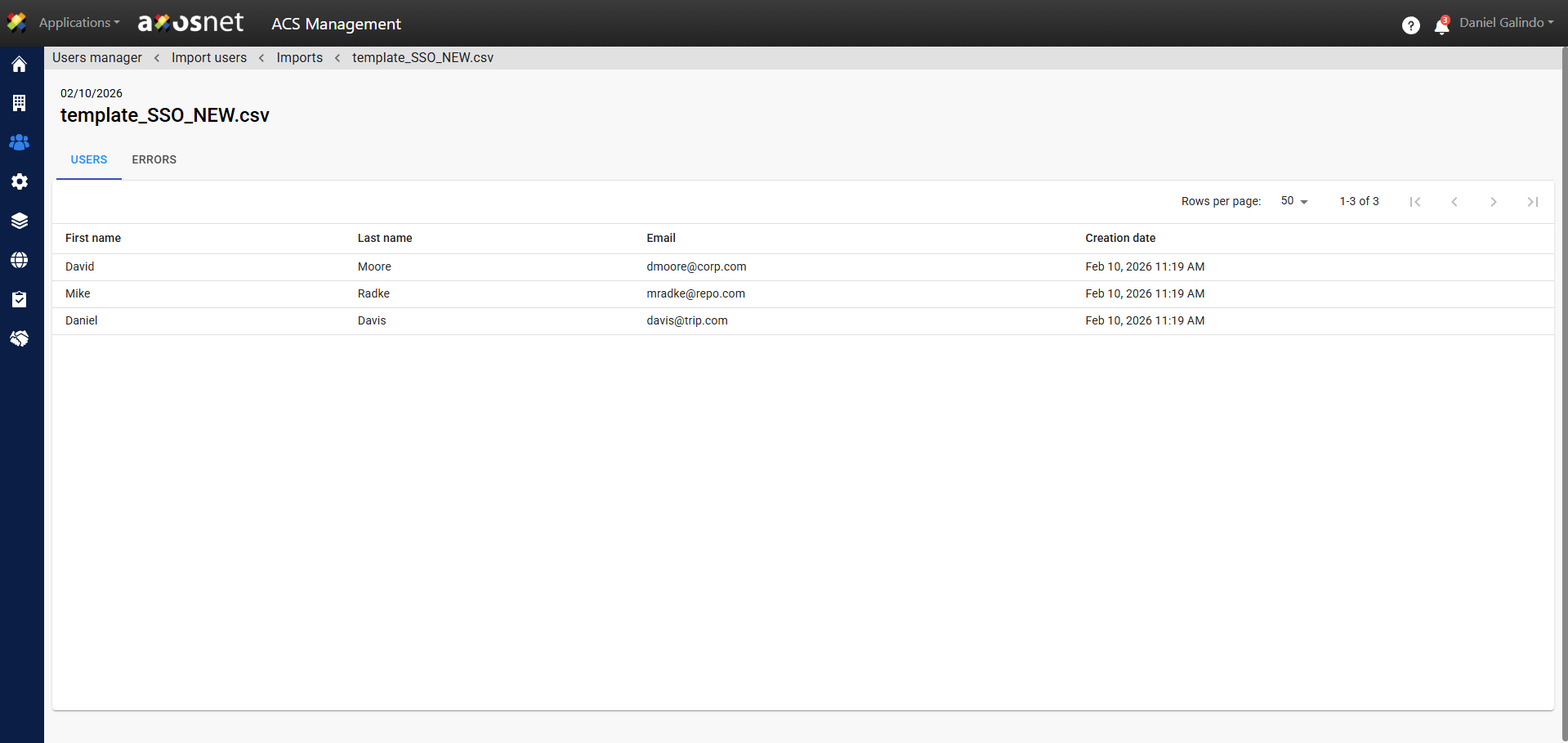
A history of all user imports performed will be displayed, whether by uploading a file or through integration with external systems like SAP Concur. To examine the detailed information of the users that were imported on a specific occasion, select the “View Users” option.