
This section covers the process in which an AxosMoney user sends their invoices for validation by email, acting as a delegate for another user.
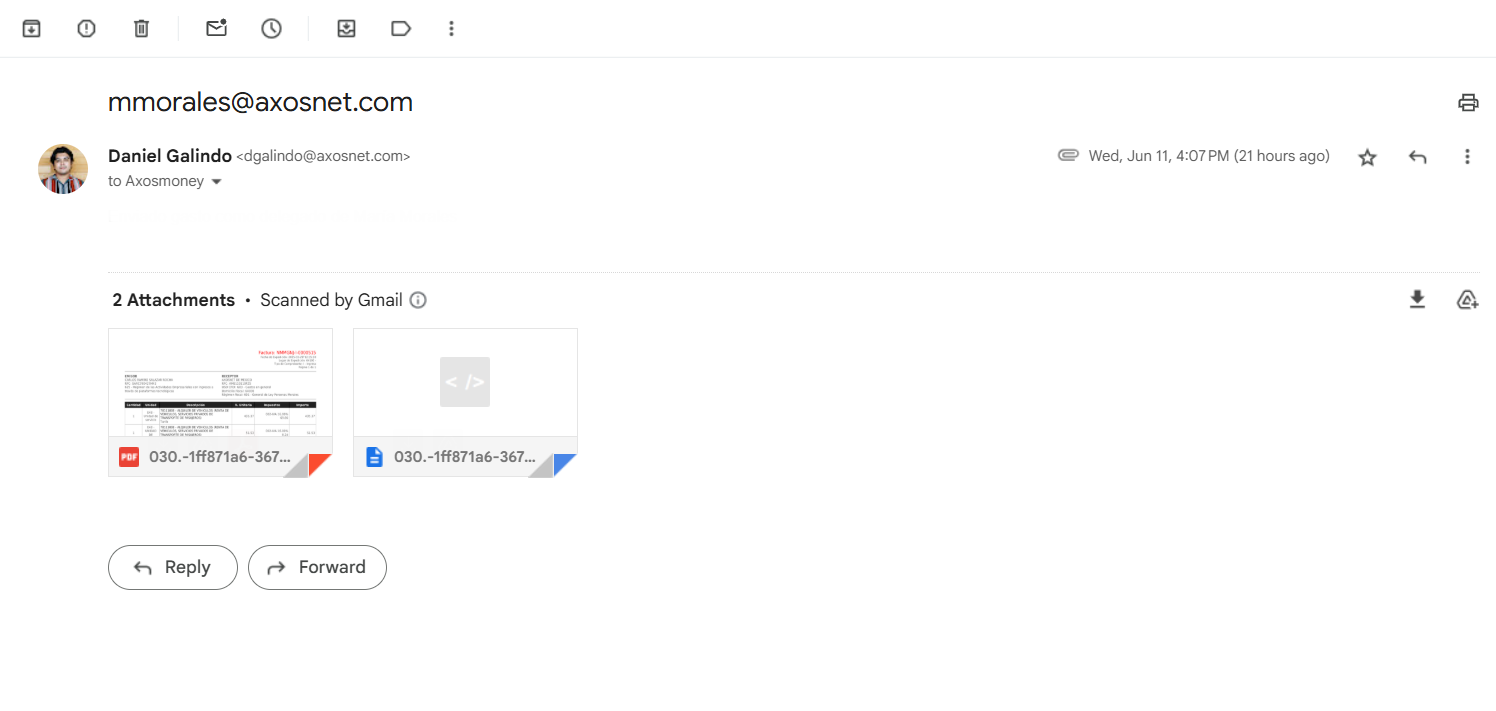
1. For an invoice to be reflected in AxosMoney, you must send the XML and PDF files to the following email: [email protected]
Note: It is important that the subject of the email includes the email address of the user you are representing (“Acting as”), as shown in the example.
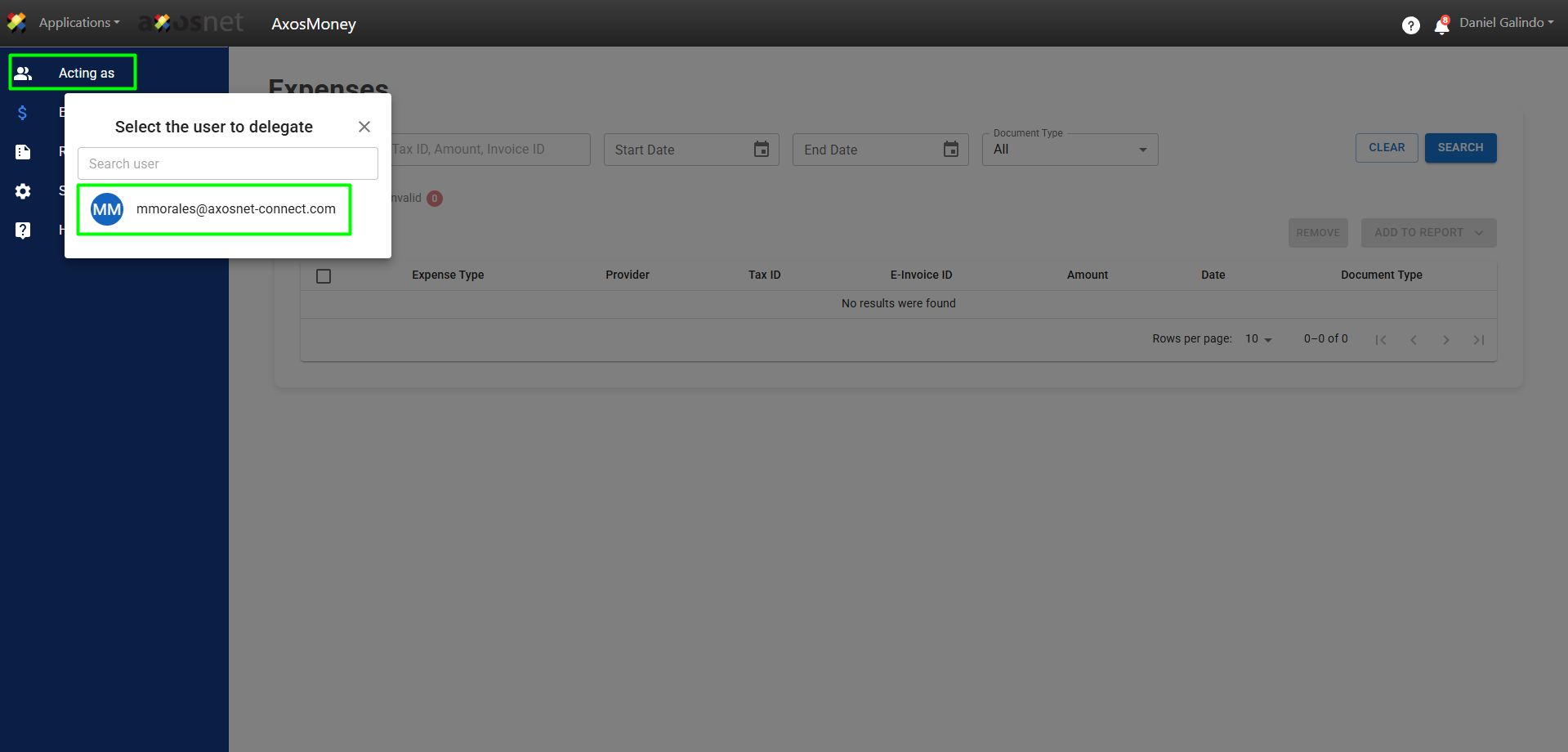
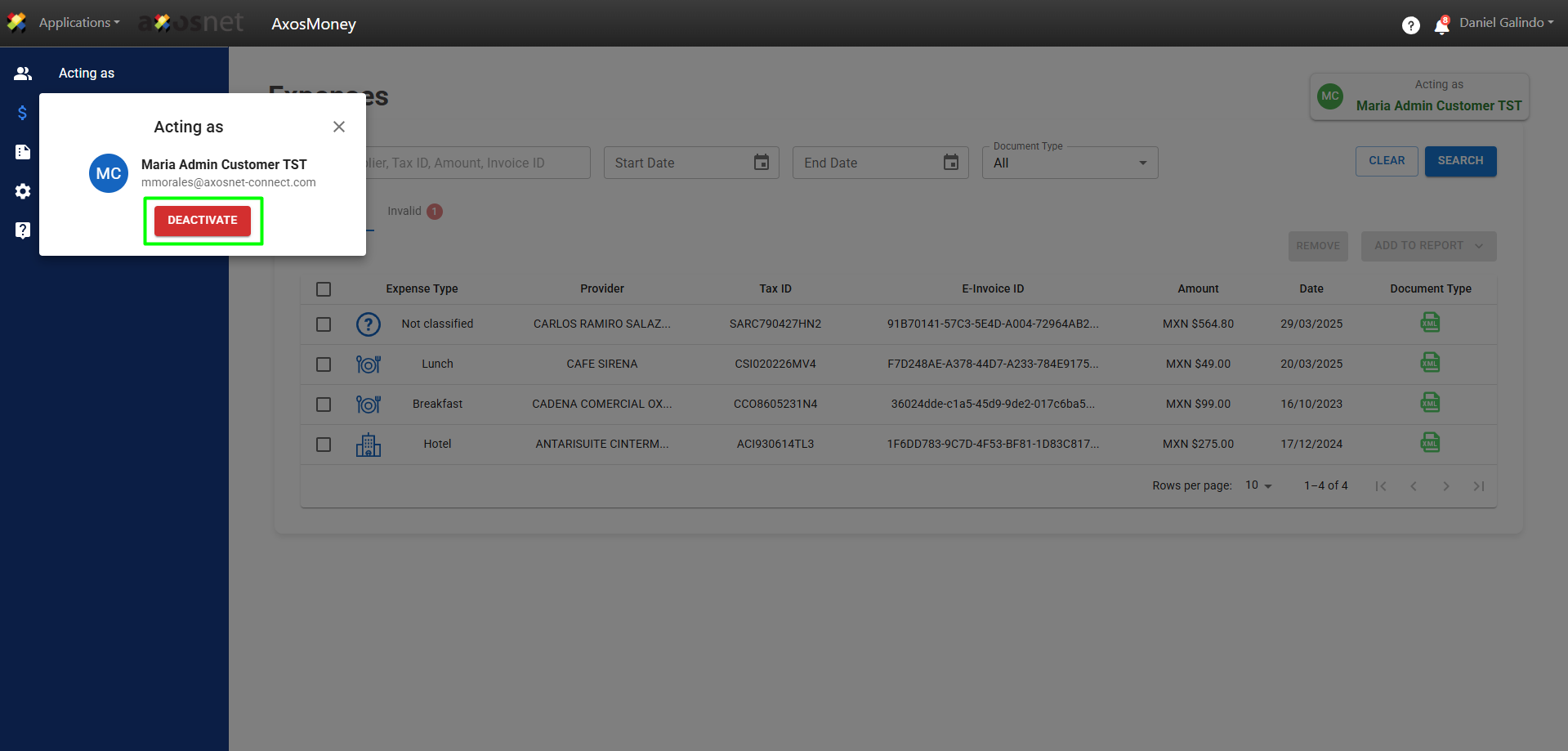
2. Upon accessing AxosMoney, select the “Acting as” option and the user you are representing from the left-hand side menu.
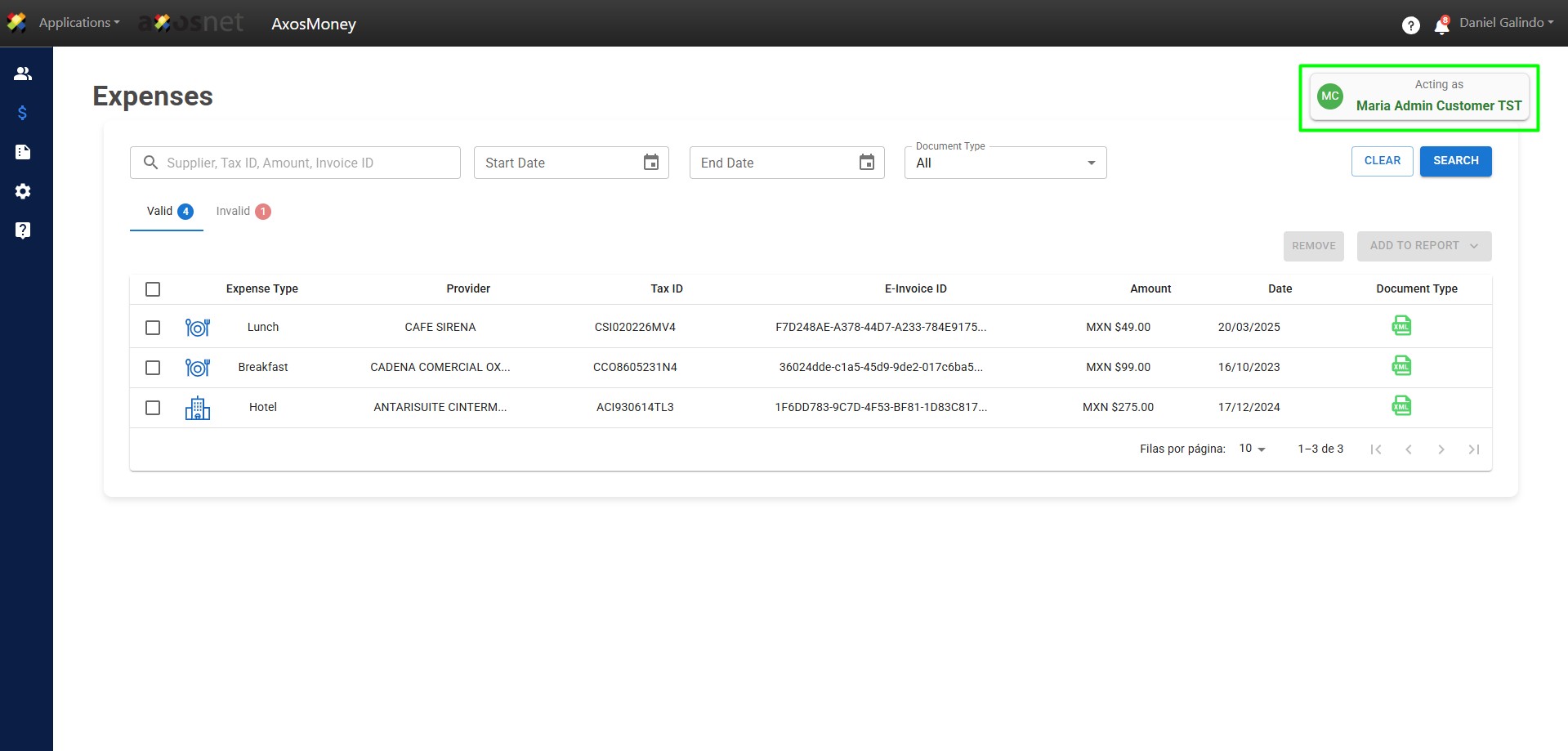
3. As a delegate for another user, you will be able to see their valid and invalid invoices, as well as categorize them and generate reports. The user you are representing will appear in a box in the upper right corner, indicating “Acting as.”
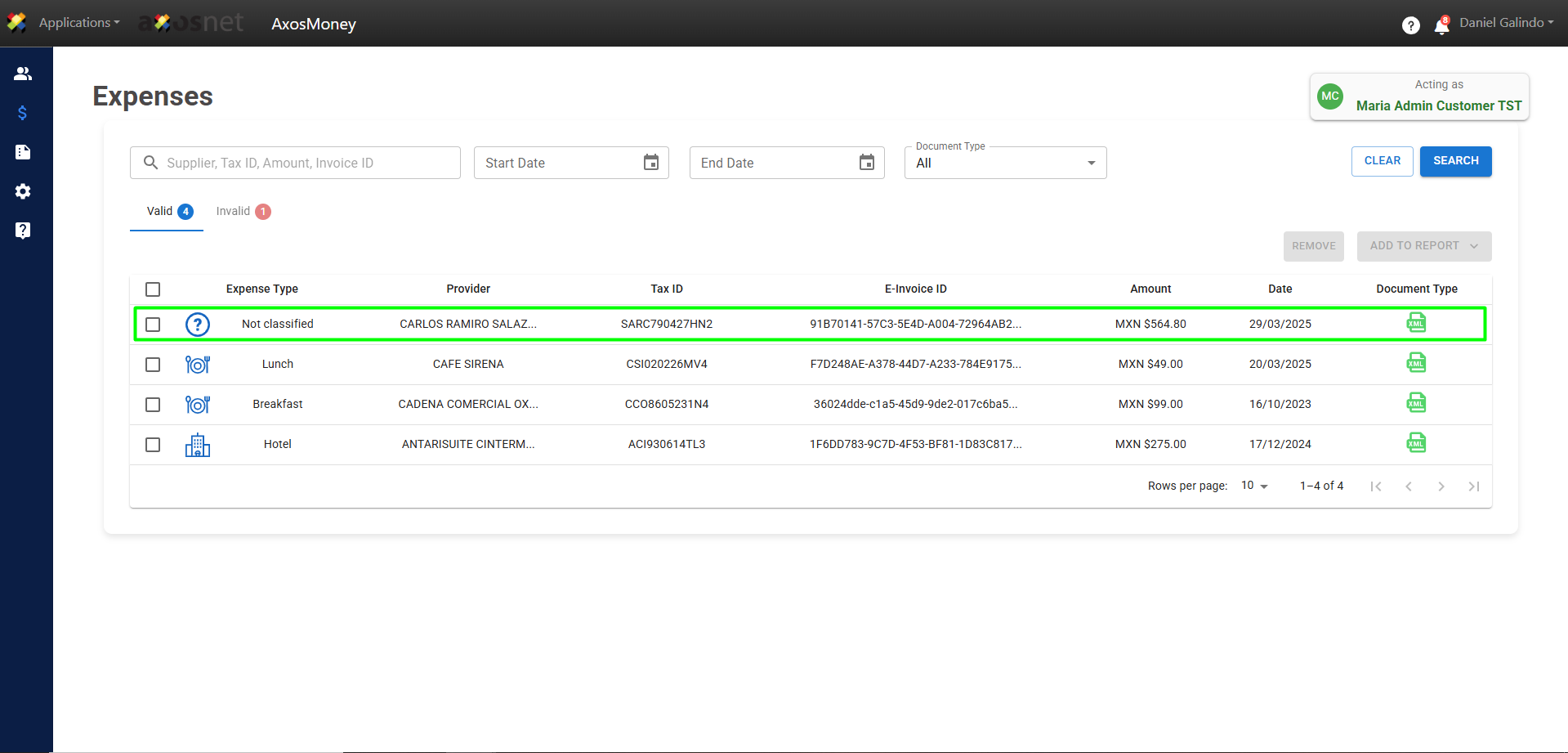
4. After a moment, the invoices sent by email will appear in the “Expenses” option of the main AxosMoney menu. Depending on the validation result, an expense can be in one of two states:
Note: To Add expenses to a report, click the link to visit the corresponding manual.
5. If you wish to deactivate the “Acting as” function, go to the left-hand side menu and click on deactivate.
Recommendations for sending invoices by email
- The XML must have TipoDeComprobante=”I” ; other types will be rejected in AxosMoney. Exceptions or special cases can be handled directly in SAP Concur (if allowed).
- Do not send empty XML.
- If you send a single invoice, XML and PDF don’t need to have the same name, but the file name is recommended to always match in both XML and PDF.
- If more than one invoice is sent, the XML and PDF must have the same name in order to identify which PDF corresponds to each XML.
- The name of the files must not contain accents or special characters.
- When sending invoices to validate, do it as new mail and not as a Forward.
- The email direction used to send the invoices and the email used to login into AxosMoney must be the same.
- It is important that the subject of the email includes the email address of the user you are representing (“Acting as”).