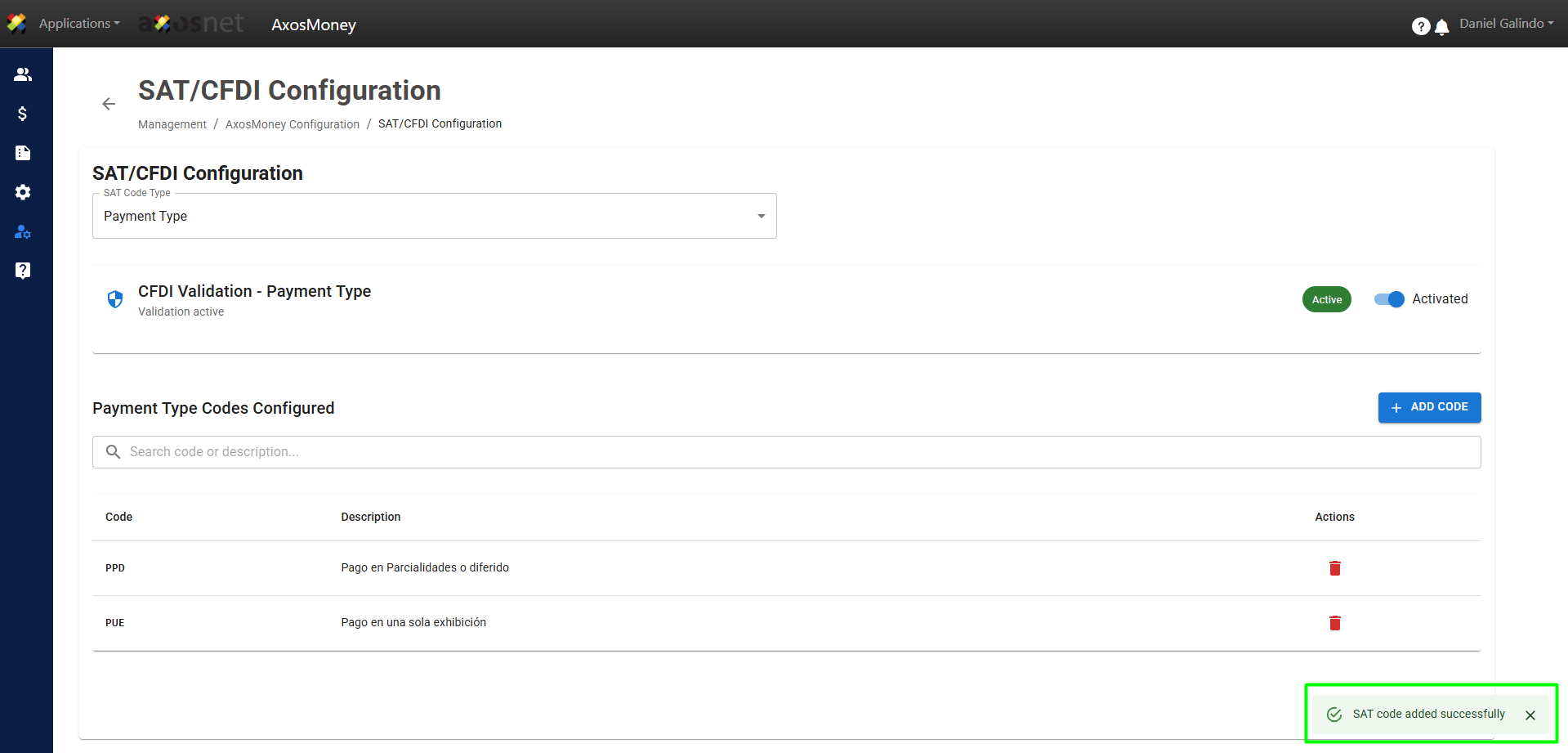
In this section, you will learn how account administrators can add validations for accepted payment methods in their AxosMoney account.
To configure them, follow these steps:
1. Go to the Administration section in the left side menu and click on AxosMoney Configuration.
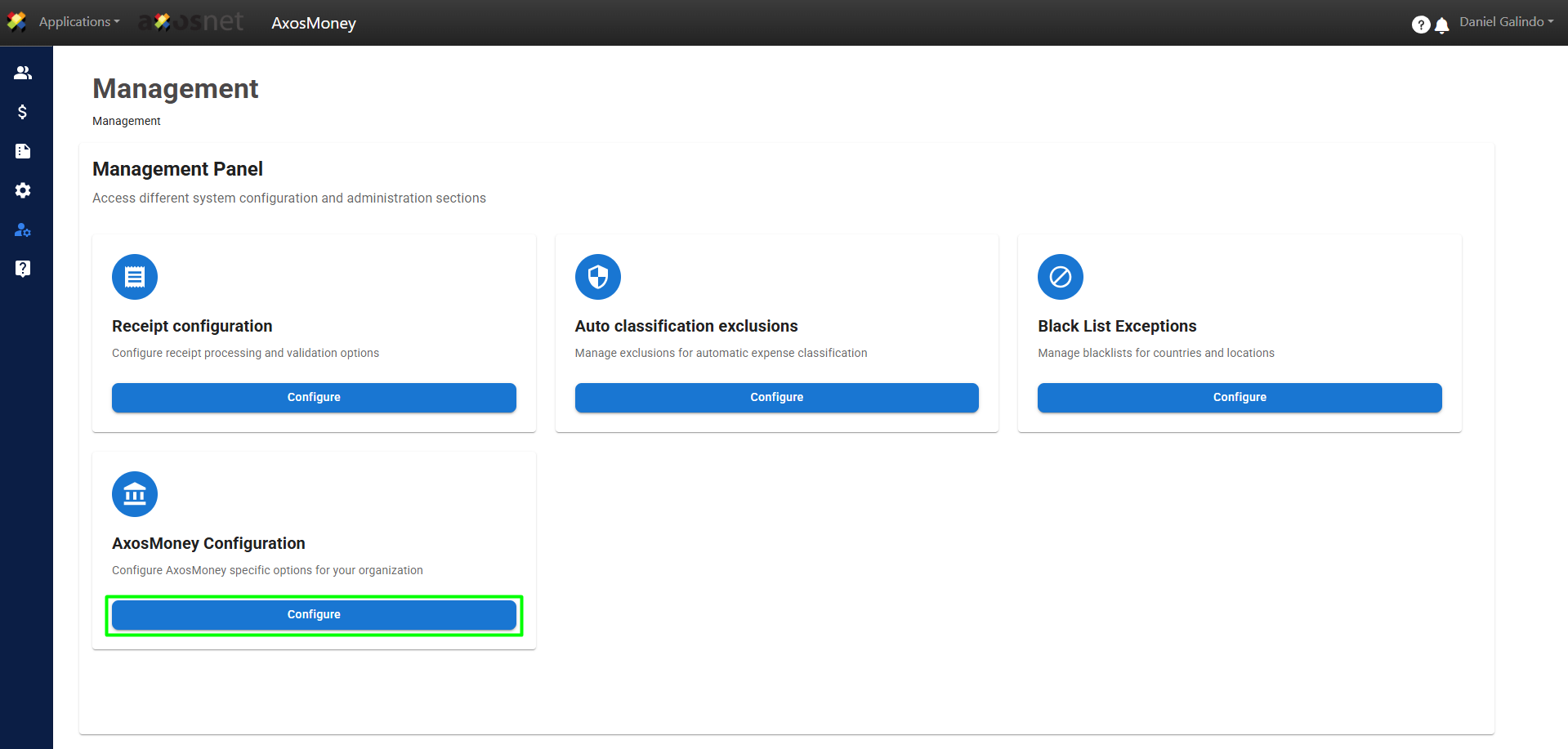
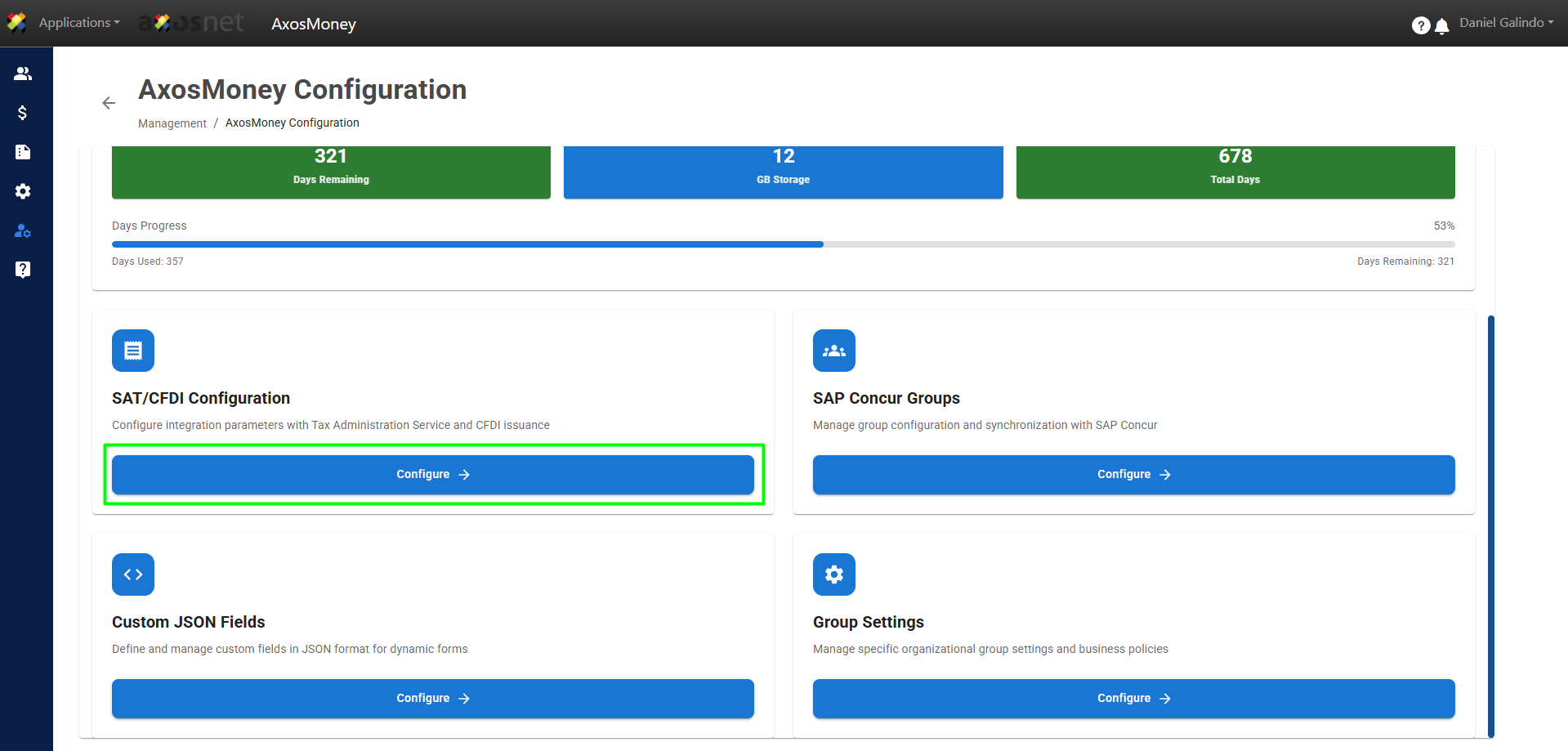
2. In the SAT/CFDI Configuration section, click Configure.
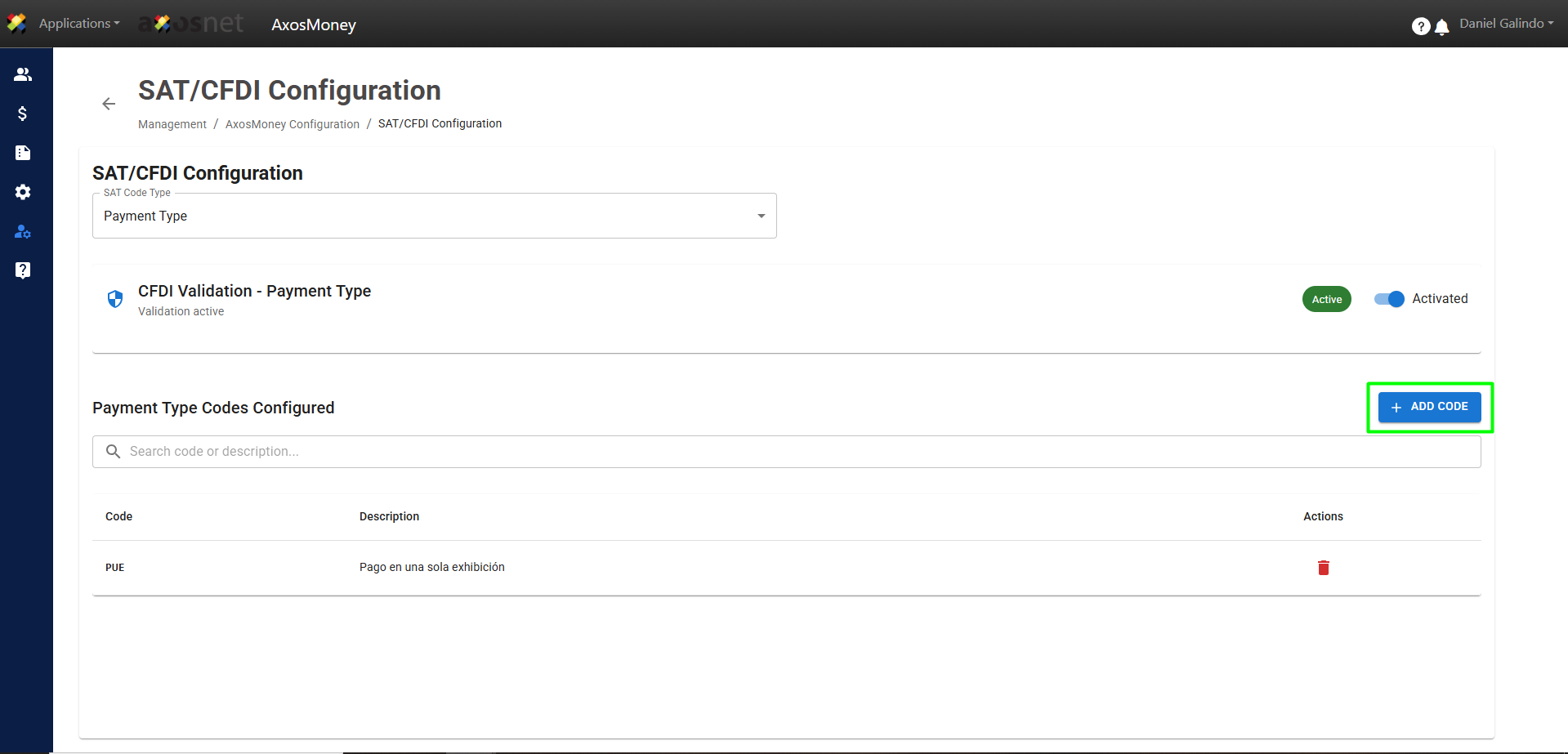
3. In the SAT Code Type dropdown, select the Payment Type option and click Add Code.
Note: It is very likely that the validation will be in “No” status. Press the ‘No’ button to activate this validation on your AxosMoney invoices. The validation status will then change to “Yes,” and the options to add or remove a product code will be enabled.
4. A pop-up window will appear. Click on the list of payment types and select the one that contains your invoices. Then click the Add button to add it to your validations.
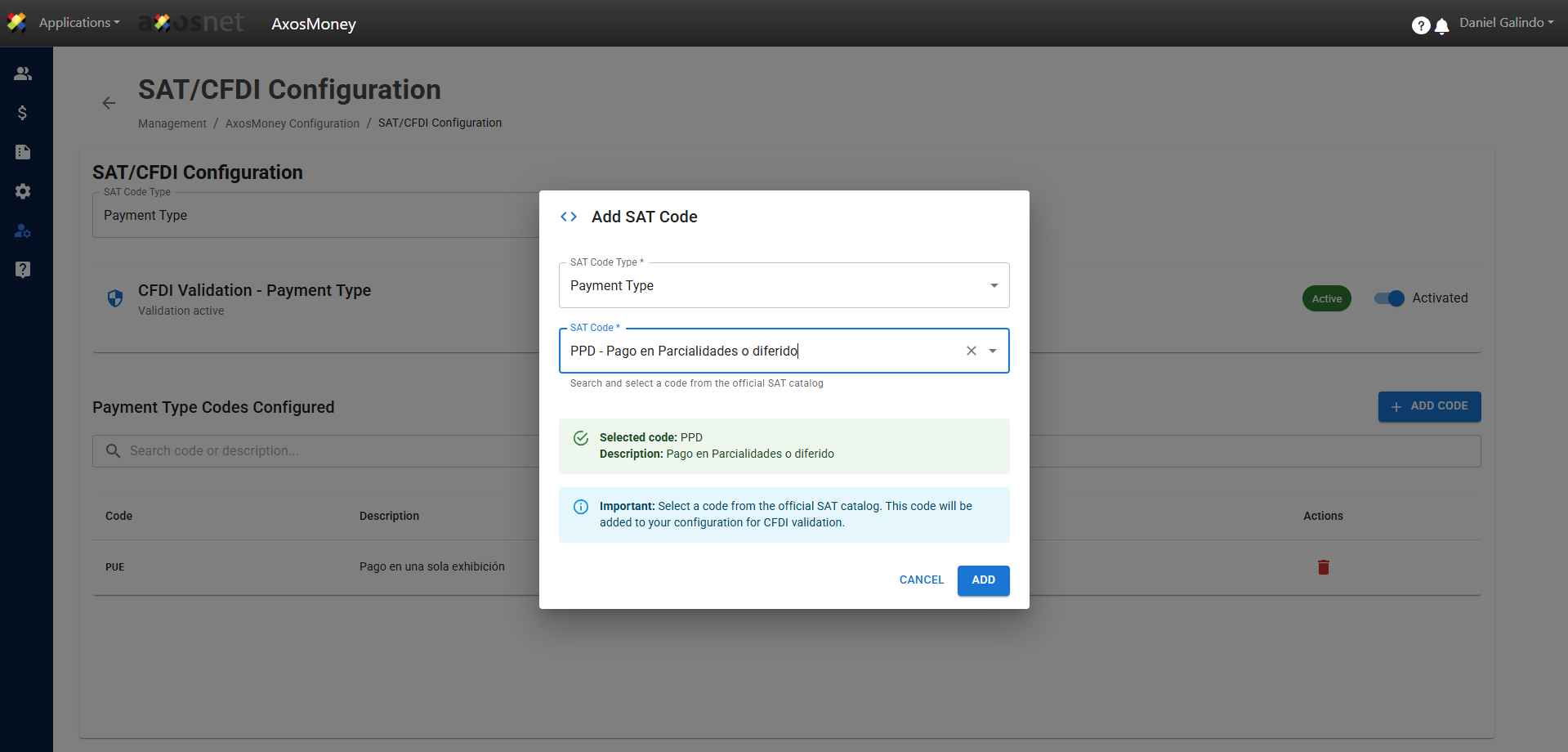
5. The payment type will appear in the table of added validations.
If you want to remove a code from the validation table, press the red button with the trash can and it will be removed from the validations.