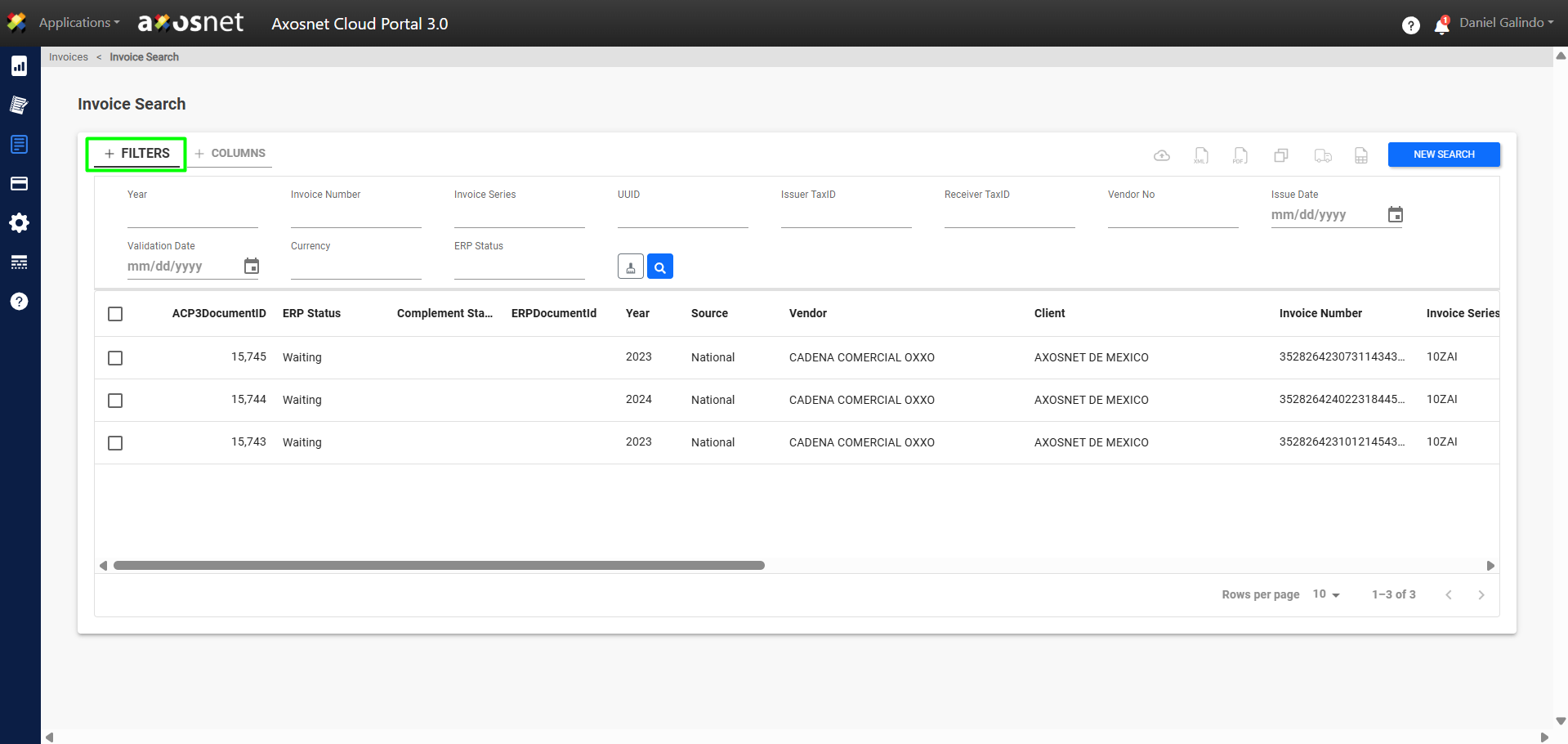
In the “Invoice Search” section, you can view all invoices uploaded to the portal, regardless of the upload method used. You will also have the option to view invoices and payment supplements, download files in XML, PDF, Excel, Excel (Deliveries), or Unified Document formats, and view the document workflow.
To search invoices, follow these steps:
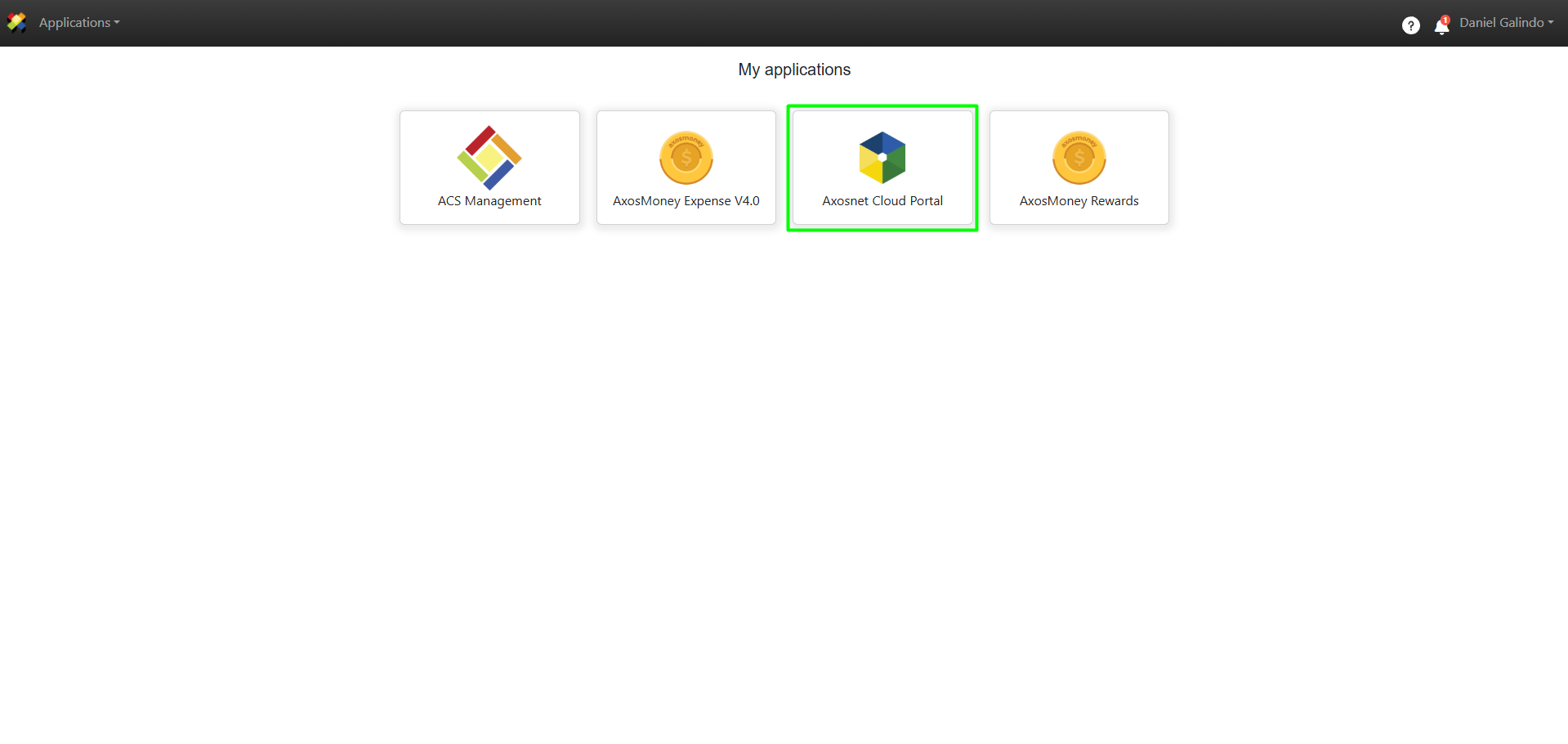
1. Log in to ACS Management and select the Axosnet Cloud Portal option.
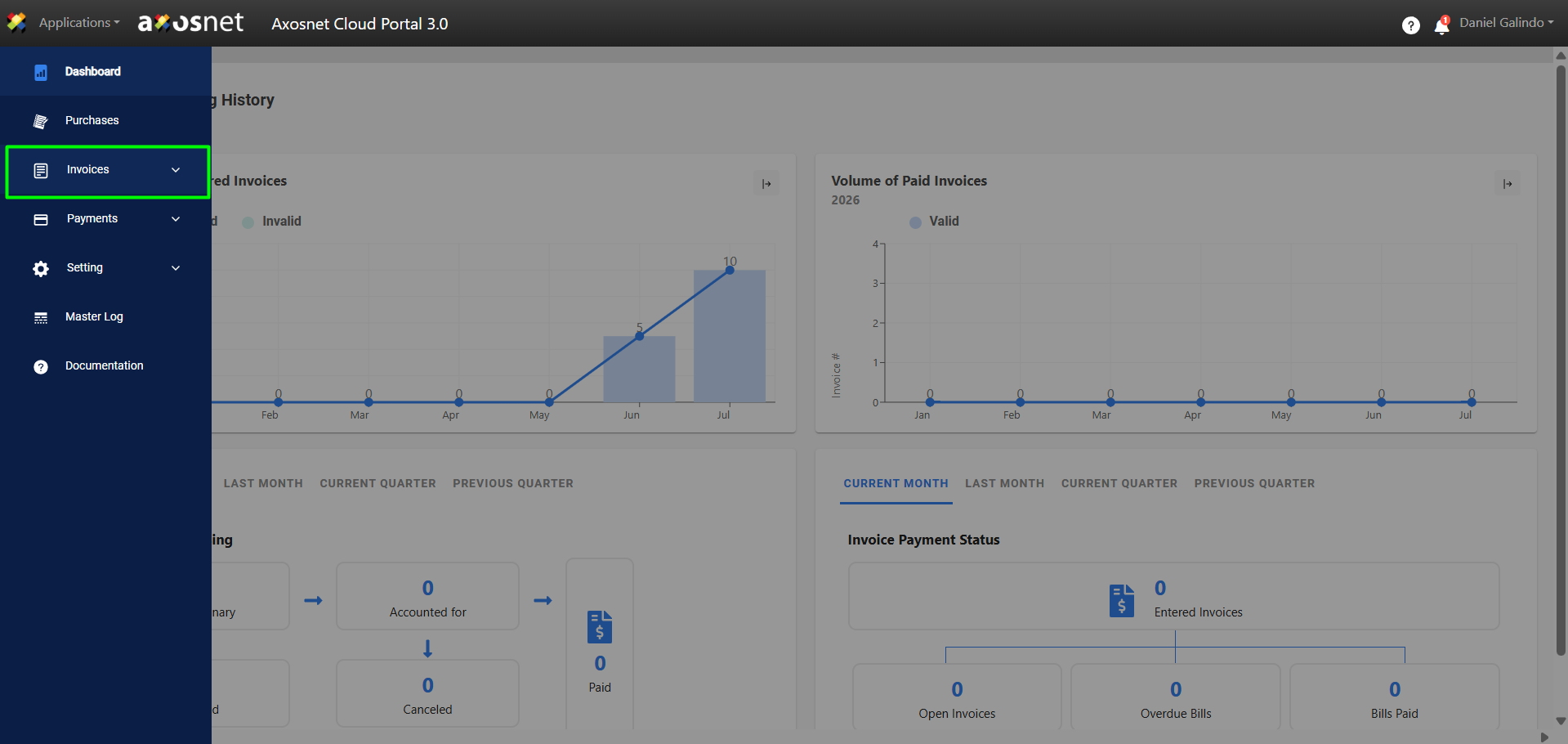
2. In ACP 3, select the Invoices option from the left-hand side menu. You can click the icon or hover your cursor over it to display the options.
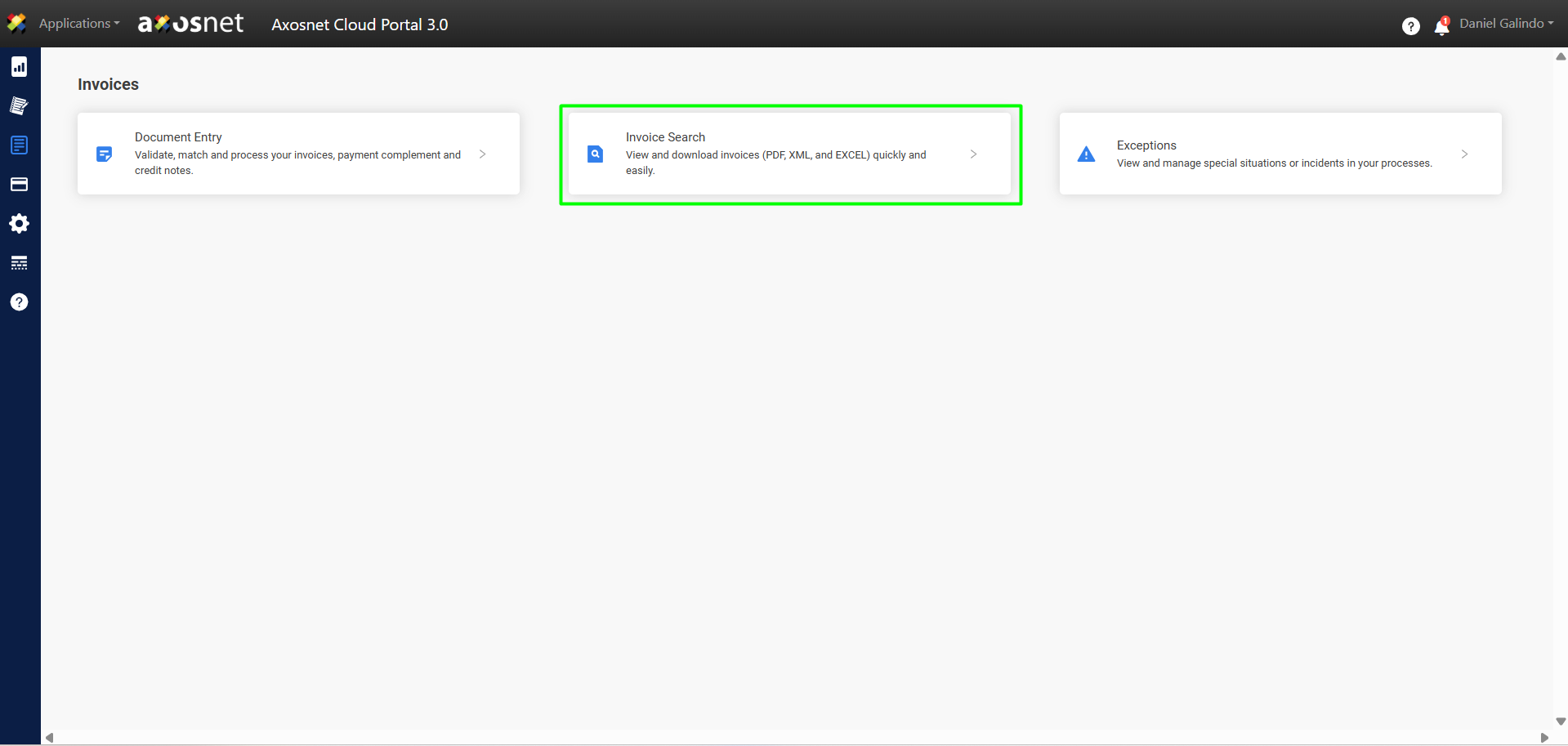
3. Select the Invoice Search option.
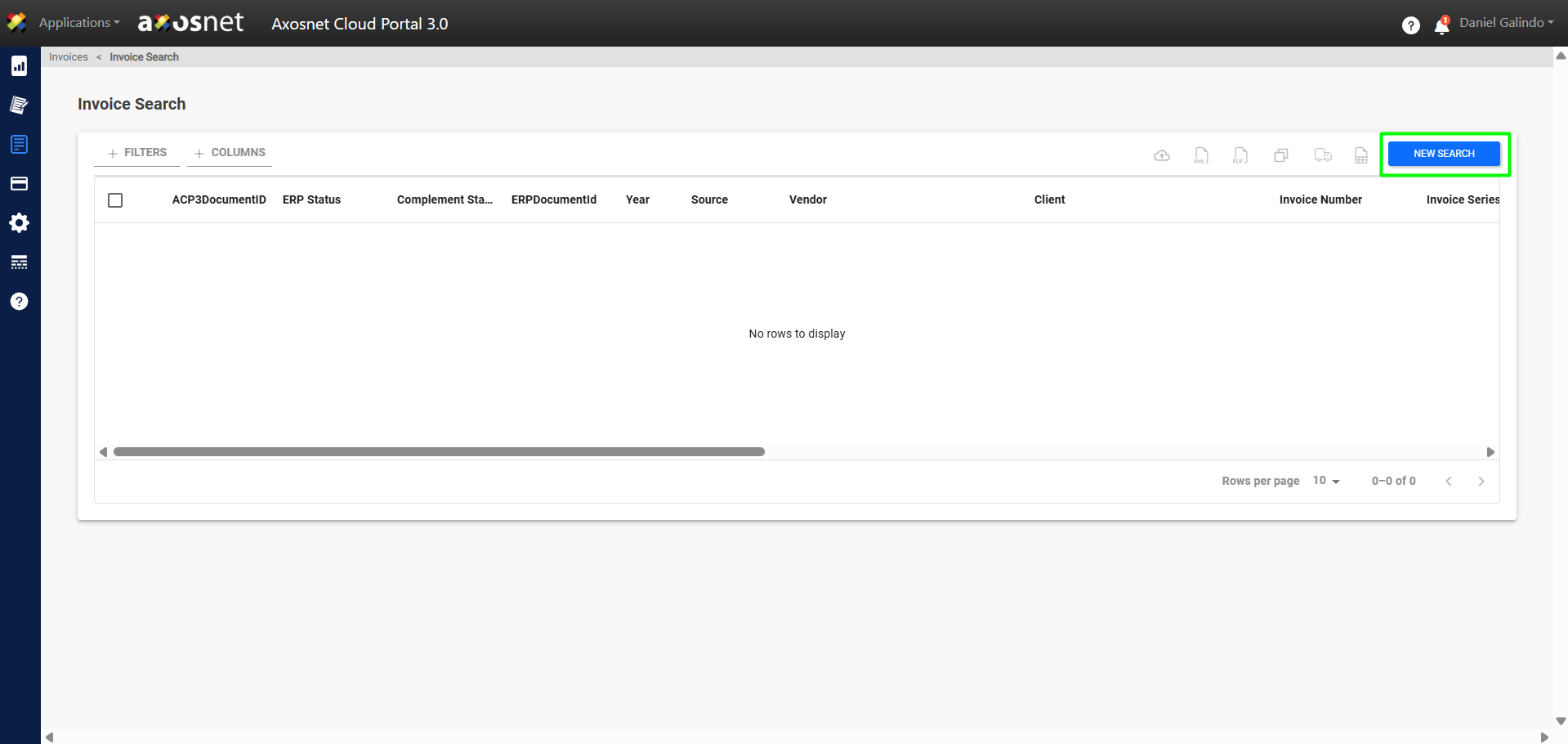
4. Clcik on New Search.
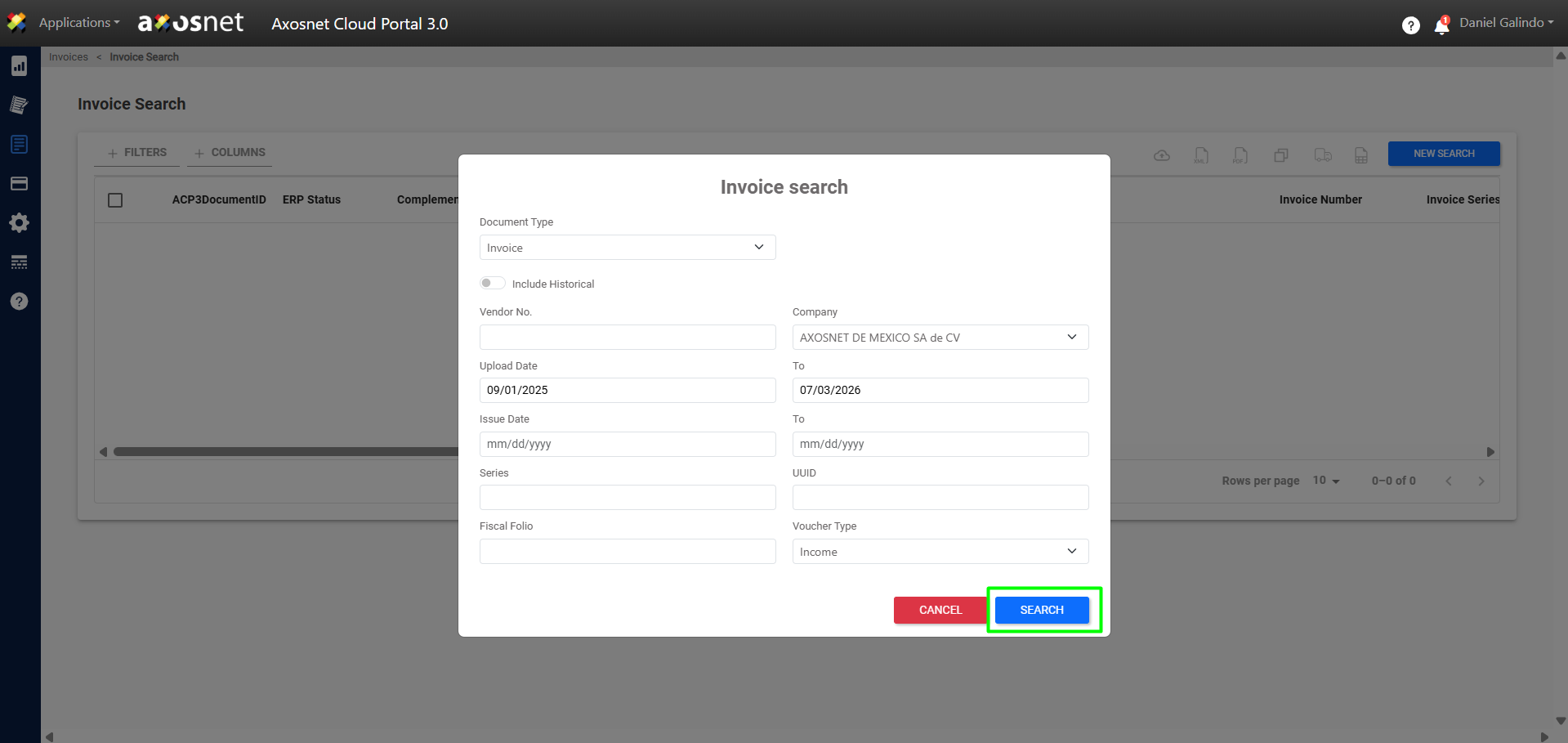
5. Fill in the fields and click SEARCH.
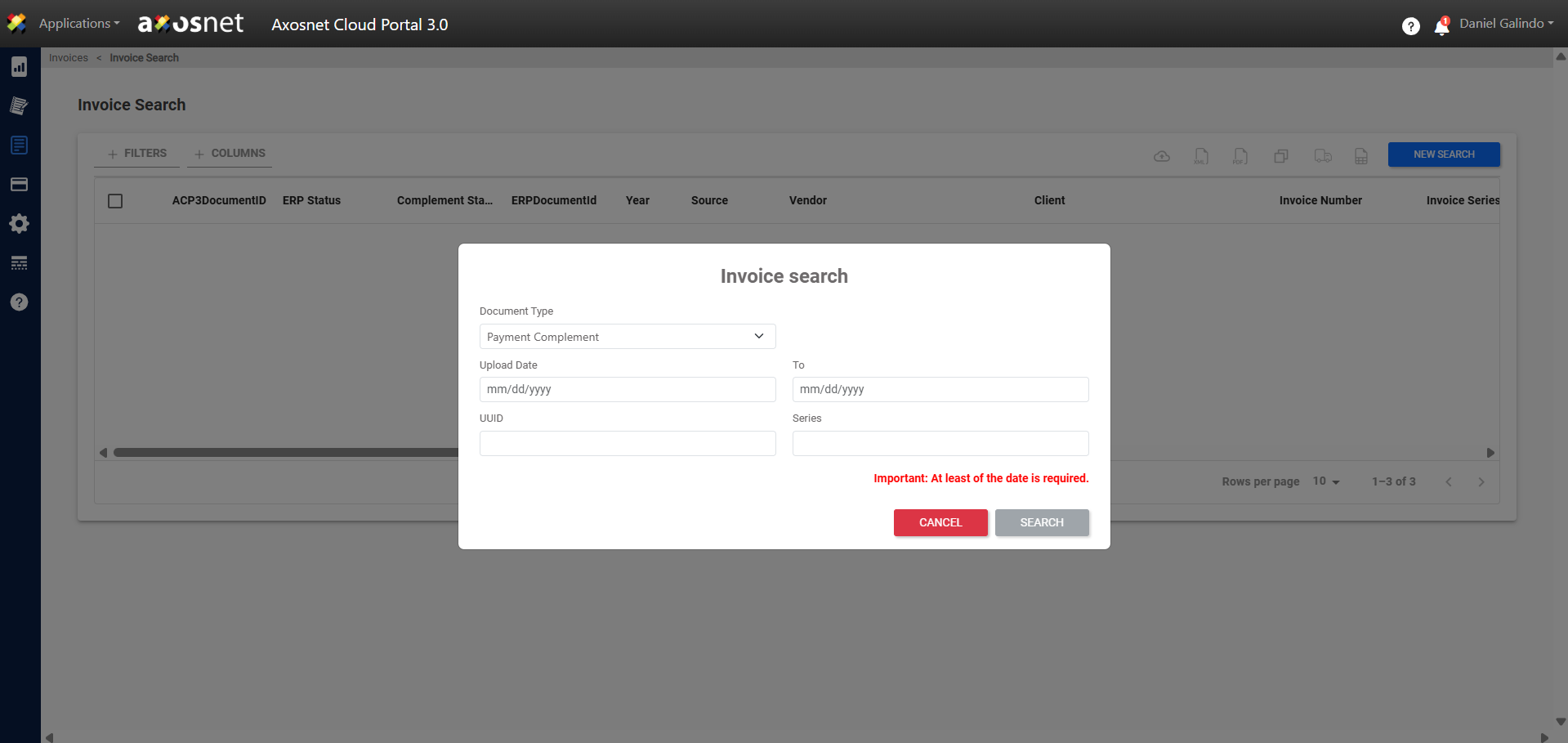
Note: Under Document Type, you can select Payment Complement to perform the search.
6. When you perform a search, the search results will be displayed.
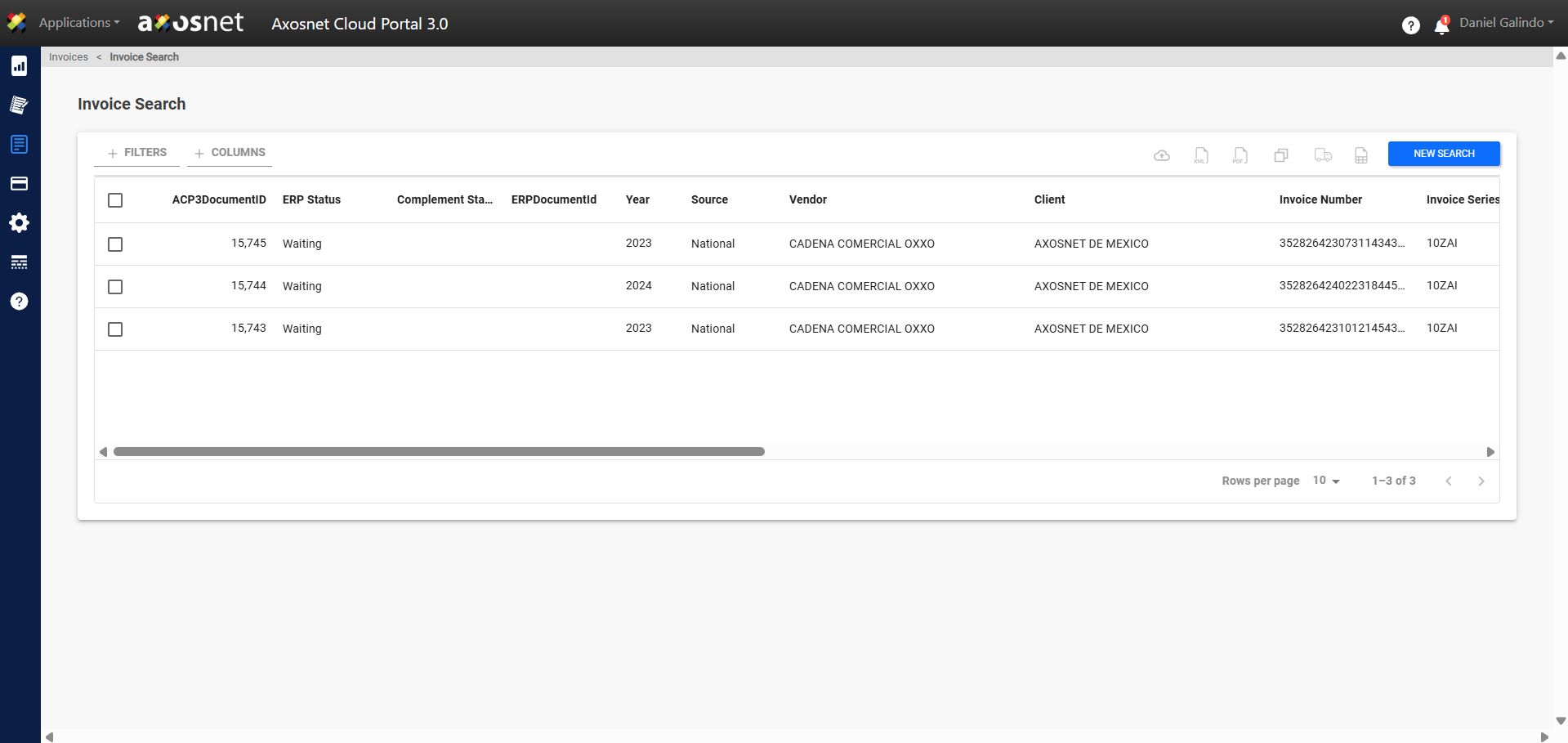
7. Once you have the search results, you can perform the following actions:
- Upload Support Files
- Download XML
- Download PDF
- Download Unified Document
- Download Excel Deliveries
- Download Excel
- View Document Flow (Diagram / List)
The following section will show you how to perform each of these actions:
Upload Support Files
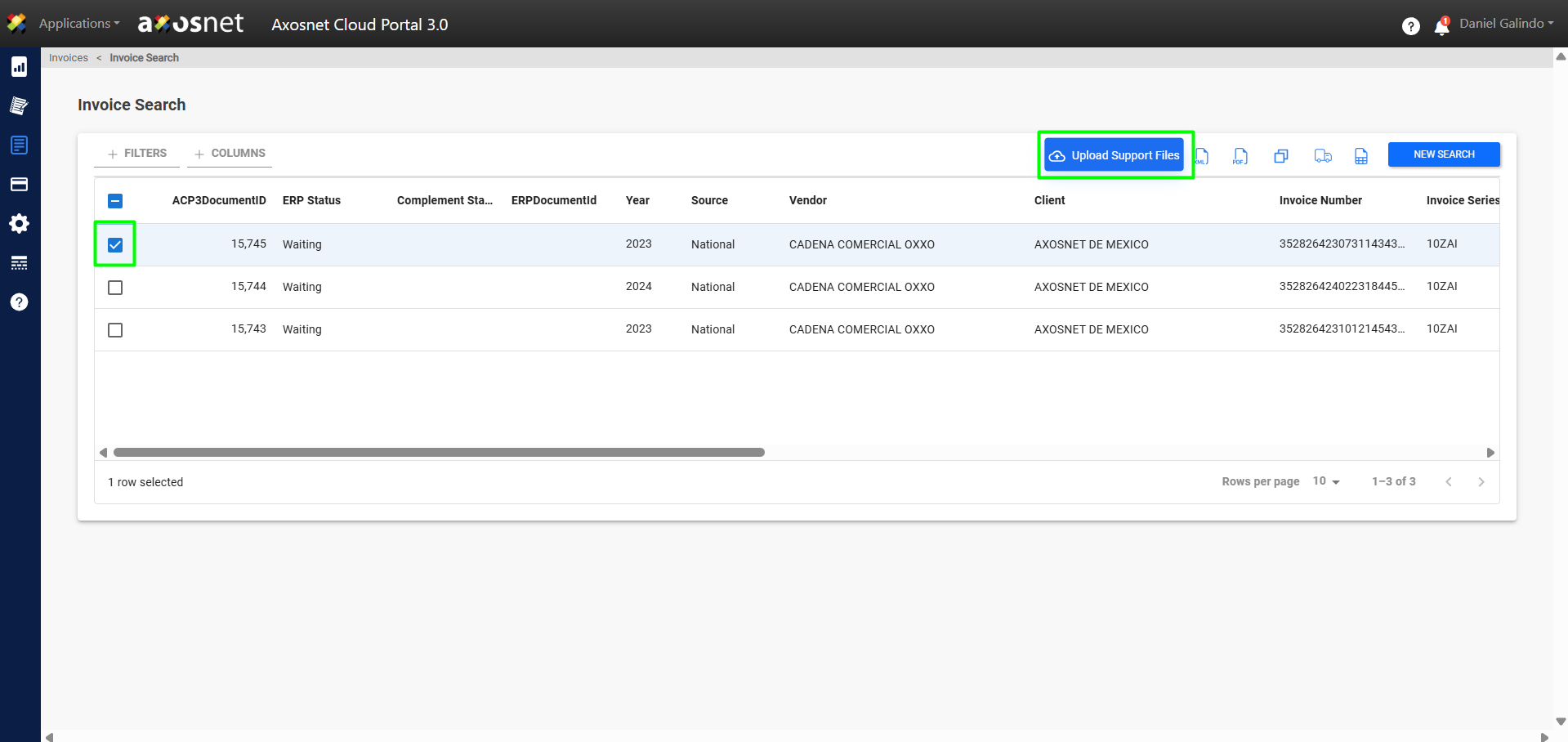
1. To attach a supporting document, select an invoice by checking its checkbox and then clicking the Upload Support Files button.
Note: You can select only one invoice to upload the supporting document; if you select more than one invoice, the option will be disabled.
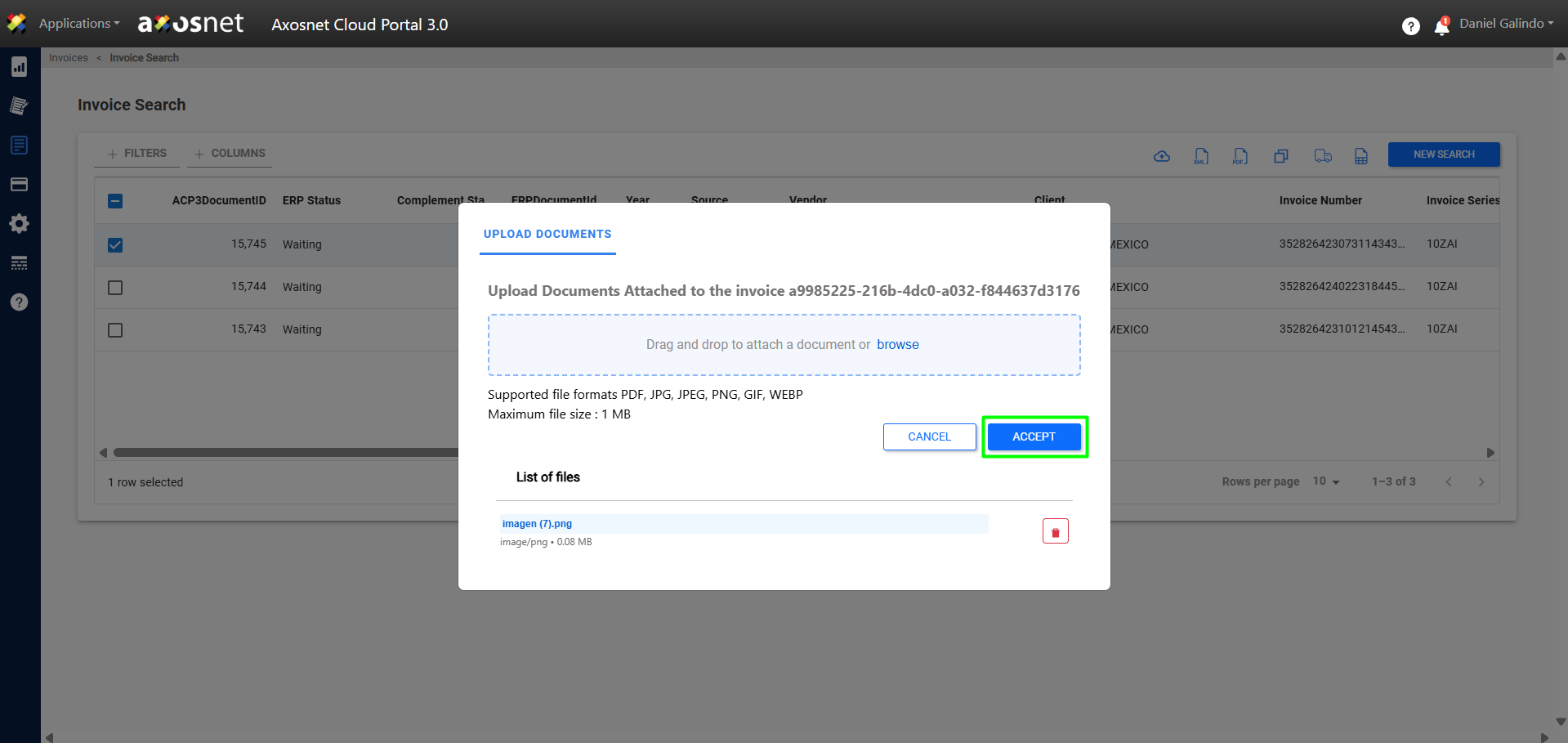
2. A window will appear where you can upload a supporting document for the invoice. After uploading the file, click ACCEPT.
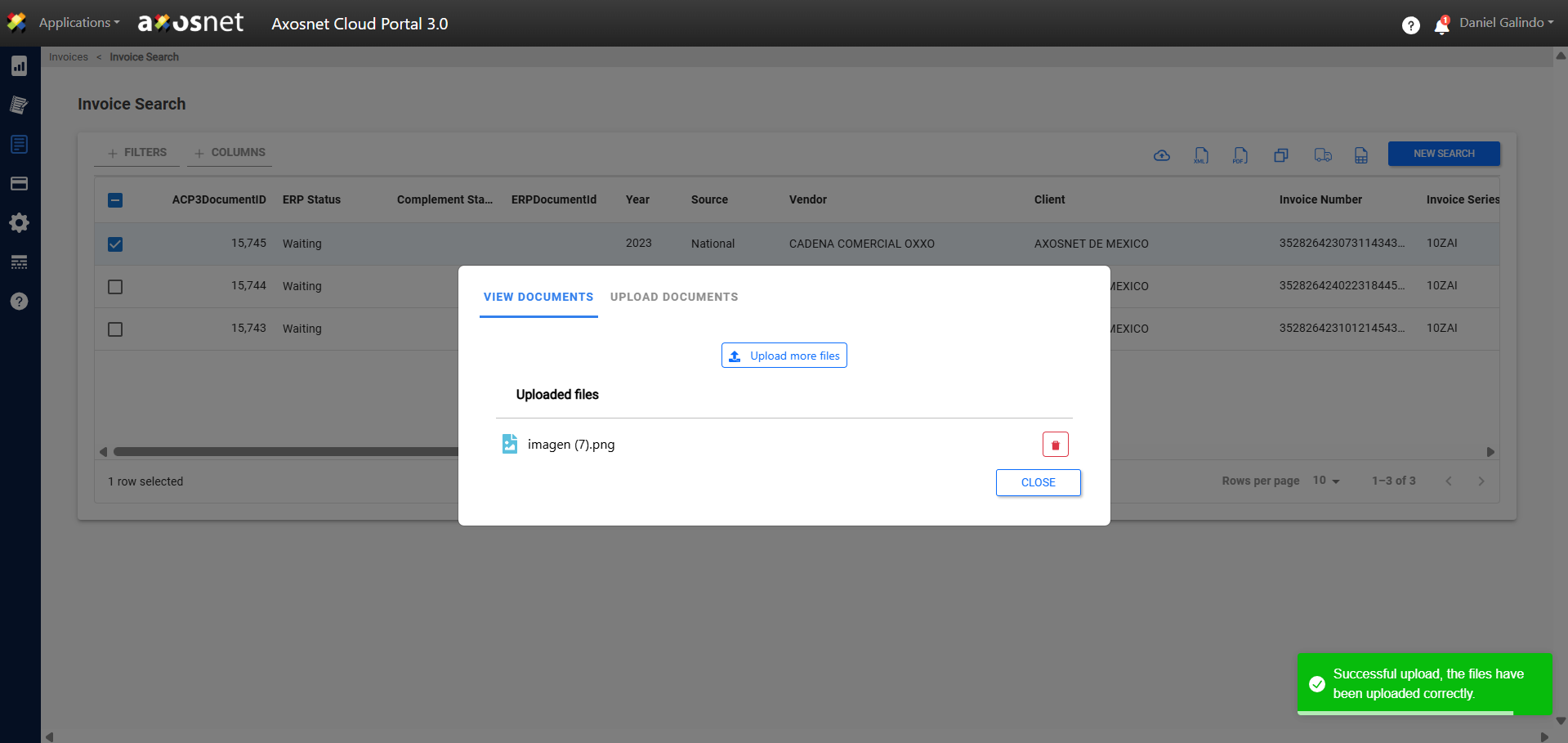
3. Finally, a message will appear confirming that the file has been uploaded.
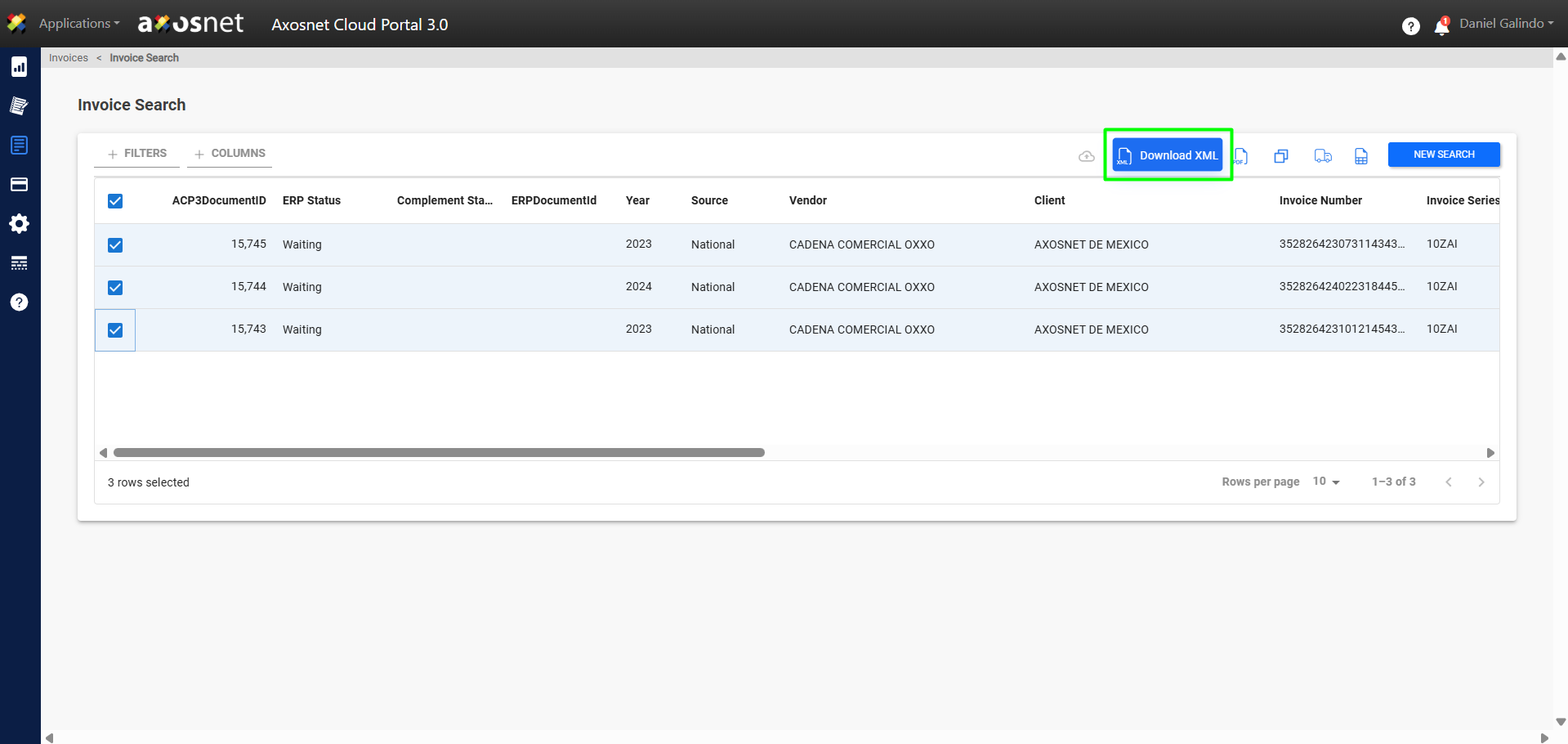
Download XML
To download an invoice in XML format, select the invoice using the checkbox and click “Download XML.”
Note: You can select more than one invoice using this feature.
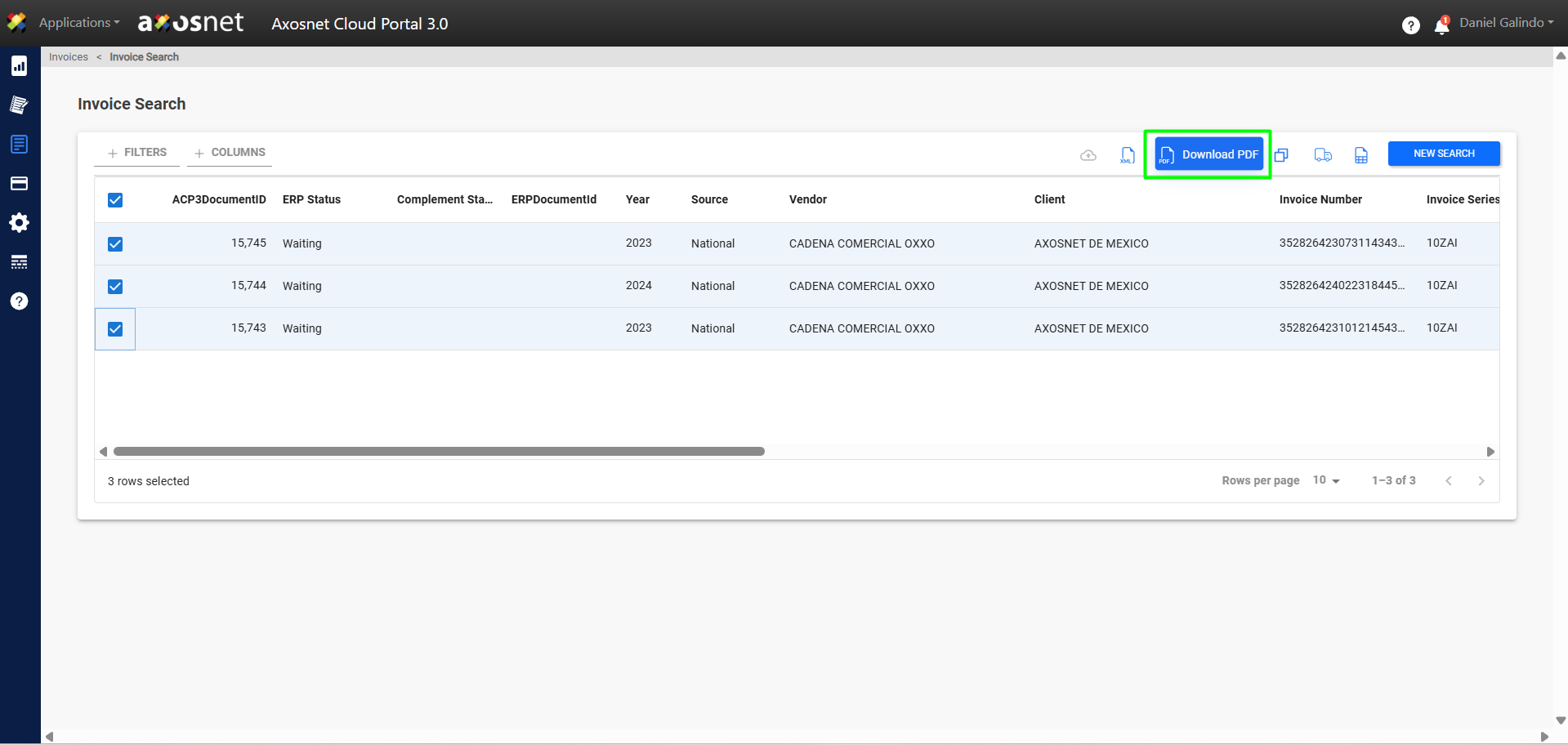
Download PDF
To download an invoice as a PDF, select the invoice using the checkbox and click “Download PDF.”
Note: You can select more than one invoice using this feature.
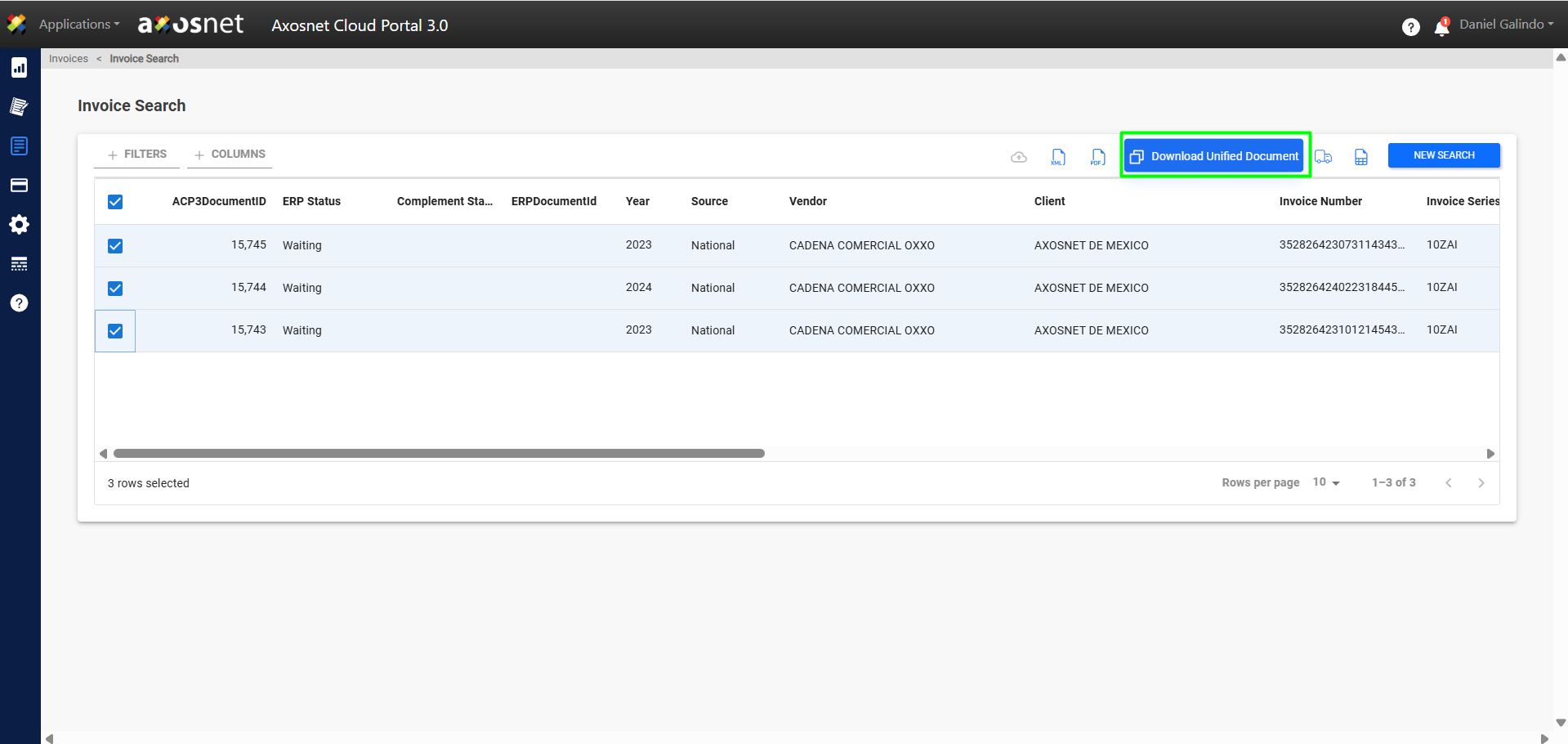
Download Unified Document
To download a Unified Document containing multiple invoices, select the invoices using the checkboxes and click “Download Unified Document.”
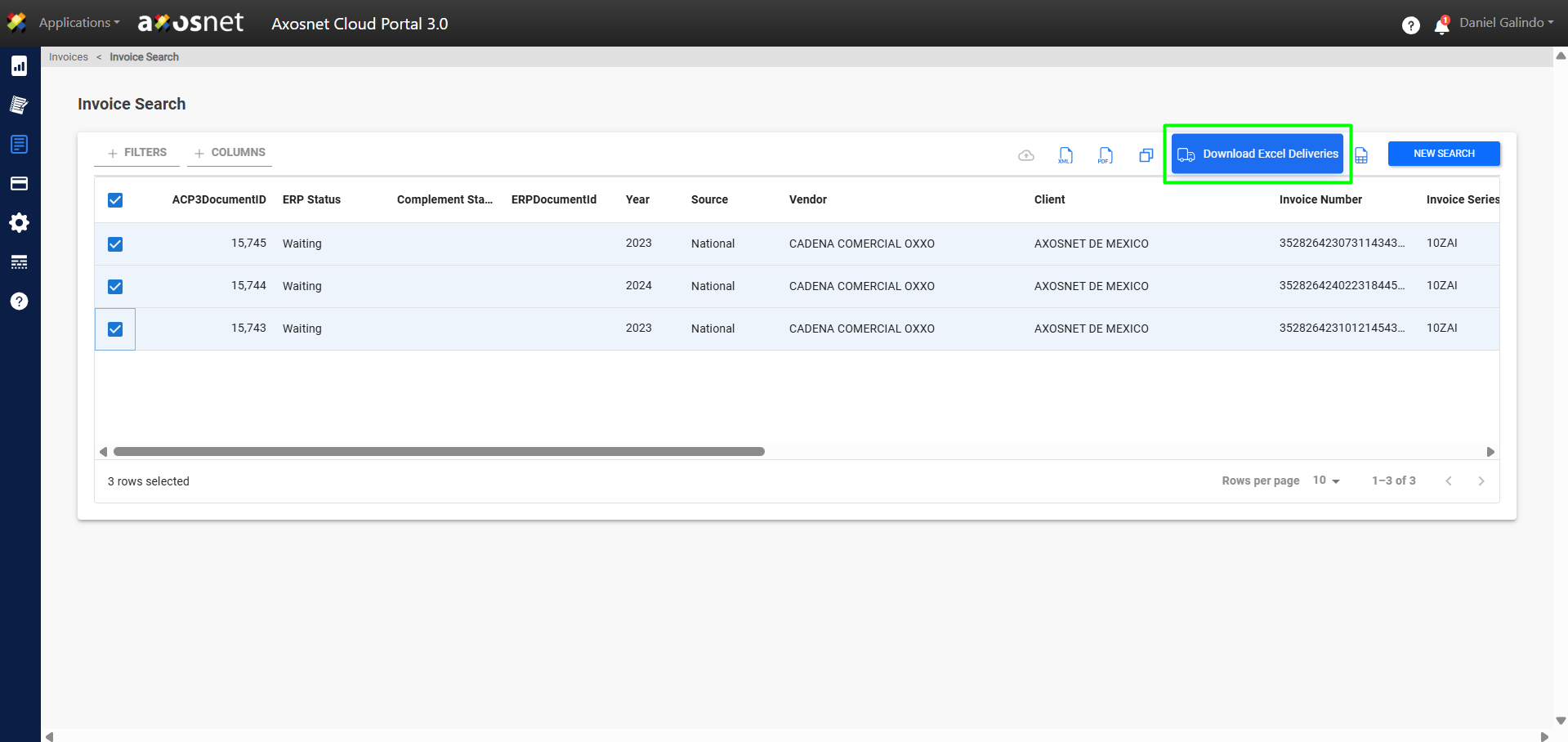
Download Excel Delivery
To download an invoice for Deliveries in Excel format, select the invoice using the checkbox and click “Download Excel Deliveries.”
Note: You can select more than one invoice using this feature.
Download Excel
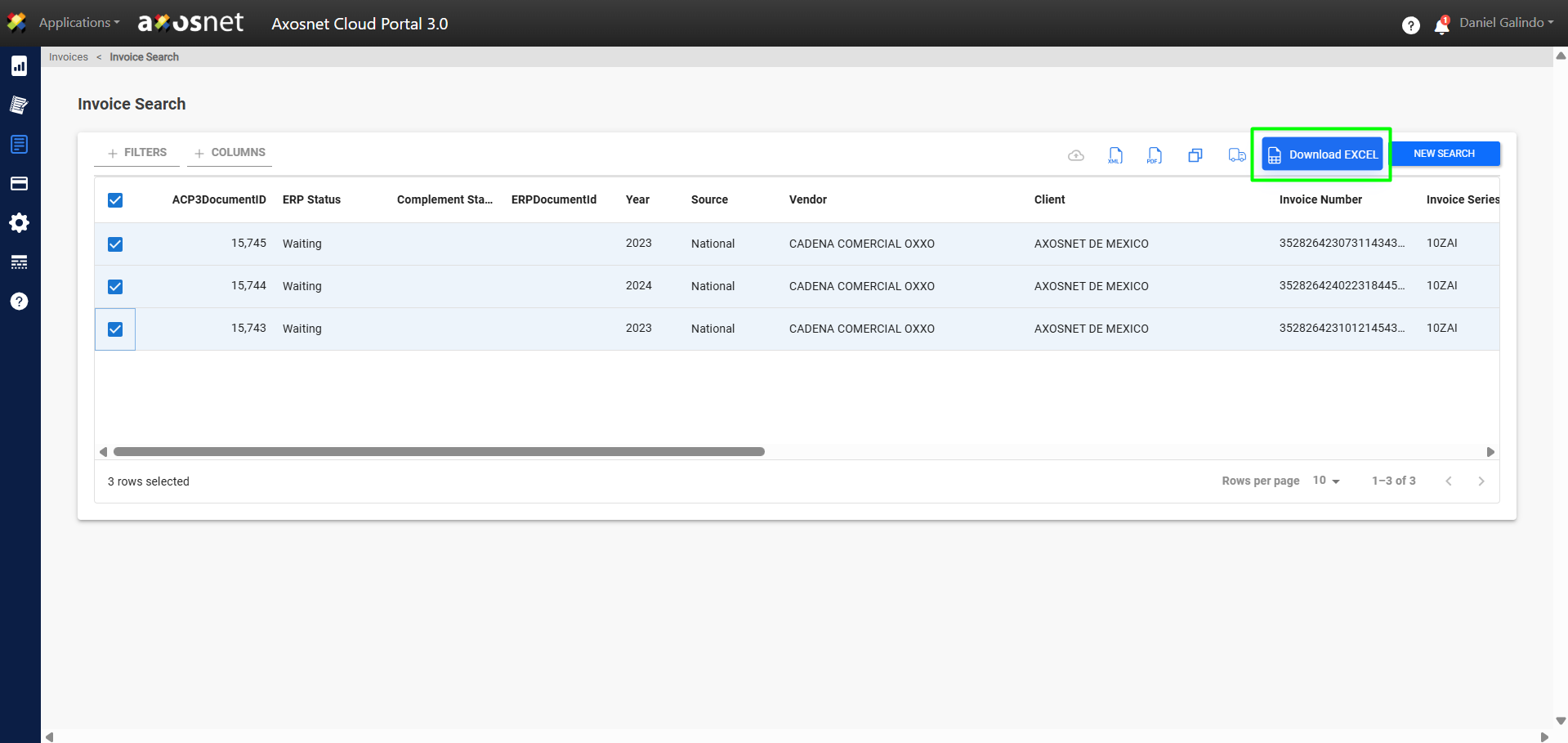
To download an invoice in Excel format, select the invoice using the checkbox and click “Download Excel.”
Note: You can select more than one invoice using this feature.
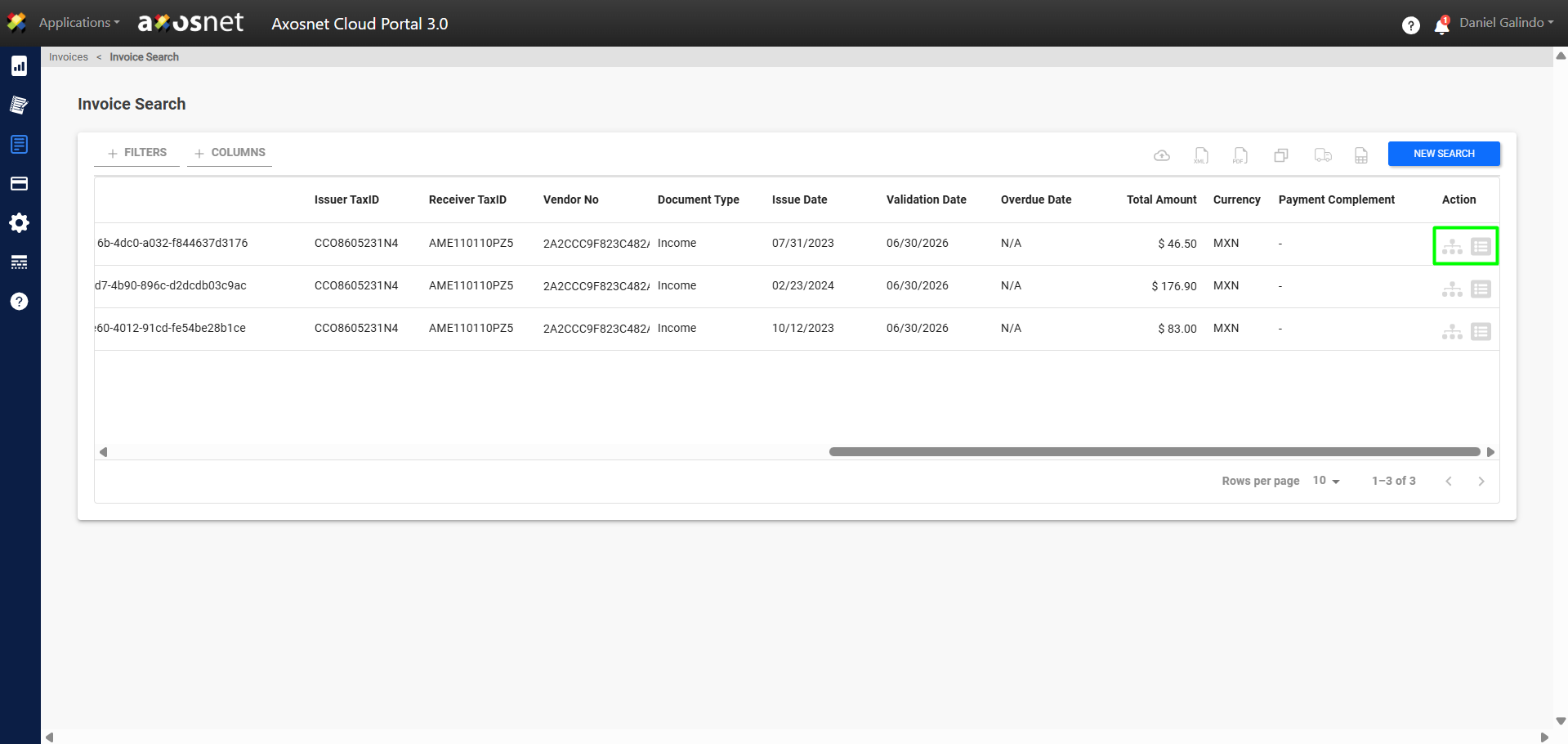
View Document Workflow
1. To view the Document Flow Chart, click the icon shown in the image.
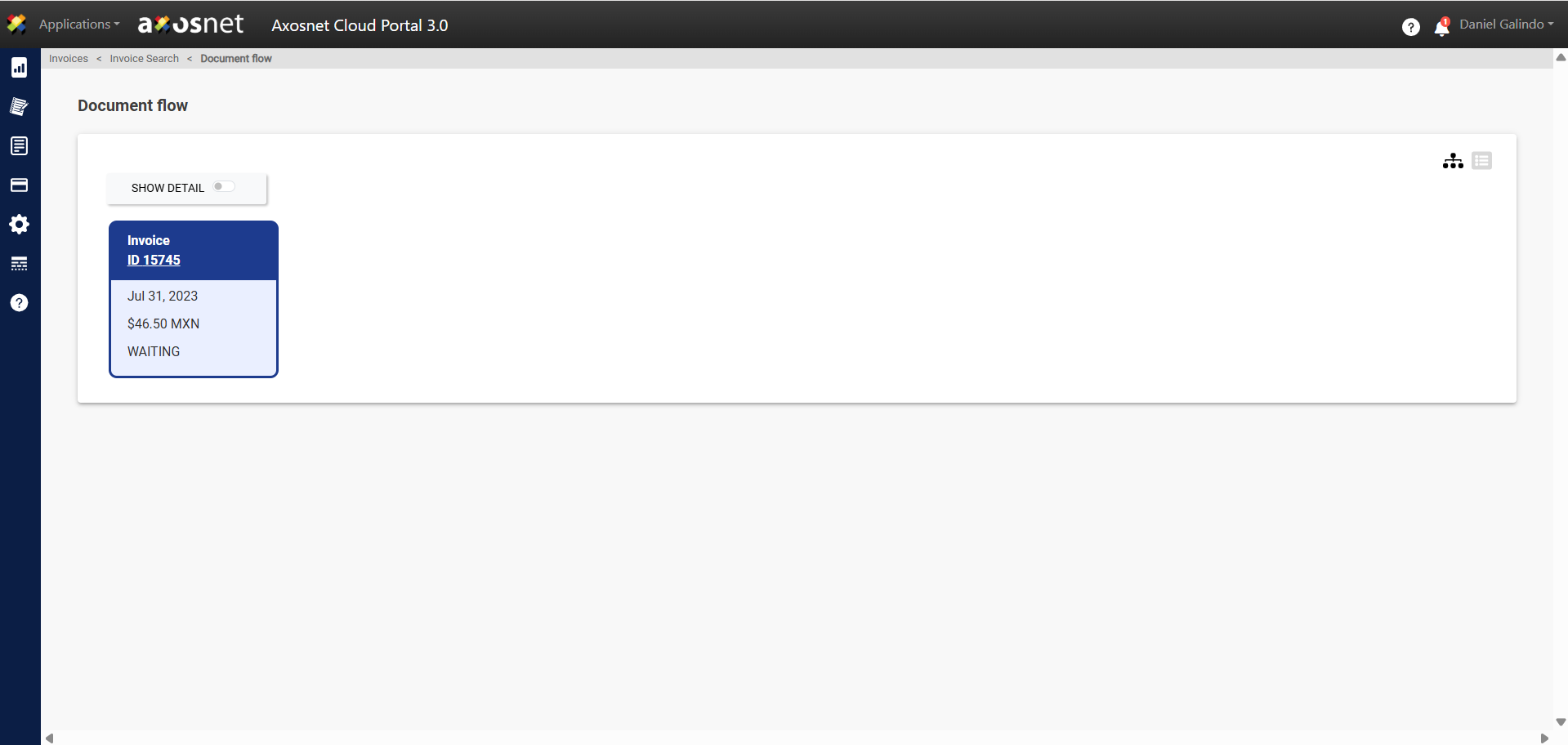
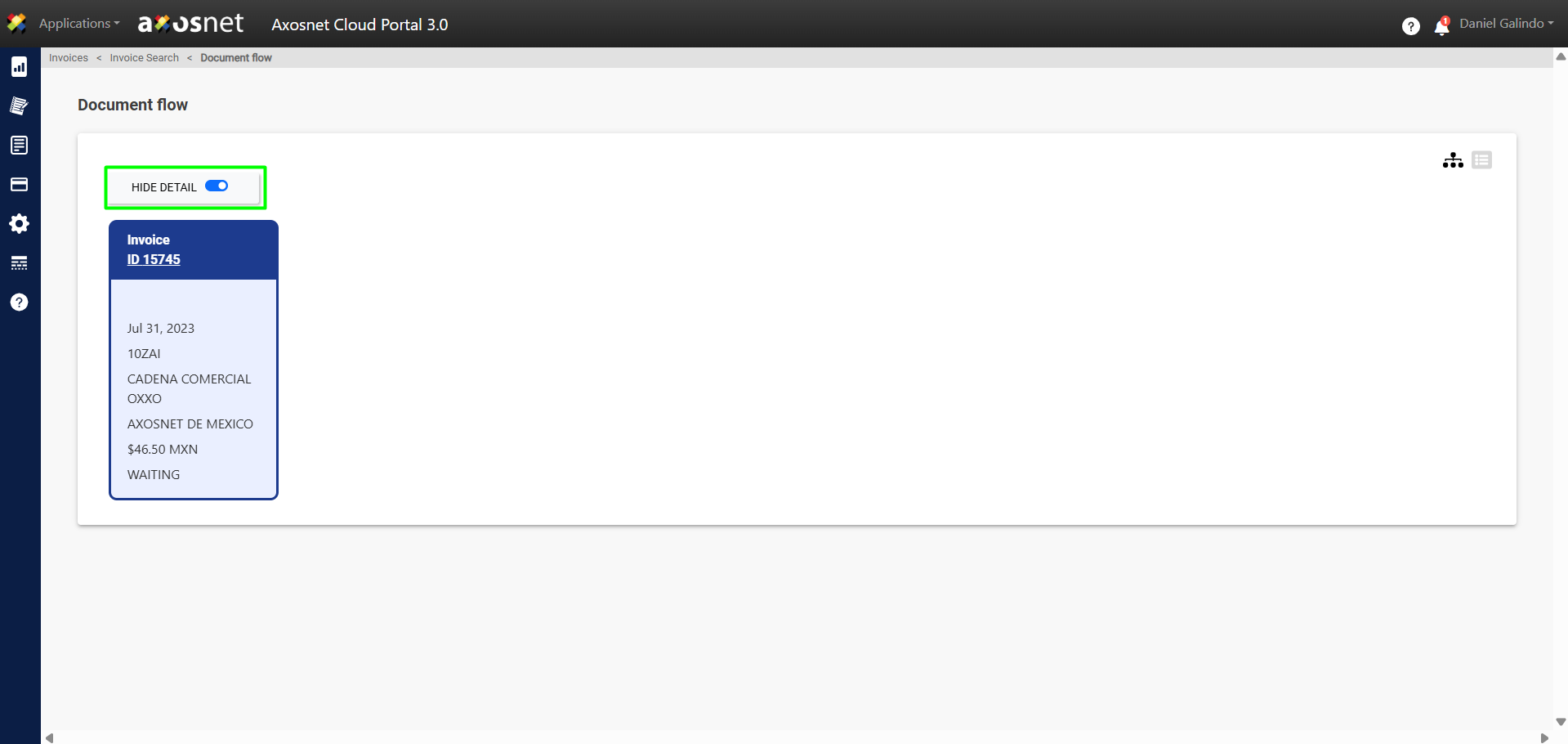
2. On this screen, you will see the document flow represented as a diagram. The documents listed here are as follows (in that order):
- Invoice
- Early Payment
- Payment
- Payment Complement
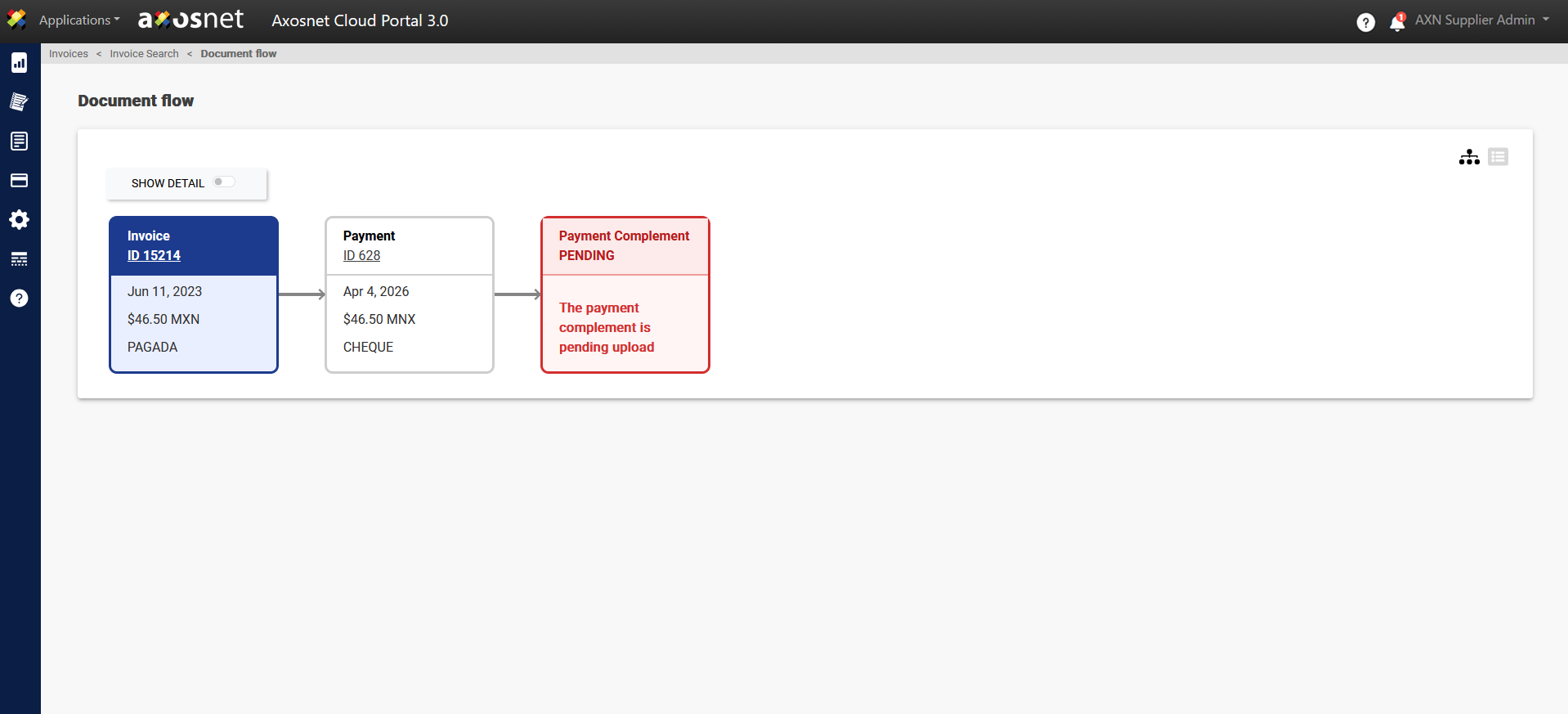
Note: Pending Payment Complements will be highlighted in red.
3. In addition to this, it allows you to display more details if you wish by using this slide switch.
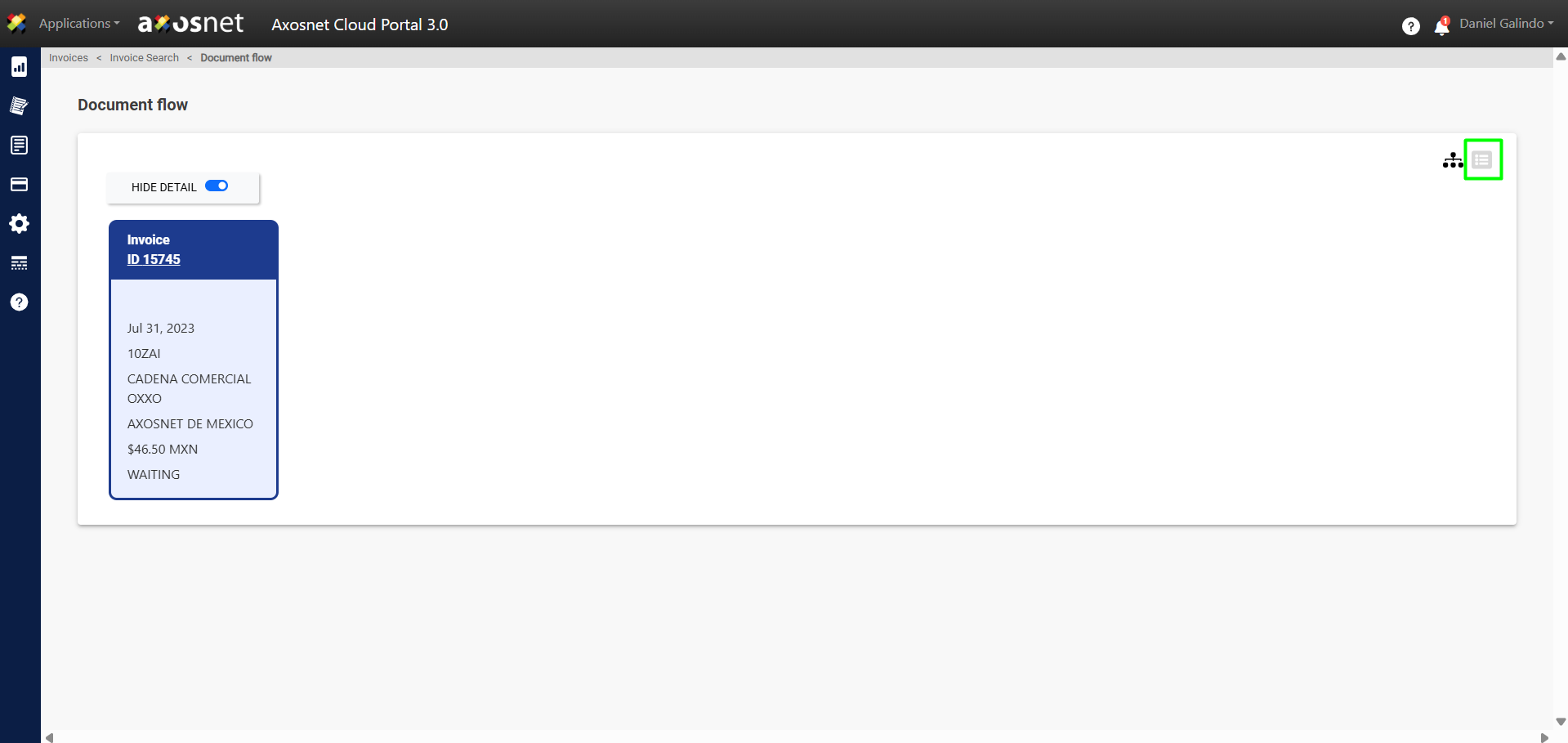
4. On the same screen, you can switch to List view by clicking the icon shown in the image.
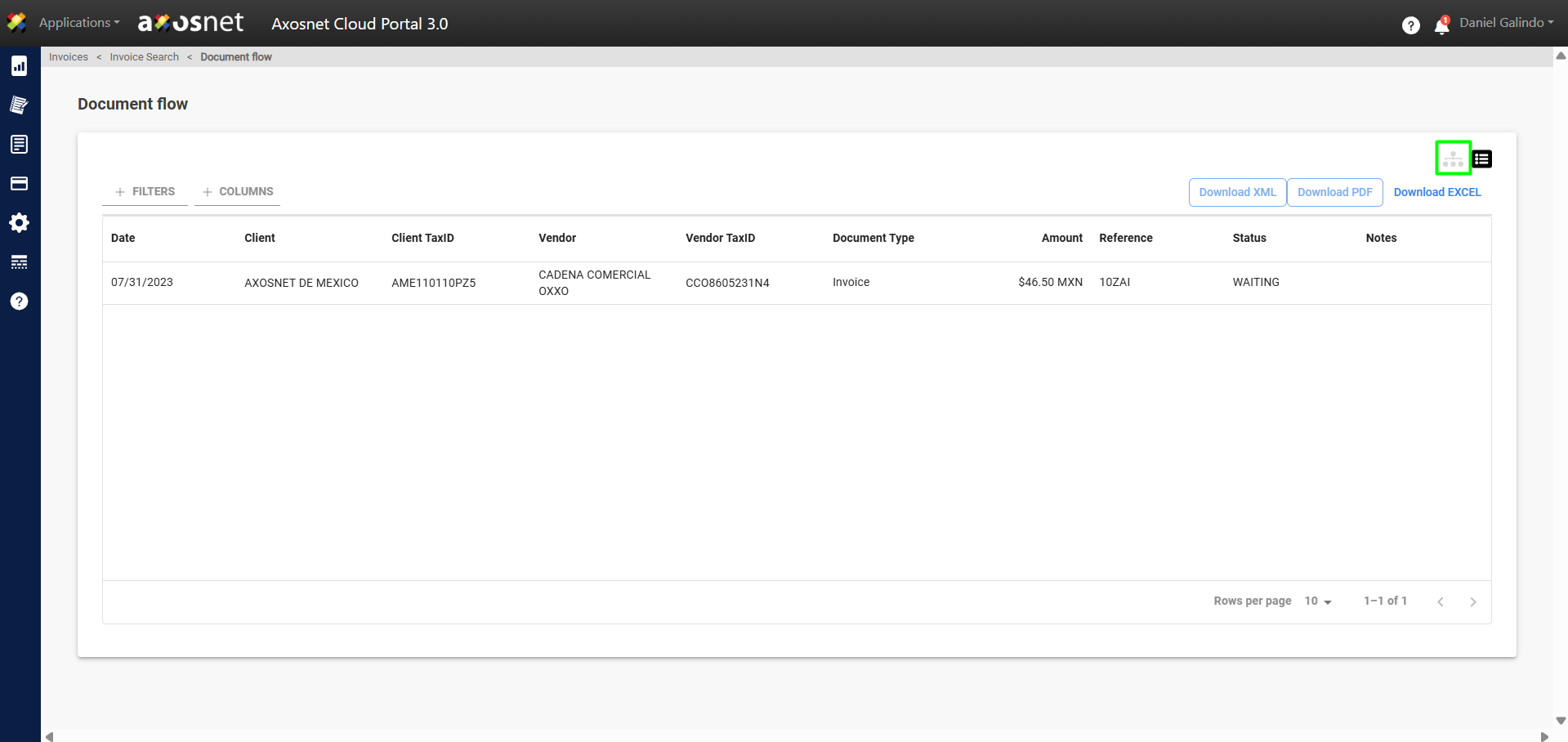
5. The data will be displayed as a list. You can return to the Diagram view by clicking the icon shown in the image.
Using Filters/Search and Columns
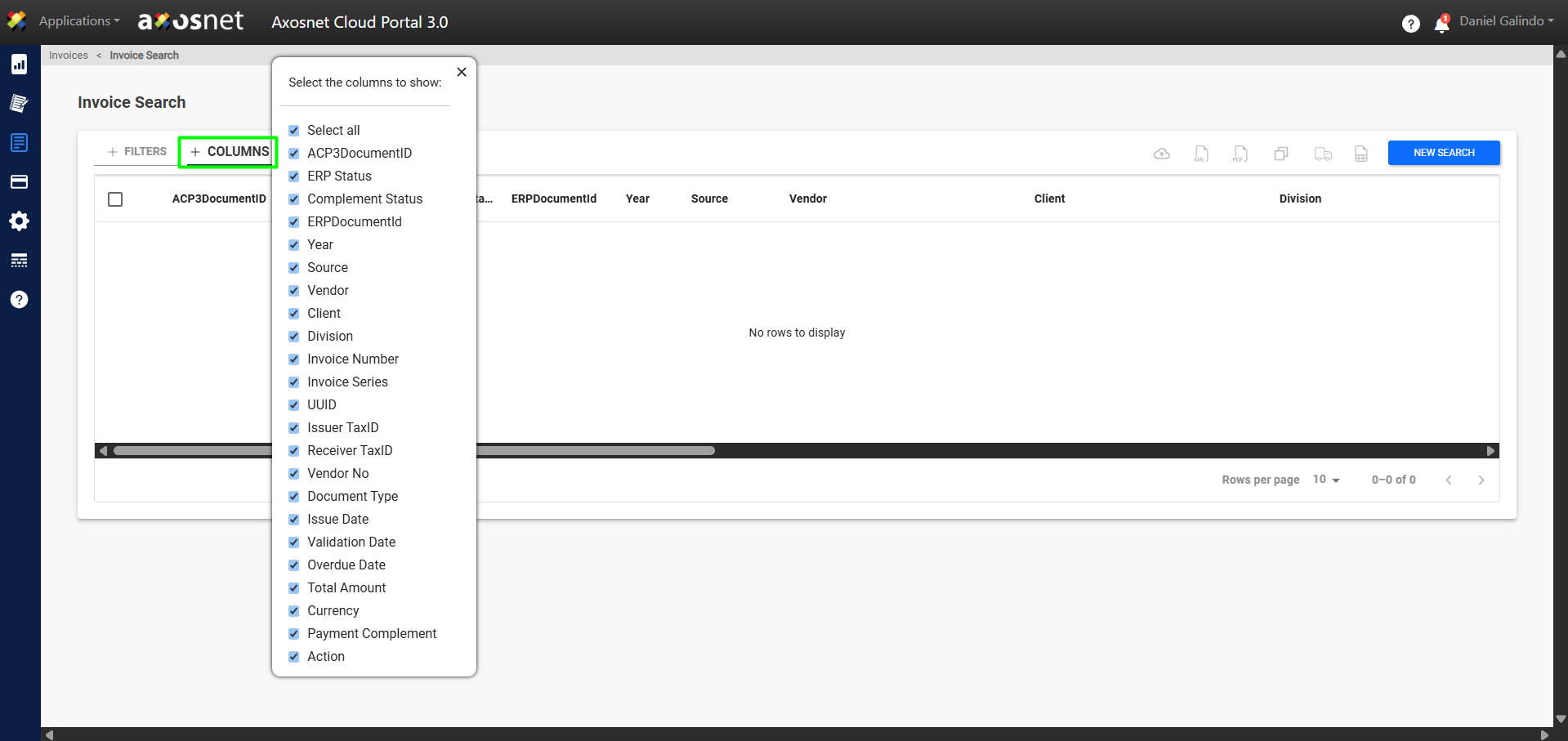
When viewing invoices, you can use the filter to sort them or hide/show the columns you need.