
A Delegate is a collaborator who is authorized to temporarily substitute for the team leader and carry out the tasks of “Approving or Rejecting” pending recognitions. In the absence of the leader, the super administrator can appoint a delegate to carry out team activities.
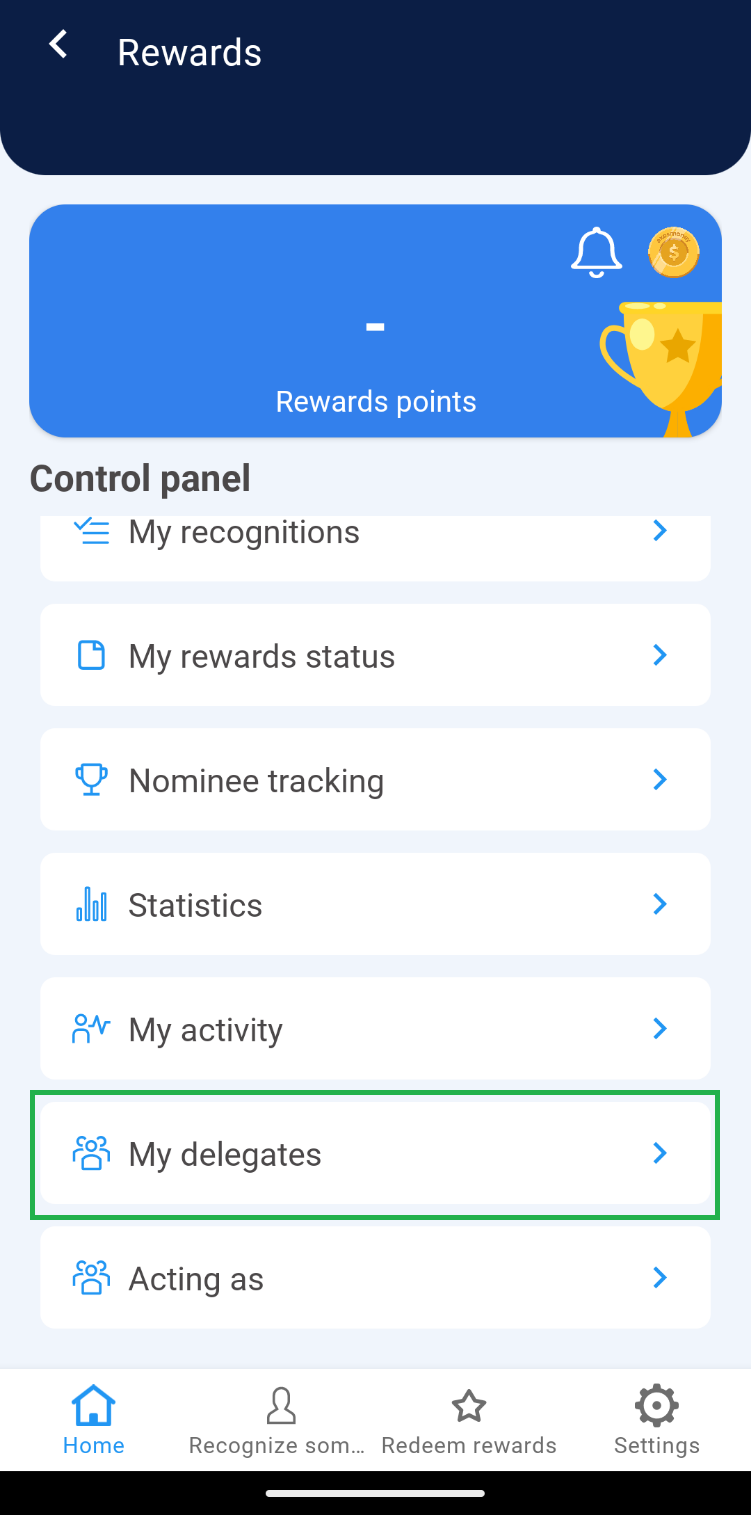
1. Click on “My Delegates”.
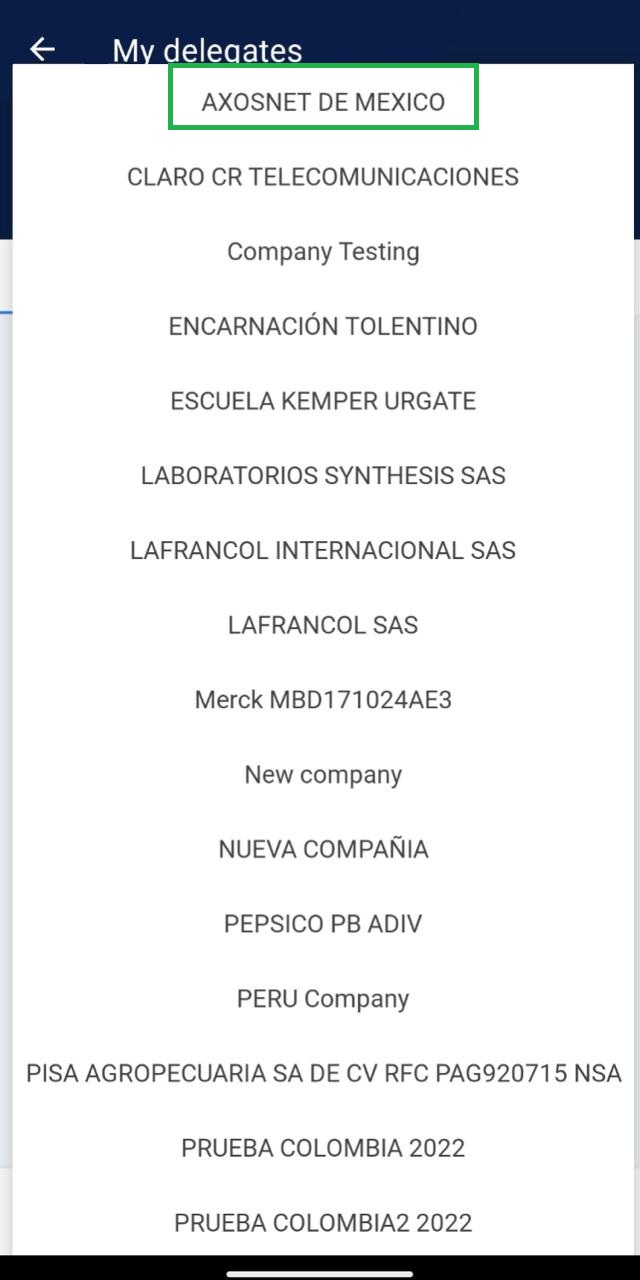
 2. Within the team dropdown menu, you will find the default option “All”. If necessary, select a team to view specific delegates.
Note: Ensure that the company to which the teams belong is selected.
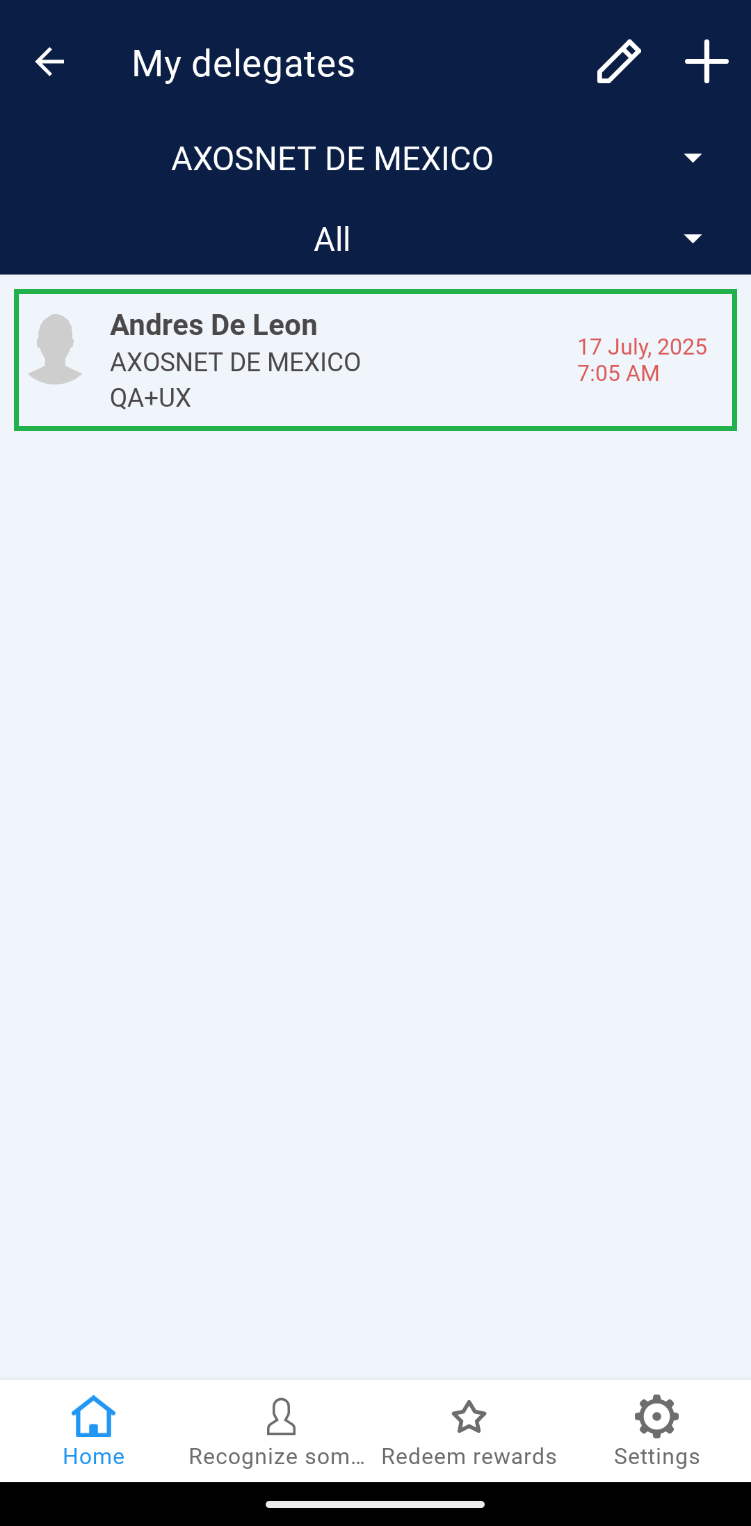
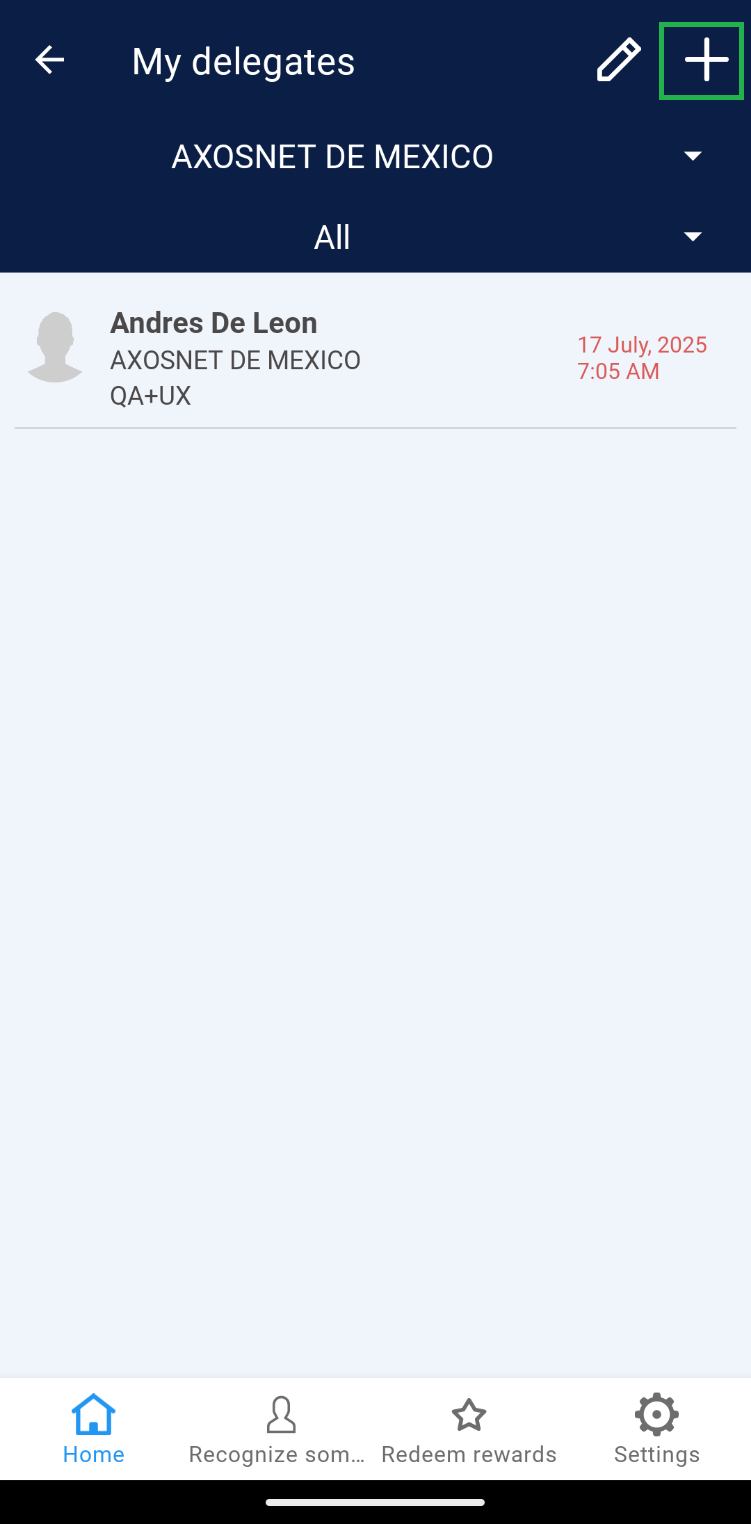
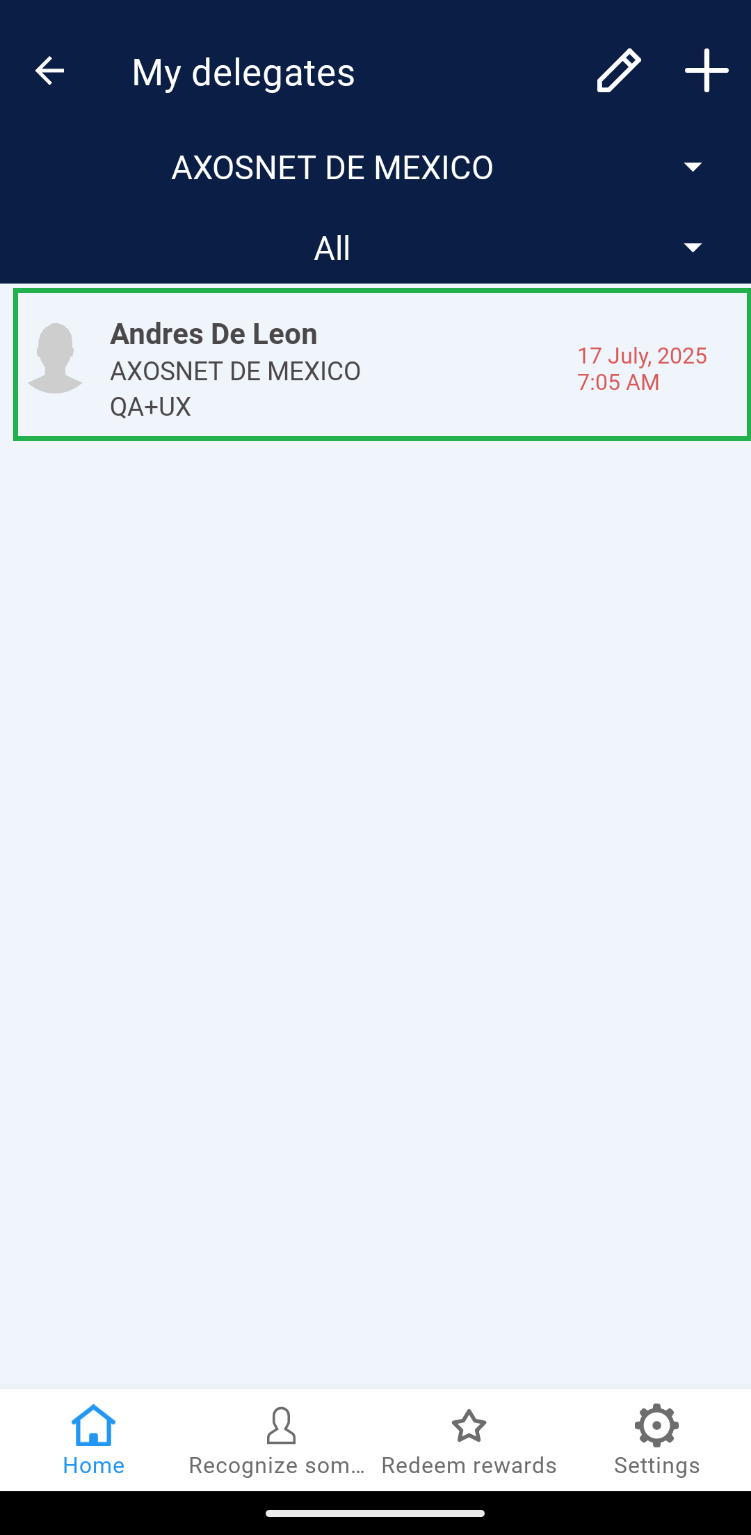
 3. If there are active records of Delegates, they will be displayed on the main “My Delegates” page.
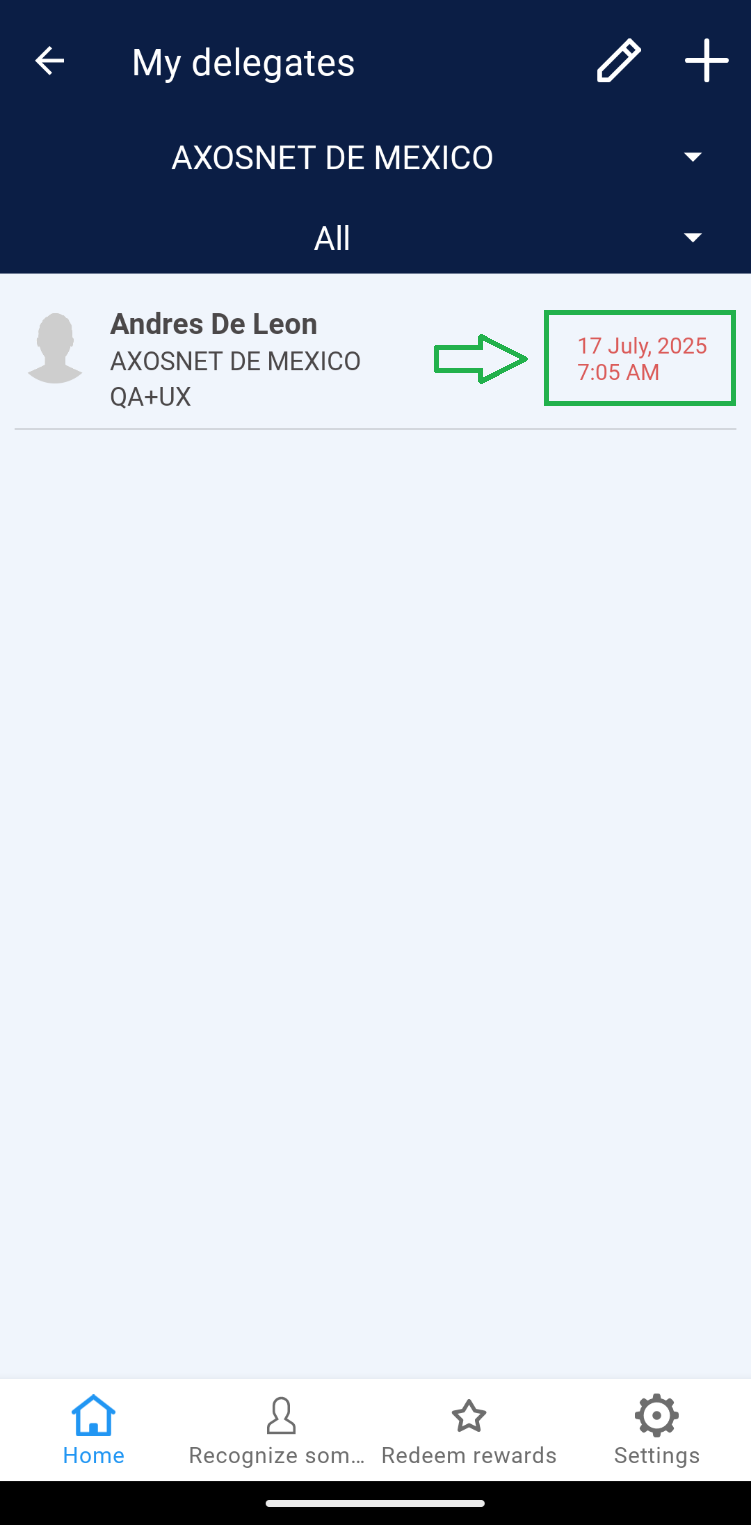
 Note: Users who have previously been delegated and whose assigned time period has expired will be identified in red.
 2. Choose the team to delegate and then click “Next”.
 3. The list of available collaborators who can be assigned as delegates will be displayed. Select the collaborator and click “Next”.
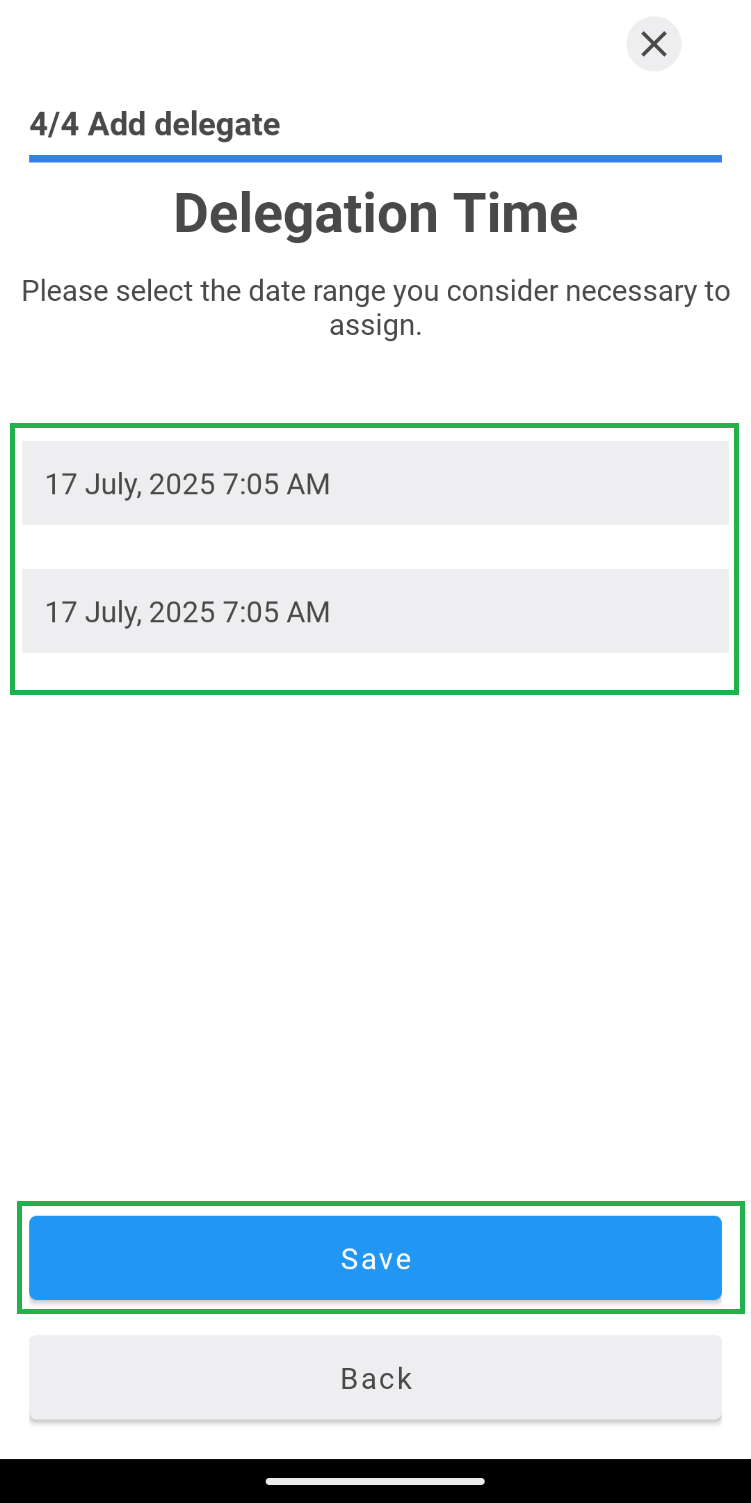
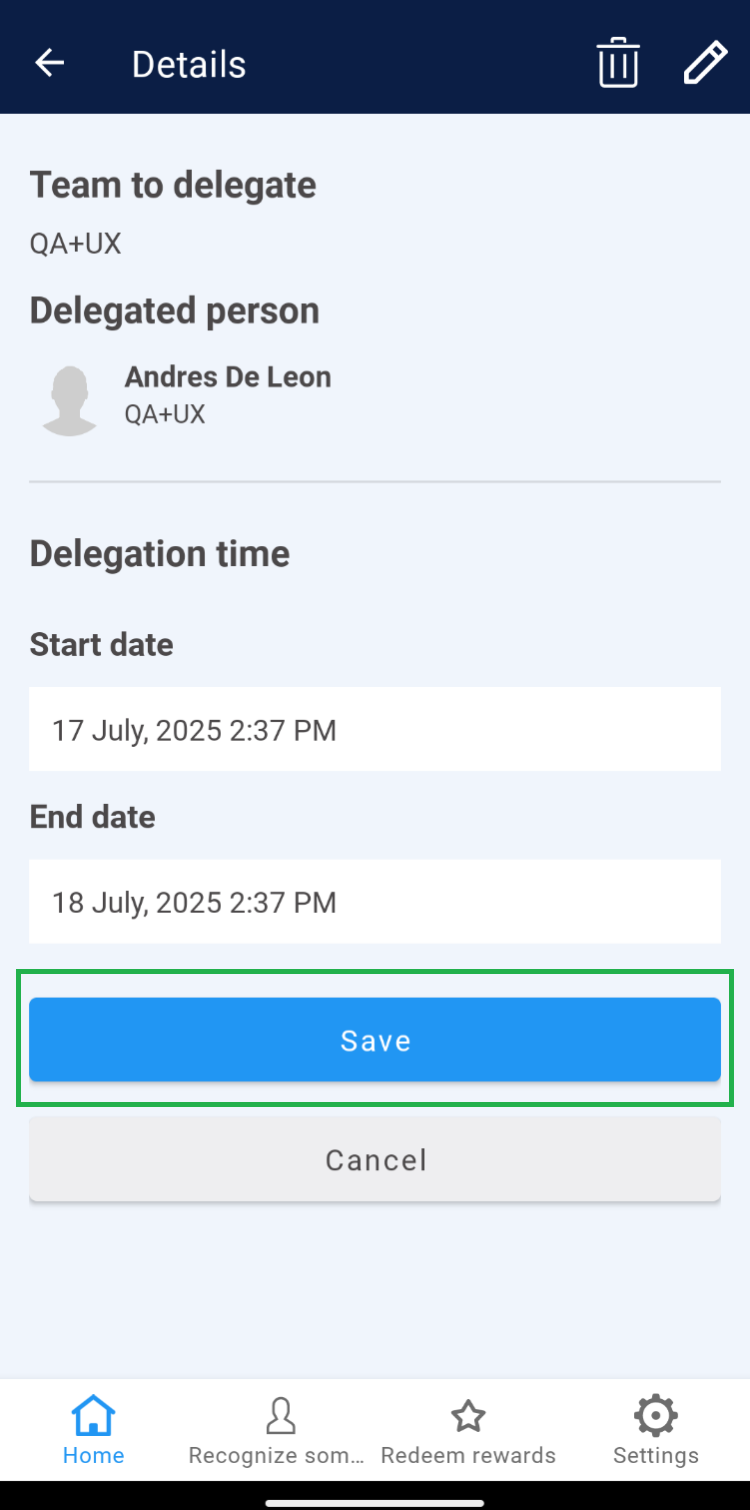
 4. Specify the duration that the assigned user will have to delegate to the team. Then click “Save”.
 5. Specify the duration that the assigned user will have to delegate to the team. Then click “Save”.
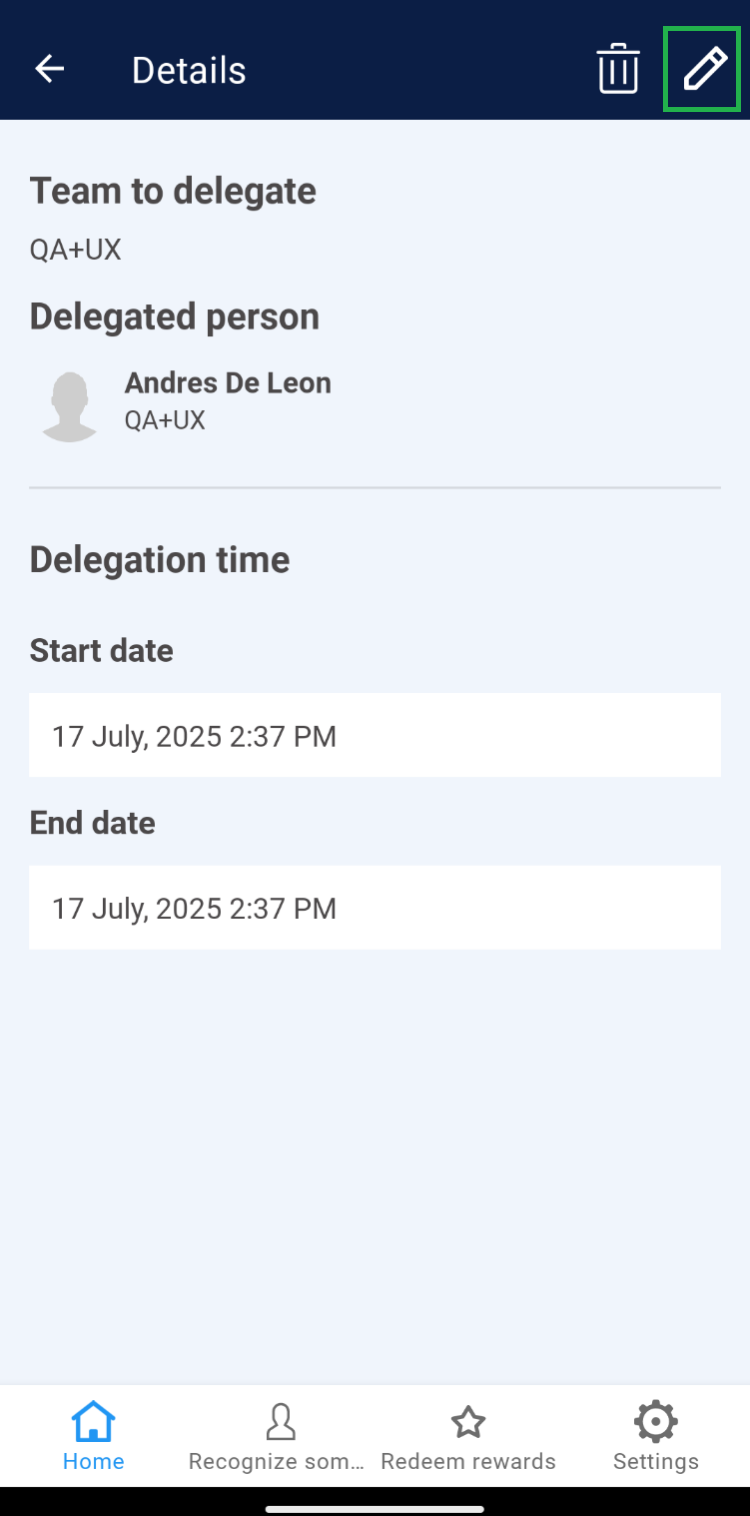
 2. Click on the “Edit” label.
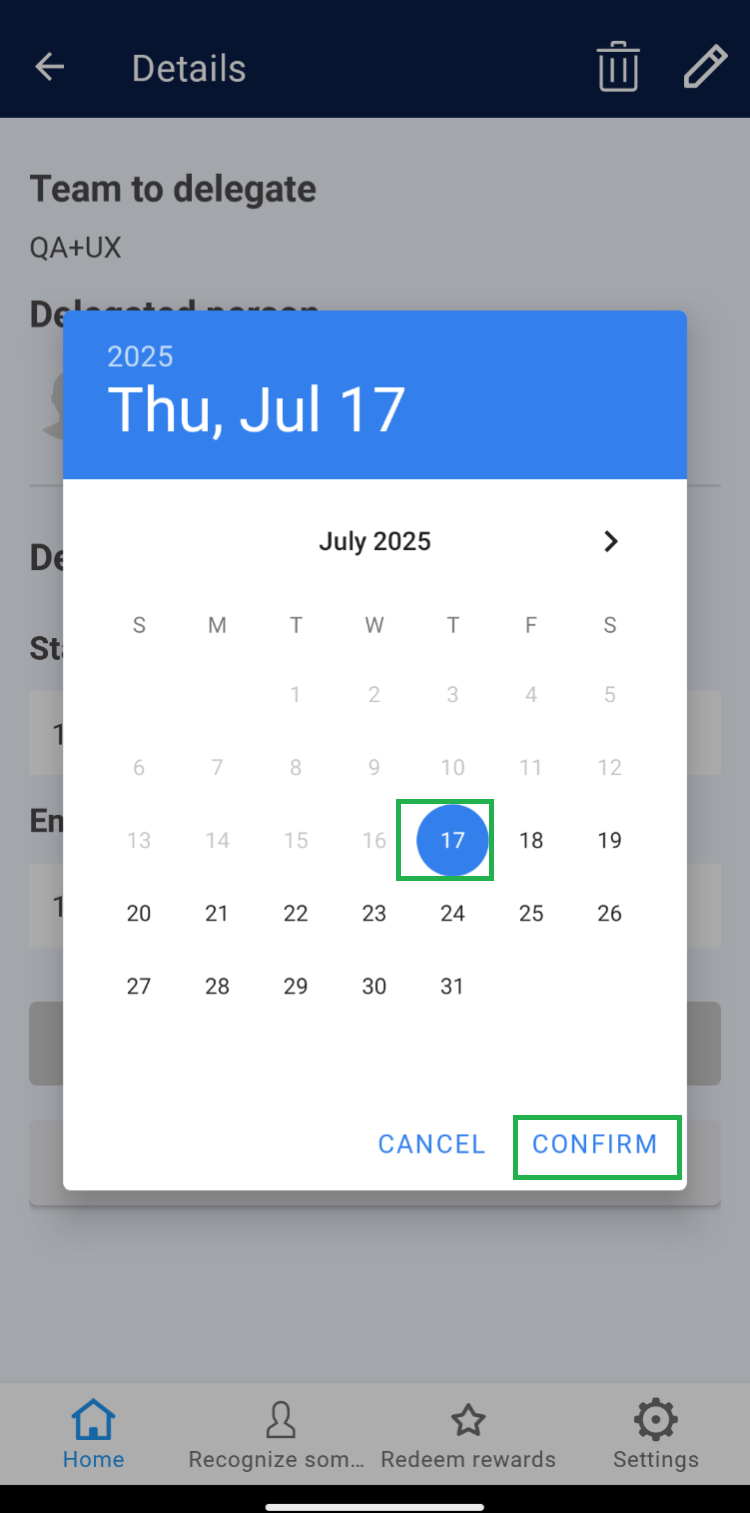
 3. The “Start and End Date” fields will become editable. Modify the time period as required and click “Done”.
 4. Click “Save”.
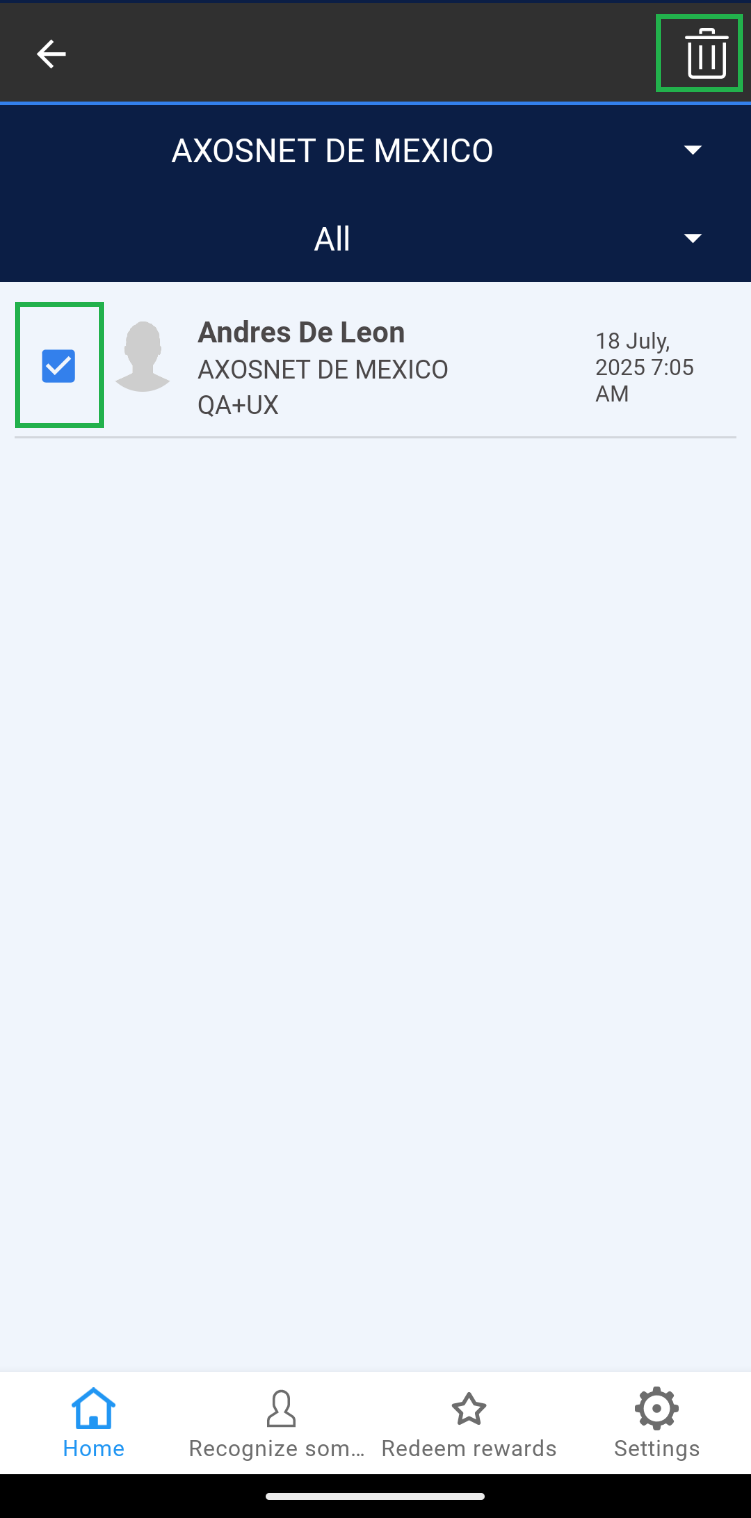
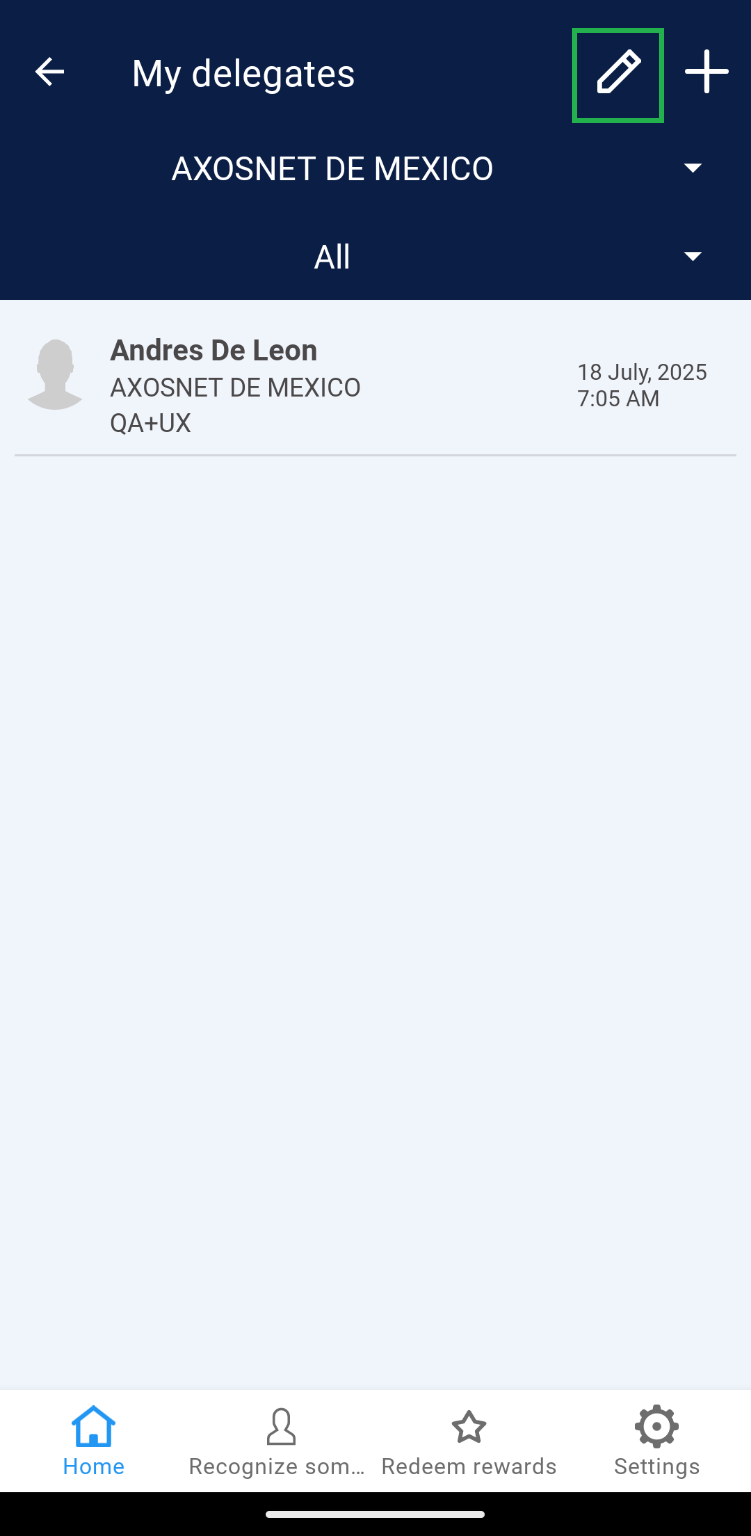 1.2. Select the delegate records you wish to delete and click on the delete icon.
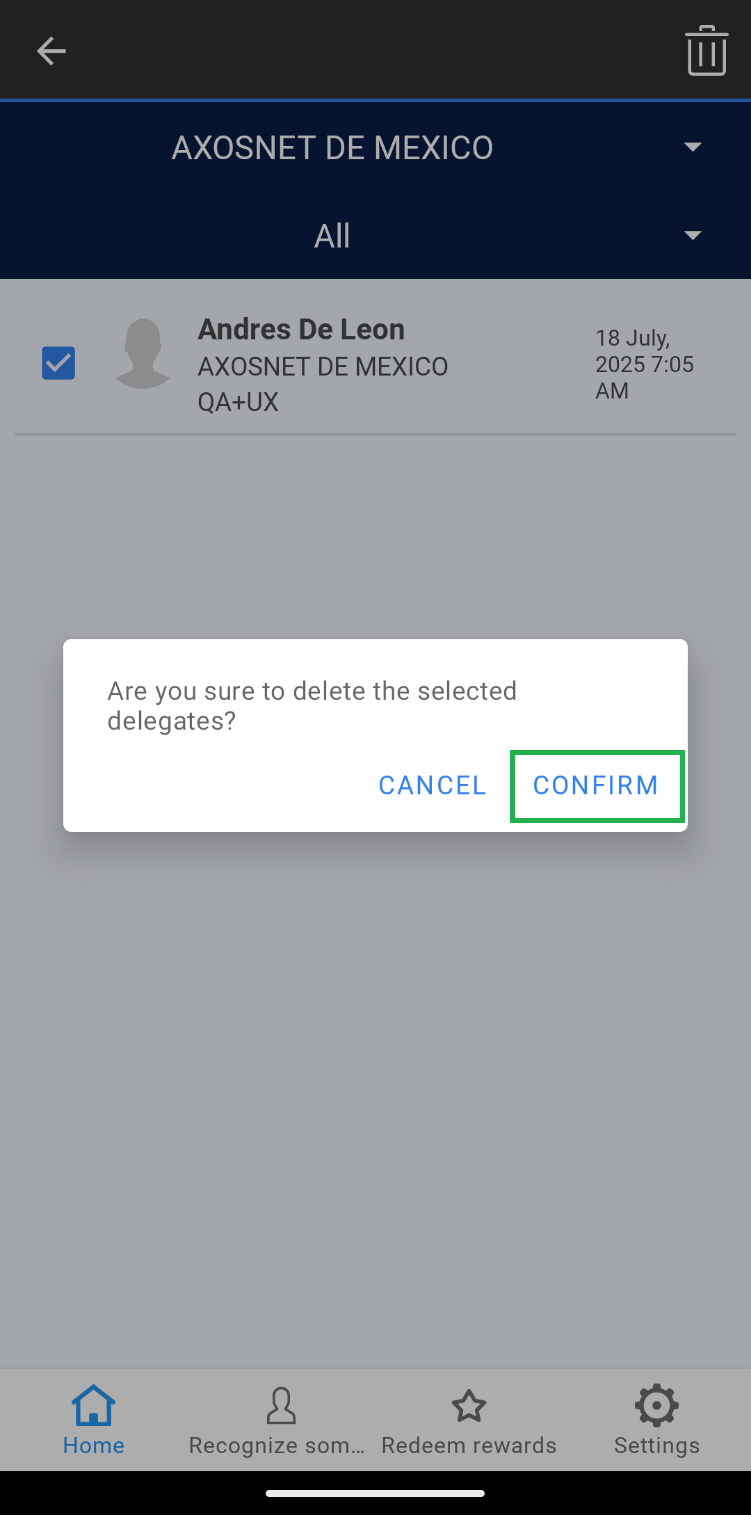
 1.3. Click “Continue” if you are sure you want to delete the selected records.
 2.2. Click on the delete icon.
 2.3. Click “OK” to confirm.
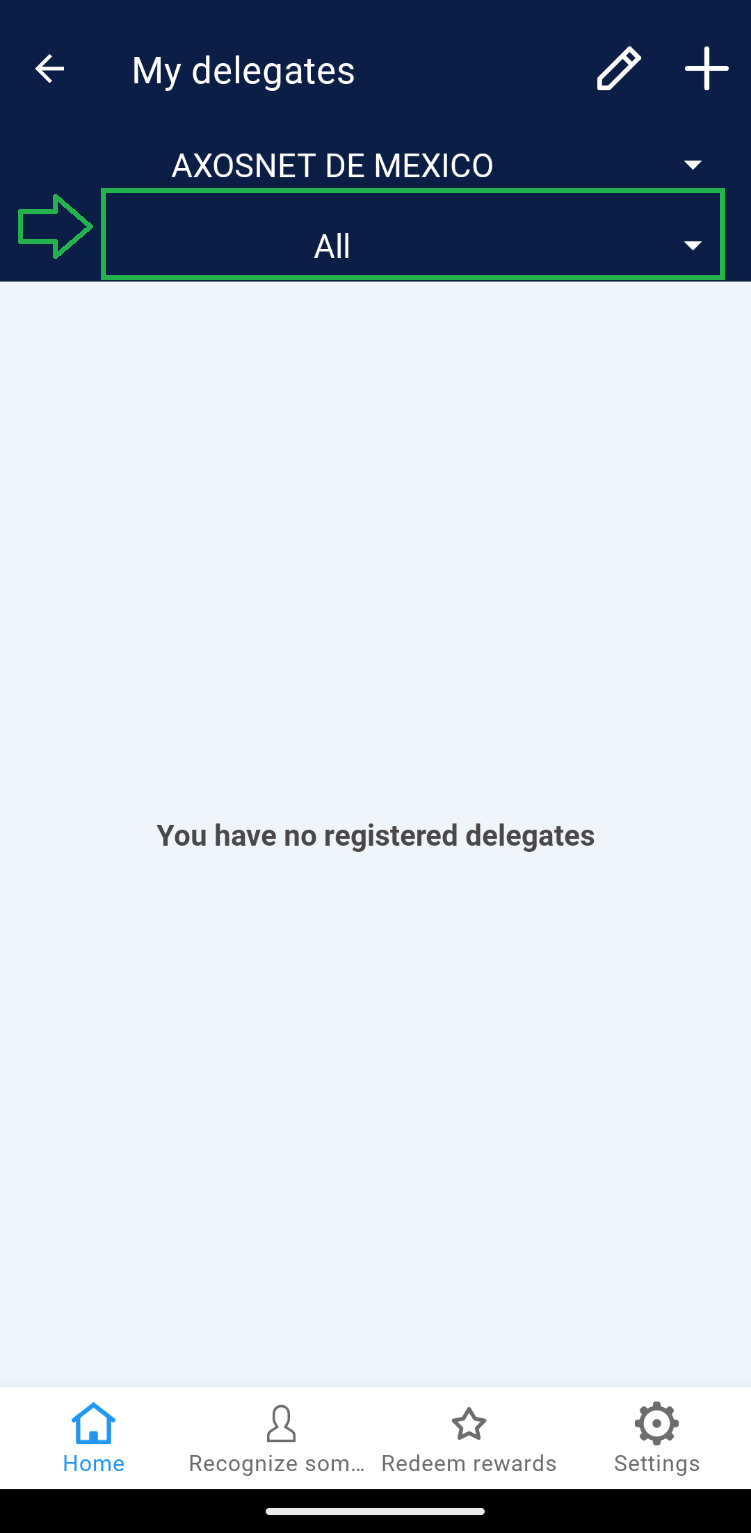
2. Within the team dropdown menu, you will find the default option “All”. If necessary, select a team to view specific delegates.
|

|
3. If there are active records of Delegates, they will be displayed on the main “My Delegates” page.
Note: Users who have previously been delegated and whose assigned time period has expired will be identified in red.
a) Add delegates.
A collaborator can be assigned as a delegate for more than one team at a time, but a team cannot have more than one delegate at the same time. Click on the “+” icon to add a delegate. 1. Select the corresponding company. Click “Next”.
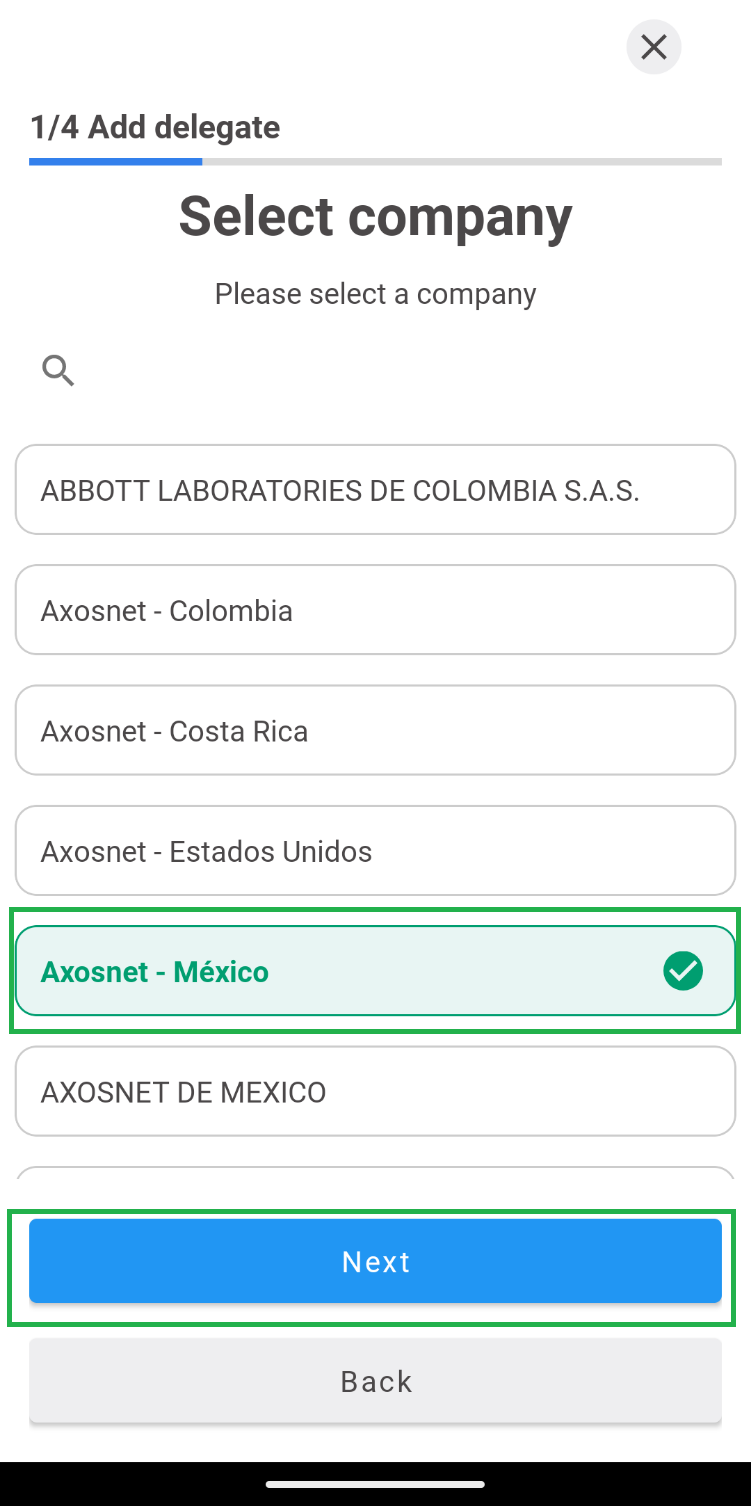
2. Choose the team to delegate and then click “Next”.
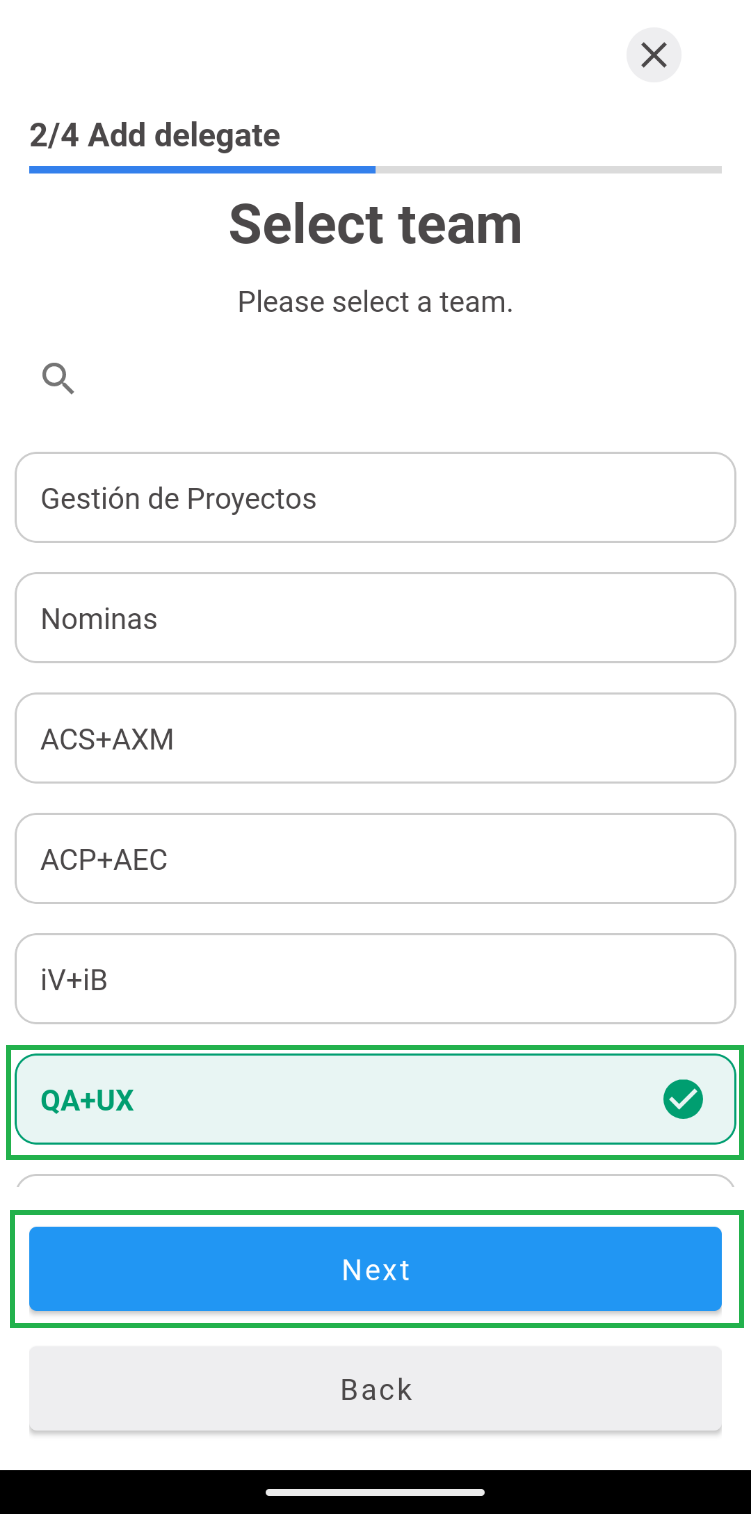
3. The list of available collaborators who can be assigned as delegates will be displayed. Select the collaborator and click “Next”.
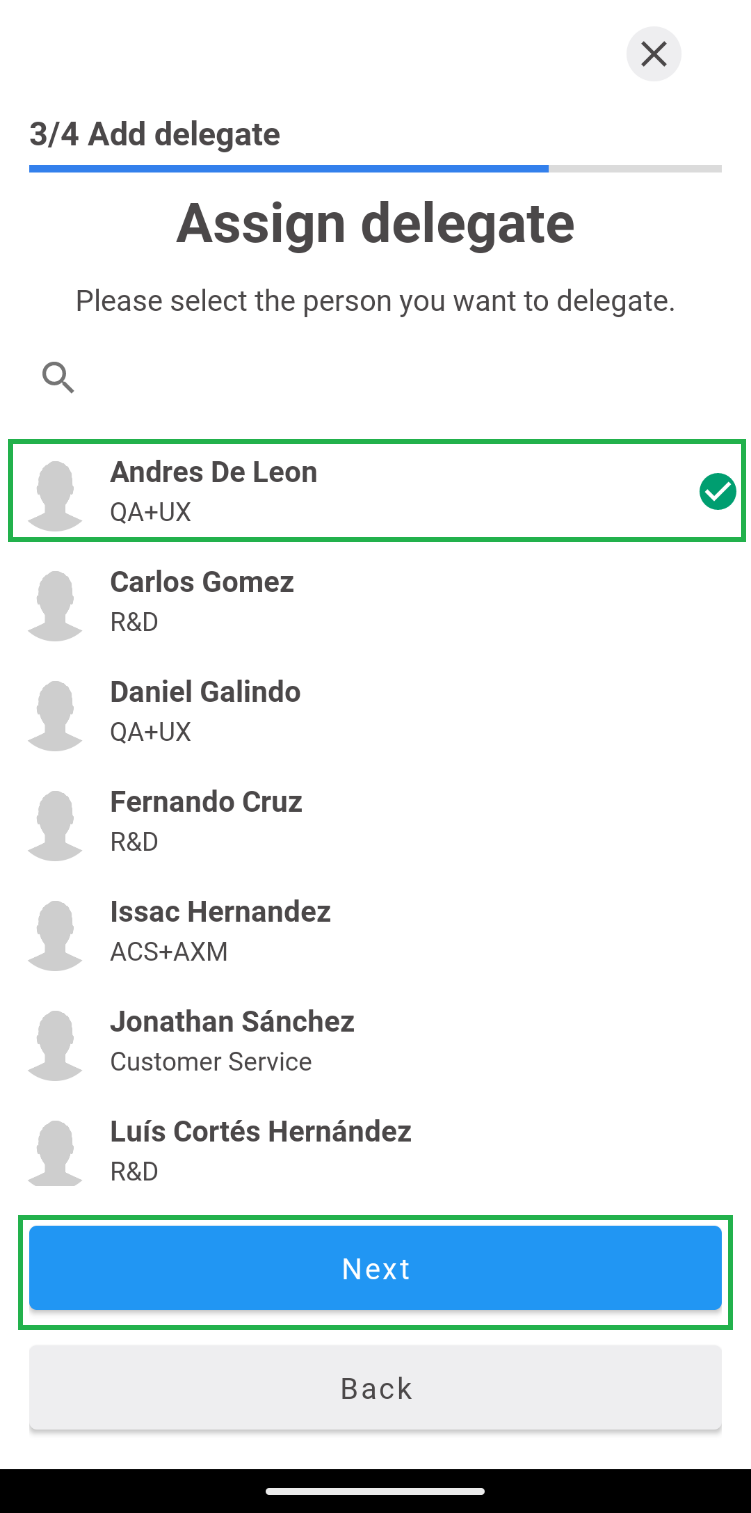
4. Specify the duration that the assigned user will have to delegate to the team. Then click “Save”.
5. Specify the duration that the assigned user will have to delegate to the team. Then click “Save”.
b) Edit a delegate.
The delegation period of a collaborator can be modified, either reducing or extending the previously assigned period. 1. From the main list of “My Delegates”, select the collaborator you wish to modify.
2. Click on the “Edit” label.
3. The “Start and End Date” fields will become editable. Modify the time period as required and click “Done”.
4. Click “Save”.
c) Delete a delegate.
A delegate can be deleted by either interrupting the delegation period or once the time range has expired.1. Delete multiple delegates.
1.1. In the main list of “My Delegates”, click on the edit icon (pencil).
1.2. Select the delegate records you wish to delete and click on the delete icon.
1.3. Click “Continue” if you are sure you want to delete the selected records.
2. Delete a delegate.
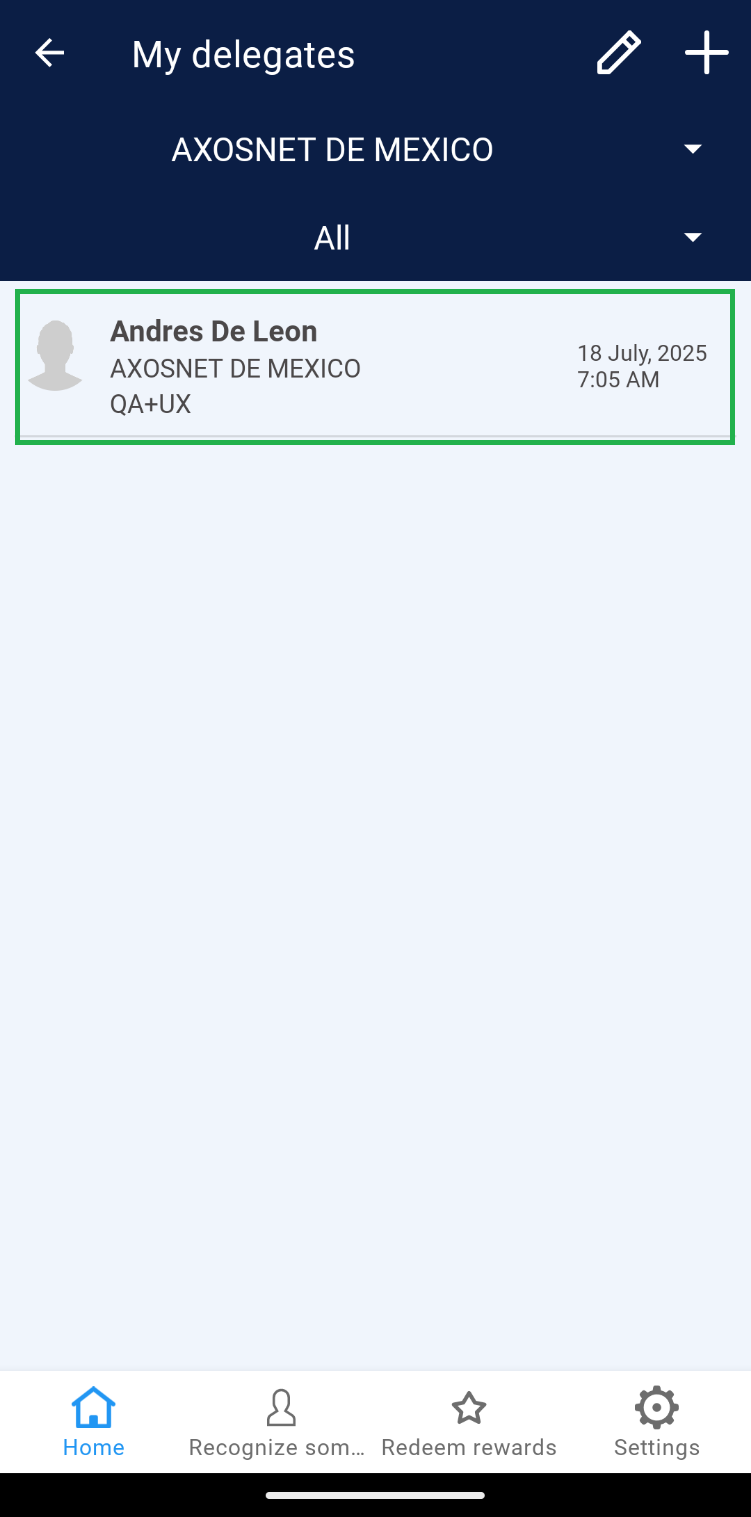
2.1. Select the delegate you wish to delete.
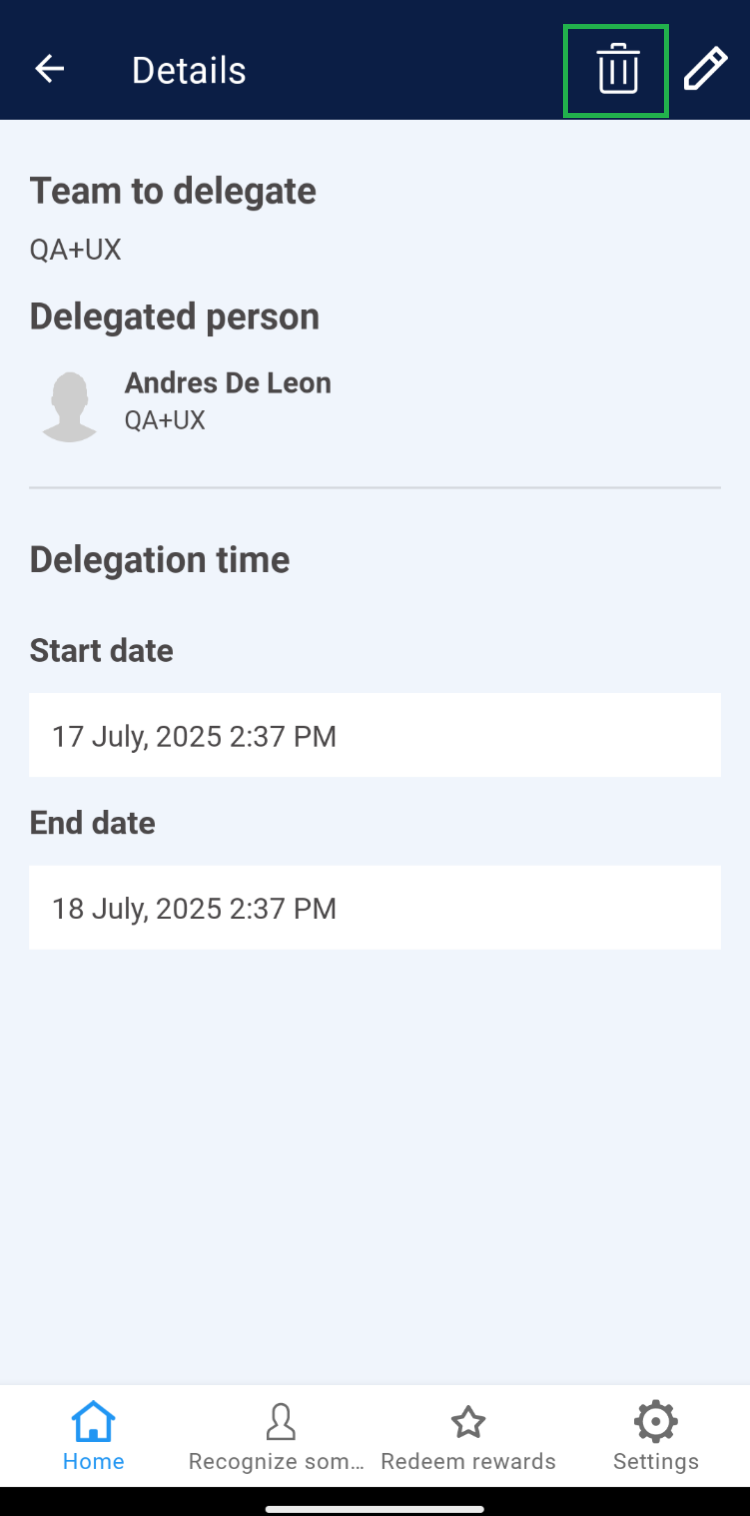
2.2. Click on the delete icon.
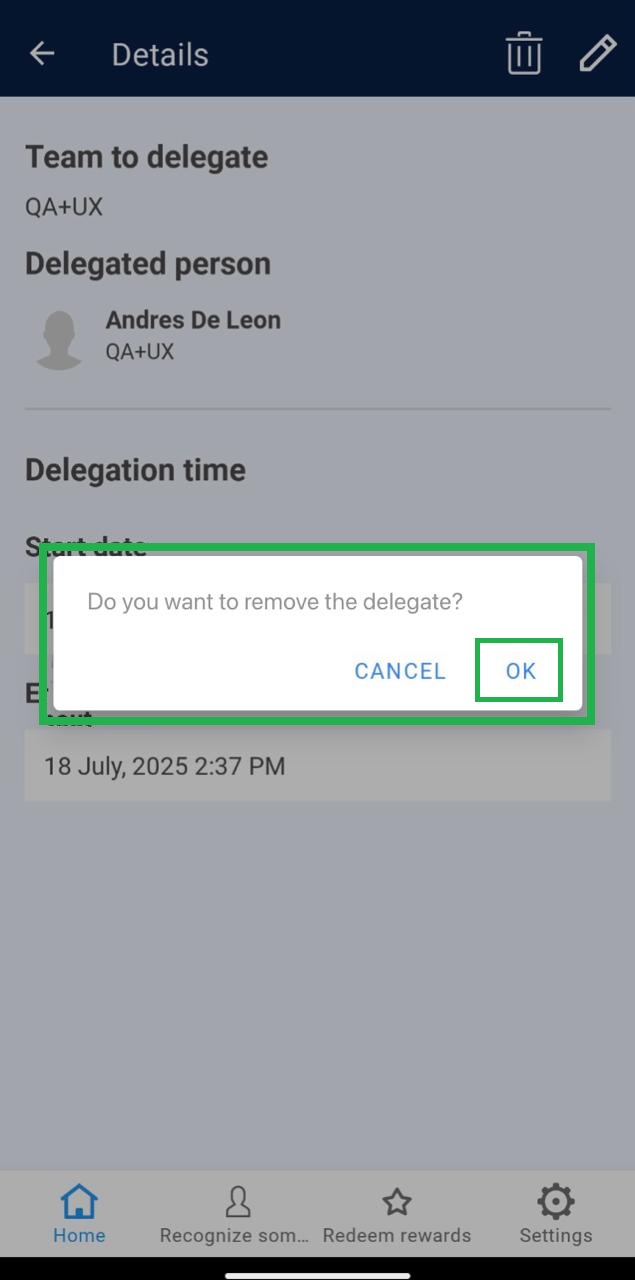
2.3. Click “OK” to confirm.