
Below are the actions that a Super Administrator will perform within the “My Orders” section:
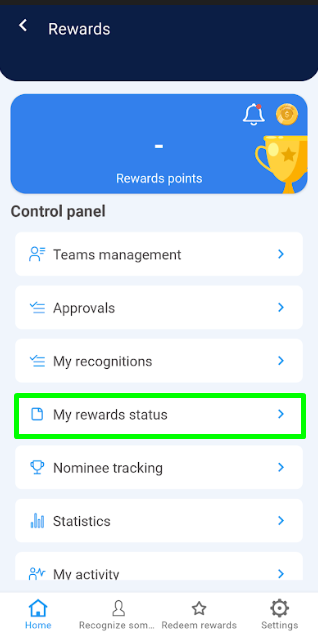
1. Within the Rewards control panel, select the “My Orders” option.
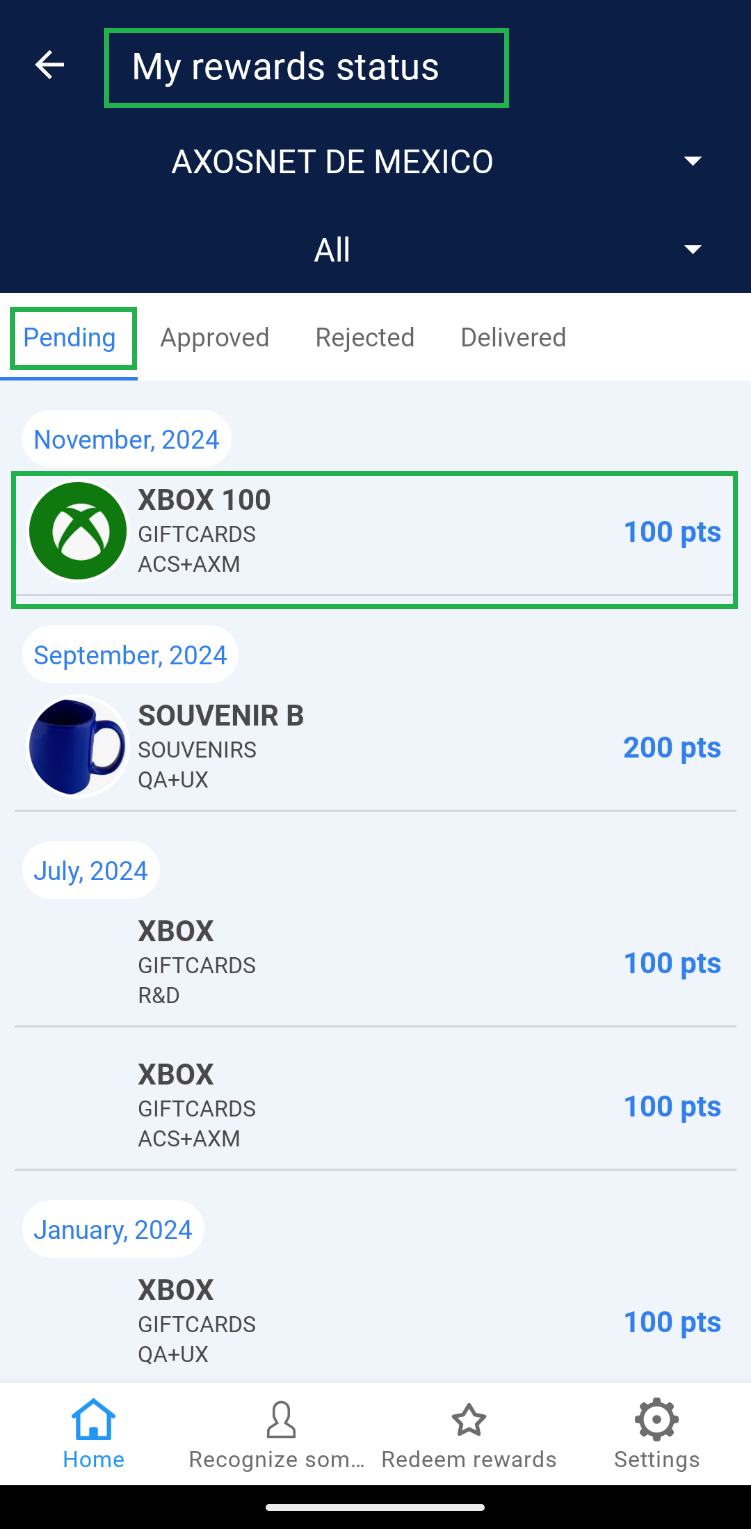
 2. In the dropdown menu, you’ll find the default option “All”. If needed, select a team to view specific information.
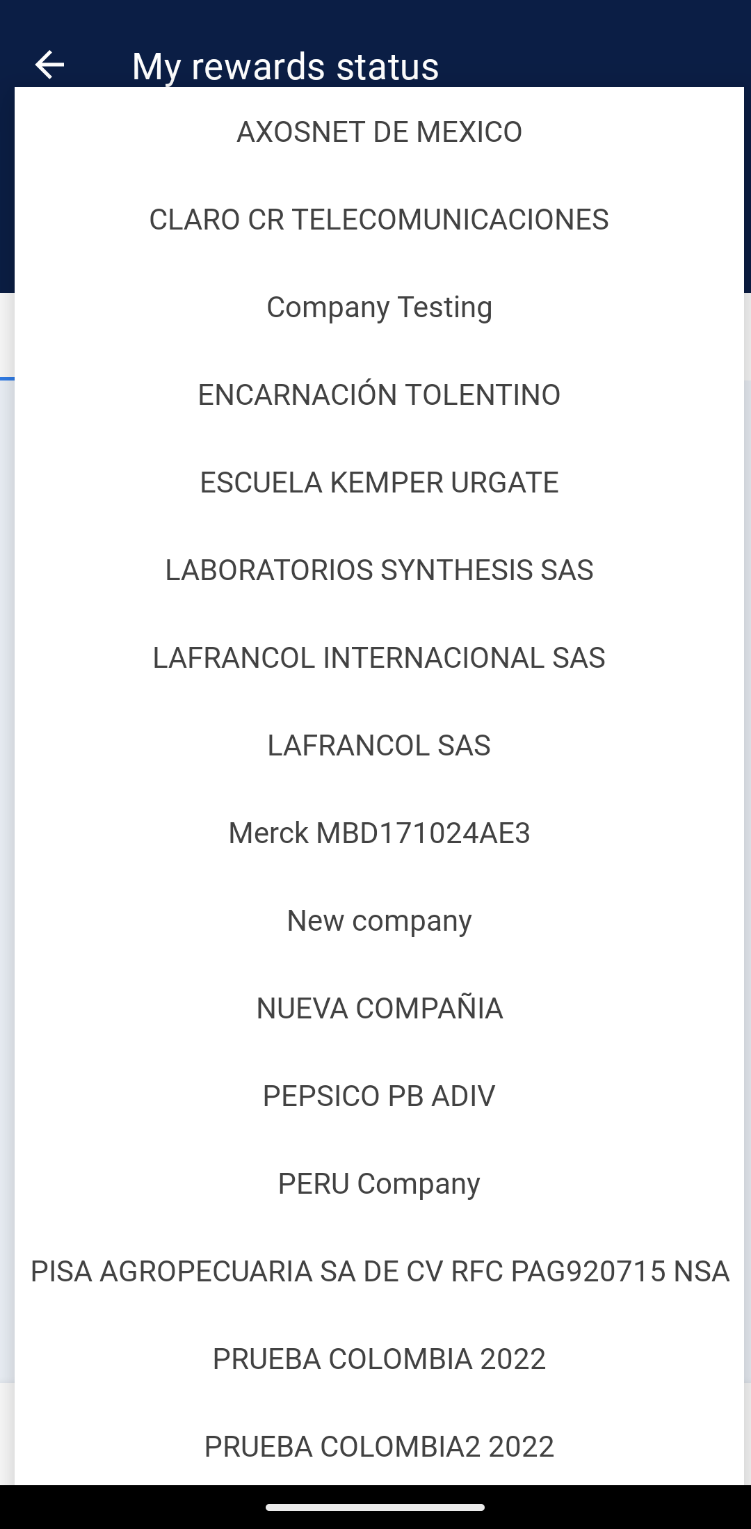
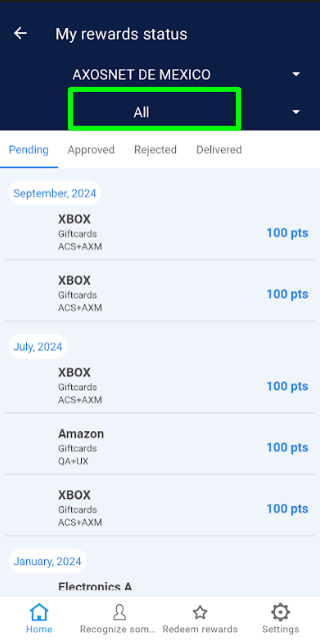 Note: Ensure the company to which the teams needing management are integrated is selected.
 3. Four options are displayed: “Pending, Approved, Rejected, and Delivered”.
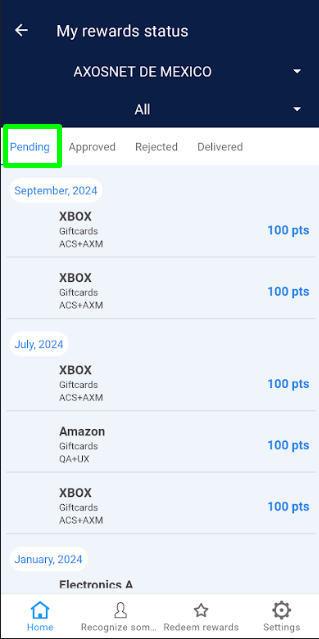
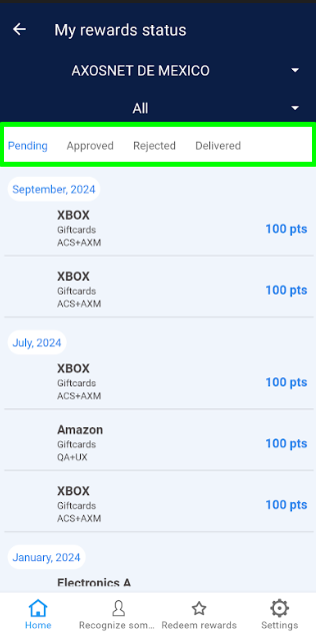 4. Click on the “Pending” tab to identify all orders requested by team members of a specific team or all teams belonging to the selected company.
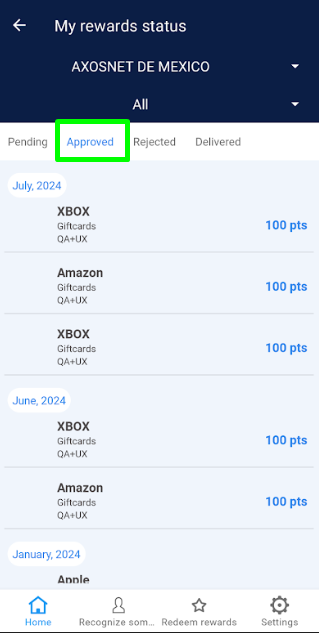
 5. Select the “Approved” tab to view the list of all orders that the Super Administrator has approved but have not yet been delivered.
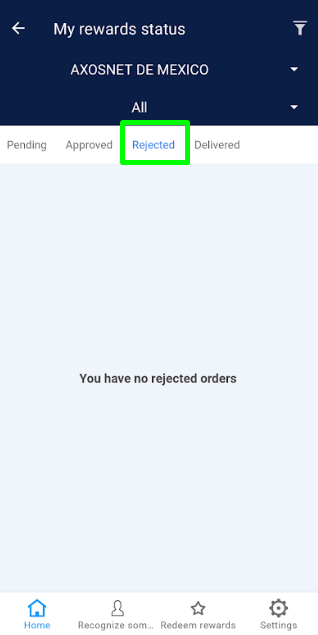
 6. Click on the “Rejected” section to view the list of orders that have been declined.
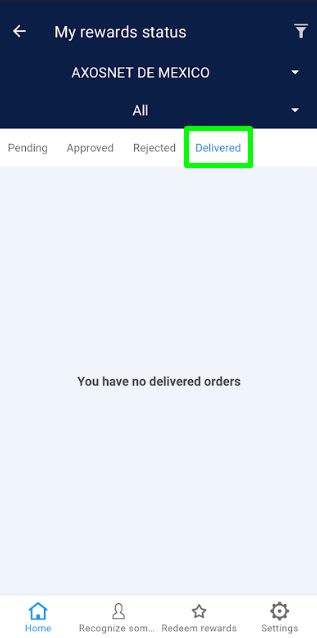
 7. Choose the “Delivered” tab where orders already delivered to the requesting team member are listed.
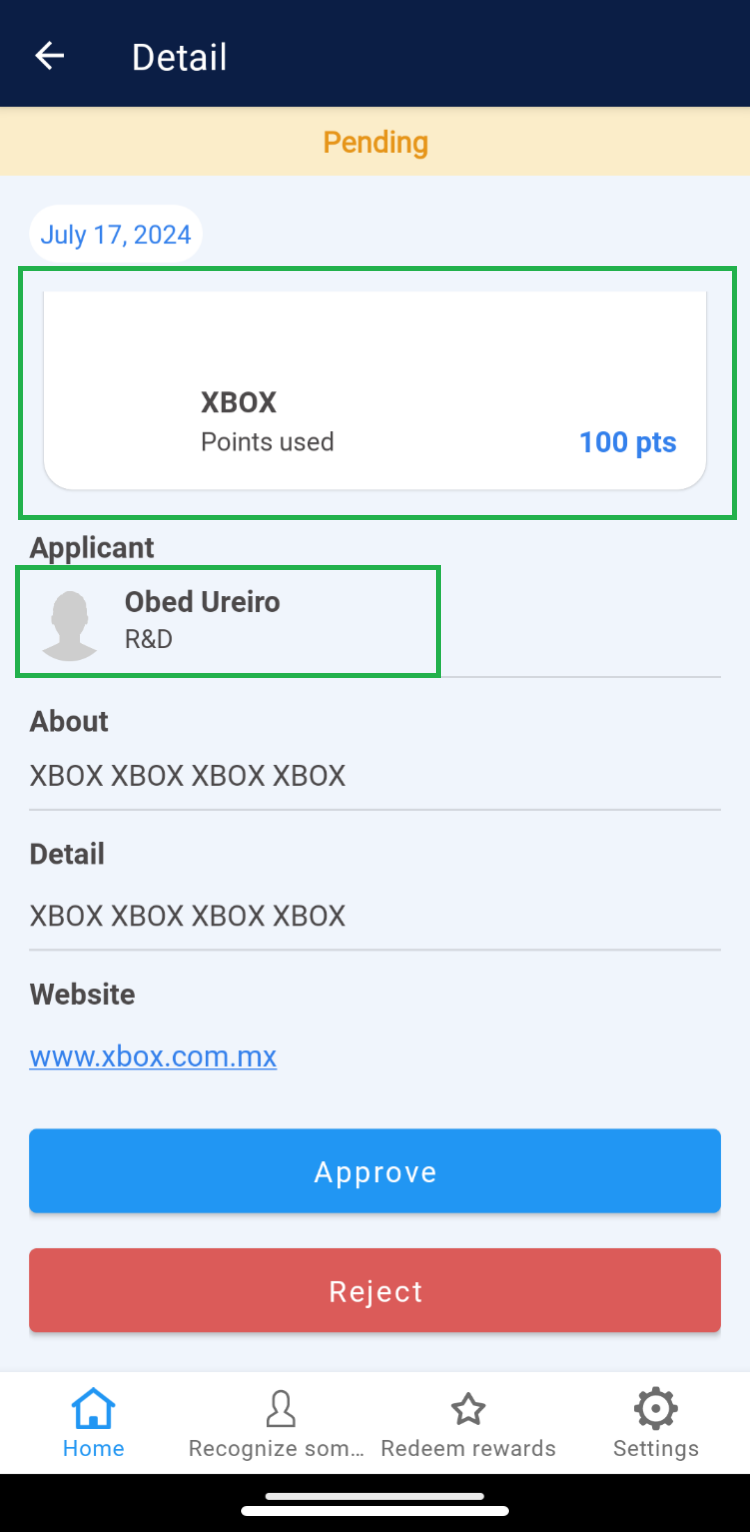
 2. Within the details, identify the redeemed product and the requester.
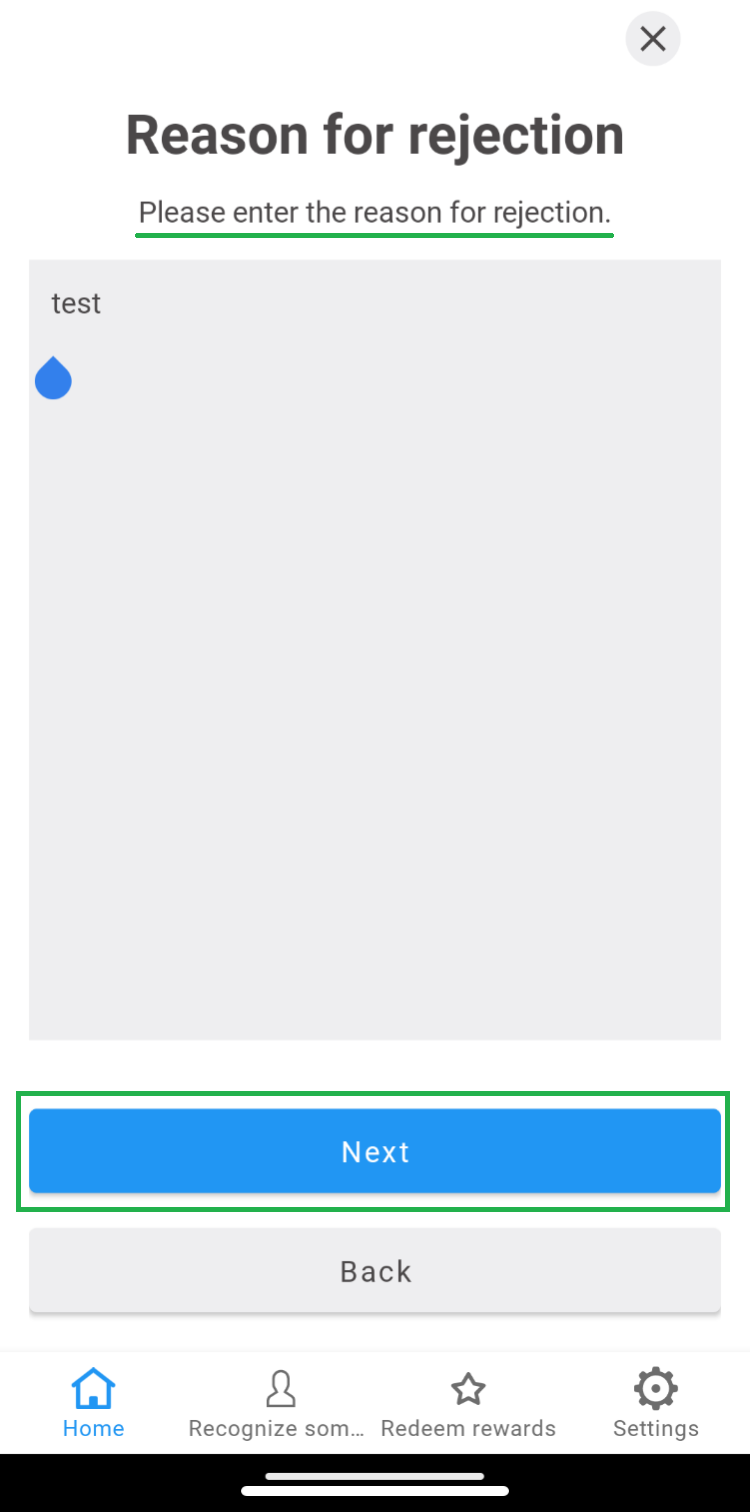
 2.2 Enter the reason for not approving the order, then click “Next” to finalize.
 3. Orders will be removed from the “Pending” tab and reflected in either the “Approved” or “Rejected” tabs based on the action taken.
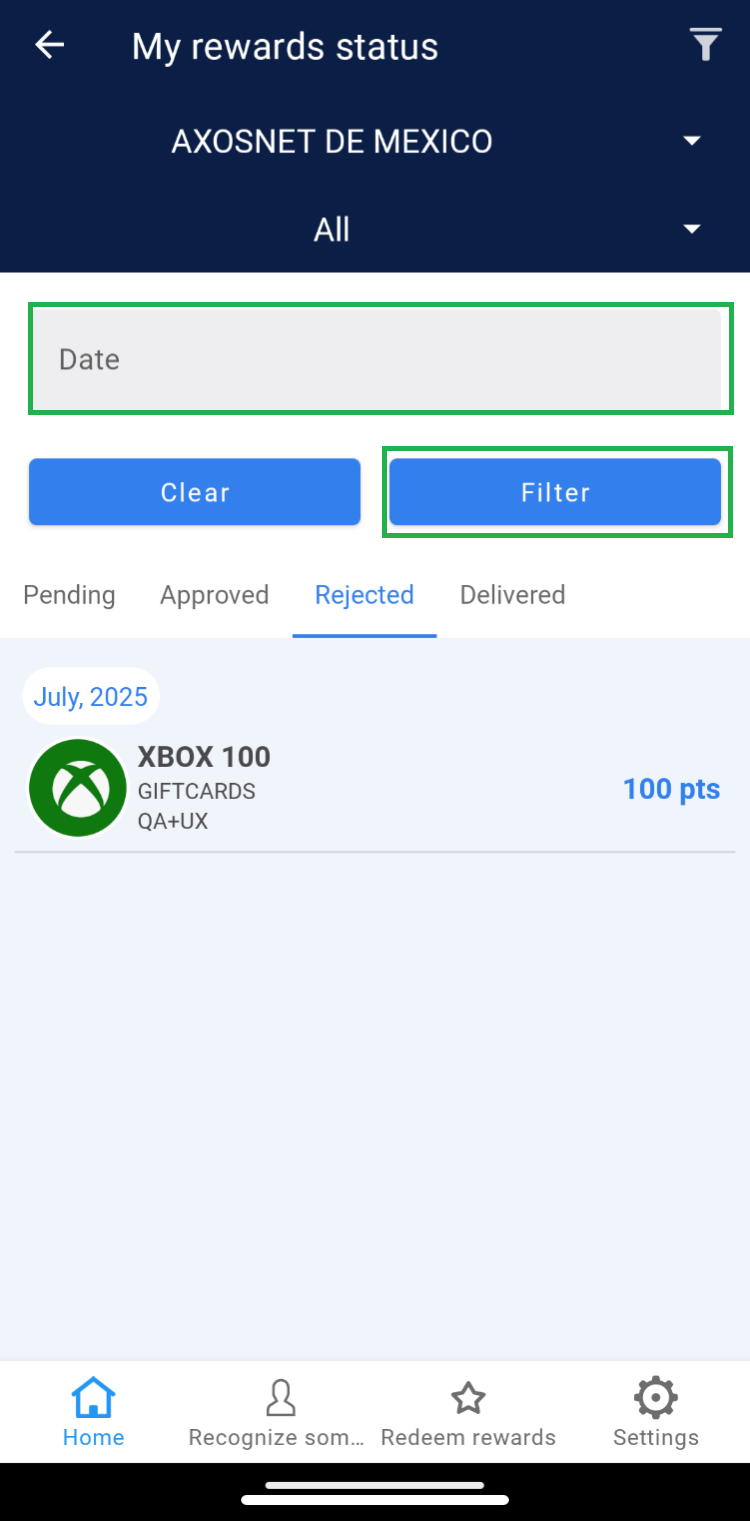
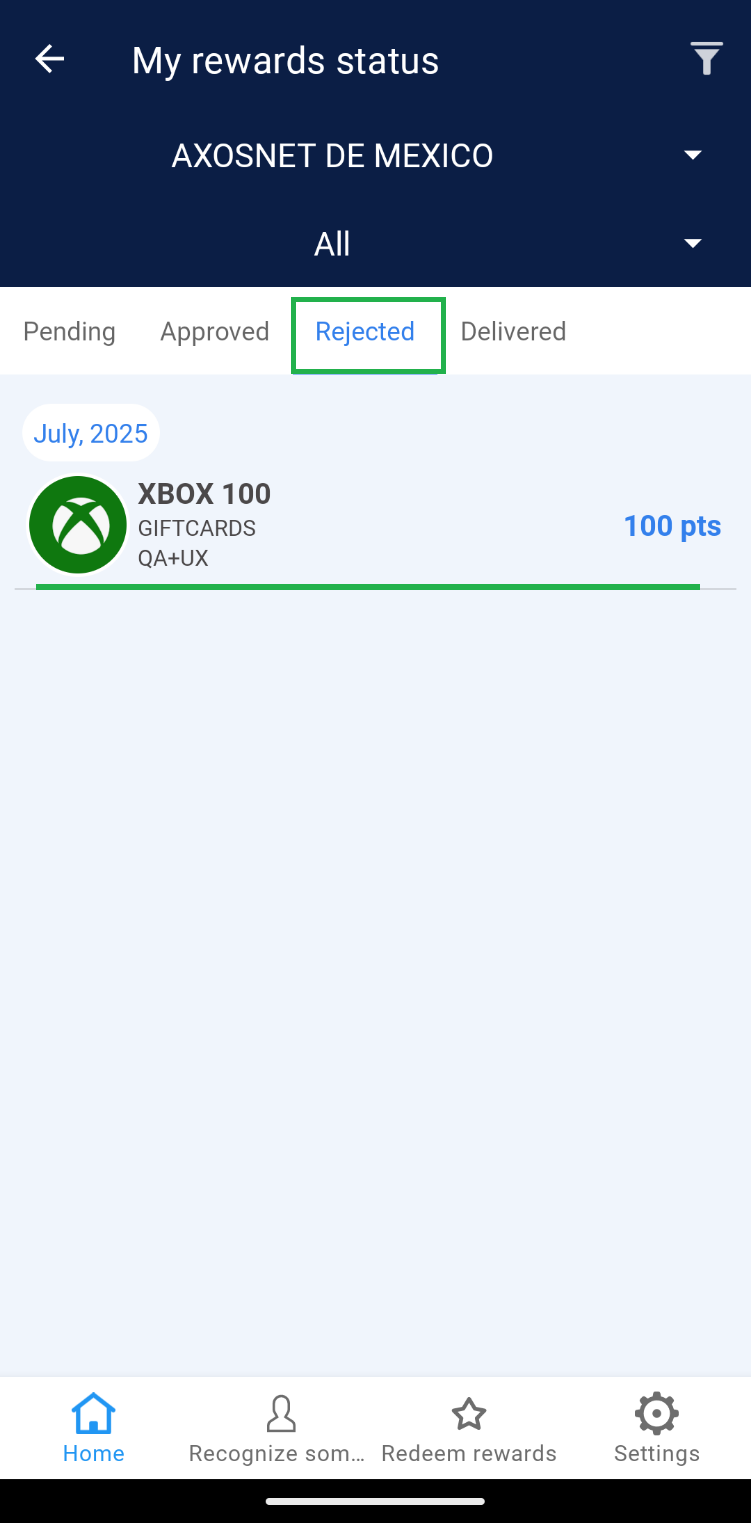 Note: If there are records of rejected orders dated before the current month, use the “Date” filter to view records within the corresponding list.
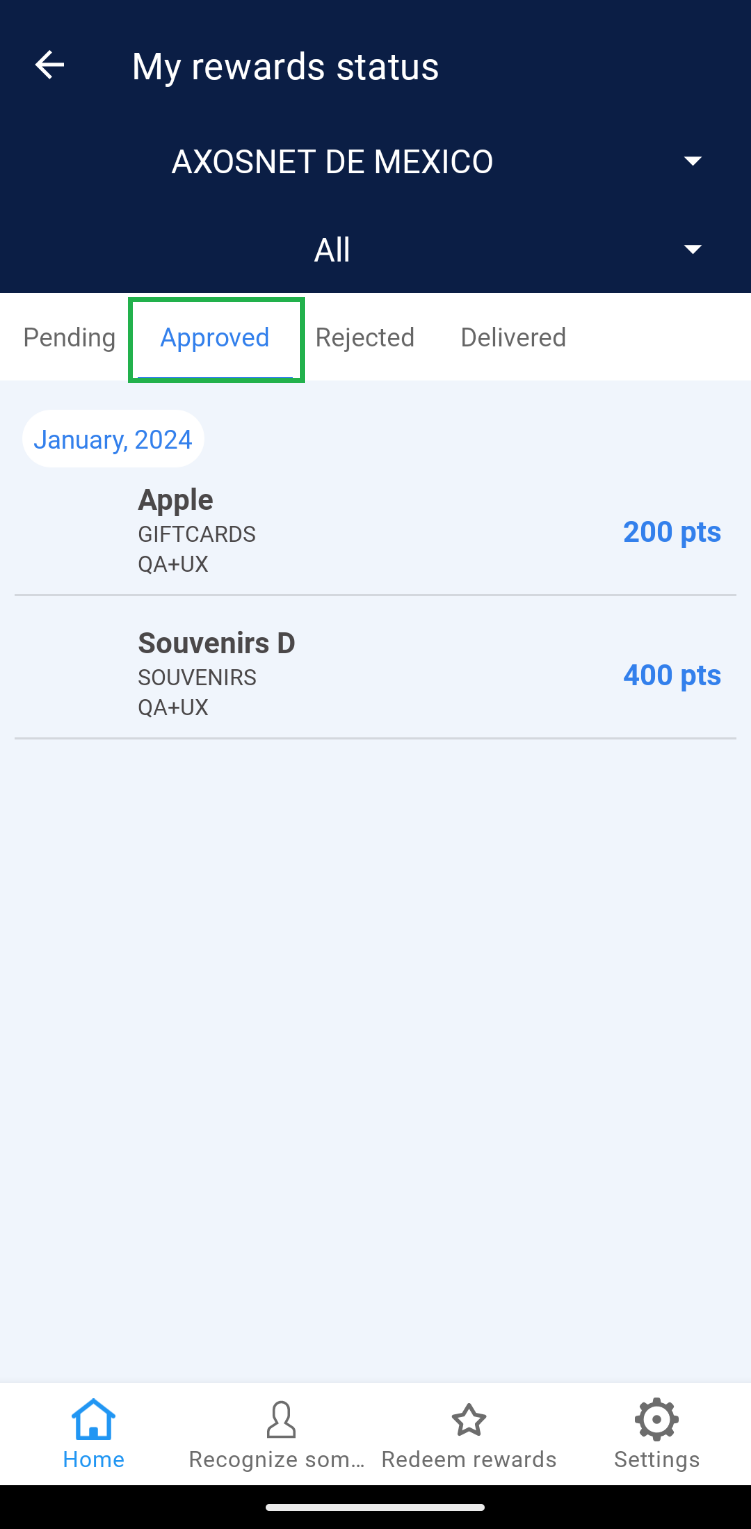 2. Choose the order you wish to deliver.
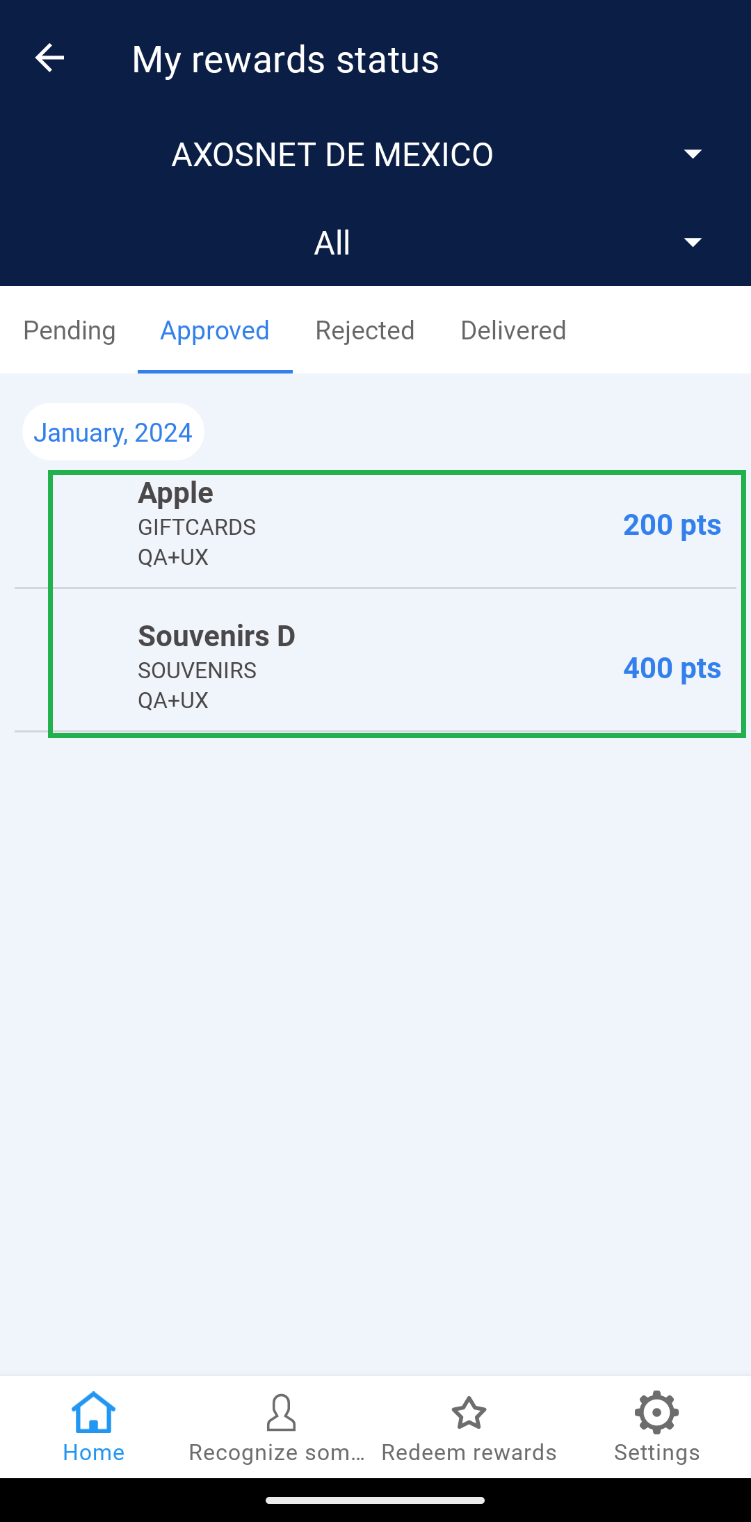 3. Click on the “Deliver” button and confirm by clicking “Understood”.
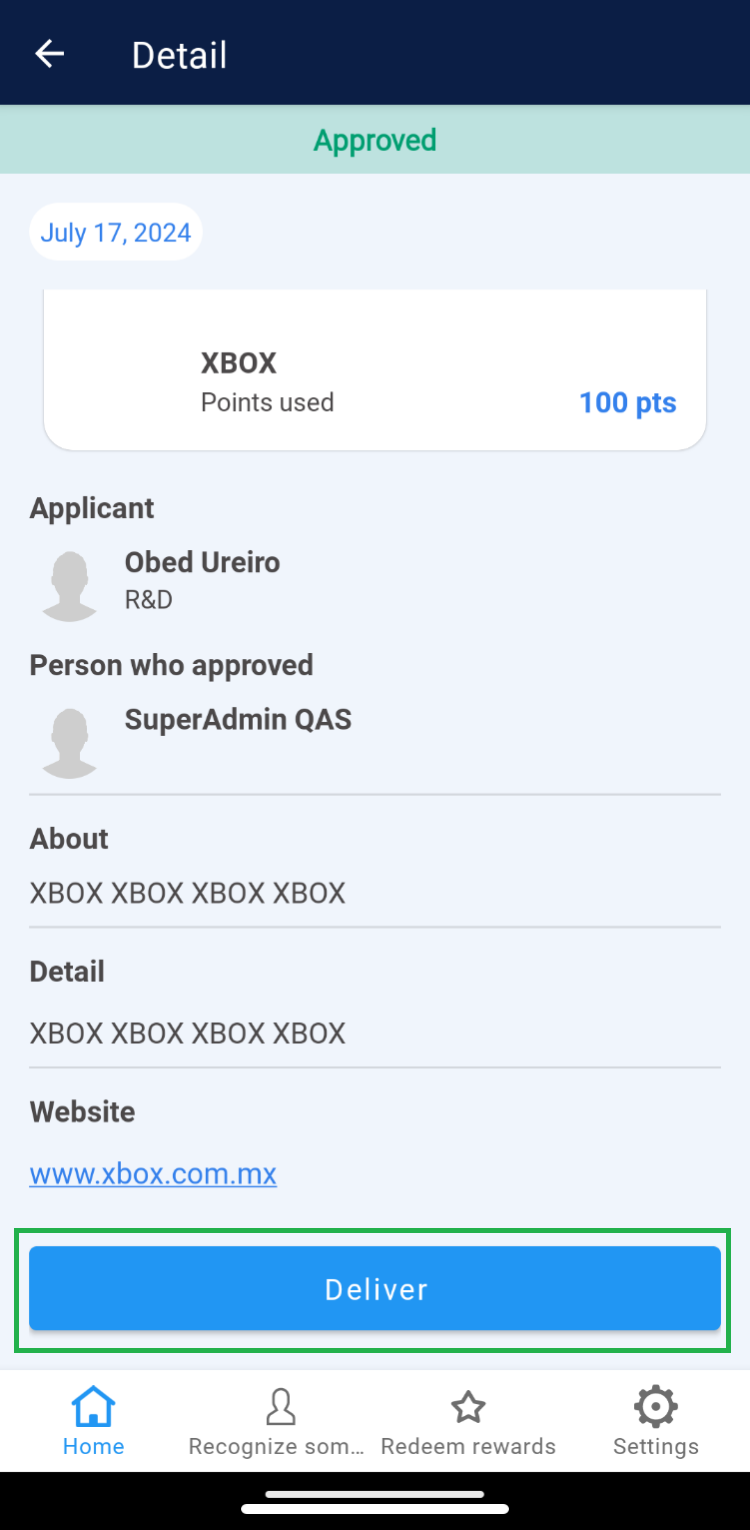 4. The order will be removed from the “Approved” section and reflected in the “Delivered” tab.
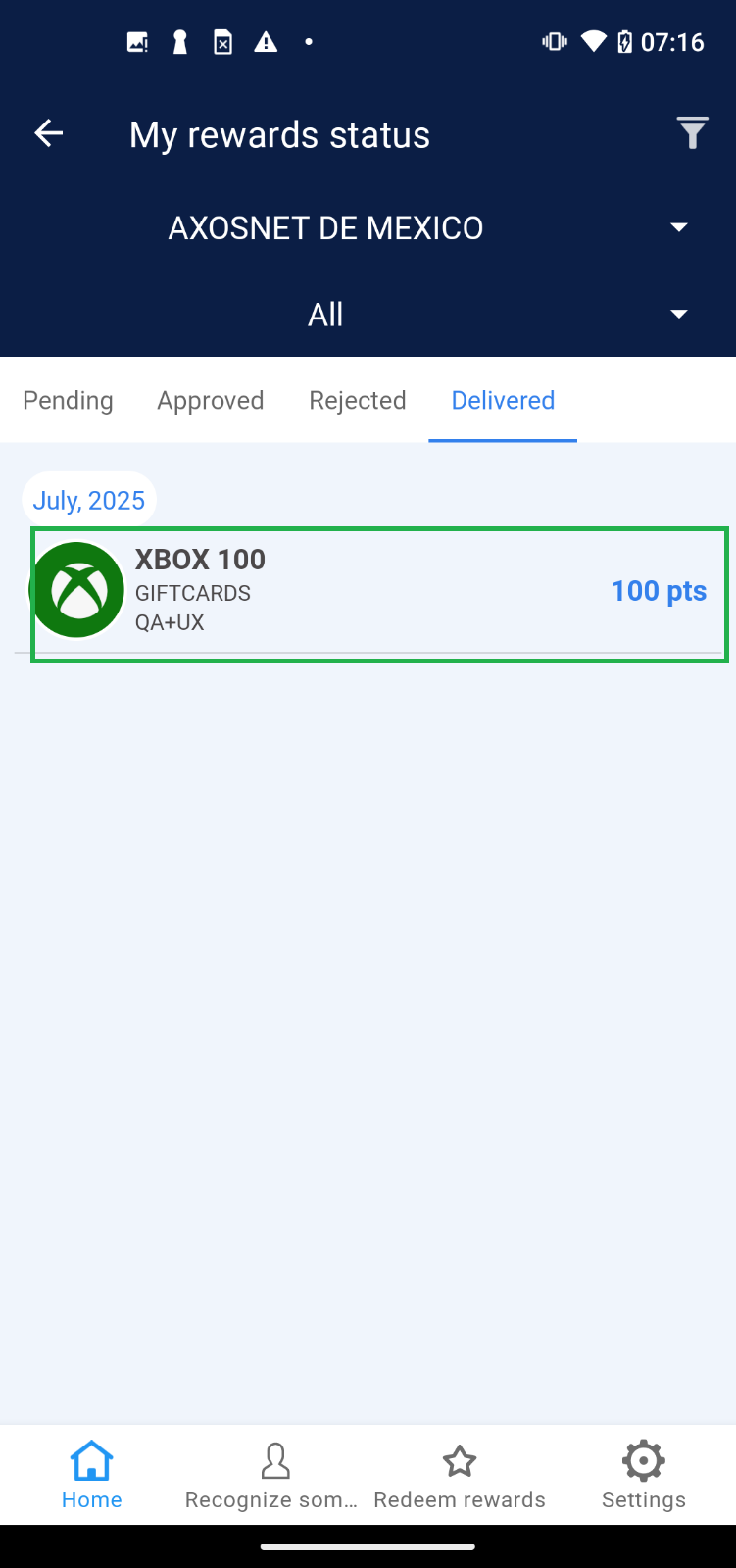 Note: If there are records of orders dated before the current month, use the “Date” filter to view records within the corresponding list.
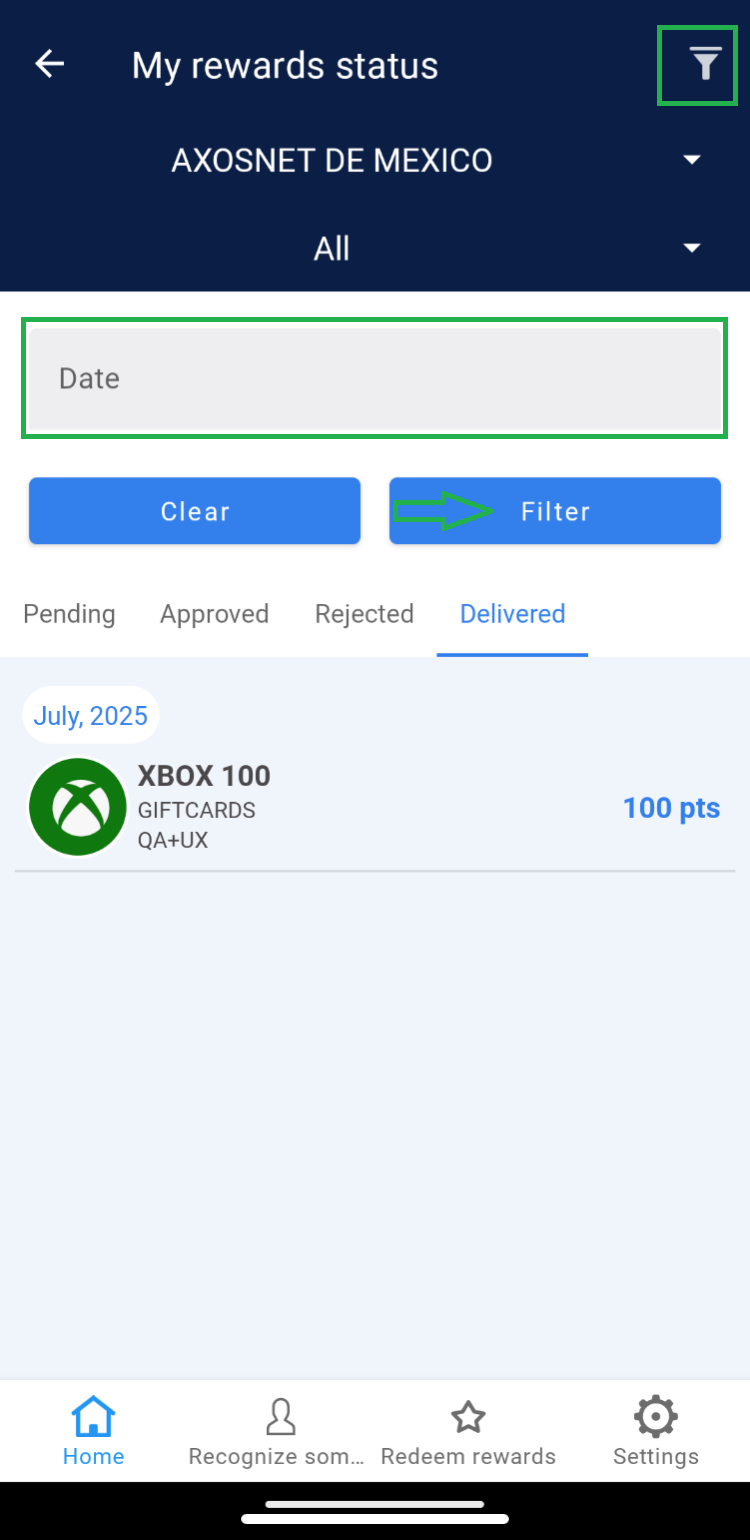
2. In the dropdown menu, you’ll find the default option “All”. If needed, select a team to view specific information.
Note: Ensure the company to which the teams needing management are integrated is selected.
3. Four options are displayed: “Pending, Approved, Rejected, and Delivered”.
4. Click on the “Pending” tab to identify all orders requested by team members of a specific team or all teams belonging to the selected company.
5. Select the “Approved” tab to view the list of all orders that the Super Administrator has approved but have not yet been delivered.
6. Click on the “Rejected” section to view the list of orders that have been declined.
7. Choose the “Delivered” tab where orders already delivered to the requesting team member are listed.
a) Approving or rejecting an order:
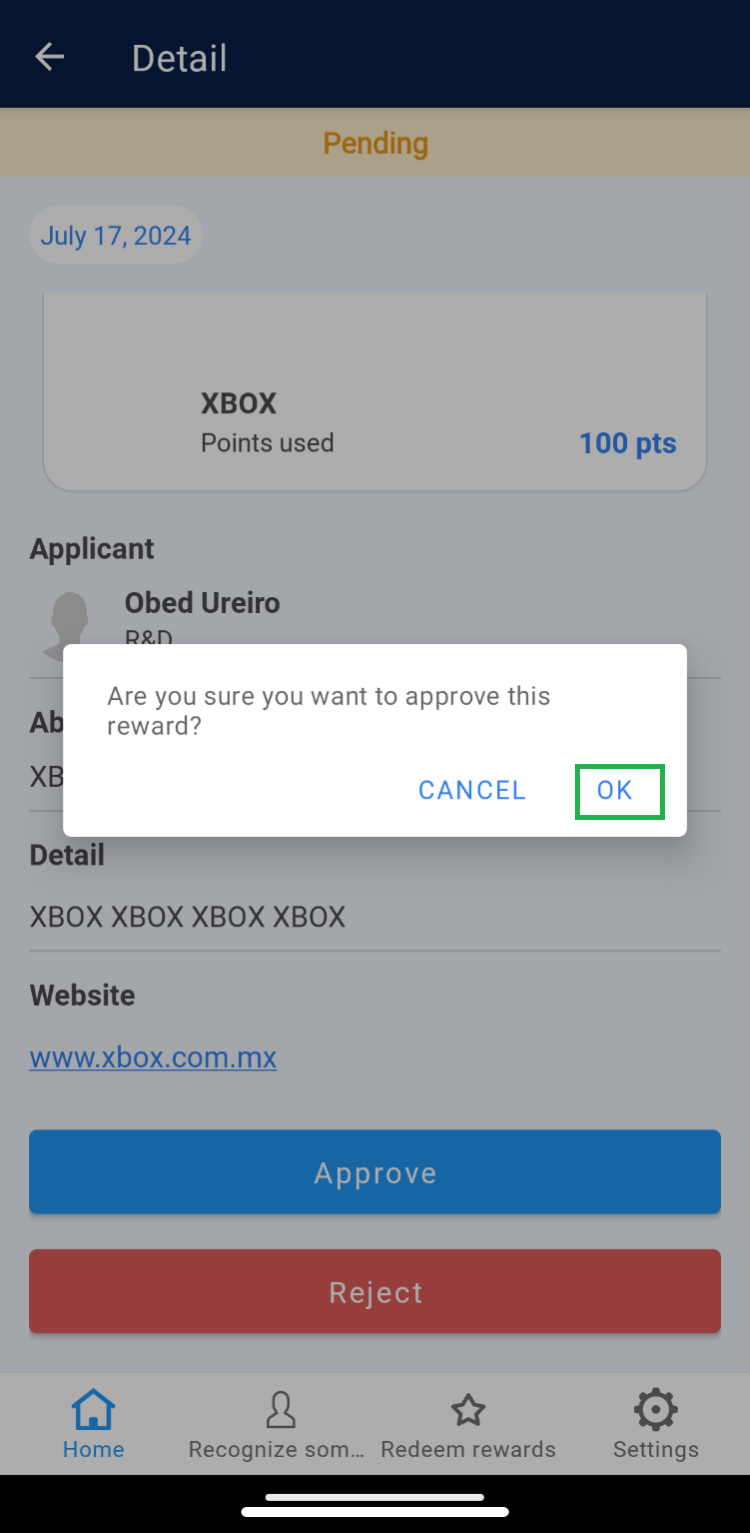
The Super Administrator is responsible for approving or rejecting orders requested by team members when redeeming their points. 1. Select an order from the “My Orders” list under the “Pending” tab.
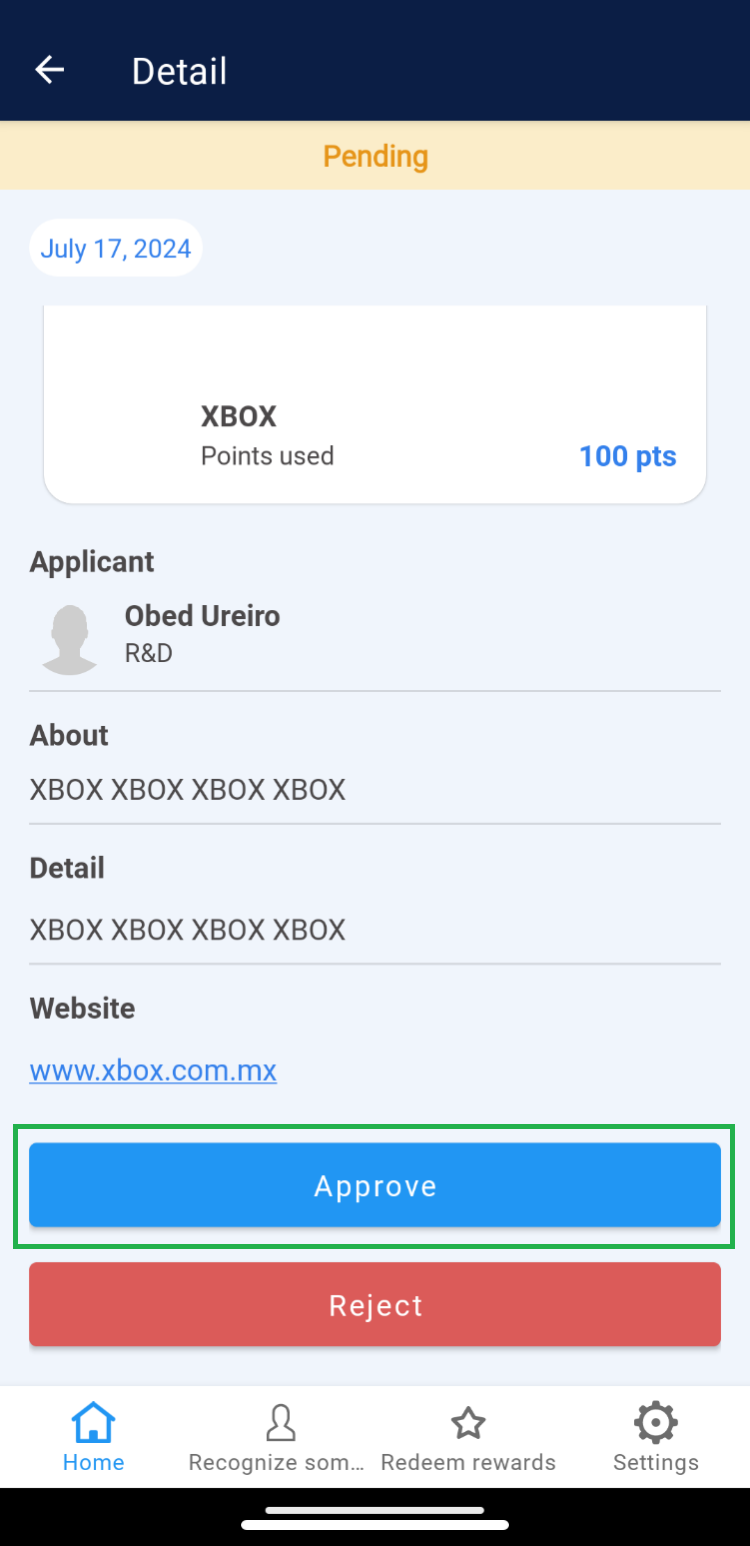
2. Within the details, identify the redeemed product and the requester.
1. Approve Order
1.1 To approve the order, click on “Approve”, then confirm the action by clicking “Understood”.
|
|
2. Reject Order
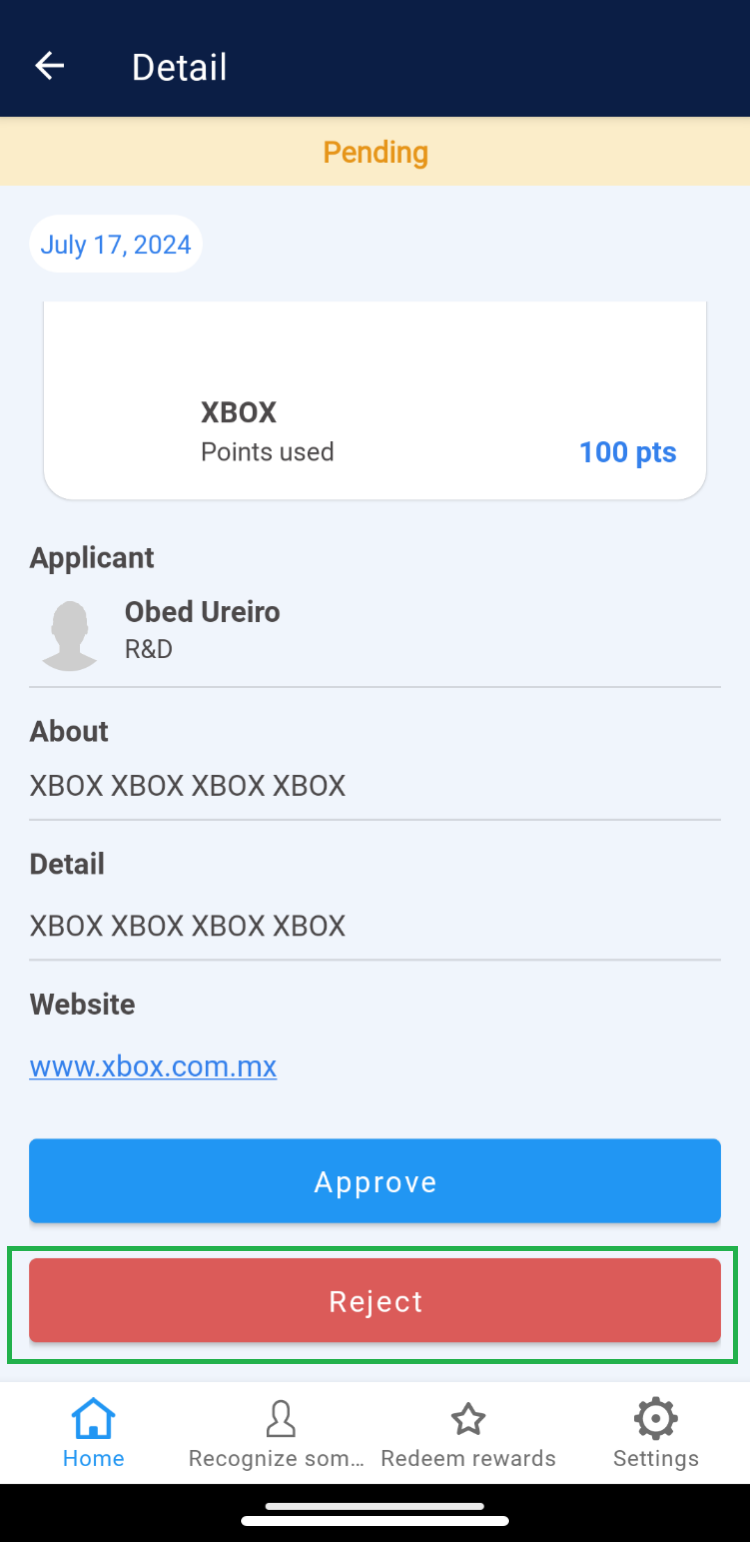
2.1 If you wish to reject the order, click on “Reject”.
2.2 Enter the reason for not approving the order, then click “Next” to finalize.
3. Orders will be removed from the “Pending” tab and reflected in either the “Approved” or “Rejected” tabs based on the action taken.
Note: If there are records of rejected orders dated before the current month, use the “Date” filter to view records within the corresponding list.
b) Delivering an Order
Once the employee’s request has been “Approved,” the Super Administrator should change the order status to “Delivered” at the moment the redeemed product is handed over to the user. 1. Select the “Approved” tab.
2. Choose the order you wish to deliver.
3. Click on the “Deliver” button and confirm by clicking “Understood”.
4. The order will be removed from the “Approved” section and reflected in the “Delivered” tab.
Note: If there are records of orders dated before the current month, use the “Date” filter to view records within the corresponding list.