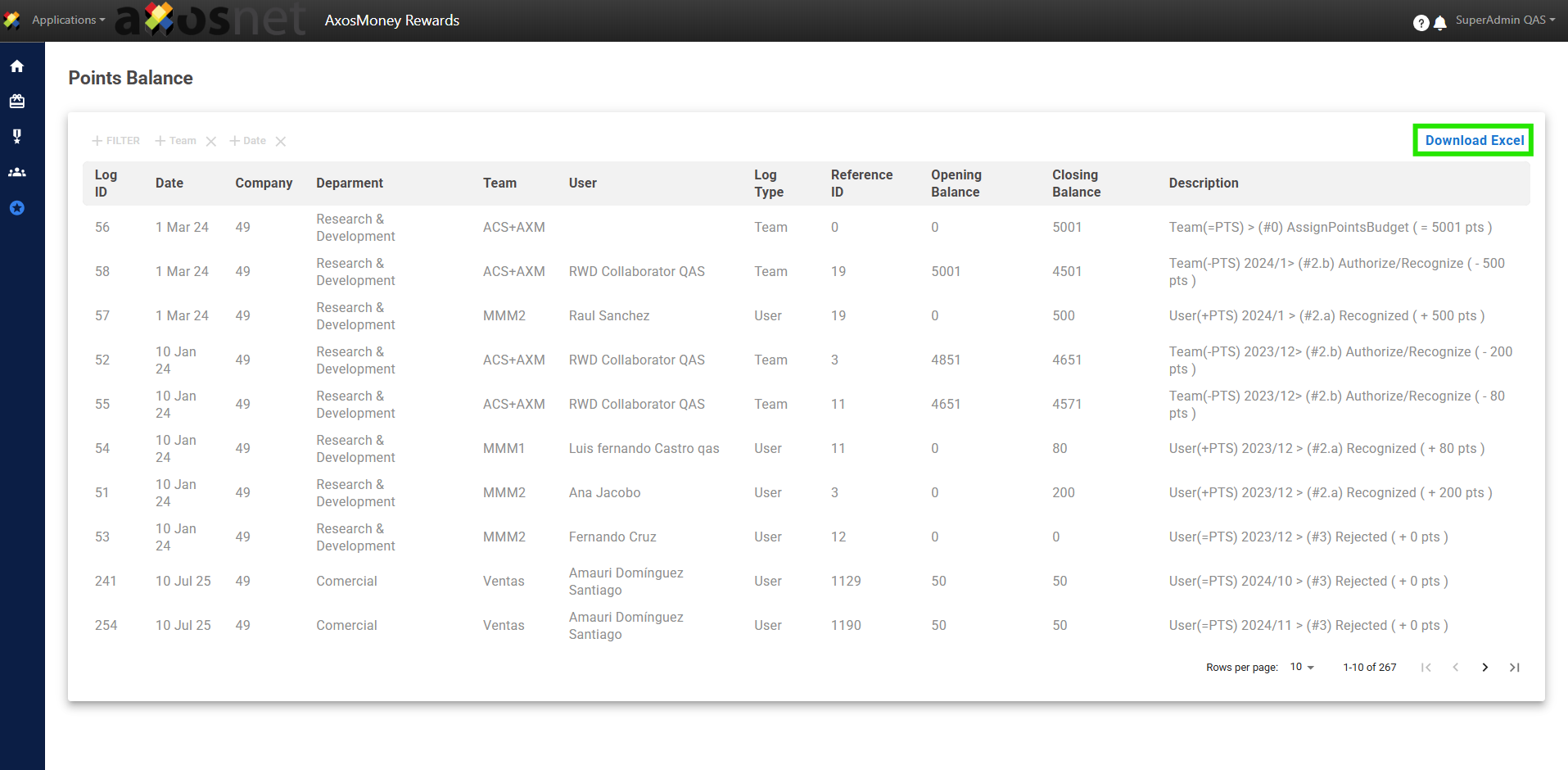
The Super Administrator can consult the points balance report of a department through the ACS page using the AxosMoney Rewards application.
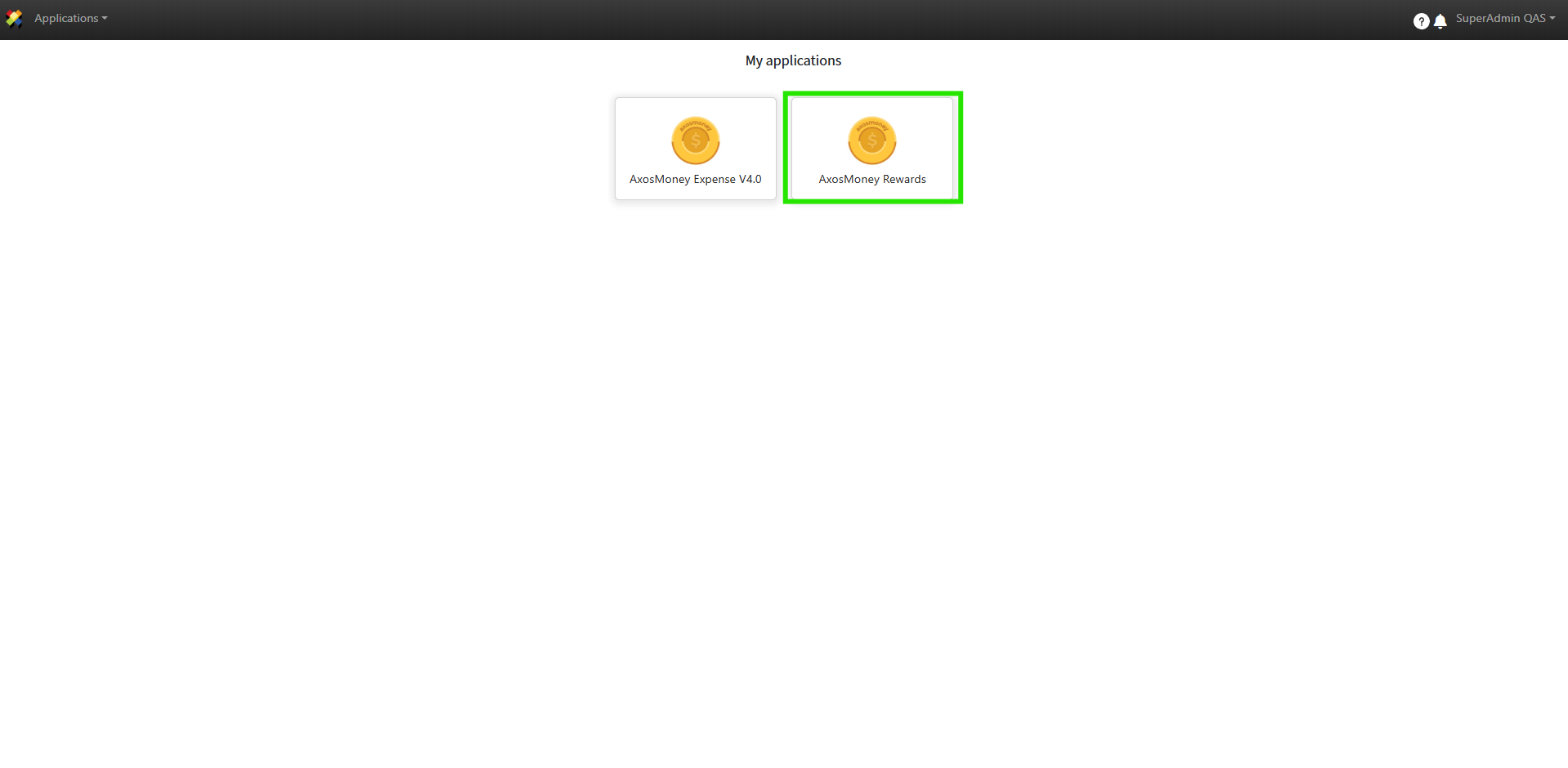
1. Log in to ACS and click on AxosMoney Rewards.
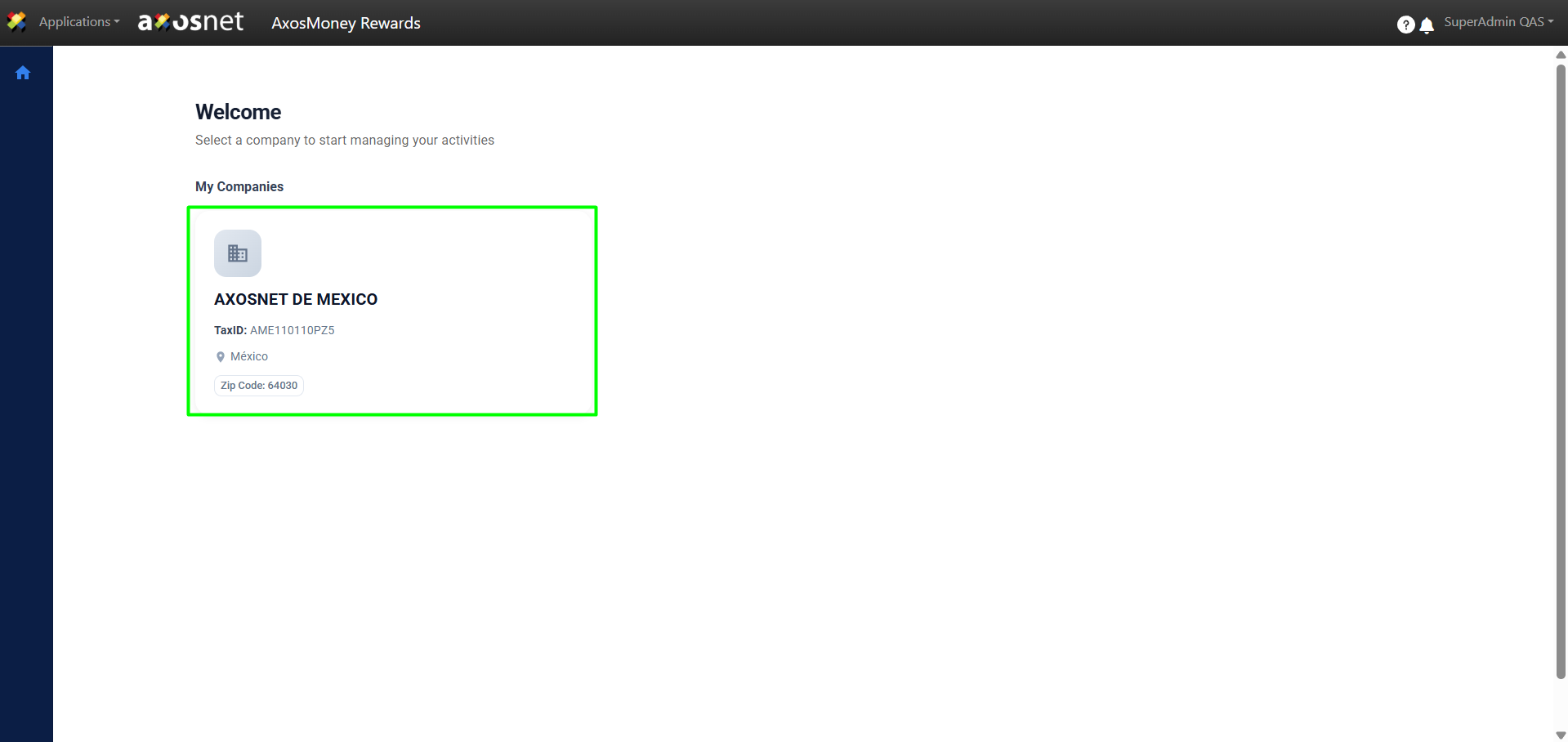
2. Select the company you want to work with.
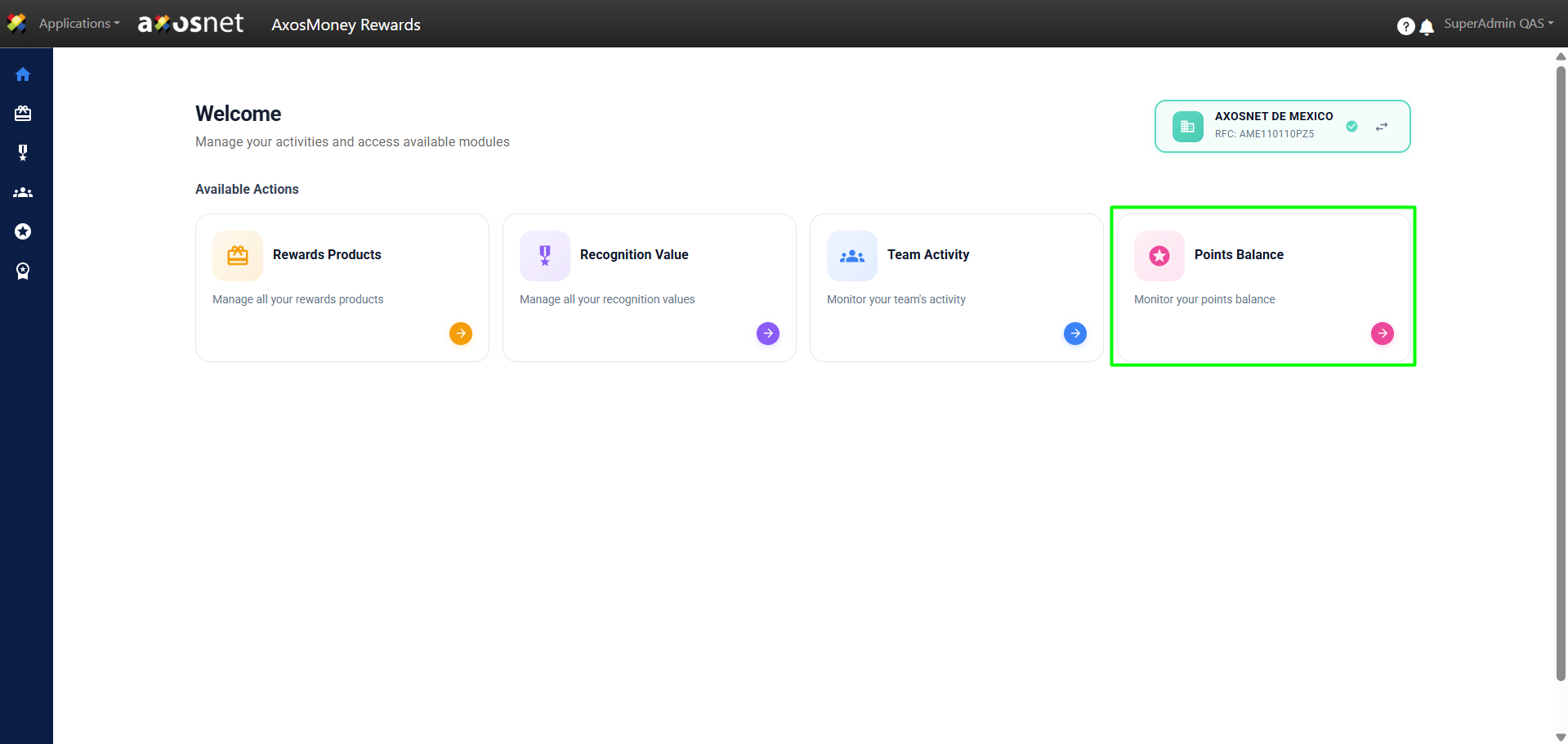
3. Click on Points Balance. This option allows the Super Administrator to view the points initially allocated to a team and the remaining balance at the end of the monthly period. If needed, you can download the Points Balance report in an Excel file.
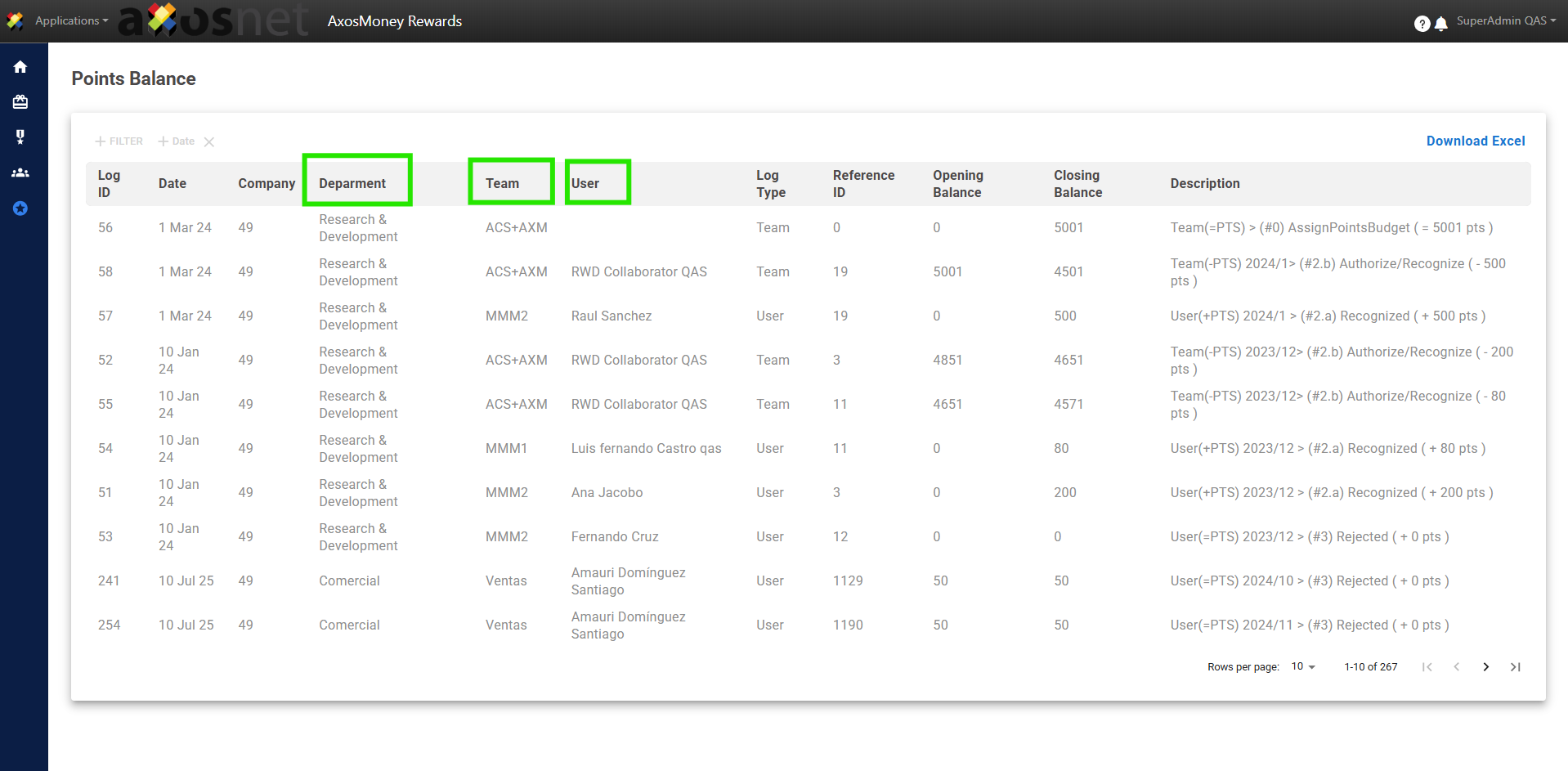
4. View the list of information categorized by Department, Team, and User.
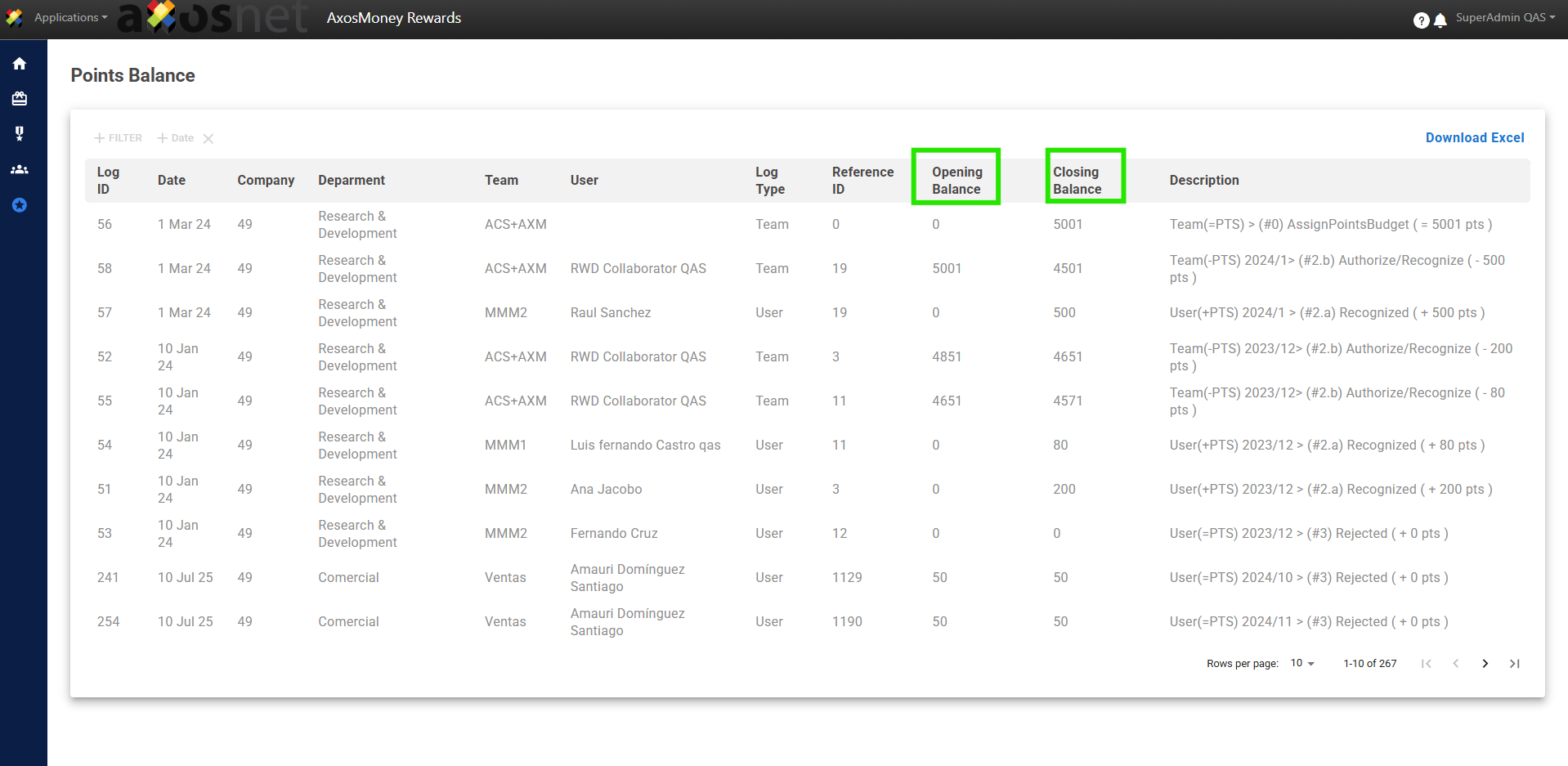
5. You can identify the Initial and Final points balance once the corresponding month has ended.
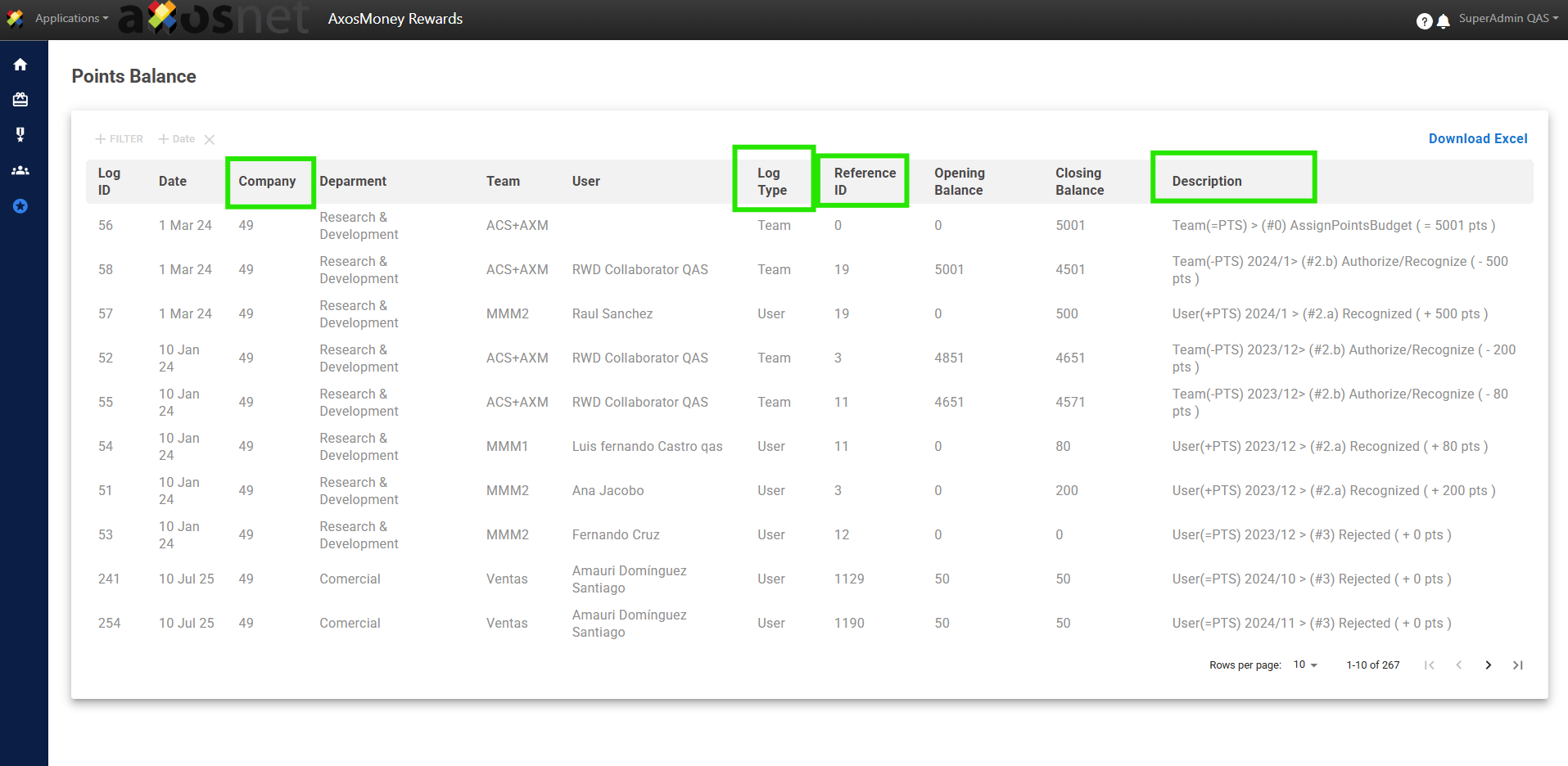
6. At the database level, it displays the Company Identifier, Record Type, Reference ID, and Description.
7. Click on “Filter” and select the option you need.
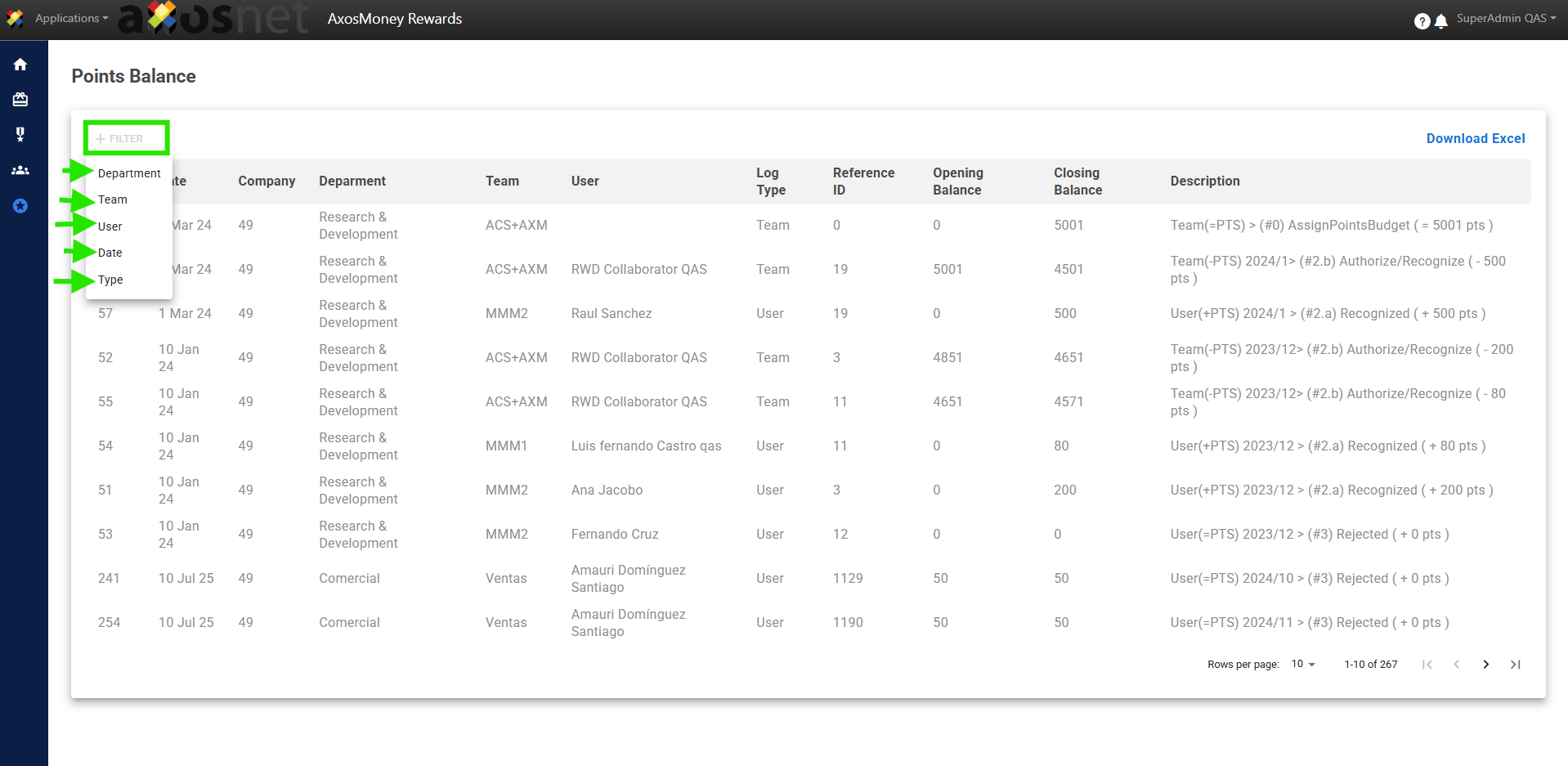
8. Click on the chosen filter option and specify by selecting the desired result. For example, if you choose the “Date” filter, click on that option and enter the date you wish to specify.
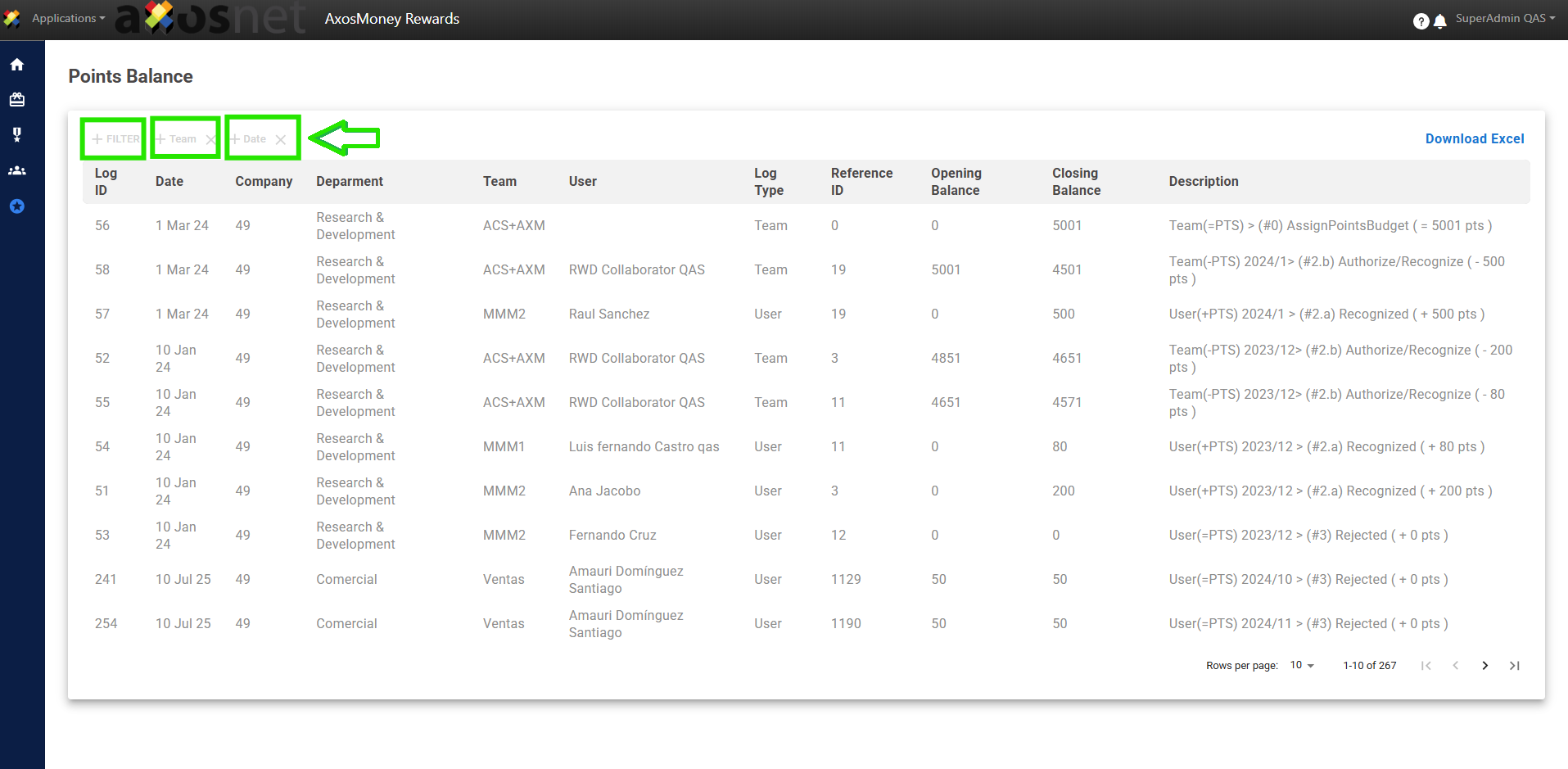
Note: If necessary, select multiple filters for a more specific and quicker search.
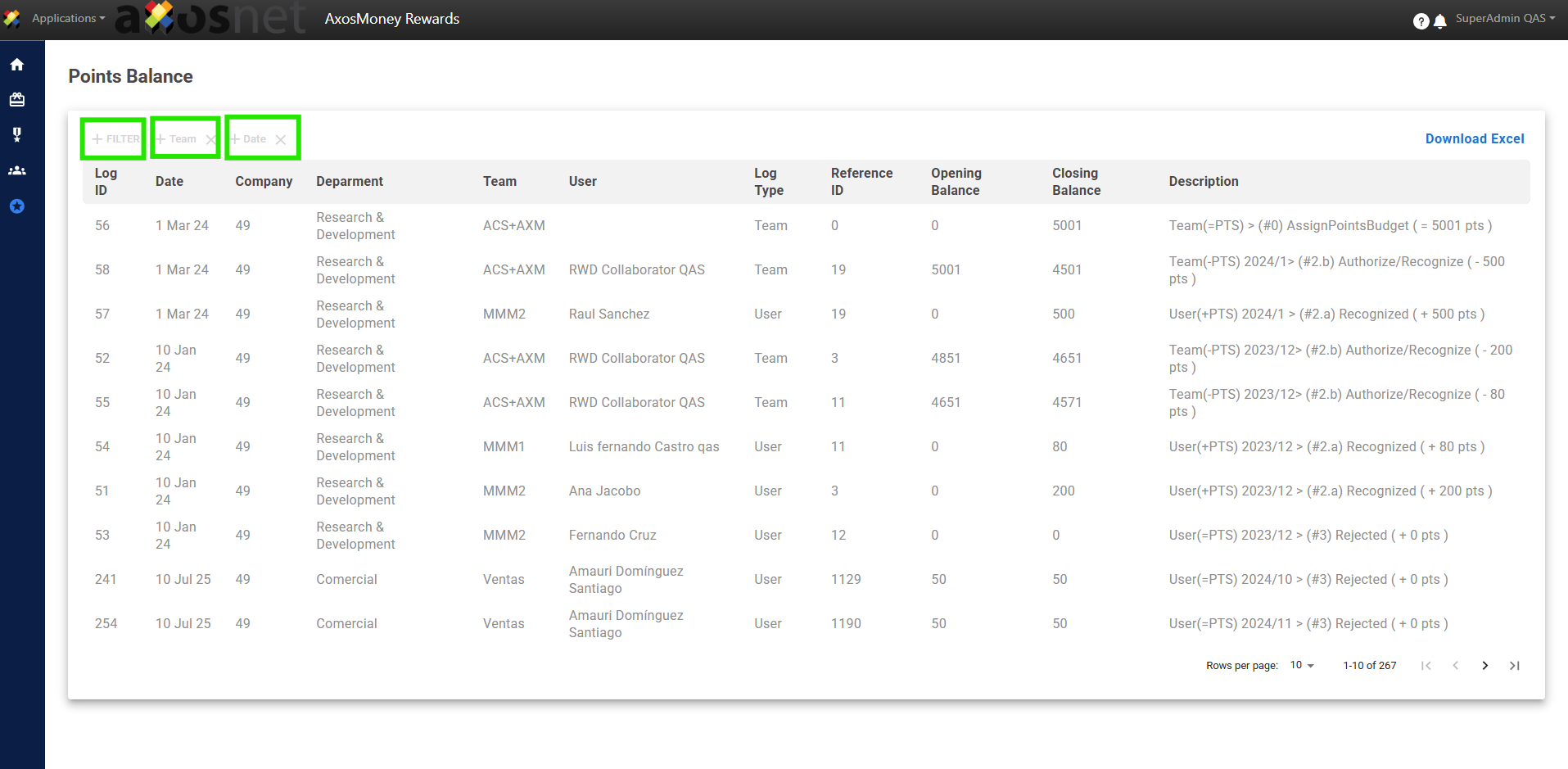
9. Select the “Download Excel” option to obtain the Points Balance report in a .xlsx document.