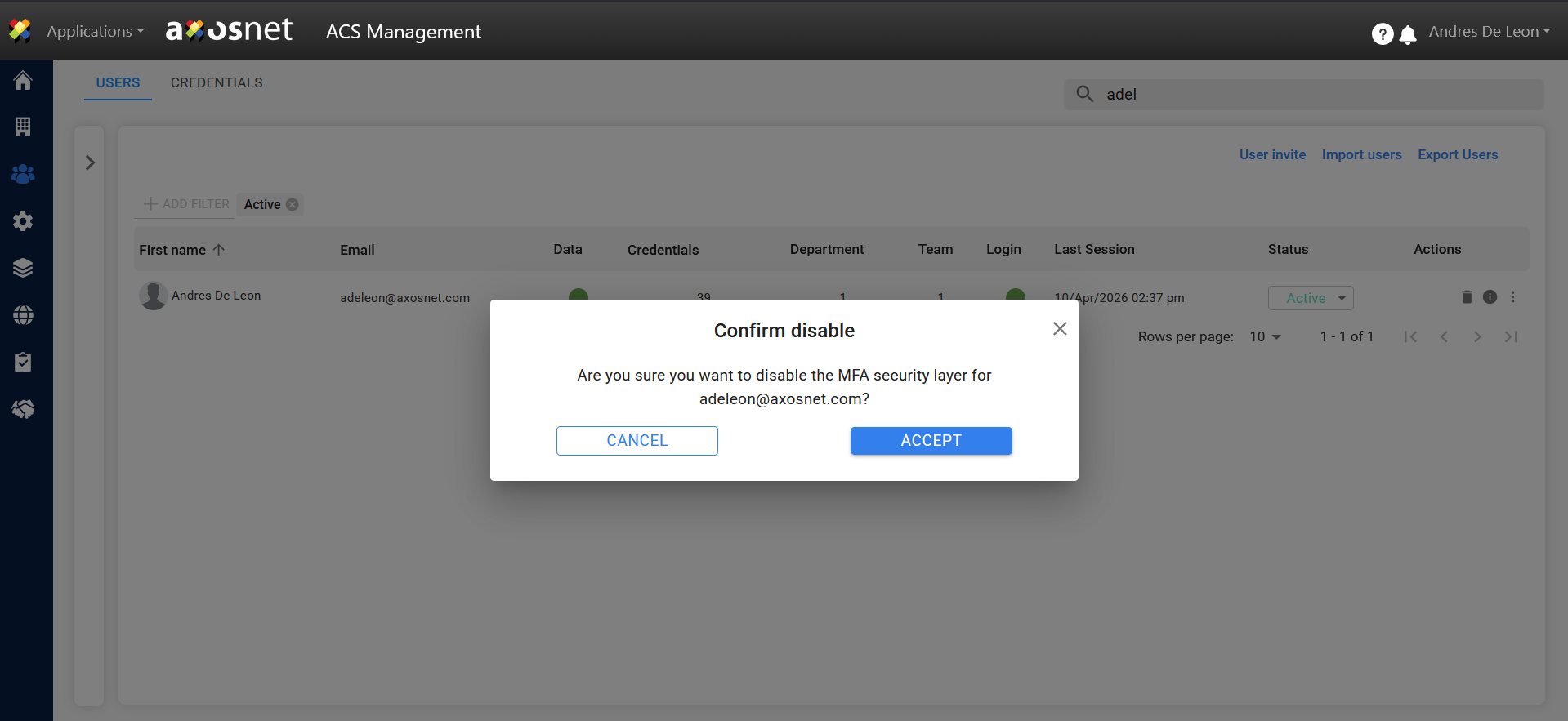
If the MFA feature was enabled by you (instead of by your company), this section helps you to deactivate this feature.
1. Click on the Multifactor Authentication space

2. A screen asking you to enter an authentication code will pop up.

3. Go to the Google Authentication app and check the current code.

4. Enter the code and click SAVE.
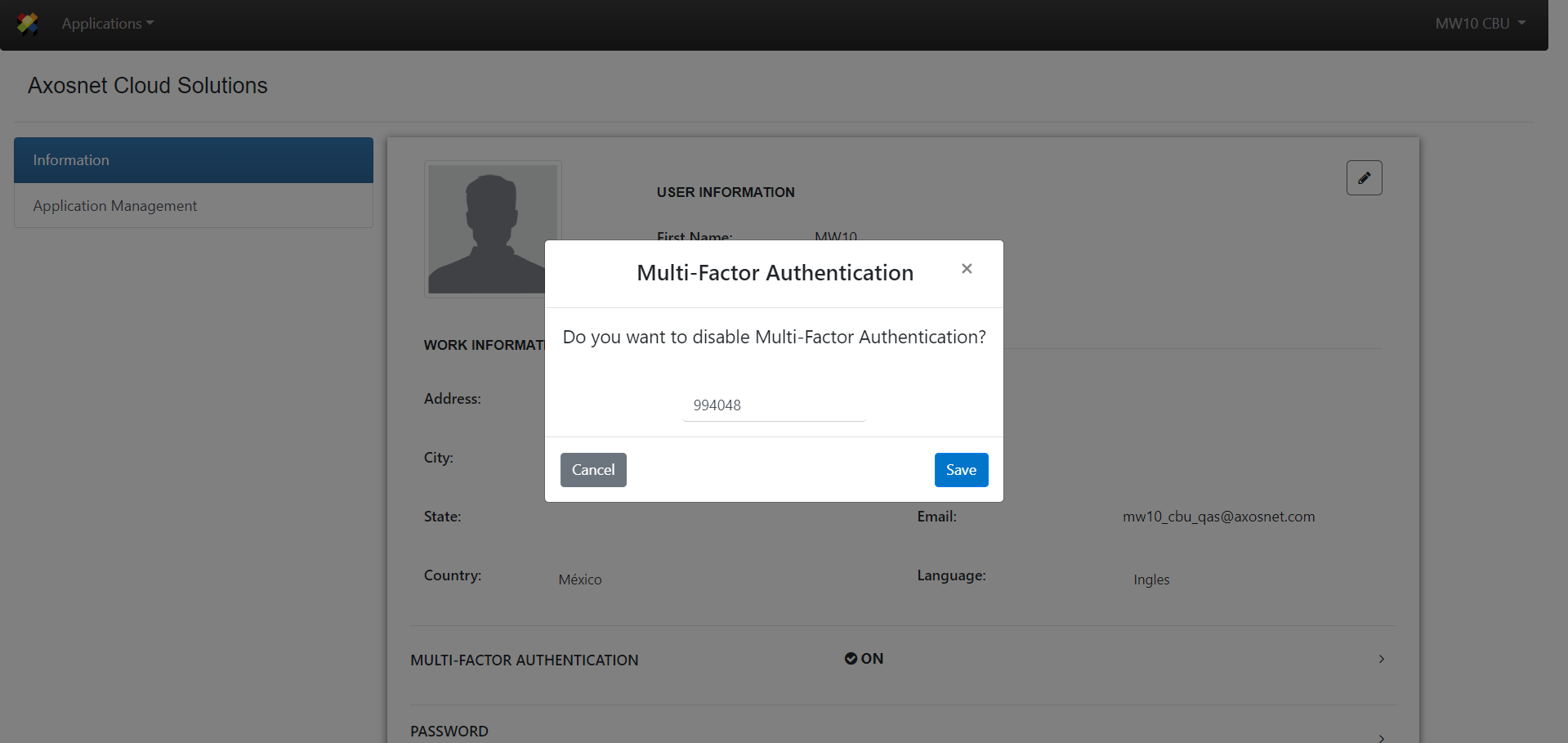
5. The MFA has been deactivated for your account.
Disable MFA as an Administrator
If you are unable to log in, the account administrator can disable “TWO-FACTOR AUTHENTICATION” or “MFA” in the Users section of ACS Management.
To do this, follow these steps:
1. Log in to ACS Management.
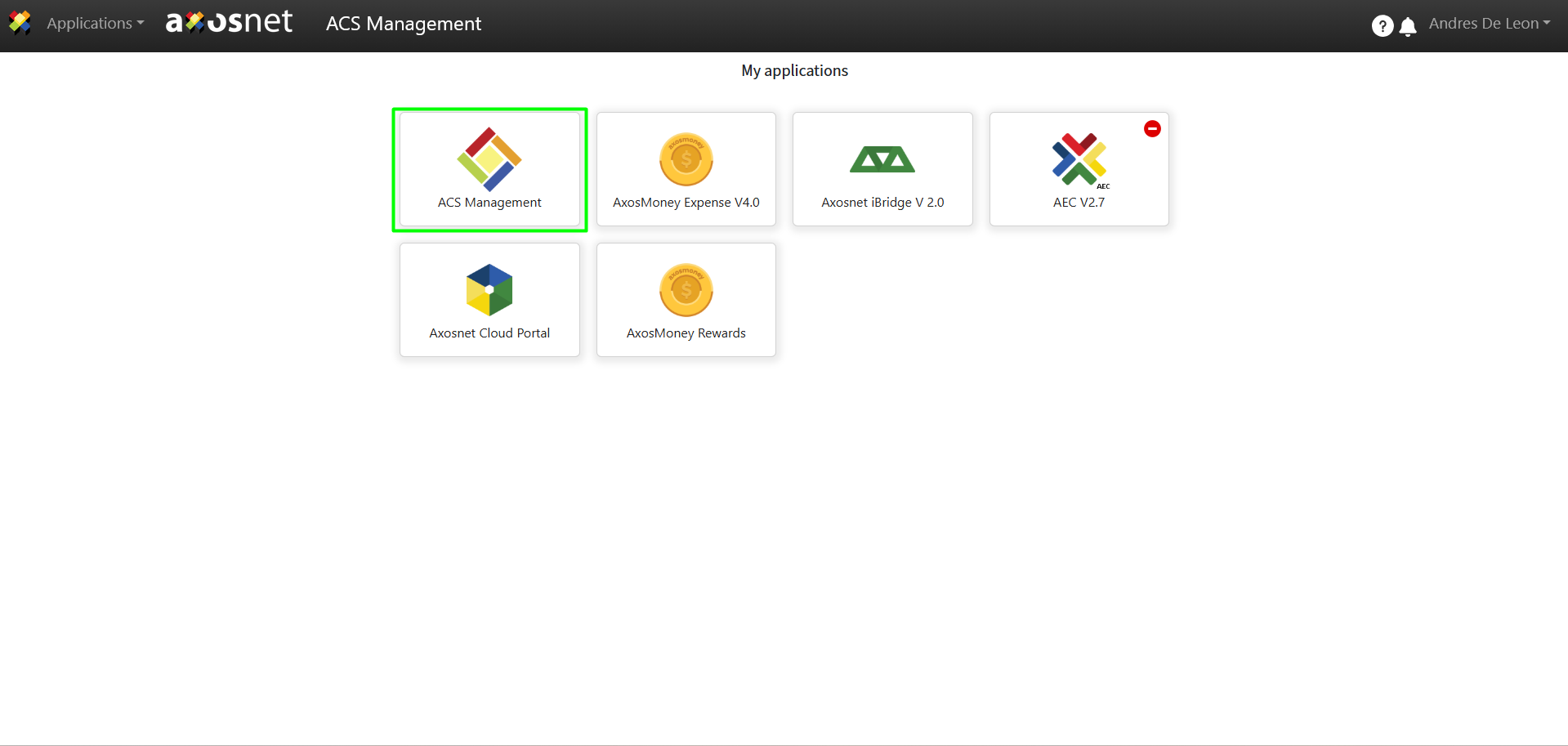
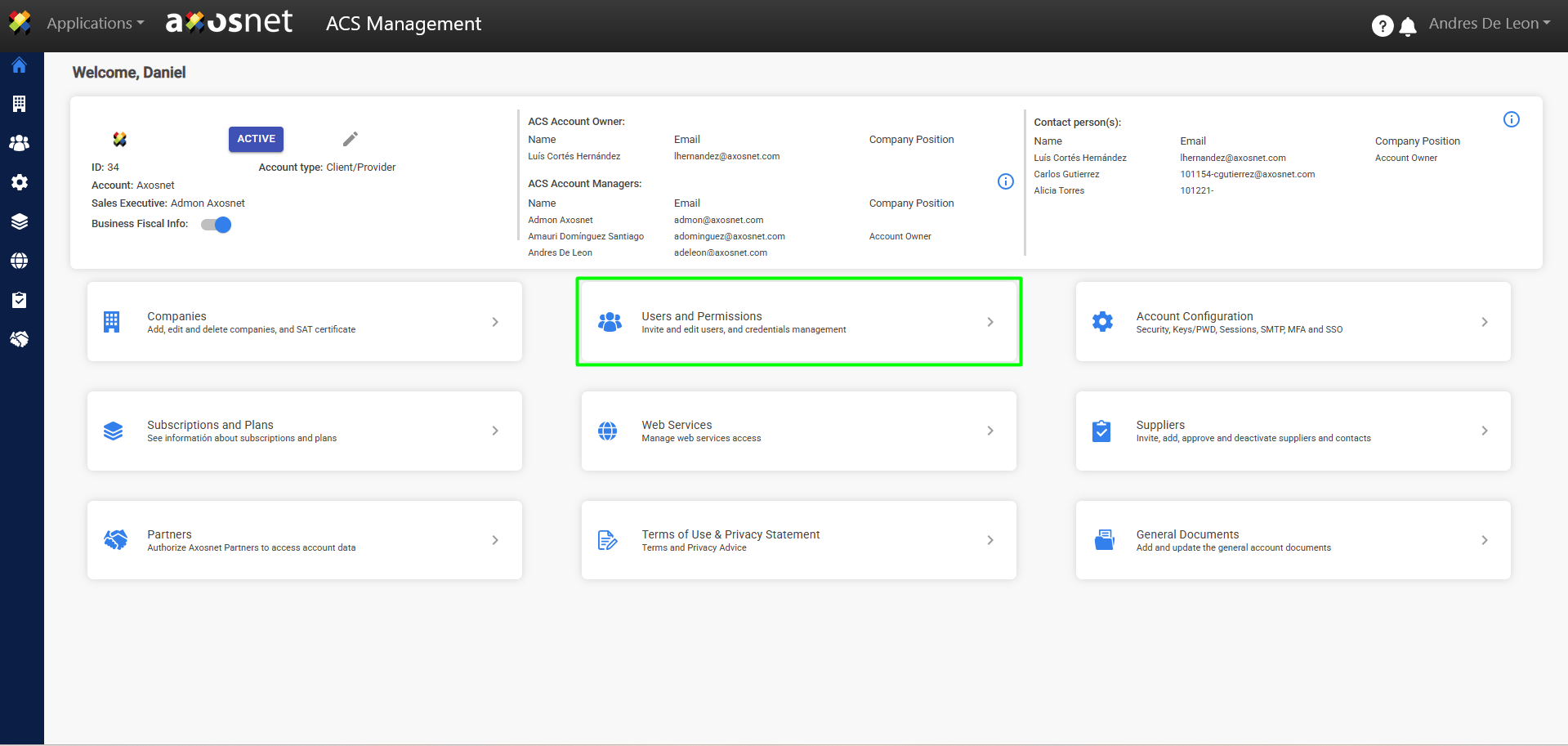
2. Select the “Users and Permissions” option.
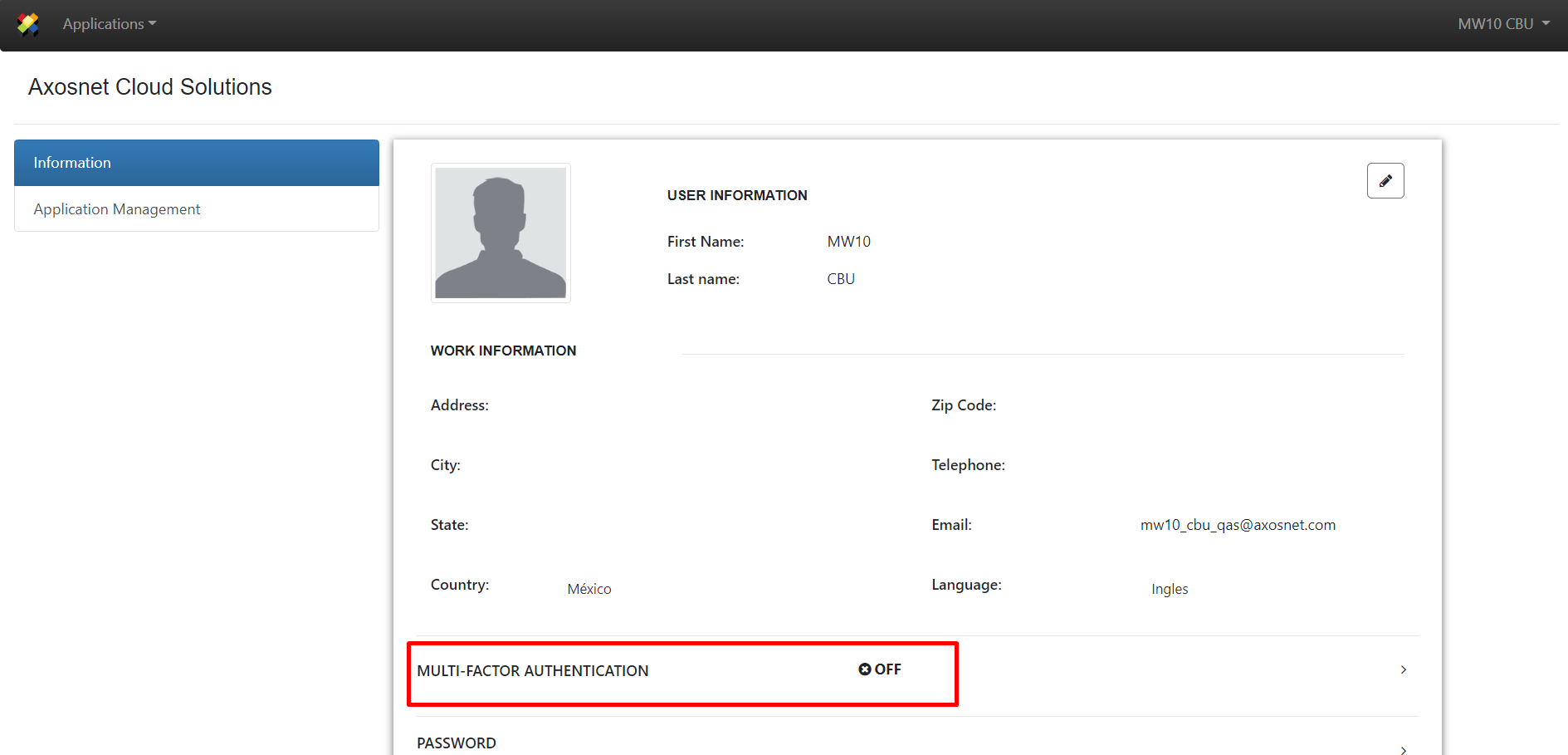
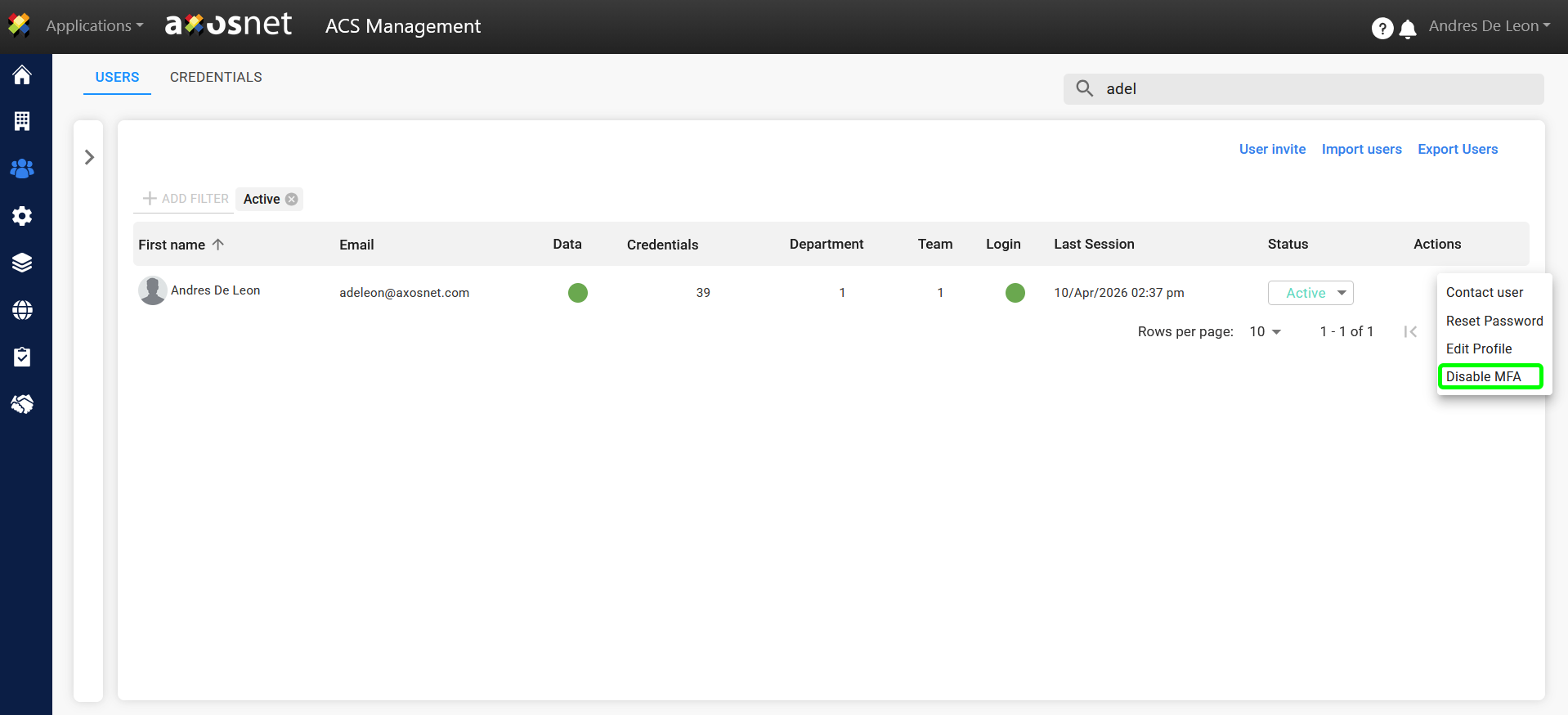
3. Click the three-dot menu to display the available actions, then select “Disable MFA.”
4. A confirmation window will appear. Click “ACCEPT” to disable MFA.